

'%3e%3cpath%20d='M8%200C12.4183%200%2016%203.58172%2016%208C16%2012.4183%2012.4183%2016%208%2016C3.58172%2016%200%2012.4183%200%208C0%203.58172%203.58172%200%208%200ZM11.6162%204.38379C11.2257%203.99337%2010.5927%203.99338%2010.2021%204.38379L8%206.58594L5.79785%204.38379C5.40732%203.99334%204.77429%203.99329%204.38379%204.38379C3.99331%204.77429%203.99335%205.40733%204.38379%205.79785L6.58594%208L4.38379%2010.2021C3.99348%2010.5927%203.99341%2011.2257%204.38379%2011.6162C4.77426%2012.0066%205.40734%2012.0065%205.79785%2011.6162L8%209.41406L10.2021%2011.6162C10.5927%2012.0066%2011.2257%2012.0067%2011.6162%2011.6162C12.0067%2011.2257%2012.0066%2010.5927%2011.6162%2010.2021L9.41406%208L11.6162%205.79785C12.0066%205.40735%2012.0066%204.77429%2011.6162%204.38379Z'%20fill='%23080E17'%20fill-opacity='0.46'/%3e%3c/g%3e%3cdefs%3e%3cclipPath%20id='clip0_3761_713'%3e%3crect%20width='16'%20height='16'%20fill='white'/%3e%3c/clipPath%3e%3c/defs%3e%3c/svg%3e)




'%3e%3cpath%20fill-rule='evenodd'%20clip-rule='evenodd'%20d='M21.4999%2010.9993C21.4999%205.20009%2016.7986%200.498901%2010.9993%200.498901C5.19994%200.498901%200.498657%205.20009%200.498657%2010.9993C0.498657%2016.2404%204.33858%2020.5844%209.35855%2021.3722V14.0346H6.69238V10.9993H9.35855V8.68594C9.35855%206.05427%2010.9262%204.60062%2013.3248%204.60062C14.4736%204.60062%2015.6753%204.80571%2015.6753%204.80571V7.38979H14.3512C13.0468%207.38979%2012.64%208.19921%2012.64%209.0296V10.9993H15.5523L15.0867%2014.0346H12.64V21.3722C17.66%2020.5844%2021.4999%2016.2404%2021.4999%2010.9993Z'%20fill='%231568EA'/%3e%3c/g%3e%3c/svg%3e)


'%3e%3cpath%20d='M2.42045%2022.1876H6.31818V12.7217L0.75%208.54553V20.5171C0.75%2021.4414%201.49892%2022.1876%202.42045%2022.1876Z'%20fill='%234285F4'/%3e%3cpath%20d='M19.682%2022.1876H23.5797C24.5041%2022.1876%2025.2502%2021.4387%2025.2502%2020.5171V8.54553L19.682%2012.7217'%20fill='%2334A853'/%3e%3cpath%20d='M19.682%205.48293V12.7216L25.2502%208.54543V6.31816C25.2502%204.25236%2022.8921%203.07469%2021.2411%204.31361'%20fill='%23FBBC04'/%3e%3cpath%20d='M6.31824%2012.7217V5.48303L13.0001%2010.4944L19.6819%205.48303V12.7217L13.0001%2017.733'%20fill='%23EA4335'/%3e%3cpath%20d='M0.75%206.31816V8.54543L6.31818%2012.7216V5.48293L4.75909%204.31361C3.10534%203.07469%200.75%204.25236%200.75%206.31816Z'%20fill='%23C5221F'/%3e%3c/g%3e%3cdefs%3e%3cclipPath%20id='clip0_2954_7305'%3e%3crect%20width='24.5'%20height='18.375'%20fill='white'%20transform='translate(0.75%203.8125)'/%3e%3c/clipPath%3e%3c/defs%3e%3c/svg%3e)


The three Excel wildcards are * (any number of characters), ? (exactly one character), and ~ (escapes the other two). Use them inside COUNTIF, SUMIF, VLOOKUP, XLOOKUP, and Find & Replace to match partial text without writing one formula per variation.

Wildcards in Excel: How to Use *, ? and ~ (With Examples)
Wildcard Characters in Excel: *, ?, and ~
Wildcards only work against text — a pattern like *east matches "Northeast" and "Southeast", but it will never match the number 12345. Keep the three characters straight:
| Character | Matches | Example pattern | Would match |
|---|---|---|---|
* | Any number of characters (including none) | *combo | Combo, Breakfast combo |
? | Exactly one character | sm?th | Smith, Smyth |
~ | Escapes the next character | fy06~? | The literal text fy06? |
The tilde is the one people forget: if your data genuinely contains an asterisk or question mark (SKU codes often do), search for ~* or ~?. To search for a literal tilde, type ~~.

The three Excel wildcard characters
How to Use Wildcards in COUNTIF, SUMIF, and AVERAGEIF
Any function with a text criteria argument accepts wildcards. The pattern goes inside the criteria string in quotes:
- Count by partial text:
=COUNTIF(A2:A7,"*apple*")returns 4 when the list contains Apple juice, Pineapple, Apple pie, and Pineapple juice — the asterisk catches "apple" anywhere in the cell. - Count by prefix:
=COUNTIF(A2:A7,"apple*")counts only cells that start with "apple", so Pineapple drops out. - Count fixed-length codes:
=COUNTIF(A2:A100,"???")counts cells containing exactly three characters. - Sum matching rows:
=SUMIF(A2:A20,"Laptop*",B2:B20)adds the revenue of every product whose name starts with "Laptop". - Average with a suffix:
=AVERAGEIF(A2:A20,"*east",B2:B20)averages values for entries ending in "east". - Reference a cell plus a wildcard:
=COUNTIF(A2:A20,"*"&D1&"*")builds the pattern from whatever the user types into D1 — handy for a mini search box.
If a COUNTIF with a wildcard returns 0 when matches clearly exist, the usual causes are trailing spaces or a number stored as text — see the Excel COUNTIF not working fixes. For counting cells that simply have anything in them, wildcards are the wrong tool; use COUNTIF not blank instead.
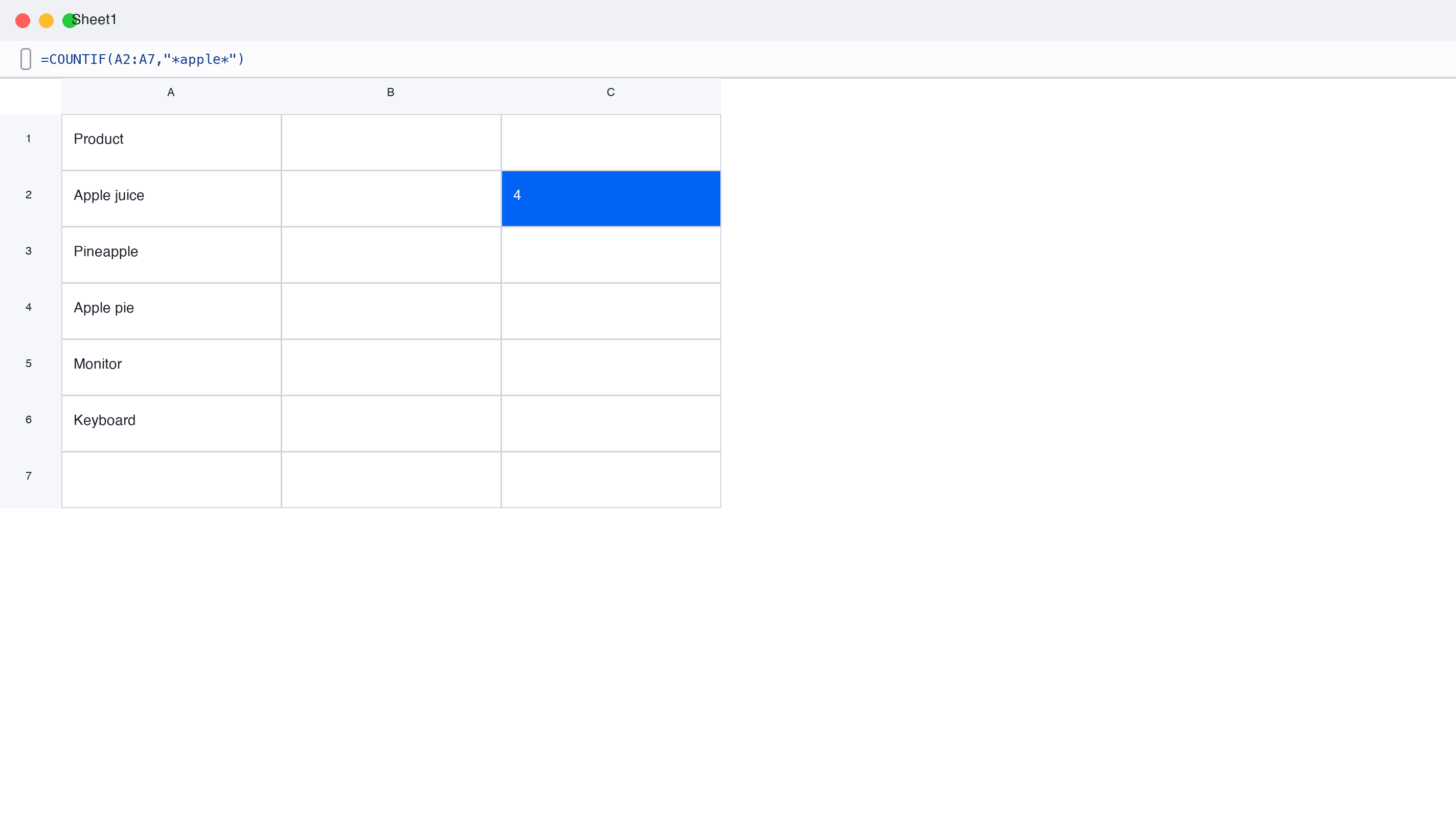
COUNTIF formula with wildcard pattern
Using Wildcards in VLOOKUP and XLOOKUP
Lookup functions match wildcards when the lookup value is a text pattern and (for VLOOKUP) range_lookup is set to FALSE:
- VLOOKUP with a prefix:
=VLOOKUP("Jon*",A2:B5,2,FALSE)finds the first employee whose name starts with "Jon" and returns the department — Jon and Jonathan both match. - VLOOKUP with a question mark:
=VLOOKUP("J?n",A2:B5,2,FALSE)matches exactly three characters, so "Jon" and "Jan" match but "Joan" does not. - XLOOKUP: use
=XLOOKUP("*son",A2:A20,B2:B20,"Not found",2)— the fifth argument,match_mode2, is what switches wildcard matching on. Without it, XLOOKUP treats the asterisk as plain text. - Caution: wildcard lookups return the first match only. If two names both start with "Jon", sort your data or use a more specific pattern.
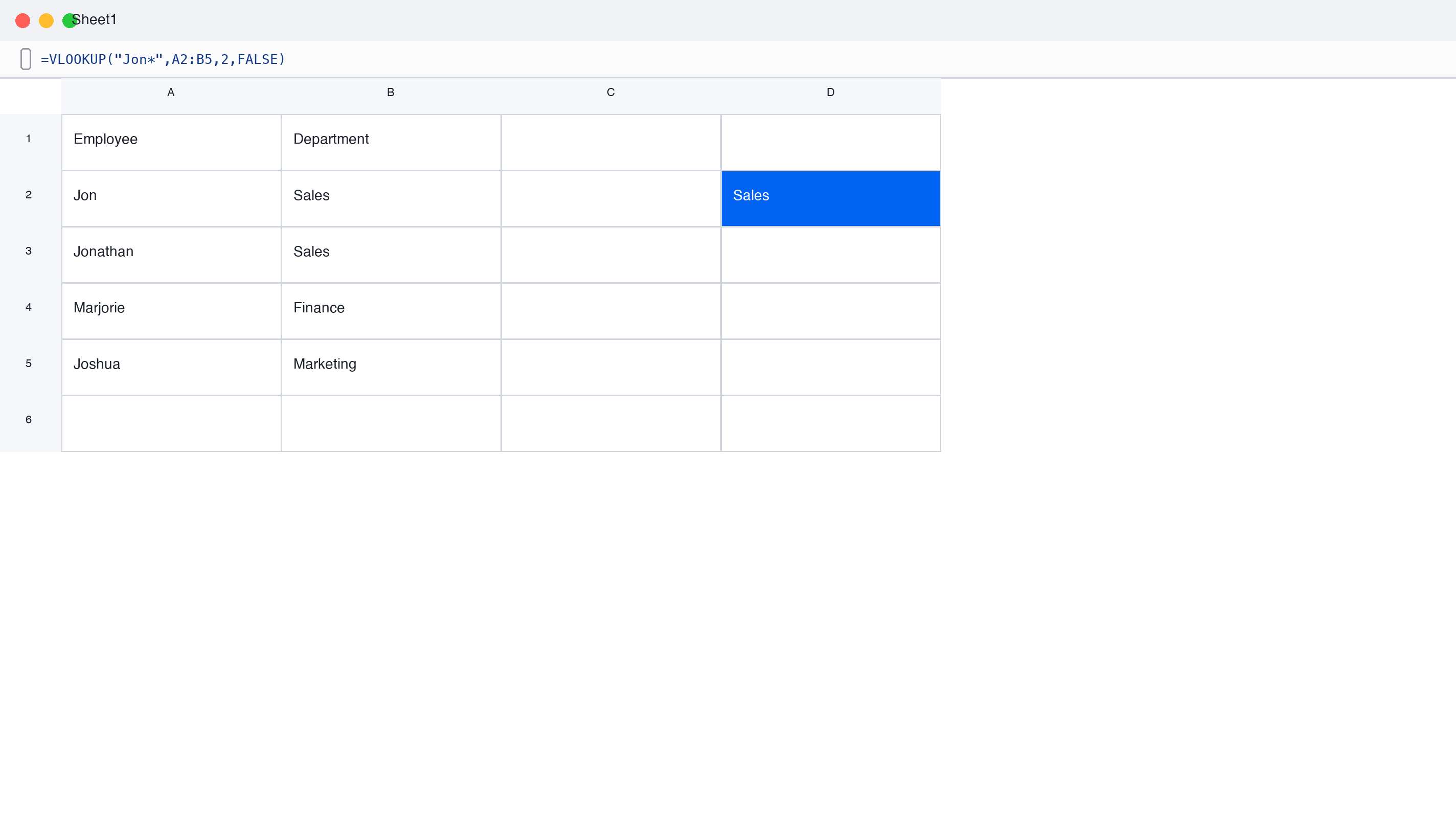
VLOOKUP formula using wildcard
Wildcards in Find and Replace and Filters
Wildcards are on by default in Find and Replace — no setting to enable. To clean a messy list in one pass:
- Press Ctrl+F (or Home > Find & Select > Find), or Ctrl+H to go straight to Replace.
- Type a pattern in Find what, for example
jo*to catch Jon, John, and Jonathan in one search. - Click Options >> and tick Match entire cell contents if you want whole-cell matches instead of "contains".
- Click Find All to preview every hit before touching anything — safer than blind-replacing.
- In Replace with, enter the corrected text and click Replace All.
AutoFilter behaves the same way: in a Text Filters > Contains box, *apple* and plain apple both work, and ????? filters to five-character entries.
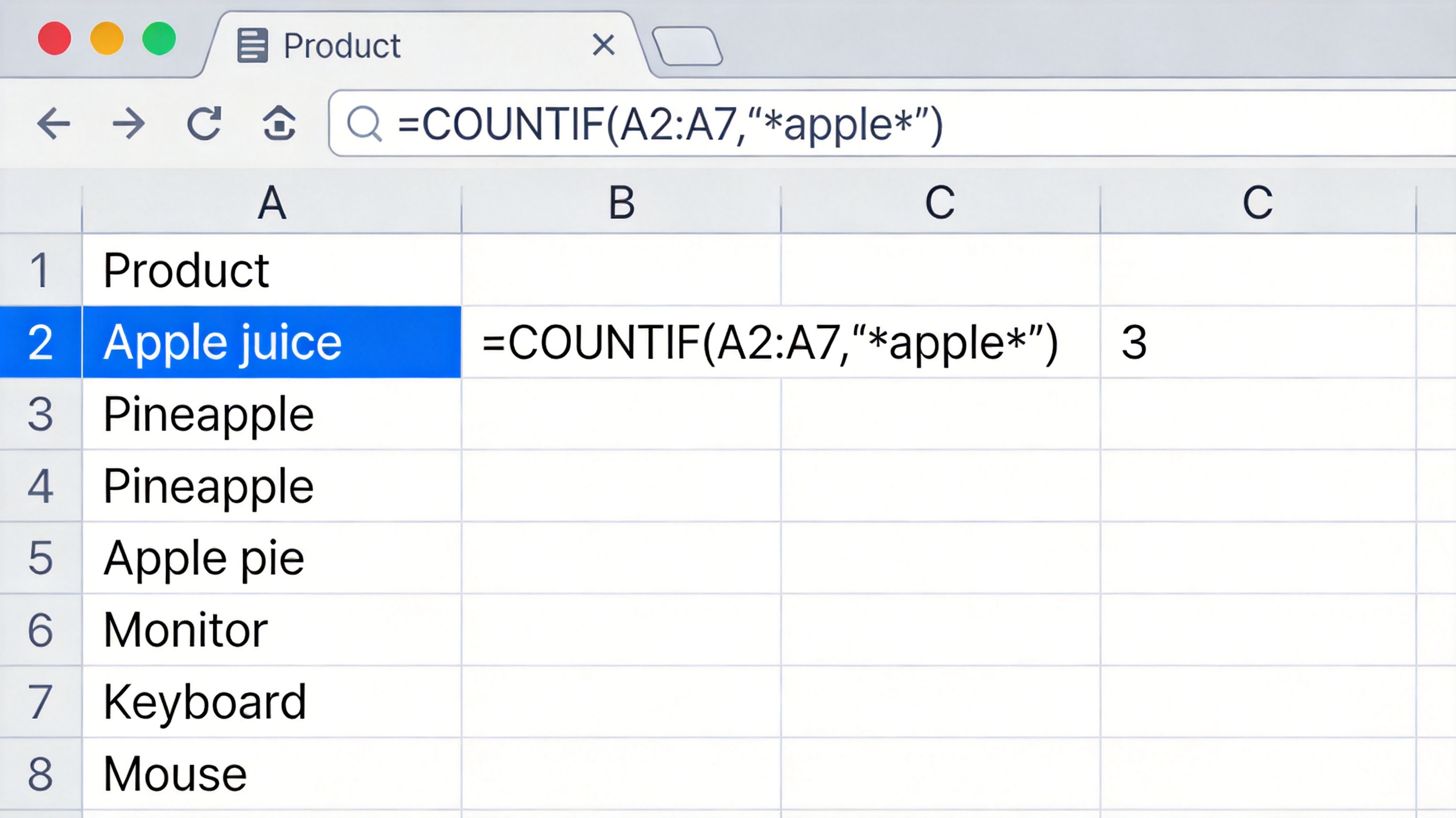
Find and Replace with wildcard
Wildcard Rules, Limits, and Common Errors
Four limits explain most "my wildcard formula doesn't work" moments:
- Wildcards ignore numbers.
=COUNTIF(A1:A10,"12*")will not match 123 or 1234 when they are stored as numbers. Convert the column to text (or use number comparison operators instead). - Matching is case-insensitive.
*apple*matches Apple, APPLE, and pineapple alike — there is no case-sensitive wildcard switch; use EXACT-based formulas if case matters. - Leading/trailing spaces break patterns. " apple" does not match
apple*. Clean with TRIM first. - Literal * or ? needs the tilde. Searching
~*finds a real asterisk; forgetting this makes "search for an asterisk" match everything.
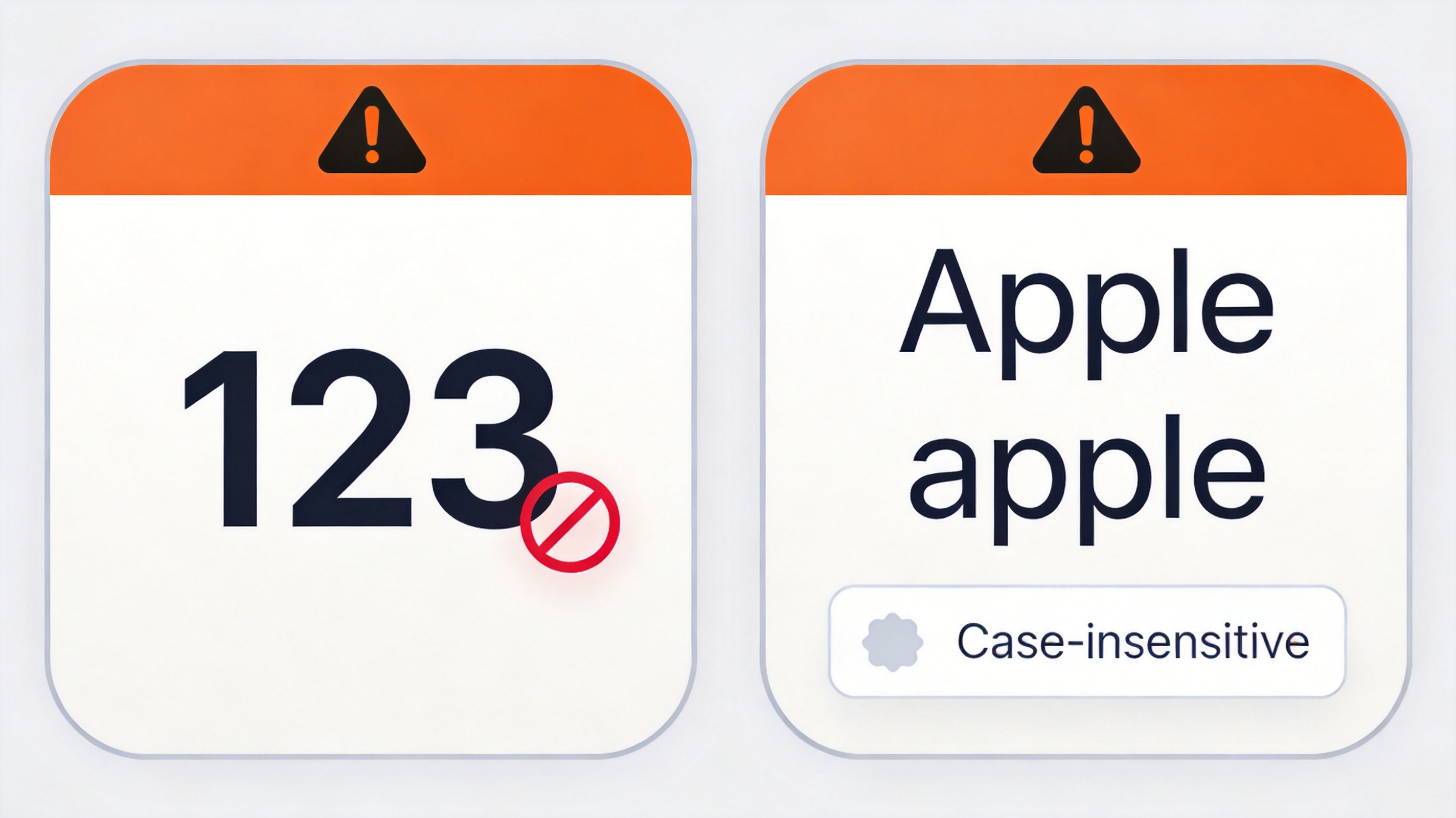
Wildcard limits with numbers
The Best Free Alternative: WPS Office
Every wildcard formula above works exactly the same in WPS Spreadsheet — the free, lightweight alternative to Microsoft Excel. You get the full COUNTIF/SUMIF/VLOOKUP/XLOOKUP toolset, Find & Replace with wildcards, and WPS AI that can write or explain a pattern-based formula for you, so a forgotten tilde doesn't cost an afternoon.

WPS Spreadsheet formula example
FAQs
1. What are the wildcard characters in Excel?
Three: * matches any number of characters, ? matches exactly one, and ~ escapes the other two so you can search for a literal asterisk or question mark.
2. Why doesn't my wildcard formula work on numbers?
Wildcards only apply to text. Numbers stored as numeric values are invisible to * and ? patterns — format the cells as text or use comparison operators like ">100" instead.
3. How do I search for an actual asterisk in Excel?
Prefix it with a tilde: search for ~*. The same rule applies to question marks (~?) and to a literal tilde (~~).
4. Which Excel functions support wildcards?
All functions with a text criteria argument: COUNTIF, COUNTIFS, SUMIF, SUMIFS, AVERAGEIF, SEARCH, MATCH, HLOOKUP, VLOOKUP (with exact match), and XLOOKUP (with match_mode 2), plus Find and Replace and AutoFilter.
5. Are Excel wildcards case-sensitive?
No. *apple* matches "Apple", "APPLE", and "Pineapple" equally. If case sensitivity matters, use formulas built on EXACT() or FIND() instead of wildcard matching.

'%3e%3cpath%20d='M19.9911%204.11386V6.471H18.5894C18.0775%206.471%2017.7322%206.57814%2017.5536%206.79243C17.3751%207.00671%2017.2858%207.32814%2017.2858%207.75671V9.44421H19.9019L19.5536%2012.0871H17.2858V18.8639H14.5536V12.0871H12.2769V9.44421H14.5536V7.49779C14.5536%206.39064%2014.8632%205.53201%2015.4822%204.92189C16.1013%204.31177%2016.9257%204.00671%2017.9554%204.00671C18.8304%204.00671%2019.509%204.04243%2019.9911%204.11386Z'%20fill='%23333333'/%3e%3c/g%3e%3cdefs%3e%3cclipPath%20id='clip0_2938_8199'%3e%3crect%20width='16'%20height='16'%20fill='white'%20transform='translate(8%204.00671)'/%3e%3c/clipPath%3e%3c/defs%3e%3c/svg%3e)
'%3e%3cpath%20d='M17.5237%2010.7813L23.4811%204H22.0699L16.8949%209.88693L12.7648%204H8L14.2469%2012.9029L8%2020.0133H9.4112L14.8725%2013.7952L19.2352%2020.0133H24M9.92053%205.04213H12.0885L22.0688%2019.0224H19.9003'%20fill='%23333333'/%3e%3c/g%3e%3cdefs%3e%3cclipPath%20id='clip0_2938_8200'%3e%3crect%20width='16'%20height='16.0134'%20fill='white'%20transform='translate(8%204)'/%3e%3c/clipPath%3e%3c/defs%3e%3c/svg%3e)


