

'%3e%3cpath%20d='M8%200C12.4183%200%2016%203.58172%2016%208C16%2012.4183%2012.4183%2016%208%2016C3.58172%2016%200%2012.4183%200%208C0%203.58172%203.58172%200%208%200ZM11.6162%204.38379C11.2257%203.99337%2010.5927%203.99338%2010.2021%204.38379L8%206.58594L5.79785%204.38379C5.40732%203.99334%204.77429%203.99329%204.38379%204.38379C3.99331%204.77429%203.99335%205.40733%204.38379%205.79785L6.58594%208L4.38379%2010.2021C3.99348%2010.5927%203.99341%2011.2257%204.38379%2011.6162C4.77426%2012.0066%205.40734%2012.0065%205.79785%2011.6162L8%209.41406L10.2021%2011.6162C10.5927%2012.0066%2011.2257%2012.0067%2011.6162%2011.6162C12.0067%2011.2257%2012.0066%2010.5927%2011.6162%2010.2021L9.41406%208L11.6162%205.79785C12.0066%205.40735%2012.0066%204.77429%2011.6162%204.38379Z'%20fill='%23080E17'%20fill-opacity='0.46'/%3e%3c/g%3e%3cdefs%3e%3cclipPath%20id='clip0_3761_713'%3e%3crect%20width='16'%20height='16'%20fill='white'/%3e%3c/clipPath%3e%3c/defs%3e%3c/svg%3e)




'%3e%3cpath%20fill-rule='evenodd'%20clip-rule='evenodd'%20d='M21.4999%2010.9993C21.4999%205.20009%2016.7986%200.498901%2010.9993%200.498901C5.19994%200.498901%200.498657%205.20009%200.498657%2010.9993C0.498657%2016.2404%204.33858%2020.5844%209.35855%2021.3722V14.0346H6.69238V10.9993H9.35855V8.68594C9.35855%206.05427%2010.9262%204.60062%2013.3248%204.60062C14.4736%204.60062%2015.6753%204.80571%2015.6753%204.80571V7.38979H14.3512C13.0468%207.38979%2012.64%208.19921%2012.64%209.0296V10.9993H15.5523L15.0867%2014.0346H12.64V21.3722C17.66%2020.5844%2021.4999%2016.2404%2021.4999%2010.9993Z'%20fill='%231568EA'/%3e%3c/g%3e%3c/svg%3e)


'%3e%3cpath%20d='M2.42045%2022.1876H6.31818V12.7217L0.75%208.54553V20.5171C0.75%2021.4414%201.49892%2022.1876%202.42045%2022.1876Z'%20fill='%234285F4'/%3e%3cpath%20d='M19.682%2022.1876H23.5797C24.5041%2022.1876%2025.2502%2021.4387%2025.2502%2020.5171V8.54553L19.682%2012.7217'%20fill='%2334A853'/%3e%3cpath%20d='M19.682%205.48293V12.7216L25.2502%208.54543V6.31816C25.2502%204.25236%2022.8921%203.07469%2021.2411%204.31361'%20fill='%23FBBC04'/%3e%3cpath%20d='M6.31824%2012.7217V5.48303L13.0001%2010.4944L19.6819%205.48303V12.7217L13.0001%2017.733'%20fill='%23EA4335'/%3e%3cpath%20d='M0.75%206.31816V8.54543L6.31818%2012.7216V5.48293L4.75909%204.31361C3.10534%203.07469%200.75%204.25236%200.75%206.31816Z'%20fill='%23C5221F'/%3e%3c/g%3e%3cdefs%3e%3cclipPath%20id='clip0_2954_7305'%3e%3crect%20width='24.5'%20height='18.375'%20fill='white'%20transform='translate(0.75%203.8125)'/%3e%3c/clipPath%3e%3c/defs%3e%3c/svg%3e)


The SWITCH function in Excel compares one value against a list of candidate values and returns the result paired with the first match — a cleaner, flatter replacement for long chains of nested IFs. Instead of repeating IF(...) over and over, you write the expression once, list each value and its result, and optionally end with a default. This guide walks through the syntax, a step-by-step first formula, copy-ready examples, and the limits you should know before switching from IF.
How to Use the SWITCH Function in Excel (With Examples)
What Is the SWITCH Function in Excel
The SWITCH function evaluates one expression — a cell reference, a constant, or another formula — and checks it against up to 126 value/result pairs. It returns the result of the first value that matches, or an optional default if nothing matches. Think of it as a self-contained lookup table: no helper range, no separate VLOOKUP table, just one formula.
Typical jobs for the SWITCH function in Excel include converting codes to labels (S → Small), classifying records (weekend vs weekday), and picking a calculation based on a unit. Matching is exact and case-insensitive: text "1" does not match the number 1, and wildcards are not supported — for pattern matching you need Excel wildcards with functions like COUNTIF instead.
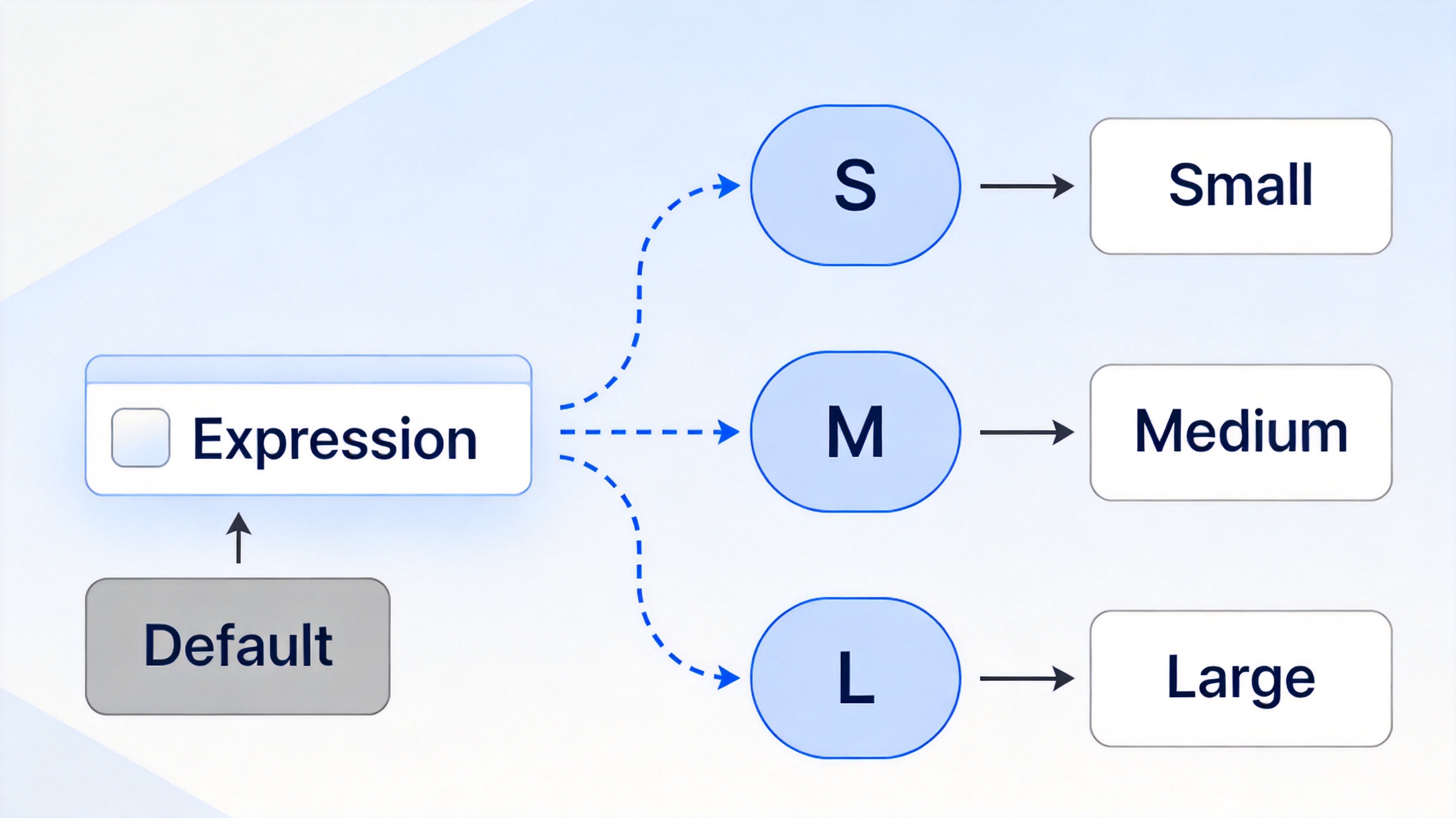
SWITCH matches one expression to many results


SWITCH Function Syntax and Arguments
The syntax of the SWITCH function is:
=SWITCH(expression, value1, result1, [value2, result2, ...], [default])
expression (required): the value to compare — a cell, a number, text, or a formula such as
WEEKDAY(B5).value1, result1: the first candidate value and what to return when it matches. You can supply up to 126 pairs.
default (optional): the last argument, written alone with no matching value. It is returned when nothing matches. Without it, an unmatched expression returns
#N/A.
SWITCH is available in Excel 2019 and later, including Microsoft 365, and works the same way in WPS Spreadsheet. Results can be text, numbers, or formulas, so one SWITCH can output labels for some codes and calculations for others.
How to Use the SWITCH Function in WPS
Here is a complete first formula, converting size codes into readable labels:
Select the result cell. Click the first empty cell next to your data, for example B2 beside a size code in A2.
Type the expression. Start with
=SWITCH(A2— this is the value every candidate will be tested against.Add value/result pairs. Continue with
"S","Small","M","Medium","L","Large". Each candidate value is immediately followed by the result to return.Close with a default. End the formula with
"Unknown"as the final argument, then press Enter:=SWITCH(A2,"S","Small","M","Medium","L","Large","Unknown").Fill down. Drag the fill handle over the remaining rows. The unmatched code XL correctly falls through to Unknown.
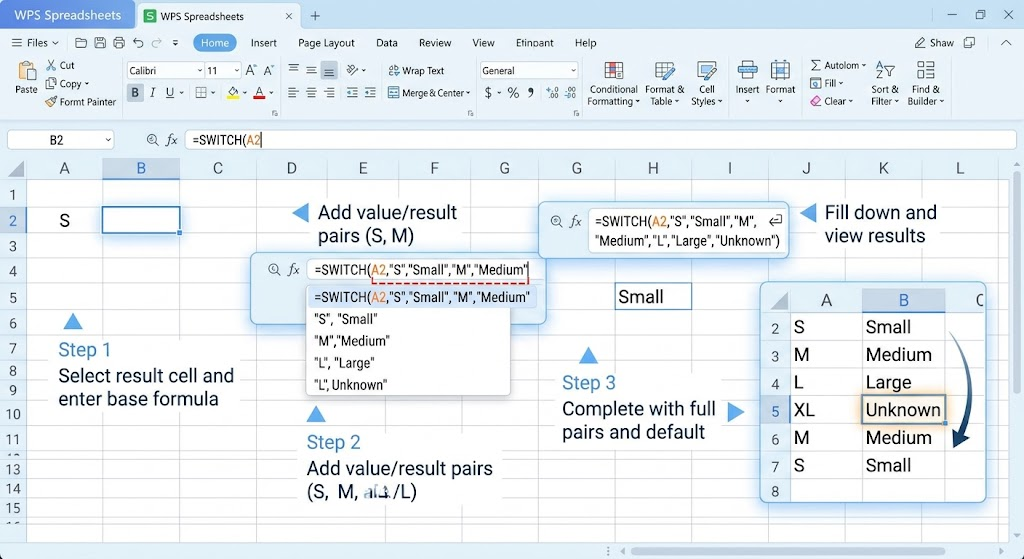
Use the SWITCH Function in WPS
SWITCH Function Examples You Can Copy
Three everyday patterns cover most SWITCH needs:
Translate ratings:
=SWITCH(A2,1,"Poor",2,"OK",3,"Good","?")turns scores into words, with "?" as the catch-all.Classify weekdays:
=SWITCH(WEEKDAY(B5),1,"Weekend",7,"Weekend","Weekday")feeds the day number into SWITCH and flags Saturdays and Sundays.Tier sales with comparisons: SWITCH only does exact matching, so for thresholds set the expression to
TRUE:=SWITCH(TRUE,C5>=1000,"Gold",C5>=500,"Silver","Bronze"). The first condition that evaluates to TRUE wins.
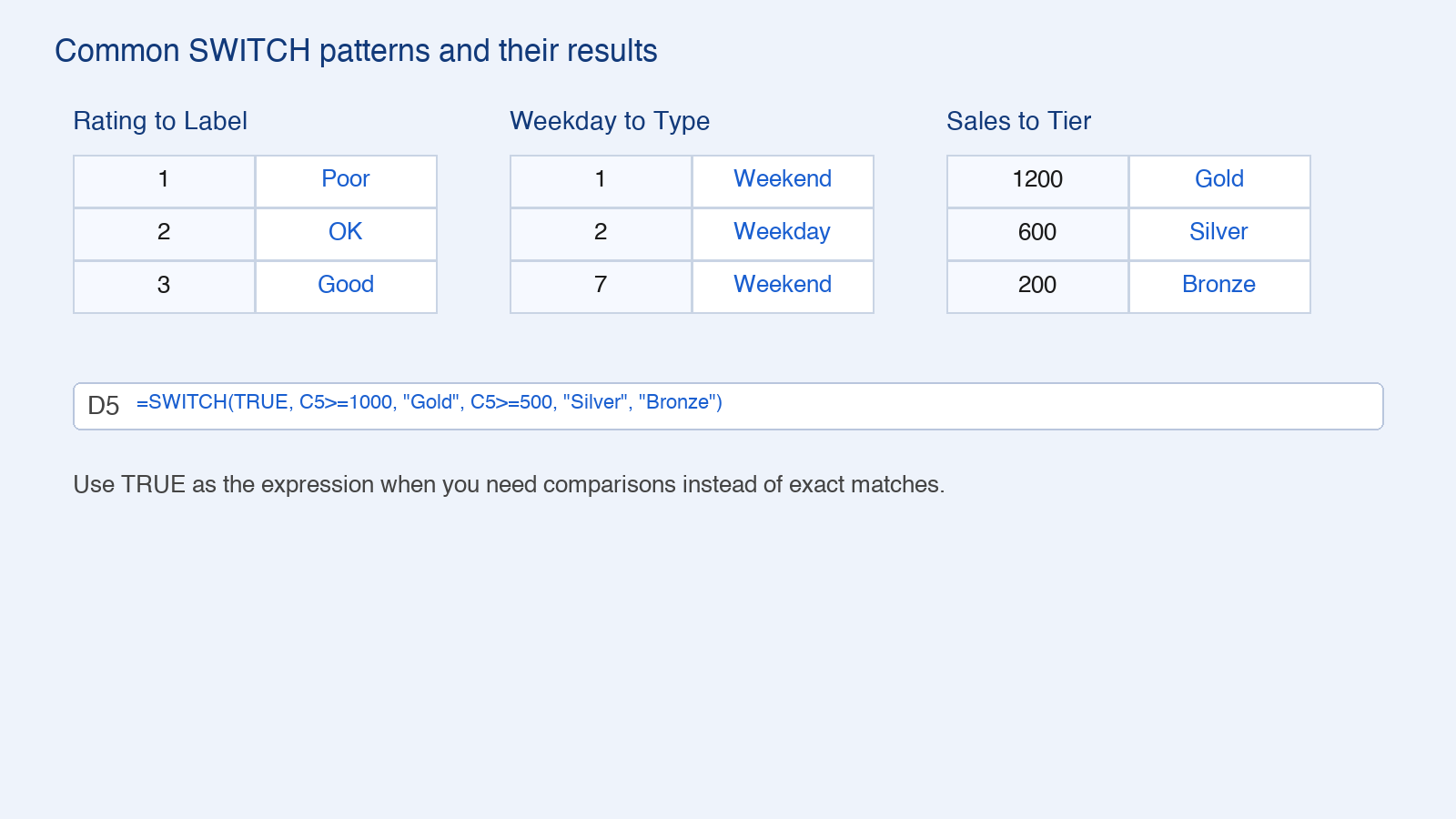
SWITCH examples for ratings, weekdays and tiers
SWITCH Function vs Nested IF and IFS
Nested IF repeats the target cell at every level and piles up closing parentheses — three levels are readable, six are not. IFS improves on that but still restates each full condition. SWITCH reads the expression once, which makes long exact-match lists both shorter and easier to audit.
Use SWITCH when one value is tested against many exact candidates: codes, statuses, units, menu picks.
Use IFS when each condition is different (ranges, AND/OR logic) and no single expression repeats.
Use nested IF only for one or two simple branches, or when you must support Excel 2016 and older, where SWITCH does not exist.
One caution: SWITCH evaluates every result argument rather than stopping at the first match, so avoid parking very heavy calculations inside rarely used pairs.
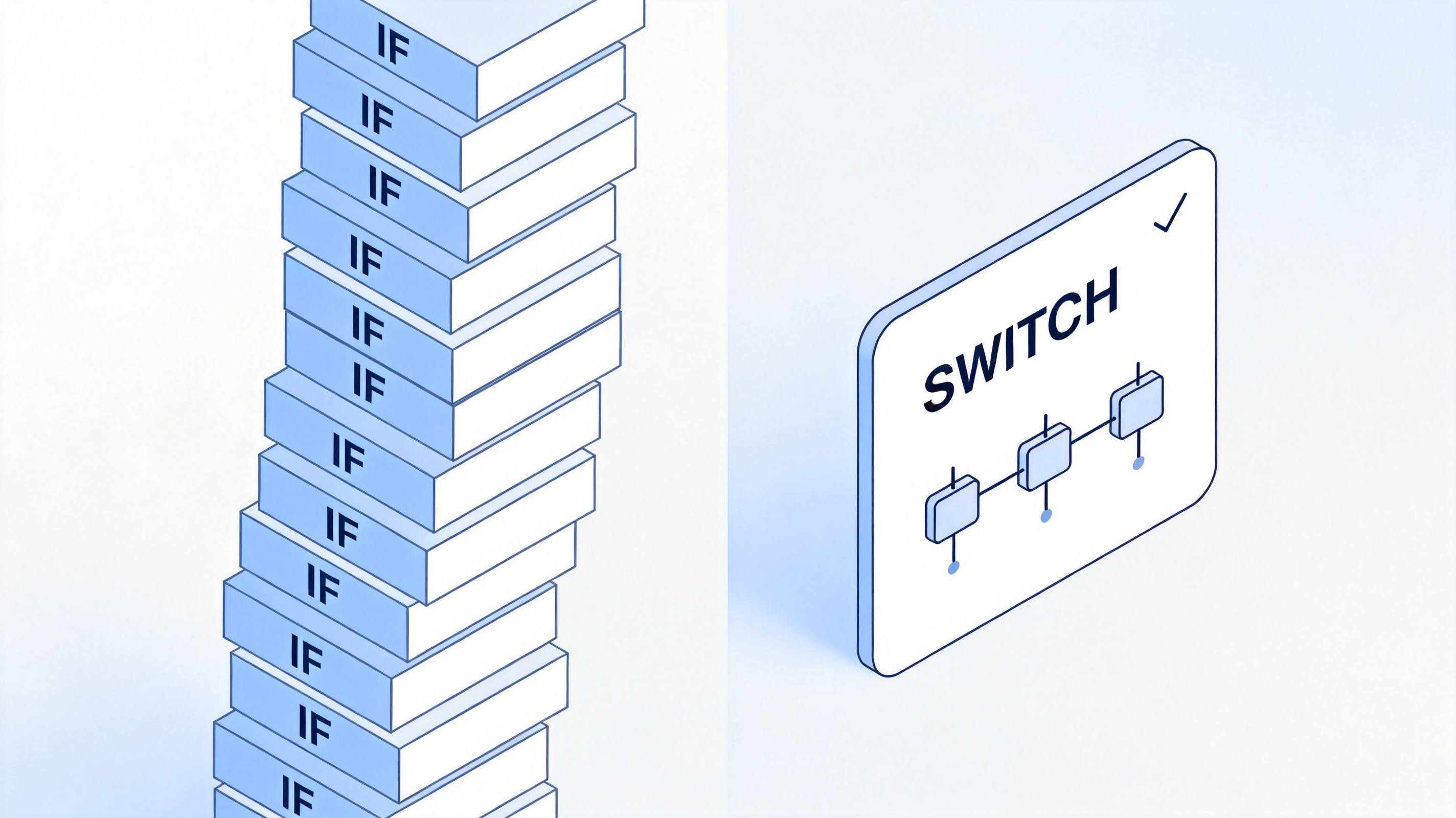
Nested IF tower versus one SWITCH card
SWITCH Function Limits and Common Errors
Four limits explain almost every "my SWITCH doesn't work" moment:
#N/A with no default. If nothing matches and you did not supply a final default argument, SWITCH returns
#N/A. Add one trailing value with no result to fix it.Exact match only. No wildcards, no
>or<<> inside the value list. Use theTRUE-expression trick shown above, or IFS.Text versus numbers. A text "1" does not match the number 1 — clean the source column or align the types.
Duplicate values. When the same value appears twice, the first pair wins; keep the list deduplicated to avoid surprises.
The Best Free Alternative: WPS Office for the SWITCH Function
Every formula in this guide runs in WPS Spreadsheet, part of the free WPS Office suite. You get the same SWITCH, IFS, and lookup functions, full .xlsx compatibility, and a familiar ribbon layout — without a Microsoft 365 subscription. WPS AI can even draft or explain a SWITCH formula for you, which is handy when a long value list needs a second pair of eyes.
WPS Spreadsheet
FAQs
1. What does the SWITCH function do in Excel?
It compares one expression against up to 126 candidate values and returns the result paired with the first match, or a default value if nothing matches.
2. Which Excel versions have SWITCH?
Excel 2019 and later, including Microsoft 365. In Excel 2016 and older, use nested IF or lookup functions instead.
3. Why does SWITCH return #N/A?
No candidate value matched and the formula has no default. Add one final argument with no result pair — it becomes the value returned when nothing matches.
4. Can SWITCH handle greater-than comparisons?
Not directly in the value list. Set the expression to TRUE and use conditions like C5>=1000 as the values, or switch to IFS.
5. Is SWITCH the same as IFS?
No. SWITCH tests a single expression against exact values; IFS evaluates a list of independent conditions top to bottom. Use SWITCH for code-to-label maps and IFS for varied conditions.


'%3e%3cpath%20d='M19.9911%204.11386V6.471H18.5894C18.0775%206.471%2017.7322%206.57814%2017.5536%206.79243C17.3751%207.00671%2017.2858%207.32814%2017.2858%207.75671V9.44421H19.9019L19.5536%2012.0871H17.2858V18.8639H14.5536V12.0871H12.2769V9.44421H14.5536V7.49779C14.5536%206.39064%2014.8632%205.53201%2015.4822%204.92189C16.1013%204.31177%2016.9257%204.00671%2017.9554%204.00671C18.8304%204.00671%2019.509%204.04243%2019.9911%204.11386Z'%20fill='%23333333'/%3e%3c/g%3e%3cdefs%3e%3cclipPath%20id='clip0_2938_8199'%3e%3crect%20width='16'%20height='16'%20fill='white'%20transform='translate(8%204.00671)'/%3e%3c/clipPath%3e%3c/defs%3e%3c/svg%3e)
'%3e%3cpath%20d='M17.5237%2010.7813L23.4811%204H22.0699L16.8949%209.88693L12.7648%204H8L14.2469%2012.9029L8%2020.0133H9.4112L14.8725%2013.7952L19.2352%2020.0133H24M9.92053%205.04213H12.0885L22.0688%2019.0224H19.9003'%20fill='%23333333'/%3e%3c/g%3e%3cdefs%3e%3cclipPath%20id='clip0_2938_8200'%3e%3crect%20width='16'%20height='16.0134'%20fill='white'%20transform='translate(8%204)'/%3e%3c/clipPath%3e%3c/defs%3e%3c/svg%3e)


