
Google Docs Download on Mac, Step by Step
Learn why Google Docs works well on Mac, how to install it through the App Store or WebCatalog, how to use its core tools, and when WPS Writer may be the better fit for offline-friendly, format-flexible work.
Why choose Google Docs on Mac?
Google Docs is popular on Mac because it keeps writing simple, collaborative, and accessible across devices.

Real-time collaboration
Multiple people can edit the same file at once. That makes teamwork faster and keeps feedback in one place.
Cloud access anywhere
Your files stay online, so you can open them from any device with internet access. It is useful when you switch between Mac, phone, and browser.
Free to use
Google Docs includes essential writing features at no cost. That makes it a practical choice for students and everyday work.
Automatic saving
Your work is saved as you type. This reduces the risk of losing changes during interruptions or crashes.
Broad file compatibility
Google Docs supports common document formats, including Microsoft Word files. That helps when sharing across different platforms.
Google Docs and WPS Writer at a glance
| Feature | Google Docs | WPS Writer |
|---|---|---|
| Collaboration | Real-time online editing | Real-time collaboration supported |
| Storage style | Cloud-based access | Local and online document workflows |
| Cost | Essential features available for free | Free and powerful word processor |
| File support | Works with common document formats | Supports .doc, .docx, .docm, .dotm and more |
| Best fit | Browser-first collaboration | Users wanting a fuller desktop-style editor |
How to download Google Docs on Mac
You can install Google Docs quickly from the App Store or create a standalone app with WebCatalog.
Method 1: From Apple Store
This route is the fastest if you want simple Mac integration and easy dock access.
Open the Apple Store
Launch the App Store on your Mac to begin the installation process.

Search for Google Docs
Type “Google Docs” into the search bar to find the app listing.
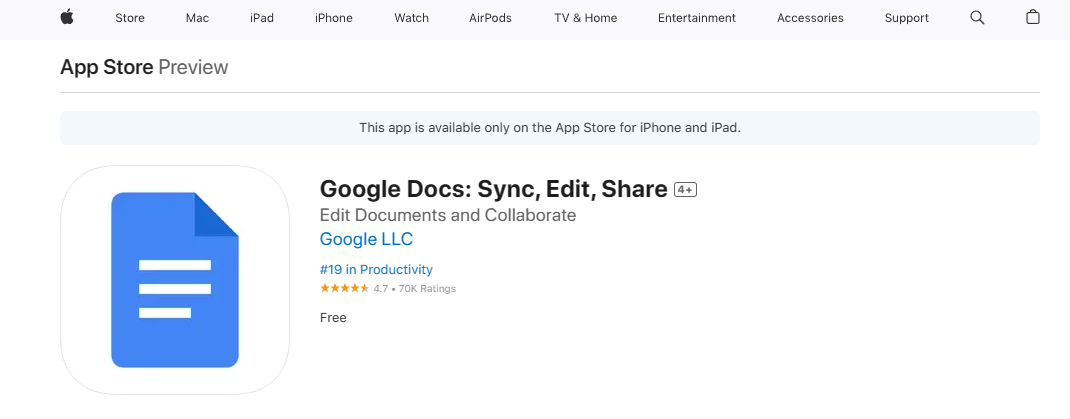
Open the app page
Click the Google Docs app from the search results.
Click Get
Select “Get” to start the download and installation.
Launch and sign in
Open the app after installation and log in with your Google account.
Pros
- Quick setup directly inside macOS.
- Easy access from the dock after install.
Cons
- Limited to the features available in the Apple Store version.
Method 2: Using WebCatalog
Choose this option if you want a more standalone app experience with extra flexibility.
Visit WebCatalog
Go to WebCatalog's website to download the app manager.

Install WebCatalog
Download and install WebCatalog on your Mac before adding Google Docs.

Search for Google Docs
Open WebCatalog and find Google Docs in its search field.
Install as App
Click Google Docs and choose “Install as App” to create a standalone version.

Launch from Applications
Open Google Docs from your Applications folder after setup is complete.
Pros
- Creates a standalone Google Docs application.
- Offers more customization and control.
Cons
- Takes a bit longer because WebCatalog must be installed first.
Which method should you pick?
Choose Apple Store
Best when you want the quickest setup for basic use.
Choose WebCatalog
Better if you prefer a dedicated app feel and more control.
Practical takeaway
Method 1 is faster, while Method 2 gives more versatility.
How to use Google Docs on Mac
Once installed or opened in your browser, these core actions cover the basics of writing, formatting, sharing, and exporting.
Creating a new document
Sign in to your Google account
Log in with your account, or create one if you do not already have access.

Start with a blank document
Click the “Blank” button to open a new empty document.

Formatting text and applying styles
Select the text
Highlight the words or paragraph you want to change.
Use the formatting toolbar
Apply bold, italic, underline, font size, and color from the toolbar at the top.
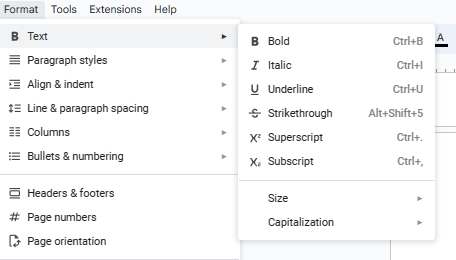
Use keyboard shortcuts
For example, press Command + B for bold and Command + I for italic.
Adding images and tables
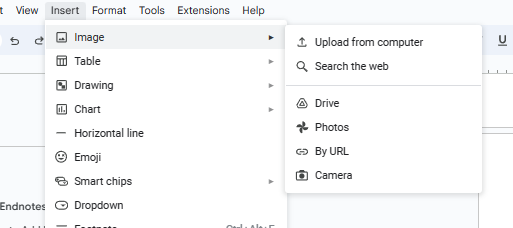
Insert an image
Go to Insert > Image, then choose the file you want to place in the document.
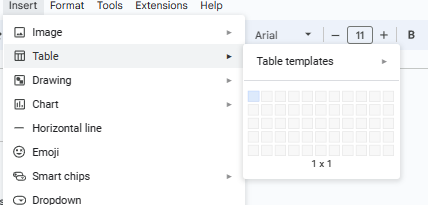
Create a table
Go to Insert > Table and pick the number of rows and columns you need.
Real-time collaboration
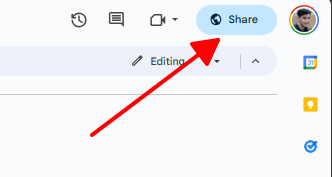
Click Share
Use the Share button in the top-right corner to invite collaborators.
Add people and permissions
Enter email addresses and choose whether they can edit or only view the file.

Work together live
Collaborators can edit at the same time, and changes appear in real time.
Saving and downloading documents
Let auto-save do the work
Google Docs saves your edits automatically, so manual saving is not required.
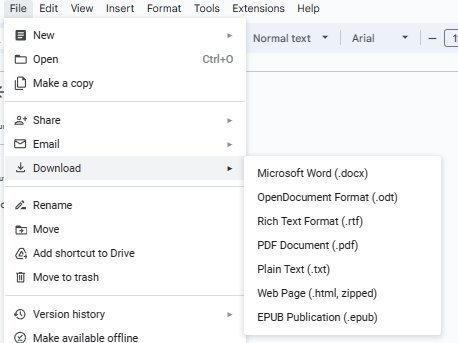
Download in your preferred format
Go to File > Download and choose a format such as DOCX or PDF.
Best free alternative to Google Docs: WPS Writer
WPS Writer is positioned here as a free, powerful option for users who want strong compatibility, flexible file support, and a more desktop-like writing experience.

Wide compatibility
WPS Writer works with Microsoft Word, Google Docs, and LibreOffice Writer formats. It also supports .doc, .docx, .docm, and .dotm.
Powerful editing tools
It includes strong editing and formatting tools, plus real-time collaboration for team workflows.
Safe and stable
The source highlights WPS Writer as reliable, lightweight, and regularly updated with security patches.
Lightweight on Mac
It does not take up many system resources, which helps on everyday machines and longer sessions.
Online document access
WPS Writer supports online documents, so you can access and edit files from different locations.
Who it suits
It is a good fit for students, businesses, and home users who need a versatile word processor.
More reasons users choose WPS
How to download WPS Office
Click Free Download
Use the download button on the homepage to start getting the installer.

Choose your operating system
Select the correct download option for your device.
Run the installer
Open the downloaded file and follow the on-screen instructions to complete installation.

Questions Mac users often ask
These answers cover collaboration, offline access, and how WPS Writer compares on security and storage style.
A simple Mac workflow, with WPS as the stronger alternative for flexibility
This guide shows that Google Docs is easy to install and excellent for cloud collaboration on Mac. If you want broader file support, a lightweight desktop-style editor, and strong compatibility, WPS Writer stands out as the more versatile free option.
Get WPS Writer for a more flexible writing setup
If Google Docs covers the basics but you want stronger format support, desktop-style editing, PDF tools, and free office apps in one suite, WPS Office is the practical next step.
