

'%3e%3cpath%20d='M8%200C12.4183%200%2016%203.58172%2016%208C16%2012.4183%2012.4183%2016%208%2016C3.58172%2016%200%2012.4183%200%208C0%203.58172%203.58172%200%208%200ZM11.6162%204.38379C11.2257%203.99337%2010.5927%203.99338%2010.2021%204.38379L8%206.58594L5.79785%204.38379C5.40732%203.99334%204.77429%203.99329%204.38379%204.38379C3.99331%204.77429%203.99335%205.40733%204.38379%205.79785L6.58594%208L4.38379%2010.2021C3.99348%2010.5927%203.99341%2011.2257%204.38379%2011.6162C4.77426%2012.0066%205.40734%2012.0065%205.79785%2011.6162L8%209.41406L10.2021%2011.6162C10.5927%2012.0066%2011.2257%2012.0067%2011.6162%2011.6162C12.0067%2011.2257%2012.0066%2010.5927%2011.6162%2010.2021L9.41406%208L11.6162%205.79785C12.0066%205.40735%2012.0066%204.77429%2011.6162%204.38379Z'%20fill='%23080E17'%20fill-opacity='0.46'/%3e%3c/g%3e%3cdefs%3e%3cclipPath%20id='clip0_3761_713'%3e%3crect%20width='16'%20height='16'%20fill='white'/%3e%3c/clipPath%3e%3c/defs%3e%3c/svg%3e)



'%3e%3cpath%20fill-rule='evenodd'%20clip-rule='evenodd'%20d='M21.4999%2010.9993C21.4999%205.20009%2016.7986%200.498901%2010.9993%200.498901C5.19994%200.498901%200.498657%205.20009%200.498657%2010.9993C0.498657%2016.2404%204.33858%2020.5844%209.35855%2021.3722V14.0346H6.69238V10.9993H9.35855V8.68594C9.35855%206.05427%2010.9262%204.60062%2013.3248%204.60062C14.4736%204.60062%2015.6753%204.80571%2015.6753%204.80571V7.38979H14.3512C13.0468%207.38979%2012.64%208.19921%2012.64%209.0296V10.9993H15.5523L15.0867%2014.0346H12.64V21.3722C17.66%2020.5844%2021.4999%2016.2404%2021.4999%2010.9993Z'%20fill='%231568EA'/%3e%3c/g%3e%3c/svg%3e)


'%3e%3cpath%20d='M2.42045%2022.1876H6.31818V12.7217L0.75%208.54553V20.5171C0.75%2021.4414%201.49892%2022.1876%202.42045%2022.1876Z'%20fill='%234285F4'/%3e%3cpath%20d='M19.682%2022.1876H23.5797C24.5041%2022.1876%2025.2502%2021.4387%2025.2502%2020.5171V8.54553L19.682%2012.7217'%20fill='%2334A853'/%3e%3cpath%20d='M19.682%205.48293V12.7216L25.2502%208.54543V6.31816C25.2502%204.25236%2022.8921%203.07469%2021.2411%204.31361'%20fill='%23FBBC04'/%3e%3cpath%20d='M6.31824%2012.7217V5.48303L13.0001%2010.4944L19.6819%205.48303V12.7217L13.0001%2017.733'%20fill='%23EA4335'/%3e%3cpath%20d='M0.75%206.31816V8.54543L6.31818%2012.7216V5.48293L4.75909%204.31361C3.10534%203.07469%200.75%204.25236%200.75%206.31816Z'%20fill='%23C5221F'/%3e%3c/g%3e%3cdefs%3e%3cclipPath%20id='clip0_2954_7305'%3e%3crect%20width='24.5'%20height='18.375'%20fill='white'%20transform='translate(0.75%203.8125)'/%3e%3c/clipPath%3e%3c/defs%3e%3c/svg%3e)


We live in a world where visuals speak louder than words. Whether you are a marketer or a student, turning your reports or designs into images makes them easier to share and display. The Canva PDF to JPG tool is a popular choice because it blends simplicity with creativity. But when you deal with large files or need print-quality images, Canva has certain limitations. So, how to convert PDF to JPG on Canva? And is there a better alternative to Canva?


Let’s discuss everything you need to know and explore an even more flexible alternative that gets the job done better.
Part 1. Overview of Canva PDF to JPG Converter
The Canva PDF to JPG converter lets you upload a PDF and turn it into image files without leaving Canva’s design space. It is great for sharing eBooks, flyers, and slides as visuals.
Features
Ease of use: Canva’s drag-and-drop system makes uploading and converting PDFs simple.
Online access: No software installation needed; everything happens in your browser.
Editing flexibility: Once a PDF is uploaded, you can edit text, replace images, and redesign layouts.
Integration: Works seamlessly with Canva templates for quick visual updates.
Pricing
Canva pdf editor offers free and paid plans.
Free Plan: Standard quality JPG exports and limited storage.
Pro Plan ($18/month): Higher resolution exports (up to 300 DPI), background remover, and advanced design tools.
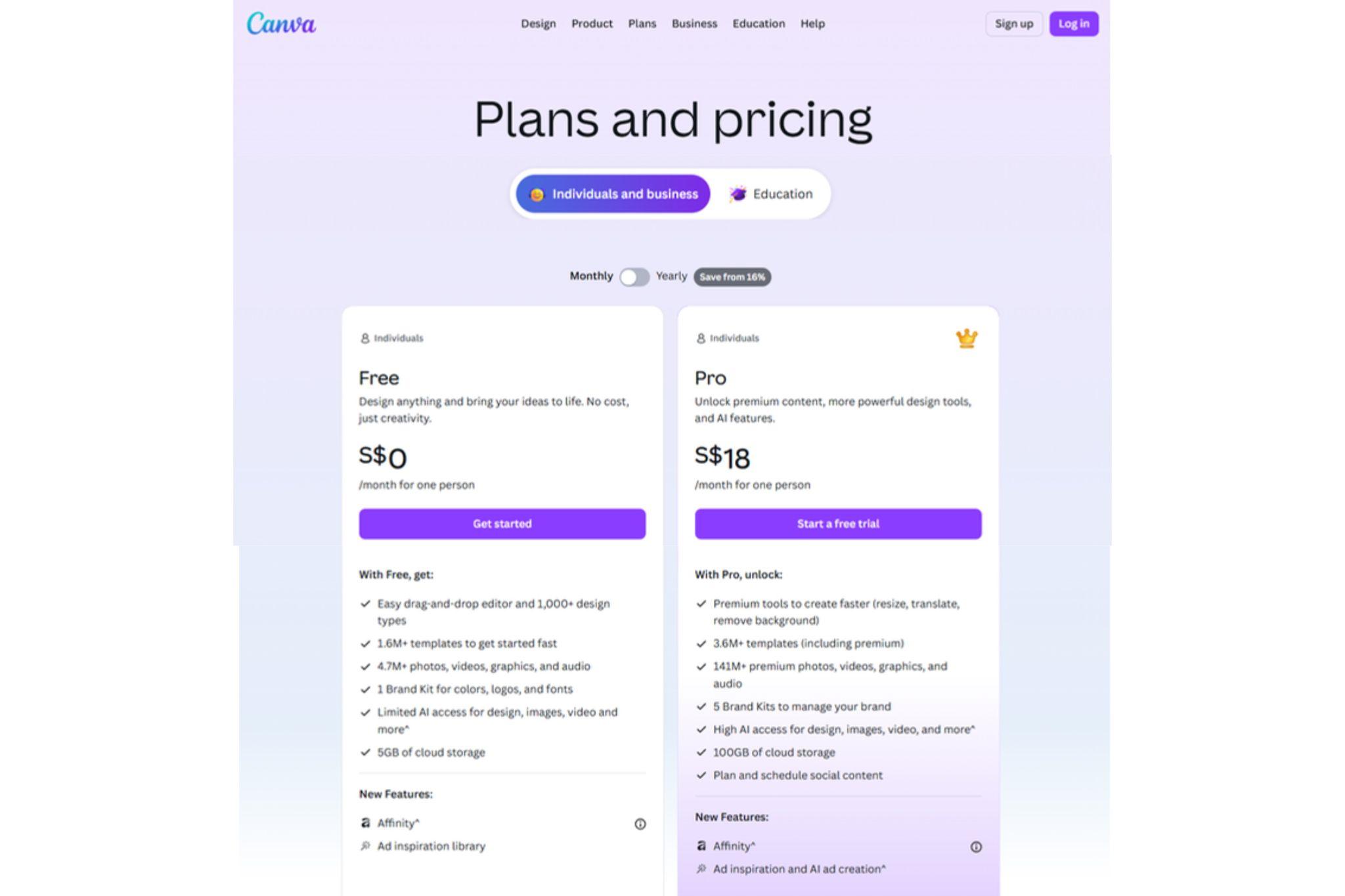
Canva’s converter works well for light use, but the quality gap between the free and paid versions is noticeable, especially when exporting images for print or marketing purposes.
Part 2. How to Convert PDF to JPG on Canva
Here’s a simple guide to using Canva PDF to JPG on phone or desktop:
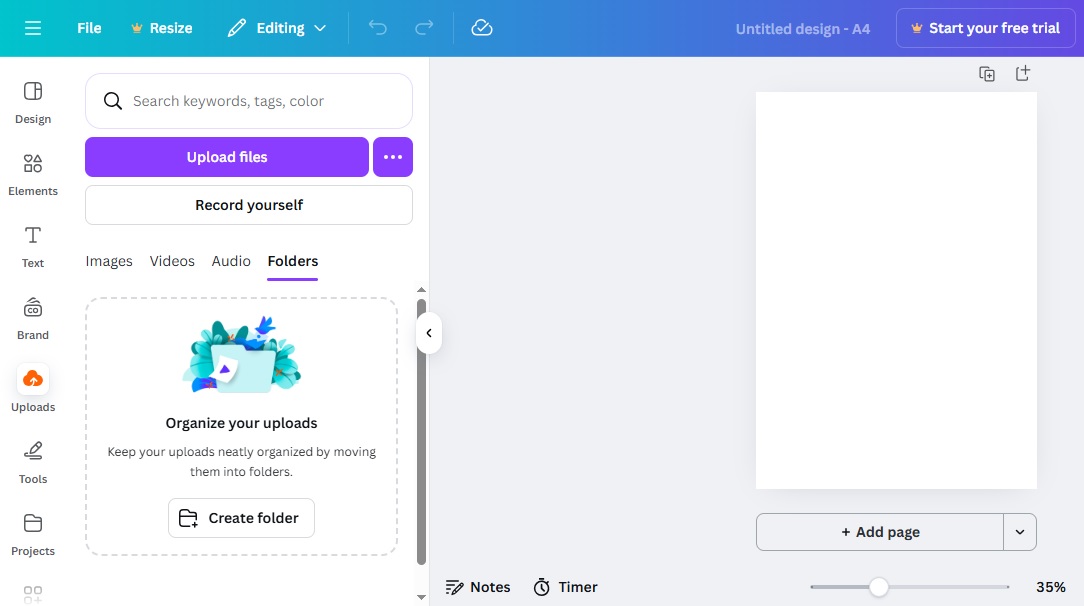
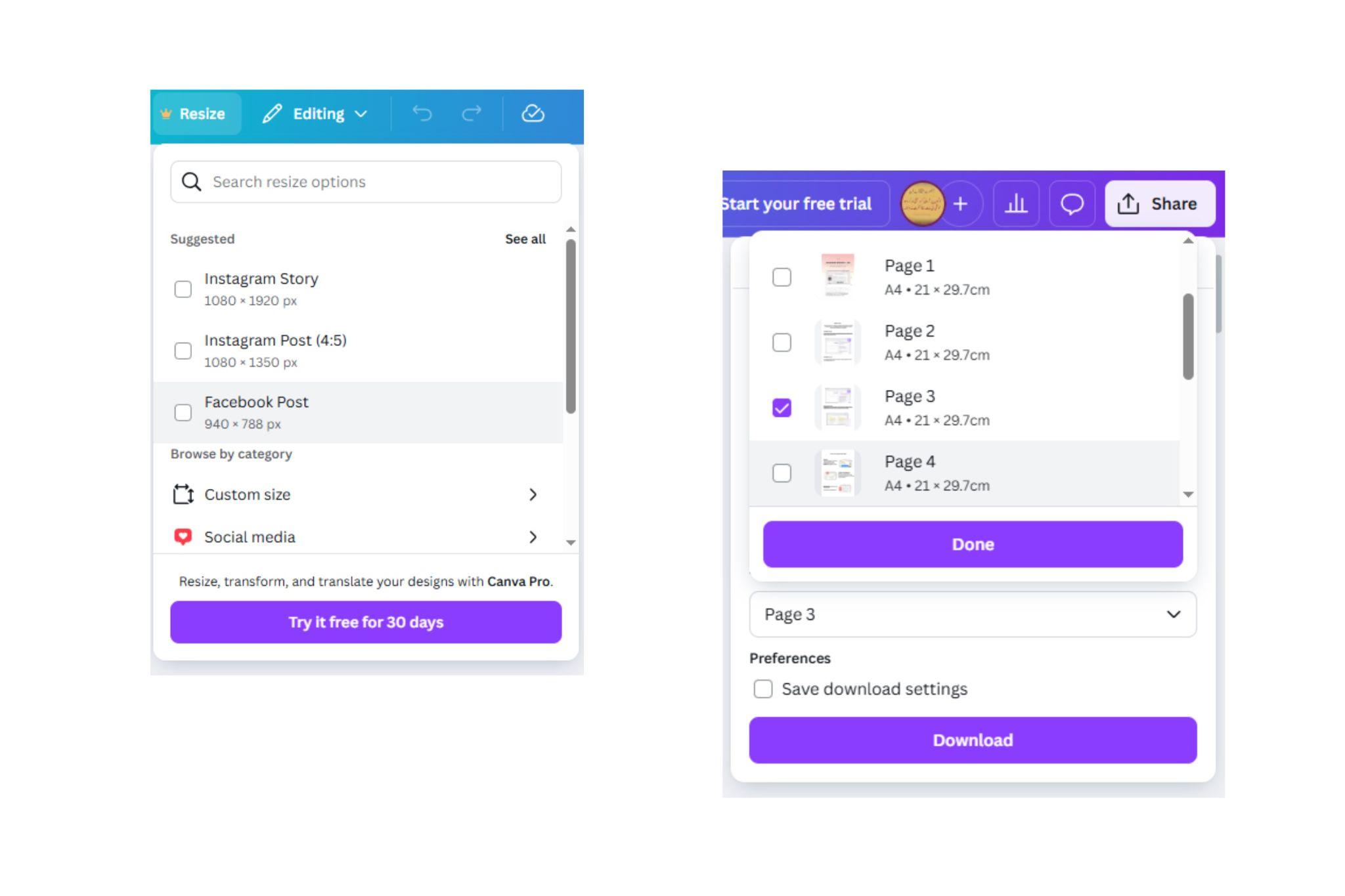
Step 1: Open Canva and log in to your account.
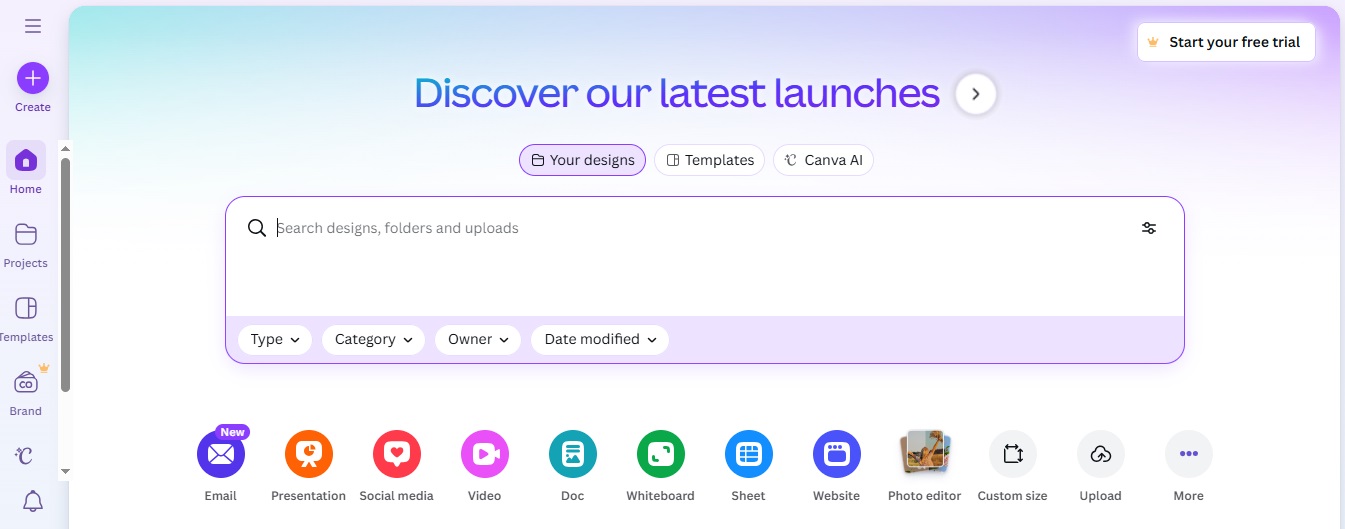
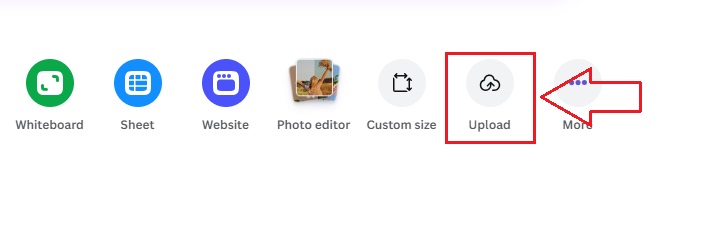
Step 2: Click “Upload” and select your PDF file.
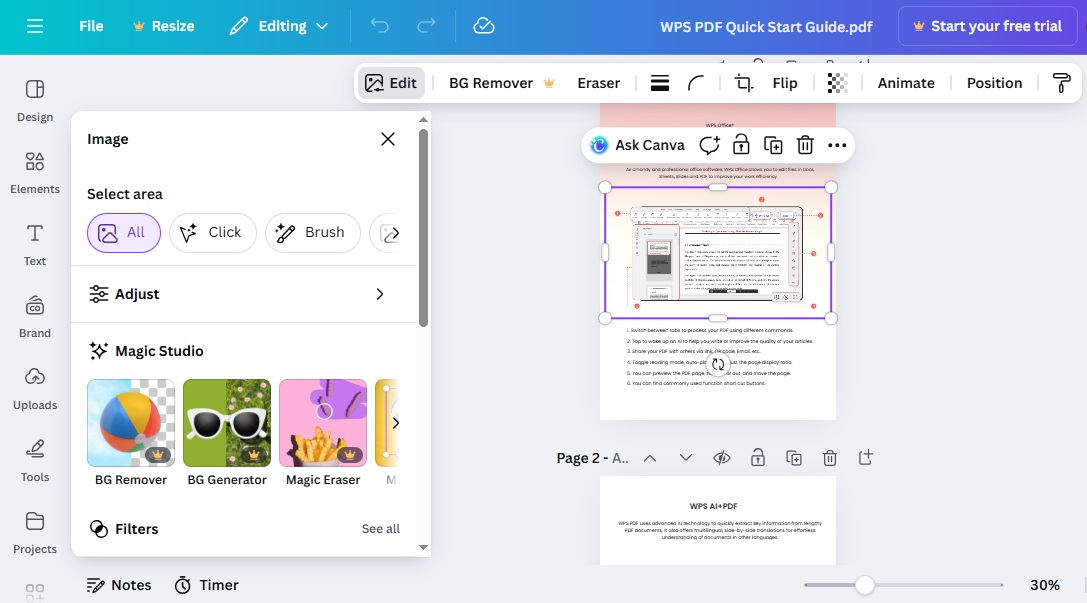
Step 3: Once uploaded, Canva converts each page into an editable design.
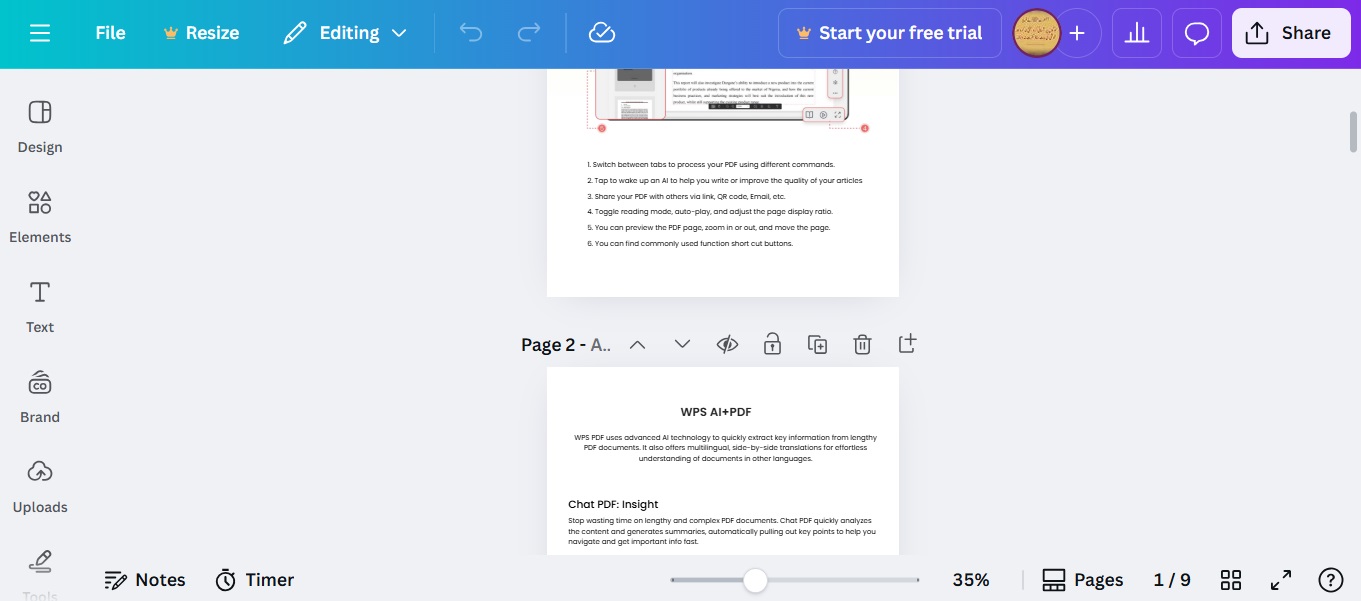
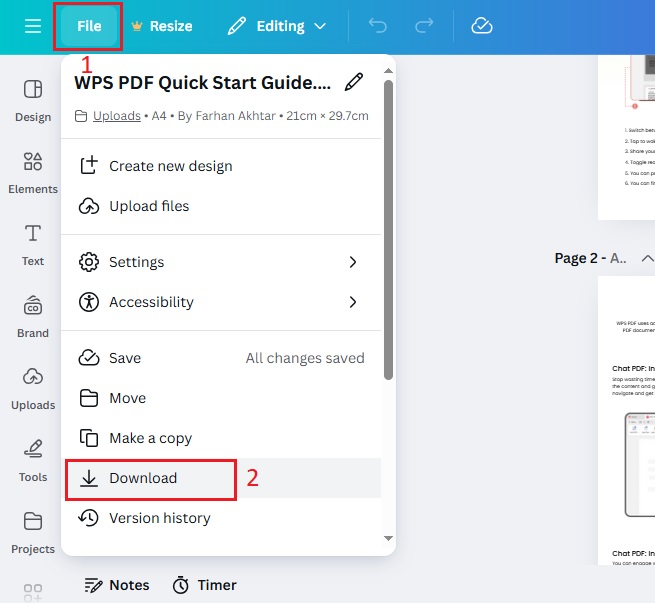
Step 4: Go to “File” > “Download.”
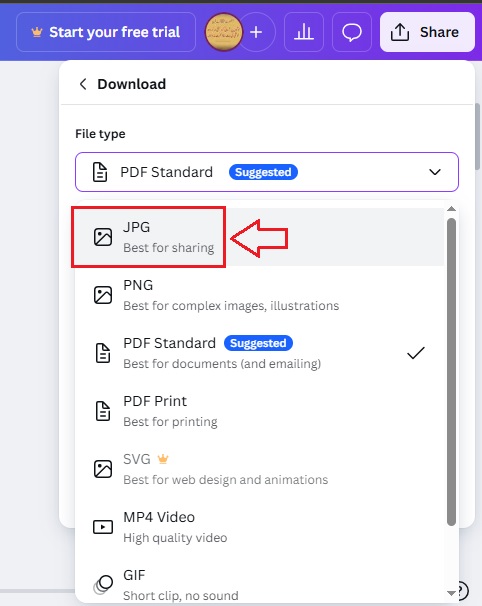
Step 5: Choose “JPG” as the format and select the pages you want to export.
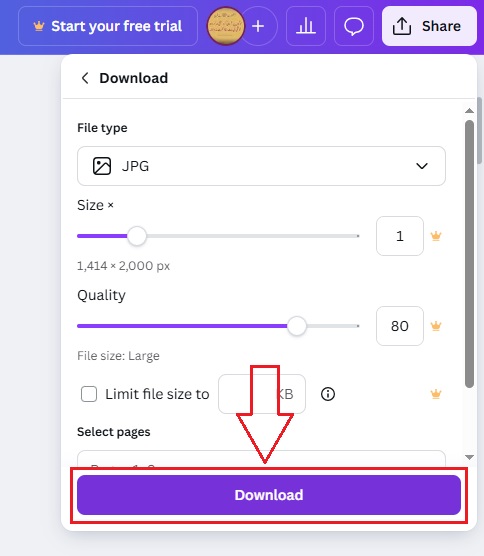
Step 6: Click “Download” to save your file.
Canva treats each PDF page as a separate design page. For multi-page documents, you’ll need to export each page individually, which can take extra time for long PDFs.
Part 3. Pros and Cons of Converting PDF to JPG on Canva
Pros:
Very user-friendly interface.
Integrated design tools for quick edits.
Works on both web and mobile platforms.
Supports drag-and-drop uploads.
Cons:
Limited control over image resolution for free users.
Cannot handle password-protected PDFs.
Slower for bulk conversions.
Requires manual downloads for each page.
Canva is great for quick tasks, but it may be less suitable for professionals who need consistent, high-quality JPGs or handle large-scale file management.
Part 4. WPS Online Converter: Best Alternative to Canva PDF to JPG Converter
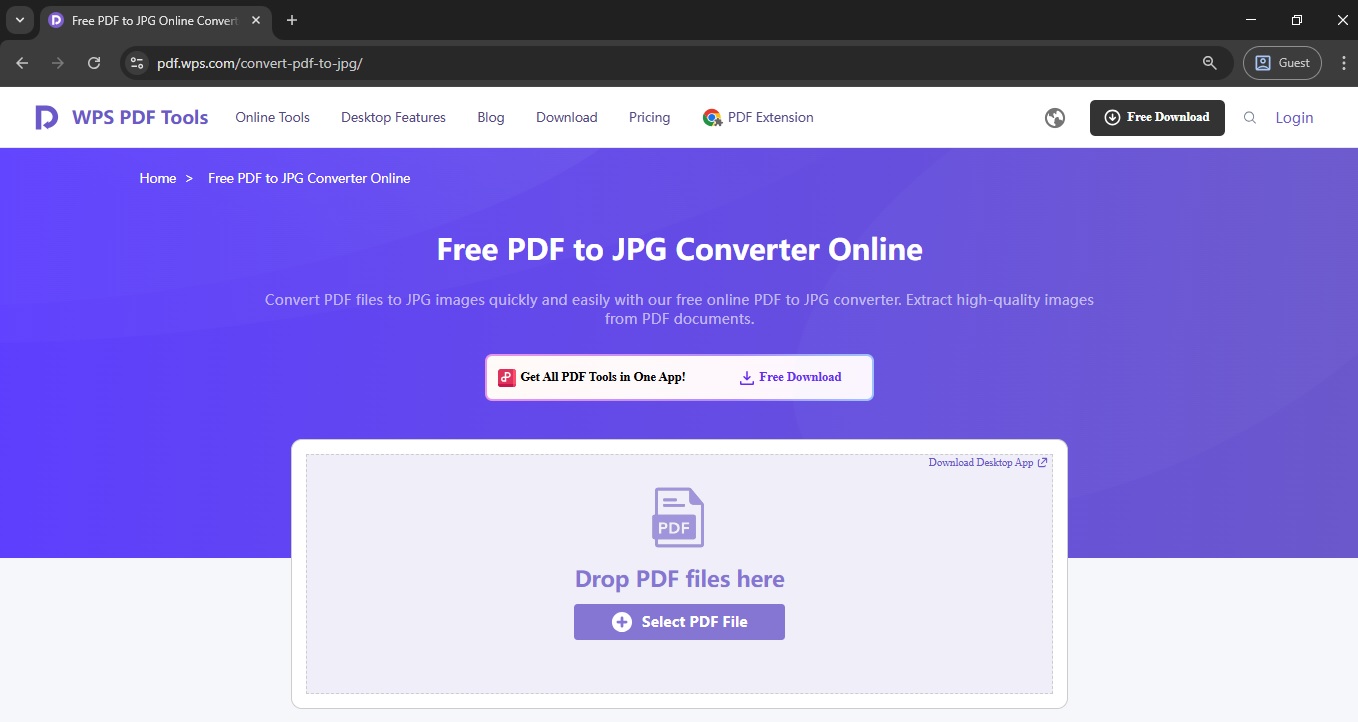
WPS Online Converter is a web-based tool that instantly converts PDFs to high-quality JPGs. It’s part of the WPS Office suite, known for its powerful and lightweight document management tools.
Unique Advantage
Unlike the Canva PDF to JPG converter, WPS doesn’t require sign-in, offers unlimited free conversions, and provides better image resolution without losing formatting.
Functions/Features:
Fast conversion speed.
Support for multi-page batch conversions.
Maintains layout, text, and color integrity.
100% online, no installation required.
Compatible with all browsers and operating systems.
How to convert PDF to JPG?
You can convert a PDF to JPG in four simple steps using WPS Office.
Visit WPS PDF to JPG Converter.
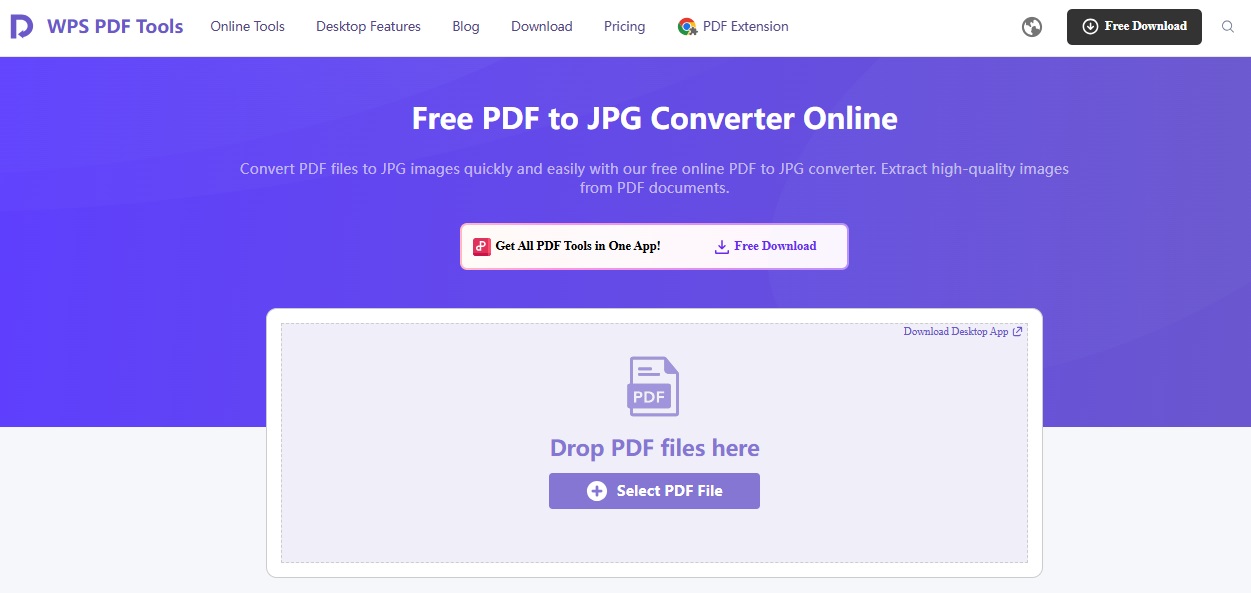
Upload your PDF file.

Download the converted file instantly.
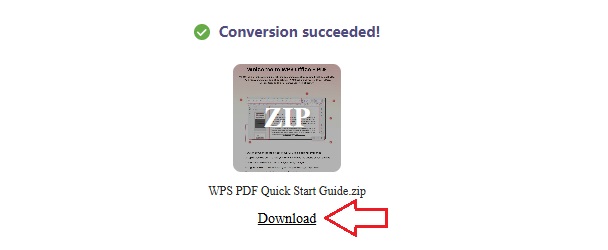
WPS delivers crisp image quality and handles large files better than Canva. It’s ideal for both professional designers and everyday users who need reliable results fast.
Part 5. WPS Online Converter vs Canva Converter
| Feature | WPS Online Converter | Canva PDF to JPG Converter |
|---|---|---|
| Ease of Use | Very simple, 3-step process | Easy but requires more manual steps |
| Format Preservation | Excellent, keeps layout intact | Moderate, may slightly change layout |
| Conversion Speed | Fast (seconds) | Slower for multi-page files |
| File Limitations | No major limits | File size and page count restrictions |
| Compatibility | Works on all devices and browsers | Works best in the Canva environment |
| Resolution | Up to 300 DPI (free) | 96 DPI for free users, 300 DPI for Pro |
| Batch Conversion | Yes | No |
FAQs
1. Can Canva convert a multi-page PDF into multiple separate
JPG files?
Yes. Canva treats each PDF page as a separate design, so you
can download them individually as JPGs.
2. How does Canva handle the quality and resolution (DPI) of
the output JPG?
Canva’s free export is 96 DPI. For 300 DPI, a Pro account is
needed.
3. Can I convert a secure or password-protected PDF using
Canva?
No. Password-protected PDFs must be unlocked before
uploading.
4. Is there a file size limit for Canva’s PDF uploads?
Yes. Free users can upload up to 15 MB per file, while Pro
users have higher limits.
5. Does Canva keep my converted files online?
Yes, unless you delete them manually. Files stay in your
account for future edits.
6. Is WPS safer than Canva for confidential files?
Yes. WPS uses encrypted upload and auto-deletion after
conversion, which ensures data privacy.

'%3e%3cpath%20d='M19.9911%204.11386V6.471H18.5894C18.0775%206.471%2017.7322%206.57814%2017.5536%206.79243C17.3751%207.00671%2017.2858%207.32814%2017.2858%207.75671V9.44421H19.9019L19.5536%2012.0871H17.2858V18.8639H14.5536V12.0871H12.2769V9.44421H14.5536V7.49779C14.5536%206.39064%2014.8632%205.53201%2015.4822%204.92189C16.1013%204.31177%2016.9257%204.00671%2017.9554%204.00671C18.8304%204.00671%2019.509%204.04243%2019.9911%204.11386Z'%20fill='%23333333'/%3e%3c/g%3e%3cdefs%3e%3cclipPath%20id='clip0_2938_8199'%3e%3crect%20width='16'%20height='16'%20fill='white'%20transform='translate(8%204.00671)'/%3e%3c/clipPath%3e%3c/defs%3e%3c/svg%3e)
'%3e%3cpath%20d='M17.5237%2010.7813L23.4811%204H22.0699L16.8949%209.88693L12.7648%204H8L14.2469%2012.9029L8%2020.0133H9.4112L14.8725%2013.7952L19.2352%2020.0133H24M9.92053%205.04213H12.0885L22.0688%2019.0224H19.9003'%20fill='%23333333'/%3e%3c/g%3e%3cdefs%3e%3cclipPath%20id='clip0_2938_8200'%3e%3crect%20width='16'%20height='16.0134'%20fill='white'%20transform='translate(8%204)'/%3e%3c/clipPath%3e%3c/defs%3e%3c/svg%3e)


