



'%3e%3cpath%20fill-rule='evenodd'%20clip-rule='evenodd'%20d='M21.4999%2010.9993C21.4999%205.20009%2016.7986%200.498901%2010.9993%200.498901C5.19994%200.498901%200.498657%205.20009%200.498657%2010.9993C0.498657%2016.2404%204.33858%2020.5844%209.35855%2021.3722V14.0346H6.69238V10.9993H9.35855V8.68594C9.35855%206.05427%2010.9262%204.60062%2013.3248%204.60062C14.4736%204.60062%2015.6753%204.80571%2015.6753%204.80571V7.38979H14.3512C13.0468%207.38979%2012.64%208.19921%2012.64%209.0296V10.9993H15.5523L15.0867%2014.0346H12.64V21.3722C17.66%2020.5844%2021.4999%2016.2404%2021.4999%2010.9993Z'%20fill='%231568EA'/%3e%3c/g%3e%3c/svg%3e)


'%3e%3cpath%20d='M2.42045%2022.1876H6.31818V12.7217L0.75%208.54553V20.5171C0.75%2021.4414%201.49892%2022.1876%202.42045%2022.1876Z'%20fill='%234285F4'/%3e%3cpath%20d='M19.682%2022.1876H23.5797C24.5041%2022.1876%2025.2502%2021.4387%2025.2502%2020.5171V8.54553L19.682%2012.7217'%20fill='%2334A853'/%3e%3cpath%20d='M19.682%205.48293V12.7216L25.2502%208.54543V6.31816C25.2502%204.25236%2022.8921%203.07469%2021.2411%204.31361'%20fill='%23FBBC04'/%3e%3cpath%20d='M6.31824%2012.7217V5.48303L13.0001%2010.4944L19.6819%205.48303V12.7217L13.0001%2017.733'%20fill='%23EA4335'/%3e%3cpath%20d='M0.75%206.31816V8.54543L6.31818%2012.7216V5.48293L4.75909%204.31361C3.10534%203.07469%200.75%204.25236%200.75%206.31816Z'%20fill='%23C5221F'/%3e%3c/g%3e%3cdefs%3e%3cclipPath%20id='clip0_2954_7305'%3e%3crect%20width='24.5'%20height='18.375'%20fill='white'%20transform='translate(0.75%203.8125)'/%3e%3c/clipPath%3e%3c/defs%3e%3c/svg%3e)


PDF is one of the most-used document formats due to its security, compatibility, and professional layout. The thing is, editing in PDF does call for special tools. Among the usable alternatives that are up for grabs, one could mention Canva PDF Editor and WPS Office PDF Editor. Both have powerful features, but each is suited to different user needs.
While the Canva PDF editor is more suitable for design-centric modifications, the WPS Office PDF Editor is a feature-rich set for advanced editing over text, converting, securing, and offline access. In this article, we have explored the benefits and features of these two tools so you can choose between them according to your best fit.
What is the Canva PDF Editor?
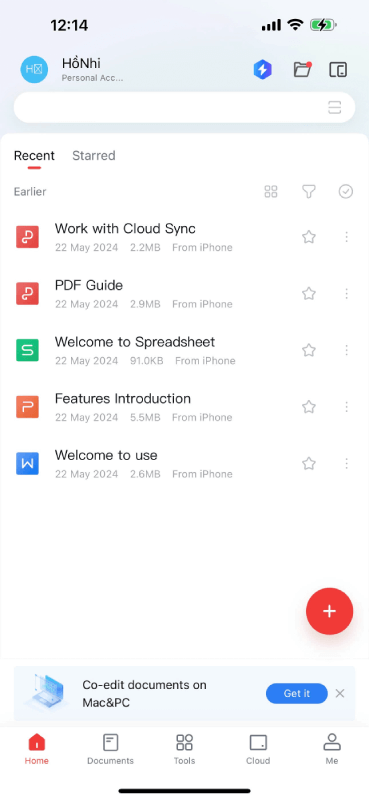
Canva PDF Editor is an online tool for making changes to PDFs fast and easily. It is integrated into the Canva design platform, making it a perfect choice for users who want to edit PDFs using a visual and design-based approach.
Following are the key features of Canva PDF Editor:
Online Access: No installation required; edit directly from a web browser.
Drag-and-Drop Interface: Edit PDFs using an intuitive and user-friendly interface.
Design Tools: Customize your PDF with fonts, images, icons, and illustrations.Upload JPG images and use canva jpg to pdf to combine them into one document
Team Collaboration: Work in real time and instantly share edits.
Export Options: Save your PDF in high-quality formats using Canva's in-built designing features.
How to Use Canva PDF Editor to Edit PDF
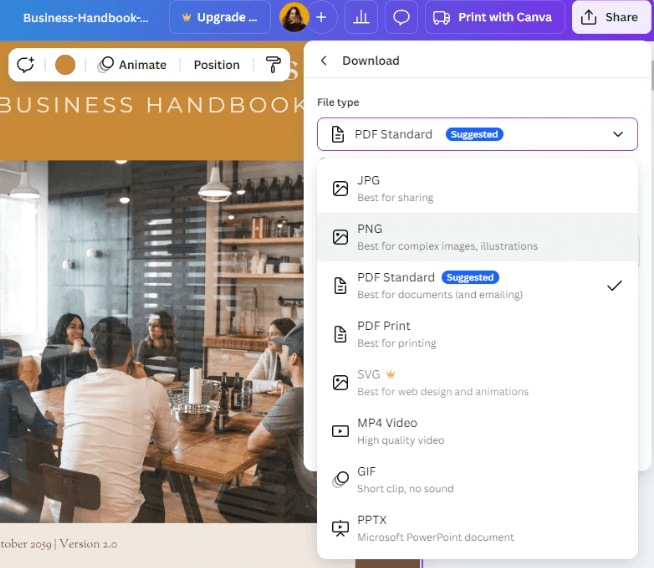
Step 1. Upload Your PDF: Open Canva and upload the document that needs editing.
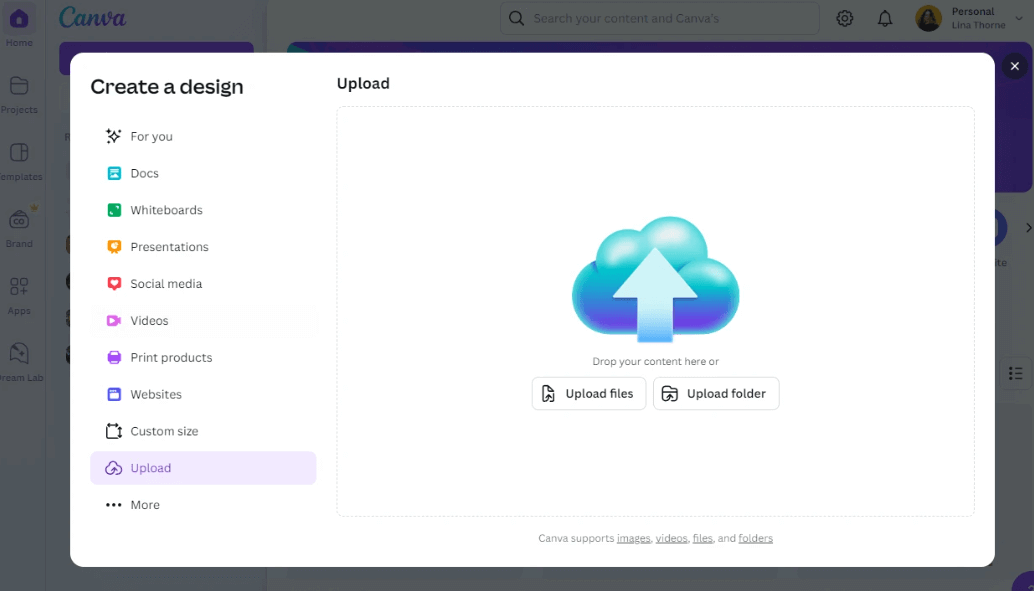
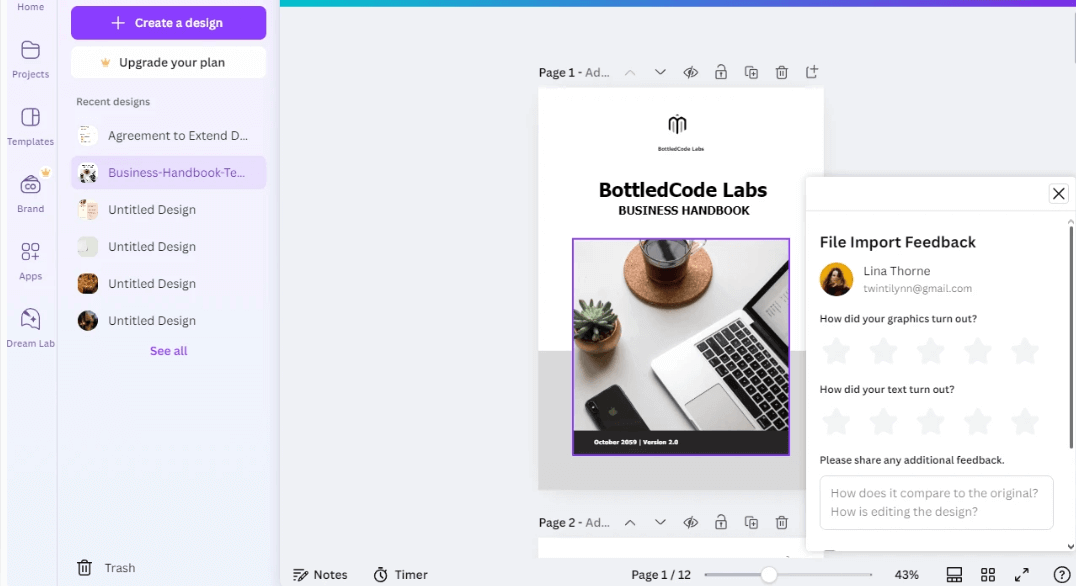
Step 2. Canva has broken down your PDF into editable elements. Edit text, insert images, enhance the design of your document.
Step 3. Share with Others: Share the document with your team for feedback and editing.
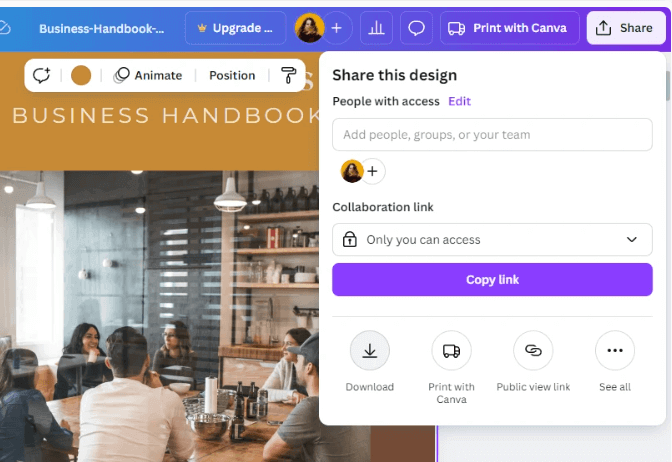
Step 4. Download the Final Version: Once you've completed this step, export the edited file in PDF— a common canva to pdf workflow or other supported formats.
Best Free Alternative: WPS Office
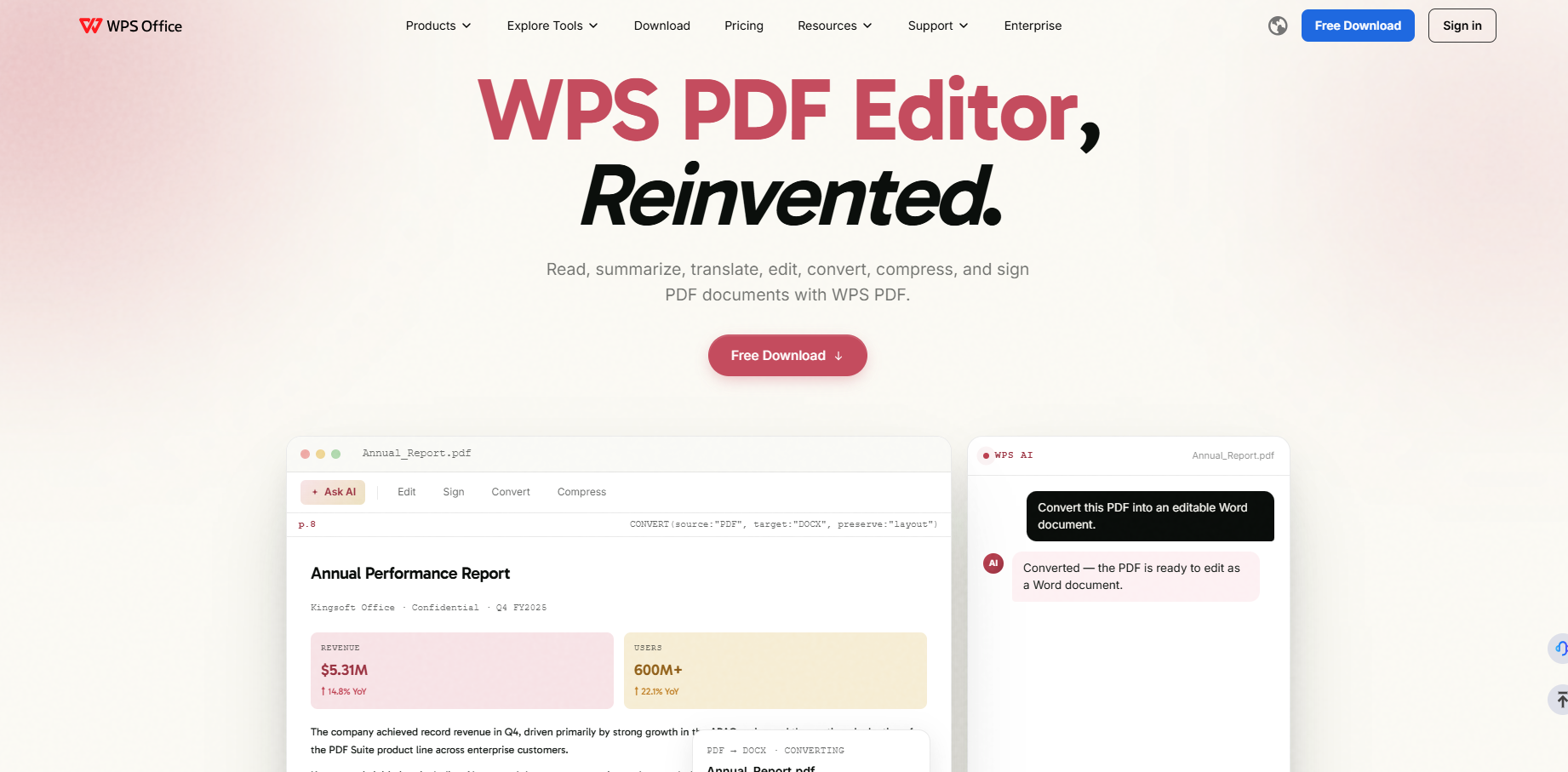
WPS Office PDF Editor is an all-inclusive tool for users whose needs go beyond design into a full PDF editing tool. Be it text editing, conversion, or putting confidential documents behind passwords; WPS Office does it with advanced features that Canva lacks.
Key Features of WPS Office PDF Editor:
Advanced text & layout editing: Change fonts, spacing, and paragraph formatting while keeping the original layout intact.
PDF conversion: Convert PDFs to Word, Excel, PowerPoint, and images with formatting preserved.
OCR: Extract and edit text from scanned PDFs and images.
Merge & split: Merge PDFs into one file, or extract specific pages as needed.
Fill & sign: Fill interactive PDF forms and add electronic signatures.
Security: Protect files with passwords, encryption, and redaction for sensitive content.
Offline editing: Edit PDFs anytime without an internet connection—unlike Canva PDF Editor.
These capabilities make WPS Office a strong free alternative when you need more than design-focused edits.
Canva PDF Editor vs WPS Office PDF Editor
To make the choice clearer, here is a side-by-side look at how Canva PDF Editor and WPS Office compare:
| Feature | Canva PDF Editor | WPS Office PDF Editor |
|---|---|---|
| Best for | Design-focused PDF edits | Professional document editing |
| Text & layout editing | Limited | Advanced |
| Design tools | Strong (templates, visuals) | Basic |
| PDF conversion | Limited export options | Word, Excel, PowerPoint, images |
| OCR (scanned PDFs) | No | Yes |
| Merge / split PDFs | No | Yes |
| Fill & sign | Limited | Yes |
| Security (password / encryption) | Limited | Yes |
| Offline editing | No (online only) | Yes |
If WPS Office looks like the better fit for your workflow, follow the steps below to start editing PDFs with it.


How to Use WPS Office PDF Editor to Edit PDF
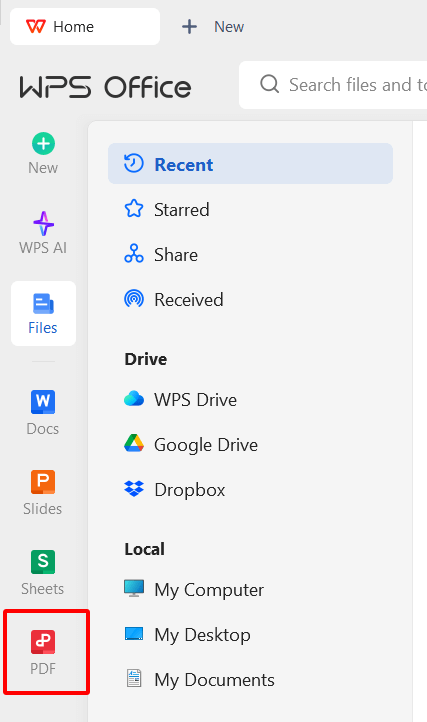
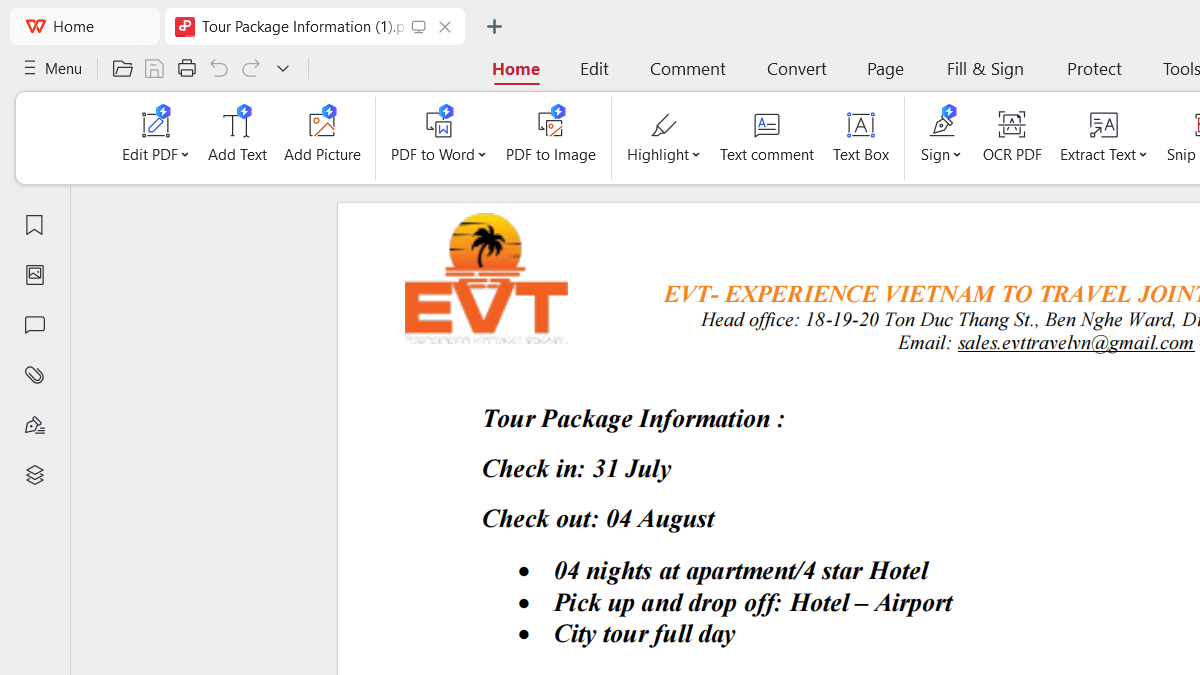
Step 1: Open WPS Office
Open WPS Office, download and open the application, then click on PDF Editor.
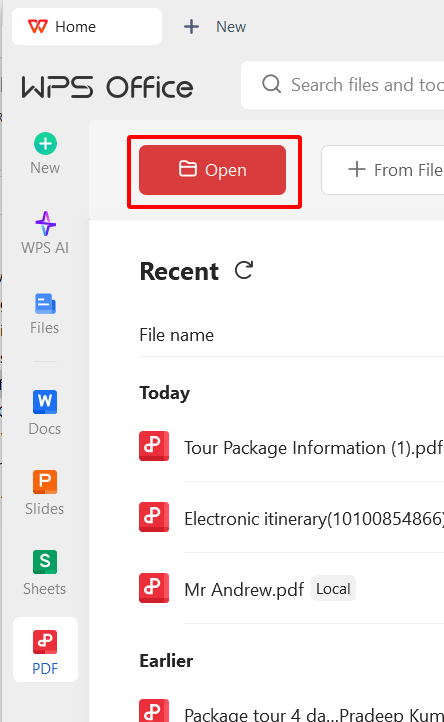
Step 2: Add Your PDF Document
Choose a PDF you want to edit.
Step 3: Editing on the Document
Add text, insert pictures, or annotate accordingly.
Step 4: Advanced Features
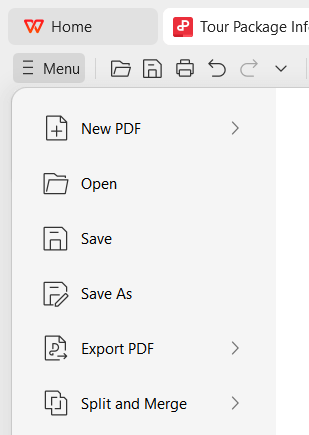
Advanced features allow you to convert, merge, sign, or encrypt the document.

Step 5: Save and Export
Finally, click Save to get your final document in PDF format or other formats.
WPS Office PDF Editor is ideal for:
Business professionals: Securely editing contracts, invoices, and reports.
Students and educators: Annotating research papers and textbooks.
Legal and financial experts: Handling confidential documents with encryption.
Remote workers and freelancers: PDFs can be easily managed when internet access is unnecessary.
Frequently Asked Questions
1. Can WPS Office PDF Editor be used for free?
Yes, WPS Office offers a free version that has basic PDF editing features. However, the premium version has advanced tools such as OCR, encryption, and batch processing.
2. Can I use the Canva PDF Editor offline?
No, the Canva PDF Editor works only online. Thus, the WPS Office PDF Editor is a better alternative if you want to work on your PDF editing offline.
3. Does WPS Office support PDF conversion?
Yes, WPS Office supports high-accuracy PDF conversions to Word, Excel, PowerPoint, images, and more.
4. Which one is more suitable for professionals between Canva PDF Editor and WPS Office PDF Editor?
WPS Office PDF Editor will be the best option for professionals considering professional document editing, security, and offline access. Canva is good to go for design-oriented edits.


'%3e%3cpath%20d='M19.9911%204.11386V6.471H18.5894C18.0775%206.471%2017.7322%206.57814%2017.5536%206.79243C17.3751%207.00671%2017.2858%207.32814%2017.2858%207.75671V9.44421H19.9019L19.5536%2012.0871H17.2858V18.8639H14.5536V12.0871H12.2769V9.44421H14.5536V7.49779C14.5536%206.39064%2014.8632%205.53201%2015.4822%204.92189C16.1013%204.31177%2016.9257%204.00671%2017.9554%204.00671C18.8304%204.00671%2019.509%204.04243%2019.9911%204.11386Z'%20fill='%23333333'/%3e%3c/g%3e%3cdefs%3e%3cclipPath%20id='clip0_2938_8199'%3e%3crect%20width='16'%20height='16'%20fill='white'%20transform='translate(8%204.00671)'/%3e%3c/clipPath%3e%3c/defs%3e%3c/svg%3e)
'%3e%3cpath%20d='M17.5237%2010.7813L23.4811%204H22.0699L16.8949%209.88693L12.7648%204H8L14.2469%2012.9029L8%2020.0133H9.4112L14.8725%2013.7952L19.2352%2020.0133H24M9.92053%205.04213H12.0885L22.0688%2019.0224H19.9003'%20fill='%23333333'/%3e%3c/g%3e%3cdefs%3e%3cclipPath%20id='clip0_2938_8200'%3e%3crect%20width='16'%20height='16.0134'%20fill='white'%20transform='translate(8%204)'/%3e%3c/clipPath%3e%3c/defs%3e%3c/svg%3e)


