

'%3e%3cpath%20d='M8%200C12.4183%200%2016%203.58172%2016%208C16%2012.4183%2012.4183%2016%208%2016C3.58172%2016%200%2012.4183%200%208C0%203.58172%203.58172%200%208%200ZM11.6162%204.38379C11.2257%203.99337%2010.5927%203.99338%2010.2021%204.38379L8%206.58594L5.79785%204.38379C5.40732%203.99334%204.77429%203.99329%204.38379%204.38379C3.99331%204.77429%203.99335%205.40733%204.38379%205.79785L6.58594%208L4.38379%2010.2021C3.99348%2010.5927%203.99341%2011.2257%204.38379%2011.6162C4.77426%2012.0066%205.40734%2012.0065%205.79785%2011.6162L8%209.41406L10.2021%2011.6162C10.5927%2012.0066%2011.2257%2012.0067%2011.6162%2011.6162C12.0067%2011.2257%2012.0066%2010.5927%2011.6162%2010.2021L9.41406%208L11.6162%205.79785C12.0066%205.40735%2012.0066%204.77429%2011.6162%204.38379Z'%20fill='%23080E17'%20fill-opacity='0.46'/%3e%3c/g%3e%3cdefs%3e%3cclipPath%20id='clip0_3761_713'%3e%3crect%20width='16'%20height='16'%20fill='white'/%3e%3c/clipPath%3e%3c/defs%3e%3c/svg%3e)




'%3e%3cpath%20fill-rule='evenodd'%20clip-rule='evenodd'%20d='M21.4999%2010.9993C21.4999%205.20009%2016.7986%200.498901%2010.9993%200.498901C5.19994%200.498901%200.498657%205.20009%200.498657%2010.9993C0.498657%2016.2404%204.33858%2020.5844%209.35855%2021.3722V14.0346H6.69238V10.9993H9.35855V8.68594C9.35855%206.05427%2010.9262%204.60062%2013.3248%204.60062C14.4736%204.60062%2015.6753%204.80571%2015.6753%204.80571V7.38979H14.3512C13.0468%207.38979%2012.64%208.19921%2012.64%209.0296V10.9993H15.5523L15.0867%2014.0346H12.64V21.3722C17.66%2020.5844%2021.4999%2016.2404%2021.4999%2010.9993Z'%20fill='%231568EA'/%3e%3c/g%3e%3c/svg%3e)


'%3e%3cpath%20d='M2.42045%2022.1876H6.31818V12.7217L0.75%208.54553V20.5171C0.75%2021.4414%201.49892%2022.1876%202.42045%2022.1876Z'%20fill='%234285F4'/%3e%3cpath%20d='M19.682%2022.1876H23.5797C24.5041%2022.1876%2025.2502%2021.4387%2025.2502%2020.5171V8.54553L19.682%2012.7217'%20fill='%2334A853'/%3e%3cpath%20d='M19.682%205.48293V12.7216L25.2502%208.54543V6.31816C25.2502%204.25236%2022.8921%203.07469%2021.2411%204.31361'%20fill='%23FBBC04'/%3e%3cpath%20d='M6.31824%2012.7217V5.48303L13.0001%2010.4944L19.6819%205.48303V12.7217L13.0001%2017.733'%20fill='%23EA4335'/%3e%3cpath%20d='M0.75%206.31816V8.54543L6.31818%2012.7216V5.48293L4.75909%204.31361C3.10534%203.07469%200.75%204.25236%200.75%206.31816Z'%20fill='%23C5221F'/%3e%3c/g%3e%3cdefs%3e%3cclipPath%20id='clip0_2954_7305'%3e%3crect%20width='24.5'%20height='18.375'%20fill='white'%20transform='translate(0.75%203.8125)'/%3e%3c/clipPath%3e%3c/defs%3e%3c/svg%3e)


Canva has become the go-to design platform for millions, offering an easy way to create everything from social media graphics to presentations. Many people also use it for converting a Canva JPG to PDF. However, since Canva is a design tool, converting file formats in it can seem difficult. You might find yourself struggling with multi-step exports, hidden settings, or difficulty managing bulk files. This guide explores how to handle conversions within Canva and introduces specialized alternatives that offer better efficiency and quality for pure document tasks.


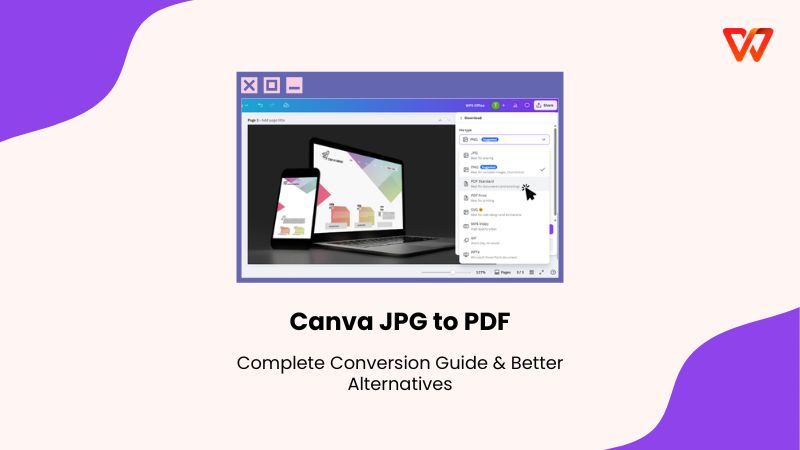
Overview of Canva
Canva is a comprehensive design platform, not a dedicated file converter. It's popular because of its User-Friendly Interface, which features an intuitive drag-and-drop editor that requires absolutely no prior design knowledge. You can simply choose a layout, customize text, and have a finished asset in minutes. This accessibility is supported by a Massive Template Library covering everything from social media posts to posters, so that you don't have to start from scratch every time.
Canva pdf editor also offers a robust Integrated Asset Ecosystem, providing immediate access to a huge stock library of photos, illustrations, and fonts directly within the editor. For organizations, features like Collaboration & Brand Kits allow for real-time teamwork and ensure logo and color consistency across all projects. However, while these tools make Canva a powerhouse for creating visuals, this design-first approach means that simple tasks, like converting a JPG to PDF, are handled as design projects rather than quick file operations.
Pros and Cons at a Glance:
How to Convert JPG to PDF Using Canva
Canva does not have a simple Canva image to PDF converter like other PDF tools. Instead, the process involves importing your image into a design project and then exporting that project in a different format. This method is excellent if you need to annotate the image or place two images side-by-side on a single page before finalizing the document.
Here is how to convert JPG to PDF in Canva in simple steps:
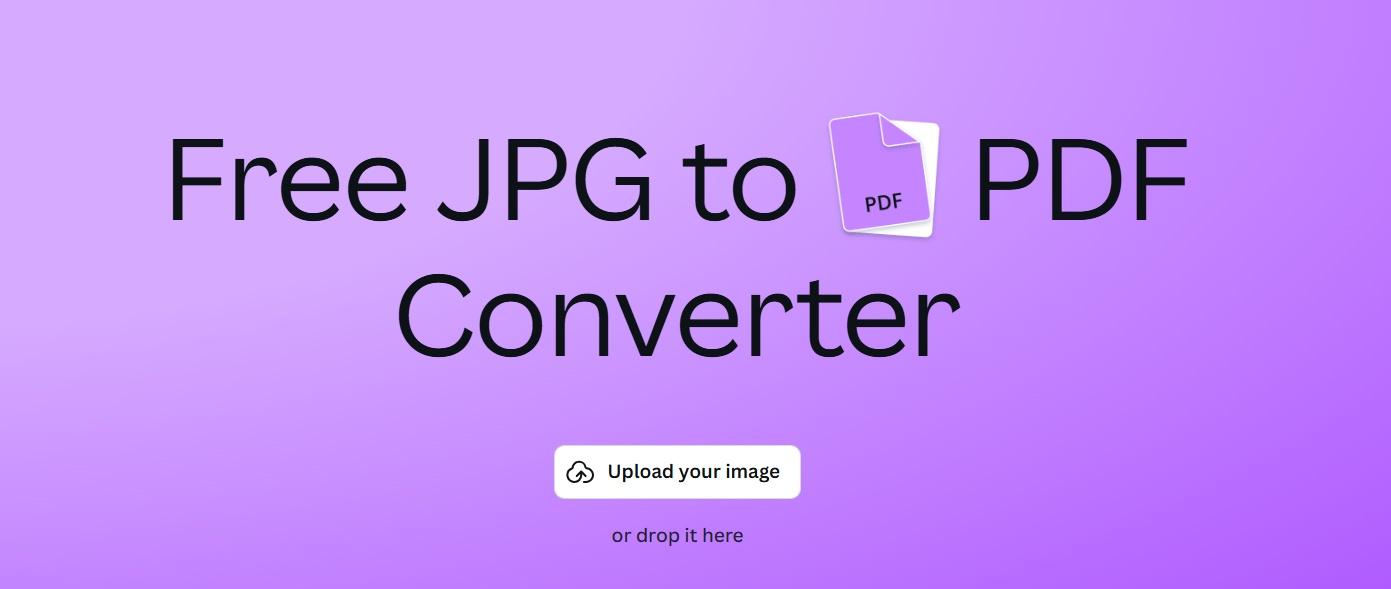
Step 1: First, head on over to the Canva JPG to PDF tool website and upload your image.
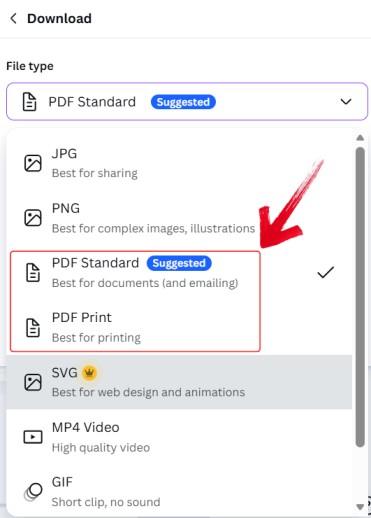
Step 2: The tool will automatically convert the image. On the right side, select “PDF Standard” (best for emailing) or “PDF Print” (best for high quality).
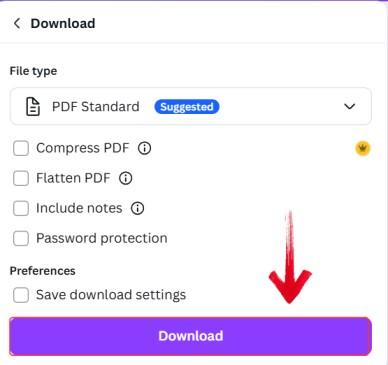
Step 3: Click “Download” to save the converted file to your device.
Top Canva Alternatives for JPG to PDF Conversion - WPS Online Tool
Canva is undeniably powerful for creating visually stunning layouts, but the free Canva JPG to PDF is not the fastest and most efficient for simple conversions. You need to create a new project every time and manually place every single image, which becomes incredibly time-consuming because the platform cannot handle bulk conversions. Since it is a heavy, browser-based design suite, the interface can be laggy for anyone on older devices, turning what should be a quick task into a slow, frustrating nightmare.
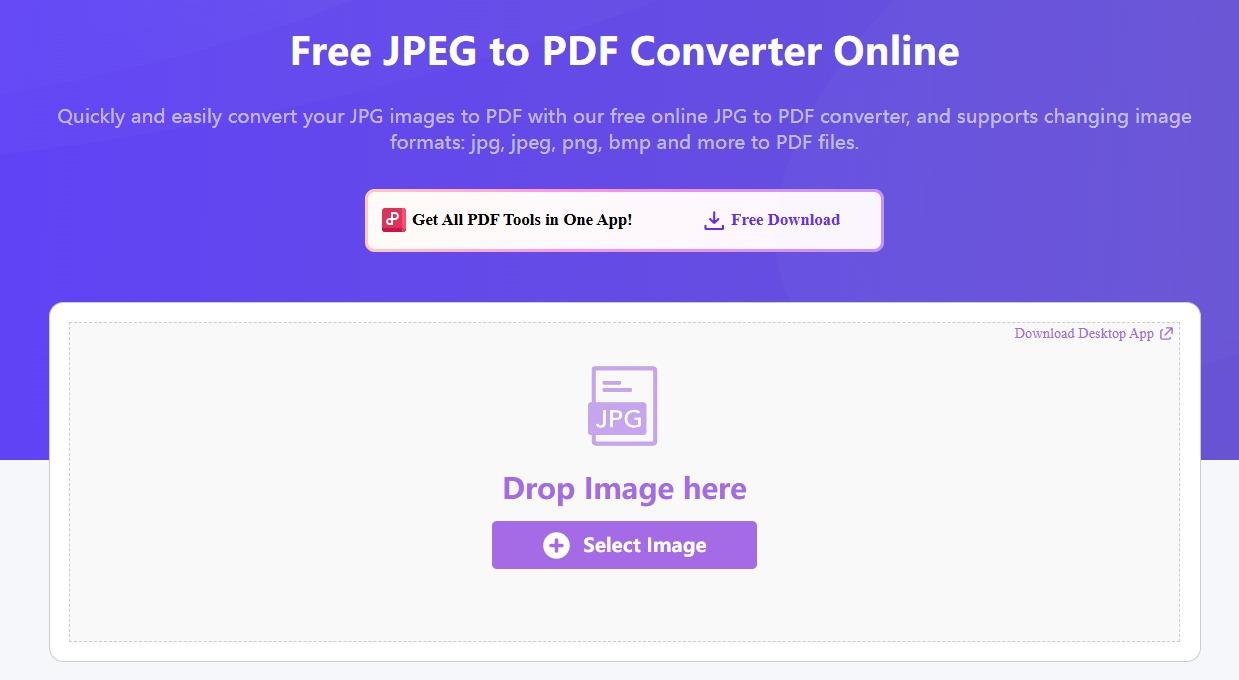
A tool like WPS JPG to PDF is a better alternative here, as it is built solely for converting JPG to PDF. It offers both online and offline capabilities, processing files with an emphasis on speed and privacy that Canva's cloud-only environment lacks. It excels at batch processing, allowing users to drag and drop multiple JPGs and convert them into a single, compact PDF instantly, eliminating the need to manually resize images or adjust page margins.
How to Convert JPG to PDF Using WPS PDF:
Using WPS PDF to convert your documents from one format to another is simple. It skips the layout phase entirely, allowing you to go from image to document in seconds.
Step 1: First, head on over to the WPS JPG to PDF tool.
Step 2: Upload your Image by dragging it or clicking the “Select Image” button.
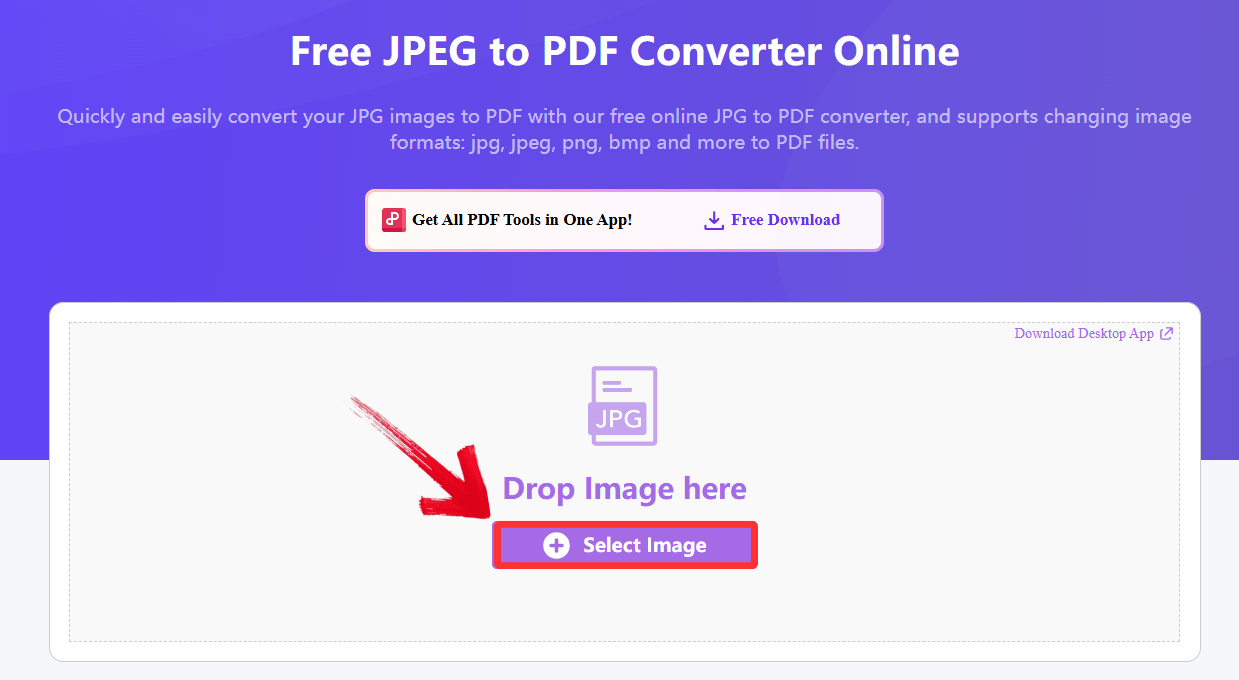
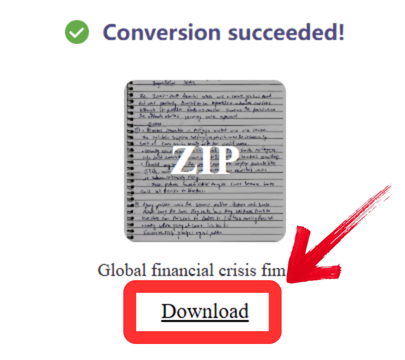
Step 3: Your file will be converted automatically, then just click “Download” to save the extracted file onto your device.
Advanced Features of WPS PDF:
Batch Conversion: Process hundreds of images simultaneously into a single file or separate documents, saving hours of manual work compared to Canva's one-by-one upload method.
Quality & Compression Control: Fine-tune the file size and resolution before conversion, ensuring your PDF is small enough to email without sacrificing visual clarity.
Direct Editing Capabilities: Seamless integration with WPS Office allows you to modify text, annotate, or rearrange pages immediately after conversion without switching software.
I use the desktop version of WPS PDF on my MacBook specifically for this. The ability to drag a whole folder of receipts and convert them into a single PDF report in one go saves me about 20 minutes of work compared to placing them manually in Canva.
Comparison table: Canva vs WPS PDF
To help you better understand the differences between a design tool and a dedicated converter, I’ve broken down the key performance metrics side-by-side. This comparison highlights where each tool excels so you can choose the right one for your specific workflow.
| Feature | Canva | WPS PDF |
|---|---|---|
| Conversion Focus | Design-integrated | Dedicated |
| Free Tier | Limited | Unlimited |
| Batch Processing | Limited (Manual) | Excellent (Auto) |
| Output Quality | High | Excellent |
| Speed | Moderate | Very Fast |
| Additional Tools | Extensive Design | Comprehensive PDF |
Why WPS PDF is Better for Pure Conversion
Canva is the industry leader for creative design, but relying on a design platform for strict file conversion often is not the most efficient. If you’re focused on administrative tasks, archiving, or processing multiple documents, adopting a specialized tool like WPS PDF provides significant efficiency gains over a generalist design platform.
Workflow Efficiency: Eliminates the design interface overhead, providing direct access to conversion tools with minimal clicks and faster processing times.
Scalability: Robust batch processing capabilities make it suitable for users who need to convert large volumes of images regularly without manual placement.
Consistent Performance: Dedicated conversion focus ensures reliable, high-quality output without the variable performance sometimes experienced in Canva's design-heavy environment.
Privacy and Accessibility: Offline capability through the desktop version provides enhanced privacy and accessibility options not available in Canva's cloud-only approach.
FAQs
Q1: Can I convert multiple JPG files to a single PDF in Canva?
You can, but it is manual. You must create a multi-page design and place each JPG onto a separate page one by one. WPS PDF handles this automatically, merging multiple uploads into one document instantly.
Q2: Is Canva Pro required for high-quality PDF exports?
Canva's free version provides good-quality PDF Standard exports. However, for PDF Print with CMYK color profiles (used for professional printing), you often need Canva Pro.
Q3: Which tool provides better PDF quality: Canva or WPS PDF?
Both platforms produce excellent results. However, WPS PDF offers more granular control over compression ratios, allowing you to balance file size and quality more precisely than Canva's presets.
Q4: Does Canva have OCR features to read text from my JPG?
No, Canva treats the JPG as a flat image. WPS PDF (especially the desktop version) includes OCR technology that can recognize text in your image and make it editable during the conversion process.
Q5: Can I use these tools offline?
Canva requires an active internet connection to load its assets and export files. WPS Office has a desktop application that allows you to convert and edit files completely offline.

'%3e%3cpath%20d='M19.9911%204.11386V6.471H18.5894C18.0775%206.471%2017.7322%206.57814%2017.5536%206.79243C17.3751%207.00671%2017.2858%207.32814%2017.2858%207.75671V9.44421H19.9019L19.5536%2012.0871H17.2858V18.8639H14.5536V12.0871H12.2769V9.44421H14.5536V7.49779C14.5536%206.39064%2014.8632%205.53201%2015.4822%204.92189C16.1013%204.31177%2016.9257%204.00671%2017.9554%204.00671C18.8304%204.00671%2019.509%204.04243%2019.9911%204.11386Z'%20fill='%23333333'/%3e%3c/g%3e%3cdefs%3e%3cclipPath%20id='clip0_2938_8199'%3e%3crect%20width='16'%20height='16'%20fill='white'%20transform='translate(8%204.00671)'/%3e%3c/clipPath%3e%3c/defs%3e%3c/svg%3e)
'%3e%3cpath%20d='M17.5237%2010.7813L23.4811%204H22.0699L16.8949%209.88693L12.7648%204H8L14.2469%2012.9029L8%2020.0133H9.4112L14.8725%2013.7952L19.2352%2020.0133H24M9.92053%205.04213H12.0885L22.0688%2019.0224H19.9003'%20fill='%23333333'/%3e%3c/g%3e%3cdefs%3e%3cclipPath%20id='clip0_2938_8200'%3e%3crect%20width='16'%20height='16.0134'%20fill='white'%20transform='translate(8%204)'/%3e%3c/clipPath%3e%3c/defs%3e%3c/svg%3e)


