
10 Best Free Office Software for Windows (2026)
An independent, hands-on ranking of 10 free office suites for Windows and PC, scored on compatibility, features, and real-world usability.
Quick answer
Best free office software for Windows in 2026
For most Windows users who want a familiar Microsoft Office-style workflow plus PDF tools in one app, WPS Office is the strongest free pick in this ranking. Choose LibreOffice if you want fully open-source software with no ads and no account. Choose ONLYOFFICE when Microsoft DOCX/XLSX/PPTX fidelity is the top priority. Choose Google Docs when live teamwork in the browser matters more than offline desktop power.
Best overall free suite
WPS Office — Writer, Spreadsheet, Presentation, PDF tools, and strong Microsoft format support.
Best open-source / no ads
LibreOffice — complete offline suite with no license fees and community development.
Best Microsoft-format fidelity
ONLYOFFICE — strong DOCX/XLSX/PPTX handling and self-hosting options for teams.
Best for live collaboration
Google Docs — real-time editing, comments, and Drive sharing for remote teams.
Last reviewed: 2026-10-27. Rankings weight free-tier value, Windows usability, Microsoft Office compatibility, PDF coverage, and collaboration.
Selection Criteria
How We Selected These Office Suites
To make our recommendations as practical as possible, we evaluated each office suite using the features that matter most to Windows users:
- Microsoft Office file compatibility
- Document, spreadsheet, presentation, and PDF capabilities
- Ease of use
- Windows 11 and Windows 10 support
- Collaboration features
- Overall value in the free version
Our goal is to recommend office software that delivers the best balance of compatibility, functionality, and everyday productivity rather than simply listing the most popular products.
We weighted free-tier value and Microsoft Office compatibility most heavily, followed by PDF tools, ease of use on Windows 10/11, and collaboration. Where a product gates advanced PDF or AI features behind Premium, we note that under Cons so the ranking reflects what users actually get for free.
Jump to the right office suite faster
These 10 tools are ranked from the most complete free suite to more specialized collaboration-first options.
Top 10 picks for Windows
Use this board to jump straight to each ranked tool. WPS Office leads for the broadest free feature set, while the rest serve different collaboration, plugin, or lightweight needs.
Best overall fit
WPS Office stands out for Microsoft Office compatibility, PDF tools, and a familiar interface.
Best for teamwork
Google Docs and Zoho Workplace are strongest when live collaboration matters most.
Best for add-ons
ONLYOFFICE stands out for self-hosted collaboration and Microsoft Office-style workflows.
Best lightweight option
SSuite Office keeps memory use low for older PCs, though compatibility and modern features are limited.
WPS Office: Best Free Value
If you want most of what Microsoft Office does for everyday work, without paying for a subscription, WPS Office is a strong free choice on Windows.
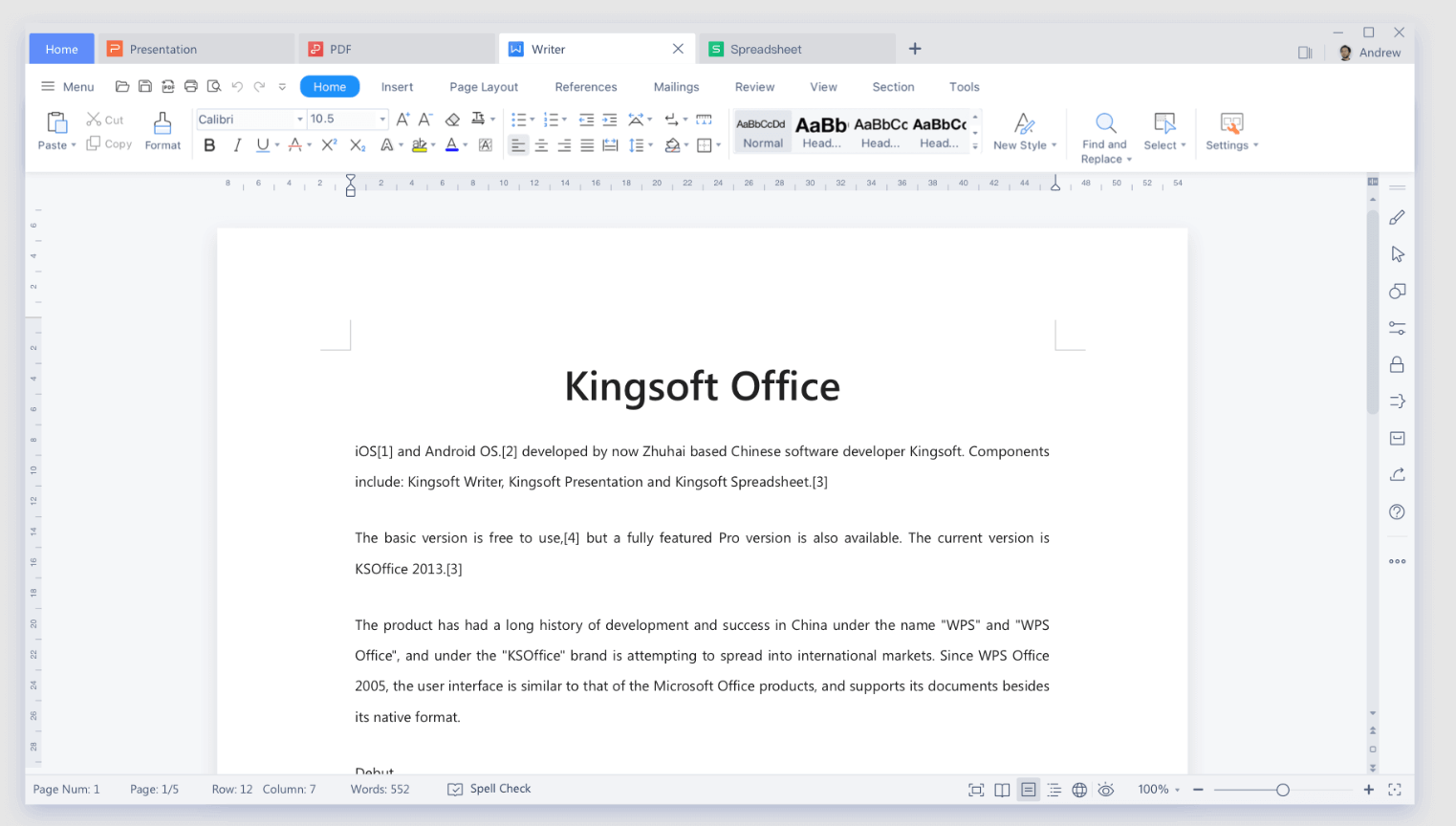
WPS does about 95% of what Microsoft Office does, at zero cost. After switching between Microsoft 365, LibreOffice, and WPS on the same Windows machine for schoolwork and client docs, that is still the shortest way I can describe it. Reports, slides, coursework, and everyday spreadsheets open cleanly, save back to Word/Excel/PowerPoint formats by default, and the install stays lighter than a full Microsoft 365 stack.
If you already know Microsoft Office, WPS is the closest free desktop experience I have used. The ribbon layout, menus, and day-to-day clicking paths feel familiar enough that most people can start working in minutes. LibreOffice is also free, and it is fine for basic writing, but Spreadsheet and Presentation still feel thinner when you need pivot-style work, chart polish, or a slide deck that has to look finished. With WPS I spend less time hunting for features and more time finishing the file.
The free version also packs Writer, Spreadsheet, Presentation, and a built-in PDF toolkit into one install, so you are not stacking a separate PDF editor on top of Office. Beginners get an easier path too: Text to Columns, finding duplicates, and similar cleanup jobs are one-click smart tools instead of a long menu hunt.
95% of Microsoft Office, at zero cost
Skip the Microsoft 365 subscription for everyday school and work files.
All-in-one, including PDF
- Docs, sheets, slides, and PDF tools in one app.
- Compress, convert, merge, and split PDFs without buying Adobe.
- One lightweight install instead of stacking subscriptions.
Beginner-friendly smart tools
Text to Columns, finding duplicates, and similar spreadsheet cleanup jobs are one-click tools anyone can use.
Best For
Students, freelancers, and everyday Windows users who want a free Microsoft Office alternative that is familiar, lightweight, and complete enough for schoolwork, basic business docs, and PDF chores. Pay for Microsoft 365 only if you truly need advanced Excel power or a required school/work ecosystem.
Pros
- Free for core work, with a Microsoft-like interface and strong DOCX/XLSX/PPTX compatibility
- All-in-one suite: Writer, Spreadsheet, Presentation, plus built-in PDF tools
- One-click tools for Text to Columns, finding duplicates, and other common spreadsheet cleanup jobs
- Lighter footprint than a full Microsoft 365 desktop stack for everyday use
- Ready-made Office templates for resumes, schoolwork, and business docs
- Works across Windows, macOS, Linux, Android, iOS, and the web
Cons
- The free version may show ads; some advanced AI capabilities, premium templates, and deeper PDF tools require a Premium subscription
- Team collaboration features deliver the best experience when collaborators also use the WPS ecosystem
- Closed-source freeware: fine for most home and work use, but not ideal if you require open-source licensing
Our Verdict
For most Windows users, WPS is the free pick I would install first: Microsoft-like workflow, enough spreadsheet and slide depth for real school and work files, plus PDF in the same app. Microsoft still wins for niche advanced Excel or a required Microsoft 365 setup. LibreOffice remains the open-source option, but I would not pick it first when presentation polish or spreadsheet richness matters. For students and everyday users, WPS is more than enough.
Google Docs: Cloud Collaboration
If your day is mostly shared docs, comments, and “can everyone see this?”, Google Docs is still the tool I open first.

Live editing in Google Docs just works: two or three people can type in the same file, leave comments, and never wonder which version is current. Drive sharing and permissions are also clearer than most free desktop suites. For class group work or a remote draft review, that alone saves time.
Where it falls short for me is heavy Microsoft Office files. Complex Word layouts, large Excel sheets, and polished PowerPoint decks often need cleanup after a round-trip. Offline work is also weaker than a real desktop suite. If you live in .docx/.xlsx/.pptx all day, keep a Windows app like WPS or ONLYOFFICE nearby.
Best For
Teams and students who write together in the browser more than they build complex Office files offline.
Pros
- Industry-leading real-time collaboration
- Automatic cloud saving with Google Drive
- Easy file sharing and permission controls
- Works across Windows, macOS, ChromeOS, Android, and iOS
Cons
- Limited offline functionality compared to desktop office suites
- Complex Microsoft Office formatting may not always be preserved
- Advanced spreadsheet and presentation features are less comprehensive
Our Verdict
Google Docs is the free collaboration default when the document itself is the meeting place. For Windows users who need stronger Office-file fidelity or serious offline editing, switch to a desktop suite and use Docs only for the shared draft stage.
Microsoft Office Online: Native Compatibility
Microsoft’s free web apps are useful when you need the official Word, Excel, or PowerPoint brand in a browser, without paying for Microsoft 365 yet.

Compatibility is the obvious win: files look and behave like Microsoft’s own formats because they are Microsoft’s own apps. In practice I treat Office Online as a light editor for quick fixes, short worksheets, and opening a file someone sent in .docx/.xlsx/.pptx. The moment I need offline work, macros, deep formatting, or a long deck, I hit the free-tier ceiling fast.
Best For
People who only edit Microsoft files occasionally and want the official web apps rather than a third-party suite.
Pros
- Native support for Microsoft Office file formats
- Familiar interface with minimal learning curve
- Accessible from any modern web browser
- Automatic OneDrive integration
Cons
- Internet connection required for most tasks
- Limited features compared to Microsoft 365 desktop apps
- Fewer PDF and productivity tools than dedicated office suites
Our Verdict
Office Online is fine for occasional official edits in the browser. If you want offline Windows work plus PDF tools without a Microsoft 365 bill, a free desktop suite like WPS is usually the better daily driver.
LibreOffice: Open-Source Suite
LibreOffice is the free open-source suite I recommend when “no ads, no account, fully offline” matters more than matching Microsoft’s look and polish.

It ships a full desktop stack: Writer, Calc, Impress, plus Draw, Base, and Math. Everything runs offline with no license fee, which is still rare. For privacy-minded users and anyone who refuses freeware ads, that package is hard to argue with.
The trade-off shows up on real Microsoft files. Complex Excel workbooks and finished PowerPoint decks often need cleanup, and the UI still feels older than WPS or Microsoft. Calc can do a lot, but I find WPS Spreadsheet and Presentation faster when the file has to look “Office-ready” for a client or class submission.
Best For
Users who want open-source software, zero ads, and full offline control more than a Microsoft-like interface.
Pros
- Completely free and open source
- No advertisements or subscription requirements
- Strong offline productivity tools
- Available on Windows, macOS, and Linux
Cons
- User interface feels less modern
- Complex Microsoft Office files may require formatting adjustments
- Lacks integrated AI and modern collaboration features
Our Verdict
LibreOffice is still the open-source champ for offline freedom. If your priority is Microsoft-like workflow, richer spreadsheet/slide polish, or built-in PDF tools on Windows, I would start with WPS instead and keep LibreOffice for open-source-first setups.
Apache OpenOffice: Basic Offline Editing
Apache OpenOffice is the older open-source cousin of LibreOffice. It still opens basic docs offline, but I would only keep it on machines that already depend on it.

Development moves slowly, the UI feels dated, and Microsoft format support lags behind LibreOffice and WPS. For a clean Windows install in 2026, LibreOffice is the better open-source pick and WPS is the better Microsoft-compatible free pick.
Best For
Only users already locked into OpenOffice, or machines that only need very basic offline editing.
Pros
- Completely free and open source
- Simple interface with essential productivity tools
- Works without an internet connection
- Low hardware requirements
Cons
- Slower development compared to competitors
- Outdated user interface
- Limited support for modern collaboration and AI features
Our Verdict
OpenOffice can still write a letter offline, but most Windows users should skip it for LibreOffice or WPS unless they have a specific legacy reason to stay.
ONLYOFFICE: Self-Hosted Collaboration
ONLYOFFICE is the free desktop option I reach for when Microsoft file fidelity matters more than a consumer all-in-one suite.

DOCX, XLSX, and PPTX are treated as first-class formats, so charts, fonts, and layouts usually survive the round-trip better than in many free suites. Teams that want collaboration under their own roof can also self-host, which is the real differentiator versus Google Docs or a closed freeware app.
For a solo Windows user, the setup can feel heavier than WPS. You get strong editors, but not the same “one lightweight app plus PDF toolkit” convenience. I use ONLYOFFICE when format accuracy or self-hosting is the priority, not when I just need a free daily Office replacement.
Best For
IT teams and organizations that need strong Microsoft-format fidelity and optional self-hosted collaboration.
Pros
- Excellent compatibility with Microsoft Office documents
- Real-time collaborative editing
- Supports cloud deployment and self-hosting
- Familiar interface for Microsoft Office users
- Suitable for enterprise and education environments
Cons
- Collaboration features require additional server or cloud setup for maximum benefit
- Smaller extension ecosystem than Microsoft 365 or Google Workspace
- May be more complex than necessary for casual users
Our Verdict
ONLYOFFICE wins on Microsoft-format fidelity and self-hosting. For a personal Windows install that should also handle PDF and feel easy on day one, WPS is still the more practical free suite.
Zoho Workplace: Small Business Platform
Zoho Workplace is less “a free Word clone” and more a small-business cloud kit: docs, mail, chat, and storage under one login.

If your team already lives in Zoho mail and chat, the docs tools are convenient because everything stays in one browser workflow. Coming from Microsoft Office, expect a different interface and occasional formatting drift on complex files. I would not pick Zoho first purely as a free Windows Office replacement.
Best For
Small businesses already using Zoho for email or ops, not users hunting for a free Microsoft Office lookalike on Windows.
Pros
- Integrated email, office apps, cloud storage, and collaboration tools
- Real-time document sharing and teamwork
- Competitive pricing for business users
- Works across web browsers and mobile devices
Cons
- Best experience requires internet connectivity
- Interface differs from traditional Microsoft Office applications
- Advanced Office document formatting may occasionally require adjustments
Our Verdict
Zoho Workplace is a cloud productivity bundle, not the strongest free desktop Office stand-in. For Windows users who mainly need docs, sheets, slides, and PDF offline, WPS or LibreOffice is a clearer fit.
SoftMaker FreeOffice: Microsoft Office-Like
SoftMaker FreeOffice feels closest to classic Microsoft Office among the lighter freeware suites, which helps if you hate relearning menus.

Everyday Word- and Excel-style files open fine, and the desktop apps feel snappy. The free tier is thinner than WPS once you want deeper PDF tools or a broader free feature set, so I treat SoftMaker as a clean lightweight writer/spreadsheet option rather than a full all-in-one replacement.
Best For
Users who want a familiar desktop Office feel in a light free app and do not need a full PDF toolkit.
Pros
- Familiar ribbon-style interface
- Good compatibility with Microsoft Office documents
- Lightweight and responsive performance
- Available for Windows, macOS, and Linux
Cons
- Some premium features require upgrading
- Limited built-in PDF functionality
- No integrated AI productivity tools
Our Verdict
SoftMaker is an easy switch for Microsoft-looking desktop work. If you also want built-in PDF tools and a broader free feature set on Windows, WPS usually gives you more in one install.
Polaris Office: Cross-Device Productivity
Polaris Office makes the most sense if you bounce between Windows and phones more than you live in one desktop suite.

Cross-device sync is the pitch: start a file on PC, continue on mobile, keep cloud copies handy. That workflow is handy for travel days, but the free Windows experience still feels more limited than WPS once ads and locked features show up.
If your main machine is a Windows PC and you want the strongest free desktop value, I would still install WPS first and only add Polaris when mobile handoff is the actual requirement.
Best For
Users who constantly switch between Windows and mobile and care more about sync than a deep free desktop toolkit.
Pros
- Available across Windows, Android, iOS, and the web
- Cloud synchronization between devices
- Supports Microsoft Office file formats
- Includes basic PDF functionality
Cons
- Advertisements in the free version
- Some advanced features require a subscription
- Collaboration tools are less comprehensive than dedicated cloud platforms
Our Verdict
Polaris is about multi-device access. For a free Windows-first Office replacement with stronger all-in-one value, WPS is the better default.
SSuite Office: Lightweight for Older PCs
SSuite Office is for old or low-spec Windows PCs that choke on modern office installs.

It starts quickly and asks very little from the machine. That is the whole value proposition. Compatibility with current Microsoft files and modern formatting is limited, so I only use it for basic notes and simple sheets on aging hardware.
On a normal Windows 10/11 PC, WPS or LibreOffice is a better free choice. Keep SSuite as a last-resort lightweight option, not as your main Office alternative.
Best For
Older PCs or ultra-basic offline editing where install size and RAM matter more than compatibility.
Pros
- Very lightweight installation
- Low system requirements
- Works completely offline
- Free to use
Cons
- Limited Microsoft Office compatibility
- Outdated interface
- No cloud collaboration or AI features
- Smaller feature set than modern office suites
Our Verdict
SSuite can revive an old PC for basic docs. Most Windows users should pick WPS or LibreOffice unless hardware limits leave no other choice.
Best Free Office Software for Windows at a Glance
Compare Microsoft Office compatibility, PDF tools, AI features, real-time collaboration, and platform support across all 10 suites.
| Office Suite | Best For | Microsoft Office Compatibility | PDF Tools | AI Features | Real-Time Collaboration | Platforms |
|---|---|---|---|---|---|---|
| WPS Office | Overall productivity | Built-in | WPS AI | AirPage, AirSheet, AirSlides | Windows, macOS, Linux, Android, iOS, Web | |
| Google Docs | Team collaboration | Limited | Google Workspace AI | Web, Android, iOS | ||
| Microsoft Office Online | Official Microsoft apps | Limited | Microsoft Copilot (subscription) | Web | ||
| LibreOffice | Open-source users | Basic | Windows, macOS, Linux | |||
| ONLYOFFICE | Business collaboration | Basic | Limited | Windows, macOS, Linux, Web | ||
| Zoho Workplace | Small businesses | Basic | Zia AI | Web, Android, iOS | ||
| SoftMaker FreeOffice | Familiar desktop experience | Basic | Windows, macOS, Linux | |||
| Polaris Office | Multi-device users | Limited | Basic | Windows, Android, iOS | ||
| Apache OpenOffice | Basic offline editing | Basic | Windows, macOS, Linux | |||
| SSuite Office | Older PCs | Limited | Windows |
Notes: Compatibility ratings reflect typical free-tier results with common DOCX/XLSX/PPTX files. For WPS Office, core document editing is free; ads may appear, and some advanced PDF/AI features need Premium. LibreOffice and ONLYOFFICE Desktop remain free for personal and many business uses without a subscription.
Frequently Asked Questions
Quick answers on compatibility, PDF editing, offline use, AI features, and the best free office suites for Windows.
Why WPS Office remains the strongest free Windows pick
Many free office suites cover the basics, but WPS Office stands out when compatibility matters most. Its familiar layout, Microsoft Office-style workflow, PDF support, and smooth handling of Word, PowerPoint, and Excel alternatives make it the most complete free choice in this ranking.
Start with the most complete free office suite
If you want the closest free alternative to Microsoft Word, PowerPoint, and Excel on Windows, WPS Office gives you the broadest feature set in this list, plus strong format compatibility and helpful PDF tools.
