JPG files are ideal for capturing visuals, and PDFs remain the
universal choice for sharing, printing, and archiving professional
documents. But sending multiple JPG images individually is inconvenient,
unorganized, and far from professional.
So, how can you convert JPG to PDF online for free, easily, and
without sacrificing quality? This guide explores the best free JPG to
PDF converter options available in 2025 and shows you how to use them
effectively.
Use Word, Excel, and PPT for FREE
Part 1. Top Free JPG to
PDF Converters
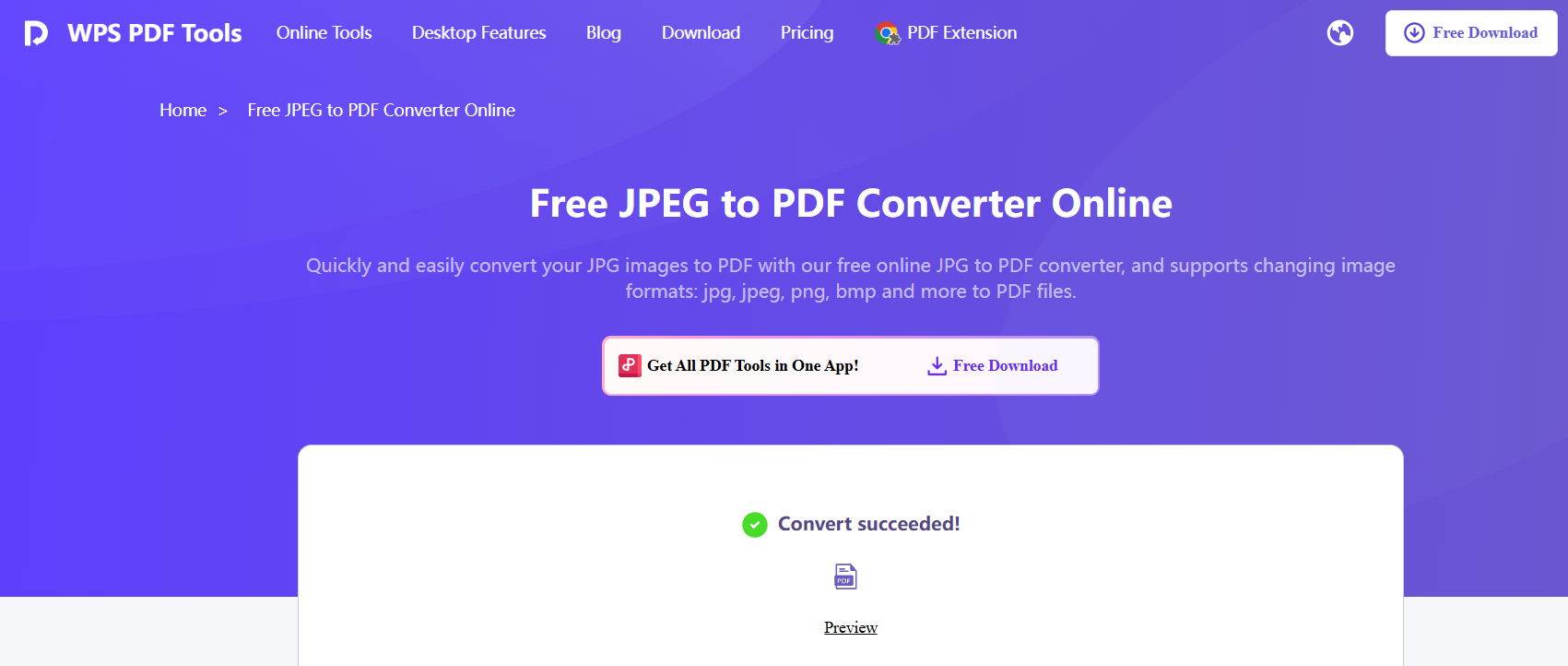
WPS PDF Tools
WPS PDF
Tools is one of the most reliable options if you are searching
for a free JPG to PDF converter that works without watermarks or hidden
charges. It is fully web-based, making it ideal for users who want a
fast JPG to PDF online free solution without installing additional
software.
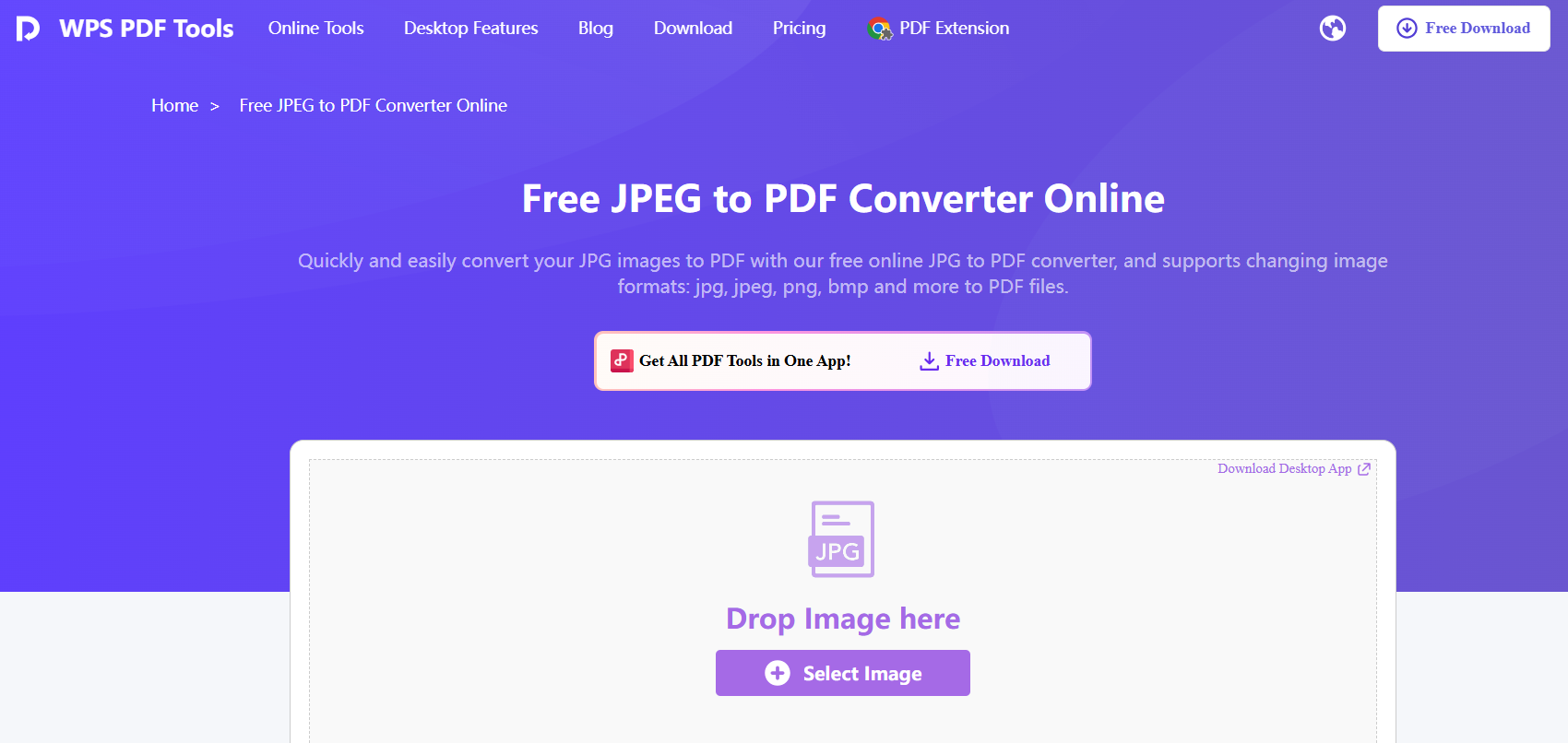
WPS free image to PDF converter
The interface is clean, the upload process is simple, and the
conversion quality consistently remains high across different image
types. Whether you need to convert a single image or batch-convert
multiple JPGs into a single PDF, WPS handles the process
efficiently.
Features
Convert one or multiple JPG images into a single PDF file
Drag-and-drop upload for quick workflow
Supports JPG, PNG, and other common image formats
Preserves original image quality
Secure browser-based processing with automatic file deletion after upload
Works on Windows, macOS, Linux, and mobile browsers
Pricing
WPS PDF Tools is free to use for standard conversions. Users can
access advanced PDF operations through optional premium plans, but JPG
to PDF conversion remains completely free. This makes it a practical
option for anyone looking for a truly free JPG to PDF converter without
limitations.
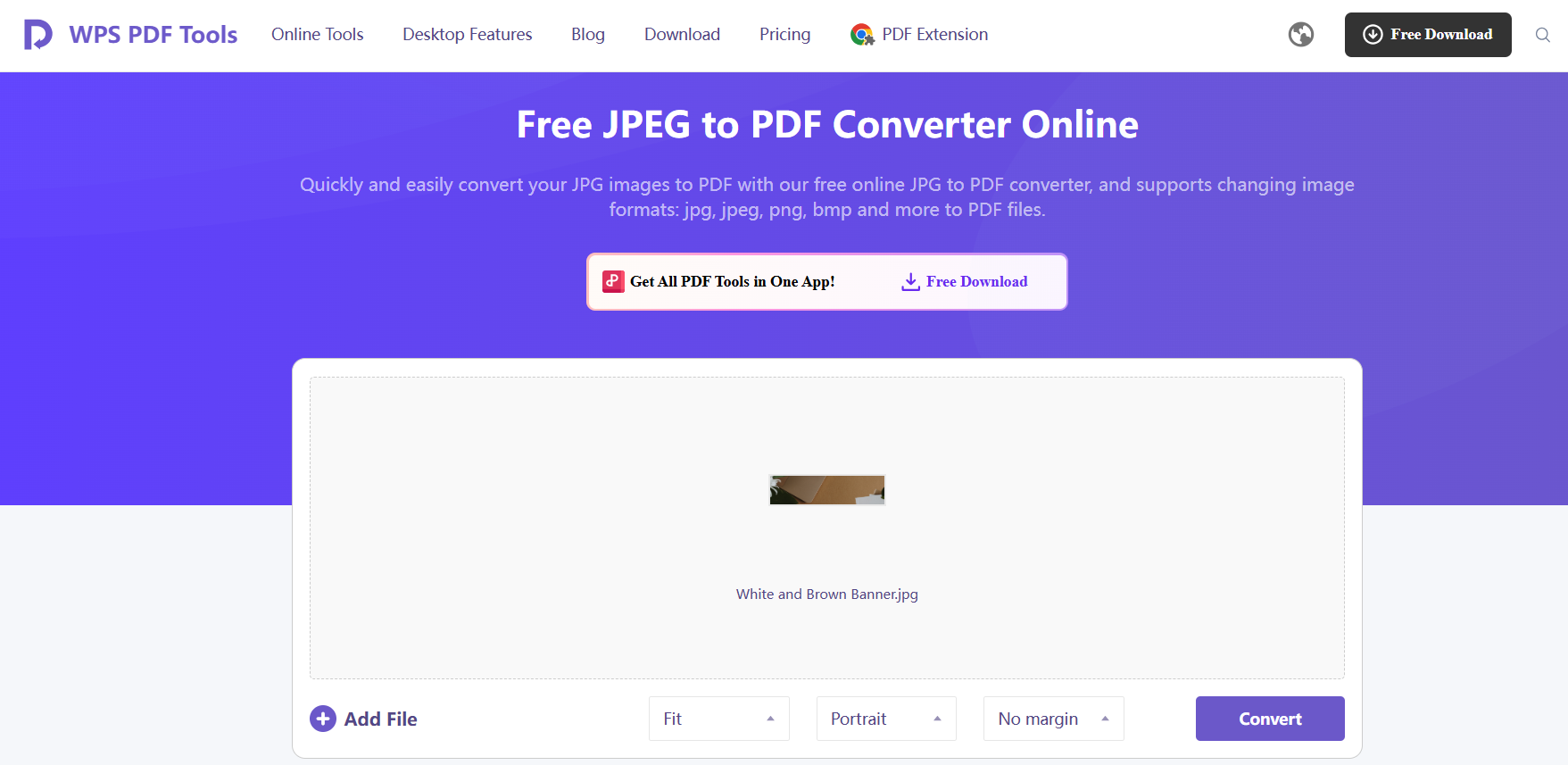
Step 2: Upload your JPG images using drag and
drop.
Upload your JPG images
Step 3: Arrange files in the desired
order.
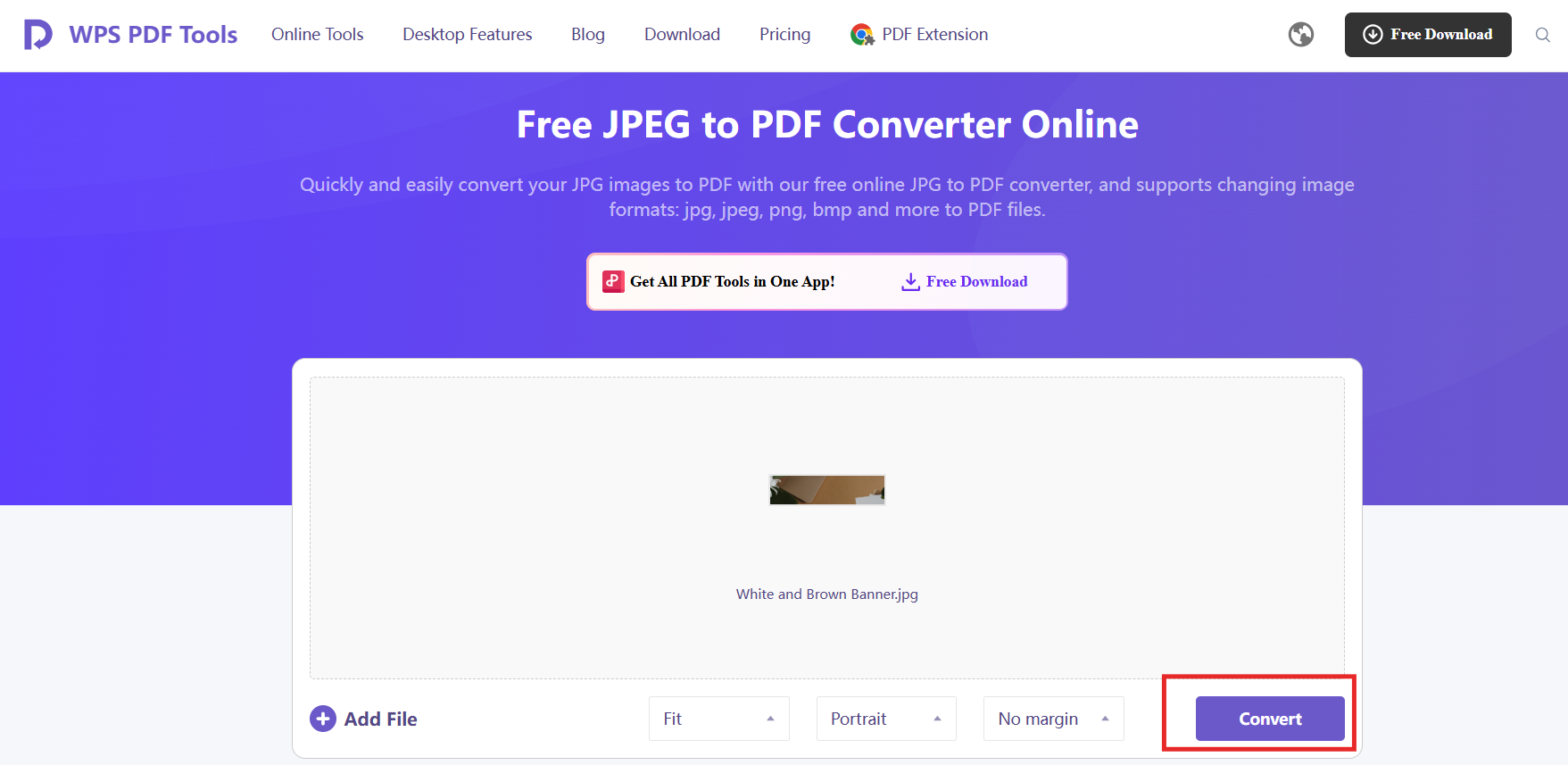
Step 4: Click Convert to generate the
PDF.
Click Convert to generate the PDF
Step 5: Download the finished PDF to your
device.
Download the finished PDF
Pros
High-quality output with minimal compression
No watermark added to the final PDF
Works instantly in the browser
Batch conversion supported
Secure and lightweight
Cons
Requires internet access for online conversion
Some advanced features are available only in the premium version
Personal Experience
I tested WPS PDF Tools using a mix of scanned pages, screenshots, and
high-resolution photos. The conversion speed was noticeably faster than
most online tools, and the final PDF kept the images sharp without
introducing unwanted compression. The batch arrangement feature also
made the workflow smoother when preparing documents to share with
clients. For users who want dependable results without installing
software, this tool performs consistently well.
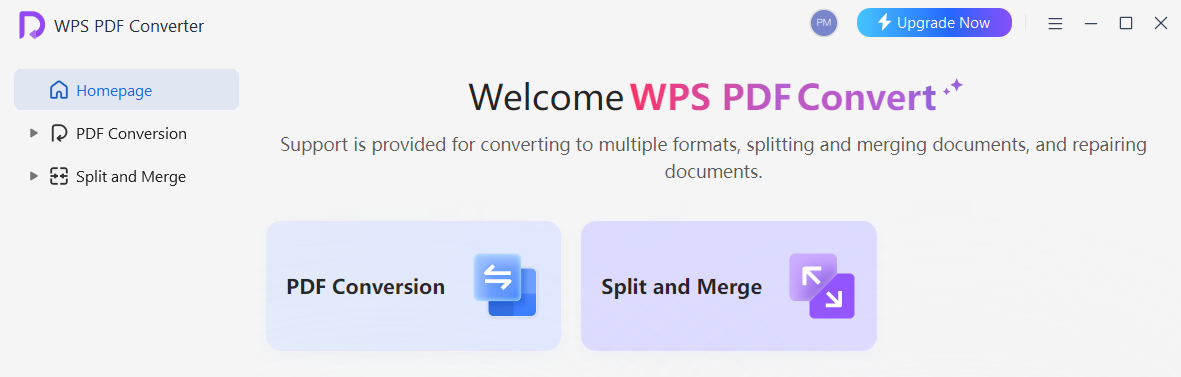
WPS Office (On Desktop)
WPS Office is an all-in-one productivity suite that includes Writer,
Presentation, Spreadsheets, and an integrated PDF toolkit. Unlike many
online tools, WPS Office allows you to convert JPG to PDF directly on
your computer without depending on internet access. This makes it
especially useful for users who frequently handle scanned documents or
need secure, offline workflows. In addition to file conversion, WPS
Office supports editing, annotating, compressing, and merging PDFs,
offering far more functionality than a standard free JPG to PDF
converter.
WPS PDF Convert
Features
Convert JPG and other image formats to PDF offline
Rearrange multiple images before generating the final PDF
Adjust page size, orientation, and margins
Built-in PDF viewer and editor
Lower performance requirements compared to other office suites
Supports a variety of file types for conversion beyond images
How to Convert JPG to PDF in WPS Office
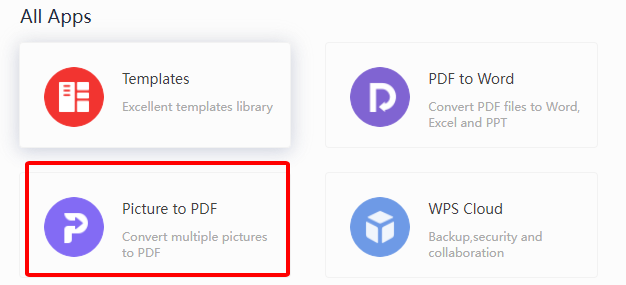
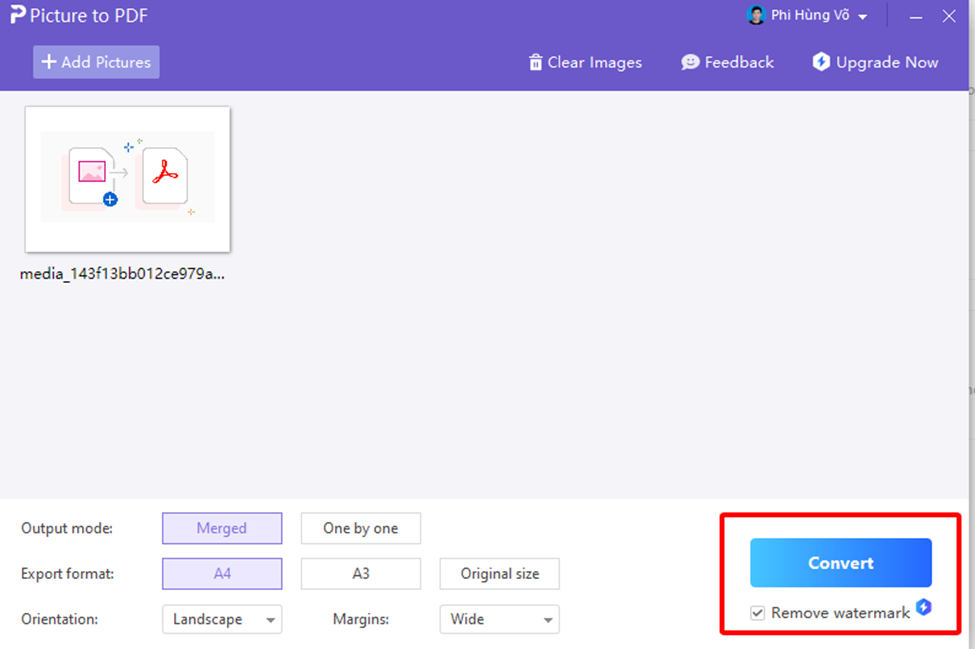
Step 1: Open WPS Office and go to the Tools and
Picture to PDF feature.
WPS Office Picture to PDF feature
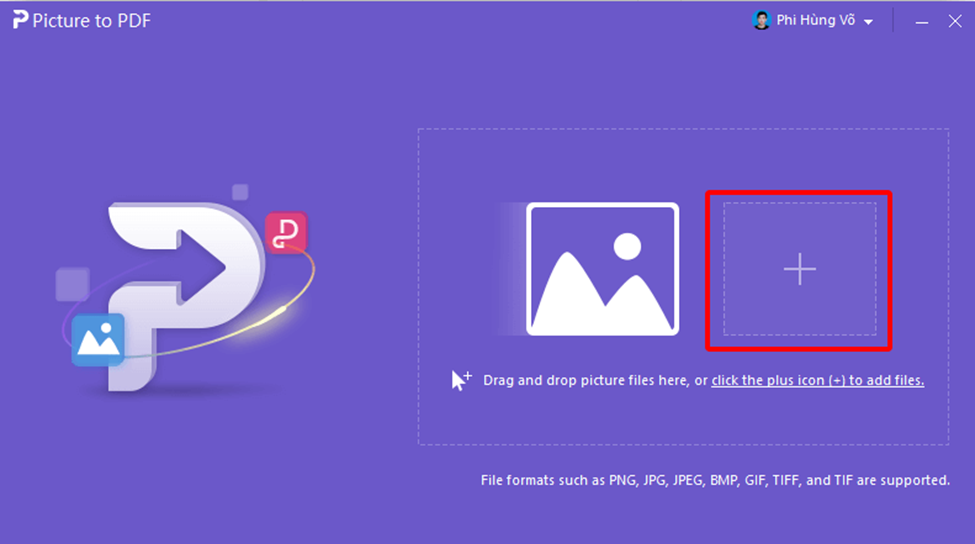
Step 2: Click Add Pictures and select the JPG files
you want to convert.
Click Add Pictures
Step 3: Arrange the images in the correct order.
Step 4: Click Convert to generate and save the
PDF.
Click Convert
Pros
Fully offline workflow
High-quality output without watermarks
Supports batch conversion and detailed layout settings
Part of a complete office suite, offering extended features
Cons
Requires installation compared to online tools
Some premium PDF features require a subscription
Personal Experience
Using WPS Office for offline conversion felt more stable than relying
on web-based tools when processing larger image sets. The layout
customization is particularly helpful when preparing documents like
scanned notes or project images because it allows you to control how the
final PDF appears. In my experience, the offline converter produced
consistent results and eliminated delays from uploading large files to
online platforms.
2. iLovePDF
iLovePDF free image to PDF converter
iLovePDF is
a popular online platform offering a wide range of PDF tools, including
a reliable free JPG to PDF converter. Known for its simple interface and
quick upload process, it is a practical choice for users who prefer a
lightweight, browser-based workflow. While it offers premium plans, many
essential tools, including JPG to PDF online free conversion, remain
accessible without sign-up. This makes it suitable for occasional users
who want fast results without installing software.
Features
Convert single or multiple JPG files into a single PDF
Rearrange images before converting
Supports common image formats like JPG, PNG, and GIF
Includes other PDF tools such as compression, merging, and splitting
Accessible on desktop and mobile browsers
Cloud integrations with Google Drive and Dropbox
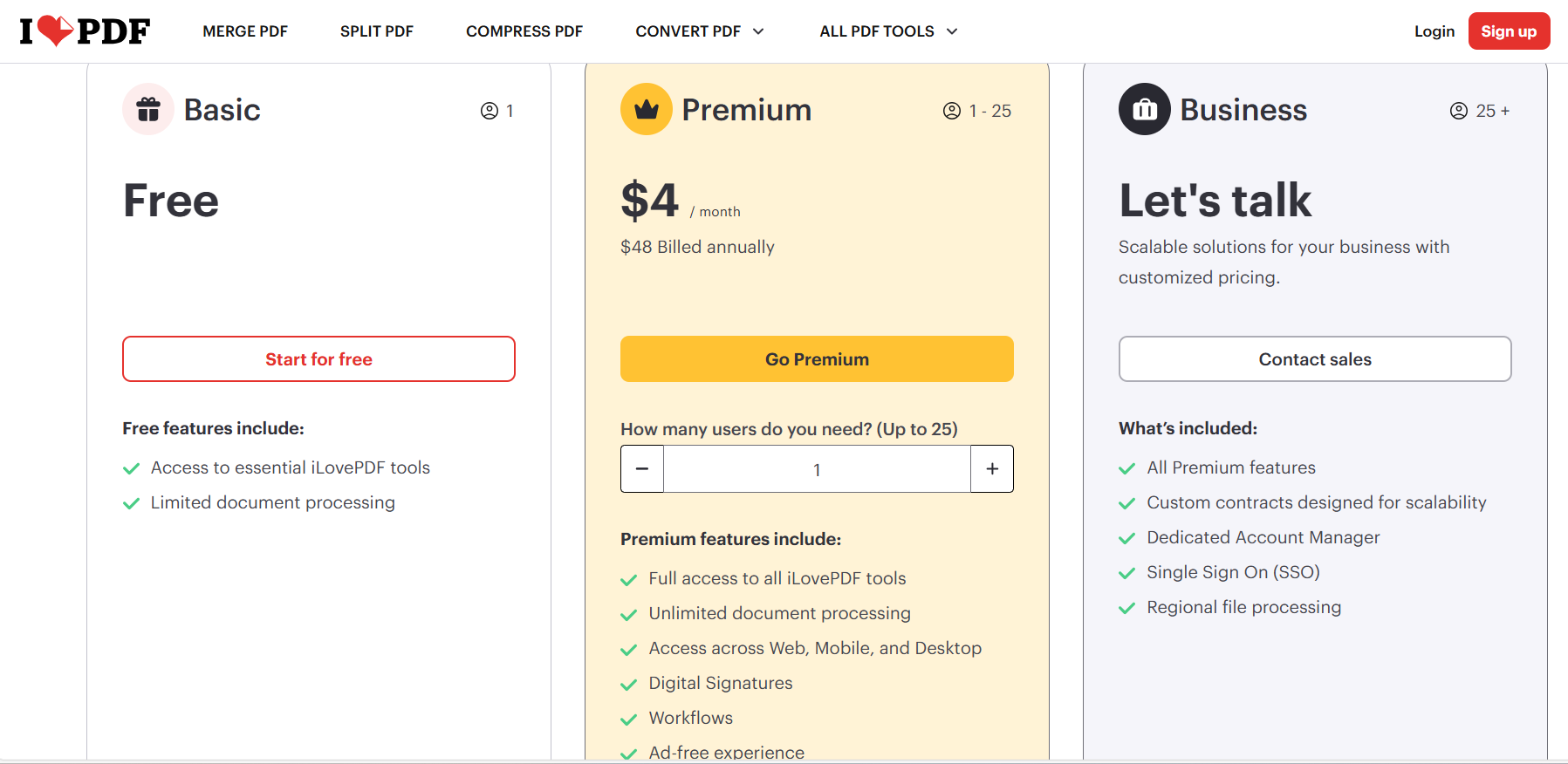
Pricing
iLovePDF pricing
iLovePDF offers free basic conversions, but certain limitations
apply. Free users may experience slower processing speeds, daily task
limits, or reduced batch size. A premium subscription unlocks higher
file limits and faster conversions. However, for standard JPG-to-PDF
needs, the free version is usually sufficient.
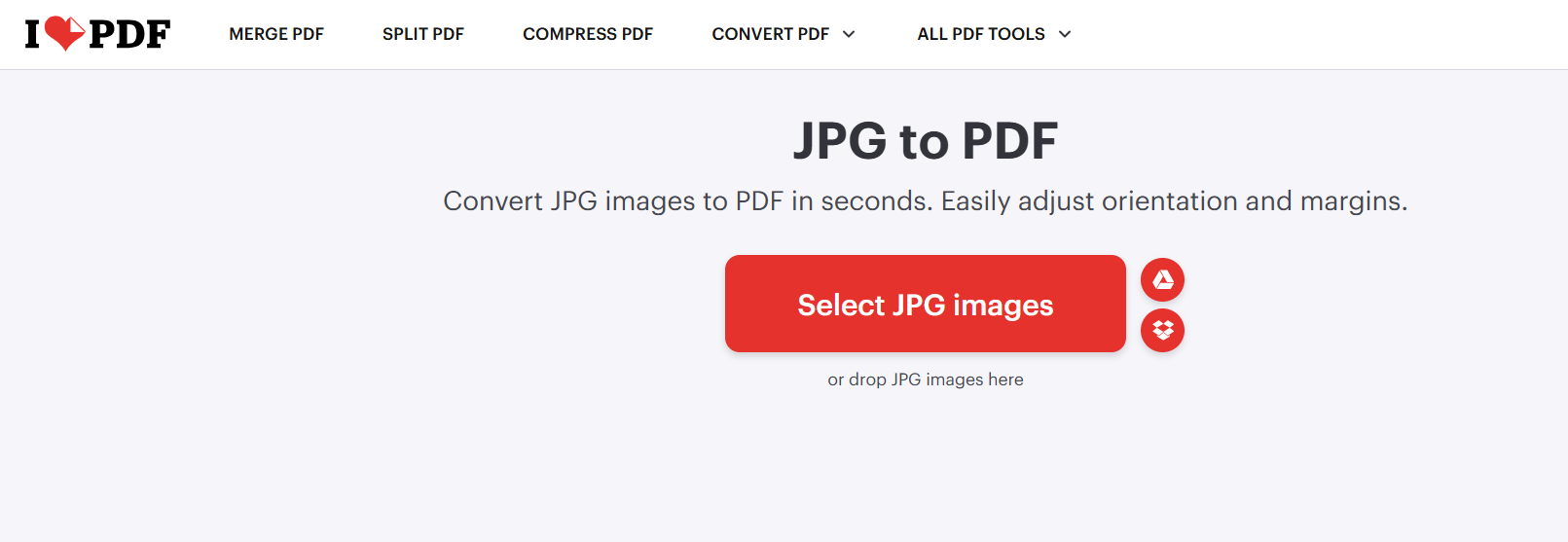
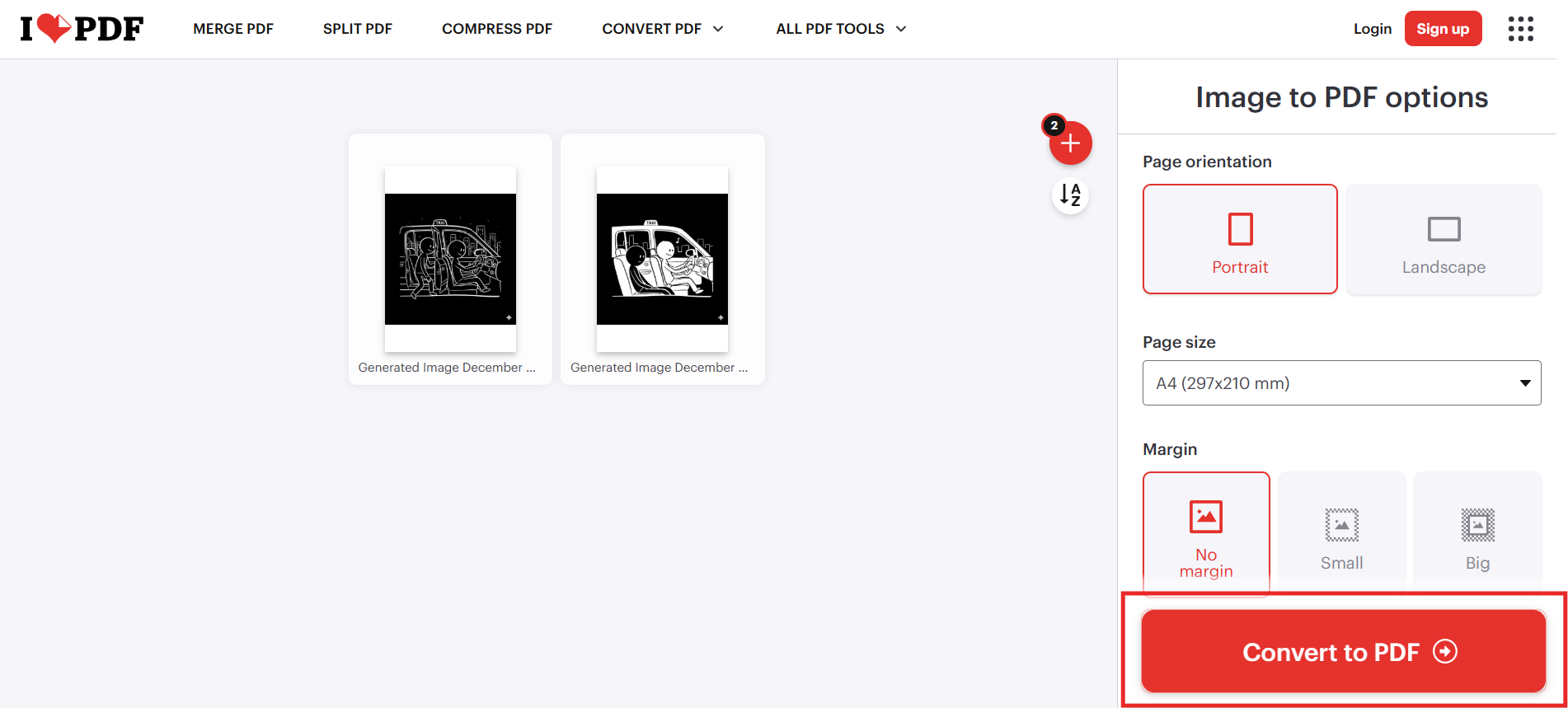
Step 2: Click Select JPG Images to upload your
files.
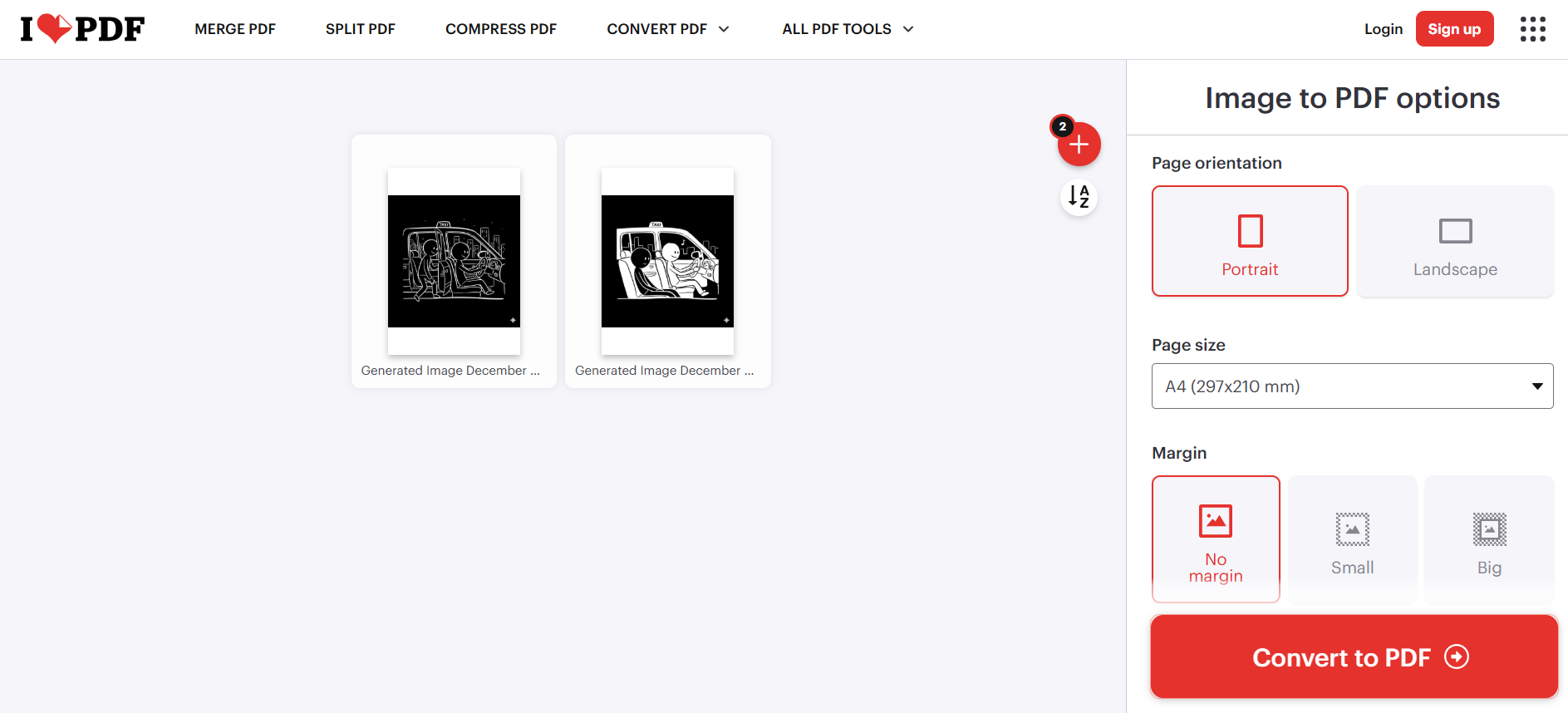
Step 3: Arrange images and adjust orientation if
needed.
Arrange images
Step 4: Select Convert to PDF.
Select Convert to PDF
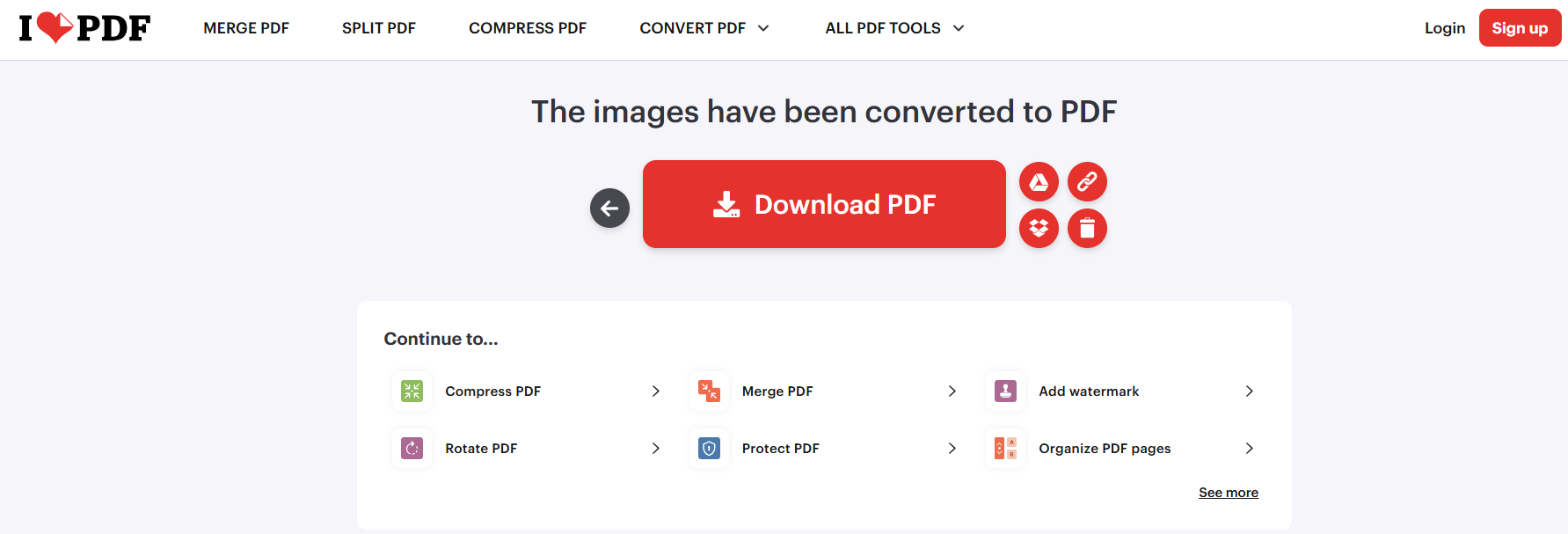
Step 5: Download the finished PDF to your
device.
Download the finished PDF to your device
Pros
Clean and beginner-friendly interface
Works quickly for small and medium-sized conversions
Offers additional PDF tools in one place
No installation required
Cons
Daily task limits for free users
Occasional ads on free mode
Some users report reduced conversion speed during peak hours
Personal Experience
During testing, iLovePDF performed well for typical document needs
like converting scanned notes and project photos. The workflow was
straightforward, although the free version’s image limit became
noticeable with larger batches. For small conversions, the platform
delivers a polished experience, but users handling heavier workloads may
prefer tools without task restrictions.
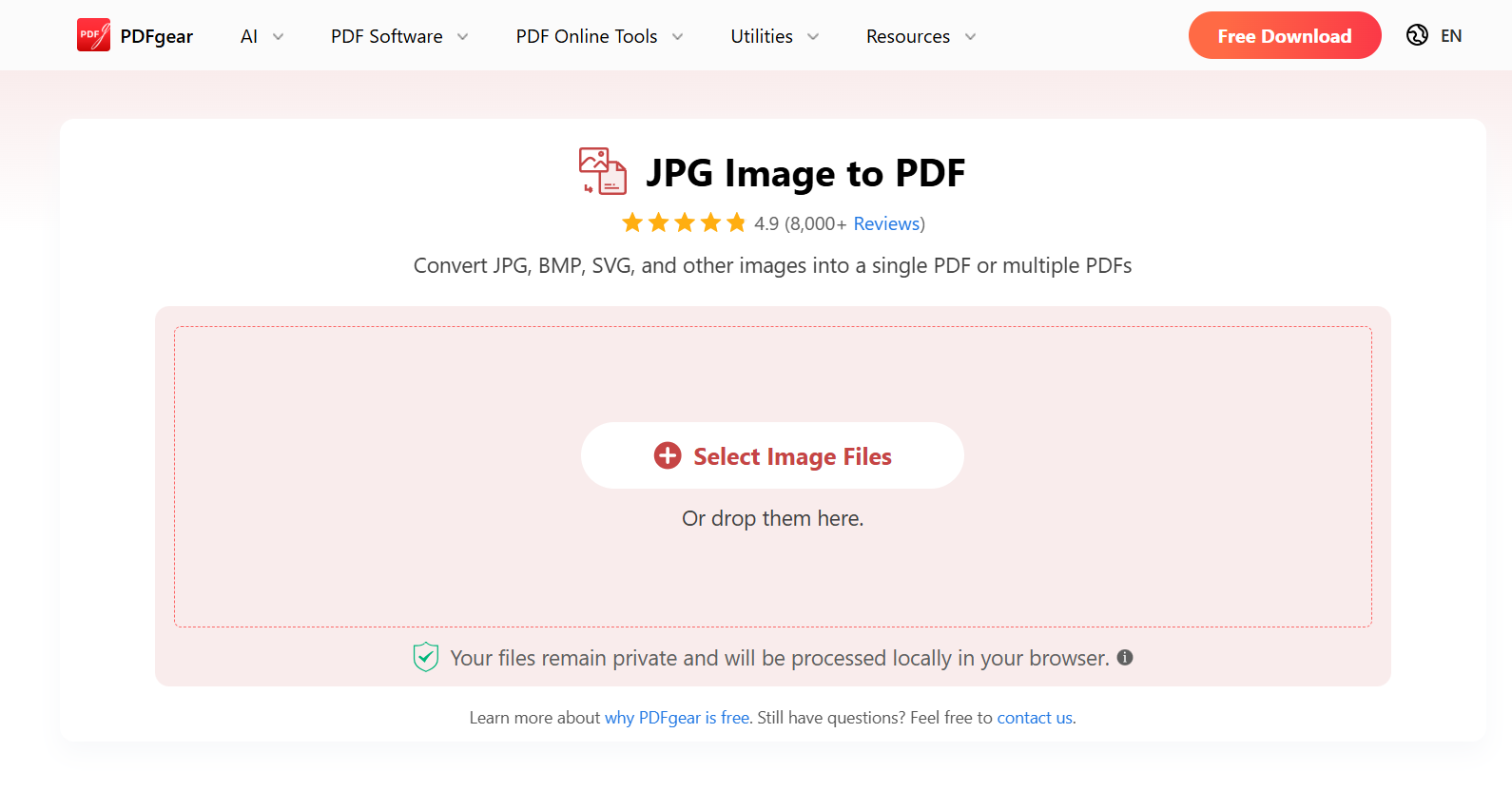
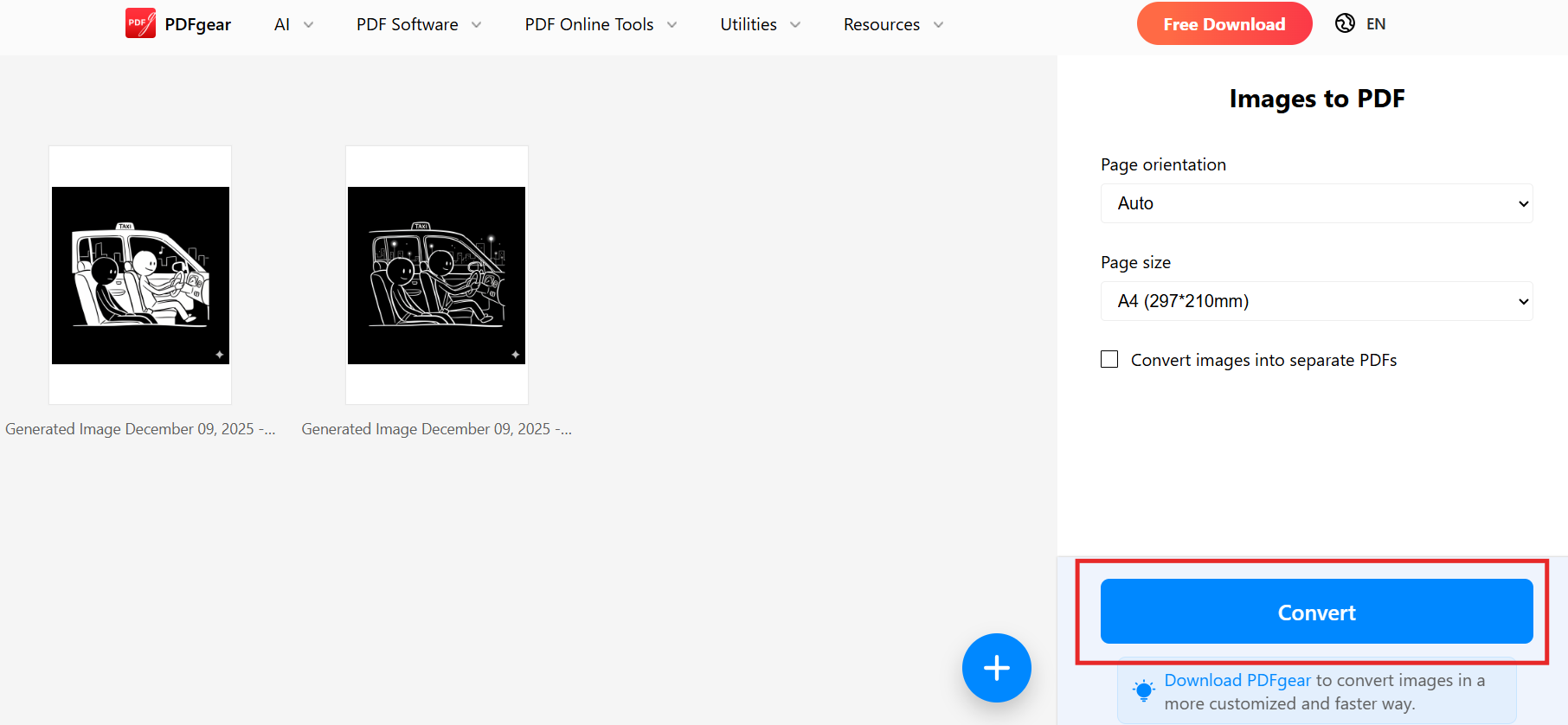
3. PDFgear
PDFgear free image to PDF converter
PDFgear is a
modern PDF toolkit offering both online and offline solutions, including
a fast and secure free JPG to PDF converter. Unlike some tools that
place limits on file size or daily tasks, PDFgear provides generous
conversion capabilities without requiring user registration. Its
interface is minimalistic, and the online converter is optimized for
quick uploads, making it a reliable choice for anyone seeking a smooth
JPG to PDF online free experience.
Features
Convert JPG images to PDF instantly
Batch conversion support
Customizable layout settings, including margins and orientation
Offline desktop version available for Windows and macOS
Built-in PDF editor for annotation and merging
Privacy-focused processing with auto-deletion
Pricing
PDFgear provides its JPG-to-PDF conversions completely free. The
desktop software is also free to download without feature restrictions,
making it one of the most accessible tools for users who want more than
a basic web-based converter.
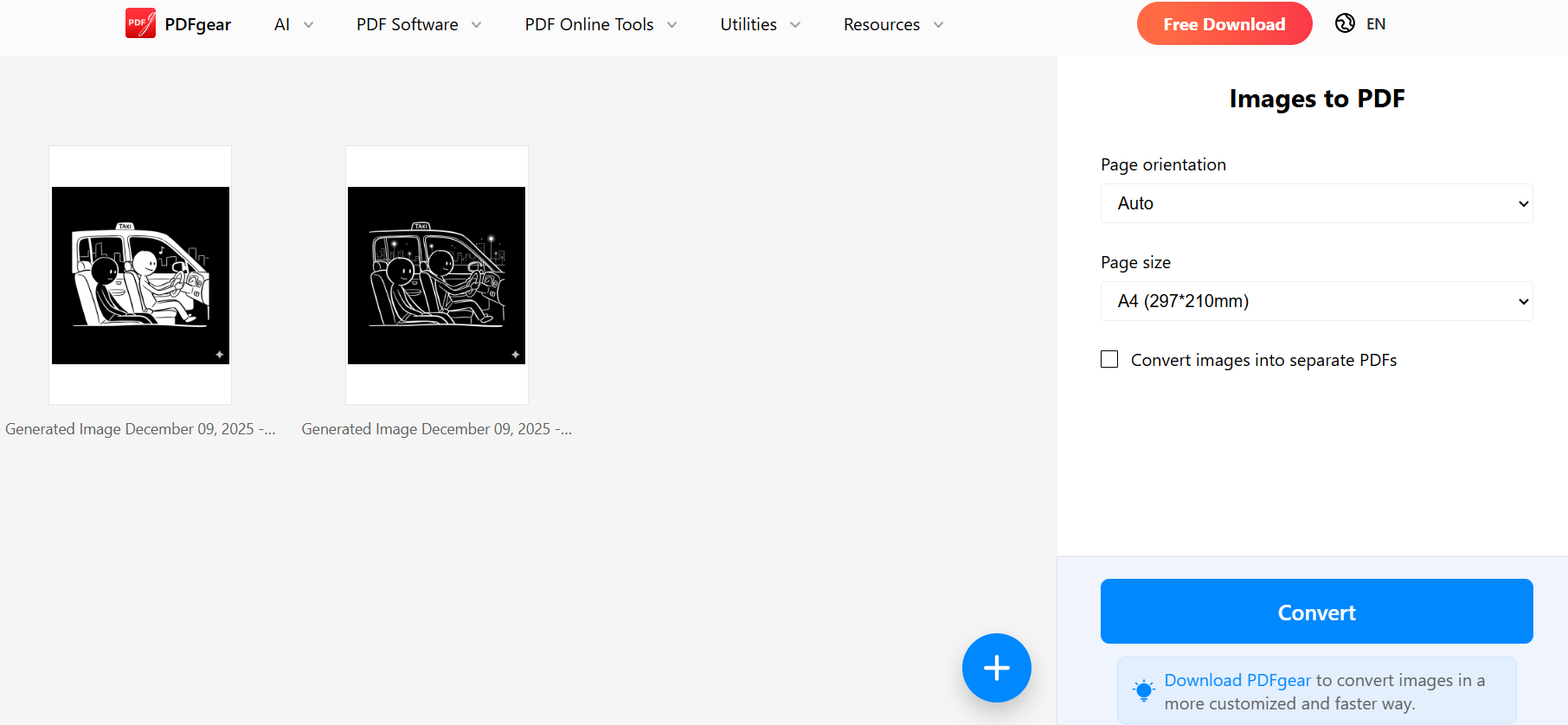
Step 3: Arrange the images if needed and review
layout settings.
Arrange the images
Step 4: Click Convert to start
processing.
Click Convert
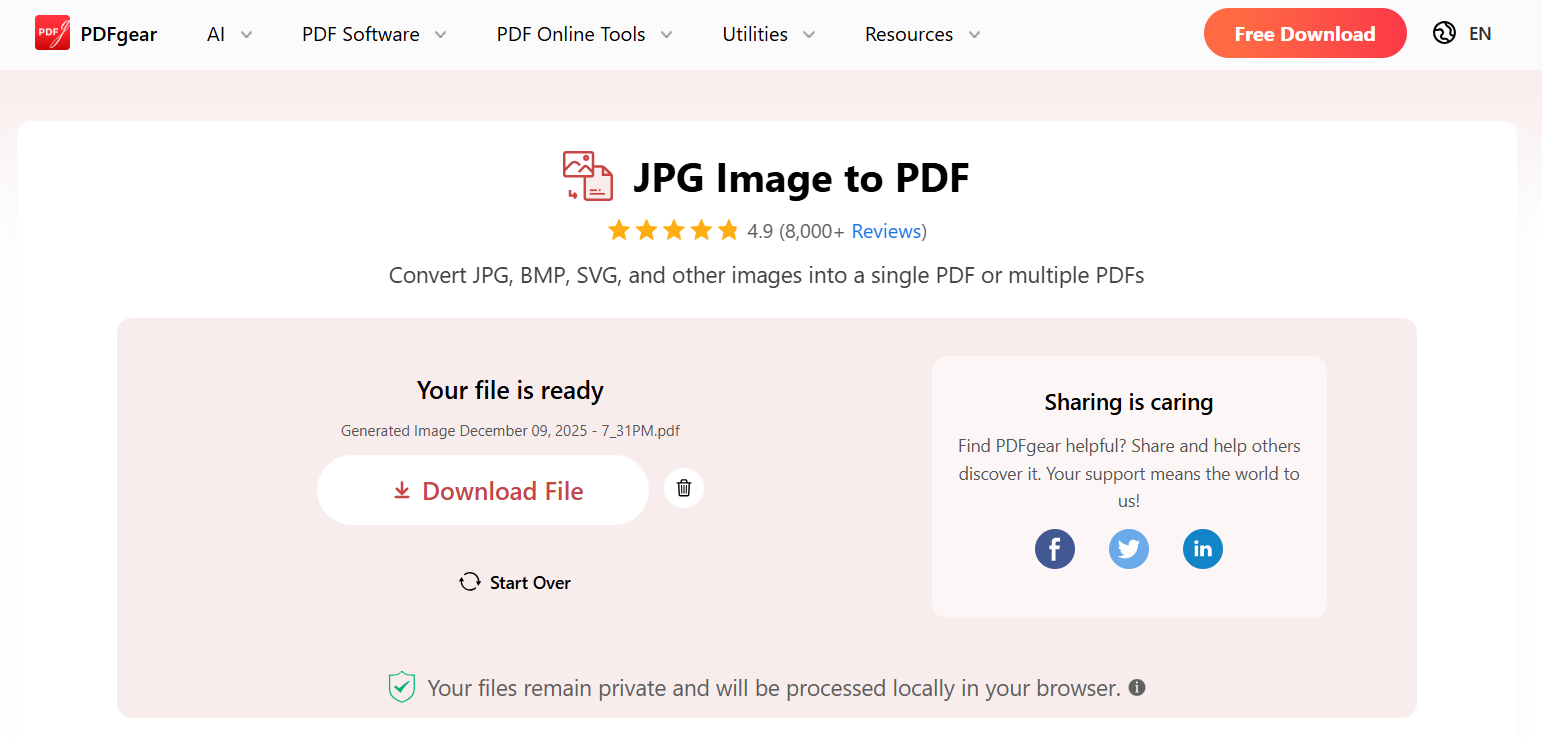
Step 5: Download your completed PDF.
Download your completed PDF
Pros
Fully free, both online and offline
No watermark added
Faster processing speeds compared to many competitors
Desktop version offers advanced PDF tools
Cons
Fewer customization options compared to professional suites
The interface may feel basic for power users
Personal Experience
When I tested PDFgear with a set of high-resolution photos, the
converter maintained excellent clarity without increasing the file size
unnecessarily. The desktop version also proved helpful for quick offline
edits, especially when preparing documents in a no-internet environment.
For users who need a straightforward tool with no hidden limitations,
PDFgear performs reliably well.
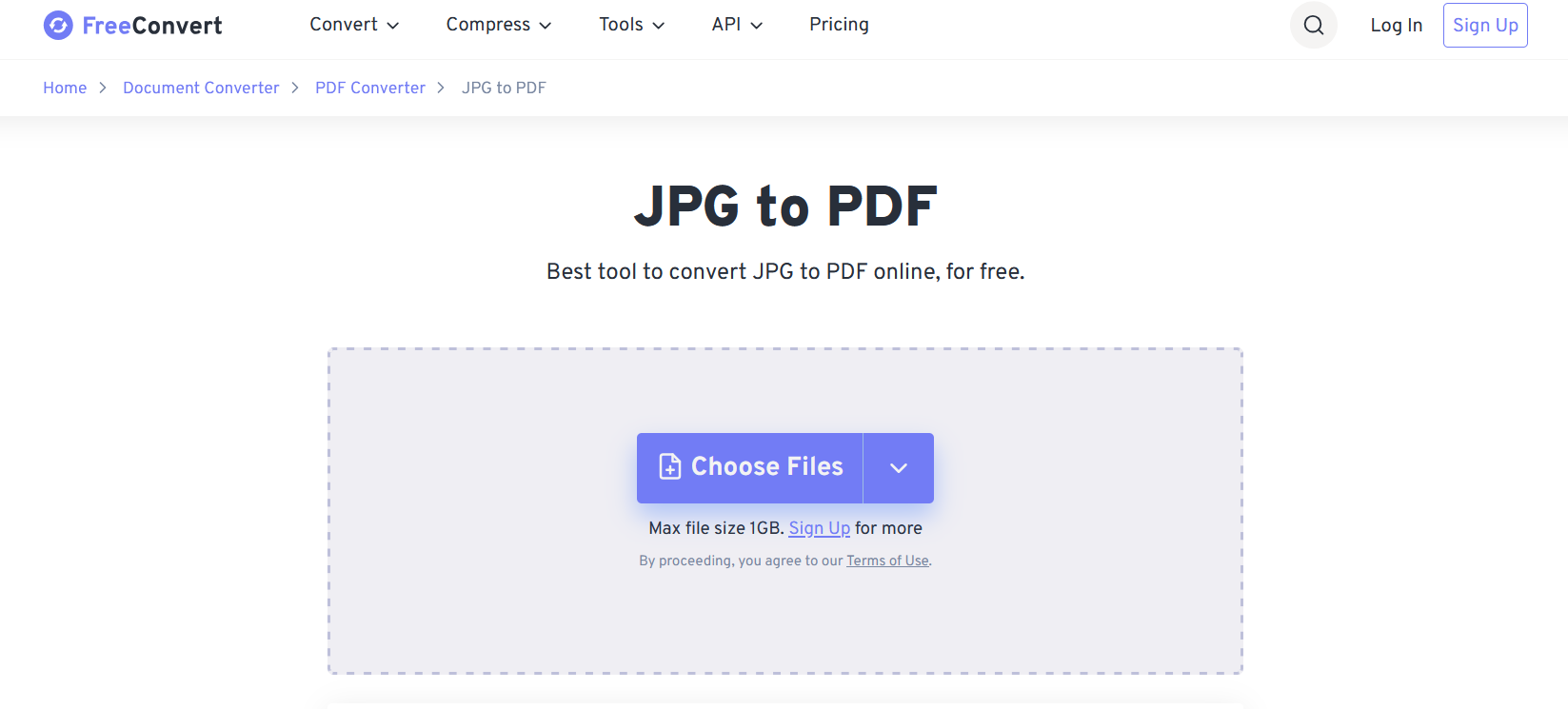
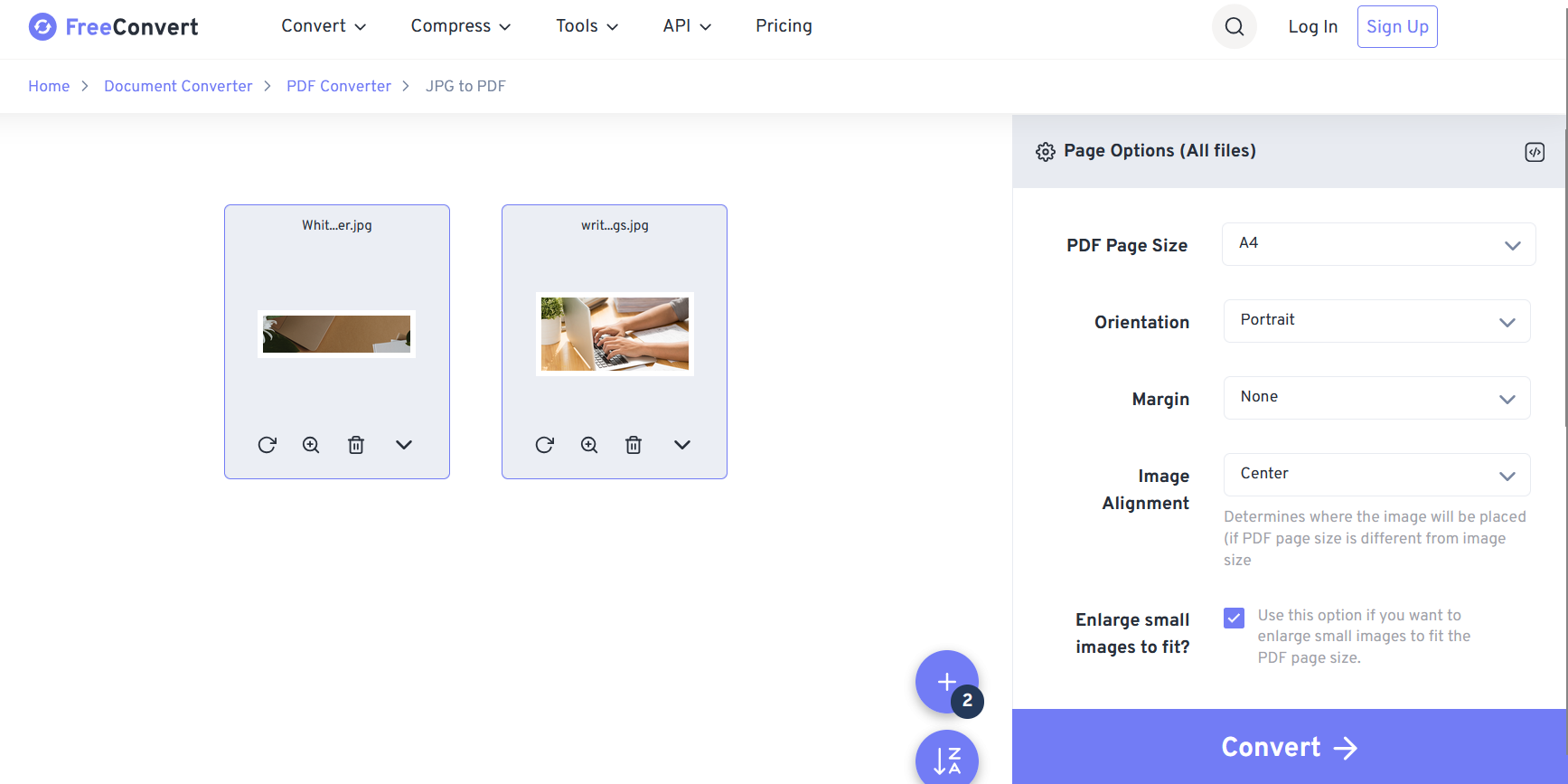
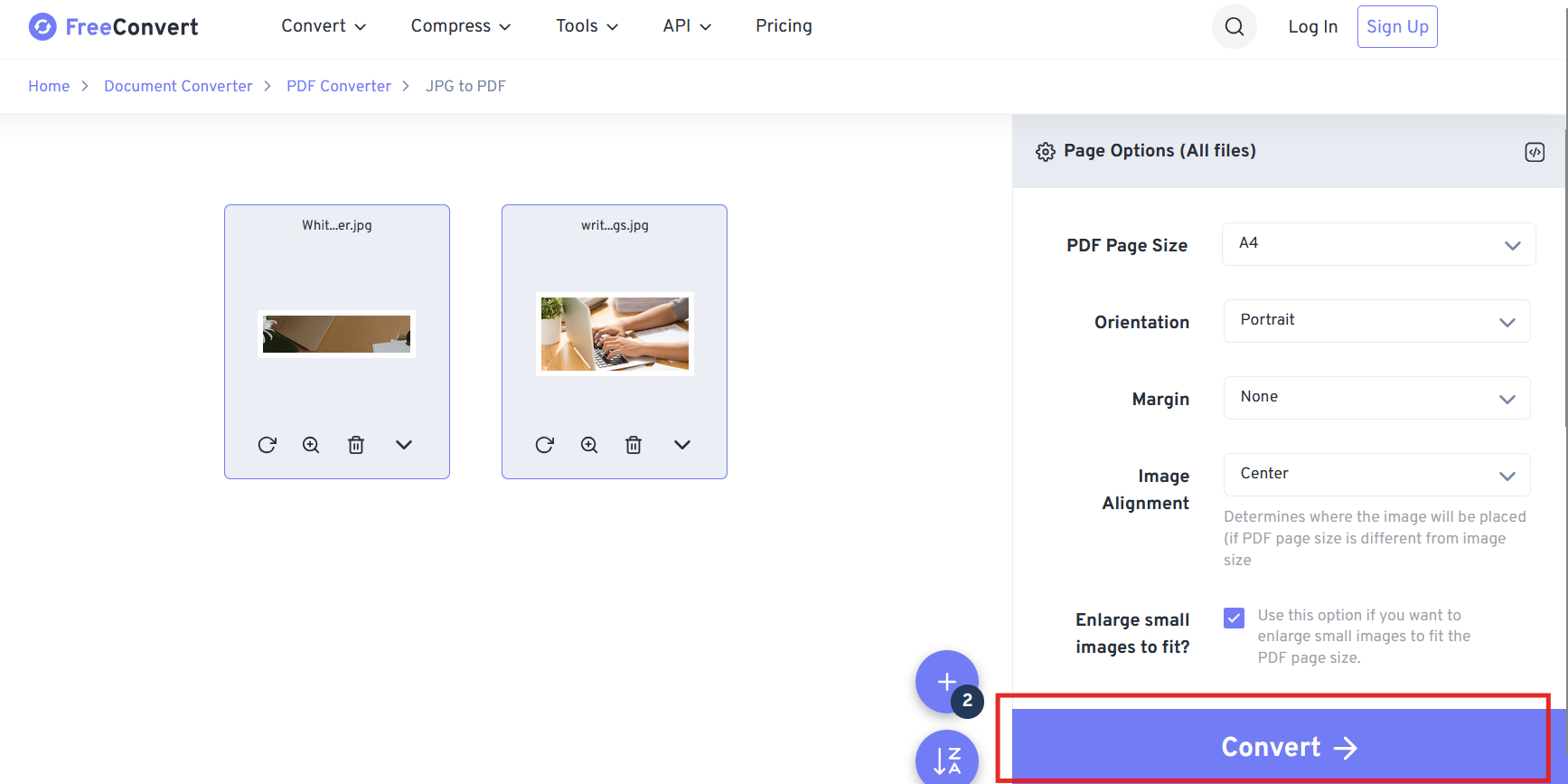
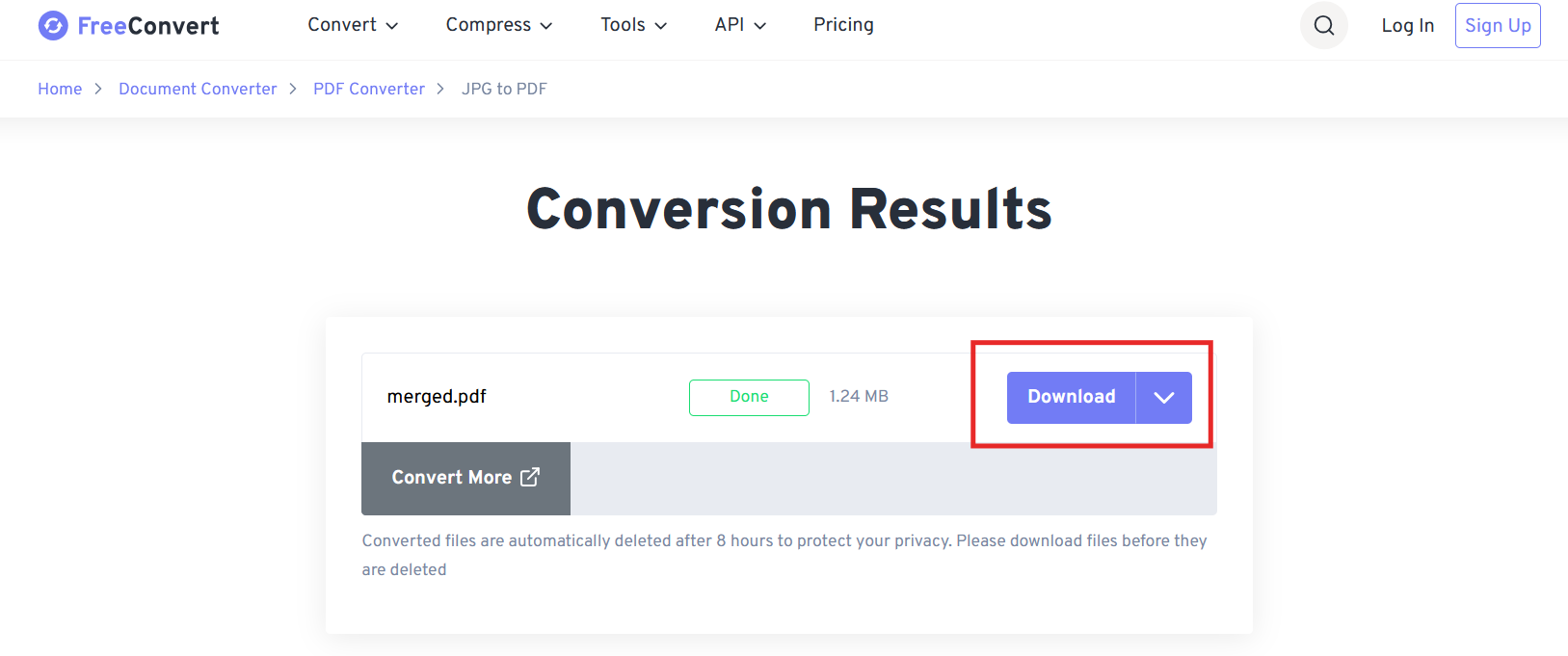
4. FreeConvert
FreeConvert image to PDF converter
FreeConvert is
a versatile online file conversion platform that supports images,
documents, audio, and more. Its free JPG to PDF converter is widely used
for quick conversions, especially when users need more customization
than basic tools offer. FreeConvert provides adjustable settings such as
image quality, page size, and PDF layout, making it suitable for users
who want more control over how their final document looks.
Features
Convert single or multiple JPG images to PDF
Custom settings: margins, orientation, page size, and compression
Drag-and-drop interface
Supports many image formats beyond JPG
Optional advanced settings for power users
Available on desktop and mobile browsers
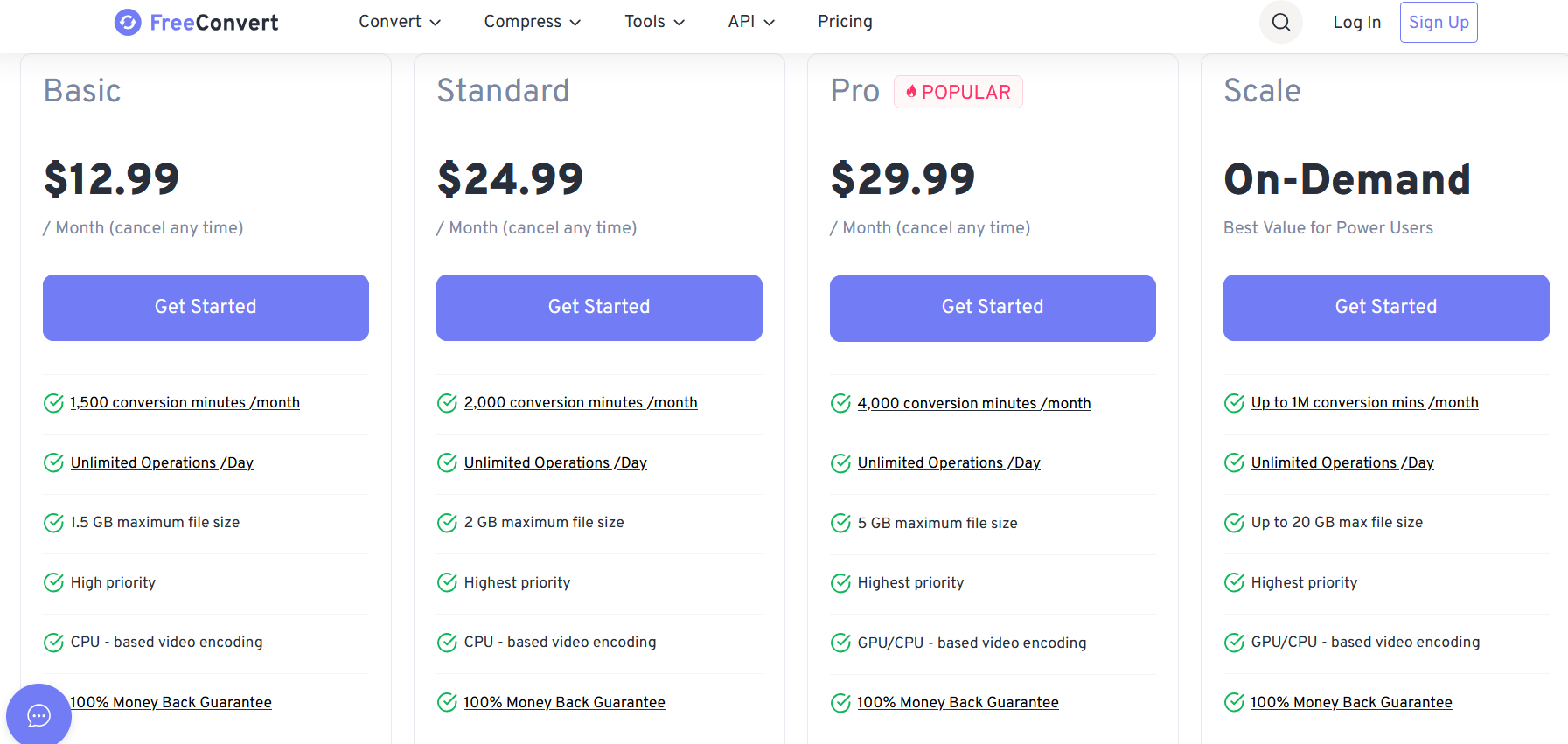
Pricing
FreeConvert Pricing
FreeConvert allows JPG-to-PDF conversions at no cost, but the free
plan includes file size limits, slower processing, and occasional ads.
Premium plans remove these restrictions and offer unlimited conversions.
For users handling small image sets, the free version is usually
adequate.
In my testing, FreeConvert was particularly helpful when I needed
control over page margins and orientation. The conversion quality
remained consistent across multiple image types, though the upload speed
slowed when working with larger files. For users who need more
customization than most free tools provide, FreeConvert offers a
flexible experience, as long as the file size restrictions aren’t an
issue.
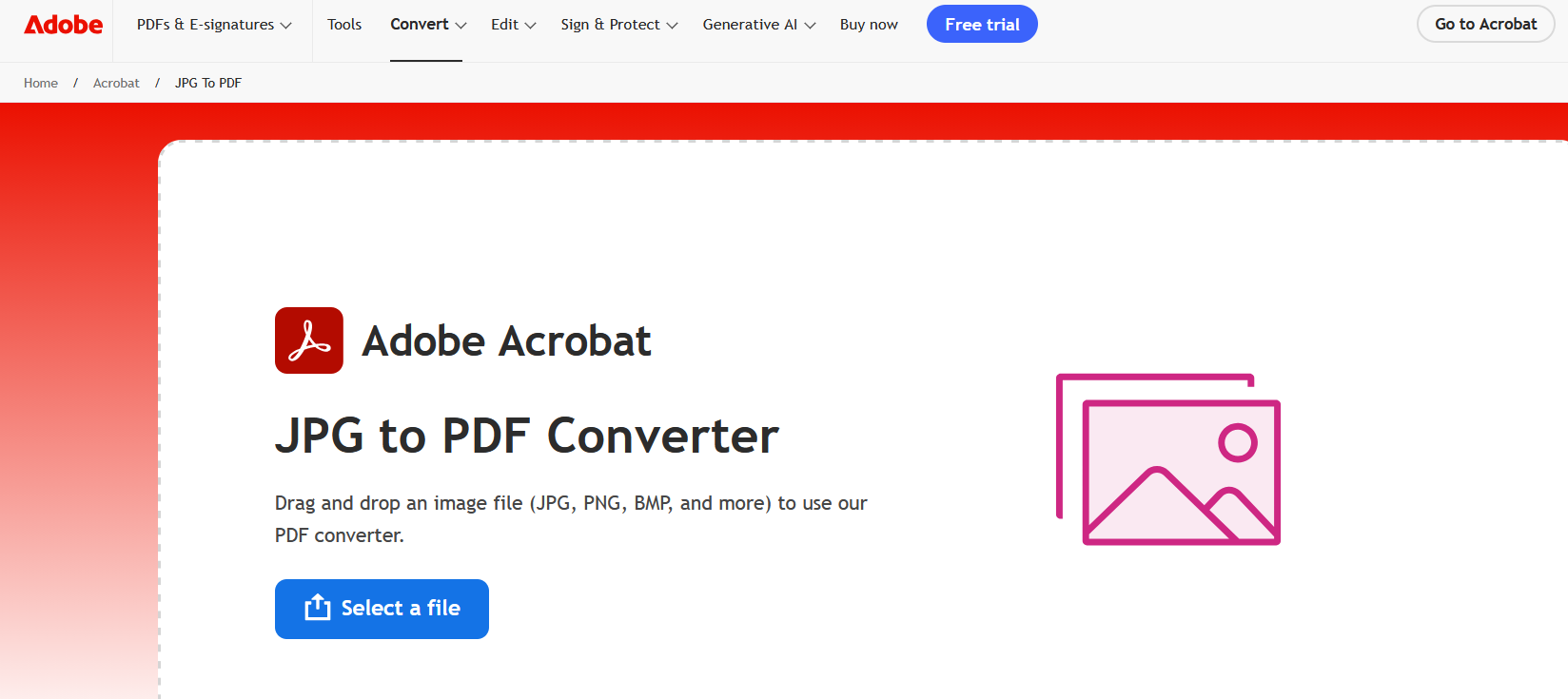
5. Adobe
Adobe JPG to PDF converter
Adobe
Acrobat Online remains one of the most recognized tools for
handling PDF tasks, including converting JPG images into high-quality
PDF files. While Adobe is traditionally known for its premium software,
its online free JPG to PDF converter offers a straightforward option for
users who need quick, professional results. The interface is polished,
and the conversion engine is optimized to preserve image clarity, which
is useful when working with scanned documents or high-resolution
photos.
Features
Fast and accurate conversion from JPG to PDF
Automatic optimization to preserve image detail
Secure cloud-based processing
Additional PDF functions like combining, reorganizing, and compressing
Accessible on any browser and device
Well-known for enterprise-level reliability
Pricing
Adobe Acrobat pricing
Adobe provides a single JPG-to-PDF conversion for free. However,
advanced features such as multiple images to PDF, extensive editing, OCR
text recognition, and file combining are locked behind a paid
subscription or require signing in with an Adobe ID. For users with
simple conversion needs, the free version is typically sufficient.
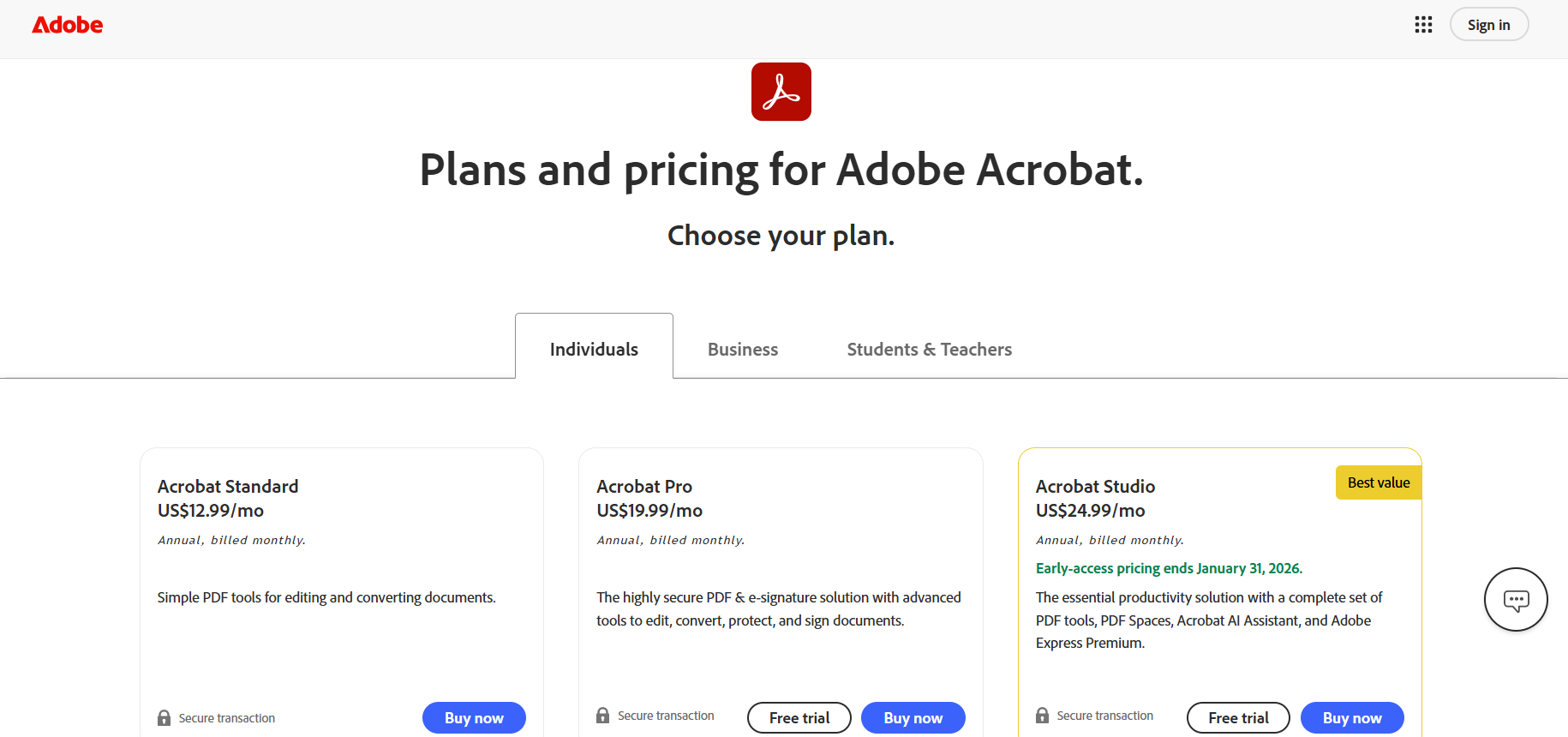
Step 3: Review the file preview and confirm the
layout.
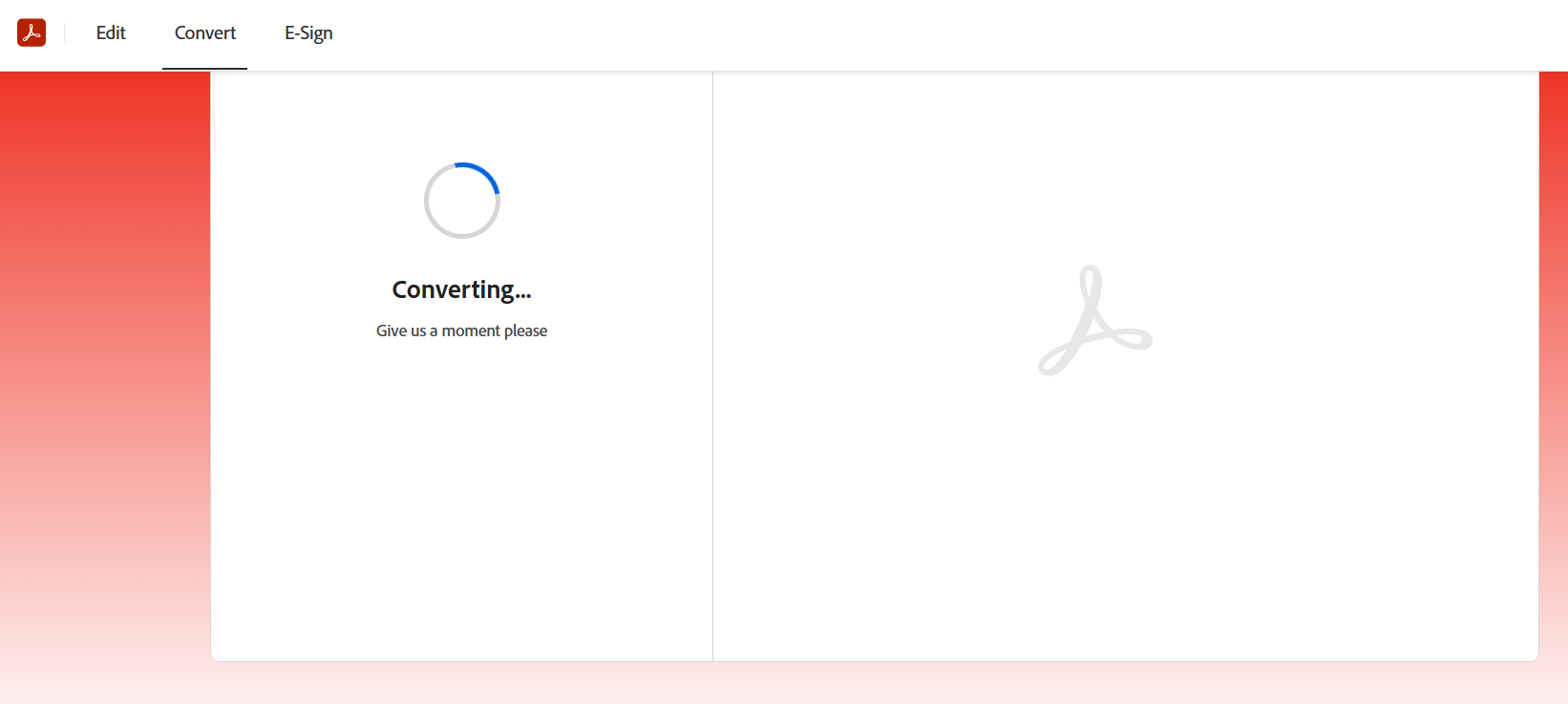
Step 4: Click Convert.
Click Convert
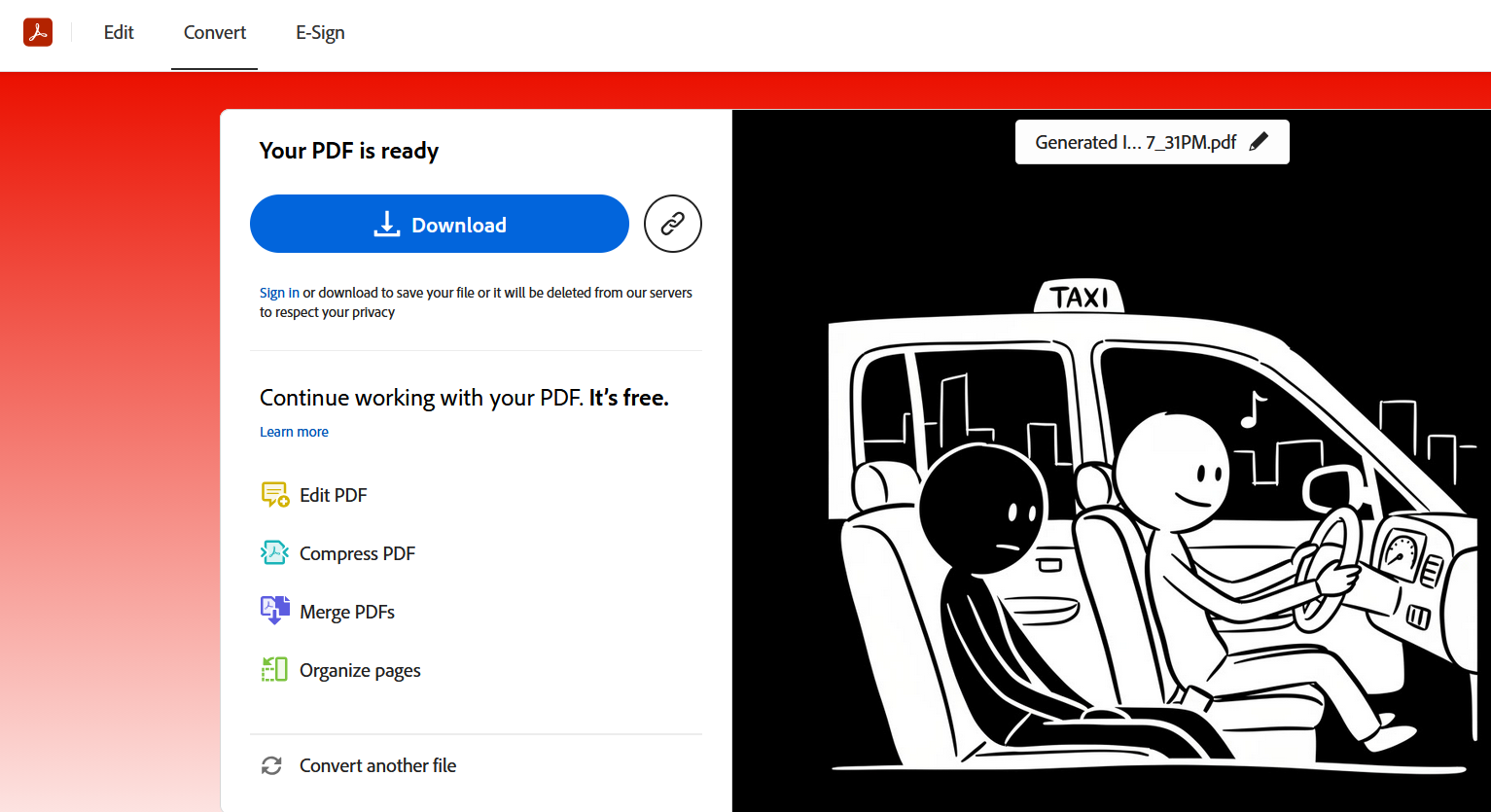
Step 5: Download the PDF or save it to Adobe
Cloud if signed in.
Download the PDF
Pros
Excellent image preservation
Fast and stable conversion engine
Trusted brand with enterprise-level security
Minimal learning curve
Cons
Requires sign-in for some features
Limited layout customization in the free version
Larger image batches may require a paid plan
Personal Experience
While Adobe’s online converter is not the most flexible in terms of
layout options, its conversion quality is consistently excellent. In my
testing, high-resolution images maintained sharpness and color accuracy,
which is not always the case with lighter tools. The tool works best for
users who want professional-grade results and don’t need extensive batch
processing or customization.
Part 2.
Free JPG to PDF Converters Comparison Table
Tool
Cost
Output Quality
Batch Processing
File Size Limits
Security
Best For
WPS PDF Tools
(Online)
Completely free for JPG to PDF
High clarity, minimal compression
Yes
No strict limits for standard use
Auto file deletion; browser-based
Users needing a fast, secure, free
JPG to PDF converter with no watermark
WPS Office (Desktop)
Free version available
Excellent; offline processing
Yes
No upload limits
Local device processing
Users needing offline workflows or animage to PDF converter free download
iLovePDF
Free with task limits
Good for everyday use
Limited in the free plan
Daily task and size limits
SSL secure processing
Quick JPG to PDF online
free conversions for small batches
PDFgear
Fully free online and offline
Very good; preserves detail
Yes
No major restrictions
Auto-deletion + offline option
Users wanting free tools without file
limits
FreeConvert
Free with size restrictions
Good; customizable output
Yes, but limited for free users
File size limits apply
Strong encryption; deletes files
automatically
Users needing layout customization and
control
Adobe Acrobat Online
Free basic conversions
Excellent, professional-grade
Limited without sign-in
Some features require an Adobe
account
Enterprise-level security
Users who want top-tier quality and brand
reliability
While all tools offer dependable JPG-to-PDF conversion, WPS PDF Tools
and WPS Office stand out for their combination of free access, no
watermarks, stable batch processing, and high-quality output. If your
priority is speed, unlimited access, and security without worrying about
file restrictions, WPS provides the most consistent results among the
options tested.
Part 3. Why
Choose WPS Office to Convert JPG to PDF
WPS Office is a full-featured productivity suite that brings together
document editing, spreadsheets, presentations, and a complete PDF
toolkit in one lightweight application. It works across Windows, macOS,
Linux, Android, and iOS, making it accessible for students,
professionals, and businesses. Beyond everyday office tasks, WPS Office
includes a powerful set of PDF tools that allow you to convert JPG
images to PDF easily, whether you're online or offline.
For users searching for a dependable free JPG to PDF converter, WPS
Office delivers consistency, high-quality output, and the convenience of
both browser-based and desktop solutions.
WPS Office for JPG to PDF tools
Unique Advantages
1. High-Quality Conversion Without Watermarks
WPS Office maintains the clarity and resolution of your images when
converting them into PDF format. Even when working with scanned pages or
high-resolution graphics, the tool ensures the final PDF looks
professional.
2. Complete Offline Capability
Many converters require an internet connection, but WPS Office allows
you to convert images even without being online. This makes it ideal for
confidential documents or environments with limited connectivity.
3. Batch Processing and File Arrangement
When converting multiple JPG files, WPS Office lets you reorganize
the image order before exporting. This is especially useful for
assignments, scanned notes, or multi-page documents.
4. Integrated PDF Editing Tools
Beyond conversion, WPS Office offers merging, annotation, page
management, compression, and format editing. These features reduce the
need to switch between multiple tools.
5. Works Across Devices
Whether you're on a laptop or mobile device, WPS Office provides a
smooth experience. The online tool offers a fast JPG to PDF online free
workflow, while the desktop version supports an image to PDF converter
free download for offline use.
Online Tools
WPS also provides dedicated online converters for users who prefer
quick browser-based tasks. The online tools are secure, fast, and
optimized for accessibility without requiring account creation. The
online version also functions well for users who occasionally need a JPG
to PDF converter free but do not want to install software.
Some of the online features include:
Drag-and-drop image uploading
File arrangement before export
Automatic deletion of uploaded files for security
Consistent formatting across different browsers
In practice, the online tool is ideal when working on shared devices
or when you only need a quick, one-time conversion.
Use Word, Excel, and PPT for FREE
FAQs
1. Will converting a JPG to PDF reduce the image
quality?
High-quality converters are designed to preserve the original
resolution of your images. Tools like WPS PDF Tools and Adobe Acrobat
Online consistently maintain sharpness, accurate colors, and clean
edges. In my own testing, the output PDF from WPS retained almost the
exact clarity of the original JPG, even when handling scanned documents
or detailed graphics.
2. What are the main advantages of using WPS Converter over
other online tools?
WPS Converter offers the reliability of being completely free without
adding watermarks, while still supporting batch conversion and
customizable layout settings. Unlike many online platforms that restrict
features under free plans, WPS includes both online and offline options,
giving you more flexibility. Since it is part of the larger WPS Office
suite, you also gain access to editing, merging, annotating, and
compressing tools in one place.
3. Can I convert multiple JPG images into a single
PDF?
Yes. Most converters support batch processing, but the experience
varies widely. In my experience, WPS PDF Tools and WPS Office handle
multi-image conversions more smoothly than most competitors. You can
freely reorder files, adjust layout settings, and combine everything
into one organized PDF without hitting upload limits.
4. Is it safe to use online JPG to PDF
converters?
Security largely depends on the platform. Tools like WPS PDF Tools,
PDFgear, and Adobe Acrobat Online automatically delete your uploaded
files after processing, keeping your information private. If you are
working with confidential or personal documents, using a desktop tool
like WPS Office ensures full offline processing and adds another layer
of security.
5. Do I need to download software to convert JPG to
PDF?
Not necessarily. If you prefer quick, lightweight workflows, using a
JPG to PDF online free converter works well for simple tasks. However,
if you want more control, offline editing, or higher security,
installing a program like WPS Office gives you a stable image to PDF
converter free download that works even without internet access.
Summary
Converting JPG images into PDF documents has become a routine requirement for students, professionals, and anyone handling scanned pages or project photos. This guide reviewed the leading tools available in 2025, including WPS PDF Tools, WPS Office, iLovePDF, PDFgear, FreeConvert, and Adobe Acrobat Online. Each tool offers a different mix of features, pricing, and usability, and all can help you convert JPG to PDF quickly. However, the overall experience, stability, and output quality vary across platforms.
Among these options, WPS Office and WPS PDF Tools stand out for their reliability as a free JPG to PDF converter, offering high-quality results without watermarks, file limits, or hidden charges. The availability of both online and offline tools also gives WPS a clear advantage for users who value flexibility, security, and consistent performance. Whether you need a one-time conversion or a dependable tool for ongoing document tasks, WPS Office provides a complete, user-friendly solution that integrates seamlessly with your everyday workflow.
Office software expert with 15+ years of experience since 2009. I specialize in tech tutorials, productivity tools, and digital solutions for everyday users. Passionate about making technology simple and accessible for everyone.


'%3e%3cpath%20d='M8%200C12.4183%200%2016%203.58172%2016%208C16%2012.4183%2012.4183%2016%208%2016C3.58172%2016%200%2012.4183%200%208C0%203.58172%203.58172%200%208%200ZM11.6162%204.38379C11.2257%203.99337%2010.5927%203.99338%2010.2021%204.38379L8%206.58594L5.79785%204.38379C5.40732%203.99334%204.77429%203.99329%204.38379%204.38379C3.99331%204.77429%203.99335%205.40733%204.38379%205.79785L6.58594%208L4.38379%2010.2021C3.99348%2010.5927%203.99341%2011.2257%204.38379%2011.6162C4.77426%2012.0066%205.40734%2012.0065%205.79785%2011.6162L8%209.41406L10.2021%2011.6162C10.5927%2012.0066%2011.2257%2012.0067%2011.6162%2011.6162C12.0067%2011.2257%2012.0066%2010.5927%2011.6162%2010.2021L9.41406%208L11.6162%205.79785C12.0066%205.40735%2012.0066%204.77429%2011.6162%204.38379Z'%20fill='%23080E17'%20fill-opacity='0.46'/%3e%3c/g%3e%3cdefs%3e%3cclipPath%20id='clip0_3761_713'%3e%3crect%20width='16'%20height='16'%20fill='white'/%3e%3c/clipPath%3e%3c/defs%3e%3c/svg%3e)




'%3e%3cpath%20fill-rule='evenodd'%20clip-rule='evenodd'%20d='M21.4999%2010.9993C21.4999%205.20009%2016.7986%200.498901%2010.9993%200.498901C5.19994%200.498901%200.498657%205.20009%200.498657%2010.9993C0.498657%2016.2404%204.33858%2020.5844%209.35855%2021.3722V14.0346H6.69238V10.9993H9.35855V8.68594C9.35855%206.05427%2010.9262%204.60062%2013.3248%204.60062C14.4736%204.60062%2015.6753%204.80571%2015.6753%204.80571V7.38979H14.3512C13.0468%207.38979%2012.64%208.19921%2012.64%209.0296V10.9993H15.5523L15.0867%2014.0346H12.64V21.3722C17.66%2020.5844%2021.4999%2016.2404%2021.4999%2010.9993Z'%20fill='%231568EA'/%3e%3c/g%3e%3c/svg%3e)


'%3e%3cpath%20d='M2.42045%2022.1876H6.31818V12.7217L0.75%208.54553V20.5171C0.75%2021.4414%201.49892%2022.1876%202.42045%2022.1876Z'%20fill='%234285F4'/%3e%3cpath%20d='M19.682%2022.1876H23.5797C24.5041%2022.1876%2025.2502%2021.4387%2025.2502%2020.5171V8.54553L19.682%2012.7217'%20fill='%2334A853'/%3e%3cpath%20d='M19.682%205.48293V12.7216L25.2502%208.54543V6.31816C25.2502%204.25236%2022.8921%203.07469%2021.2411%204.31361'%20fill='%23FBBC04'/%3e%3cpath%20d='M6.31824%2012.7217V5.48303L13.0001%2010.4944L19.6819%205.48303V12.7217L13.0001%2017.733'%20fill='%23EA4335'/%3e%3cpath%20d='M0.75%206.31816V8.54543L6.31818%2012.7216V5.48293L4.75909%204.31361C3.10534%203.07469%200.75%204.25236%200.75%206.31816Z'%20fill='%23C5221F'/%3e%3c/g%3e%3cdefs%3e%3cclipPath%20id='clip0_2954_7305'%3e%3crect%20width='24.5'%20height='18.375'%20fill='white'%20transform='translate(0.75%203.8125)'/%3e%3c/clipPath%3e%3c/defs%3e%3c/svg%3e)






'%3e%3cpath%20d='M19.9911%204.11386V6.471H18.5894C18.0775%206.471%2017.7322%206.57814%2017.5536%206.79243C17.3751%207.00671%2017.2858%207.32814%2017.2858%207.75671V9.44421H19.9019L19.5536%2012.0871H17.2858V18.8639H14.5536V12.0871H12.2769V9.44421H14.5536V7.49779C14.5536%206.39064%2014.8632%205.53201%2015.4822%204.92189C16.1013%204.31177%2016.9257%204.00671%2017.9554%204.00671C18.8304%204.00671%2019.509%204.04243%2019.9911%204.11386Z'%20fill='%23333333'/%3e%3c/g%3e%3cdefs%3e%3cclipPath%20id='clip0_2938_8199'%3e%3crect%20width='16'%20height='16'%20fill='white'%20transform='translate(8%204.00671)'/%3e%3c/clipPath%3e%3c/defs%3e%3c/svg%3e)
'%3e%3cpath%20d='M17.5237%2010.7813L23.4811%204H22.0699L16.8949%209.88693L12.7648%204H8L14.2469%2012.9029L8%2020.0133H9.4112L14.8725%2013.7952L19.2352%2020.0133H24M9.92053%205.04213H12.0885L22.0688%2019.0224H19.9003'%20fill='%23333333'/%3e%3c/g%3e%3cdefs%3e%3cclipPath%20id='clip0_2938_8200'%3e%3crect%20width='16'%20height='16.0134'%20fill='white'%20transform='translate(8%204)'/%3e%3c/clipPath%3e%3c/defs%3e%3c/svg%3e)


