

'%3e%3cpath%20d='M8%200C12.4183%200%2016%203.58172%2016%208C16%2012.4183%2012.4183%2016%208%2016C3.58172%2016%200%2012.4183%200%208C0%203.58172%203.58172%200%208%200ZM11.6162%204.38379C11.2257%203.99337%2010.5927%203.99338%2010.2021%204.38379L8%206.58594L5.79785%204.38379C5.40732%203.99334%204.77429%203.99329%204.38379%204.38379C3.99331%204.77429%203.99335%205.40733%204.38379%205.79785L6.58594%208L4.38379%2010.2021C3.99348%2010.5927%203.99341%2011.2257%204.38379%2011.6162C4.77426%2012.0066%205.40734%2012.0065%205.79785%2011.6162L8%209.41406L10.2021%2011.6162C10.5927%2012.0066%2011.2257%2012.0067%2011.6162%2011.6162C12.0067%2011.2257%2012.0066%2010.5927%2011.6162%2010.2021L9.41406%208L11.6162%205.79785C12.0066%205.40735%2012.0066%204.77429%2011.6162%204.38379Z'%20fill='%23080E17'%20fill-opacity='0.46'/%3e%3c/g%3e%3cdefs%3e%3cclipPath%20id='clip0_3761_713'%3e%3crect%20width='16'%20height='16'%20fill='white'/%3e%3c/clipPath%3e%3c/defs%3e%3c/svg%3e)




'%3e%3cpath%20fill-rule='evenodd'%20clip-rule='evenodd'%20d='M21.4999%2010.9993C21.4999%205.20009%2016.7986%200.498901%2010.9993%200.498901C5.19994%200.498901%200.498657%205.20009%200.498657%2010.9993C0.498657%2016.2404%204.33858%2020.5844%209.35855%2021.3722V14.0346H6.69238V10.9993H9.35855V8.68594C9.35855%206.05427%2010.9262%204.60062%2013.3248%204.60062C14.4736%204.60062%2015.6753%204.80571%2015.6753%204.80571V7.38979H14.3512C13.0468%207.38979%2012.64%208.19921%2012.64%209.0296V10.9993H15.5523L15.0867%2014.0346H12.64V21.3722C17.66%2020.5844%2021.4999%2016.2404%2021.4999%2010.9993Z'%20fill='%231568EA'/%3e%3c/g%3e%3c/svg%3e)


'%3e%3cpath%20d='M2.42045%2022.1876H6.31818V12.7217L0.75%208.54553V20.5171C0.75%2021.4414%201.49892%2022.1876%202.42045%2022.1876Z'%20fill='%234285F4'/%3e%3cpath%20d='M19.682%2022.1876H23.5797C24.5041%2022.1876%2025.2502%2021.4387%2025.2502%2020.5171V8.54553L19.682%2012.7217'%20fill='%2334A853'/%3e%3cpath%20d='M19.682%205.48293V12.7216L25.2502%208.54543V6.31816C25.2502%204.25236%2022.8921%203.07469%2021.2411%204.31361'%20fill='%23FBBC04'/%3e%3cpath%20d='M6.31824%2012.7217V5.48303L13.0001%2010.4944L19.6819%205.48303V12.7217L13.0001%2017.733'%20fill='%23EA4335'/%3e%3cpath%20d='M0.75%206.31816V8.54543L6.31818%2012.7216V5.48293L4.75909%204.31361C3.10534%203.07469%200.75%204.25236%200.75%206.31816Z'%20fill='%23C5221F'/%3e%3c/g%3e%3cdefs%3e%3cclipPath%20id='clip0_2954_7305'%3e%3crect%20width='24.5'%20height='18.375'%20fill='white'%20transform='translate(0.75%203.8125)'/%3e%3c/clipPath%3e%3c/defs%3e%3c/svg%3e)


PDFs nowadays have become the essential way of saving and sharing documents, but often the need arises to add something to existing PDF files. Although most PDF files do not allow users to edit or change content, with certain tools, users can learn how to add a fillable text box in PDF. A fillable PDF becomes an interactive type where users can find editable fields and easily edit the document before printing without needing to convert it to a different format again. This article will help you learn how to add a fillable text box in PDF.
If you also need a create pdf fillable form, see our related guide.
How to Add a Fillable Text Box in PDF Automatically
WPS Office sets itself apart by automatically recognizing form-type documents.Unlike other software that may require manual text box insertion, WPS Office streamlines the process by identifying and creating fillable fields automatically.This feature saves time, reduces errors, and ensures alignment without the need for additional steps.
To add a fillable text box in a PDF automatically using WPS Office, you can follow these simplified steps:
Step 1: Open the PDF File:
Launch WPS Office on your computer.
Open the PDF document in the WPS Office for PDF sign and fill.

Step 2: Make it Fillable: Go to the menu toolbar and select "Edit PDF."

Step 3: Edit or Fill Your Form
In the "Edit Content" dropdown menu, enable "Show Text Boundary" to access the text control options on the right side of the screen. From there, you can add, edit, or remove text fields, checkboxes, and other form elements, as well as insert images, shapes, and notes.


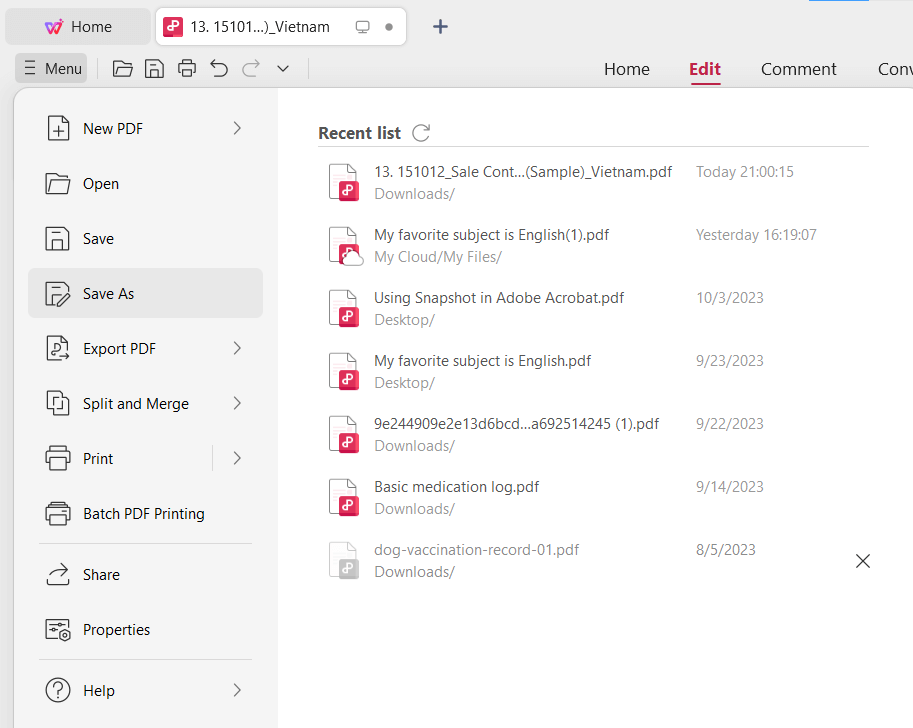
Step 4: Save the File
Once you are satisfied with the fillable text boxes, save the PDF document.
Click on "Menu" and select "Save" or "Save As" to save the edited PDF file with the fillable text boxes.


How to Add a Fillable Text Box in PDF with Adobe Acrobat
Adobe acrobat allows the addition of a fillable text box in PDF easily for Windows and inserting image links or media objects. But as Adobe does not offer these features as a free version, users need to download the full paid version to access these functions to be performed with Adobe acrobat. It also gives The OCR features, which add fillable text boxes by recognizing a scanned PDF. Follow these steps to add a fillable text box in PDF with Adobe Acrobat.

Step 1: Launch Adobe Acrobat Pro DC and open a PDF document.
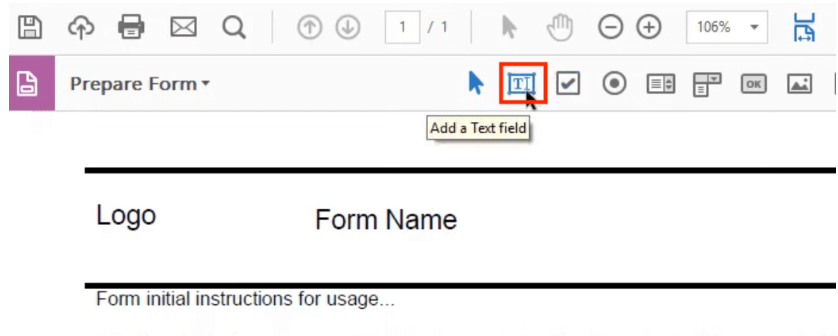
Step 2: Navigate to "Tools" > "Prepare Form" in the program.

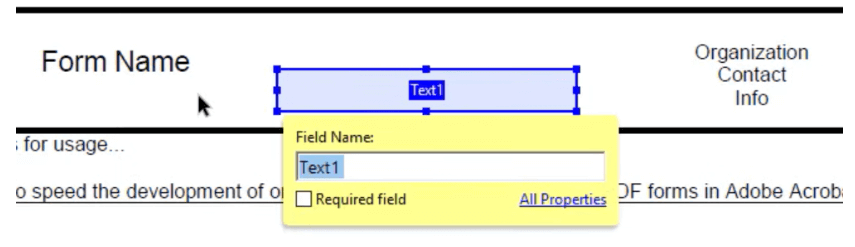
Step 3: Click "Add a Text Field" in the toolbar and place it where needed.
Step 4: Enter the desired text into the text box, and you're done!
If you also need a make a pdf fillable free, see our related guide.
How to Add a Fillable Text Box PDF with PDFescape: An Online Tool

PDFescape is a web-based free tool to add fillable text boxes in no time and is compatible with any browser. Although it is a free online tool, it takes more work to manually add the text boxes in the needed appearance. Users can also add images, link or form fields, and more. Follow these steps to add:
Step 1: Visit PDFescape Website:
Open your web browser and navigate to www.pdfescape.com, the PDFescape website.
Step 2: Upload Your PDF:
Click on the "Upload PDF to PDFescape" button to upload the PDF file you want to edit.

Step 3: Access the Text Tool:
After your PDF is uploaded, look for the "Text" tool on the left-hand side of the PDFescape interface. It's typically represented by a "T" or "Text" icon.
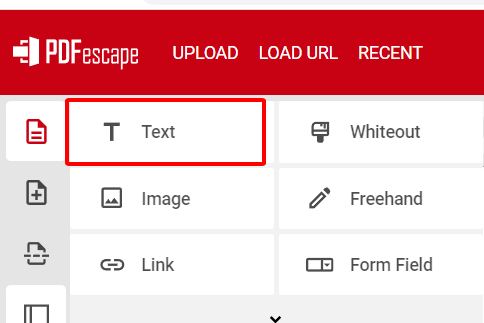
Step 4: Add a Text Box:
Click on the area within the PDF where you want to insert a fillable text box.
PDFescape will create a text box that you can resize and reposition.

Step 5: Enter Text:
Click inside the text box and type in the text you want to appear as fillable content.

Step 6 : Save Your Edited PDF:
Once you've added the fillable text box and made any necessaryadjustments, save the edited PDF document.
Look for a "Save" or "Download" option on the PDFescape interface to save the PDF to your computer.

Users who don't want to opt for PDFEscape online can download the PDFescape editor for windows.
How to Add a Fillable Text Box in PDF Using LibreOffice
Step 1: Open PDF in LibreOffice Draw
Open LibreOffice on your computer.
Use "File" > "Open" to open the PDF in LibreOffice Draw.

Step 2: Enable Form Controls
Click "View" > "Toolbars" > "Form Controls" to enable the Form Controls panel.

Step 3: Add Text Box
In the Form Control panel, click "Text Box."
Click and hold your mouse on the PDF to insert a fillable text box.
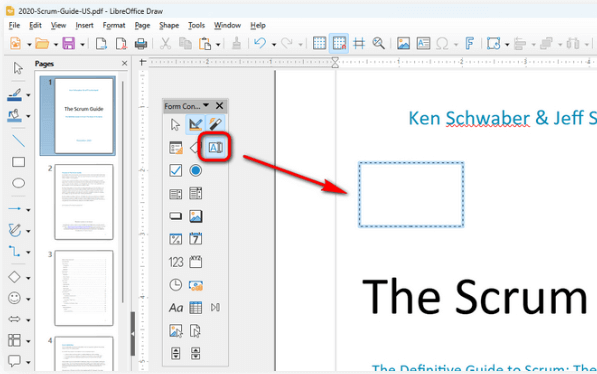
Step 4: Export as PDF
Go to "File" > "Export As" > "Export as PDF."
Save the PDF document.

Step 5: Configure PDF Form Options
Check the "Create PDF form" option in the PDF Options window.
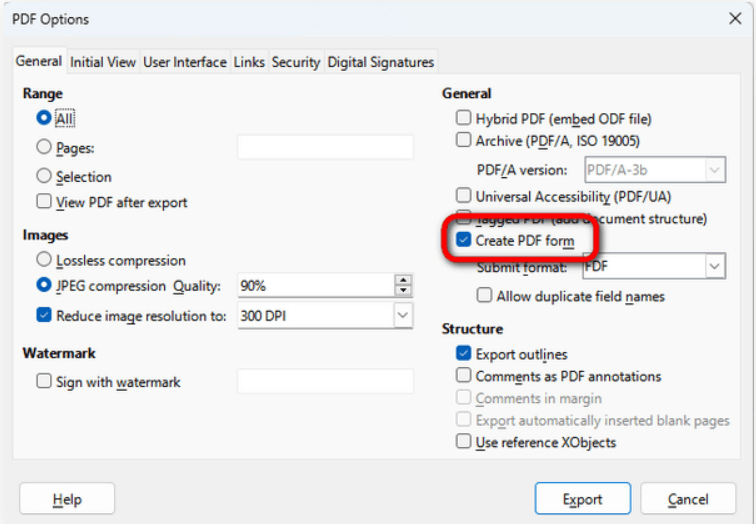
Step 6: Test the Fillable Text Box
Open the PDF in a PDF viewer like Microsoft Edge.
You can now easily type text into the fillable text box.

Why WPS Office is Over Other PDF Filler Tools?

WPS Office is a popular office software suite, and it does have some advantages over other PDF filler tools. Here are some reasons why you might choose WPS Office over other options:
Easy Form-Filling: WPS Office streamlines form-filling by automatically recognizing the sections in documents requiring input, leading to a significant enhancement in the efficiency of document processing tasks.
Affordable Free Version: You can use WPS Office for free with essential features, perfect for those on a budget.
File Compatibility: It works well with many file types, so your documents can fit seamlessly into your existing workflow.
Powerful Document Editing: You can edit documents and even PDFs effectively with WPS Office.
User-Friendly: It has an easy-to-use interface, suitable for all skill levels, ensuring a hassle-free experience.
AI Form Filler for faster multi-field entry: Beyond adding fillable text boxes, WPS PDF can help you complete finished forms quickly. With AI Form Filler / AI Smart Form, you paste or upload the details you already prepared, click Extract&Fill, and then review the autofilled fieldsâideal when a PDF has many repetitive boxes.
How to use WPS AI Form Filler after your fillable fields are ready:
Hereâs a simple way to use it:
Step 1. Open your PDF in WPS Office.
Step 2. Go to PDF â Fill&Sign.
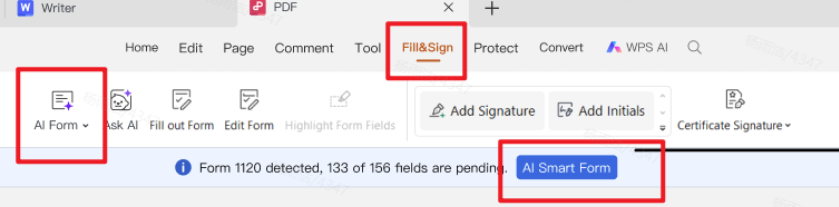
Step 3. When fields are detected, click AI Form or AI Smart Form.
Step 4. In the AI Form Filler window, paste the information you need to enter (or upload/drag a source file), then click Extract&Fill.
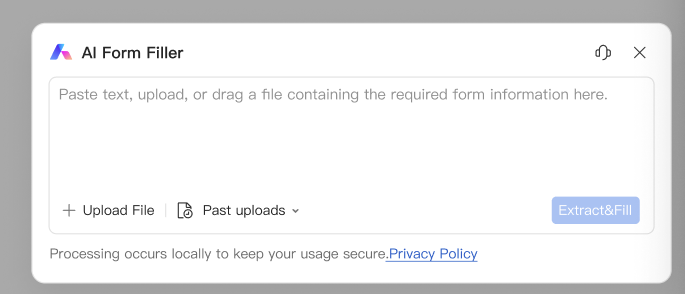
Step 5. Review the autofilled fields carefully, fix anything incorrect, and save the PDF.
id="post-content-headline-6">FAQs
Can I add only fillable text boxes in PDF with WPS?
The WPS PDF gives options to add fillable text boxes and checkboxes, images, links, and other elements.
Is WPS fillable PDF compatible with other office suites?
Yes, fillable WPS PDF is compatible with various formats, including Adobe PDF.
WPS Office is loaded with easy-to-use and versatile features, which provide an editor, converter, and tools to compress, merge and manage files, so it instantly covers all its user's needs. So if you are looking for a worthy Office suite in terms of price and features, Download WPS office from www.wps.com now and get done with all your office tasks efficiently.
Can I Add a Fillable Text Box in PDF Using Microsoft Edge?
No, Microsoft Edge is not suitable for advanced PDF editing, including creating fillable text boxes. While you can insert text boxes in Edge, they are not fillable, meaning only the first person adding it can type in the information in the text field.



For a faster fill-and-sign workflow, try WPS pdf filler tools in WPS Office.
If you also need a pdf filler download, see our related guide.
Summary
In a world where digital efficiency reigns supreme, the ability to seamlessly add fillable text boxes to PDF documents is a valuable skill. This guide has explored four distinct methods, each with its own strengths. However, one tool stands out as a particularly efficient choice - WPS Office.
WPS Office emerges as the top choice. Its automatic form recognition simplifies the process, making it a hassle-free experience. Additionally, WPS Office offers an affordable free version with essential features, ensuring accessibility for all users. Its compatibility with various file formats and intuitive interface further solidify its position as a standout PDF editing tool.
'%3e%3cpath%20d='M19.9911%204.11386V6.471H18.5894C18.0775%206.471%2017.7322%206.57814%2017.5536%206.79243C17.3751%207.00671%2017.2858%207.32814%2017.2858%207.75671V9.44421H19.9019L19.5536%2012.0871H17.2858V18.8639H14.5536V12.0871H12.2769V9.44421H14.5536V7.49779C14.5536%206.39064%2014.8632%205.53201%2015.4822%204.92189C16.1013%204.31177%2016.9257%204.00671%2017.9554%204.00671C18.8304%204.00671%2019.509%204.04243%2019.9911%204.11386Z'%20fill='%23333333'/%3e%3c/g%3e%3cdefs%3e%3cclipPath%20id='clip0_2938_8199'%3e%3crect%20width='16'%20height='16'%20fill='white'%20transform='translate(8%204.00671)'/%3e%3c/clipPath%3e%3c/defs%3e%3c/svg%3e)
'%3e%3cpath%20d='M17.5237%2010.7813L23.4811%204H22.0699L16.8949%209.88693L12.7648%204H8L14.2469%2012.9029L8%2020.0133H9.4112L14.8725%2013.7952L19.2352%2020.0133H24M9.92053%205.04213H12.0885L22.0688%2019.0224H19.9003'%20fill='%23333333'/%3e%3c/g%3e%3cdefs%3e%3cclipPath%20id='clip0_2938_8200'%3e%3crect%20width='16'%20height='16.0134'%20fill='white'%20transform='translate(8%204)'/%3e%3c/clipPath%3e%3c/defs%3e%3c/svg%3e)


