Bullet points are the secret to keeping an audience engaged rather
than overwhelmed. Yet, sticking to Google Slides default settings often
results in plain, amateur-looking text that fails to impress.
Transforming a basic list into a professional visual requires mastering
custom styles and layout tricks. This guide will show you how to add
bullet points in Google Slides and how you can upgrade your presentation
skills, from instant keyboard shortcuts to the intelligent, time-saving
features of WPS AI Slides.
How to Add Bullet Points in Google Slides
3 Methods to Add
Bullet Points in Google Slides
Google
Slides offers flexible workflows to suit every design style,
whether you prefer visual tools or rapid-fire keyboard commands. You can
rely on the intuitive toolbar for quick edits, dive into the format menu
for granular control, or master shortcuts to draft content at lightning
speed. Understanding all three methods ensures you can format text
efficiently, regardless of the complexity of your presentation. Here’s
how to add bullet points in Google Slides in 3 simple methods:
1. Using the Toolbar
Button (Most Common)
The most straightforward method uses the visual interface, making it
ideal for beginners or those who want to select a specific style
immediately. Here’s how to make bullet points in Google Slides using the
most common and easiest method.
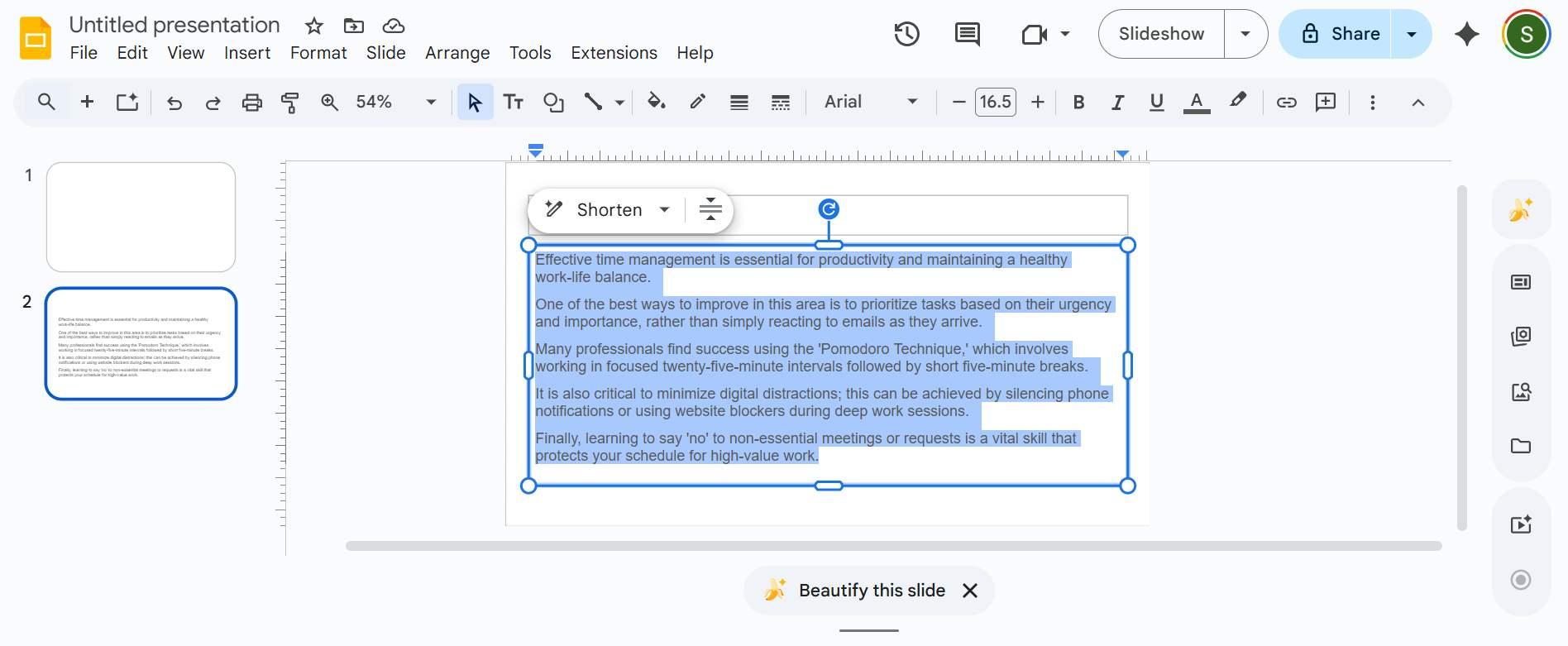
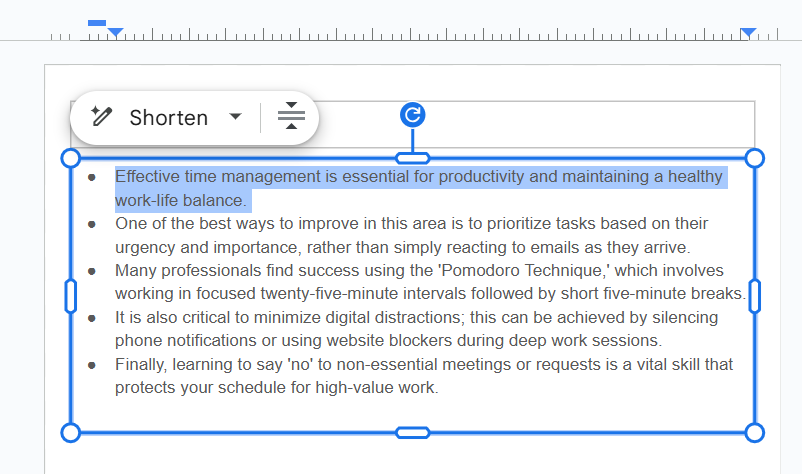
Step 1: Select the text box where the list should
appear or highlight the specific text lines you want to format.
Highlighted text
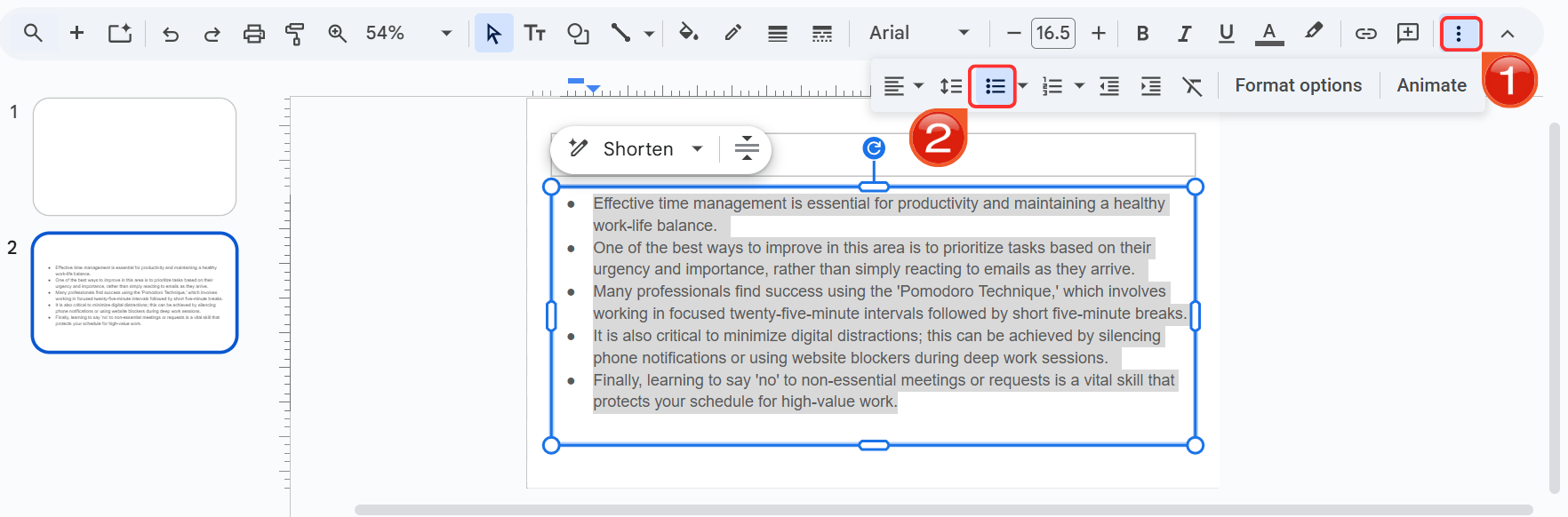
Step 2: Locate and click the “Bulleted
list” icon in the main toolbar (represented by three dots with
horizontal lines).
Bullet points on Google Slides
2. Using the Format Menu
(For Full Control)
This method provides access to more styling options and detailed
controls through the main menu structure. Here’s how to do bullet points
in Google Slides from the format menu
Step 1: Highlight the text or paragraphs you wish to
convert into a list.
Highlighted text
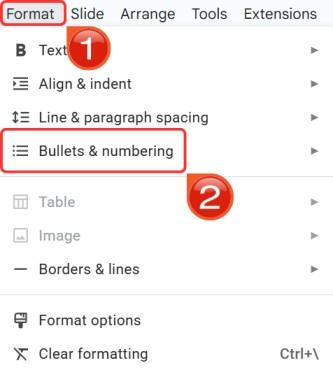
Step 2: Click “Format” in the top
menu bar, then hover your mouse over “Bullets &
numbering”.
Formatting menu
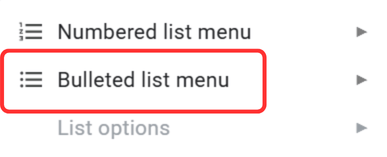
Step 3: Click the “Bulleted list
menu” from the sub-menu to view the available presets, then
click on your preferred style to apply it.
Bulleted list menu icon
3. Using Keyboard Shortcuts
(For Speed)
Professional presenters use keyboard shortcuts to dramatically speed
up their workflow and toggle lists on or off without touching the
mouse.
Step 1: Place your cursor in the text box where you
want to start, or select the desired text block.
Highlighted text
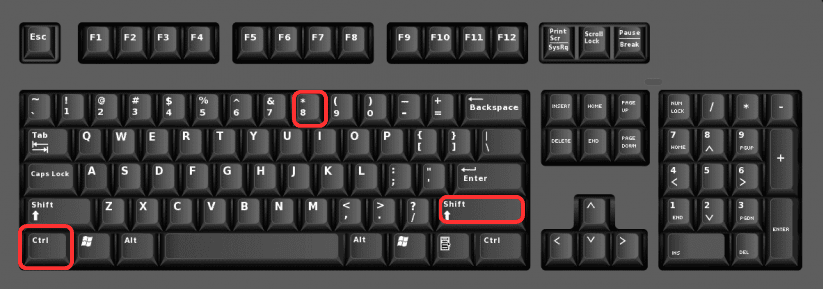
Step 2: Press “Ctrl + Shift + 8”(Windows/ChromeOS) or “Cmd + Shift + 8” (Mac) to
instantly activate bullet points.
Add Bullet points with keyboard
Step 3: To end the list and return to normal
paragraph formatting, press “Enter” twice.
How to Customize and
Master Bullet Points
Simply adding bulletpoints is often not enough to create a visually compelling
presentation. To truly guide your audience’s attention and maintain a
professional aesthetic, you need to move beyond the default
settings.
Advanced Customization
Techniques
Here we will go into the advanced customization techniques, which
will teach how to make your bulleted lists more appealing to any
reader.
A. Changing Bullet Style &
Color
Standard black dots can feel repetitive. Customizing them adds flair
and aligns the presentation with your brand identity.
Step 1: Highlight the bulleted text you want to
change.
Highlighted text
Step 2: Similar to method 2, head on over to
“Format” then “Bullets &
numbering” and then click “Bulleted list menu”to select a different preset.
Make sub bullet on Google Slides
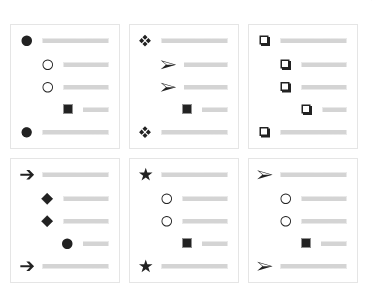
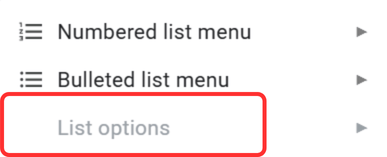
Step 3: For unique symbols, click “List
options” (right-click the list) to open a character map where
you can choose arrows, stars, or emojis.
List options
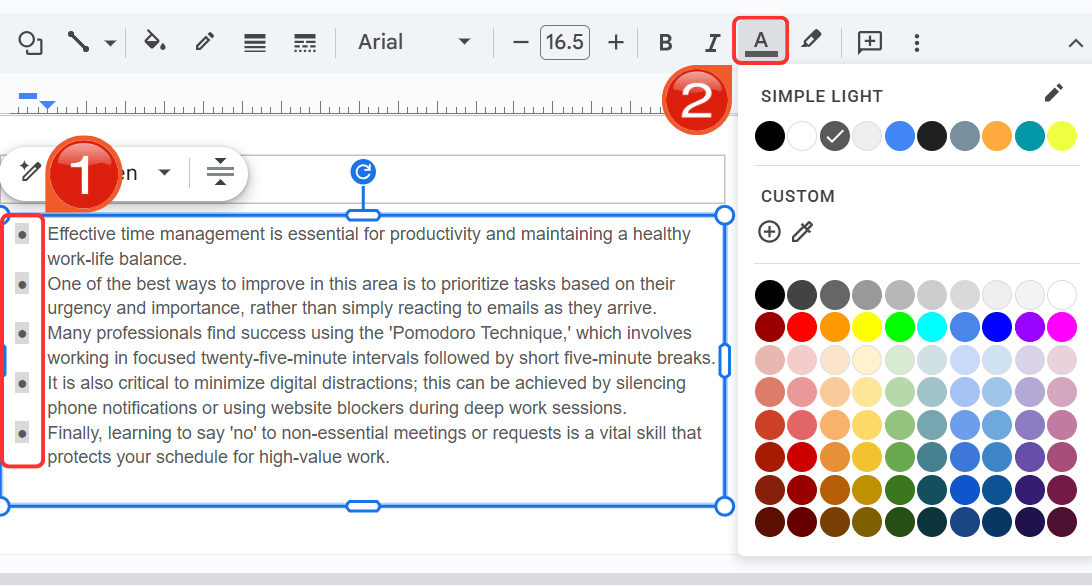
Step 4: To change the color, click directly on the
bullet symbols (selecting them without the text) and use the
“Text color” tool in the toolbar.
Change color Google Slides
B. Creating
Multi-Level Lists (Sub-Bullets)
Structuring complex information requires sub-levels to distinguish
between main topics and supporting details.
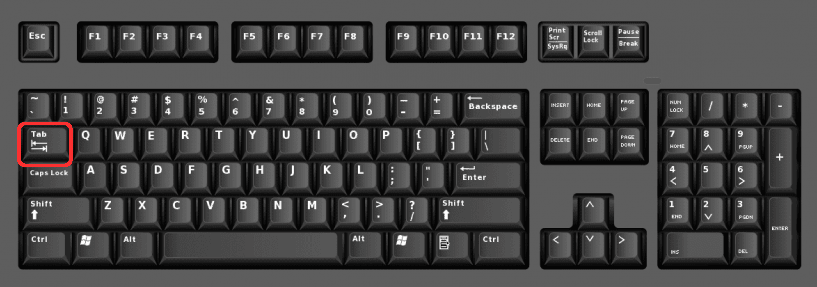
Create a Sub-bullet: Place your cursor at the
start of a line and press “Tab”. This indents the line
and usually changes the bullet style.
Tab Key keyboard
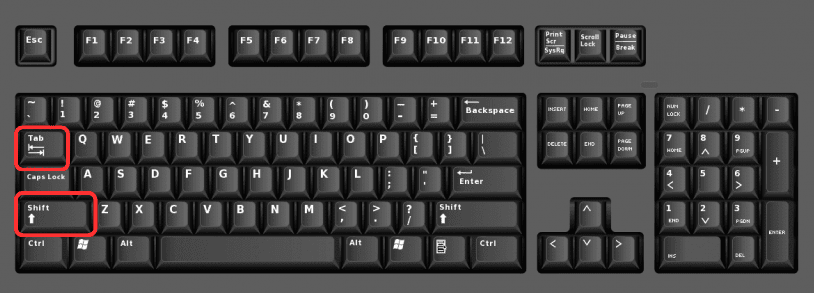
Return to Main Level: Press “Shift +
Tab” to move the line back to the left.
Main level Keyboard shortcut
C. Adjusting Spacing and
Indentation
If the gap between the bullet and the text is too wide or too narrow,
manual adjustment offers the best precision.
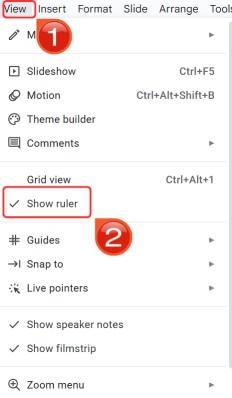
Step 1: Enable the ruler by clicking
“View” then “Show ruler” in the
menu.
Show ruler menu
Step 2: Highlight the specific list you want to
adjust.
Highlight text
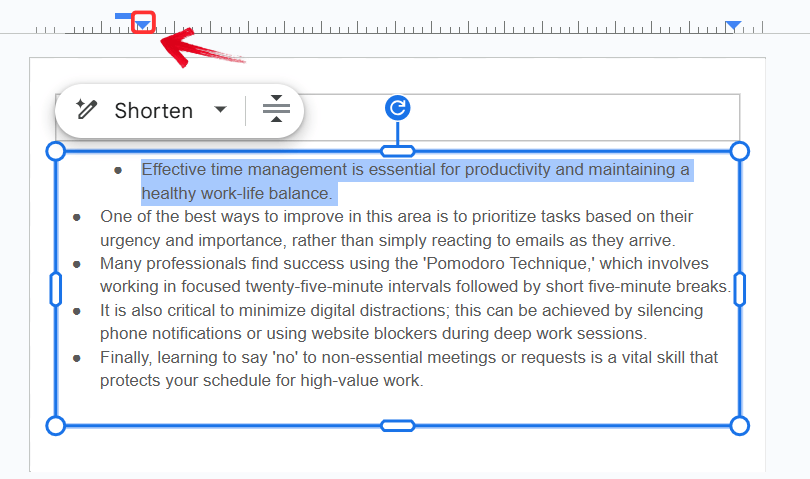
Step 3: Drag the “blue triangle”(Left Indent) on the ruler to move the text position.
Select and adjust the triangle
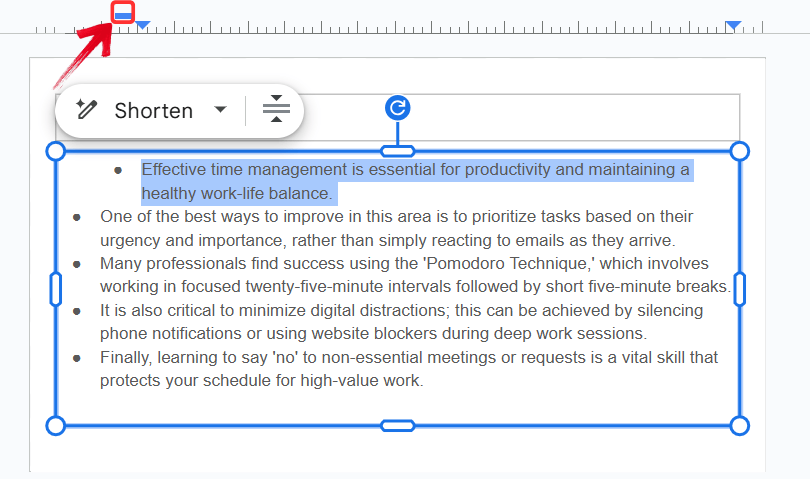
Step 4: Drag the blue rectangle(First Line Indent) to move the bullet symbol independently.
Select and adjust the rectangle
Best Practices Summary Table
To help you implement these techniques effectively, refer to the
following breakdown of core strategies and their benefits.
Practice
Description
Benefit
Keep it Concise
Use short phrases rather than full
sentences.
Improves readability and keeps the
audience focused on the speaker.
Limit List Items
Aim for 4-6 bullet points per
slide.
Prevents visual clutter and cognitive
overload for the viewer.
Maintain Consistency
Use the same bullet style and alignment
throughout.
Creates a polished and professional look
across the entire deck.
Use for Key Info
Highlight only the most important
takeaways.
Emphasizes core messages effectively
without burying the lead.
Using WPS AI
Slides to Enhance Your Bullet Lists
Manual adjustments provide control, but drafting content from scratch
is time-consuming and just not worth it in 2026. Google Slides' complex
settings can be difficult to navigate every time you want to write a
paper from scratch. WPS AI
Slides uses artificial
intelligence to instantly generate structured, professionally
formatted lists, allowing creators to focus on the message rather than
the mechanics.
WPS AI Slides
WPS AI Slides functions as an intelligent design partner within the
WPS Office suite, capable of transforming simple topics or raw text into
fully realized presentations. Its robust AI engine analyzes input to
suggest logical content hierarchies, automatically breaking down dense
paragraphs into scannable bullet points with professional styling.
Beyond just text generation, it ensures consistent formatting across the
entire deck and offers seamless compatibility, allowing users to export
their AI-generated structures directly to Google Slides for final
polishing and team collaboration.
Key Advantages for
Bullet List Creation:
1. AI-Powered Content Structuring
Feature: Input a topic or a block of dense text,
and the AI suggests logical breakdowns into bullet points.
Benefit: Transforms unstructured notes into a
clear and organized list instantly. It is ideal for overcoming blank
page syndrome and kickstarting slide content.
2. Smart Formatting & Consistency
Feature: Applies consistent bullet styles,
fonts, and indentation automatically across generated lists.
Benefit: Ensures a professional look from the
very first draft, eliminating the need to manually adjust styles for
each new slide.
3. Seamless Google Slides Compatibility
Feature: Workflows designed to integrate with
standard presentation formats.
Benefit: Users can utilize WPS AI Slides for the
ideation and structuring phase, then export the file as a .pptx to open
seamlessly in Google Slides for final collaboration.
Recommended Workflow
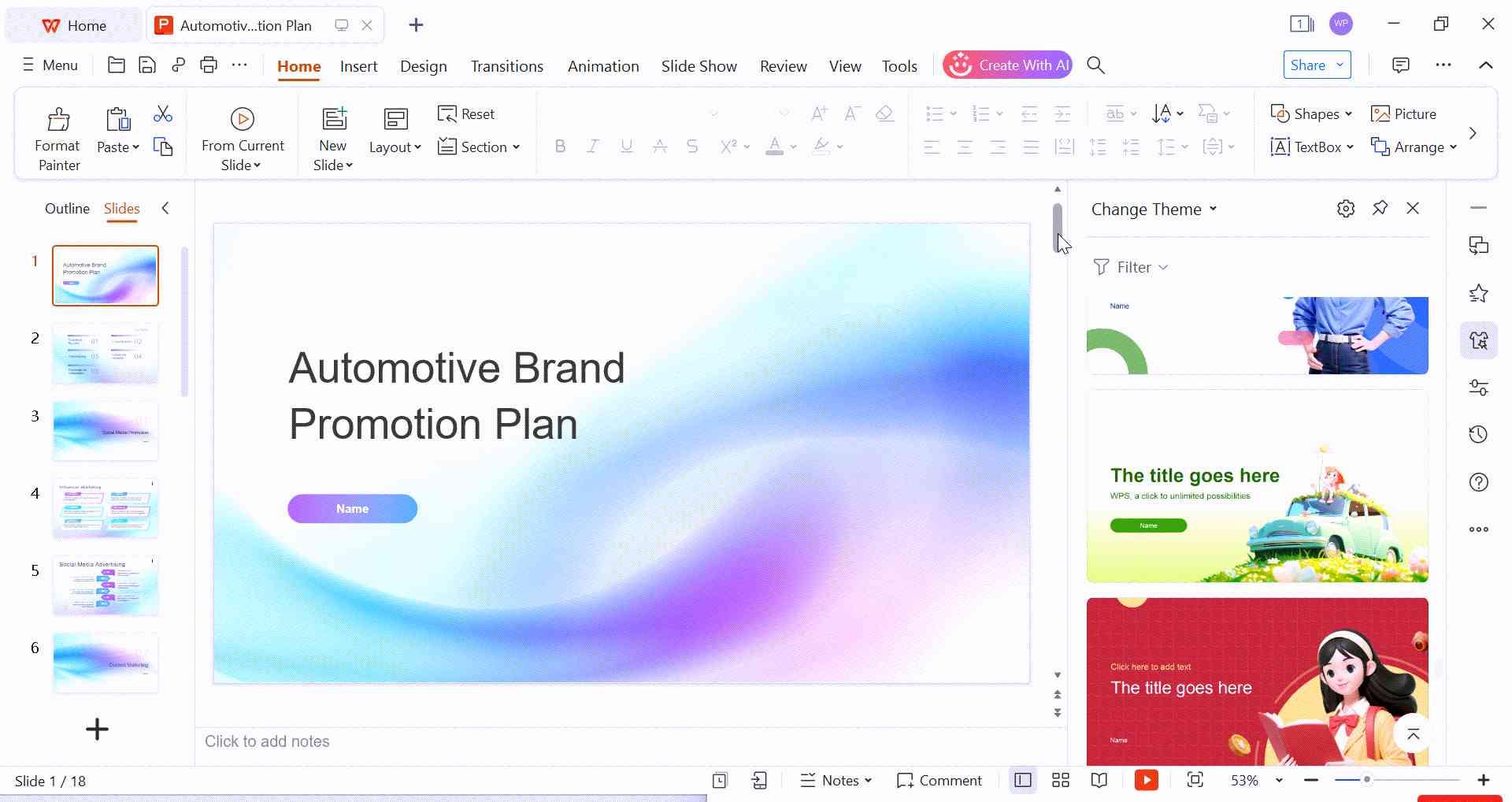
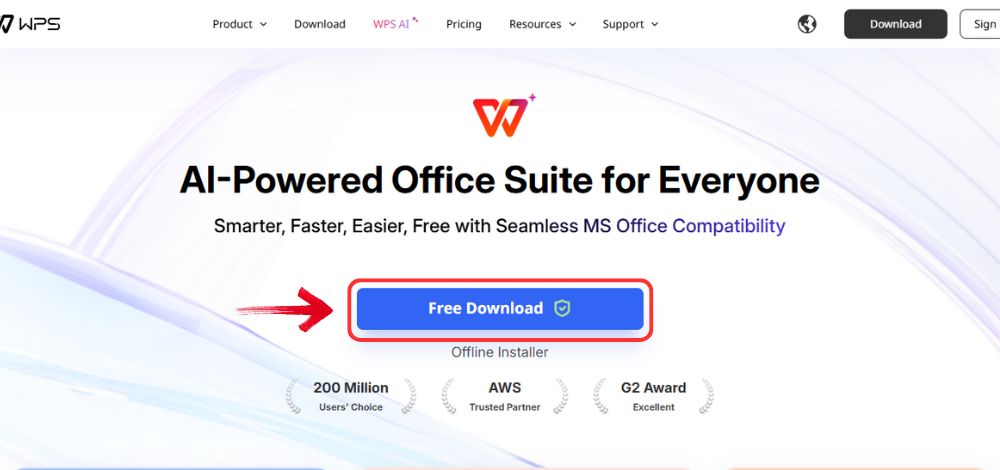
Step 1: Open your browser to visit WPS Office and click the"Free Download" button to start the download.
Download WPS Office
Step 2: The download will finish in a few seconds.
Once done, run the installation file like you would for any other app or
software.
Step 3: WPS Office will show you a few simple terms
and conditions. Accept them, then click the "Install
Now" button to begin the installation.
Install WPS Office
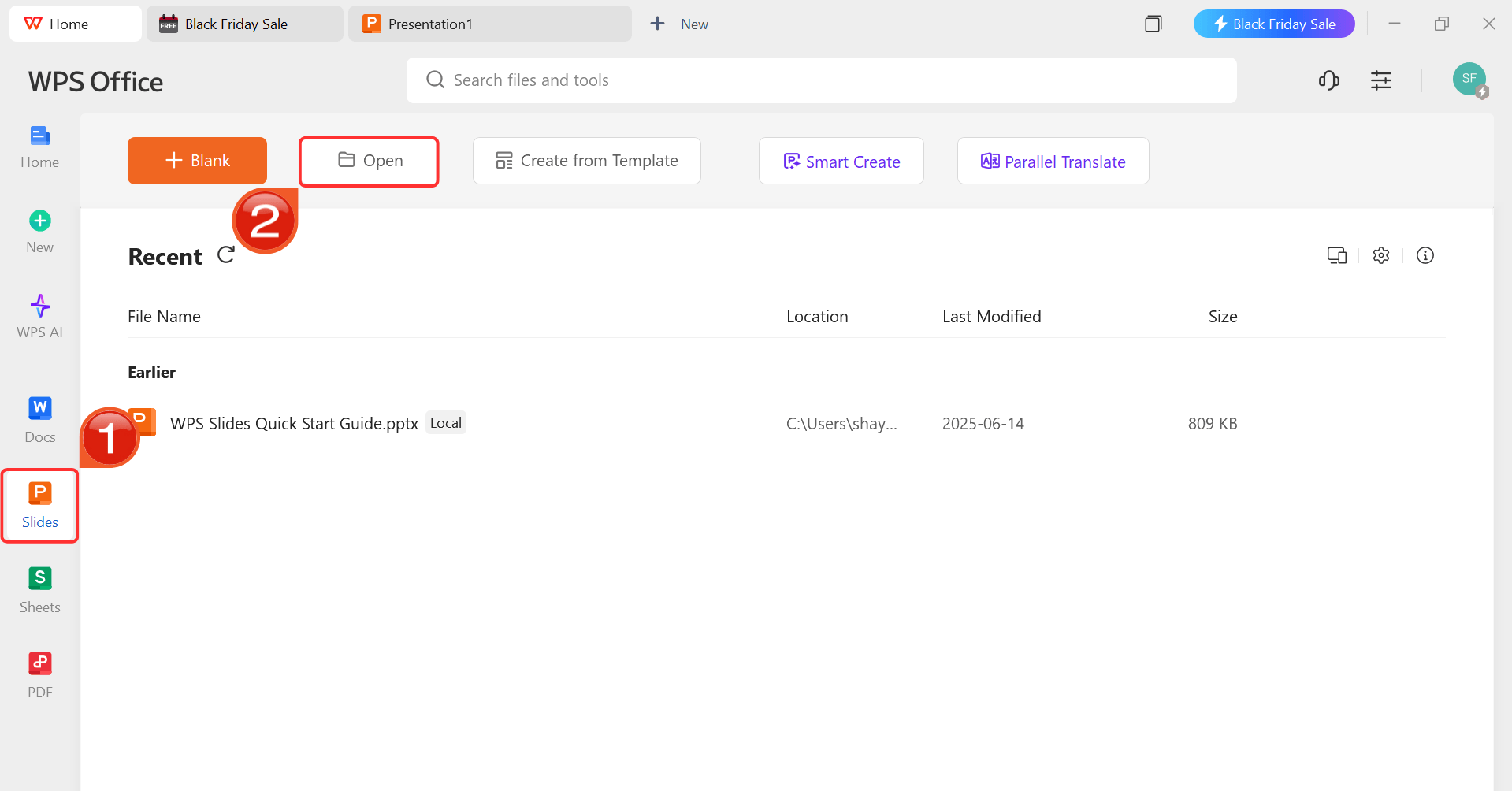
Step 4: After installation, in WPS Office, click“Slides” from the left sidebar and hit“Open” to open your presentation in WPS Office.
WPS Slides Dashboard
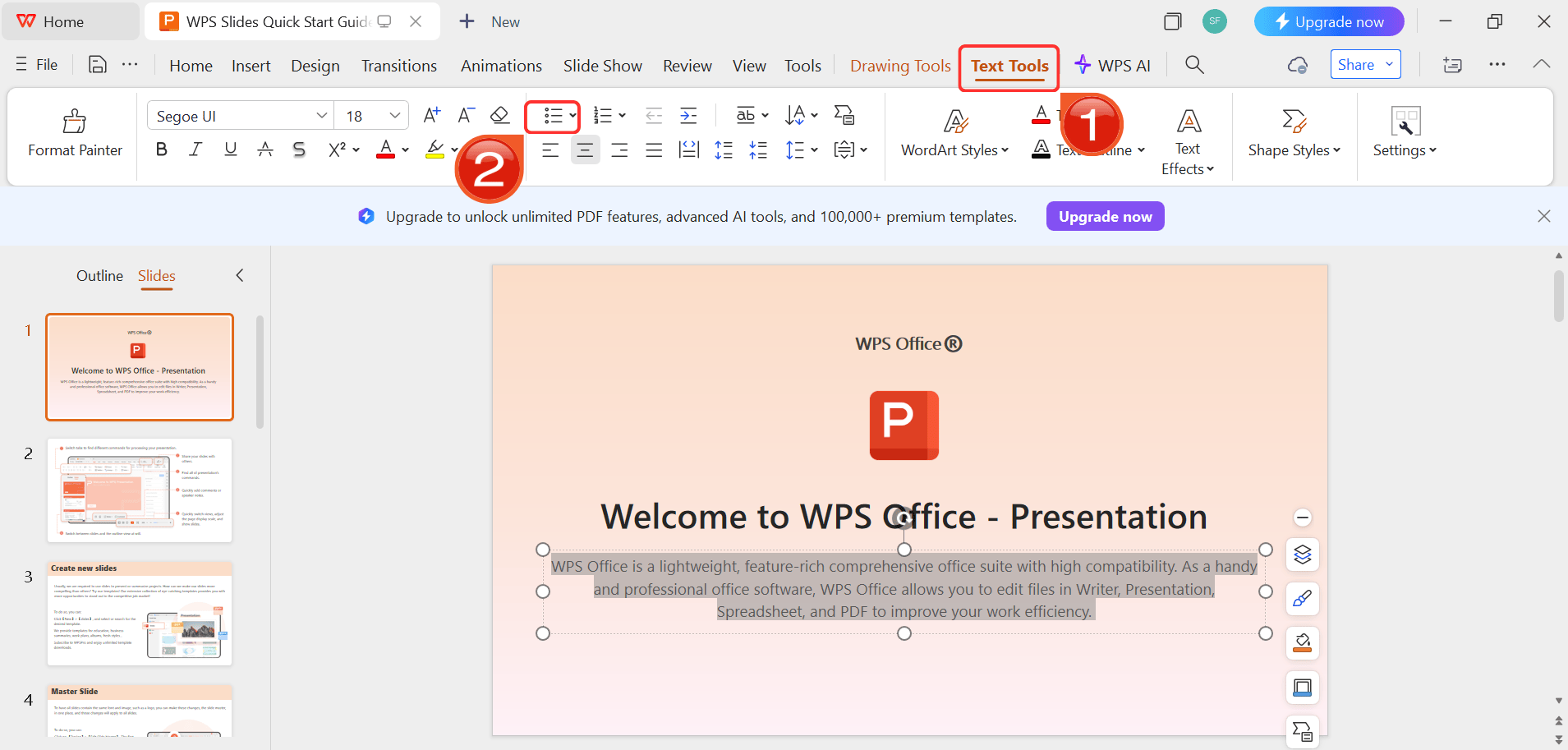
Step 5: To create bullets, click on the“Text Tools” in the ribbon and then click the bullet
list.
WPS Slides Bullets
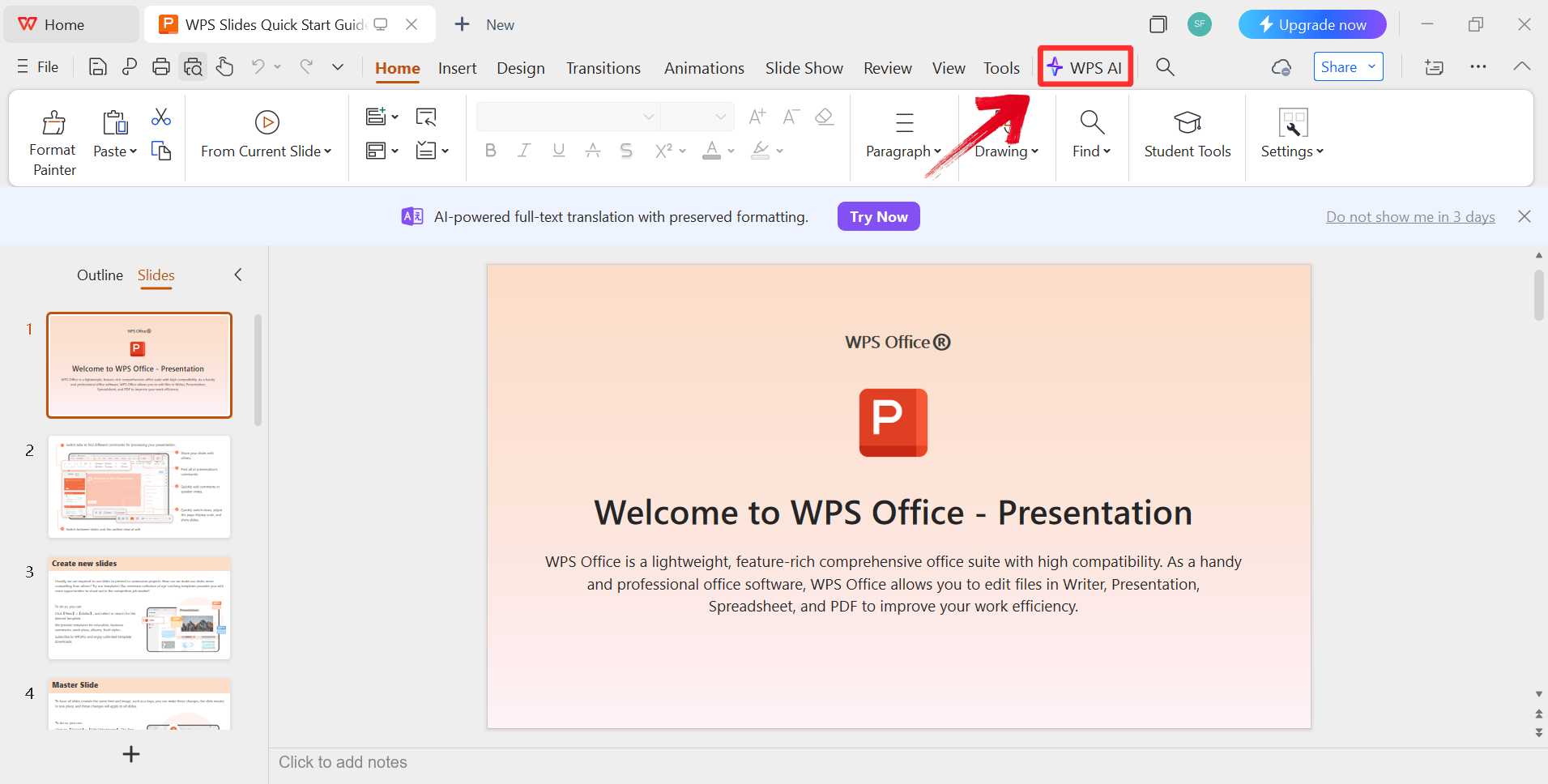
Step 6: Click on the "WPS AI" icon
in the ribbon to start enhancing your content.
Open WPS AI
Step 7: Use the AI to expand on bullet points or
generate new visual layouts.
Use AI Features
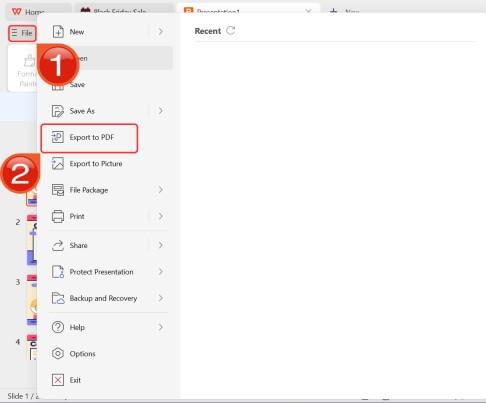
Step 8: After you’re done modifying the
Presentation, head to “File” and choose “Export
to PDF” to save the Slides in your desired format.
Export as PDF
Step 9: You can also share the link to your document
with others to enable collaborative work in case they want to make their
own changes as well.
Share link
FAQs
1.
What is the fastest way to add bullet points in Google Slides?
The fastest method is to use the keyboard shortcut. Select your text
and press Ctrl+Shift+8 (Windows) or Cmd+Shift+8 (Mac). This instantly
applies or removes bullet points.
2. Can I use
custom icons or images as bullet points?
Google Slides' built-in options are somewhat limited, primarily
offering custom symbols via the More bullets option in the Format menu.
For full customization, such as using brand logos, you must manually
insert small images next to your text.
3. How
do I fix the spacing if my bullets look too crowded?
Use the ruler for fine-tuned control. Enable it via View and then
click Show ruler. Select your bullet list, then drag the upper marker
(First Line Indent) and the lower marker (Left Indent) on the ruler to
adjust the position of the bullet and the text block independently.
4.
How do I change the color of the bullet points without changing the text
color?
Click directly on one of the bullet symbols in your list. This will
highlight all the bullets while leaving the text unselected. Then, click
the Text color icon (the A with a color bar) in the toolbar and choose
your desired color.
5. Why are my bullet
points not showing up?
If you have applied a list style but cannot see the bullets, check
the color contrast. The bullet color may be set to white (or the same
color as your background). Select the list and change the text color to
ensure it contrasts with the slide background.
Turning
Simple Lists into Presentation-Ready Content
Mastering how to add bullet points in Google Slides is essential for
creating clear and professional presentations. Whether you utilize the
toolbar for visual selection, the format menu for deep customization, or
keyboard shortcuts for speed, these techniques ensure your content is
readable and engaging. For users looking to speed up the actual writing
process, WPS AI
Slides offers a powerful alternative by generating structured
lists automatically, which can then be easily refined and exported for
use in Google Slides.
7+ years in productivity tech. I test and review the latest tools to simplify your workflow. Follow for honest app comparisons, practical guides, and curated tech picks to boost efficiency.


'%3e%3cpath%20d='M8%200C12.4183%200%2016%203.58172%2016%208C16%2012.4183%2012.4183%2016%208%2016C3.58172%2016%200%2012.4183%200%208C0%203.58172%203.58172%200%208%200ZM11.6162%204.38379C11.2257%203.99337%2010.5927%203.99338%2010.2021%204.38379L8%206.58594L5.79785%204.38379C5.40732%203.99334%204.77429%203.99329%204.38379%204.38379C3.99331%204.77429%203.99335%205.40733%204.38379%205.79785L6.58594%208L4.38379%2010.2021C3.99348%2010.5927%203.99341%2011.2257%204.38379%2011.6162C4.77426%2012.0066%205.40734%2012.0065%205.79785%2011.6162L8%209.41406L10.2021%2011.6162C10.5927%2012.0066%2011.2257%2012.0067%2011.6162%2011.6162C12.0067%2011.2257%2012.0066%2010.5927%2011.6162%2010.2021L9.41406%208L11.6162%205.79785C12.0066%205.40735%2012.0066%204.77429%2011.6162%204.38379Z'%20fill='%23080E17'%20fill-opacity='0.46'/%3e%3c/g%3e%3cdefs%3e%3cclipPath%20id='clip0_3761_713'%3e%3crect%20width='16'%20height='16'%20fill='white'/%3e%3c/clipPath%3e%3c/defs%3e%3c/svg%3e)




'%3e%3cpath%20fill-rule='evenodd'%20clip-rule='evenodd'%20d='M21.4999%2010.9993C21.4999%205.20009%2016.7986%200.498901%2010.9993%200.498901C5.19994%200.498901%200.498657%205.20009%200.498657%2010.9993C0.498657%2016.2404%204.33858%2020.5844%209.35855%2021.3722V14.0346H6.69238V10.9993H9.35855V8.68594C9.35855%206.05427%2010.9262%204.60062%2013.3248%204.60062C14.4736%204.60062%2015.6753%204.80571%2015.6753%204.80571V7.38979H14.3512C13.0468%207.38979%2012.64%208.19921%2012.64%209.0296V10.9993H15.5523L15.0867%2014.0346H12.64V21.3722C17.66%2020.5844%2021.4999%2016.2404%2021.4999%2010.9993Z'%20fill='%231568EA'/%3e%3c/g%3e%3c/svg%3e)


'%3e%3cpath%20d='M2.42045%2022.1876H6.31818V12.7217L0.75%208.54553V20.5171C0.75%2021.4414%201.49892%2022.1876%202.42045%2022.1876Z'%20fill='%234285F4'/%3e%3cpath%20d='M19.682%2022.1876H23.5797C24.5041%2022.1876%2025.2502%2021.4387%2025.2502%2020.5171V8.54553L19.682%2012.7217'%20fill='%2334A853'/%3e%3cpath%20d='M19.682%205.48293V12.7216L25.2502%208.54543V6.31816C25.2502%204.25236%2022.8921%203.07469%2021.2411%204.31361'%20fill='%23FBBC04'/%3e%3cpath%20d='M6.31824%2012.7217V5.48303L13.0001%2010.4944L19.6819%205.48303V12.7217L13.0001%2017.733'%20fill='%23EA4335'/%3e%3cpath%20d='M0.75%206.31816V8.54543L6.31818%2012.7216V5.48293L4.75909%204.31361C3.10534%203.07469%200.75%204.25236%200.75%206.31816Z'%20fill='%23C5221F'/%3e%3c/g%3e%3cdefs%3e%3cclipPath%20id='clip0_2954_7305'%3e%3crect%20width='24.5'%20height='18.375'%20fill='white'%20transform='translate(0.75%203.8125)'/%3e%3c/clipPath%3e%3c/defs%3e%3c/svg%3e)






'%3e%3cpath%20d='M19.9911%204.11386V6.471H18.5894C18.0775%206.471%2017.7322%206.57814%2017.5536%206.79243C17.3751%207.00671%2017.2858%207.32814%2017.2858%207.75671V9.44421H19.9019L19.5536%2012.0871H17.2858V18.8639H14.5536V12.0871H12.2769V9.44421H14.5536V7.49779C14.5536%206.39064%2014.8632%205.53201%2015.4822%204.92189C16.1013%204.31177%2016.9257%204.00671%2017.9554%204.00671C18.8304%204.00671%2019.509%204.04243%2019.9911%204.11386Z'%20fill='%23333333'/%3e%3c/g%3e%3cdefs%3e%3cclipPath%20id='clip0_2938_8199'%3e%3crect%20width='16'%20height='16'%20fill='white'%20transform='translate(8%204.00671)'/%3e%3c/clipPath%3e%3c/defs%3e%3c/svg%3e)
'%3e%3cpath%20d='M17.5237%2010.7813L23.4811%204H22.0699L16.8949%209.88693L12.7648%204H8L14.2469%2012.9029L8%2020.0133H9.4112L14.8725%2013.7952L19.2352%2020.0133H24M9.92053%205.04213H12.0885L22.0688%2019.0224H19.9003'%20fill='%23333333'/%3e%3c/g%3e%3cdefs%3e%3cclipPath%20id='clip0_2938_8200'%3e%3crect%20width='16'%20height='16.0134'%20fill='white'%20transform='translate(8%204)'/%3e%3c/clipPath%3e%3c/defs%3e%3c/svg%3e)


