

'%3e%3cpath%20d='M8%200C12.4183%200%2016%203.58172%2016%208C16%2012.4183%2012.4183%2016%208%2016C3.58172%2016%200%2012.4183%200%208C0%203.58172%203.58172%200%208%200ZM11.6162%204.38379C11.2257%203.99337%2010.5927%203.99338%2010.2021%204.38379L8%206.58594L5.79785%204.38379C5.40732%203.99334%204.77429%203.99329%204.38379%204.38379C3.99331%204.77429%203.99335%205.40733%204.38379%205.79785L6.58594%208L4.38379%2010.2021C3.99348%2010.5927%203.99341%2011.2257%204.38379%2011.6162C4.77426%2012.0066%205.40734%2012.0065%205.79785%2011.6162L8%209.41406L10.2021%2011.6162C10.5927%2012.0066%2011.2257%2012.0067%2011.6162%2011.6162C12.0067%2011.2257%2012.0066%2010.5927%2011.6162%2010.2021L9.41406%208L11.6162%205.79785C12.0066%205.40735%2012.0066%204.77429%2011.6162%204.38379Z'%20fill='%23080E17'%20fill-opacity='0.46'/%3e%3c/g%3e%3cdefs%3e%3cclipPath%20id='clip0_3761_713'%3e%3crect%20width='16'%20height='16'%20fill='white'/%3e%3c/clipPath%3e%3c/defs%3e%3c/svg%3e)




'%3e%3cpath%20fill-rule='evenodd'%20clip-rule='evenodd'%20d='M21.4999%2010.9993C21.4999%205.20009%2016.7986%200.498901%2010.9993%200.498901C5.19994%200.498901%200.498657%205.20009%200.498657%2010.9993C0.498657%2016.2404%204.33858%2020.5844%209.35855%2021.3722V14.0346H6.69238V10.9993H9.35855V8.68594C9.35855%206.05427%2010.9262%204.60062%2013.3248%204.60062C14.4736%204.60062%2015.6753%204.80571%2015.6753%204.80571V7.38979H14.3512C13.0468%207.38979%2012.64%208.19921%2012.64%209.0296V10.9993H15.5523L15.0867%2014.0346H12.64V21.3722C17.66%2020.5844%2021.4999%2016.2404%2021.4999%2010.9993Z'%20fill='%231568EA'/%3e%3c/g%3e%3c/svg%3e)


'%3e%3cpath%20d='M2.42045%2022.1876H6.31818V12.7217L0.75%208.54553V20.5171C0.75%2021.4414%201.49892%2022.1876%202.42045%2022.1876Z'%20fill='%234285F4'/%3e%3cpath%20d='M19.682%2022.1876H23.5797C24.5041%2022.1876%2025.2502%2021.4387%2025.2502%2020.5171V8.54553L19.682%2012.7217'%20fill='%2334A853'/%3e%3cpath%20d='M19.682%205.48293V12.7216L25.2502%208.54543V6.31816C25.2502%204.25236%2022.8921%203.07469%2021.2411%204.31361'%20fill='%23FBBC04'/%3e%3cpath%20d='M6.31824%2012.7217V5.48303L13.0001%2010.4944L19.6819%205.48303V12.7217L13.0001%2017.733'%20fill='%23EA4335'/%3e%3cpath%20d='M0.75%206.31816V8.54543L6.31818%2012.7216V5.48293L4.75909%204.31361C3.10534%203.07469%200.75%204.25236%200.75%206.31816Z'%20fill='%23C5221F'/%3e%3c/g%3e%3cdefs%3e%3cclipPath%20id='clip0_2954_7305'%3e%3crect%20width='24.5'%20height='18.375'%20fill='white'%20transform='translate(0.75%203.8125)'/%3e%3c/clipPath%3e%3c/defs%3e%3c/svg%3e)


If you downloaded a file with an .aspx extension, it may refuse to open, or your browser may prompt you to save it again. ASPX files are ASP.NET web pages, not documents, so the reliable way to keep one is to convert it to PDF — a format you can read offline, print, and share on any device. This guide shows you how to convert an ASPX page to PDF whether it is a live link you want to capture or a downloaded file on your computer, and how WPS keeps the result editable.
How to Convert ASPX to PDF Turn an ASP.NET Page into a PDF
Why an ASPX file will not open as a PDF
An .aspx file is an ASP.NET Web Forms page that a web server renders into HTML before it reaches your browser. It is not a document format like PDF or Word, so renaming report.aspx to report.pdf does not work — the file still contains page code, not a printable layout.
That is why every reliable ASPX to PDF converter works in two stages: first render the page as it would appear in a browser, then print or export that rendered view as a PDF. WPS lets you complete both stages, and this article walks through the two common situations you will meet.
The same approach also protects you from broken exports. If you try to convert a raw .aspx file without rendering it, the result is often blank or filled with code fragments. Rendering the page first gives the converter real text, images, and tables to work with, which is why you should always start from the browser view rather than the source file.
How to convert an ASPX page to PDF from the browser
When the ASPX address is a live link, the fastest ASPX to PDF route is to open it in a browser and print the rendered page to PDF. The server turns the ASPX page into HTML first, so you capture exactly what a reader sees, including forms, tables, and interactive widgets that would otherwise not survive a direct file conversion.
Open the ASPX link in a modern browser such as Chrome or Edge and wait for the page to finish loading.
Press Ctrl+P (Windows) or Command+P (Mac) to open the print dialog.
Choose Save as PDF (or the WPS PDF printer if installed) as the destination, and set paper size, margins, and scale.
Click Save, choose a location, and the rendered page is stored as a PDF you can open anywhere.
This method suits the ASPX pages that need login or session state, because the browser renders the page with your session already active. You get the same content you saw on screen, ready to share or print. It is also the safest option when the ASPX address runs a report or a form you need a permanent copy of, because the PDF captures the exact output the server generated for that request.
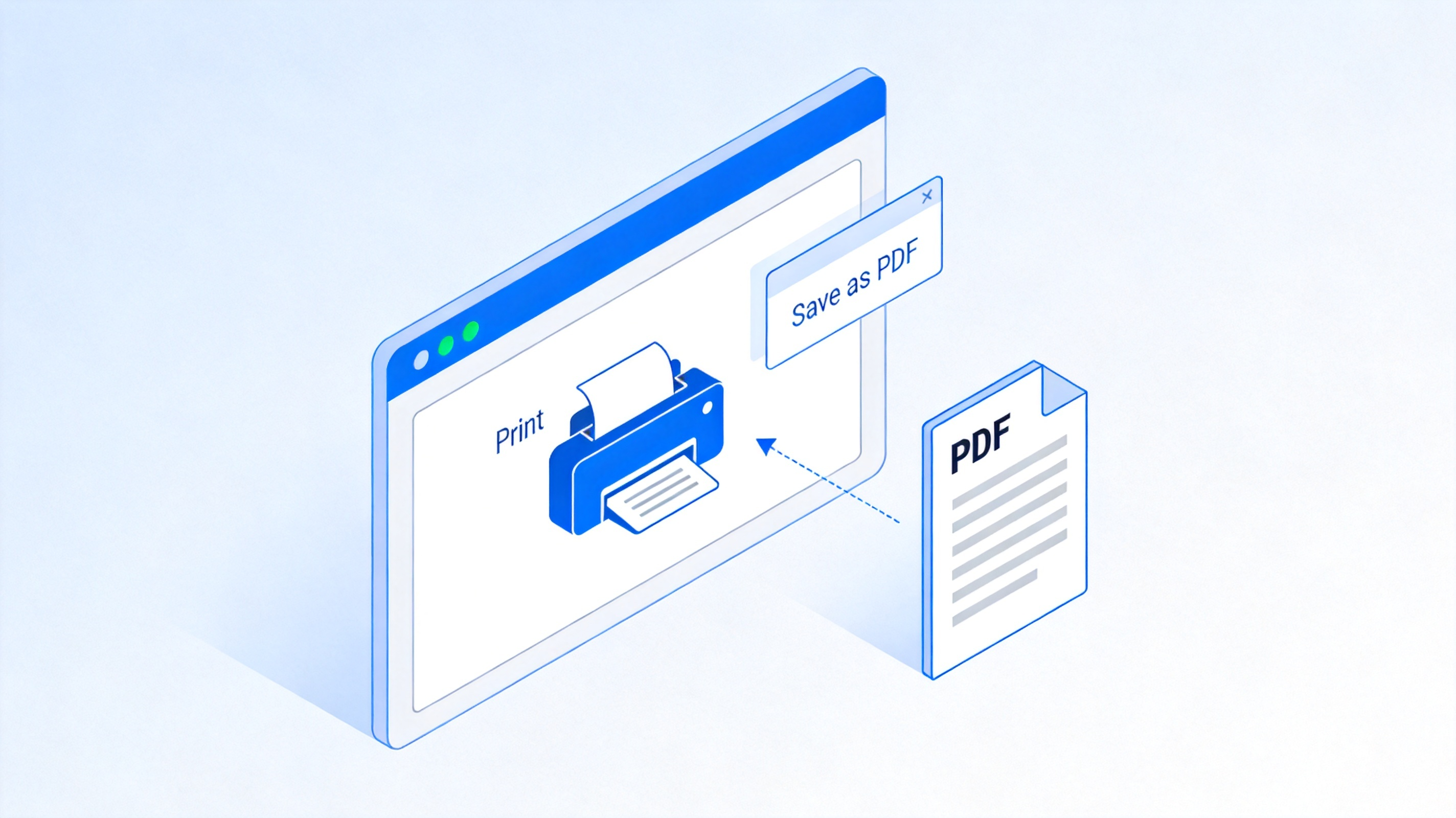
Save an ASPX page as PDF in the browser


How to convert a downloaded ASPX file to PDF in WPS
If you saved an .aspx file to your computer and cannot open it, first check what it contains. Many servers serve HTML under an aspx name, so the file is often just a webpage. WPS can read it, and you can export it to PDF.
Check the file by right-clicking and opening it with a text editor. If it starts with or contains web markup, it is HTML that needs only a correct extension.
Rename the file from .aspx to .html so office tools recognize it, then open it in WPS Writer.
Open the converted file in WPS Writer, review the layout, and fix any broken images or links that did not load.
Export to PDF from the File menu — choose Export to PDF to save a clean copy you can share and print.
For files that contain ASP.NET code rather than plain HTML, open them in WPS to review the readable text, then use the Print menu and select Save as PDF to capture the content as a document. This keeps the information without relying on the original server.
If the downloaded file is truly a source page with server controls and code-behind references, you may still find useful text and configuration inside it. Opening it in WPS lets you read that text, and exporting to PDF gives you a searchable record. Keep the original file as a backup, since it may still be needed by the application that produced it.
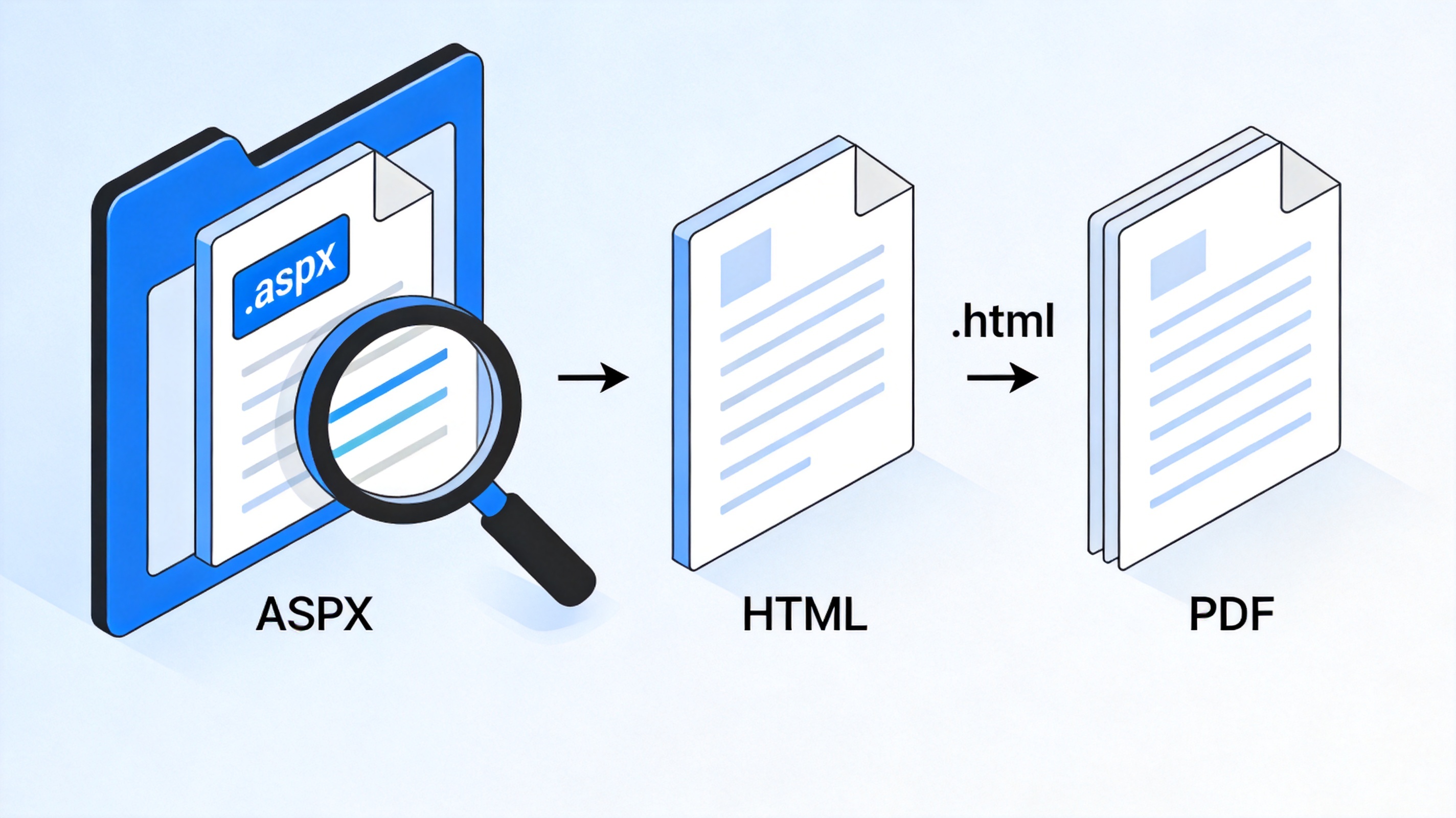
Convert a downloaded ASPX file to PDF in WPS
The Best Free PDF Companion: WPS Office
WPS Office bundles a full PDF reader and editor with Writer, Spreadsheets, and Presentation in one free suite. After you convert an ASPX page to PDF, WPS lets you annotate, sign, compress, and export the document without switching apps.
The interface matches the office tools you already use, so preparing a converted ASPX PDF for sharing takes minutes rather than a learning curve. For a broader set of web-to-PDF workflows, you can also use the free online web-page-to-PDF guide to compare the quickest routes for your files.
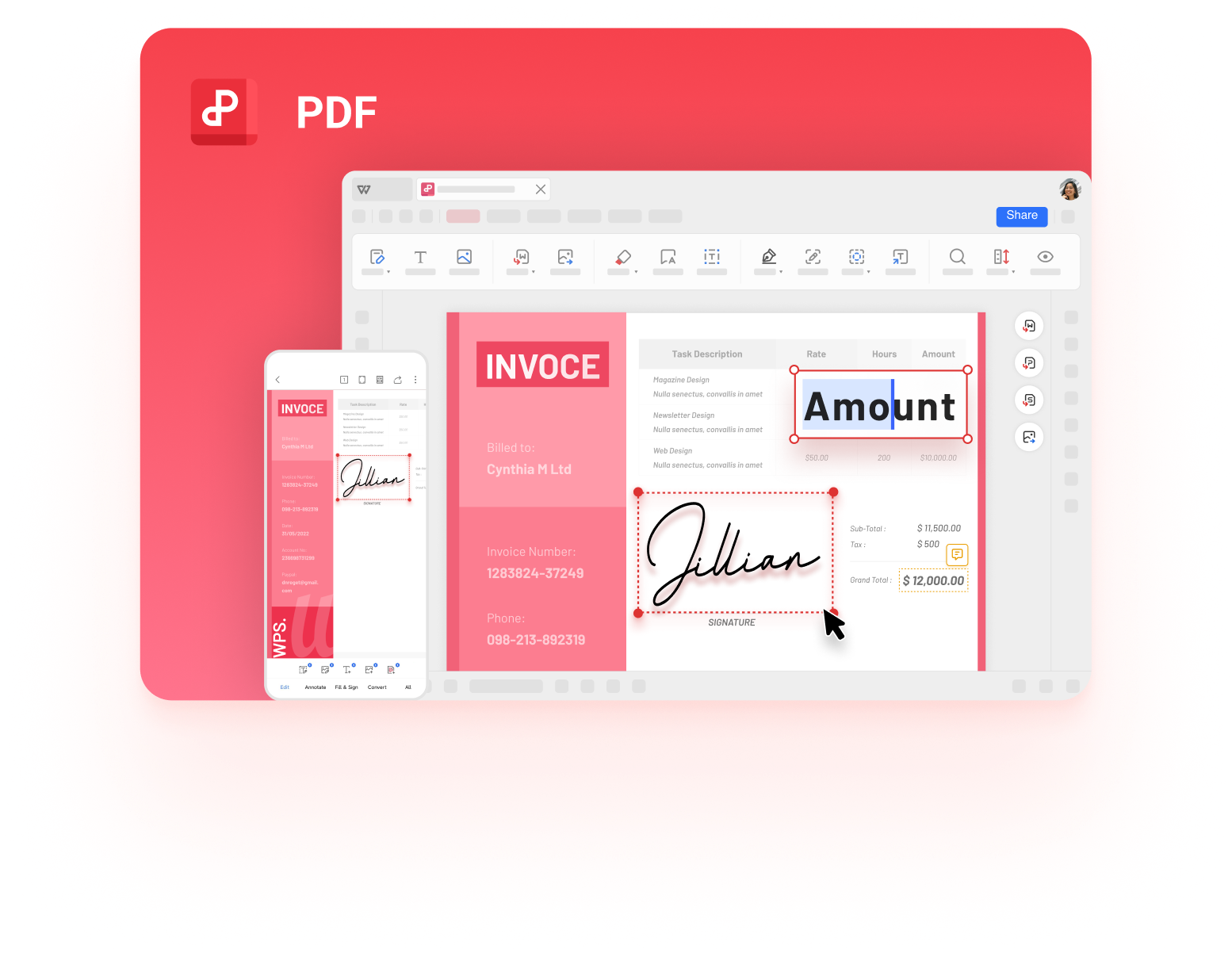
WPS PDF editor for converted documents
FAQs
Can I just rename an ASPX file to PDF?
No. Renaming changes only the extension, not the content. An ASPX file still contains page code, so it will not open as a valid PDF until the page is rendered and printed.
Is an ASPX file a virus or a document?
An ASPX file is a web page used by ASP.NET applications, not a document. It can be a server page or, occasionally, a downloaded copy of one; open suspicious files in a text editor before running anything.
How do I convert an ASPX URL to PDF?
Open the URL in a browser, press Ctrl+P or Command+P, choose Save as PDF, and save the rendered page. WPS can open the result for editing and annotation.
Can WPS open an ASPX file?
WPS treats an .aspx file as text content. Open it to review the readable text, or rename it to .html when it contains HTML, then export it to PDF from WPS Writer.
Will the converted ASPX PDF keep its layout?
Printing a rendered ASPX page to PDF keeps the layout, images, and page breaks as they appear in the browser. For downloaded code files, the readable text is preserved.


'%3e%3cpath%20d='M19.9911%204.11386V6.471H18.5894C18.0775%206.471%2017.7322%206.57814%2017.5536%206.79243C17.3751%207.00671%2017.2858%207.32814%2017.2858%207.75671V9.44421H19.9019L19.5536%2012.0871H17.2858V18.8639H14.5536V12.0871H12.2769V9.44421H14.5536V7.49779C14.5536%206.39064%2014.8632%205.53201%2015.4822%204.92189C16.1013%204.31177%2016.9257%204.00671%2017.9554%204.00671C18.8304%204.00671%2019.509%204.04243%2019.9911%204.11386Z'%20fill='%23333333'/%3e%3c/g%3e%3cdefs%3e%3cclipPath%20id='clip0_2938_8199'%3e%3crect%20width='16'%20height='16'%20fill='white'%20transform='translate(8%204.00671)'/%3e%3c/clipPath%3e%3c/defs%3e%3c/svg%3e)
'%3e%3cpath%20d='M17.5237%2010.7813L23.4811%204H22.0699L16.8949%209.88693L12.7648%204H8L14.2469%2012.9029L8%2020.0133H9.4112L14.8725%2013.7952L19.2352%2020.0133H24M9.92053%205.04213H12.0885L22.0688%2019.0224H19.9003'%20fill='%23333333'/%3e%3c/g%3e%3cdefs%3e%3cclipPath%20id='clip0_2938_8200'%3e%3crect%20width='16'%20height='16.0134'%20fill='white'%20transform='translate(8%204)'/%3e%3c/clipPath%3e%3c/defs%3e%3c/svg%3e)


