

'%3e%3cpath%20d='M8%200C12.4183%200%2016%203.58172%2016%208C16%2012.4183%2012.4183%2016%208%2016C3.58172%2016%200%2012.4183%200%208C0%203.58172%203.58172%200%208%200ZM11.6162%204.38379C11.2257%203.99337%2010.5927%203.99338%2010.2021%204.38379L8%206.58594L5.79785%204.38379C5.40732%203.99334%204.77429%203.99329%204.38379%204.38379C3.99331%204.77429%203.99335%205.40733%204.38379%205.79785L6.58594%208L4.38379%2010.2021C3.99348%2010.5927%203.99341%2011.2257%204.38379%2011.6162C4.77426%2012.0066%205.40734%2012.0065%205.79785%2011.6162L8%209.41406L10.2021%2011.6162C10.5927%2012.0066%2011.2257%2012.0067%2011.6162%2011.6162C12.0067%2011.2257%2012.0066%2010.5927%2011.6162%2010.2021L9.41406%208L11.6162%205.79785C12.0066%205.40735%2012.0066%204.77429%2011.6162%204.38379Z'%20fill='%23080E17'%20fill-opacity='0.46'/%3e%3c/g%3e%3cdefs%3e%3cclipPath%20id='clip0_3761_713'%3e%3crect%20width='16'%20height='16'%20fill='white'/%3e%3c/clipPath%3e%3c/defs%3e%3c/svg%3e)




'%3e%3cpath%20fill-rule='evenodd'%20clip-rule='evenodd'%20d='M21.4999%2010.9993C21.4999%205.20009%2016.7986%200.498901%2010.9993%200.498901C5.19994%200.498901%200.498657%205.20009%200.498657%2010.9993C0.498657%2016.2404%204.33858%2020.5844%209.35855%2021.3722V14.0346H6.69238V10.9993H9.35855V8.68594C9.35855%206.05427%2010.9262%204.60062%2013.3248%204.60062C14.4736%204.60062%2015.6753%204.80571%2015.6753%204.80571V7.38979H14.3512C13.0468%207.38979%2012.64%208.19921%2012.64%209.0296V10.9993H15.5523L15.0867%2014.0346H12.64V21.3722C17.66%2020.5844%2021.4999%2016.2404%2021.4999%2010.9993Z'%20fill='%231568EA'/%3e%3c/g%3e%3c/svg%3e)


'%3e%3cpath%20d='M2.42045%2022.1876H6.31818V12.7217L0.75%208.54553V20.5171C0.75%2021.4414%201.49892%2022.1876%202.42045%2022.1876Z'%20fill='%234285F4'/%3e%3cpath%20d='M19.682%2022.1876H23.5797C24.5041%2022.1876%2025.2502%2021.4387%2025.2502%2020.5171V8.54553L19.682%2012.7217'%20fill='%2334A853'/%3e%3cpath%20d='M19.682%205.48293V12.7216L25.2502%208.54543V6.31816C25.2502%204.25236%2022.8921%203.07469%2021.2411%204.31361'%20fill='%23FBBC04'/%3e%3cpath%20d='M6.31824%2012.7217V5.48303L13.0001%2010.4944L19.6819%205.48303V12.7217L13.0001%2017.733'%20fill='%23EA4335'/%3e%3cpath%20d='M0.75%206.31816V8.54543L6.31818%2012.7216V5.48293L4.75909%204.31361C3.10534%203.07469%200.75%204.25236%200.75%206.31816Z'%20fill='%23C5221F'/%3e%3c/g%3e%3cdefs%3e%3cclipPath%20id='clip0_2954_7305'%3e%3crect%20width='24.5'%20height='18.375'%20fill='white'%20transform='translate(0.75%203.8125)'/%3e%3c/clipPath%3e%3c/defs%3e%3c/svg%3e)


Hiring your first employee means putting the working relationship in writing. A clear employment contract protects both you and the employee by spelling out the role, pay, expectations, and what happens if things change. This guide walks through the sections every employee contract needs and shows how free WPS tools — Writer to draft the document and the PDF editor to sign and share it — carry you from blank page to signed copy.
How to Write an Employee Contract with WPS Office
What an employee contract should include
Before you start typing, list the sections that make the contract complete. Covering these protects both sides and avoids vague terms that cause disputes later. Reviewing the list first also helps you spot gaps while the role is still being defined, instead of patching the contract after a misunderstanding appears. The essential parts are:
Job title and description — the role, main duties, and whether it is at-will or for a fixed term.
Start date and duration — when work begins, and whether the job is permanent, contract, full-time, or part-time.
Compensation and benefits — salary or wage, payment schedule, holidays, and any perks.
Confidentiality — protection for company data and any non-solicit or non-compete terms.
Termination — how either side can end the arrangement, with notice or for cause.
Dispute resolution — how disagreements will be handled, such as mediation before legal action.
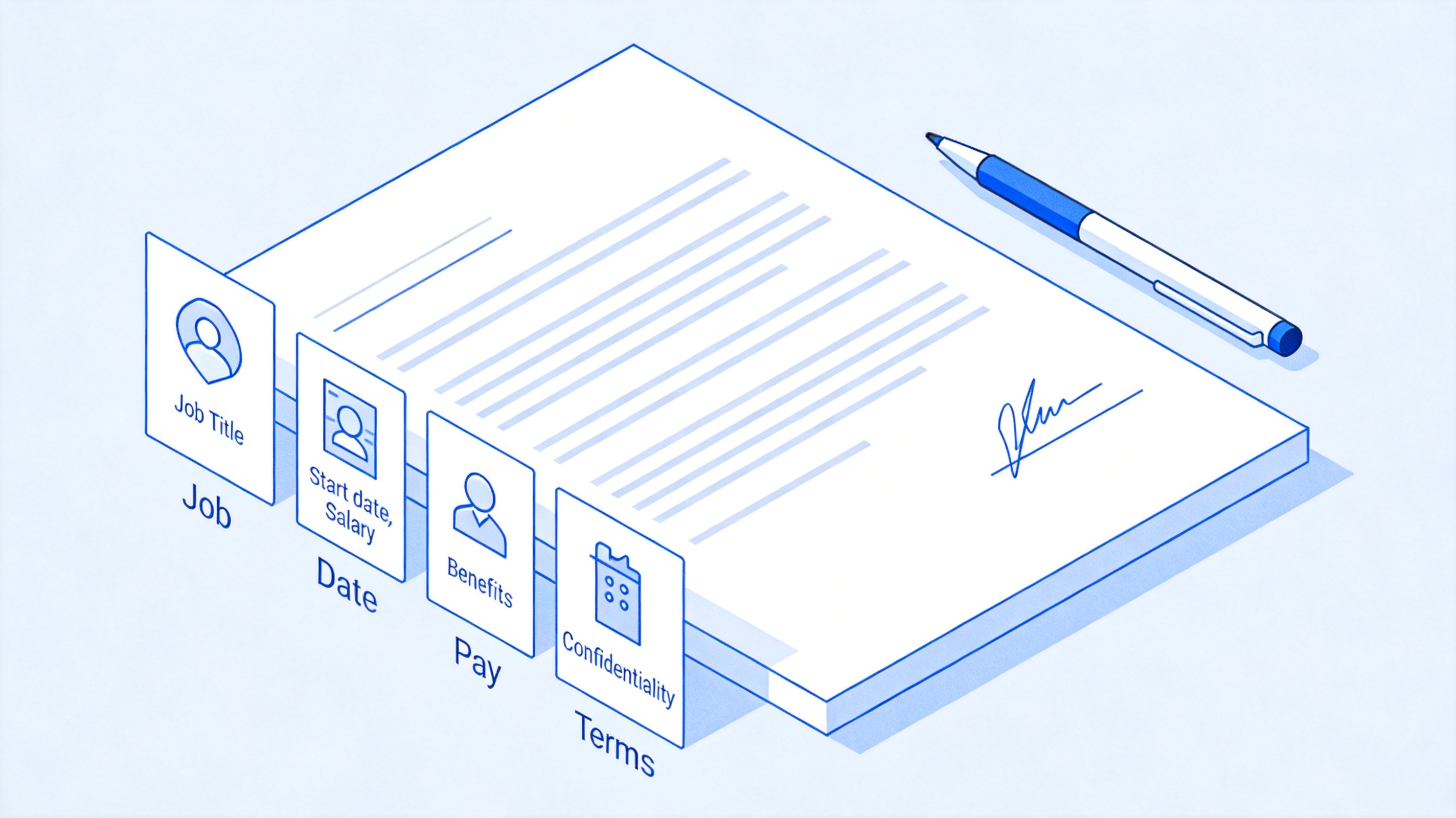
Key sections in an employment contract


How to draft an employee contract in WPS Writer
With your section list ready, draft the contract in WPS Writer. Use a clean structure with clear headings and plain language so both parties read the same terms. WPS Writer makes it easy to format, edit, and reuse the document.
Create a new document in WPS Writer and add a title such as "Employment Agreement."
Add a parties block with the employer and employee names and contact details.
Write each section from your list as a heading, followed by short, specific clauses.
Use plain language for salary, dates, and duties so there is no room for misunderstanding.
Review with the employee, then export the final version to PDF for signing.
Start with clear headings and build each clause as a short paragraph. Use WPS's built-in heading styles so the document stays consistent, and add page numbers so a long contract is easy to navigate. If you add a clause that changes later, update the wording in the same document and export a fresh PDF, so everyone works from the current version.
Keep a template version with the placeholders for name, role, and salary so you can reuse the structure for future hires. Store the blank template separately from any filled contract to avoid accidentally sending a draft with outdated figures.
Key clauses to write into your employee contract
The strength of an employee contract comes from its details. These clauses turn a general letter into an enforceable agreement, so write them clearly and confirm they match your local law.
Employment type. State whether the role is at-will, fixed-term, full-time, or part-time, and what that means for notice.
Compensation. Specify the exact salary or wage, when it is paid, and any bonuses or overtime rules.
Confidentiality. Protect company information and add reasonable non-solicit or non-compete terms if needed.
Intellectual property. Confirm that work created on the job belongs to the company.
Termination. Explain how either side ends the contract, including notice periods and grounds for immediate dismissal.
Severability. Add a line saying that if one clause is unenforceable, the rest still stands.
Keep the language practical and avoid copying clauses from other jurisdictions without checking. A clause that makes sense in one region can be unenforceable or confusing in another, so tailor each term to your situation. Where a term is complex, add a short plain-language explanation so the employee understands the effect without needing a lawyer.
How to sign and share your employee contract as a PDF
Once the draft is final, export it to PDF so the layout stays fixed, then sign it electronically in WPS. A signed PDF is easy to store, resend, and keep as a permanent record.
Export the contract from WPS Writer using Export to PDF.
Open the PDF in the WPS PDF editor and use the Fill & Sign tool to add your signature and the date.
Send the signed PDF to the employee, who can open it in WPS and sign their copy.
Keep a copy of the final signed document for both parties' records.
WPS keeps the whole process in one free suite, so you draft, export, and sign without switching tools. The PDF format protects the layout, so the signed copy looks identical on any device, which matters when the contract will be stored or reviewed later. For more on electronic signing, see the guide to signing a PDF and apply the same steps on any device.
The Best Free Way to Draft and Sign Contracts: WPS Office
WPS Office brings drafting and signing together in one free suite. Write your employment contract in Writer, export it to a fixed-layout PDF, and add signatures in the built-in PDF editor — no separate accounts or subscriptions.
The familiar interface keeps the process fast, and your files stay on your device so sensitive employment terms are not sent through a third-party cloud. For a small team, this means a complete hiring workflow you can repeat for every new employee.
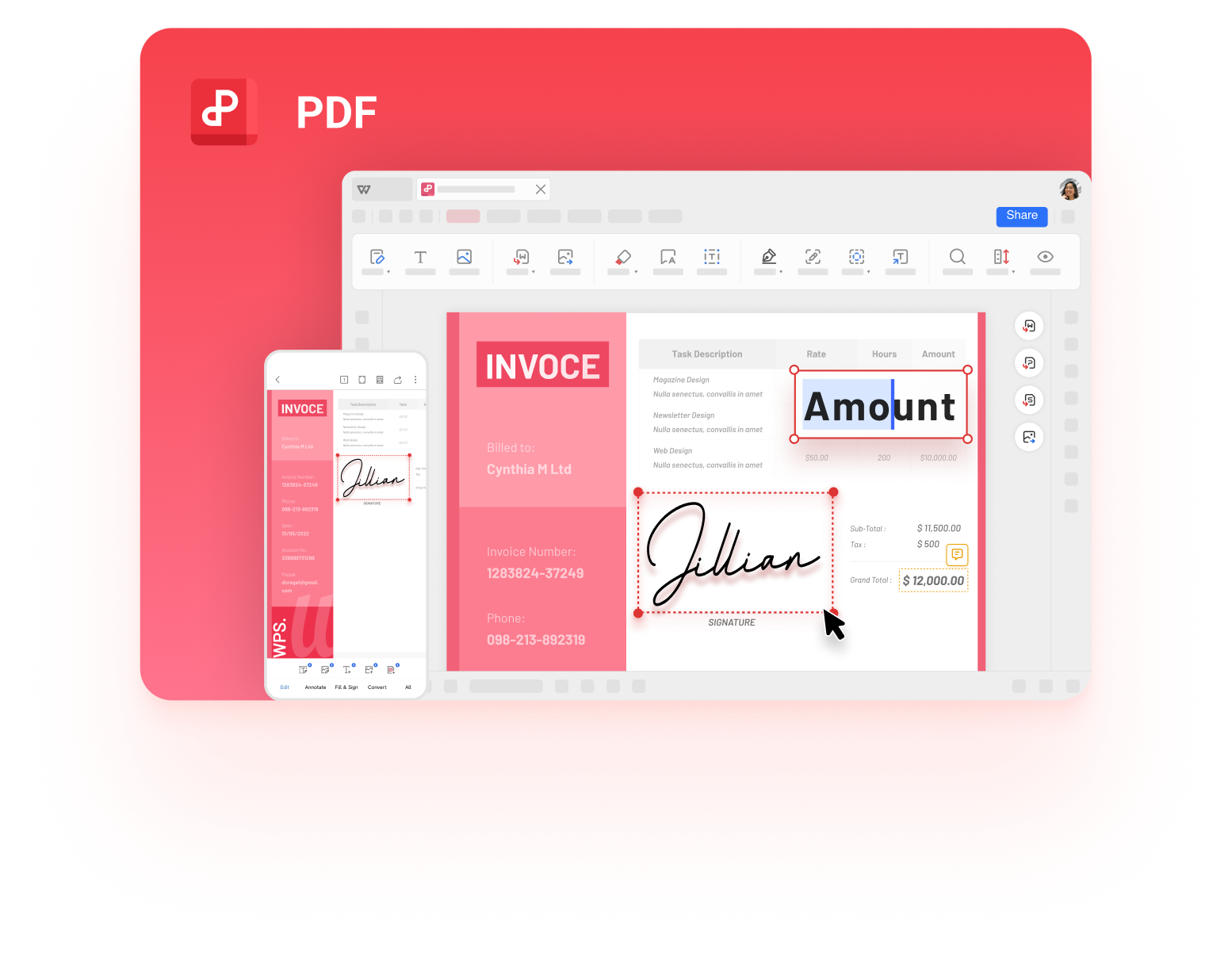
WPS PDF editor for employment contracts
FAQs
What is the difference between an employee contract and an offer letter?
An offer letter is a short summary of the role and pay, while an employment contract is a detailed agreement covering duties, benefits, confidentiality, termination, and dispute terms.
Do I need a lawyer to write an employment contract?
Not always, but a lawyer is useful for complex roles or when local law is unclear. WPS helps you draft a clear draft to bring to a professional review.
Is an employment contract required for part-time or casual staff?
It depends on local rules, but a written contract is good practice for any regular work, including part-time, fixed-term, and contractor roles.
Can I change an employee contract after it is signed?
Yes, if both parties agree. Draft an amendment in WPS Writer, export it to PDF, and have both sides sign the updated version.
How do I sign an employee contract electronically?
Export the contract to PDF, open it in the WPS PDF editor, use Fill & Sign to add your signature and date, and share the signed copy with the employee.


'%3e%3cpath%20d='M19.9911%204.11386V6.471H18.5894C18.0775%206.471%2017.7322%206.57814%2017.5536%206.79243C17.3751%207.00671%2017.2858%207.32814%2017.2858%207.75671V9.44421H19.9019L19.5536%2012.0871H17.2858V18.8639H14.5536V12.0871H12.2769V9.44421H14.5536V7.49779C14.5536%206.39064%2014.8632%205.53201%2015.4822%204.92189C16.1013%204.31177%2016.9257%204.00671%2017.9554%204.00671C18.8304%204.00671%2019.509%204.04243%2019.9911%204.11386Z'%20fill='%23333333'/%3e%3c/g%3e%3cdefs%3e%3cclipPath%20id='clip0_2938_8199'%3e%3crect%20width='16'%20height='16'%20fill='white'%20transform='translate(8%204.00671)'/%3e%3c/clipPath%3e%3c/defs%3e%3c/svg%3e)
'%3e%3cpath%20d='M17.5237%2010.7813L23.4811%204H22.0699L16.8949%209.88693L12.7648%204H8L14.2469%2012.9029L8%2020.0133H9.4112L14.8725%2013.7952L19.2352%2020.0133H24M9.92053%205.04213H12.0885L22.0688%2019.0224H19.9003'%20fill='%23333333'/%3e%3c/g%3e%3cdefs%3e%3cclipPath%20id='clip0_2938_8200'%3e%3crect%20width='16'%20height='16.0134'%20fill='white'%20transform='translate(8%204)'/%3e%3c/clipPath%3e%3c/defs%3e%3c/svg%3e)


