



'%3e%3cpath%20fill-rule='evenodd'%20clip-rule='evenodd'%20d='M21.4999%2010.9993C21.4999%205.20009%2016.7986%200.498901%2010.9993%200.498901C5.19994%200.498901%200.498657%205.20009%200.498657%2010.9993C0.498657%2016.2404%204.33858%2020.5844%209.35855%2021.3722V14.0346H6.69238V10.9993H9.35855V8.68594C9.35855%206.05427%2010.9262%204.60062%2013.3248%204.60062C14.4736%204.60062%2015.6753%204.80571%2015.6753%204.80571V7.38979H14.3512C13.0468%207.38979%2012.64%208.19921%2012.64%209.0296V10.9993H15.5523L15.0867%2014.0346H12.64V21.3722C17.66%2020.5844%2021.4999%2016.2404%2021.4999%2010.9993Z'%20fill='%231568EA'/%3e%3c/g%3e%3c/svg%3e)


'%3e%3cpath%20d='M2.42045%2022.1876H6.31818V12.7217L0.75%208.54553V20.5171C0.75%2021.4414%201.49892%2022.1876%202.42045%2022.1876Z'%20fill='%234285F4'/%3e%3cpath%20d='M19.682%2022.1876H23.5797C24.5041%2022.1876%2025.2502%2021.4387%2025.2502%2020.5171V8.54553L19.682%2012.7217'%20fill='%2334A853'/%3e%3cpath%20d='M19.682%205.48293V12.7216L25.2502%208.54543V6.31816C25.2502%204.25236%2022.8921%203.07469%2021.2411%204.31361'%20fill='%23FBBC04'/%3e%3cpath%20d='M6.31824%2012.7217V5.48303L13.0001%2010.4944L19.6819%205.48303V12.7217L13.0001%2017.733'%20fill='%23EA4335'/%3e%3cpath%20d='M0.75%206.31816V8.54543L6.31818%2012.7216V5.48293L4.75909%204.31361C3.10534%203.07469%200.75%204.25236%200.75%206.31816Z'%20fill='%23C5221F'/%3e%3c/g%3e%3cdefs%3e%3cclipPath%20id='clip0_2954_7305'%3e%3crect%20width='24.5'%20height='18.375'%20fill='white'%20transform='translate(0.75%203.8125)'/%3e%3c/clipPath%3e%3c/defs%3e%3c/svg%3e)


How to Sign a PDF on iPhone
Need to sign a PDF on iPhone? You can do it without printing: use Apple’s built-in Markup for a quick signature, or use WPS Office when you also need to fill fields, edit the file, or manage several pages. The steps below help you choose the right method and save a shareable copy.
Before signing, confirm what the recipient needs. A drawn or typed mark is an electronic signature. A certificate-based digital signature is a different process with identity verification and certificate controls. If a contract, employer, or government portal specifies a certificate, follow that requirement instead of relying on a simple annotation.
How to Sign a PDF on iPhone
What it means to sign a PDF on iPhone
Signing a PDF on iPhone usually means placing a signature image or drawn mark in the document, then saving the edited file. It does not automatically encrypt the PDF or prove the signer’s identity. For routine approvals, receipts, school forms, and many business documents, an electronic signature may be all the recipient requests.
Electronic signature: a typed name, handwritten mark, or imported signature placed in a PDF.
Digital signature: a certificate-backed signature that can help verify identity and whether the file changed.
Fillable form: a PDF with fields designed for text, dates, check boxes, and signatures.
Keep the unsigned original. If the PDF contains confidential data, use a trusted app and check where the file is saved before sharing it.
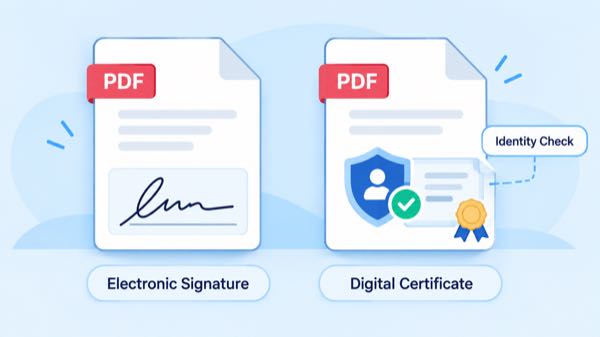
Electronic and digital PDF signatures


How to sign a PDF on iPhone with Markup
Apple’s Markup tools let you add a signature from Files, Mail, or another app that opens a PDF. The exact toolbar can vary by iOS version, but the workflow is consistent.
Open the PDF from the Files app, Mail, Messages, or the app where you received it.
Tap the Markup icon, usually shown as a pen tip inside a circle.
Tap the + button, then choose Add Signature.
Draw your signature with your finger, or select a saved signature. Tap Done.
Drag the signature to the correct line. Use the handles or pinch gesture to resize it, then tap Done again.
Use Share or Save to Files to create the signed copy. Give it a clear filename such as
Agreement-signed.pdf.
Markup is convenient for a quick signature, but it may not provide advanced field validation, audit trails, or certificate-based signing. Reopen the saved file before sending it to make sure the mark stayed in the right place.
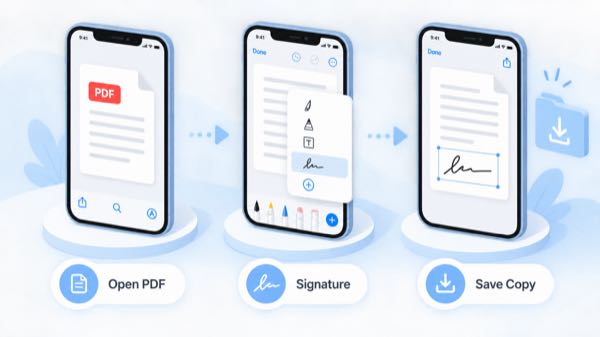
iPhone Markup PDF signature steps
How to sign a PDF on iPhone in WPS Office
Use WPS Office when the PDF is part of a larger document task. WPS’s official iOS product information lists PDF editing, annotation, form filling, signing, conversion, and page organization on iPhone and iPad. Menu names can differ by build, so use the visible Fill & Sign or Signature tool in your app.
Install or open WPS Office for iOS, then open the PDF from local storage, iCloud Drive, or the share sheet.
Open the PDF toolbar and choose Fill & Sign, Signature, or the equivalent signing command.
Choose to draw, type, or import a signature if your version provides those options. Review the signature preview before placing it.
Tap the signature field or page location, then move and resize the signature until it aligns with the line.
Fill other required fields, check the page thumbnails, and choose Save As or Export to keep a new signed PDF.
WPS can be useful when you need to edit text, organize pages, convert a file, or continue working across devices. Advanced features may depend on the app version or plan, so confirm the options shown in your account before promising a specific workflow to a client.
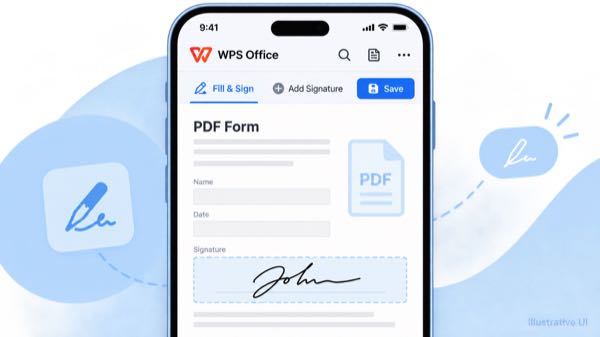
WPS Office iPhone PDF signing
How to check and share a signed PDF on iPhone
A signature is only useful if the final file is complete and readable. Run this short check before you send it:
Zoom in and confirm the signature is on the intended line, not in a nearby date or initials field.
Swipe through every page and confirm no required field, attachment, or page disappeared.
Tap links and inspect text for accidental covering or movement.
Save a separate signed copy, then share it through the recipient’s requested channel.
If the recipient asks for a certificate-based digital signature, stop and use the specified certificate service.
For privacy, avoid sending a screenshot when the recipient needs a real PDF. Use Save to Files or the app’s PDF export command, then attach that PDF from the share sheet.
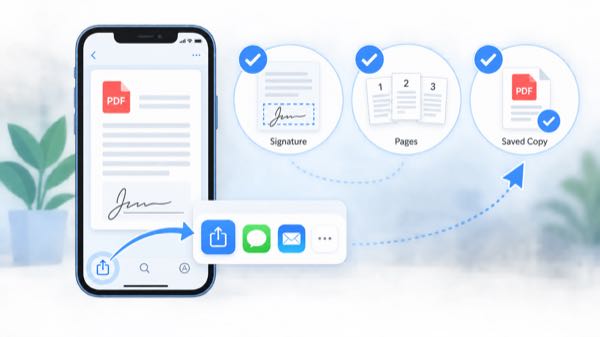
Verify signed PDF before sharing
The Best Free PDF App for iPhone: WPS Office
Apple Markup is excellent for a quick, built-in signature. WPS Office is a stronger fit when signing is one step in a broader PDF workflow: edit, annotate, fill, organize, convert, and continue work in Writer, Spreadsheet, or Presentation. The official WPS iOS page also describes cross-device access and PDF signing on iPhone and iPad.
Choose the smallest tool that meets the document’s requirements. For a simple one-page form, Markup may be fastest. For a multi-page contract or a document that needs edits and conversion, open it in WPS and keep the source and signed copies clearly separated.
WPS PDF signing app on iPhone
FAQs
Can I sign a PDF on iPhone without an app?
Yes. Open the PDF in Files or another supported app, tap Markup, choose the plus button, and add a signature. Save the edited PDF before sharing it.
Is an iPhone Markup signature legally valid?
Legal requirements vary by document type and jurisdiction. Markup adds an electronic signature mark, but it does not automatically provide certificate-based identity verification or an audit trail.
How do I sign a fillable PDF on iPhone?
Use Markup for basic fields, or open the file in WPS Office and choose Fill & Sign when you need a more complete form workflow. Confirm the fields are saved in the exported PDF.
Can I reuse my signature on iPhone?
Markup can save a signature for reuse. Protect access to your device and review the recipient and document before placing a saved signature.
Why did my signed PDF become an image?
A screenshot or image export is not the same as an editable PDF. Use Save to Files or a PDF export command, then reopen the resulting file and verify its pages and text.

Summary
To sign a PDF on iPhone, use Markup for a quick electronic signature or WPS Office when you need form filling and broader PDF editing. Save a real PDF copy, check every page and field, and confirm whether the recipient requires a certificate-based digital signature.

'%3e%3cpath%20d='M19.9911%204.11386V6.471H18.5894C18.0775%206.471%2017.7322%206.57814%2017.5536%206.79243C17.3751%207.00671%2017.2858%207.32814%2017.2858%207.75671V9.44421H19.9019L19.5536%2012.0871H17.2858V18.8639H14.5536V12.0871H12.2769V9.44421H14.5536V7.49779C14.5536%206.39064%2014.8632%205.53201%2015.4822%204.92189C16.1013%204.31177%2016.9257%204.00671%2017.9554%204.00671C18.8304%204.00671%2019.509%204.04243%2019.9911%204.11386Z'%20fill='%23333333'/%3e%3c/g%3e%3cdefs%3e%3cclipPath%20id='clip0_2938_8199'%3e%3crect%20width='16'%20height='16'%20fill='white'%20transform='translate(8%204.00671)'/%3e%3c/clipPath%3e%3c/defs%3e%3c/svg%3e)
'%3e%3cpath%20d='M17.5237%2010.7813L23.4811%204H22.0699L16.8949%209.88693L12.7648%204H8L14.2469%2012.9029L8%2020.0133H9.4112L14.8725%2013.7952L19.2352%2020.0133H24M9.92053%205.04213H12.0885L22.0688%2019.0224H19.9003'%20fill='%23333333'/%3e%3c/g%3e%3cdefs%3e%3cclipPath%20id='clip0_2938_8200'%3e%3crect%20width='16'%20height='16.0134'%20fill='white'%20transform='translate(8%204)'/%3e%3c/clipPath%3e%3c/defs%3e%3c/svg%3e)


