



'%3e%3cpath%20fill-rule='evenodd'%20clip-rule='evenodd'%20d='M21.4999%2010.9993C21.4999%205.20009%2016.7986%200.498901%2010.9993%200.498901C5.19994%200.498901%200.498657%205.20009%200.498657%2010.9993C0.498657%2016.2404%204.33858%2020.5844%209.35855%2021.3722V14.0346H6.69238V10.9993H9.35855V8.68594C9.35855%206.05427%2010.9262%204.60062%2013.3248%204.60062C14.4736%204.60062%2015.6753%204.80571%2015.6753%204.80571V7.38979H14.3512C13.0468%207.38979%2012.64%208.19921%2012.64%209.0296V10.9993H15.5523L15.0867%2014.0346H12.64V21.3722C17.66%2020.5844%2021.4999%2016.2404%2021.4999%2010.9993Z'%20fill='%231568EA'/%3e%3c/g%3e%3c/svg%3e)


'%3e%3cpath%20d='M2.42045%2022.1876H6.31818V12.7217L0.75%208.54553V20.5171C0.75%2021.4414%201.49892%2022.1876%202.42045%2022.1876Z'%20fill='%234285F4'/%3e%3cpath%20d='M19.682%2022.1876H23.5797C24.5041%2022.1876%2025.2502%2021.4387%2025.2502%2020.5171V8.54553L19.682%2012.7217'%20fill='%2334A853'/%3e%3cpath%20d='M19.682%205.48293V12.7216L25.2502%208.54543V6.31816C25.2502%204.25236%2022.8921%203.07469%2021.2411%204.31361'%20fill='%23FBBC04'/%3e%3cpath%20d='M6.31824%2012.7217V5.48303L13.0001%2010.4944L19.6819%205.48303V12.7217L13.0001%2017.733'%20fill='%23EA4335'/%3e%3cpath%20d='M0.75%206.31816V8.54543L6.31818%2012.7216V5.48293L4.75909%204.31361C3.10534%203.07469%200.75%204.25236%200.75%206.31816Z'%20fill='%23C5221F'/%3e%3c/g%3e%3cdefs%3e%3cclipPath%20id='clip0_2954_7305'%3e%3crect%20width='24.5'%20height='18.375'%20fill='white'%20transform='translate(0.75%203.8125)'/%3e%3c/clipPath%3e%3c/defs%3e%3c/svg%3e)


Ever read an article, tutorial, or research page online and wished you could keep it for later? A PDF copy turns any web page, saved HTML file, or block of code into a tidy document you can read offline, share with a colleague, print, or archive. Because PDF keeps a fixed layout, the result looks the same on every device.
This guide shows you how to convert web pages to PDF online for free. You will learn the quickest online workflow with WPS, how to tune the print settings for a clean result, and a couple of handy alternatives when you are not at your usual computer.
How to Convert Web Pages to PDF Online for Free
Why You Might Want an Online to PDF Converter
An online to PDF converter turns live or saved web content into a portable document. Instead of keeping a fragile browser bookmark or copying text into a word processor, you get one reliable file that preserves headings, images, links, and page layout.
Offline reading: Read long articles on a flight, in a tunnel, or anywhere without a signal.
Easy sharing: Send a single PDF instead of a link that may break or change.
Printing: Keep page breaks, margins, and fonts stable on paper.
Archiving: Save a reliable snapshot of a page for research or records.
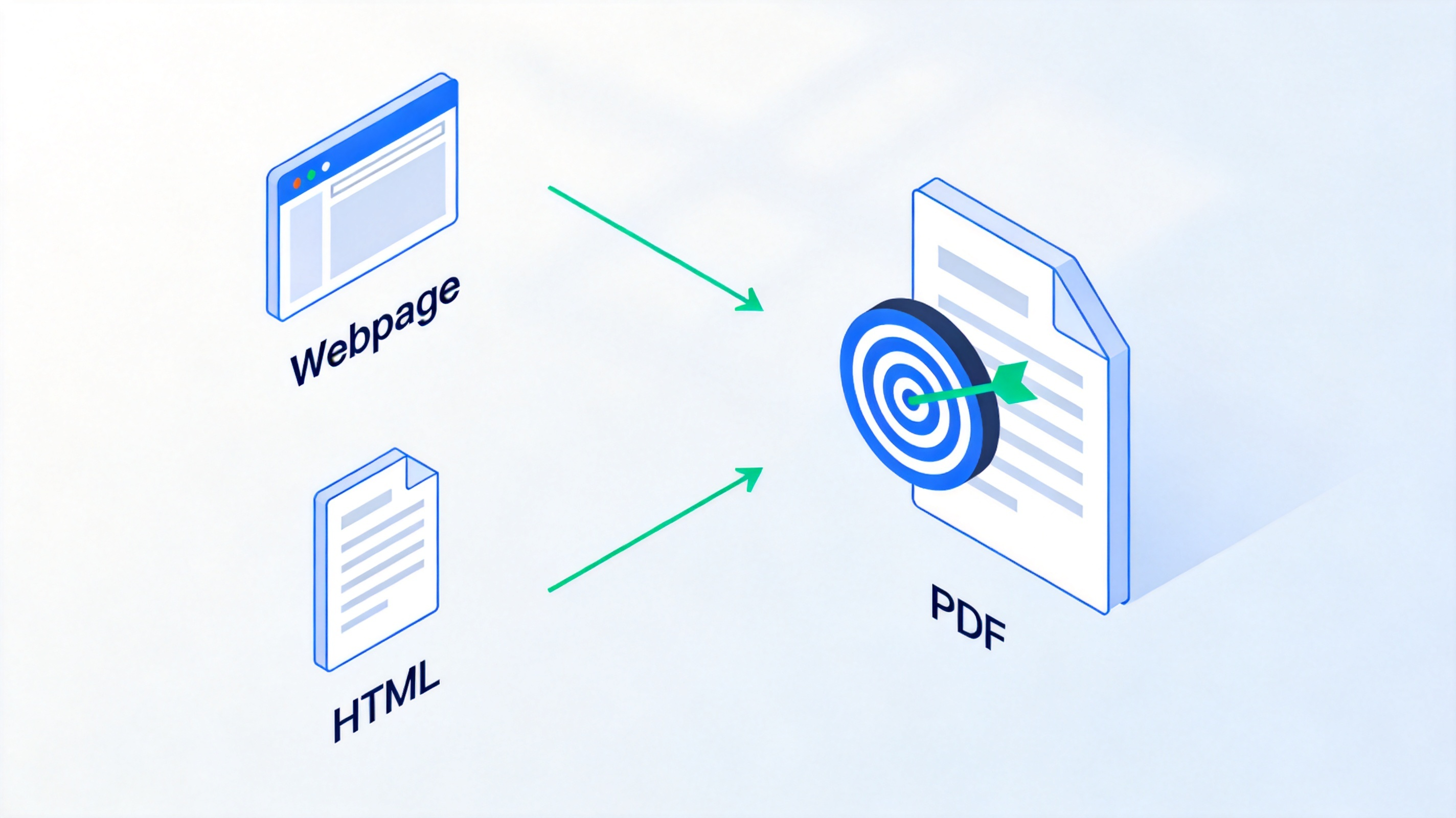
Web page to PDF online conversion


How to Convert a Web Page to PDF Online with WPS
The fastest way to convert web content to PDF online is the free WPS HTML to PDF converter. It accepts a URL, an uploaded HTML file, or pasted code, needs no sign-up, and shows no ads. Follow these steps.
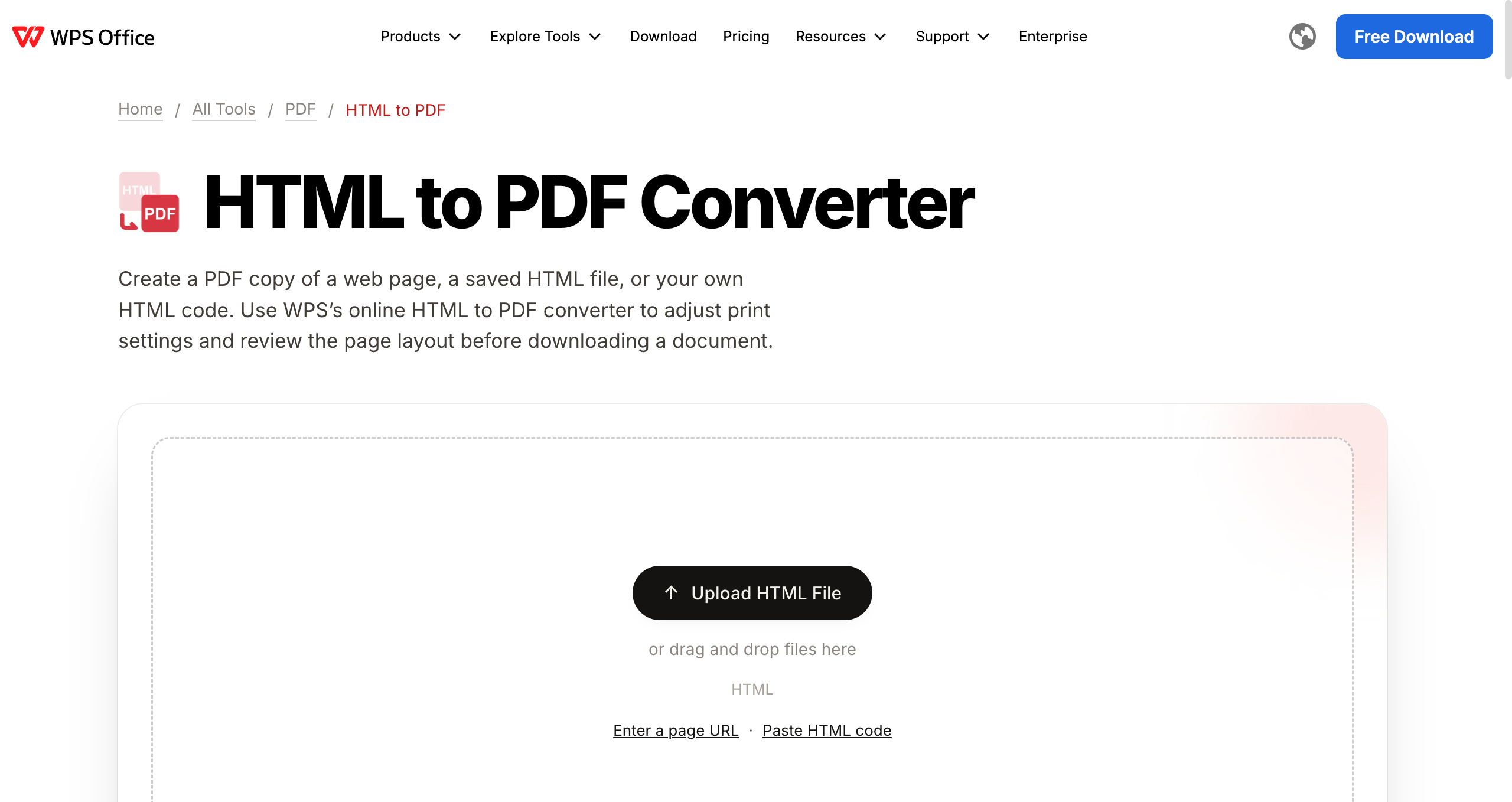
WPS online HTML to PDF converter tool
Open the tool — Go to the WPS HTML to PDF converter page in your browser.
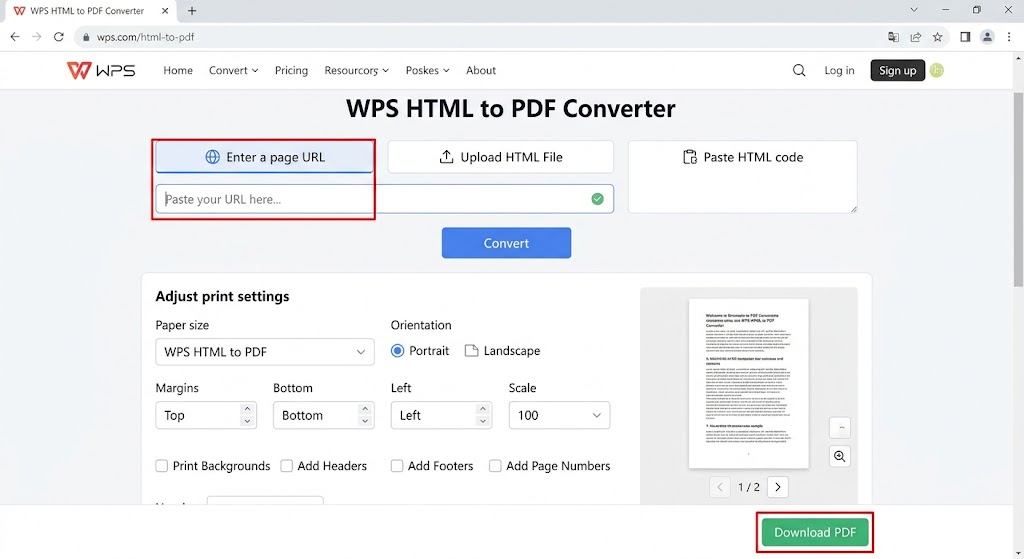
Choose your source — Pick Enter a page URL and paste the link, click Upload HTML File to add a local file, or choose Paste HTML code and drop in your markup.
Adjust the print settings — Set paper size, orientation, margins, and scale, and choose whether to print backgrounds or add headers, footers, and page numbers.
Convert and inspect — Run the conversion and review the paginated preview. Check images, fonts, and page breaks before you download.
Download the PDF — Save the finished document to your device and share or print it as needed.
How to Adjust Settings for a Clean Online to PDF Output
A web page rarely fits a printed sheet exactly, so a quick pass through the settings makes the difference between a tidy document and one with awkward whitespace. For the best online to PDF result, check these options before converting:
Paper size: Choose A4, Letter, or another size to match how you will print or read the file.
Orientation: Use portrait for most articles, or landscape for wide tables and dashboards.
Margins: Set the empty space around the page so content is not crowded or cut off.
Scale: Shrink or enlarge the content so it fits the page width without overflow.
You can also add headers, footers, and page numbers so a long multi-page export keeps its context, and enable background printing if the page uses color behind text. Always glance at the preview after a change to confirm nothing is clipped.
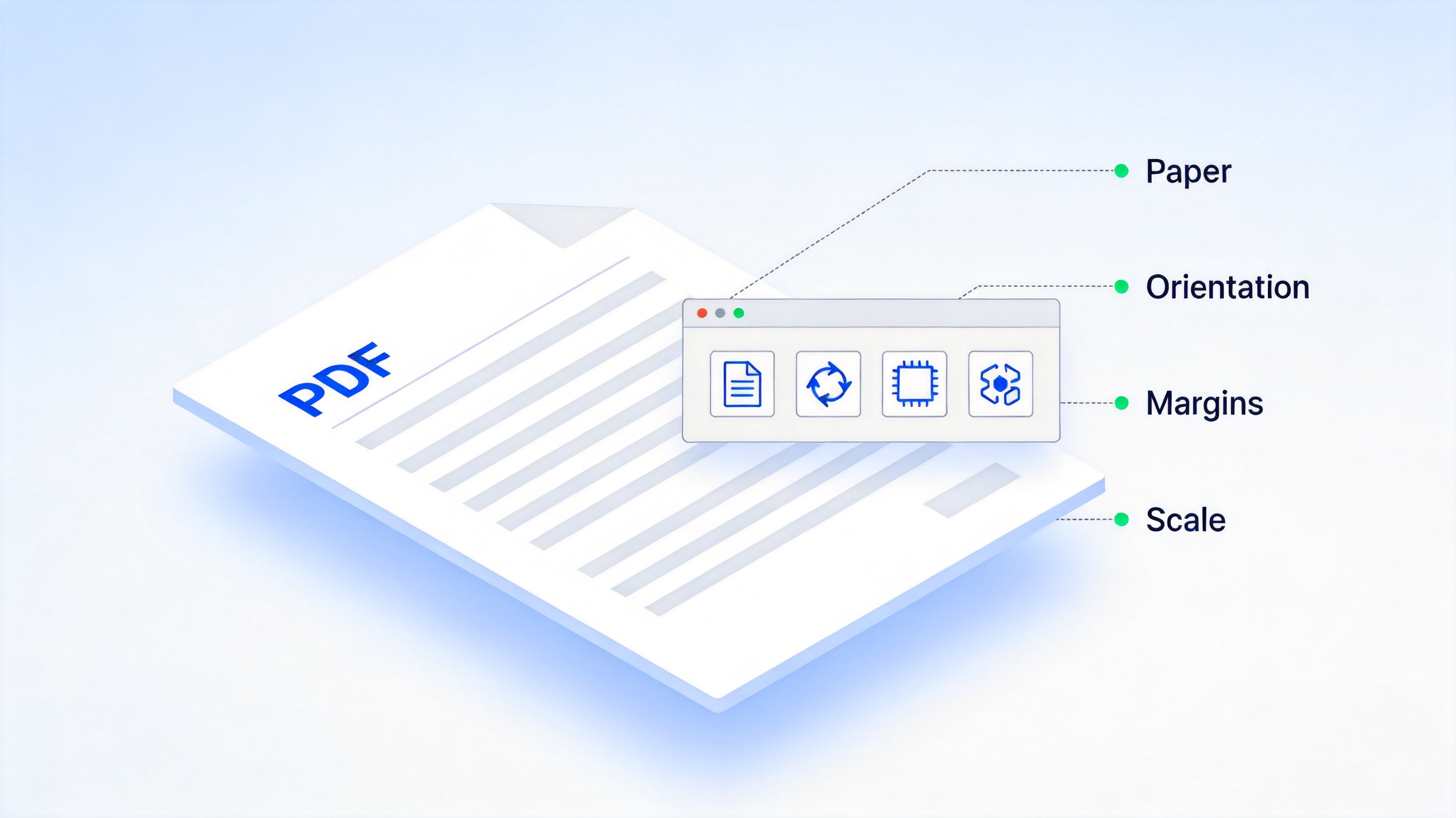
Adjust PDF print settings in online converter
Other Ways to Convert Content to PDF Online
Beyond a dedicated converter, your browser and a desktop office suite both offer quick routes to a PDF.
Print to PDF from the browser. Any modern browser can save a page as PDF through its print dialog. Open the page, press Ctrl+P (Windows) or Command+P (Mac), choose Save as PDF as the destination, and save. This is handy when you do not want to paste a link into a separate tool.
For a fuller feature set, WPS PDF Tools bundles converters, an editor, merger, compressor, and more in one place, so you can keep working on the file after conversion. To keep your own local documents in one workflow, WPS Office lets you export Word, Excel, and PPT files to PDF from the desktop app.
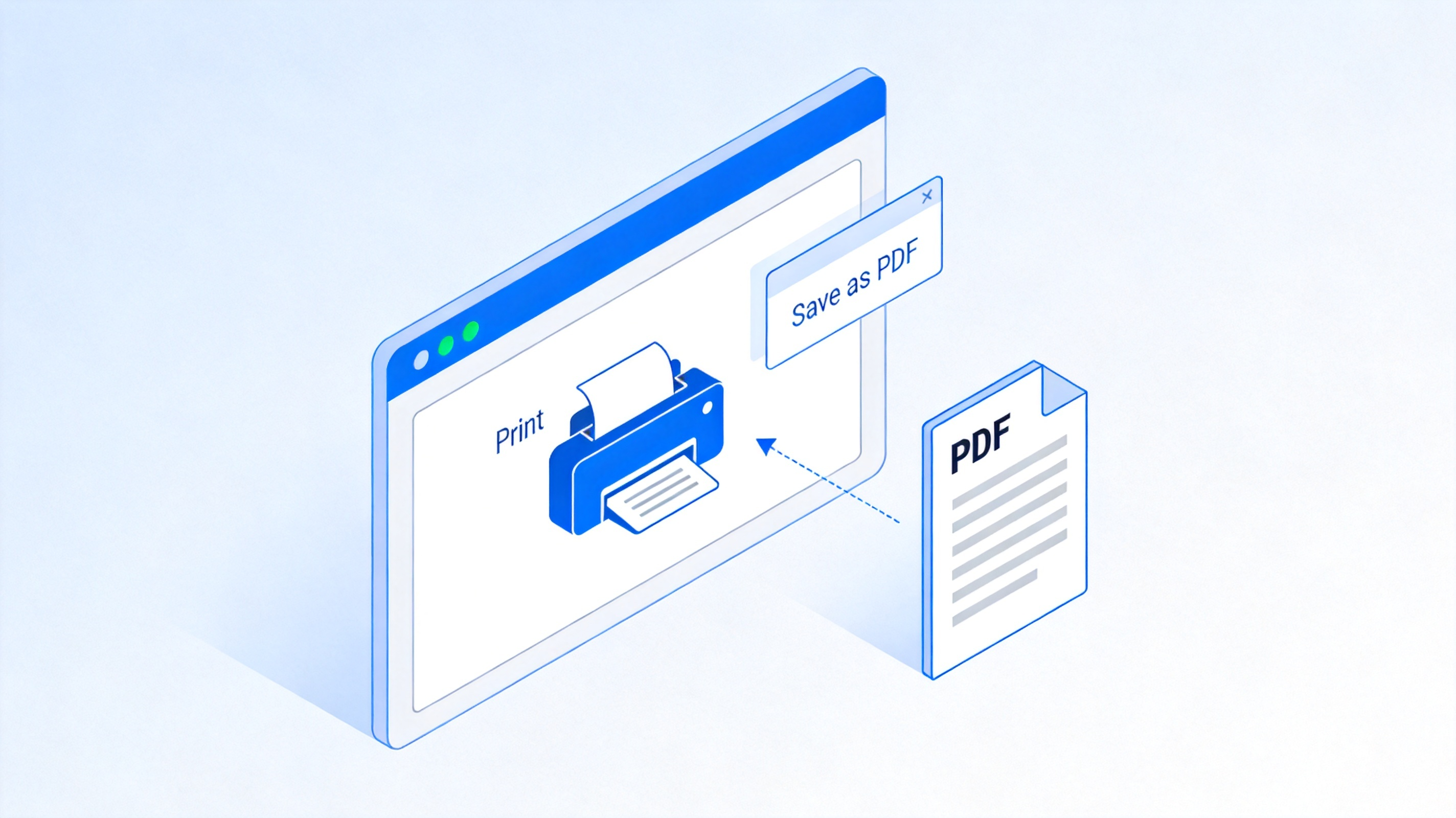
Save a web page as PDF via browser print
The Best Free Alternative: WPS Office
When you convert documents every day, a dedicated converter is convenient, but a full office suite gives you more control. WPS Office is a free suite with Writer, Spreadsheet, Presentation, and a powerful PDF toolkit. Open any file, choose File > Export to PDF, and keep your layout, fonts, and links intact without uploading your work to a third-party server.
Because the export runs locally on your device, sensitive documents never leave your computer. The same app can also read and edit the PDFs you create, so you can round-trip between formats without switching tools. To make sure your exported web pages are not cut off, see our guide on saving web pages as PDFs without truncation, or compare tools in our HTML to PDF converter roundup.
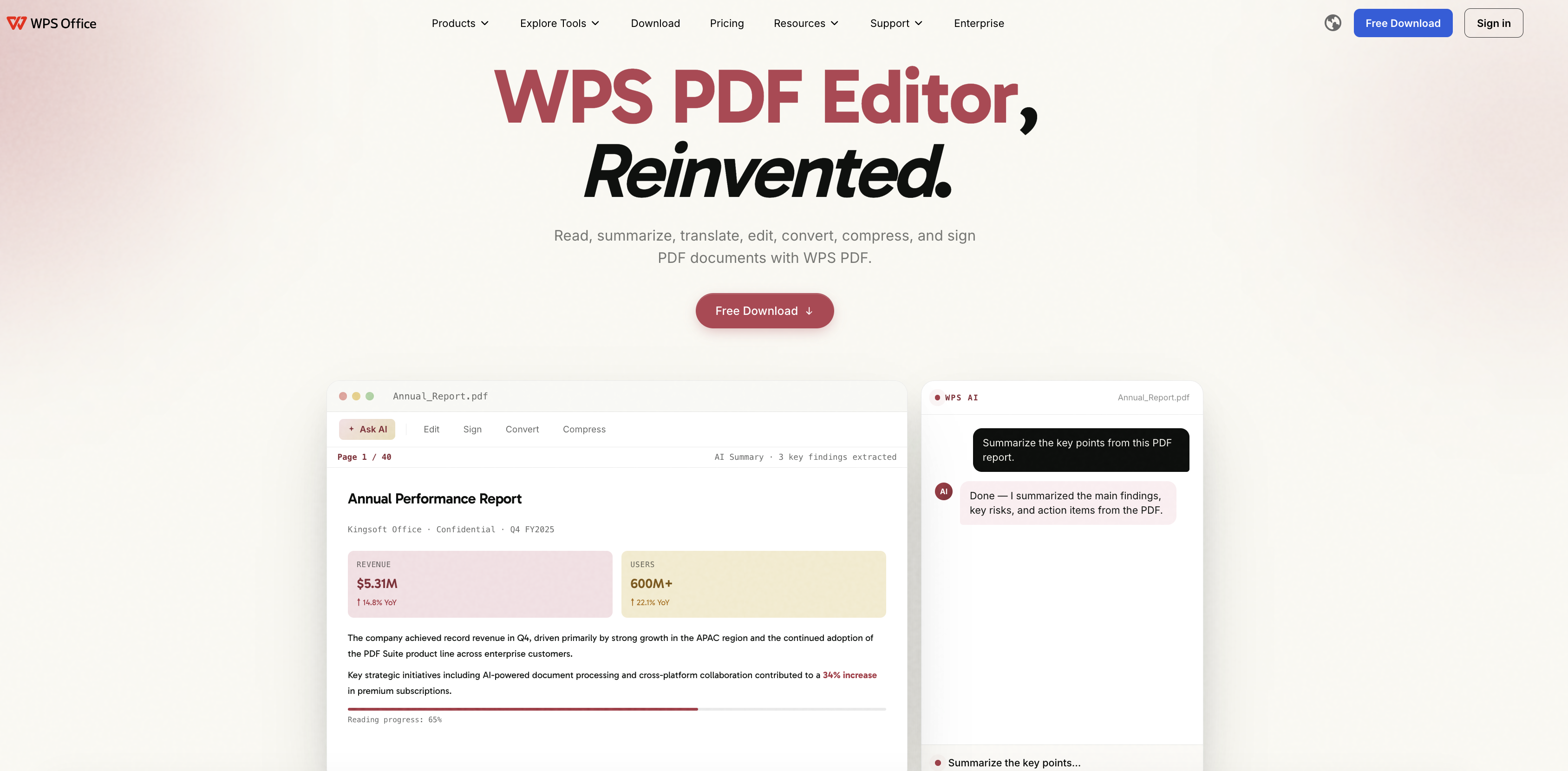
WPS PDF Editor interface
FAQs
Is converting web pages to PDF online free?
Yes. WPS offers a free online HTML to PDF converter with no sign-up and no ads, so you can turn a URL, an HTML file, or code into a PDF at no cost.
Can I convert a URL to PDF without installing software?
Yes. Paste the web page URL into the online converter, adjust the settings, and download the PDF directly in your browser — no installation required.
Will the layout of my web page stay the same in the PDF?
In most cases, yes. The converter preserves headings, images, styles, and links. If something shifts, check that the source page is accessible and adjust paper size, margins, or scale before converting.
Can I convert a saved HTML file to PDF?
Yes. Upload the .html file with the file input, or paste the markup as code. Images, styles, or fonts referenced outside the file need to be available for the intended look.
Will forms, scripts, and animations stay interactive in the PDF?
No. A PDF export is a static document, so scripts, animations, and interactive forms do not behave as they do on the original page.


'%3e%3cpath%20d='M19.9911%204.11386V6.471H18.5894C18.0775%206.471%2017.7322%206.57814%2017.5536%206.79243C17.3751%207.00671%2017.2858%207.32814%2017.2858%207.75671V9.44421H19.9019L19.5536%2012.0871H17.2858V18.8639H14.5536V12.0871H12.2769V9.44421H14.5536V7.49779C14.5536%206.39064%2014.8632%205.53201%2015.4822%204.92189C16.1013%204.31177%2016.9257%204.00671%2017.9554%204.00671C18.8304%204.00671%2019.509%204.04243%2019.9911%204.11386Z'%20fill='%23333333'/%3e%3c/g%3e%3cdefs%3e%3cclipPath%20id='clip0_2938_8199'%3e%3crect%20width='16'%20height='16'%20fill='white'%20transform='translate(8%204.00671)'/%3e%3c/clipPath%3e%3c/defs%3e%3c/svg%3e)
'%3e%3cpath%20d='M17.5237%2010.7813L23.4811%204H22.0699L16.8949%209.88693L12.7648%204H8L14.2469%2012.9029L8%2020.0133H9.4112L14.8725%2013.7952L19.2352%2020.0133H24M9.92053%205.04213H12.0885L22.0688%2019.0224H19.9003'%20fill='%23333333'/%3e%3c/g%3e%3cdefs%3e%3cclipPath%20id='clip0_2938_8200'%3e%3crect%20width='16'%20height='16.0134'%20fill='white'%20transform='translate(8%204)'/%3e%3c/clipPath%3e%3c/defs%3e%3c/svg%3e)


