

'%3e%3cpath%20d='M8%200C12.4183%200%2016%203.58172%2016%208C16%2012.4183%2012.4183%2016%208%2016C3.58172%2016%200%2012.4183%200%208C0%203.58172%203.58172%200%208%200ZM11.6162%204.38379C11.2257%203.99337%2010.5927%203.99338%2010.2021%204.38379L8%206.58594L5.79785%204.38379C5.40732%203.99334%204.77429%203.99329%204.38379%204.38379C3.99331%204.77429%203.99335%205.40733%204.38379%205.79785L6.58594%208L4.38379%2010.2021C3.99348%2010.5927%203.99341%2011.2257%204.38379%2011.6162C4.77426%2012.0066%205.40734%2012.0065%205.79785%2011.6162L8%209.41406L10.2021%2011.6162C10.5927%2012.0066%2011.2257%2012.0067%2011.6162%2011.6162C12.0067%2011.2257%2012.0066%2010.5927%2011.6162%2010.2021L9.41406%208L11.6162%205.79785C12.0066%205.40735%2012.0066%204.77429%2011.6162%204.38379Z'%20fill='%23080E17'%20fill-opacity='0.46'/%3e%3c/g%3e%3cdefs%3e%3cclipPath%20id='clip0_3761_713'%3e%3crect%20width='16'%20height='16'%20fill='white'/%3e%3c/clipPath%3e%3c/defs%3e%3c/svg%3e)




'%3e%3cpath%20fill-rule='evenodd'%20clip-rule='evenodd'%20d='M21.4999%2010.9993C21.4999%205.20009%2016.7986%200.498901%2010.9993%200.498901C5.19994%200.498901%200.498657%205.20009%200.498657%2010.9993C0.498657%2016.2404%204.33858%2020.5844%209.35855%2021.3722V14.0346H6.69238V10.9993H9.35855V8.68594C9.35855%206.05427%2010.9262%204.60062%2013.3248%204.60062C14.4736%204.60062%2015.6753%204.80571%2015.6753%204.80571V7.38979H14.3512C13.0468%207.38979%2012.64%208.19921%2012.64%209.0296V10.9993H15.5523L15.0867%2014.0346H12.64V21.3722C17.66%2020.5844%2021.4999%2016.2404%2021.4999%2010.9993Z'%20fill='%231568EA'/%3e%3c/g%3e%3c/svg%3e)


'%3e%3cpath%20d='M2.42045%2022.1876H6.31818V12.7217L0.75%208.54553V20.5171C0.75%2021.4414%201.49892%2022.1876%202.42045%2022.1876Z'%20fill='%234285F4'/%3e%3cpath%20d='M19.682%2022.1876H23.5797C24.5041%2022.1876%2025.2502%2021.4387%2025.2502%2020.5171V8.54553L19.682%2012.7217'%20fill='%2334A853'/%3e%3cpath%20d='M19.682%205.48293V12.7216L25.2502%208.54543V6.31816C25.2502%204.25236%2022.8921%203.07469%2021.2411%204.31361'%20fill='%23FBBC04'/%3e%3cpath%20d='M6.31824%2012.7217V5.48303L13.0001%2010.4944L19.6819%205.48303V12.7217L13.0001%2017.733'%20fill='%23EA4335'/%3e%3cpath%20d='M0.75%206.31816V8.54543L6.31818%2012.7216V5.48293L4.75909%204.31361C3.10534%203.07469%200.75%204.25236%200.75%206.31816Z'%20fill='%23C5221F'/%3e%3c/g%3e%3cdefs%3e%3cclipPath%20id='clip0_2954_7305'%3e%3crect%20width='24.5'%20height='18.375'%20fill='white'%20transform='translate(0.75%203.8125)'/%3e%3c/clipPath%3e%3c/defs%3e%3c/svg%3e)


A personal xlsb file—usually named PERSONAL.XLSB—is Excel's hidden Personal Macro Workbook. Macros stored there load in the background whenever Excel starts on that computer, so the same shortcuts and VBA routines stay available across every workbook you open.
This guide explains what the file is for, how to create and find it, how to unhide it for edits, and how to open related .xlsb content in WPS Spreadsheet when you need a second desktop app for data work.
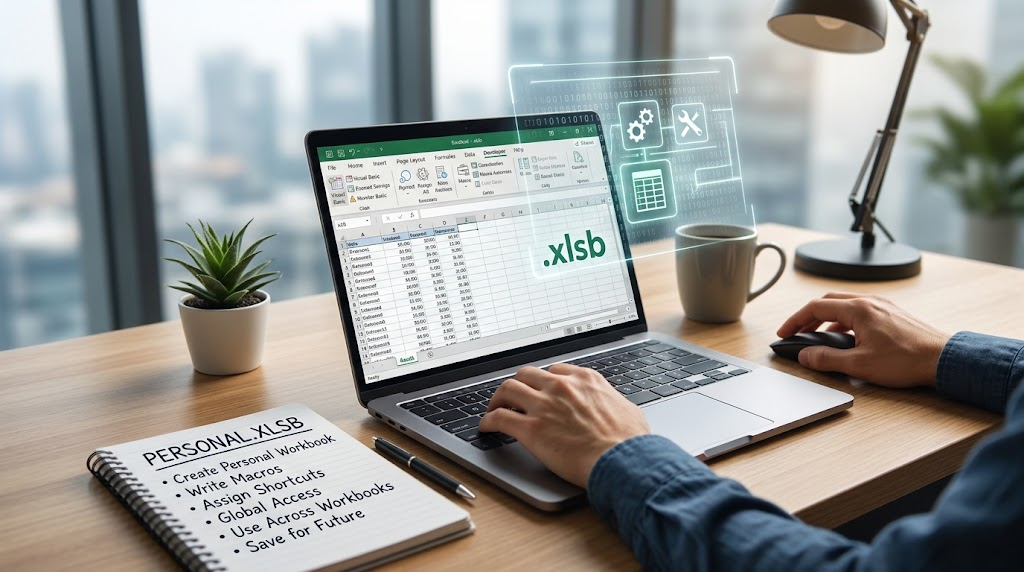
What a personal xlsb file is used for
Most .xlsb files are ordinary Excel Binary Workbooks: sheets, formulas, and charts stored as compact binary records. A personal xlsb file is different. It is a special, usually blank-looking workbook that exists so your macros travel with the Excel session instead of sitting inside one project file.
That is why people search for personal xlsb when a favorite shortcut stops working after a PC move, or when Unhide suddenly lists PERSONAL.XLSB. The file is meant to stay hidden while still loading from the XLSTART folder.
Treat any unexpected .xlsb attachment like XLSM. Binary workbooks can carry VBA. Enable macros only when you trust the sender. For a broader look at the binary format itself, see what an XLSB file is and how to open or convert it.
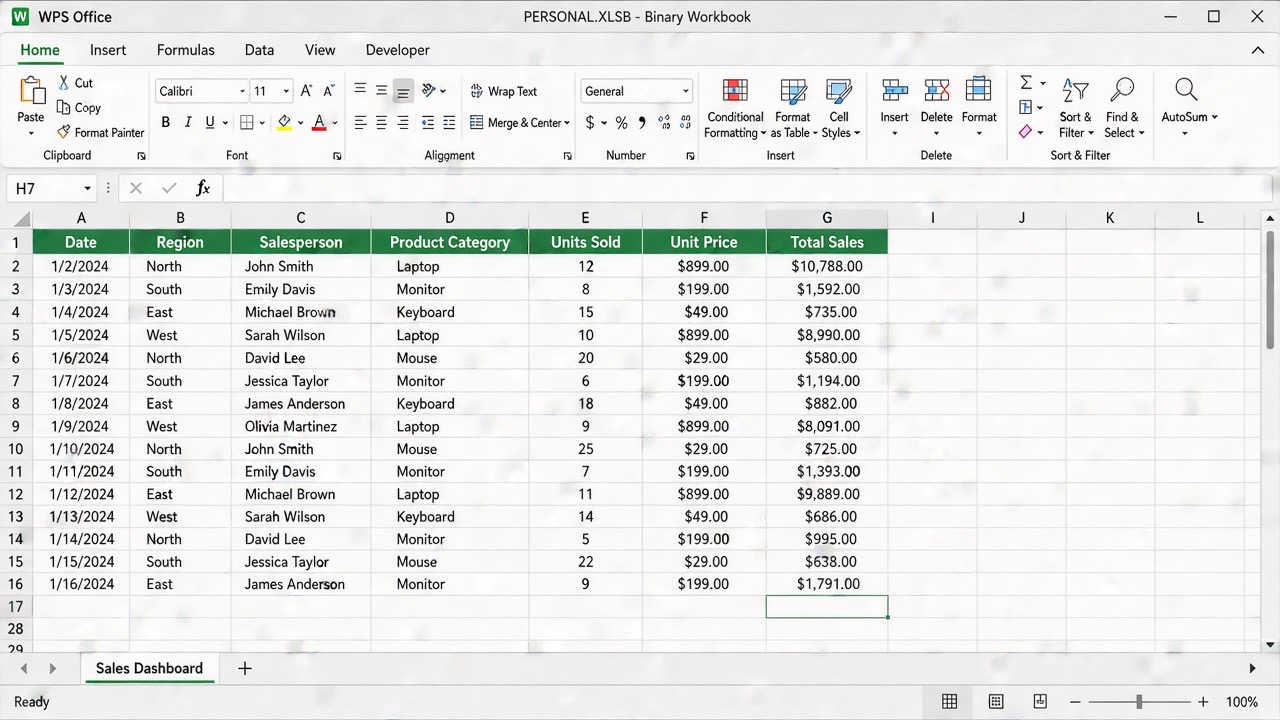


How to create a personal xlsb workbook
Excel does not ship a ready-made personal xlsb file. You create it the first time you store a recorded macro in the Personal Macro Workbook.
Open Excel and make sure the Developer tab is visible. If it is missing, open Options, open Customize Ribbon, and enable Developer.
On the Developer tab, choose Record Macro.
Give the macro a clear name with no spaces.
In Store macro in, choose Personal Macro Workbook, then click OK.
Perform a simple action, or do nothing if you only need the file created.
Click Stop Recording.
Close Excel. When prompted to save changes to the Personal Macro Workbook, choose Save.
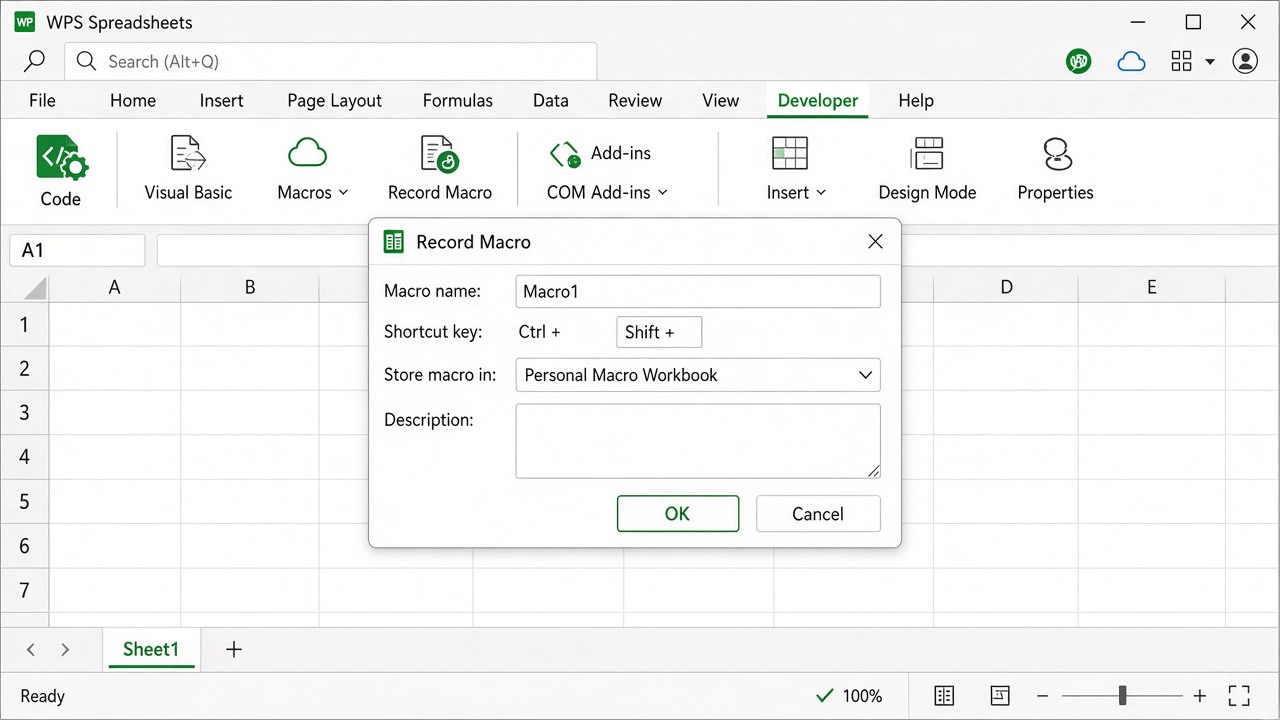
Record macro personal xlsb workbook
After that save, Excel keeps PERSONAL.XLSB in XLSTART and opens it quietly on the next launch. Press Alt+F11 and look for VBAProject (PERSONAL.XLSB) if you want to replace the empty recorded macro with real code.
Where to find your personal xlsb file
On Windows, the usual place for a personal xlsb file is the XLSTART folder under your AppData roaming profile. Paste this into File Explorer's address bar:
%appdata%\Microsoft\Excel\XLSTART
You should see PERSONAL.XLSB there once the Personal Macro Workbook has been created. Some installs also use a Local XLStart path under AppData\Local\Microsoft\Excel\XLStart. If Explorer hides AppData, turn on Hidden items under the View tab first.
Copy that file when you move to a new PC, or keep a dated backup before you delete modules. Anything sitting in XLSTART opens with Excel, so avoid dropping unrelated workbooks into the same folder.
How to unhide and edit personal xlsb macros
Because the personal xlsb workbook stays hidden, you will not see a sheet tab for it during normal work. To review or tidy macros from the ribbon:
Go to the View tab.
In the Window group, click Unhide.
Select PERSONAL.XLSB and click OK.
Edit macros from Developer > Macros, or open the Visual Basic Editor with Alt+F11.
When you finish, choose View > Hide so the personal workbook stays out of the way.
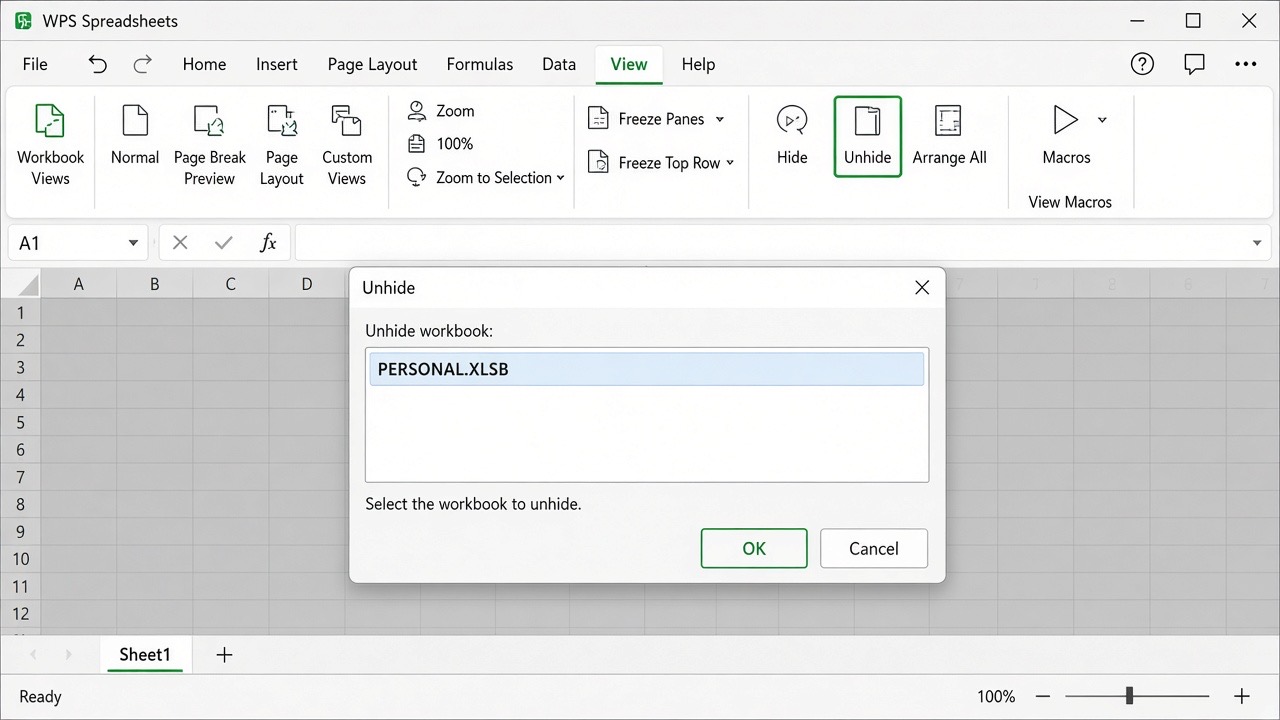
Unhide personal xlsb workbook window
If Unhide is grayed out, no hidden workbook is loaded—often because PERSONAL.XLSB was never created, was deleted from XLSTART, or Excel was started without that startup folder. Create a new Personal Macro Workbook recording, then try again.
Open a personal xlsb file in WPS Spreadsheet
WPS Spreadsheet can open Excel Binary Workbook files on desktop, including a PERSONAL.XLSB copy you browse to from File Explorer. That is useful when you need to inspect sheets or convert data, even though WPS does not mirror Excel's XLSTART auto-load behavior for a personal macro workbook.
Install WPS Spreadsheet if it is not already on the computer.
Choose File > Open, or double-click the .xlsb file if WPS is the default app.
Set the file type filter to Excel Binary Workbook (*.xlsb) when the list looks empty.
Select PERSONAL.XLSB or another binary workbook, then click Open.
If a security prompt mentions macros, leave them disabled unless you know the code is safe.
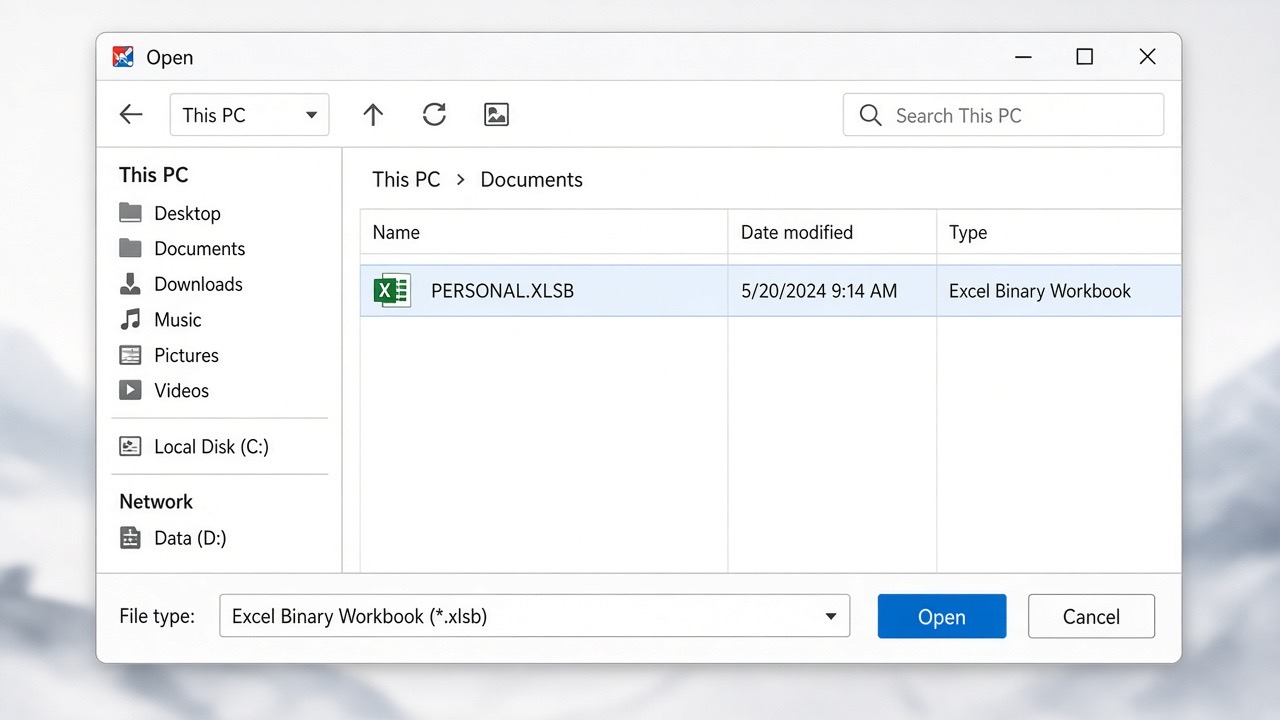
Open personal xlsb in WPS
Need a shareable copy for teammates on Google Sheets or a portal that rejects binary files? Use Save As to XLSX—or XLSM if macros must travel with the workbook—inside WPS Spreadsheet. Keep the original personal xlsb backup untouched.
Reusable macros in WPS without only personal xlsb
If your daily editing happens in WPS Spreadsheet, do not assume a personal xlsb file from Excel will auto-load the same way. A practical WPS pattern is to keep macros in a dedicated workbook, then save that workbook as a WPS Add-in (*.xlam) and load it from Developer > Add-ins.
Open the workbook that already contains the macros you want everywhere.
Choose File > Save As.
Pick WPS Add-in (*.xlam) or the closest Excel Add-in option your build lists.
Save the add-in to a folder you can find later.
In a blank spreadsheet, open Developer > Add-ins, browse to the file, and enable it.
Optional: add the macro to the ribbon or Quick Access Toolbar from Options > Customize Ribbon by choosing commands from Macros.
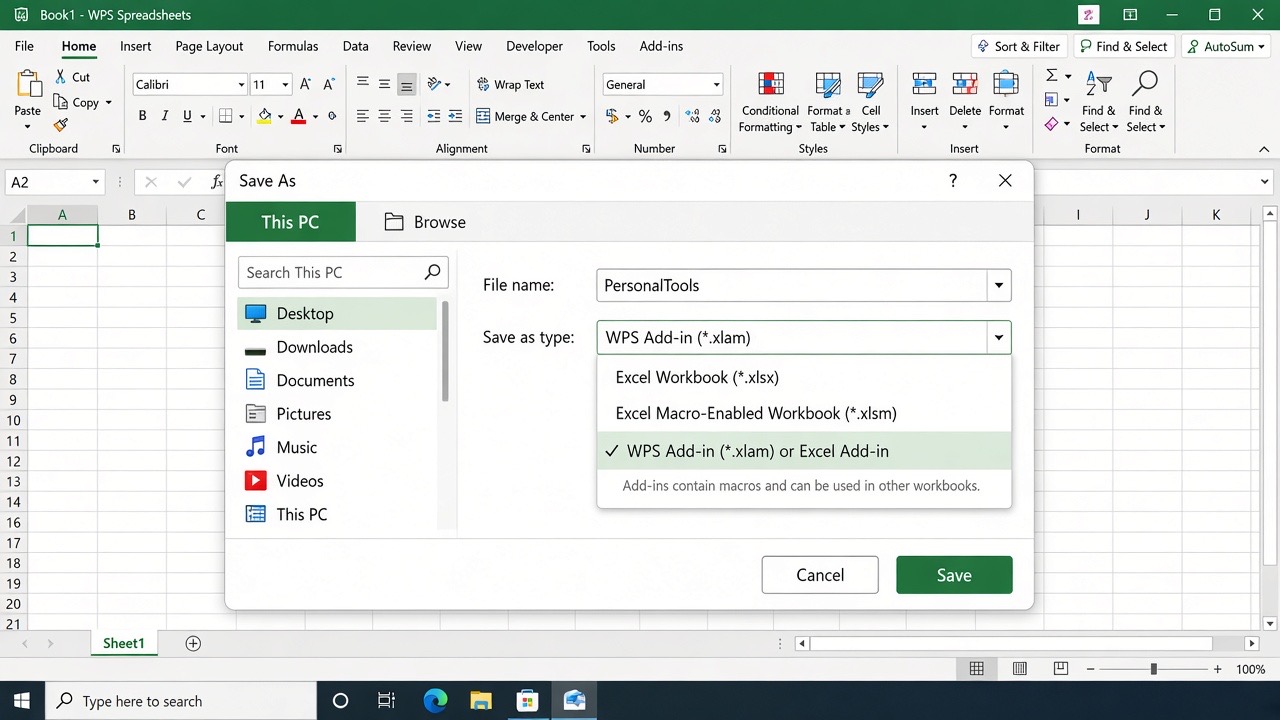
Save WPS add-in for macros
Enable the Developer tab in WPS the same way you would in Excel: Options > Customize Ribbon, then check Developer. VBA support can depend on your WPS build and whether the VBA runtime is installed, so confirm macros run on a test sheet before you rely on them in production files.
FAQs
Why can't I see PERSONAL.XLSB in Excel?
It is hidden by design. Use View > Unhide, or open the VBA Editor and look for VBAProject (PERSONAL.XLSB). If neither path shows the file, create it by recording a macro into the Personal Macro Workbook.
Is personal xlsb the same as a normal .xlsb workbook?
Same binary format, different job. A normal .xlsb holds your data model. A personal xlsb workbook holds macros that should follow the Excel session. Do not store important business tables only inside PERSONAL.XLSB.
Can I delete PERSONAL.XLSB safely?
Close Excel first, then delete or rename the file in XLSTART if you truly want to remove personal macros. Back it up before you delete. Excel will recreate a new personal workbook the next time you record into Personal Macro Workbook.
Will Google Sheets load my personal xlsb macros?
No. Convert data sheets to XLSX for sharing, and keep VBA where a desktop spreadsheet that supports macros can run it—Excel or a properly configured WPS Spreadsheet setup.


'%3e%3cpath%20d='M19.9911%204.11386V6.471H18.5894C18.0775%206.471%2017.7322%206.57814%2017.5536%206.79243C17.3751%207.00671%2017.2858%207.32814%2017.2858%207.75671V9.44421H19.9019L19.5536%2012.0871H17.2858V18.8639H14.5536V12.0871H12.2769V9.44421H14.5536V7.49779C14.5536%206.39064%2014.8632%205.53201%2015.4822%204.92189C16.1013%204.31177%2016.9257%204.00671%2017.9554%204.00671C18.8304%204.00671%2019.509%204.04243%2019.9911%204.11386Z'%20fill='%23333333'/%3e%3c/g%3e%3cdefs%3e%3cclipPath%20id='clip0_2938_8199'%3e%3crect%20width='16'%20height='16'%20fill='white'%20transform='translate(8%204.00671)'/%3e%3c/clipPath%3e%3c/defs%3e%3c/svg%3e)
'%3e%3cpath%20d='M17.5237%2010.7813L23.4811%204H22.0699L16.8949%209.88693L12.7648%204H8L14.2469%2012.9029L8%2020.0133H9.4112L14.8725%2013.7952L19.2352%2020.0133H24M9.92053%205.04213H12.0885L22.0688%2019.0224H19.9003'%20fill='%23333333'/%3e%3c/g%3e%3cdefs%3e%3cclipPath%20id='clip0_2938_8200'%3e%3crect%20width='16'%20height='16.0134'%20fill='white'%20transform='translate(8%204)'/%3e%3c/clipPath%3e%3c/defs%3e%3c/svg%3e)


