

'%3e%3cpath%20d='M8%200C12.4183%200%2016%203.58172%2016%208C16%2012.4183%2012.4183%2016%208%2016C3.58172%2016%200%2012.4183%200%208C0%203.58172%203.58172%200%208%200ZM11.6162%204.38379C11.2257%203.99337%2010.5927%203.99338%2010.2021%204.38379L8%206.58594L5.79785%204.38379C5.40732%203.99334%204.77429%203.99329%204.38379%204.38379C3.99331%204.77429%203.99335%205.40733%204.38379%205.79785L6.58594%208L4.38379%2010.2021C3.99348%2010.5927%203.99341%2011.2257%204.38379%2011.6162C4.77426%2012.0066%205.40734%2012.0065%205.79785%2011.6162L8%209.41406L10.2021%2011.6162C10.5927%2012.0066%2011.2257%2012.0067%2011.6162%2011.6162C12.0067%2011.2257%2012.0066%2010.5927%2011.6162%2010.2021L9.41406%208L11.6162%205.79785C12.0066%205.40735%2012.0066%204.77429%2011.6162%204.38379Z'%20fill='%23080E17'%20fill-opacity='0.46'/%3e%3c/g%3e%3cdefs%3e%3cclipPath%20id='clip0_3761_713'%3e%3crect%20width='16'%20height='16'%20fill='white'/%3e%3c/clipPath%3e%3c/defs%3e%3c/svg%3e)




'%3e%3cpath%20fill-rule='evenodd'%20clip-rule='evenodd'%20d='M21.4999%2010.9993C21.4999%205.20009%2016.7986%200.498901%2010.9993%200.498901C5.19994%200.498901%200.498657%205.20009%200.498657%2010.9993C0.498657%2016.2404%204.33858%2020.5844%209.35855%2021.3722V14.0346H6.69238V10.9993H9.35855V8.68594C9.35855%206.05427%2010.9262%204.60062%2013.3248%204.60062C14.4736%204.60062%2015.6753%204.80571%2015.6753%204.80571V7.38979H14.3512C13.0468%207.38979%2012.64%208.19921%2012.64%209.0296V10.9993H15.5523L15.0867%2014.0346H12.64V21.3722C17.66%2020.5844%2021.4999%2016.2404%2021.4999%2010.9993Z'%20fill='%231568EA'/%3e%3c/g%3e%3c/svg%3e)


'%3e%3cpath%20d='M2.42045%2022.1876H6.31818V12.7217L0.75%208.54553V20.5171C0.75%2021.4414%201.49892%2022.1876%202.42045%2022.1876Z'%20fill='%234285F4'/%3e%3cpath%20d='M19.682%2022.1876H23.5797C24.5041%2022.1876%2025.2502%2021.4387%2025.2502%2020.5171V8.54553L19.682%2012.7217'%20fill='%2334A853'/%3e%3cpath%20d='M19.682%205.48293V12.7216L25.2502%208.54543V6.31816C25.2502%204.25236%2022.8921%203.07469%2021.2411%204.31361'%20fill='%23FBBC04'/%3e%3cpath%20d='M6.31824%2012.7217V5.48303L13.0001%2010.4944L19.6819%205.48303V12.7217L13.0001%2017.733'%20fill='%23EA4335'/%3e%3cpath%20d='M0.75%206.31816V8.54543L6.31818%2012.7216V5.48293L4.75909%204.31361C3.10534%203.07469%200.75%204.25236%200.75%206.31816Z'%20fill='%23C5221F'/%3e%3c/g%3e%3cdefs%3e%3cclipPath%20id='clip0_2954_7305'%3e%3crect%20width='24.5'%20height='18.375'%20fill='white'%20transform='translate(0.75%203.8125)'/%3e%3c/clipPath%3e%3c/defs%3e%3c/svg%3e)


Many Word users get stuck with unwanted blank pages, extra middle pages, or a stubborn final page that will not go away with a normal Backspace or Delete keypress. This guide shows the fastest ways to delete a page in Word on Windows and Mac, how to fix pages that will not delete, and a free one-click option if you prefer a simpler cleanup.
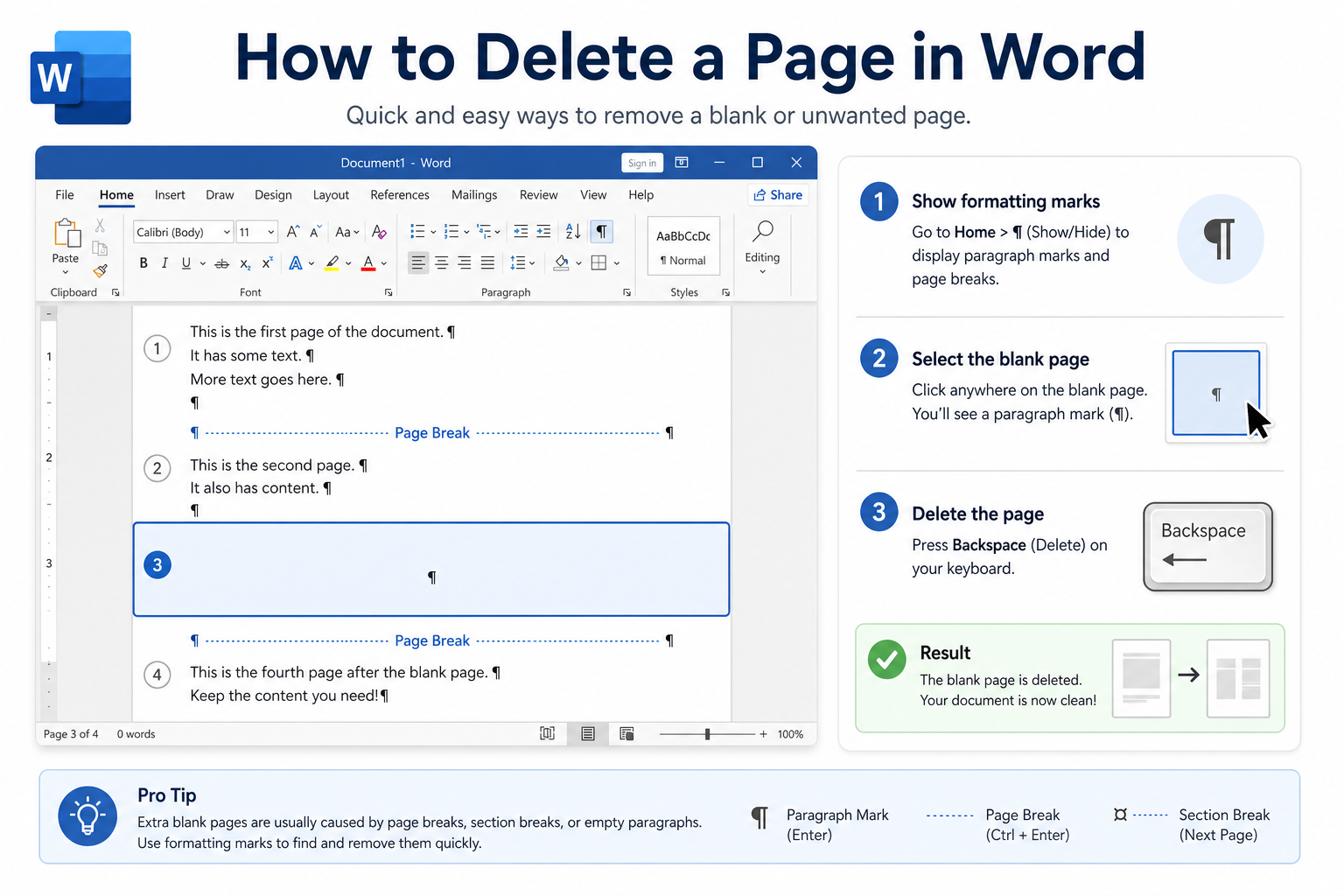
Quick answer: Show hidden marks with Ctrl + Shift + 8 (Windows) or Command + 8 (Mac) → delete page breaks / empty paragraphs → for a stubborn last blank page, shrink the final paragraph mark (¶) to font size 1 or set line spacing to Exactly 1 pt. In WPS Writer, use Home → Delete Blank Pages.


How to Delete a Normal Blank Page at the End of Word
If the document ends with a simple blank page and no complex formatting, you can often remove it directly.
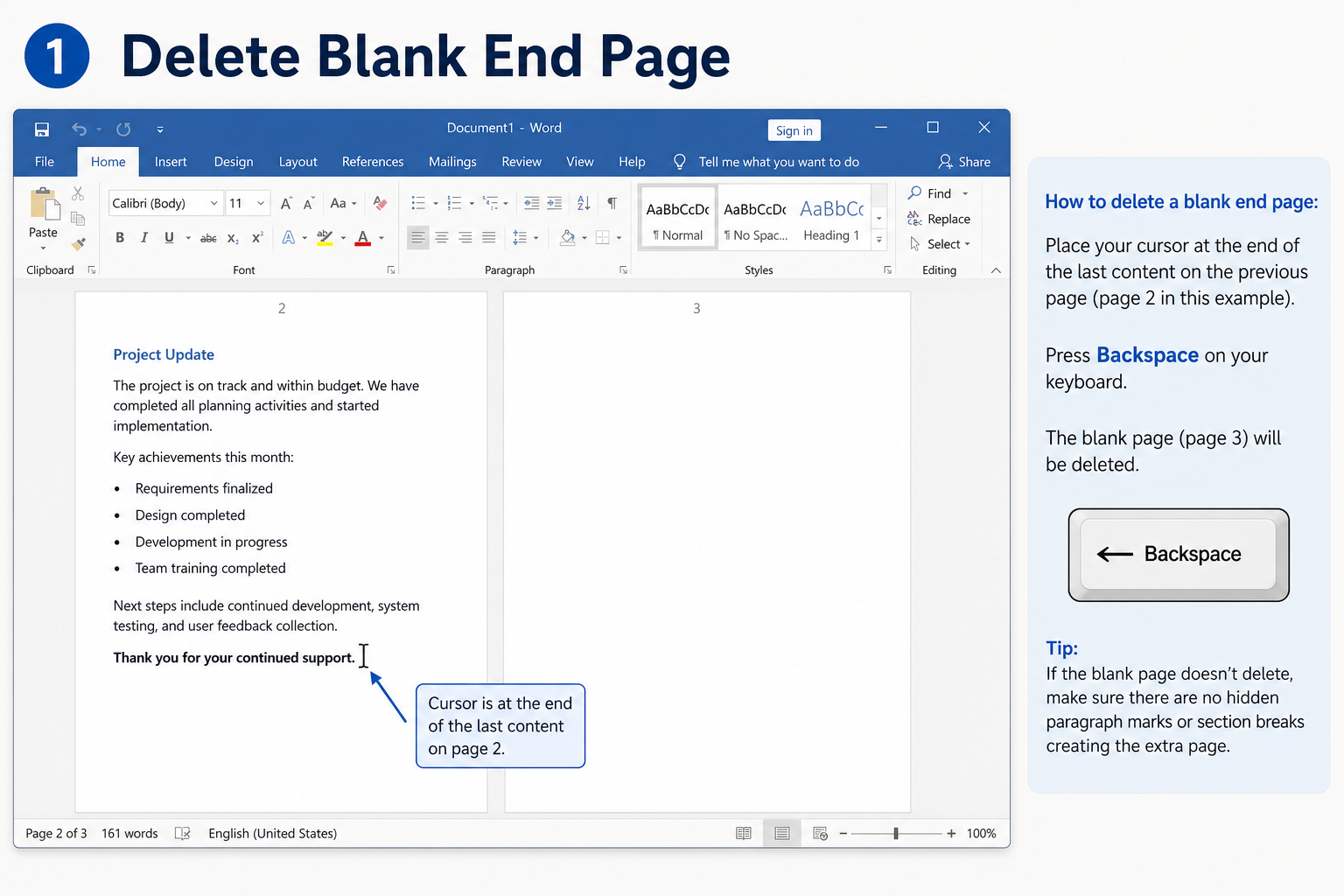
Place your cursor at the very end of your last text or content.
Press Backspace repeatedly until the blank page disappears.
If that does not work, turn on paragraph marks and check for a page break or an oversized final ¶ (covered below).
How to Fix a Stubborn Final Blank Page
Word always keeps one final paragraph mark at the end of a file. You cannot delete that mark. When a table or dense content fills the last real page, that mark can spill onto a new blank page. You do not need to delete the mark—you only need to shrink it so it fits on the previous page.
Method 1: Shrink the font size
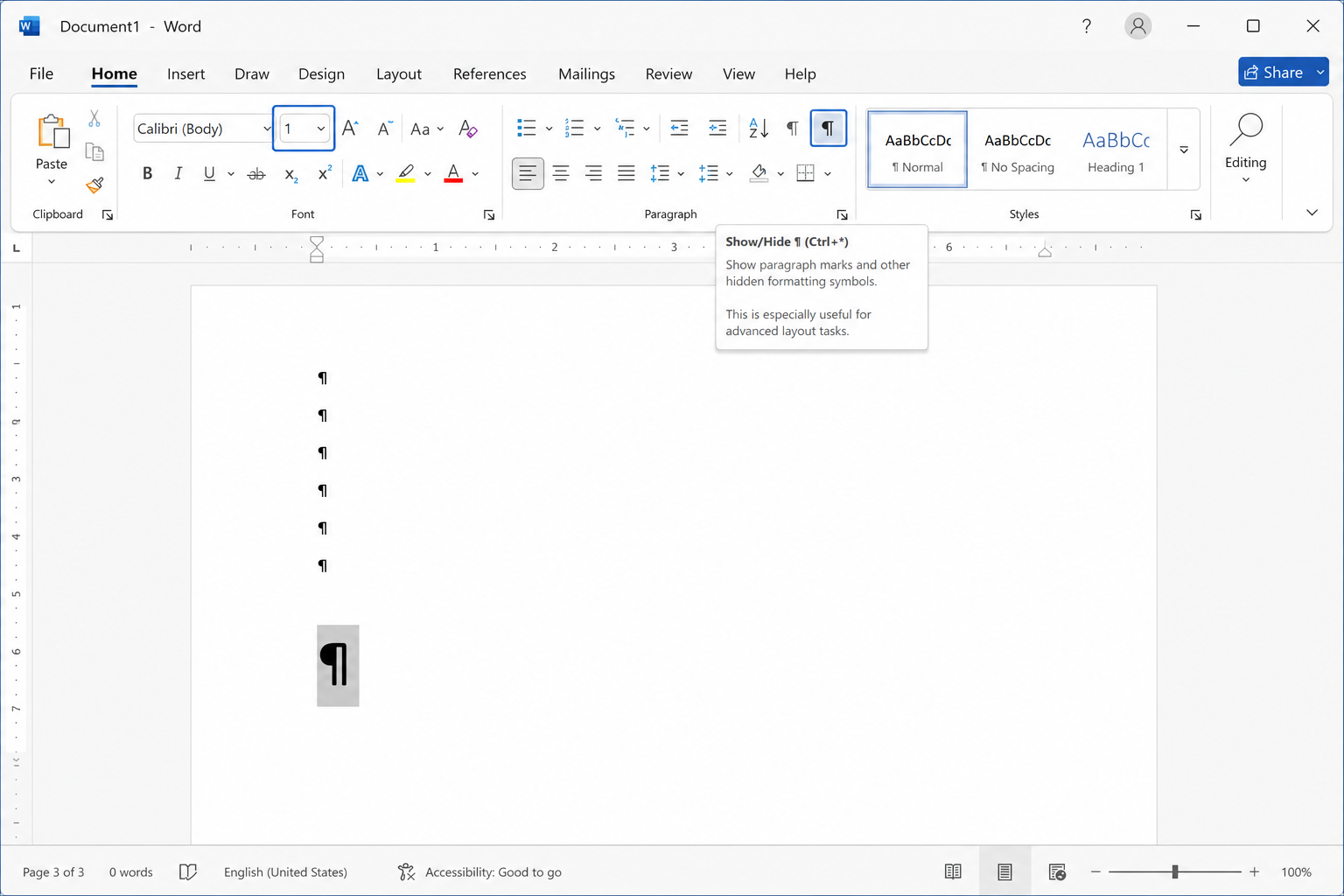
Press Ctrl + Shift + 8 to show paragraph marks (¶).
On the blank page, select only that final paragraph mark.
Set the font size to 1.
The tiny mark moves back to the previous page, and the blank page disappears.
Press Ctrl + Shift + 8 again to hide the marks.
Method 2: Compress line spacing
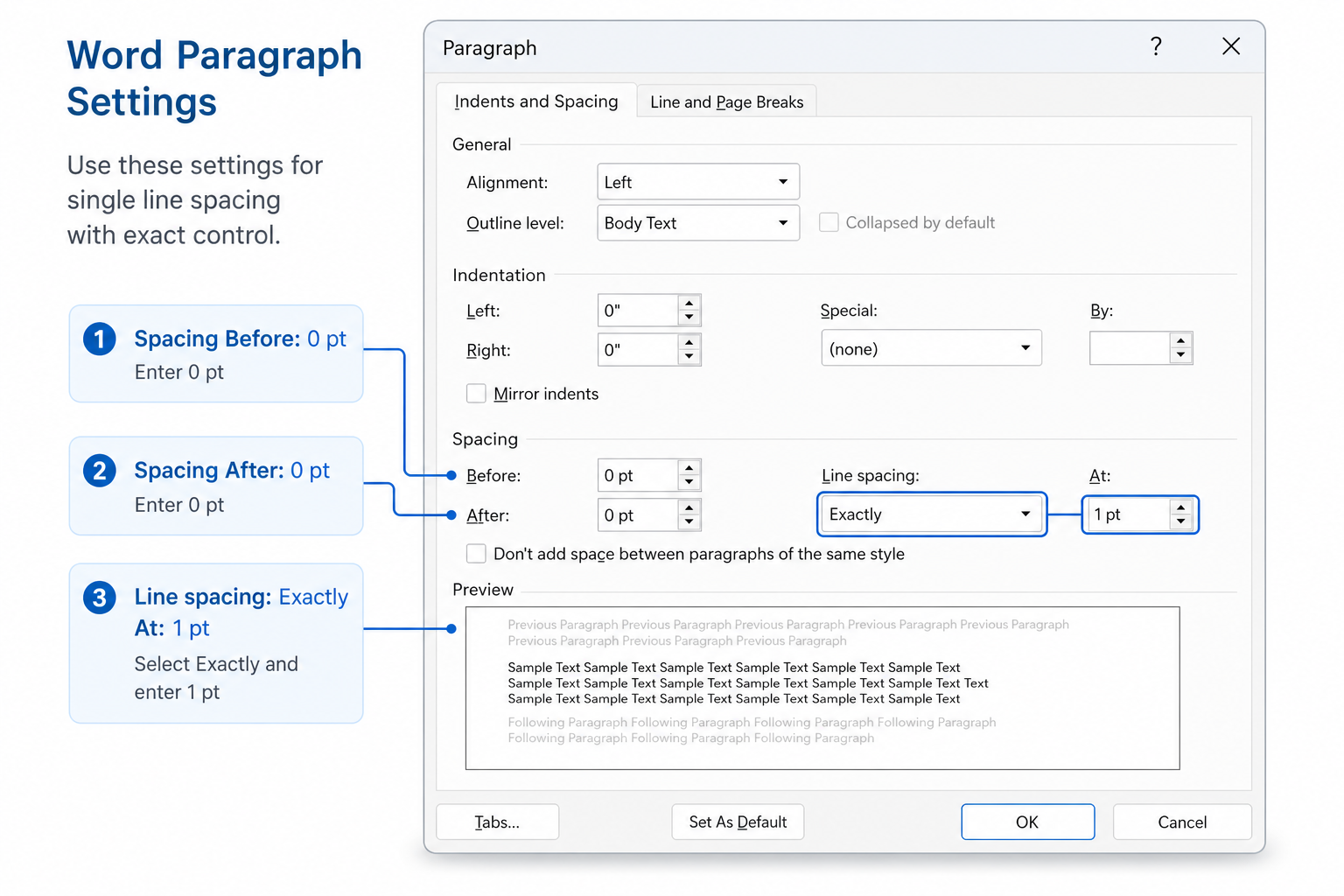
Select the final paragraph mark.
Right-click and choose Paragraph.
Set Spacing Before and Spacing After to 0.
Set Line spacing to Exactly and 1 pt.
How to Delete a Middle Page in Word
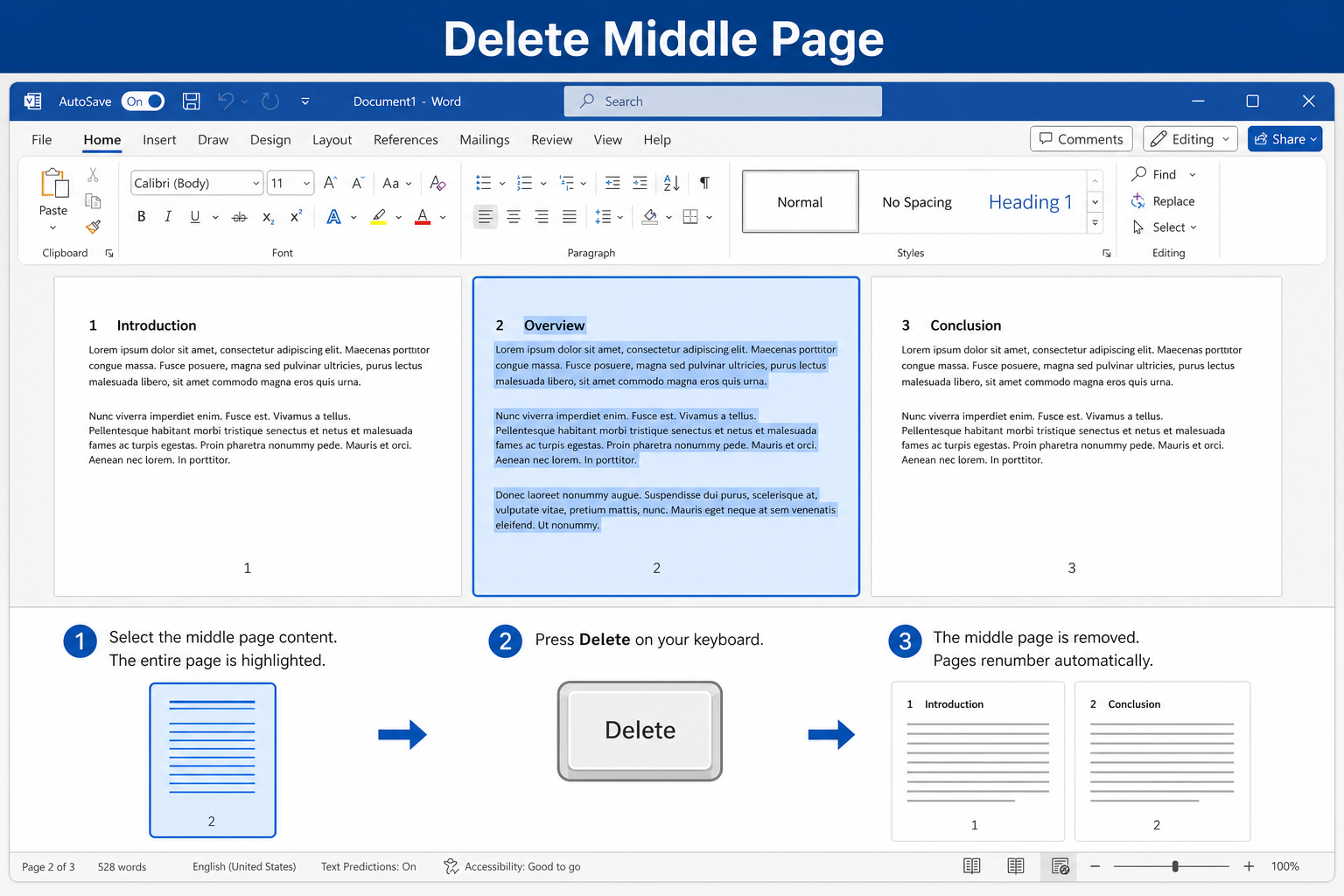
Scroll to the unwanted page.
Select all content on that page (click and drag, or click in the left margin and drag down).
Press Delete.
The surrounding pages join together automatically.
Tip: If the page looks empty but will not delete, it may contain a hidden page break or section break—show ¶ marks first.
Remove Blank Pages Caused by Hidden Page Breaks
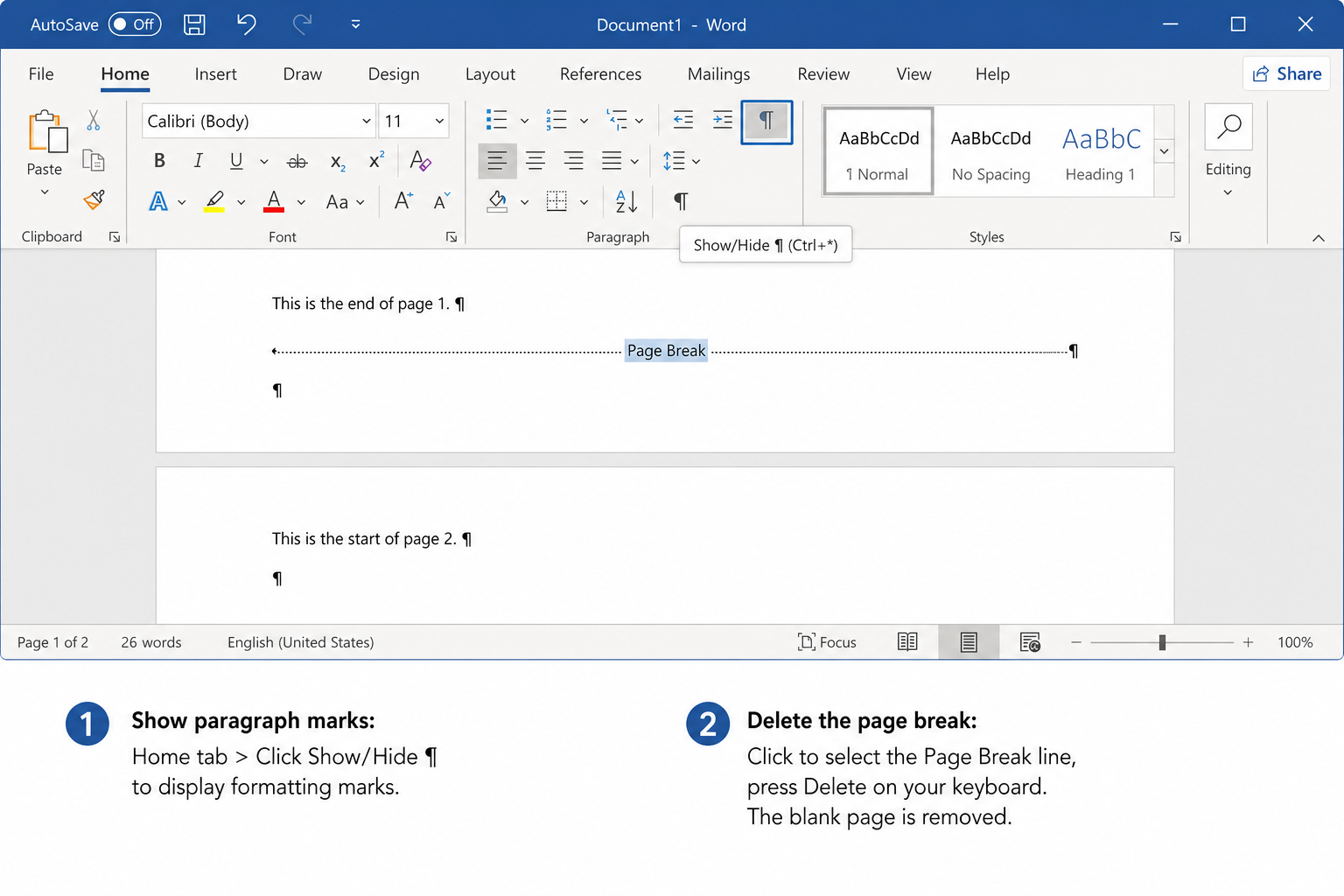
Go to Home → Show/Hide ¶ (or press Ctrl + Shift + 8).
Find a Page Break or Section Break on or before the blank page.
Select the break and press Delete.
Be careful with Section Break markers if you use different headers, footers, or page orientation. Deleting the wrong section break can change layout on nearby pages.
How to Delete Pages on Mac
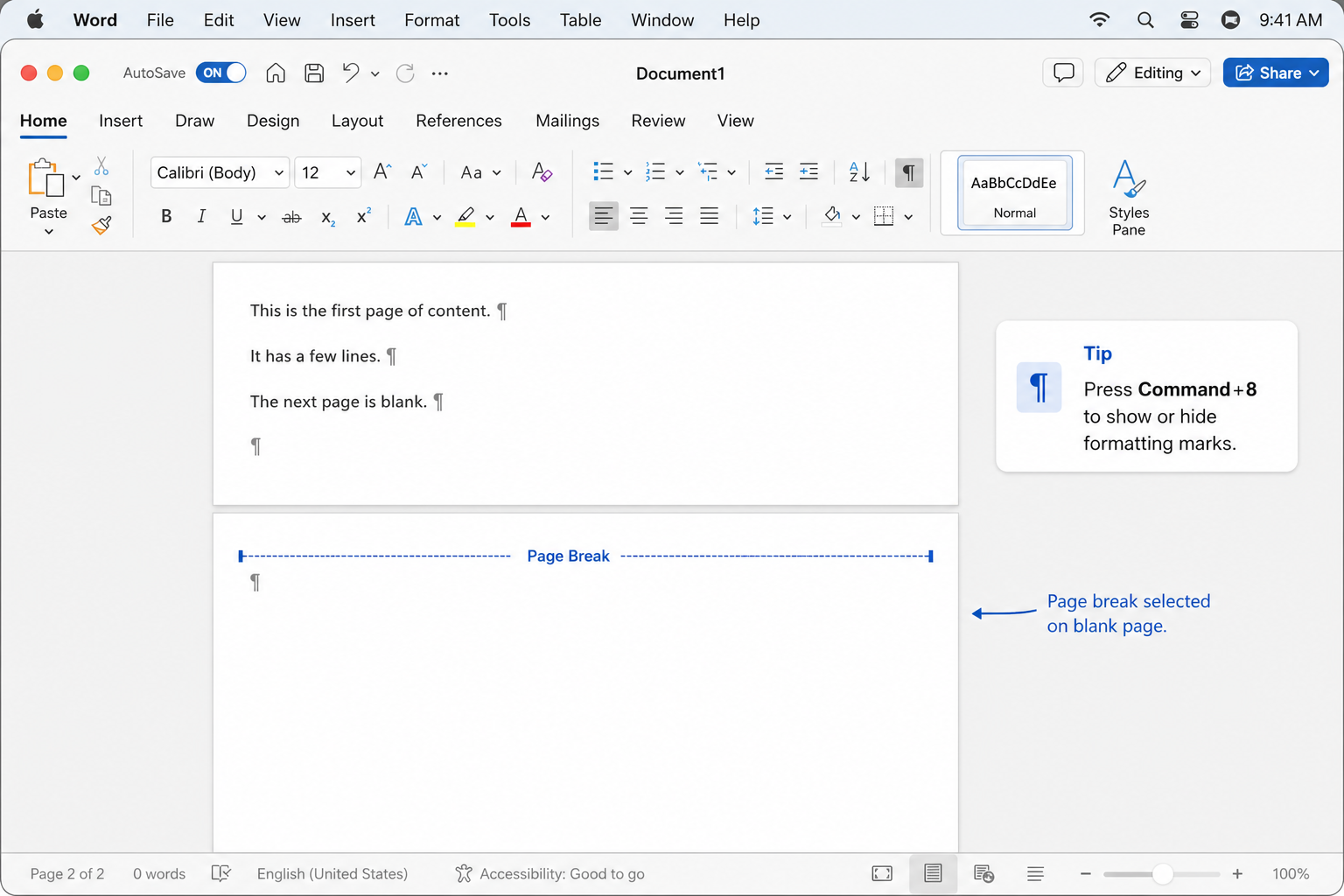
Press Command + 8 to show paragraph marks.
Select hidden page breaks, section breaks, or trailing empty paragraph marks.
Press Delete, or shrink the final ¶ font size / line spacing using the same methods as Windows.
| Shortcut | Windows | Mac |
|---|---|---|
| Show / hide ¶ | Ctrl + Shift + 8 | Command + 8 |
| Delete selected content | Delete or Backspace | Delete / Fn + Delete (as needed) |
One-Click Way to Delete Blank Pages in WPS
Manual cleanup in Word is reliable, but it can take several steps when a file has many empty paragraphs or breaks. WPS Writer includes a free tool that can clear blank pages in one pass for everyday documents.
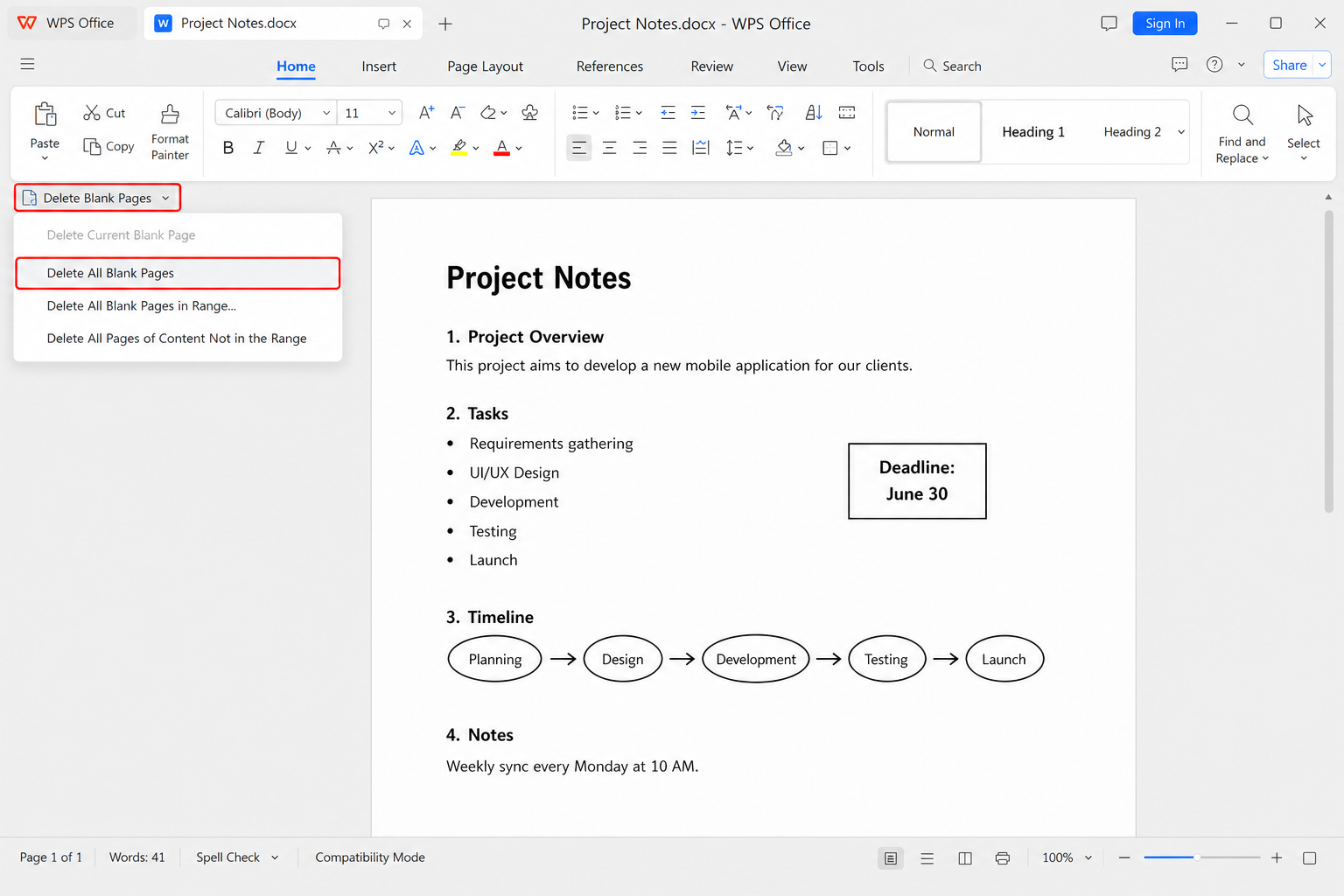
Open your document in WPS Writer.
Go to the Home tab.
Click Delete Blank Pages and choose Delete All Blank Pages.
WPS can clear trailing blank pages, middle blanks, and blanks left by page breaks. Save as .docx when you need to share the file in Microsoft Word.
One-click cleanup — Faster than hunting every ¶ and break by hand
Covers common blank-page types — Trailing, middle, and break-related blanks
Layout-friendly for daily use — Removes empty space without rewriting your content
No paid subscription required — Core cleanup tools for everyday documents
Common Causes of Pages That Will Not Delete
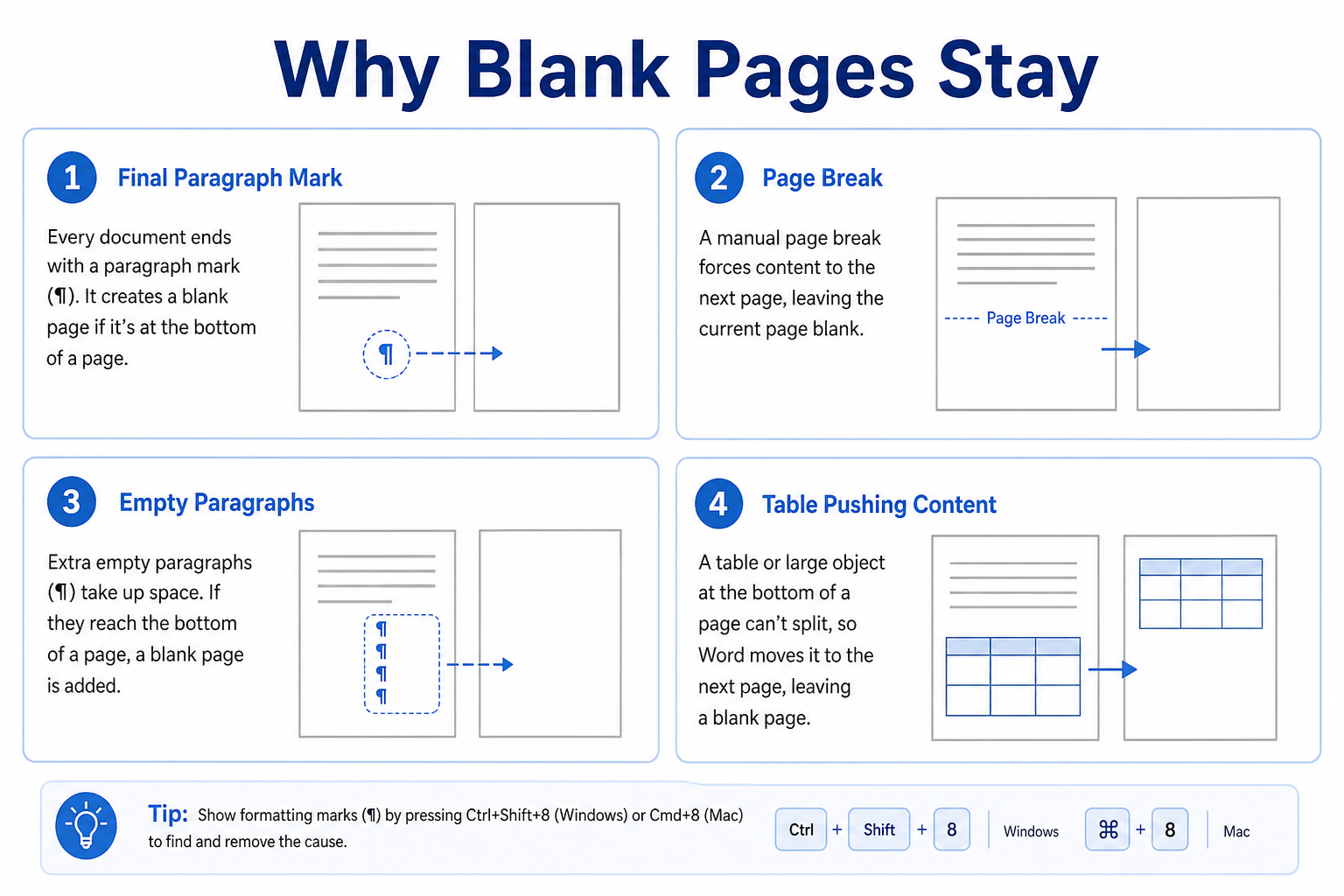
| Cause | What to try |
|---|---|
| Final paragraph mark (¶) pushed to a new page | Shrink font size to 1, or set line spacing to Exactly 1 pt |
| Hidden page break or section break | Show ¶ marks, select the break, press Delete |
| Extra empty paragraphs | Select empty ¶ marks and delete them |
| Table or object filling the last page | Resize the table/object slightly, or shrink the final ¶ |
FAQ
Why is the last blank page undeletable?
Word keeps a final paragraph mark you cannot remove. Shrink its font size or line spacing so it fits on the previous page—or use WPS Delete Blank Pages for a faster cleanup.
Can WPS keep the original format?
For typical blank-page cleanup, WPS removes empty areas without rewriting your text, tables, and images. Always preview the file after cleanup if the document uses complex section breaks.
Are WPS files compatible with Microsoft Word?
Yes—when you save as a standard .docx, recipients can usually open and review the file in Microsoft Word.
How do I delete a page in the middle of a Word document?
Select everything on that page and press Delete. If the page looks blank, show ¶ marks and remove any page break or empty paragraphs first.
Conclusion
Ordinary blank pages often disappear with Backspace. Stubborn ending blanks usually come from the final paragraph mark—shrink it instead of trying to delete it. Middle blanks are often caused by hidden page breaks. If you want a faster free cleanup, WPS Writer’s Delete Blank Pages tool can clear extra blanks while keeping everyday Word compatibility.

'%3e%3cpath%20d='M19.9911%204.11386V6.471H18.5894C18.0775%206.471%2017.7322%206.57814%2017.5536%206.79243C17.3751%207.00671%2017.2858%207.32814%2017.2858%207.75671V9.44421H19.9019L19.5536%2012.0871H17.2858V18.8639H14.5536V12.0871H12.2769V9.44421H14.5536V7.49779C14.5536%206.39064%2014.8632%205.53201%2015.4822%204.92189C16.1013%204.31177%2016.9257%204.00671%2017.9554%204.00671C18.8304%204.00671%2019.509%204.04243%2019.9911%204.11386Z'%20fill='%23333333'/%3e%3c/g%3e%3cdefs%3e%3cclipPath%20id='clip0_2938_8199'%3e%3crect%20width='16'%20height='16'%20fill='white'%20transform='translate(8%204.00671)'/%3e%3c/clipPath%3e%3c/defs%3e%3c/svg%3e)
'%3e%3cpath%20d='M17.5237%2010.7813L23.4811%204H22.0699L16.8949%209.88693L12.7648%204H8L14.2469%2012.9029L8%2020.0133H9.4112L14.8725%2013.7952L19.2352%2020.0133H24M9.92053%205.04213H12.0885L22.0688%2019.0224H19.9003'%20fill='%23333333'/%3e%3c/g%3e%3cdefs%3e%3cclipPath%20id='clip0_2938_8200'%3e%3crect%20width='16'%20height='16.0134'%20fill='white'%20transform='translate(8%204)'/%3e%3c/clipPath%3e%3c/defs%3e%3c/svg%3e)


