

'%3e%3cpath%20d='M8%200C12.4183%200%2016%203.58172%2016%208C16%2012.4183%2012.4183%2016%208%2016C3.58172%2016%200%2012.4183%200%208C0%203.58172%203.58172%200%208%200ZM11.6162%204.38379C11.2257%203.99337%2010.5927%203.99338%2010.2021%204.38379L8%206.58594L5.79785%204.38379C5.40732%203.99334%204.77429%203.99329%204.38379%204.38379C3.99331%204.77429%203.99335%205.40733%204.38379%205.79785L6.58594%208L4.38379%2010.2021C3.99348%2010.5927%203.99341%2011.2257%204.38379%2011.6162C4.77426%2012.0066%205.40734%2012.0065%205.79785%2011.6162L8%209.41406L10.2021%2011.6162C10.5927%2012.0066%2011.2257%2012.0067%2011.6162%2011.6162C12.0067%2011.2257%2012.0066%2010.5927%2011.6162%2010.2021L9.41406%208L11.6162%205.79785C12.0066%205.40735%2012.0066%204.77429%2011.6162%204.38379Z'%20fill='%23080E17'%20fill-opacity='0.46'/%3e%3c/g%3e%3cdefs%3e%3cclipPath%20id='clip0_3761_713'%3e%3crect%20width='16'%20height='16'%20fill='white'/%3e%3c/clipPath%3e%3c/defs%3e%3c/svg%3e)




'%3e%3cpath%20fill-rule='evenodd'%20clip-rule='evenodd'%20d='M21.4999%2010.9993C21.4999%205.20009%2016.7986%200.498901%2010.9993%200.498901C5.19994%200.498901%200.498657%205.20009%200.498657%2010.9993C0.498657%2016.2404%204.33858%2020.5844%209.35855%2021.3722V14.0346H6.69238V10.9993H9.35855V8.68594C9.35855%206.05427%2010.9262%204.60062%2013.3248%204.60062C14.4736%204.60062%2015.6753%204.80571%2015.6753%204.80571V7.38979H14.3512C13.0468%207.38979%2012.64%208.19921%2012.64%209.0296V10.9993H15.5523L15.0867%2014.0346H12.64V21.3722C17.66%2020.5844%2021.4999%2016.2404%2021.4999%2010.9993Z'%20fill='%231568EA'/%3e%3c/g%3e%3c/svg%3e)


'%3e%3cpath%20d='M2.42045%2022.1876H6.31818V12.7217L0.75%208.54553V20.5171C0.75%2021.4414%201.49892%2022.1876%202.42045%2022.1876Z'%20fill='%234285F4'/%3e%3cpath%20d='M19.682%2022.1876H23.5797C24.5041%2022.1876%2025.2502%2021.4387%2025.2502%2020.5171V8.54553L19.682%2012.7217'%20fill='%2334A853'/%3e%3cpath%20d='M19.682%205.48293V12.7216L25.2502%208.54543V6.31816C25.2502%204.25236%2022.8921%203.07469%2021.2411%204.31361'%20fill='%23FBBC04'/%3e%3cpath%20d='M6.31824%2012.7217V5.48303L13.0001%2010.4944L19.6819%205.48303V12.7217L13.0001%2017.733'%20fill='%23EA4335'/%3e%3cpath%20d='M0.75%206.31816V8.54543L6.31818%2012.7216V5.48293L4.75909%204.31361C3.10534%203.07469%200.75%204.25236%200.75%206.31816Z'%20fill='%23C5221F'/%3e%3c/g%3e%3cdefs%3e%3cclipPath%20id='clip0_2954_7305'%3e%3crect%20width='24.5'%20height='18.375'%20fill='white'%20transform='translate(0.75%203.8125)'/%3e%3c/clipPath%3e%3c/defs%3e%3c/svg%3e)


To enhance PDF quality, start with the best available source: export the original document again, replace low-resolution images, or rescan unclear pages. Repeatedly saving a blurry PDF at a larger size does not restore details that were never captured.
If the page looks readable but you cannot search or copy its text, OCR can improve usability without necessarily sharpening the scan. This guide separates those two problems and shows where WPS Office helps with rebuilding, checking, and preparing your final file.
How to Enhance PDF Quality Before Printing or Sharing
Enhance PDF Quality by Rebuilding from the Source
First inspect the same troublesome page in the original document and the exported PDF. Check ordinary reading size, then zoom in to compare small labels and thin lines. A preview problem, a blurry embedded picture, and an unclear scan need different fixes.
| What you notice | Best next action | What to avoid |
|---|---|---|
| Text is sharp; one picture is blurry | Replace that picture in the source document | Rasterizing the entire page |
| The whole scanned page is faint or tilted | Rescan or apply scan cleanup before OCR | Expecting OCR to recover unreadable details |
| The original looks good; the PDF looks worse | Export a fresh PDF and inspect the result | Recompressing the degraded copy |
| Only one viewer looks blurry | Compare another viewer and a sample print | Changing a good document prematurely |
Step 1: Recover an editable original
Look for the DOCX, spreadsheet, presentation, original photograph, or scan that produced the PDF. Work on a copy. If someone sent you only a heavily compressed attachment, request the original export before spending time on sharpening tools.
Step 2: Replace the weak content
In WPS Writer, Spreadsheet, or Presentation, replace small screenshots with their original images where possible. Recreate an important chart from its data instead of enlarging a thumbnail. Check image quality at the size the picture will occupy on the finished page; a large pixel count is less useful if you stretch the picture across a much larger area.
Step 3: Export and compare a fresh PDF
Use WPS Office's Export to PDF command, choose the intended page range and destination, and save under a new name. Depending on the component and build, the command may appear under Tools or the application menu. Prefer an ordinary PDF for normal text documents; avoid choosing an image-only output when selectable text matters. WPS documents the core process in its Office-to-PDF export guide.
Reopen the exported file. Compare the problem area, copy a sentence, and print one representative page if printing is the goal. Do not assume an export is better because its file size increased. If your installed export dialog offers quality controls, test them against the actual output rather than assuming every WPS version has the same presets.
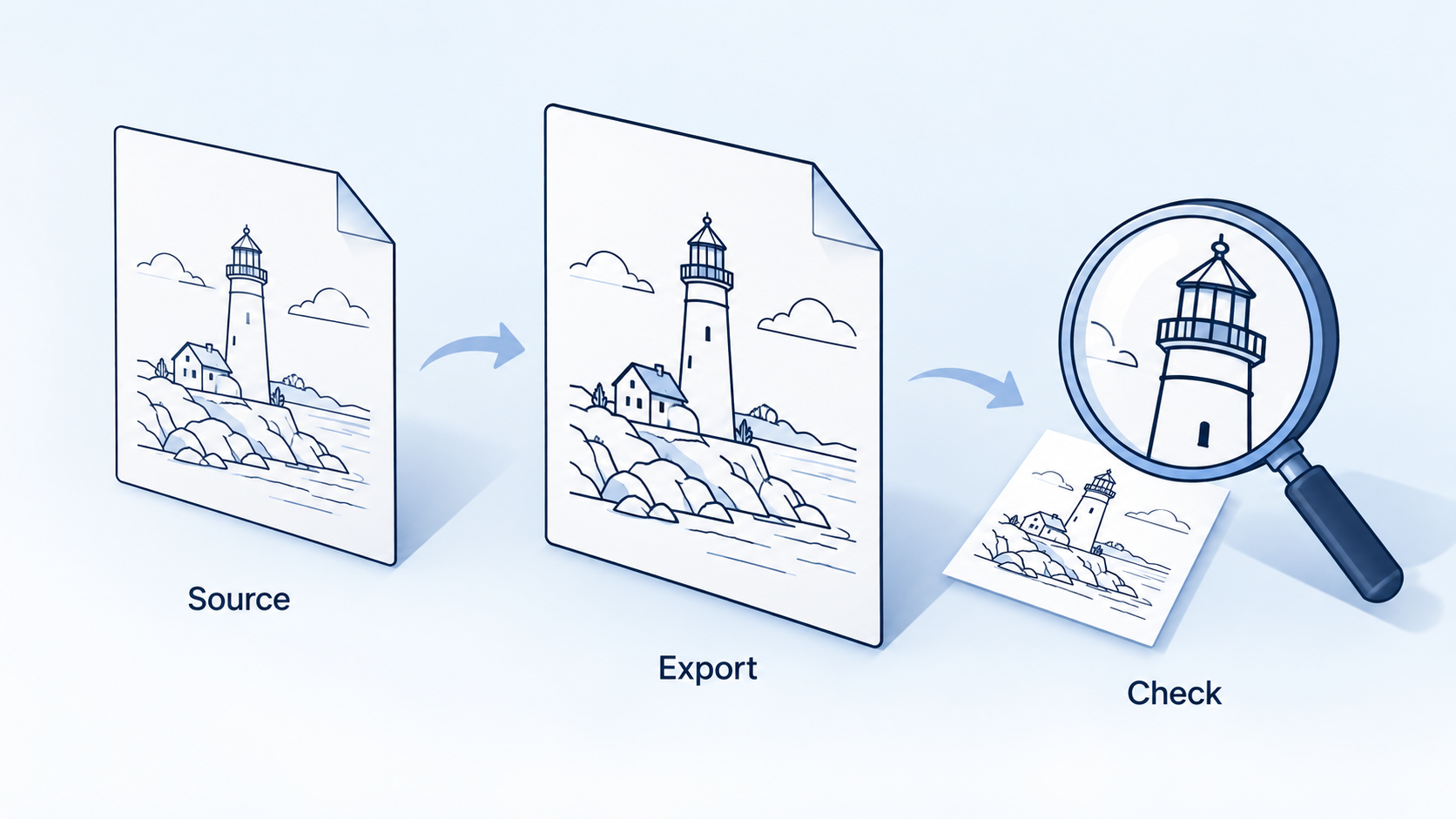
Check PDF quality after source export


Enhance Scanned PDF Quality Before Running OCR
When every page is a photograph or scan, improve capture first. Clean the scanner glass, flatten the paper, align the edges, and avoid shadows. For photographed pages, keep the camera parallel to the sheet and check the corners as well as the center.
Step 1: Capture a readable sample
Start with a representative page containing the smallest important text. A 300 dpi scan is a practical starting point for ordinary grayscale documents; finer print may need more detail. This is a capture setting, not a promise that changing a PDF's resolution field will recreate missing information. Compare a sample before rescanning an entire packet.
Step 2: Clean up the scan without erasing content
Use the scanner's preview to correct tilt and contrast where those controls are available. Keep faint pencil marks, stamps, and small punctuation visible. Overaggressive cleanup can remove content that matters. If you use Acrobat, its documented workflow is All tools > Scan & OCR > Enhance scanned file; select the pages and adjust the enhancement settings before processing. See Adobe's scan enhancement instructions for that separate tool.
Step 3: Use WPS OCR when the page is readable but text is inaccessible
Open the improved scan in WPS PDF. In supported desktop builds, use Convert > OCR PDF, then Perform OCR. Menu placement and access can differ by build and subscription. The following image illustrates the WPS OCR prompt, not a measured before-and-after result for your document.
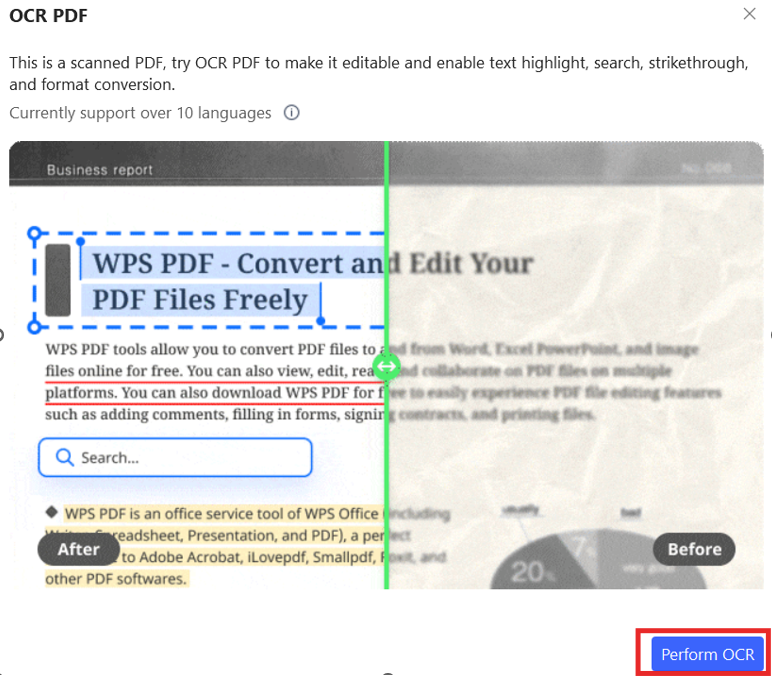
WPS PDF optical character recognition prompt
After recognition, search for a known phrase and copy a paragraph into a plain-text editor. Verify names, decimal points, minus signs, and similar characters such as O and 0. Save the recognized copy separately. OCR can misread a clearly printed character, and it cannot reliably reconstruct an illegible one.
WPS Office: A Practical Workspace for Better PDF Quality
WPS PDF is useful when the quality problem spans both the source document and its final PDF. WPS Office brings Writer, Spreadsheet, Presentation, and PDF tools into the same suite, so you can repair content in the appropriate component and then inspect the exported document.
Repair the source instead of polishing a damaged copy
For a report, use Writer to correct line breaks, replace a low-resolution logo, and adjust the placement of an image before exporting. For a spreadsheet, check which columns and rows belong in the output and whether the selected page layout makes the figures readable. For a presentation, return to the slide containing the original chart rather than copying a screenshot from an earlier PDF. These are different ways to preserve the information you already have.
This approach is especially useful for proposals, classroom handouts, and recurring monthly reports. Keep the editable source alongside the PDF so the next revision starts from the best material. A simple naming convention such as report-source, report-review, and report-final helps prevent a compressed attachment from becoming the new master.
Use PDF tools for the finishing work
Open the new PDF in WPS to inspect page order, orientation, text selection, and readability. Where your plan supports them, editing, conversion, and page-management tools can help finish the document. Use OCR for readable scans when you need searchable or editable text. If you convert a PDF to Word to repair its layout, compare the result carefully: reconstructed paragraphs and tables can shift.
For a document that only needs review, avoid an unnecessary round trip through another format. Make the fewest transformations needed to reach the intended result. Keep the high-quality copy before creating a smaller distribution version, and compare both versions before replacing an attachment on a shared drive.
Set realistic expectations about quality and access
WPS is not presented here as a one-click recovery tool for every blurry PDF. Irrecoverable image detail, motion blur, and clipped text usually require a better source. A free application download also does not mean every PDF feature is free: OCR, advanced editing, or conversion options may require account access or a paid plan. Check the feature prompt in your installed version before planning a large job.
The best result is a PDF that passes the checks your reader actually needs: legible text, clear diagrams, correct page layout, and a manageable file size. Download WPS Office from its official site if you want to keep source editing and PDF review in one workflow.
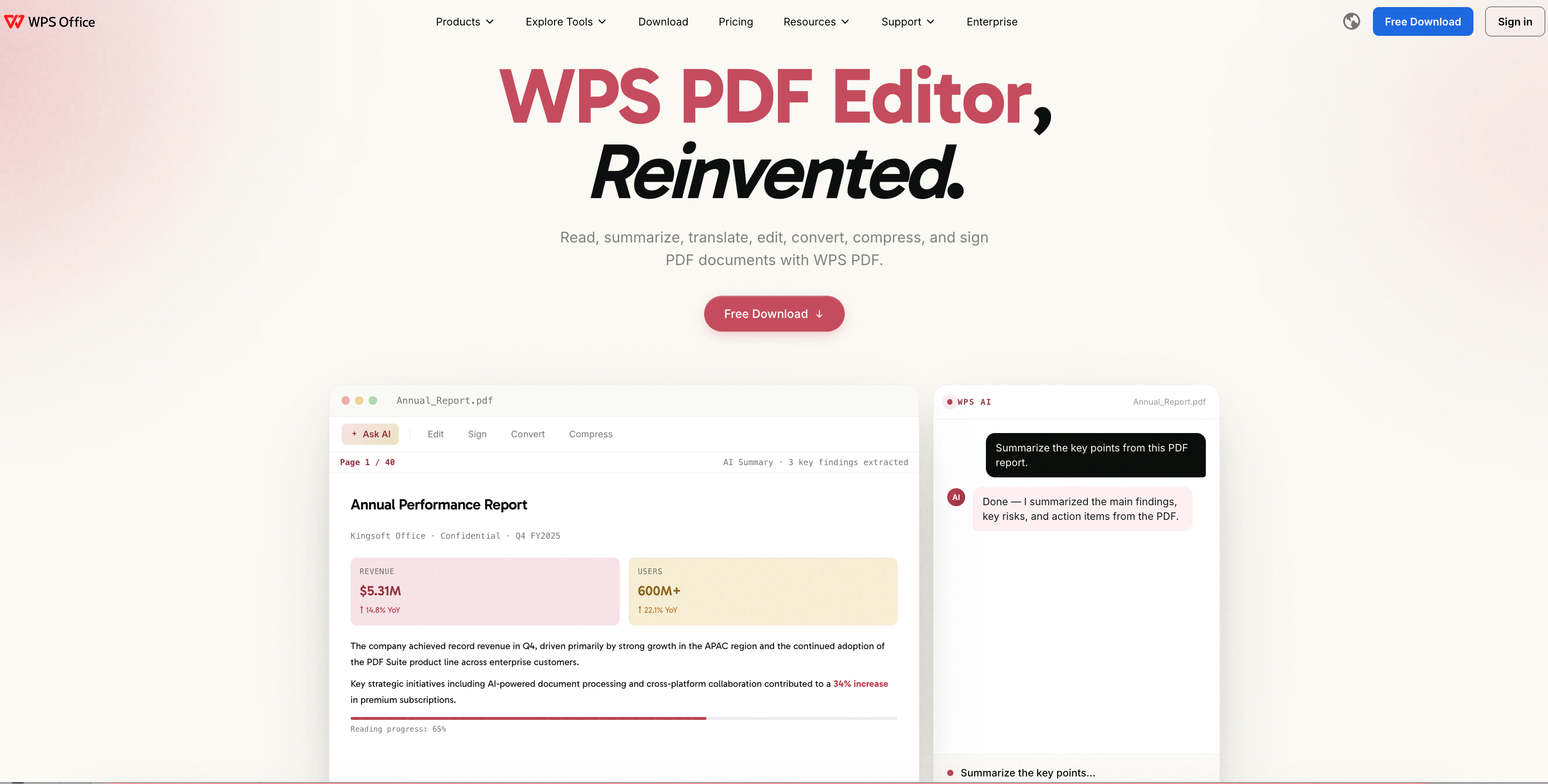
WPS PDF Editor official product overview
FAQs
Can I enhance PDF quality for free?
Often, yes: re-exporting an original document or rescanning a page can solve the problem without a specialist enhancement service. Feature access varies, so check whether the particular OCR or editing tool you need requires payment.
Does OCR make a blurry PDF sharper?
OCR primarily recognizes text. It can make content searchable or editable, but does not guarantee a sharper page image or accurate recovery of unreadable characters.
Why does a PDF look worse after compression?
Lossy compression or image downsampling can discard detail. Return to the original file and make a less aggressive output copy instead of repeatedly compressing the degraded version.
Should I convert every page to an image?
No. That can remove selectable text and reduce the flexibility of vector content. Use image output only when the receiving workflow specifically requires it.
How do I know the improved PDF is ready?
Check the smallest text, image edges, page count, and text search. For print delivery, inspect a sample print at its intended size; for screen delivery, check the file in the reader your audience uses.


'%3e%3cpath%20d='M19.9911%204.11386V6.471H18.5894C18.0775%206.471%2017.7322%206.57814%2017.5536%206.79243C17.3751%207.00671%2017.2858%207.32814%2017.2858%207.75671V9.44421H19.9019L19.5536%2012.0871H17.2858V18.8639H14.5536V12.0871H12.2769V9.44421H14.5536V7.49779C14.5536%206.39064%2014.8632%205.53201%2015.4822%204.92189C16.1013%204.31177%2016.9257%204.00671%2017.9554%204.00671C18.8304%204.00671%2019.509%204.04243%2019.9911%204.11386Z'%20fill='%23333333'/%3e%3c/g%3e%3cdefs%3e%3cclipPath%20id='clip0_2938_8199'%3e%3crect%20width='16'%20height='16'%20fill='white'%20transform='translate(8%204.00671)'/%3e%3c/clipPath%3e%3c/defs%3e%3c/svg%3e)
'%3e%3cpath%20d='M17.5237%2010.7813L23.4811%204H22.0699L16.8949%209.88693L12.7648%204H8L14.2469%2012.9029L8%2020.0133H9.4112L14.8725%2013.7952L19.2352%2020.0133H24M9.92053%205.04213H12.0885L22.0688%2019.0224H19.9003'%20fill='%23333333'/%3e%3c/g%3e%3cdefs%3e%3cclipPath%20id='clip0_2938_8200'%3e%3crect%20width='16'%20height='16.0134'%20fill='white'%20transform='translate(8%204)'/%3e%3c/clipPath%3e%3c/defs%3e%3c/svg%3e)


