

'%3e%3cpath%20d='M8%200C12.4183%200%2016%203.58172%2016%208C16%2012.4183%2012.4183%2016%208%2016C3.58172%2016%200%2012.4183%200%208C0%203.58172%203.58172%200%208%200ZM11.6162%204.38379C11.2257%203.99337%2010.5927%203.99338%2010.2021%204.38379L8%206.58594L5.79785%204.38379C5.40732%203.99334%204.77429%203.99329%204.38379%204.38379C3.99331%204.77429%203.99335%205.40733%204.38379%205.79785L6.58594%208L4.38379%2010.2021C3.99348%2010.5927%203.99341%2011.2257%204.38379%2011.6162C4.77426%2012.0066%205.40734%2012.0065%205.79785%2011.6162L8%209.41406L10.2021%2011.6162C10.5927%2012.0066%2011.2257%2012.0067%2011.6162%2011.6162C12.0067%2011.2257%2012.0066%2010.5927%2011.6162%2010.2021L9.41406%208L11.6162%205.79785C12.0066%205.40735%2012.0066%204.77429%2011.6162%204.38379Z'%20fill='%23080E17'%20fill-opacity='0.46'/%3e%3c/g%3e%3cdefs%3e%3cclipPath%20id='clip0_3761_713'%3e%3crect%20width='16'%20height='16'%20fill='white'/%3e%3c/clipPath%3e%3c/defs%3e%3c/svg%3e)




'%3e%3cpath%20fill-rule='evenodd'%20clip-rule='evenodd'%20d='M21.4999%2010.9993C21.4999%205.20009%2016.7986%200.498901%2010.9993%200.498901C5.19994%200.498901%200.498657%205.20009%200.498657%2010.9993C0.498657%2016.2404%204.33858%2020.5844%209.35855%2021.3722V14.0346H6.69238V10.9993H9.35855V8.68594C9.35855%206.05427%2010.9262%204.60062%2013.3248%204.60062C14.4736%204.60062%2015.6753%204.80571%2015.6753%204.80571V7.38979H14.3512C13.0468%207.38979%2012.64%208.19921%2012.64%209.0296V10.9993H15.5523L15.0867%2014.0346H12.64V21.3722C17.66%2020.5844%2021.4999%2016.2404%2021.4999%2010.9993Z'%20fill='%231568EA'/%3e%3c/g%3e%3c/svg%3e)


'%3e%3cpath%20d='M2.42045%2022.1876H6.31818V12.7217L0.75%208.54553V20.5171C0.75%2021.4414%201.49892%2022.1876%202.42045%2022.1876Z'%20fill='%234285F4'/%3e%3cpath%20d='M19.682%2022.1876H23.5797C24.5041%2022.1876%2025.2502%2021.4387%2025.2502%2020.5171V8.54553L19.682%2012.7217'%20fill='%2334A853'/%3e%3cpath%20d='M19.682%205.48293V12.7216L25.2502%208.54543V6.31816C25.2502%204.25236%2022.8921%203.07469%2021.2411%204.31361'%20fill='%23FBBC04'/%3e%3cpath%20d='M6.31824%2012.7217V5.48303L13.0001%2010.4944L19.6819%205.48303V12.7217L13.0001%2017.733'%20fill='%23EA4335'/%3e%3cpath%20d='M0.75%206.31816V8.54543L6.31818%2012.7216V5.48293L4.75909%204.31361C3.10534%203.07469%200.75%204.25236%200.75%206.31816Z'%20fill='%23C5221F'/%3e%3c/g%3e%3cdefs%3e%3cclipPath%20id='clip0_2954_7305'%3e%3crect%20width='24.5'%20height='18.375'%20fill='white'%20transform='translate(0.75%203.8125)'/%3e%3c/clipPath%3e%3c/defs%3e%3c/svg%3e)


You need one line gone - an old price, a name, a draft comment - and you want it gone in the next two minutes. The fastest way to white out a PDF is to draw a white rectangle over the text and flatten the file, and every free PDF editor can do it. If your editor has an eraser, that is even quicker. One thing to know before you send the file: a white box hides text from the eye, but it does not always remove it from the document.
How to White Out a PDF: Free Ways to Hide Text Cleanly
White Out Text in a PDF with a White Rectangle
This works in any editor that lets you add shapes, which covers most free tools and even some viewers. The only settings that matter are the fill and the border - both white - so the patch matches the page.
Open the PDF in an editor that has a shape or markup tool.
Insert a rectangle and drag it over the text you want to hide.
Set the fill to white, the border to white or none, and opacity to 100 per cent.
Move and resize it at high zoom so the box covers the text completely without touching neighbouring lines.
Save, then export a flattened copy so the patch is baked into the page rather than left as a removable annotation.
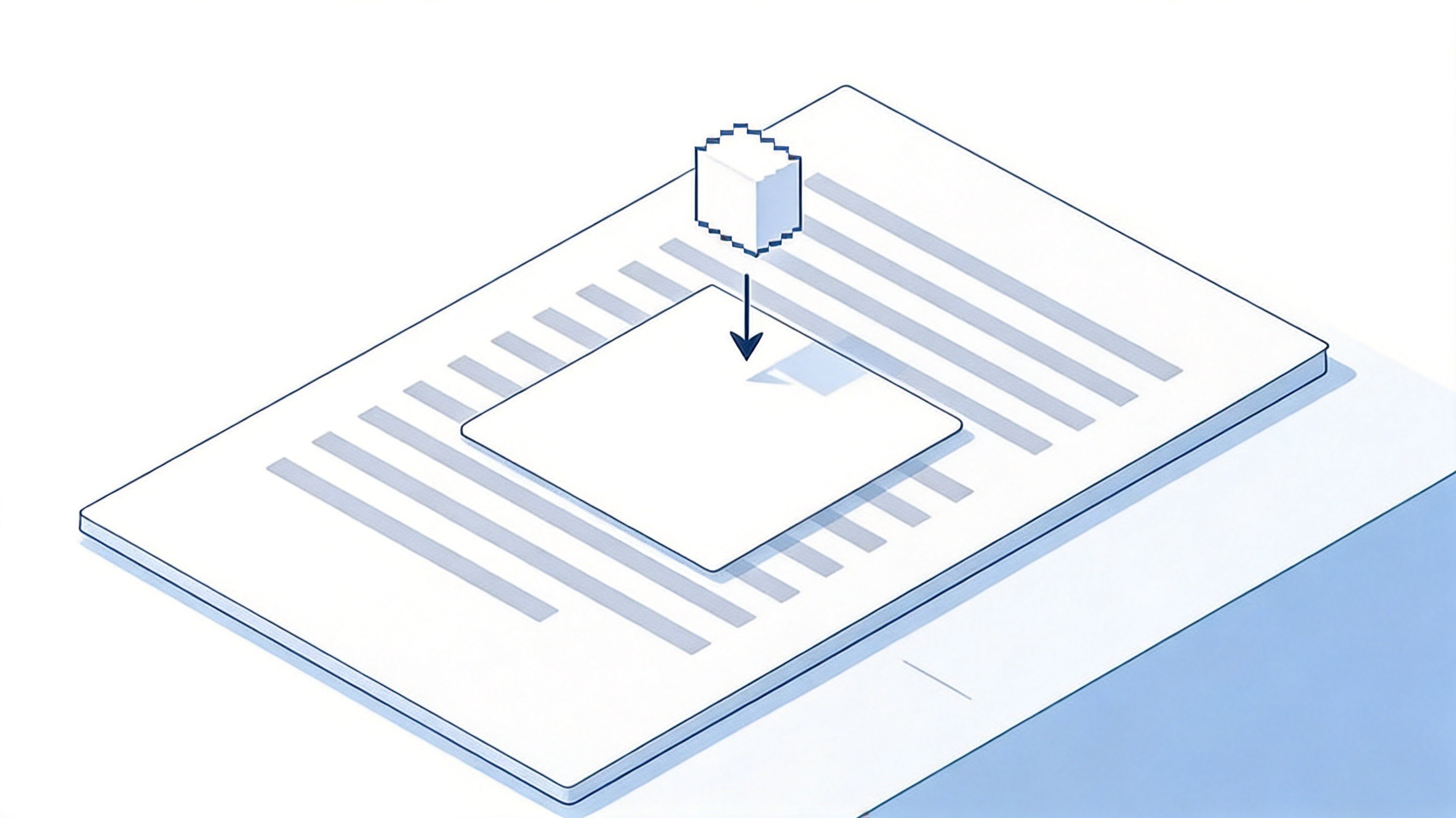
Covering text with a white rectangle
Colour matters more than people expect. A grey box over a white page looks like an obvious redaction attempt, while a white box on a coloured background looks like a mistake. Pick the colour with a colour picker from the page itself, or fall back to plain white for standard documents.


White Out a PDF with WPS Content Erasure
WPS Office includes a dedicated content erasure tool, which is quicker than drawing shapes because the eraser does the covering for you and applies the page colour automatically.
Open the PDF in WPS and go to the Edit tab.
Choose Erase, then pick Brush Selection to paint over the text freehand or Rectangular Selection to drag a box around it.
Set the erasure colour to white so the patch blends into the page, and adjust the line width between 1 and 12 pt if the brush is too thin to cover the area in one pass.
Drag over the content and release - the covered area is cleared immediately.
Save the file. On a phone, the same tool sits in the Annotate tab as correction fluid.
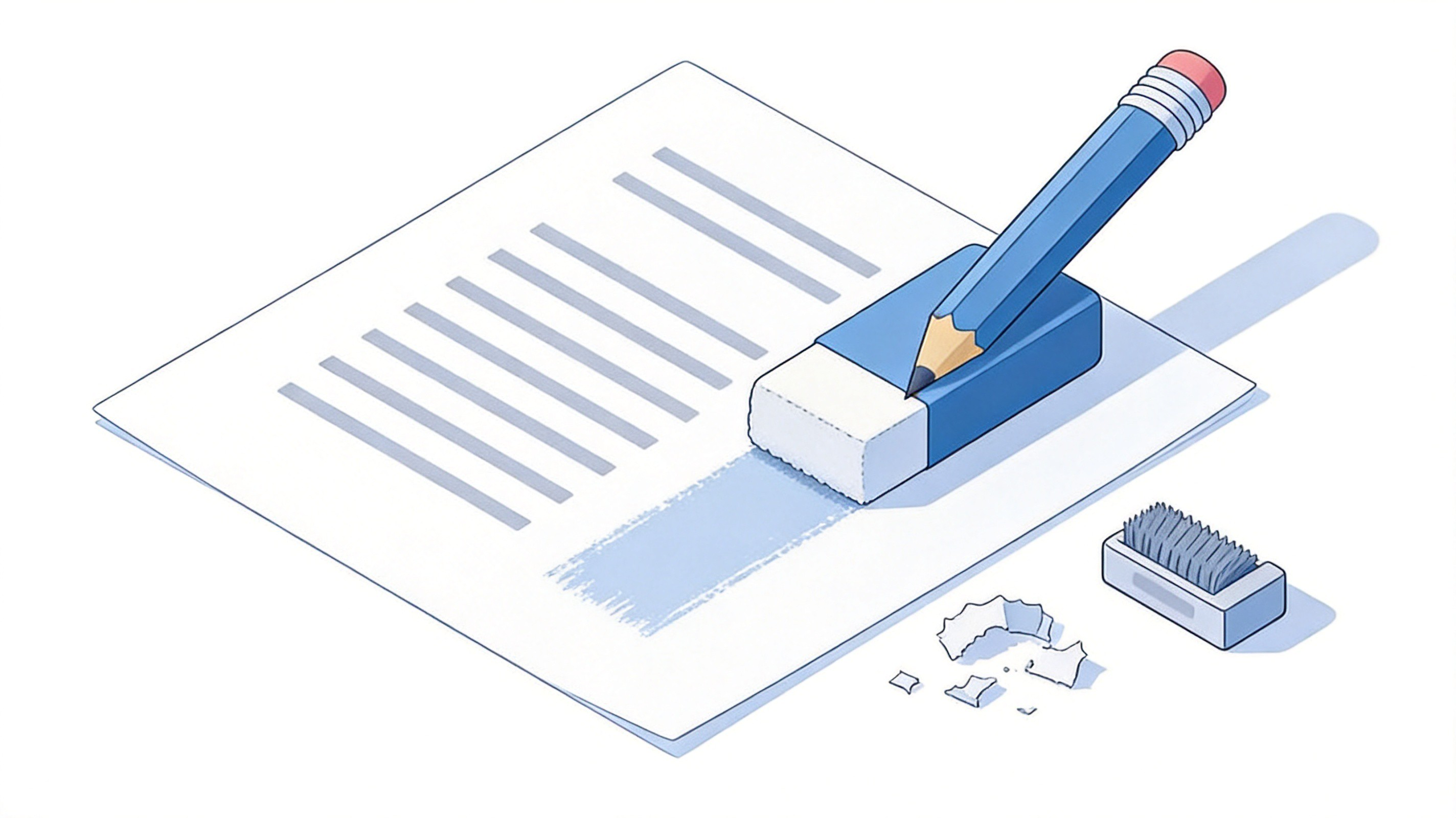
Erasing text from a PDF page
Because erasure is a real editing tool instead of an overlay, the result looks like the text was never typed there, which is exactly what you want for a clean resend.
White Out a PDF on Mac, Windows, and Mobile
No extra software is needed on most systems - each platform already ships something that can cover text.
Mac: open the PDF in Preview, click the markup toolbar, choose the rectangle shape, set the fill colour to white, then save. For a permanent result use File, then Export as PDF.
Windows: Edge and most browsers include a draw and highlight toolbar where you can add a shape and set its colour to white. For heavier edits, a free desktop editor gives you sharper control at high zoom.
Phone and tablet: the built-in PDF markup tools on iOS and Android include a white pen or correction tool. Pinch to zoom first, because covering small text accurately with a finger is hard.
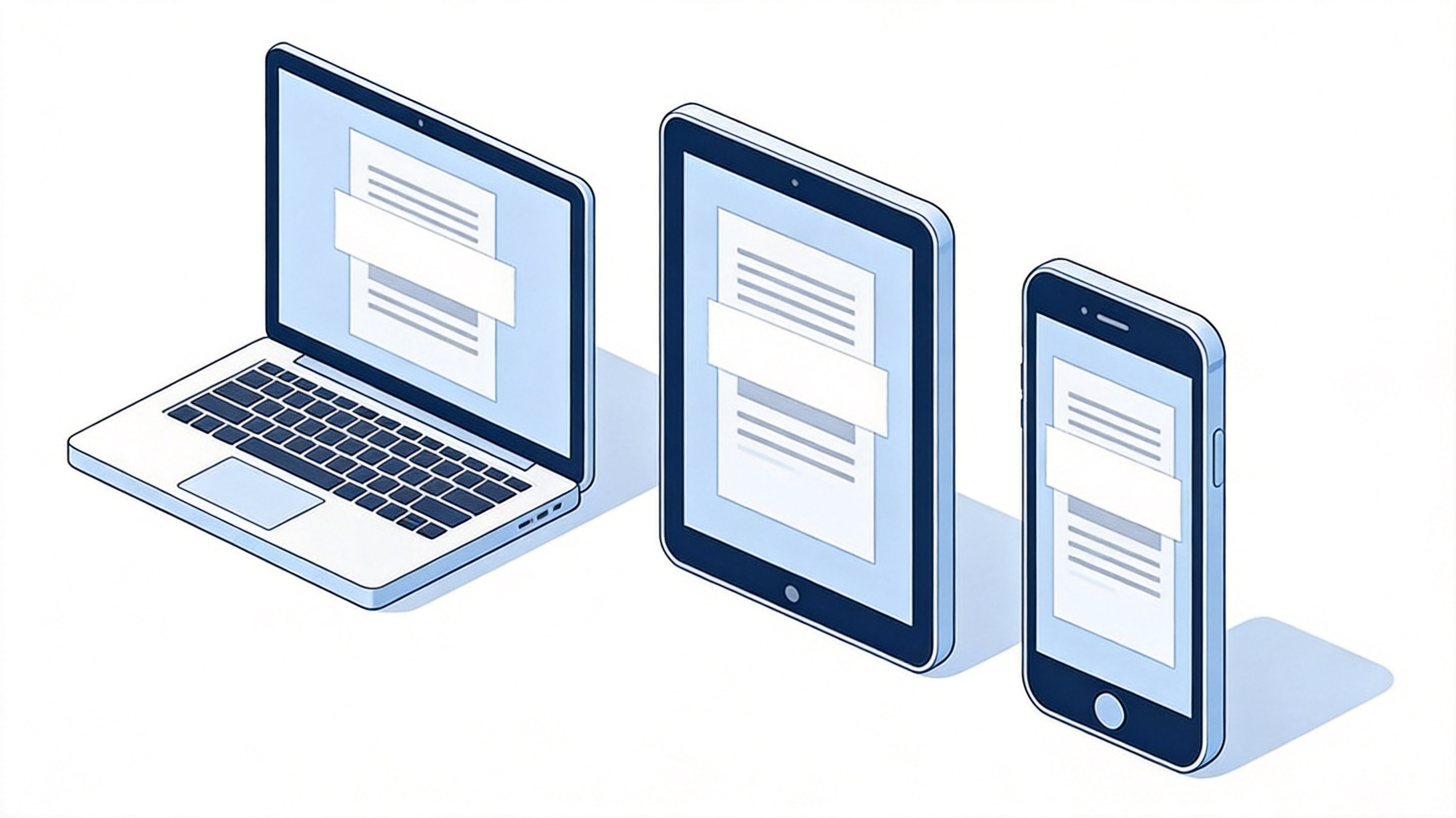
Whiting out PDFs on every device
A shortcut that saves time on long documents: find every spot that needs covering first, note the page numbers, then do all the patches in one pass rather than scrolling back and forth.
When Whiteout Is Not Enough: Redact Instead
Here is the catch worth knowing before you share a file. A white rectangle is an object sitting on top of the text, and the text underneath is usually still in the file. Anyone who selects all, copies, or runs the PDF through a text extractor can pull it out.
Two ways to make whiteout final:
Flatten the file. Print the patched PDF back to PDF, or export it as a flattened copy. The page becomes an image layer, so the hidden text is no longer selectable - the standard fix for forms and invoices.
Redact instead of covering. A redaction tool removes the underlying content, not just the view of it, and is the right choice for ID numbers, bank details or anything confidential. If you mainly need to add notes, fill fields or sign instead, writing on a PDF covers those tools. After redacting, run a quick text search for the hidden value to confirm it is really gone.
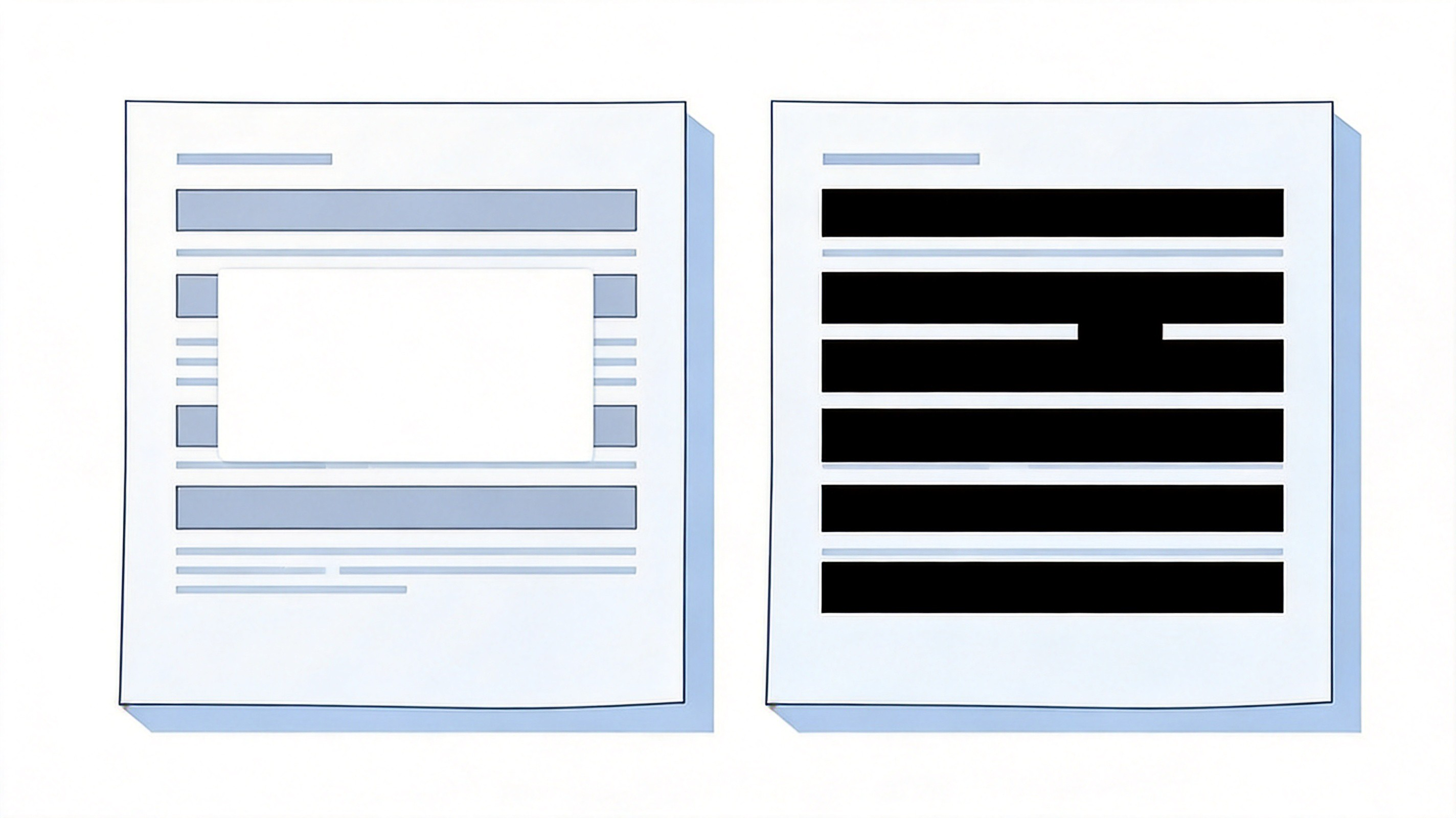
Whiteout versus redaction on a page
For quick clean-ups such as hiding an outdated line before sending a preview, whiteout and flatten is perfect. For anything that must stay private, treat covering as cosmetic and remove the content properly.
The Best Free PDF Alternative: WPS Office
WPS Office is a free, lightweight option that handles both jobs in one place: covering content with the eraser when you need a quick clean-up, and proper redaction and flattening when the information has to disappear for good. It opens PDFs in a full editor instead of a viewer, so you can also fix the layout, add a replacement line of text, or convert the finished file to Word and back.
Free core tools: view, annotate, fill, sign, erase and convert PDFs at no cost.
Eraser built in: brush or rectangular selection with a colour picker, per the guide above.
One suite: PDF, Writer, Spreadsheet and Presentation on desktop and mobile.
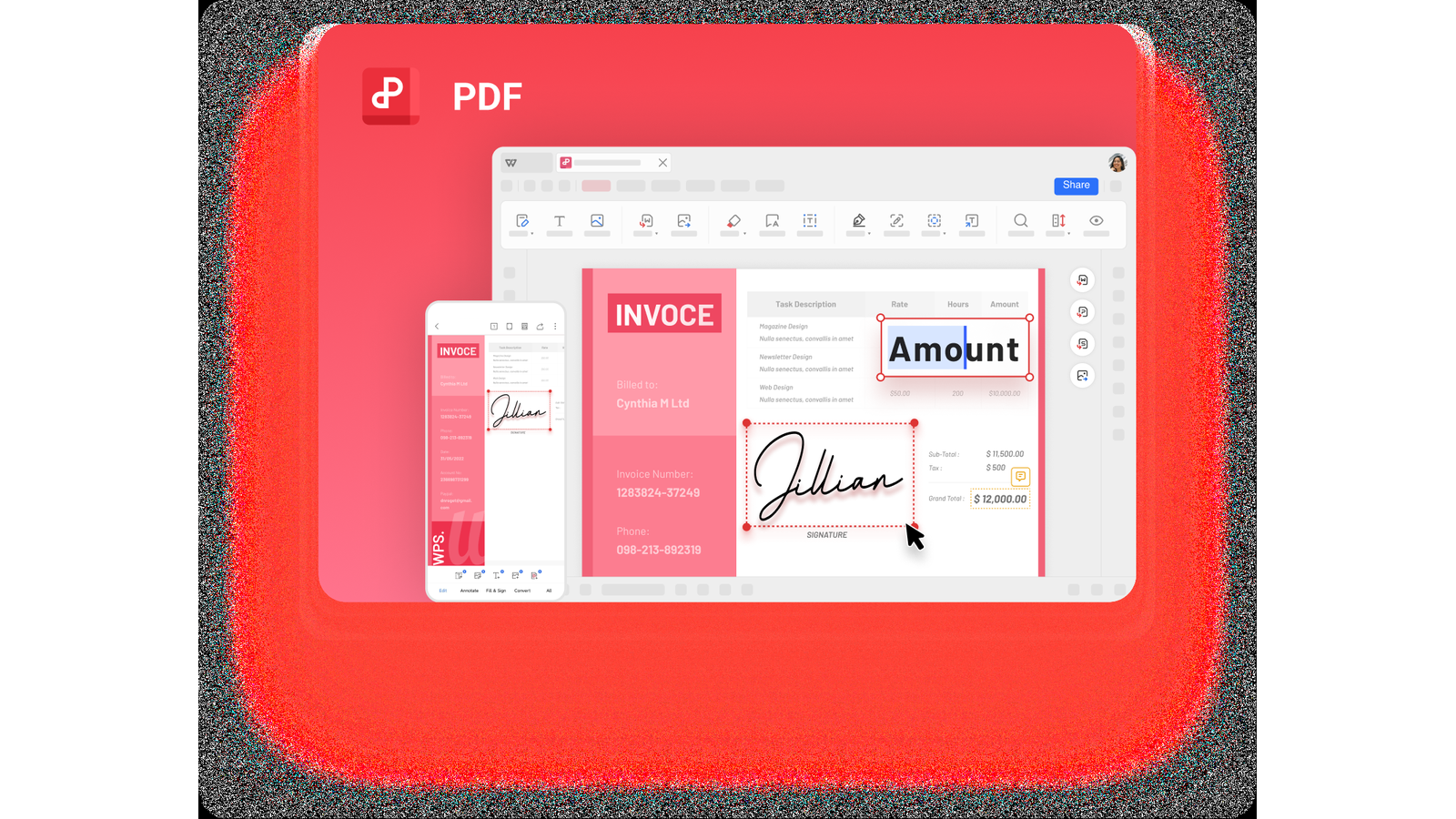
Edit and erase PDF content in WPS Office
FAQs
1. Is whiteout the same as redaction?
No. Whiteout covers content with a shape or an eraser, and the text often stays in the file underneath. Redaction removes the content itself. Use whiteout for cosmetic clean-ups and redaction for anything confidential.
2. Can someone recover the text I whited out?
Yes, if the white box is only an overlay and the file is still text-based. Selecting all and copying, or extracting text, can reveal it. Flatten the PDF by printing it back to PDF, or redact the content, to close that gap.
3. How do I white out a PDF for free without installing anything?
Use a browser-based editor: upload the file, add a rectangle, set the fill and border to white, download. Your phone's built-in markup tools work too if you zoom in first.
4. Why does my white patch look grey or visible?
The fill is usually not pure white, the opacity is below 100 per cent, or the box has a visible border. Pick white with a colour picker from the page itself and set opacity to full.
5. Does whiting out a PDF change the rest of the page?
No. Covering adds an object on top of the page and leaves the text, images and layout underneath untouched. The only thing that changes is what a reader sees in that one spot.


'%3e%3cpath%20d='M19.9911%204.11386V6.471H18.5894C18.0775%206.471%2017.7322%206.57814%2017.5536%206.79243C17.3751%207.00671%2017.2858%207.32814%2017.2858%207.75671V9.44421H19.9019L19.5536%2012.0871H17.2858V18.8639H14.5536V12.0871H12.2769V9.44421H14.5536V7.49779C14.5536%206.39064%2014.8632%205.53201%2015.4822%204.92189C16.1013%204.31177%2016.9257%204.00671%2017.9554%204.00671C18.8304%204.00671%2019.509%204.04243%2019.9911%204.11386Z'%20fill='%23333333'/%3e%3c/g%3e%3cdefs%3e%3cclipPath%20id='clip0_2938_8199'%3e%3crect%20width='16'%20height='16'%20fill='white'%20transform='translate(8%204.00671)'/%3e%3c/clipPath%3e%3c/defs%3e%3c/svg%3e)
'%3e%3cpath%20d='M17.5237%2010.7813L23.4811%204H22.0699L16.8949%209.88693L12.7648%204H8L14.2469%2012.9029L8%2020.0133H9.4112L14.8725%2013.7952L19.2352%2020.0133H24M9.92053%205.04213H12.0885L22.0688%2019.0224H19.9003'%20fill='%23333333'/%3e%3c/g%3e%3cdefs%3e%3cclipPath%20id='clip0_2938_8200'%3e%3crect%20width='16'%20height='16.0134'%20fill='white'%20transform='translate(8%204)'/%3e%3c/clipPath%3e%3c/defs%3e%3c/svg%3e)


