

'%3e%3cpath%20d='M8%200C12.4183%200%2016%203.58172%2016%208C16%2012.4183%2012.4183%2016%208%2016C3.58172%2016%200%2012.4183%200%208C0%203.58172%203.58172%200%208%200ZM11.6162%204.38379C11.2257%203.99337%2010.5927%203.99338%2010.2021%204.38379L8%206.58594L5.79785%204.38379C5.40732%203.99334%204.77429%203.99329%204.38379%204.38379C3.99331%204.77429%203.99335%205.40733%204.38379%205.79785L6.58594%208L4.38379%2010.2021C3.99348%2010.5927%203.99341%2011.2257%204.38379%2011.6162C4.77426%2012.0066%205.40734%2012.0065%205.79785%2011.6162L8%209.41406L10.2021%2011.6162C10.5927%2012.0066%2011.2257%2012.0067%2011.6162%2011.6162C12.0067%2011.2257%2012.0066%2010.5927%2011.6162%2010.2021L9.41406%208L11.6162%205.79785C12.0066%205.40735%2012.0066%204.77429%2011.6162%204.38379Z'%20fill='%23080E17'%20fill-opacity='0.46'/%3e%3c/g%3e%3cdefs%3e%3cclipPath%20id='clip0_3761_713'%3e%3crect%20width='16'%20height='16'%20fill='white'/%3e%3c/clipPath%3e%3c/defs%3e%3c/svg%3e)




'%3e%3cpath%20fill-rule='evenodd'%20clip-rule='evenodd'%20d='M21.4999%2010.9993C21.4999%205.20009%2016.7986%200.498901%2010.9993%200.498901C5.19994%200.498901%200.498657%205.20009%200.498657%2010.9993C0.498657%2016.2404%204.33858%2020.5844%209.35855%2021.3722V14.0346H6.69238V10.9993H9.35855V8.68594C9.35855%206.05427%2010.9262%204.60062%2013.3248%204.60062C14.4736%204.60062%2015.6753%204.80571%2015.6753%204.80571V7.38979H14.3512C13.0468%207.38979%2012.64%208.19921%2012.64%209.0296V10.9993H15.5523L15.0867%2014.0346H12.64V21.3722C17.66%2020.5844%2021.4999%2016.2404%2021.4999%2010.9993Z'%20fill='%231568EA'/%3e%3c/g%3e%3c/svg%3e)


'%3e%3cpath%20d='M2.42045%2022.1876H6.31818V12.7217L0.75%208.54553V20.5171C0.75%2021.4414%201.49892%2022.1876%202.42045%2022.1876Z'%20fill='%234285F4'/%3e%3cpath%20d='M19.682%2022.1876H23.5797C24.5041%2022.1876%2025.2502%2021.4387%2025.2502%2020.5171V8.54553L19.682%2012.7217'%20fill='%2334A853'/%3e%3cpath%20d='M19.682%205.48293V12.7216L25.2502%208.54543V6.31816C25.2502%204.25236%2022.8921%203.07469%2021.2411%204.31361'%20fill='%23FBBC04'/%3e%3cpath%20d='M6.31824%2012.7217V5.48303L13.0001%2010.4944L19.6819%205.48303V12.7217L13.0001%2017.733'%20fill='%23EA4335'/%3e%3cpath%20d='M0.75%206.31816V8.54543L6.31818%2012.7216V5.48293L4.75909%204.31361C3.10534%203.07469%200.75%204.25236%200.75%206.31816Z'%20fill='%23C5221F'/%3e%3c/g%3e%3cdefs%3e%3cclipPath%20id='clip0_2954_7305'%3e%3crect%20width='24.5'%20height='18.375'%20fill='white'%20transform='translate(0.75%203.8125)'/%3e%3c/clipPath%3e%3c/defs%3e%3c/svg%3e)


You signed in the wrong place, the wrong person signed, or the document has to go out again with changes - and now the signature is in the way. In most editors the fix takes seconds: click the signature and press Delete if it is ink on the page, right-click the field and clear it if it is a form field, or clear your own entry in the signature panel if it is a digital signature. The right move depends on which of the three you have, so start with a ten-second check.
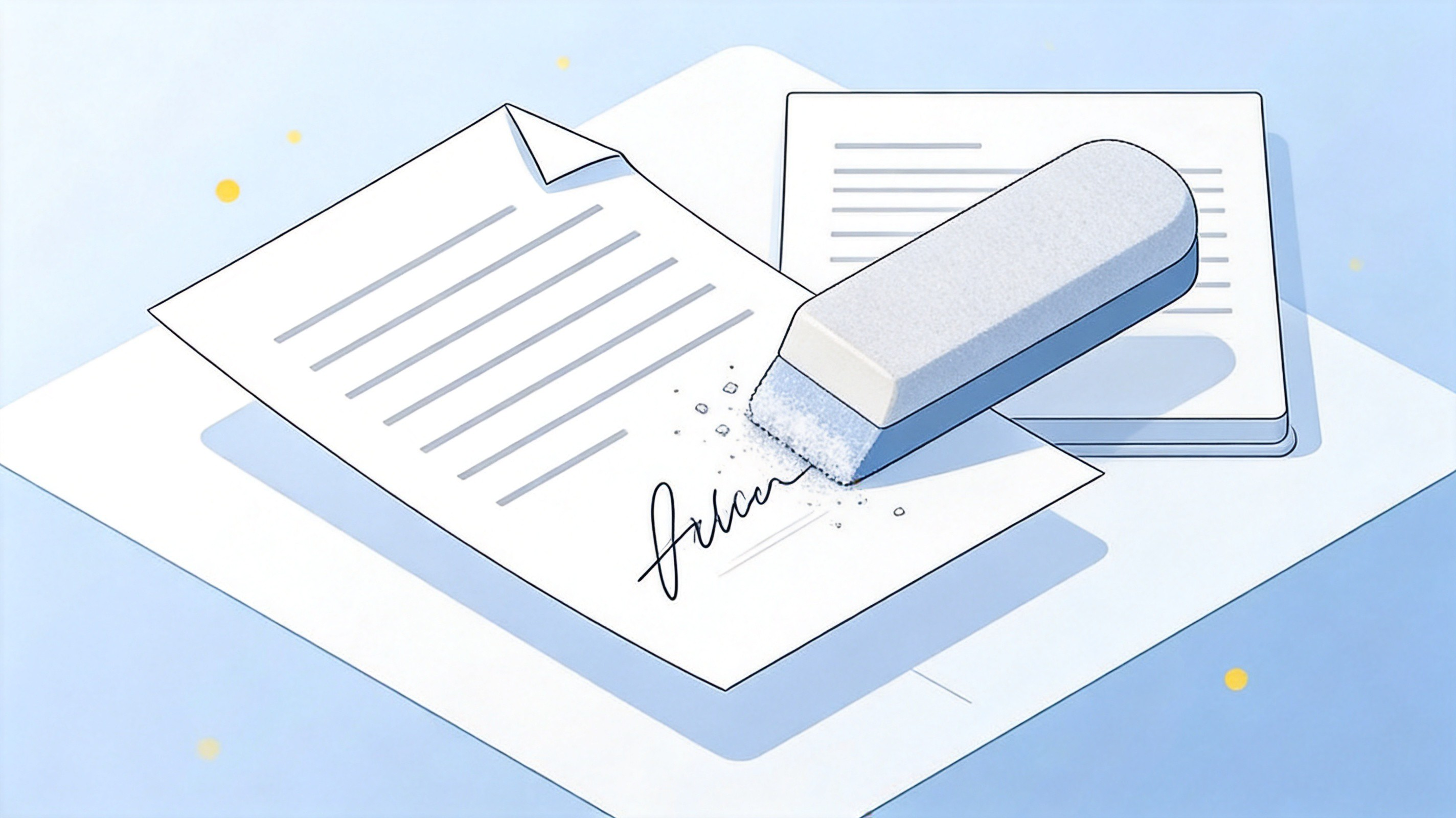
How to Remove a Signature from a PDF: Drawn, Field, and Digital
Know Which Signature You Are Removing from the PDF
Removing a signature from a PDF means three different jobs, and the tool that works for one does nothing for the other two. Click the signature once before you change anything:
A drawn or image signature is handwriting sitting on the page. If clicking it shows a box with selection handles, it is an annotation you can simply delete.
A signature form field is a designated box in a fillable form, sometimes still empty, sometimes already signed. It is cleared from the field itself, not from the page.
A digital (certificate) signature is often invisible on the page. The giveaway is a banner near the top saying the document is signed and the signatures are valid - that is cryptography, not ink.
One honest limit up front: you can always remove your own signature, but a PDF that someone else signed and certified is locked on purpose. For those, the clean route is asking the signer for an unsigned copy rather than fighting the file.
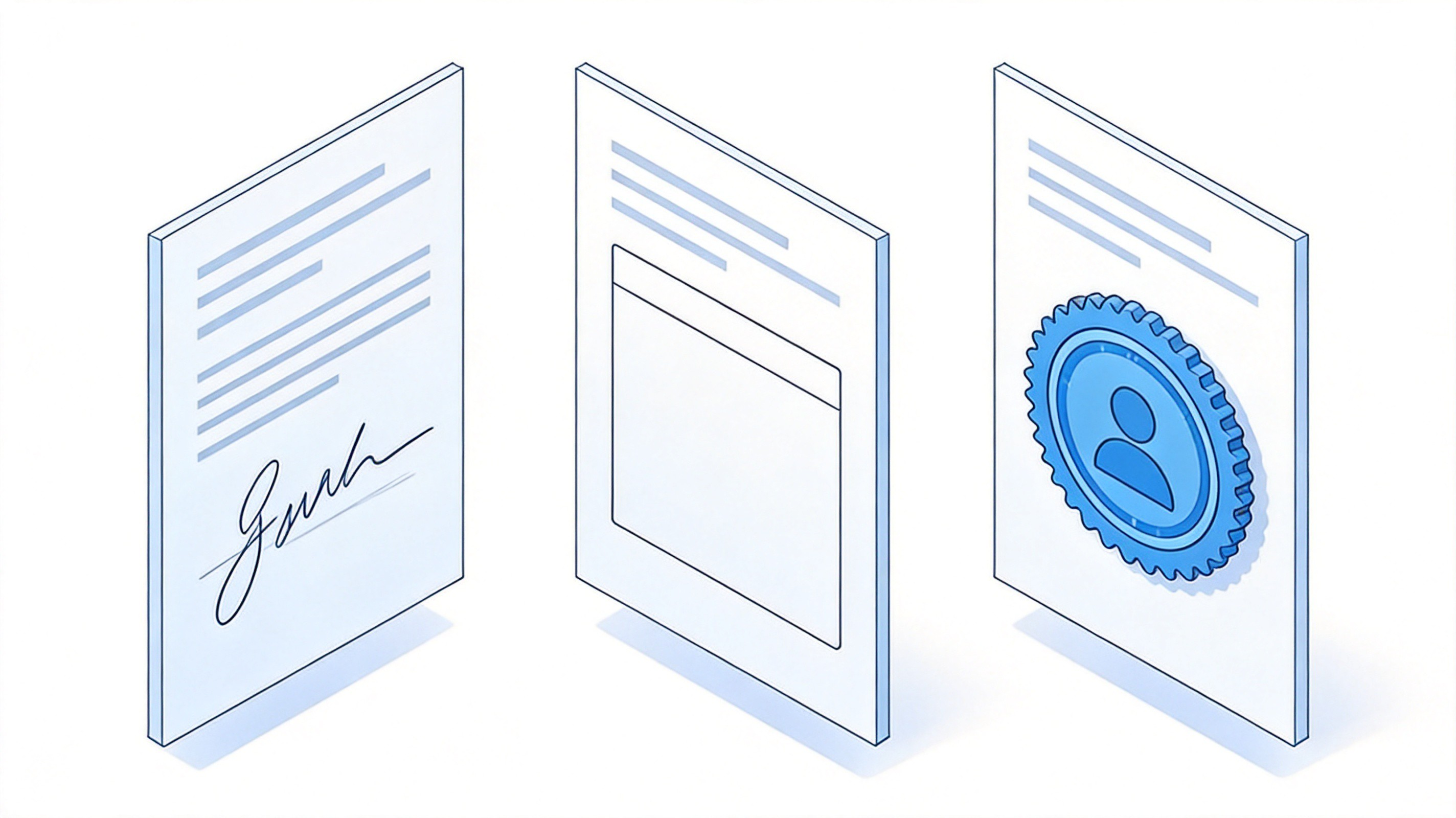
Three ways signatures appear in PDFs


Remove a Drawn or Image Signature from a PDF
This is the common case: someone signed with a signing app or pasted a scanned autograph, and it sits on top of the page as a movable object.
Open the PDF in an editor - a desktop PDF editor or the editor built into your suite. A read-only viewer will not let you touch the object.
Click the signature once. A bounding box with handles confirms it is an annotation.
Press Delete, or right-click and choose Delete from the menu.
Save a copy under a new name so the signed original stays intact for your records.
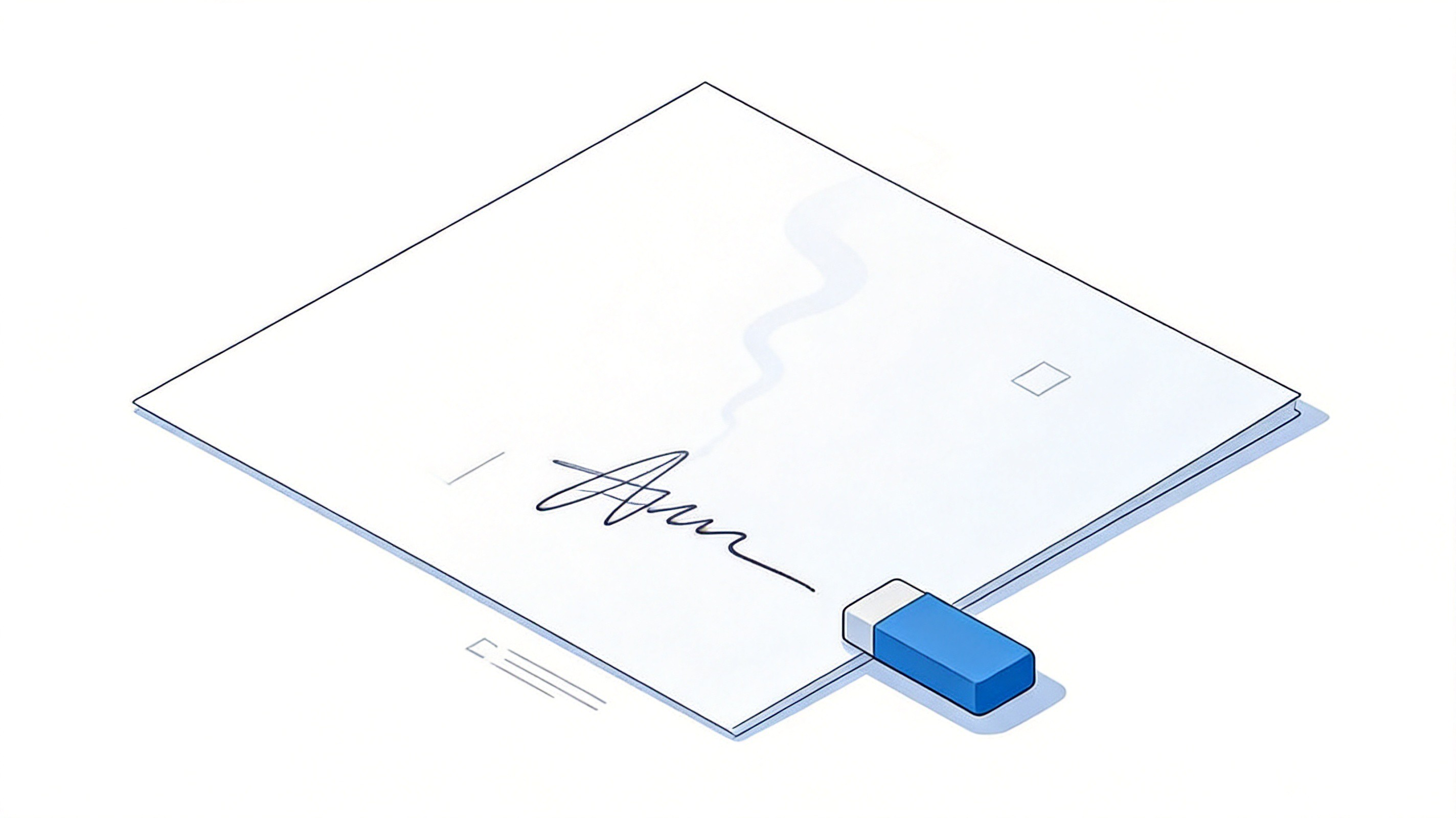
Removing a drawn PDF signature
If clicking does nothing, the signature was flattened into the page - typical for scans and print-to-PDF files. It is now part of the picture, not an object, so erase it instead: use the editor's eraser or a white rectangle over the ink, then export a fresh copy. Once the space is clean you can add a new signature in the right place.
Clear a Signature Field in a PDF Form
Fillable forms keep signatures inside a dedicated field, which is good news - the field can be cleared without touching anything else on the page.
Open the form and click the signature field so it is active.
Right-click the field and choose Clear Signature (the wording varies slightly between editors, but every form-capable editor has a clear or reset command).
The field empties and can be signed again straight away.
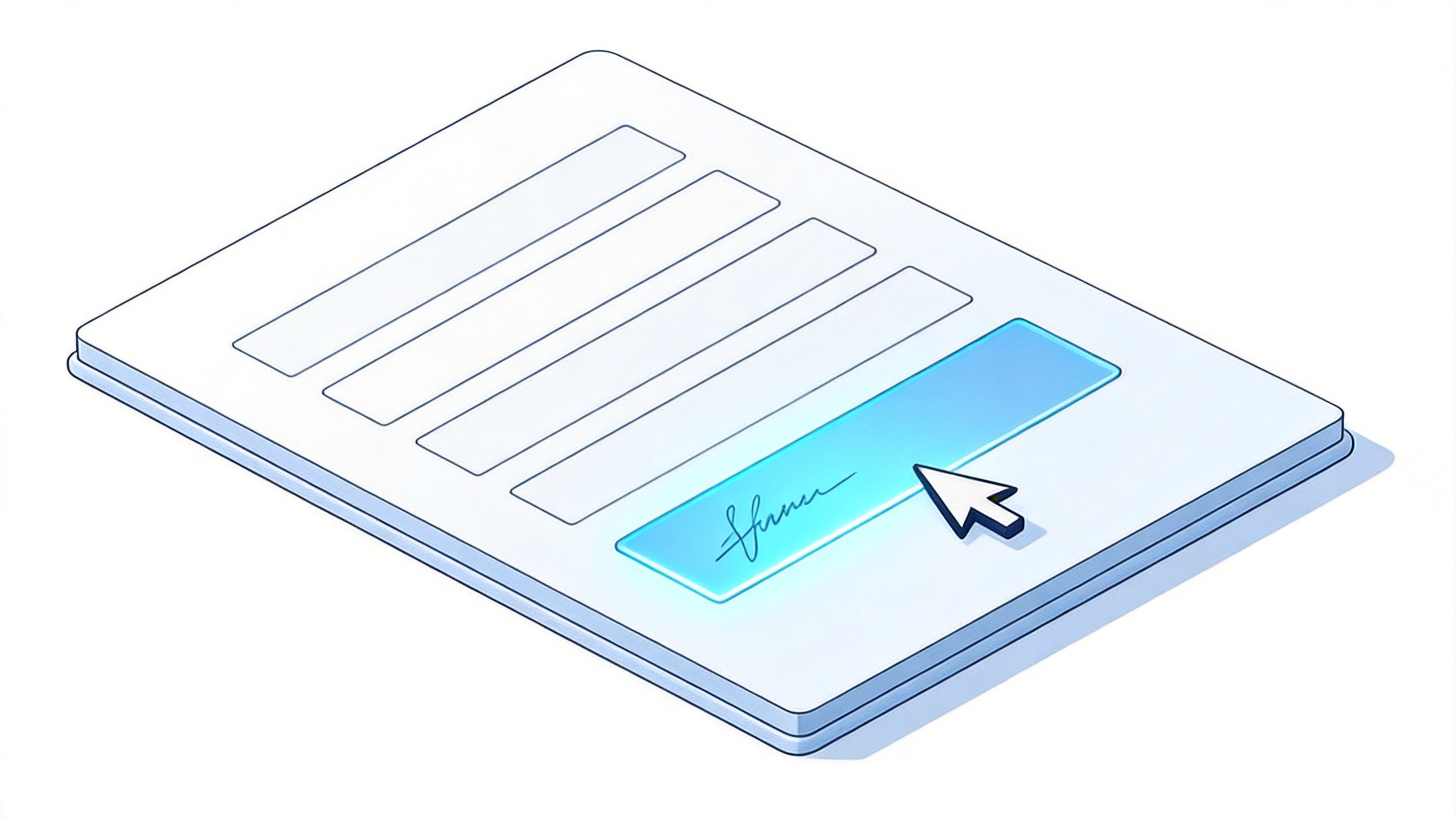
Clearing an empty signature field
Clearing works while the form is still editable and for your own entry. If the form was flattened or certified after signing, the field no longer responds - that is the locked case from the first section, and the honest fix is requesting a fresh copy of the form.
Remove a Digital Signature from a PDF
A certificate-based digital signature lives in the file's signature panel rather than on the page, and removing it is a panel operation:
Open the signature panel. Most editors show it in a sidebar or under the Protect or Signatures menu.
Expand the signature entry to see who signed and whether it is valid.
Right-click your signature and choose Clear Signature. The signed banner disappears and the document becomes editable again.
Save as a new file and re-sign once the content is final.
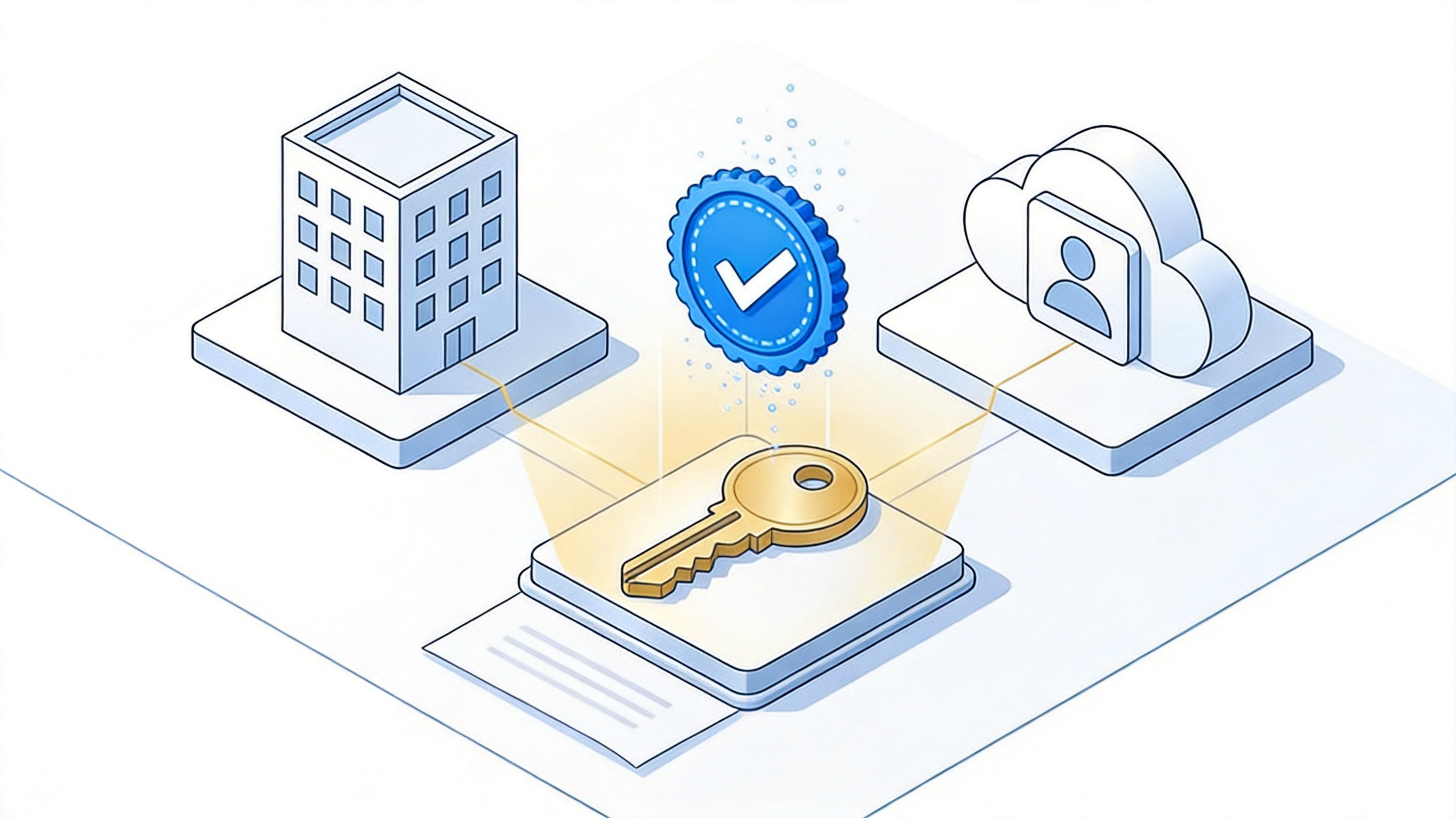
Removing a digital signature certificate
Two rules matter here. You can only clear a signature you created - editors deliberately refuse to strip other people's certificates. And if the document was certified with permissions that forbid changes, no editor will unlock it; get an unsigned version from the certifying party. For heavier jobs such as removing several signature types across a contract, this guide to three free ways to remove a signature from a PDF on Windows and Mac covers the tool-by-tool options.
The Best Free PDF Alternative: WPS Office
Everything above is easier when the editor is free and already on your machine. WPS Office opens PDFs in a full editor rather than a viewer, so annotations like a pasted signature can be selected and deleted directly, form fields can be cleared and re-signed, and the built-in eraser covers signatures that were flattened into a scan. Signing, annotating, converting and compressing sit in the same window, which keeps the whole correct-and-resend loop in one place.
Free for the core jobs: viewing, annotating, signing and basic editing cost nothing.
Real editing tools: select, delete and erase page objects instead of working around them.
One install for everything: PDF, Writer, Spreadsheet and Presentation in a single lightweight suite.
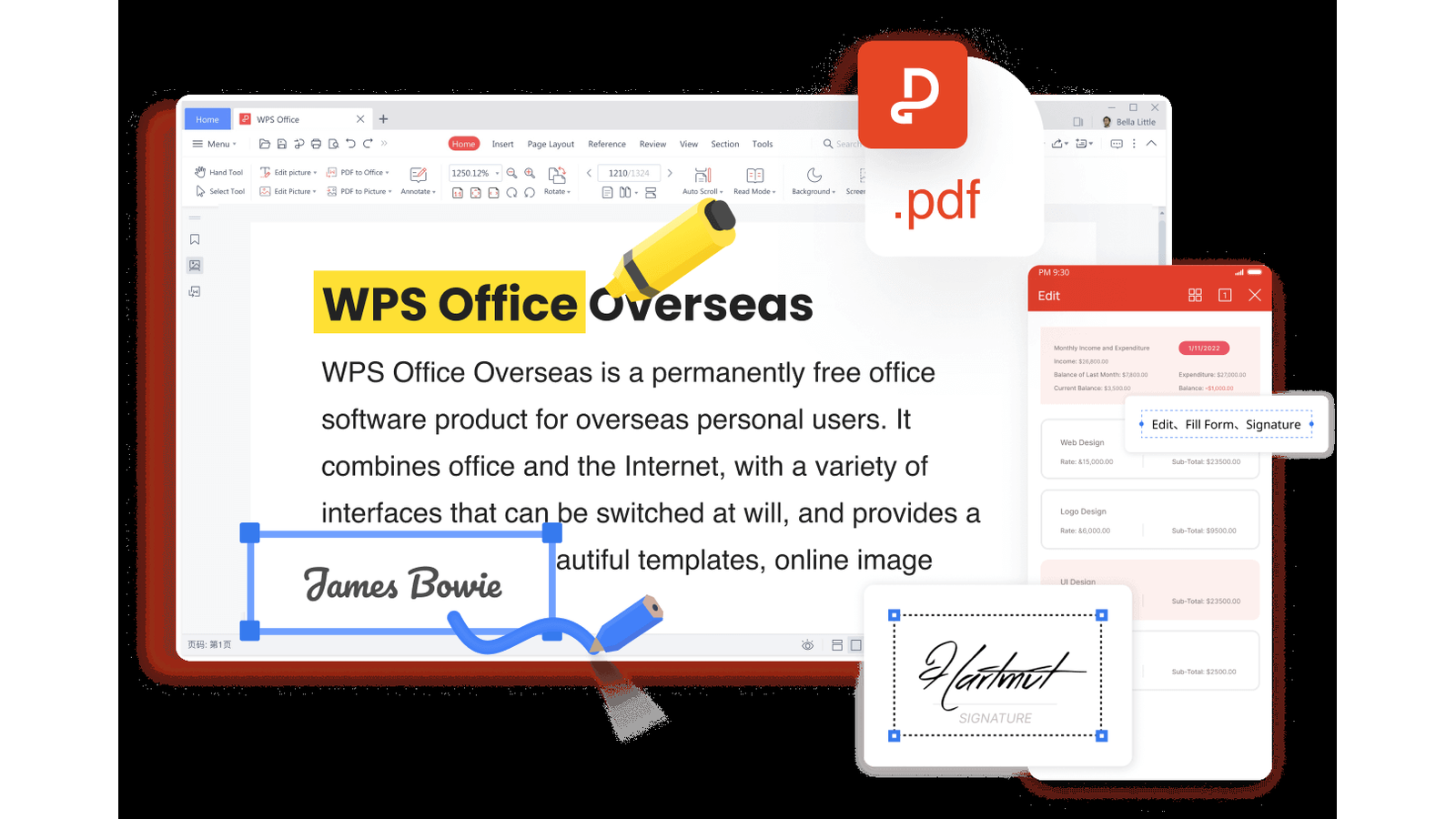
Edit and sign PDFs in WPS Office
FAQs
1. Can I remove someone else's signature from a PDF?
Only when it is a loose annotation, such as a pasted image, and the file is not protected. Digital certificate signatures from other people cannot be cleared - editors block that by design, because the certificate proves who signed. If you need their signature gone, ask the signer for an unsigned copy.
2. Why can I not click or select the signature at all?
The signature has been flattened into the page, which happens when a signed PDF is printed back to PDF or scanned. It is now part of the page image rather than a separate object. Cover it with the editor's eraser or a white rectangle and export a new copy.
3. Does removing a digital signature invalidate the document?
Removing your own signature simply returns the PDF to an unsigned state - the content is unchanged, but it no longer carries proof of signing. That is exactly what you want before editing. Re-sign after the changes so recipients get a valid signature again.
4. How do I remove a signature from a locked or certified PDF?
You do not, from inside the file. Certification locks the document on purpose, and any tool that strips the lock also breaks the document's legal standing. The reliable options are requesting an unsigned original from the certifying party or rebuilding the content into a new file.
5. Will deleting the signature leave a blank space?
Deleting an annotation or clearing a field leaves the page exactly as it was before signing - text and layout underneath are untouched. Erasing a flattened signature removes the ink but also anything printed under it, so check the area at high zoom before sending the file out.


'%3e%3cpath%20d='M19.9911%204.11386V6.471H18.5894C18.0775%206.471%2017.7322%206.57814%2017.5536%206.79243C17.3751%207.00671%2017.2858%207.32814%2017.2858%207.75671V9.44421H19.9019L19.5536%2012.0871H17.2858V18.8639H14.5536V12.0871H12.2769V9.44421H14.5536V7.49779C14.5536%206.39064%2014.8632%205.53201%2015.4822%204.92189C16.1013%204.31177%2016.9257%204.00671%2017.9554%204.00671C18.8304%204.00671%2019.509%204.04243%2019.9911%204.11386Z'%20fill='%23333333'/%3e%3c/g%3e%3cdefs%3e%3cclipPath%20id='clip0_2938_8199'%3e%3crect%20width='16'%20height='16'%20fill='white'%20transform='translate(8%204.00671)'/%3e%3c/clipPath%3e%3c/defs%3e%3c/svg%3e)
'%3e%3cpath%20d='M17.5237%2010.7813L23.4811%204H22.0699L16.8949%209.88693L12.7648%204H8L14.2469%2012.9029L8%2020.0133H9.4112L14.8725%2013.7952L19.2352%2020.0133H24M9.92053%205.04213H12.0885L22.0688%2019.0224H19.9003'%20fill='%23333333'/%3e%3c/g%3e%3cdefs%3e%3cclipPath%20id='clip0_2938_8200'%3e%3crect%20width='16'%20height='16.0134'%20fill='white'%20transform='translate(8%204)'/%3e%3c/clipPath%3e%3c/defs%3e%3c/svg%3e)


