

'%3e%3cpath%20d='M8%200C12.4183%200%2016%203.58172%2016%208C16%2012.4183%2012.4183%2016%208%2016C3.58172%2016%200%2012.4183%200%208C0%203.58172%203.58172%200%208%200ZM11.6162%204.38379C11.2257%203.99337%2010.5927%203.99338%2010.2021%204.38379L8%206.58594L5.79785%204.38379C5.40732%203.99334%204.77429%203.99329%204.38379%204.38379C3.99331%204.77429%203.99335%205.40733%204.38379%205.79785L6.58594%208L4.38379%2010.2021C3.99348%2010.5927%203.99341%2011.2257%204.38379%2011.6162C4.77426%2012.0066%205.40734%2012.0065%205.79785%2011.6162L8%209.41406L10.2021%2011.6162C10.5927%2012.0066%2011.2257%2012.0067%2011.6162%2011.6162C12.0067%2011.2257%2012.0066%2010.5927%2011.6162%2010.2021L9.41406%208L11.6162%205.79785C12.0066%205.40735%2012.0066%204.77429%2011.6162%204.38379Z'%20fill='%23080E17'%20fill-opacity='0.46'/%3e%3c/g%3e%3cdefs%3e%3cclipPath%20id='clip0_3761_713'%3e%3crect%20width='16'%20height='16'%20fill='white'/%3e%3c/clipPath%3e%3c/defs%3e%3c/svg%3e)




'%3e%3cpath%20fill-rule='evenodd'%20clip-rule='evenodd'%20d='M21.4999%2010.9993C21.4999%205.20009%2016.7986%200.498901%2010.9993%200.498901C5.19994%200.498901%200.498657%205.20009%200.498657%2010.9993C0.498657%2016.2404%204.33858%2020.5844%209.35855%2021.3722V14.0346H6.69238V10.9993H9.35855V8.68594C9.35855%206.05427%2010.9262%204.60062%2013.3248%204.60062C14.4736%204.60062%2015.6753%204.80571%2015.6753%204.80571V7.38979H14.3512C13.0468%207.38979%2012.64%208.19921%2012.64%209.0296V10.9993H15.5523L15.0867%2014.0346H12.64V21.3722C17.66%2020.5844%2021.4999%2016.2404%2021.4999%2010.9993Z'%20fill='%231568EA'/%3e%3c/g%3e%3c/svg%3e)


'%3e%3cpath%20d='M2.42045%2022.1876H6.31818V12.7217L0.75%208.54553V20.5171C0.75%2021.4414%201.49892%2022.1876%202.42045%2022.1876Z'%20fill='%234285F4'/%3e%3cpath%20d='M19.682%2022.1876H23.5797C24.5041%2022.1876%2025.2502%2021.4387%2025.2502%2020.5171V8.54553L19.682%2012.7217'%20fill='%2334A853'/%3e%3cpath%20d='M19.682%205.48293V12.7216L25.2502%208.54543V6.31816C25.2502%204.25236%2022.8921%203.07469%2021.2411%204.31361'%20fill='%23FBBC04'/%3e%3cpath%20d='M6.31824%2012.7217V5.48303L13.0001%2010.4944L19.6819%205.48303V12.7217L13.0001%2017.733'%20fill='%23EA4335'/%3e%3cpath%20d='M0.75%206.31816V8.54543L6.31818%2012.7216V5.48293L4.75909%204.31361C3.10534%203.07469%200.75%204.25236%200.75%206.31816Z'%20fill='%23C5221F'/%3e%3c/g%3e%3cdefs%3e%3cclipPath%20id='clip0_2954_7305'%3e%3crect%20width='24.5'%20height='18.375'%20fill='white'%20transform='translate(0.75%203.8125)'/%3e%3c/clipPath%3e%3c/defs%3e%3c/svg%3e)


You do not need a Microsoft 365 subscription to open spreadsheets on a Mac. If you are searching for how to get Excel on Mac for free, the realistic answer is a mix of Microsoft's own free web app and free Excel-compatible tools you can install or already have.
This guide covers three legal methods: Excel for the web, WPS Spreadsheet, and Apple Numbers. Each section starts with a short intro so you can decide which path fits your workflow before following the steps.
Method 1: How to Get Excel on Mac for Free with Microsoft 365 Online
About this method: Microsoft 365 for the web (formerly Office Online) is the closest official way to use Excel itself without paying. You sign in with a free Microsoft account, work in Safari or Chrome, and save files to OneDrive (about 5 GB on a free account). It is ideal when you need native Excel formulas, PivotTables, and easy sharing—and you have a stable internet connection.
What you will not get here is the full desktop Excel feature set. Offline work, advanced add-ins, and some power-user tools still belong to paid desktop Excel. For everyday budgets, lists, and collaborative sheets, the web app is enough for most Mac users.
Steps
Open Safari (or another browser) and go to office.com or Microsoft's free Microsoft 365 online page.
Sign in with a Microsoft account, or create one for free if you do not have one yet.
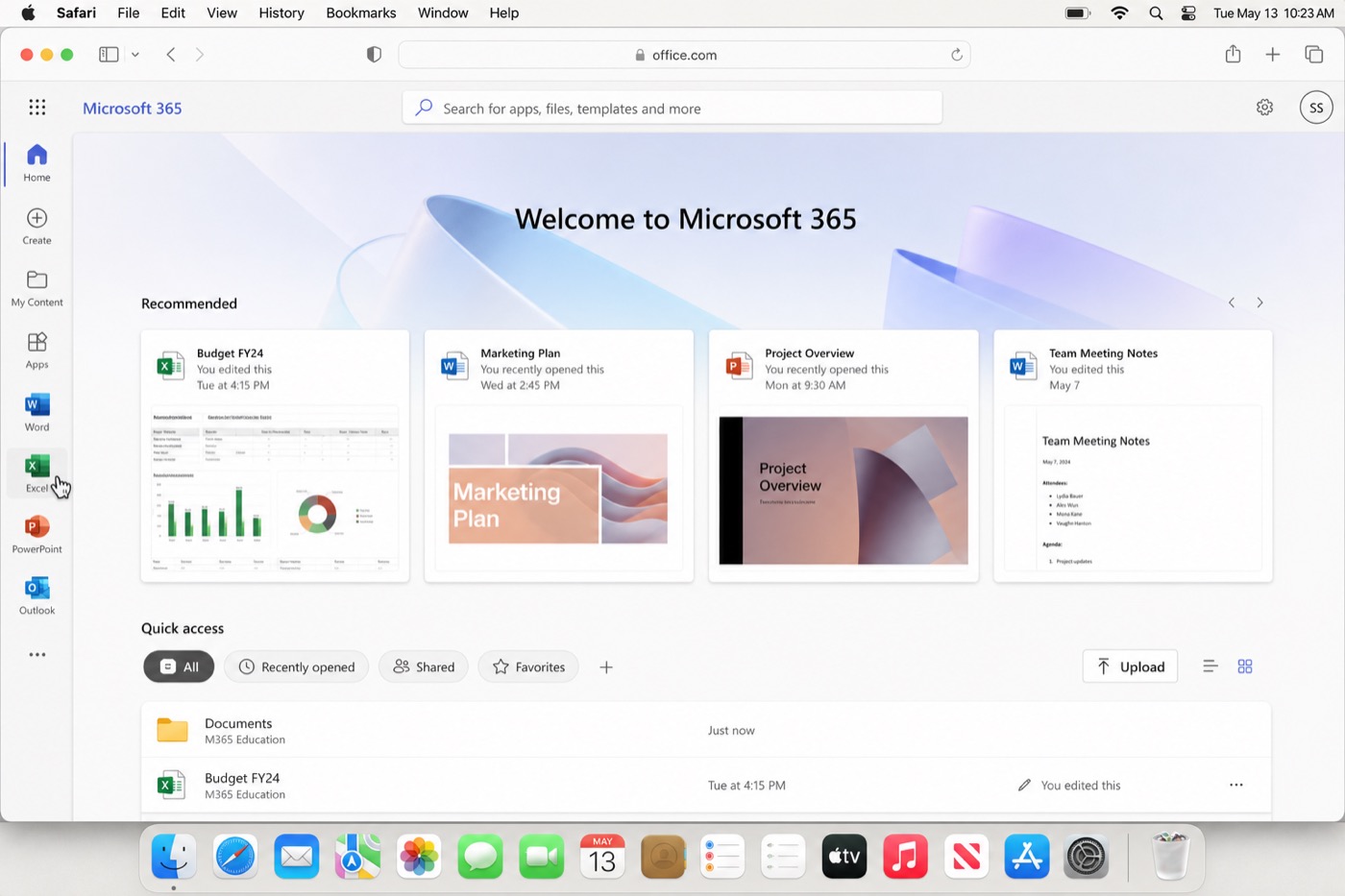
On the Microsoft 365 home page, click the Excel tile to launch Excel for the web.
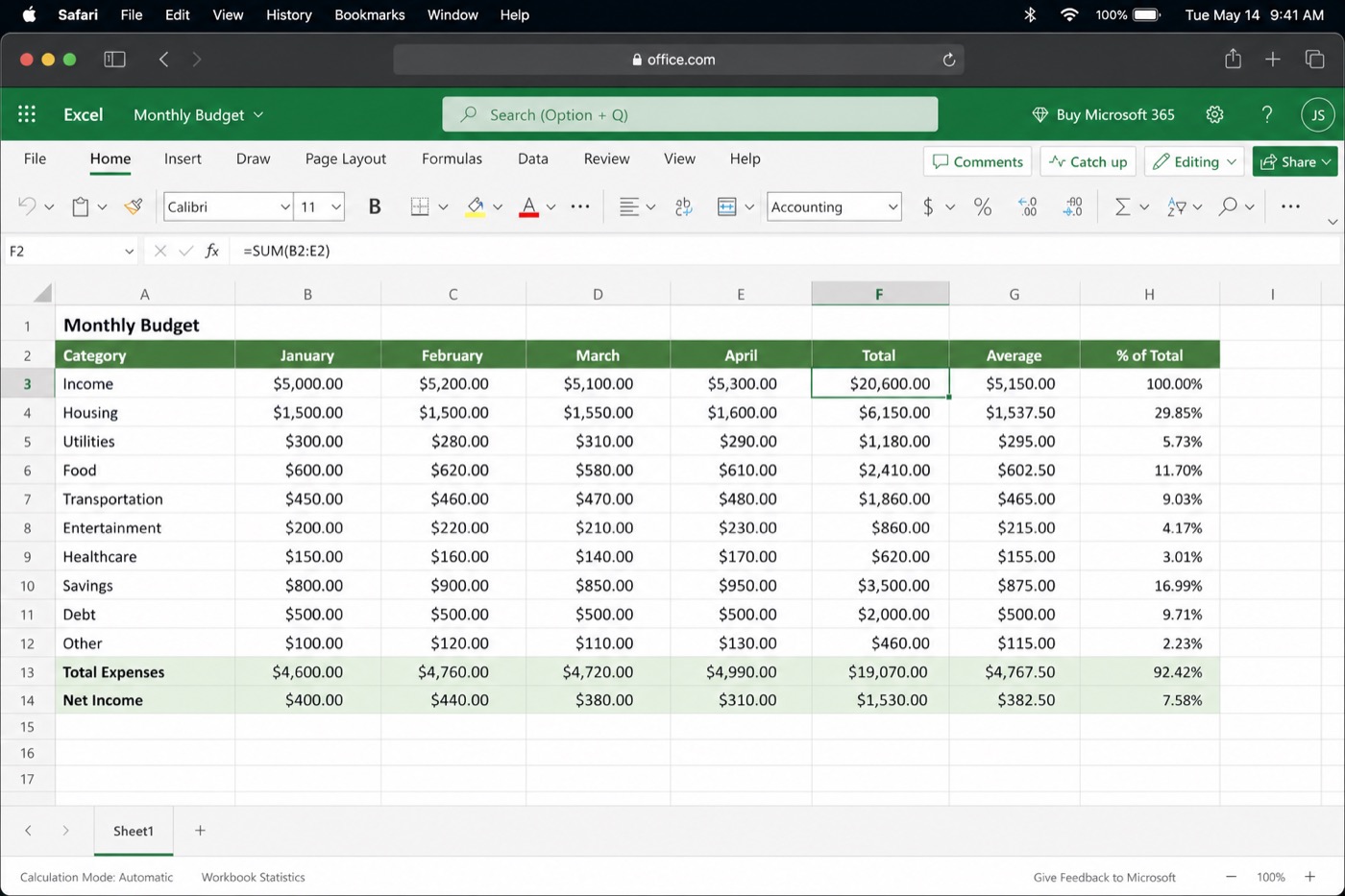
Choose a blank workbook or a template, then build your sheet as usual—formulas, charts, and basic PivotTables are available in the browser.
Files save to OneDrive automatically. You can download a local
.xlsxcopy anytime from the File menu when you need to send the workbook as an email attachment.
Best for: occasional Excel work, school assignments, and collaborating online without installing anything.


Method 2: How to Get Excel on Mac for Free with WPS Spreadsheet
About this method: If you want a free desktop spreadsheet that feels familiar and works offline, WPS Spreadsheet is a practical Excel alternative for Mac. It is part of WPS Office, opens common Excel formats such as .xlsx, .xls, and .csv, and lets you edit formulas, charts, and tables without a Microsoft subscription. The free suite also includes Writer, Presentation, and PDF tools in one install.
This is the best option when your Mac needs a lightweight installed app, you open Excel files often, or you prefer working without staying online. Optional premium features may appear as upgrades, but everyday spreadsheet editing is available on the free tier.
Steps
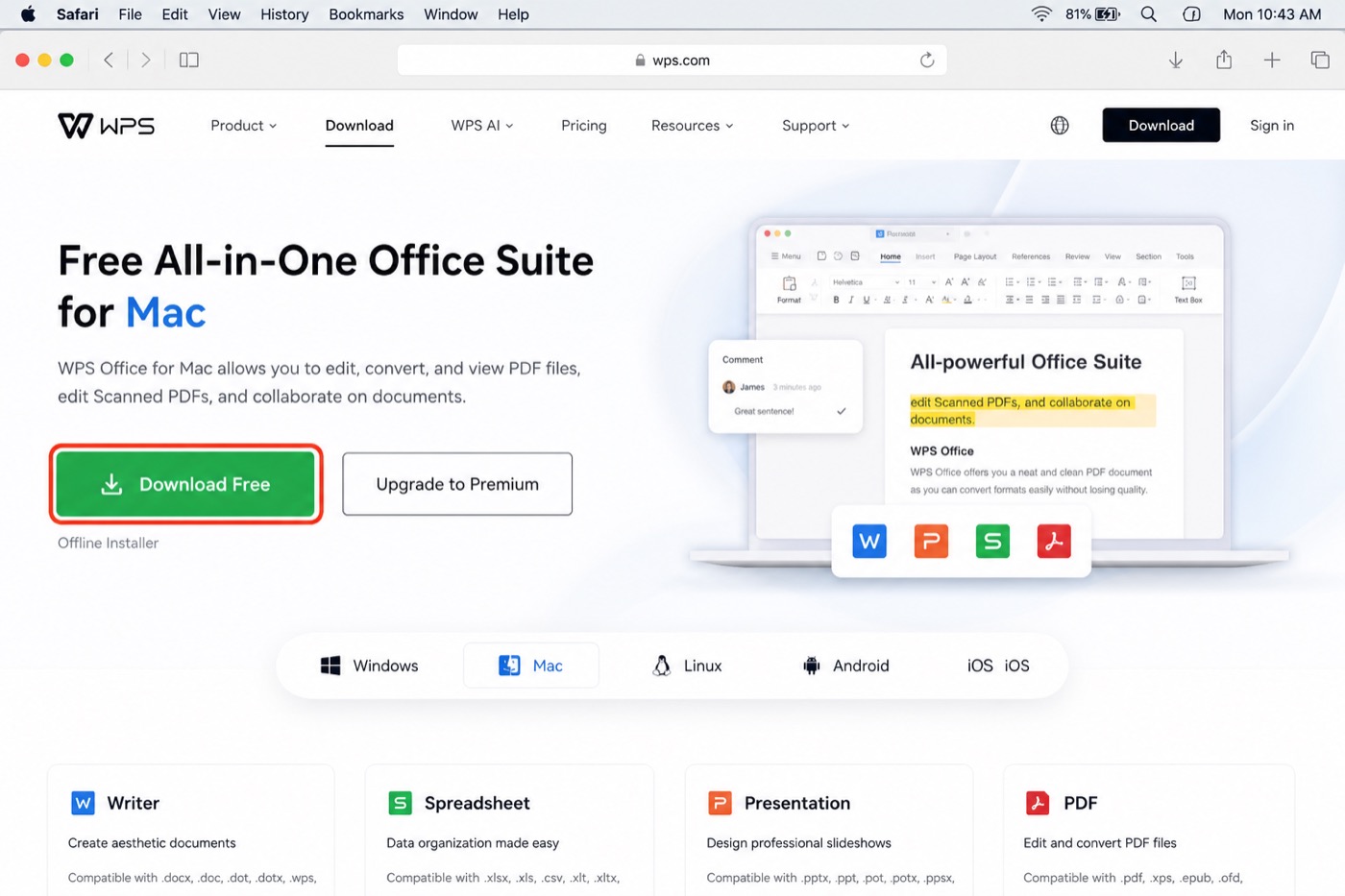
Visit the official WPS Office download page and choose the Mac version.
Download the free installer, then open the
.dmgand drag WPS Office into Applications (follow the on-screen prompts for Apple Silicon or Intel Macs).
Launch WPS Office and open Spreadsheet (or create a new spreadsheet from the home screen).
Use the ribbon to enter data, write formulas, and insert charts—much like working in Excel.
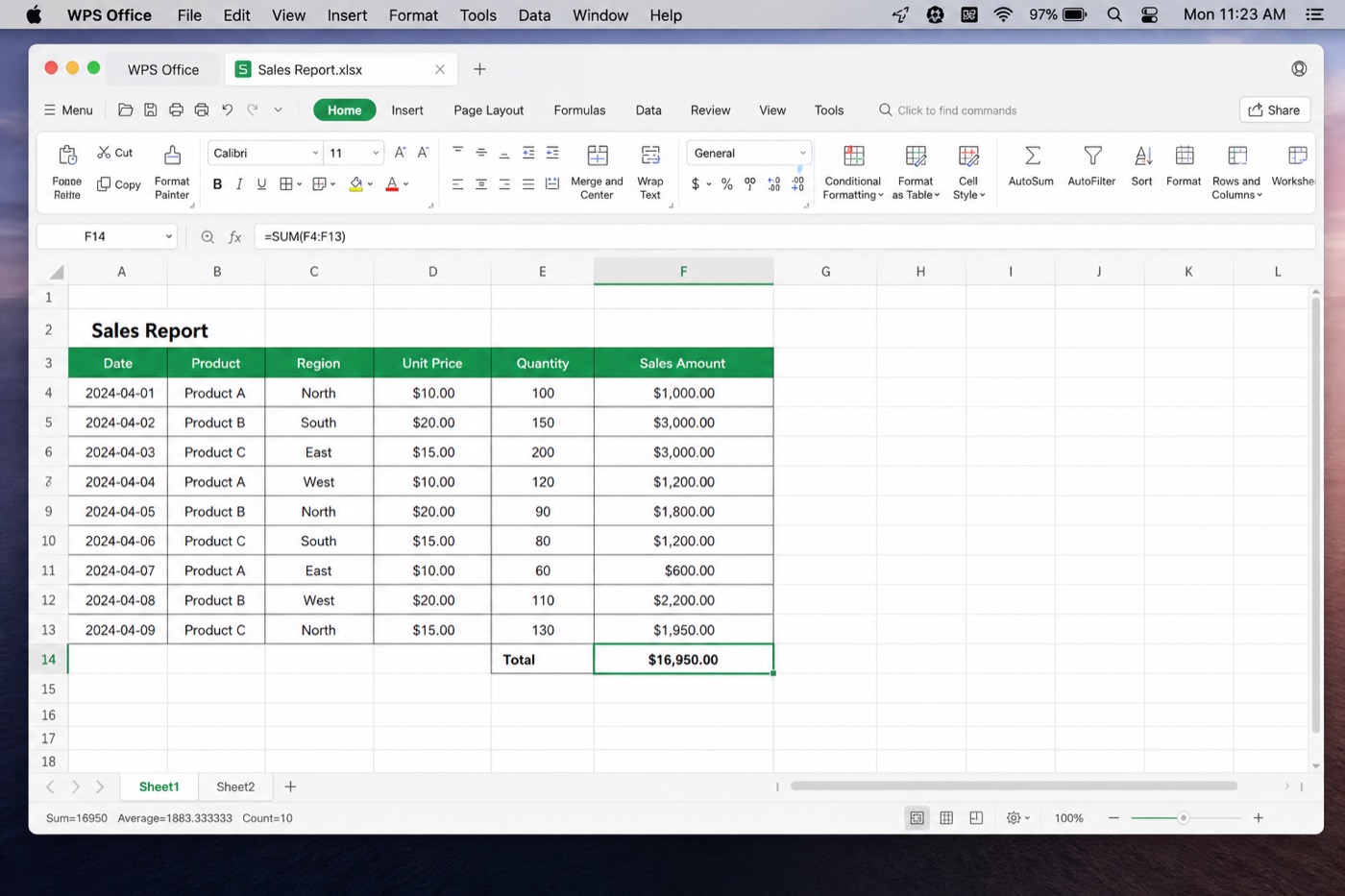
To open an existing Excel workbook, go to File → Open, select your
.xlsxfile, and edit it in place.When you finish, save as Excel (
.xlsx) so colleagues using Microsoft Excel can open the file without conversion headaches.
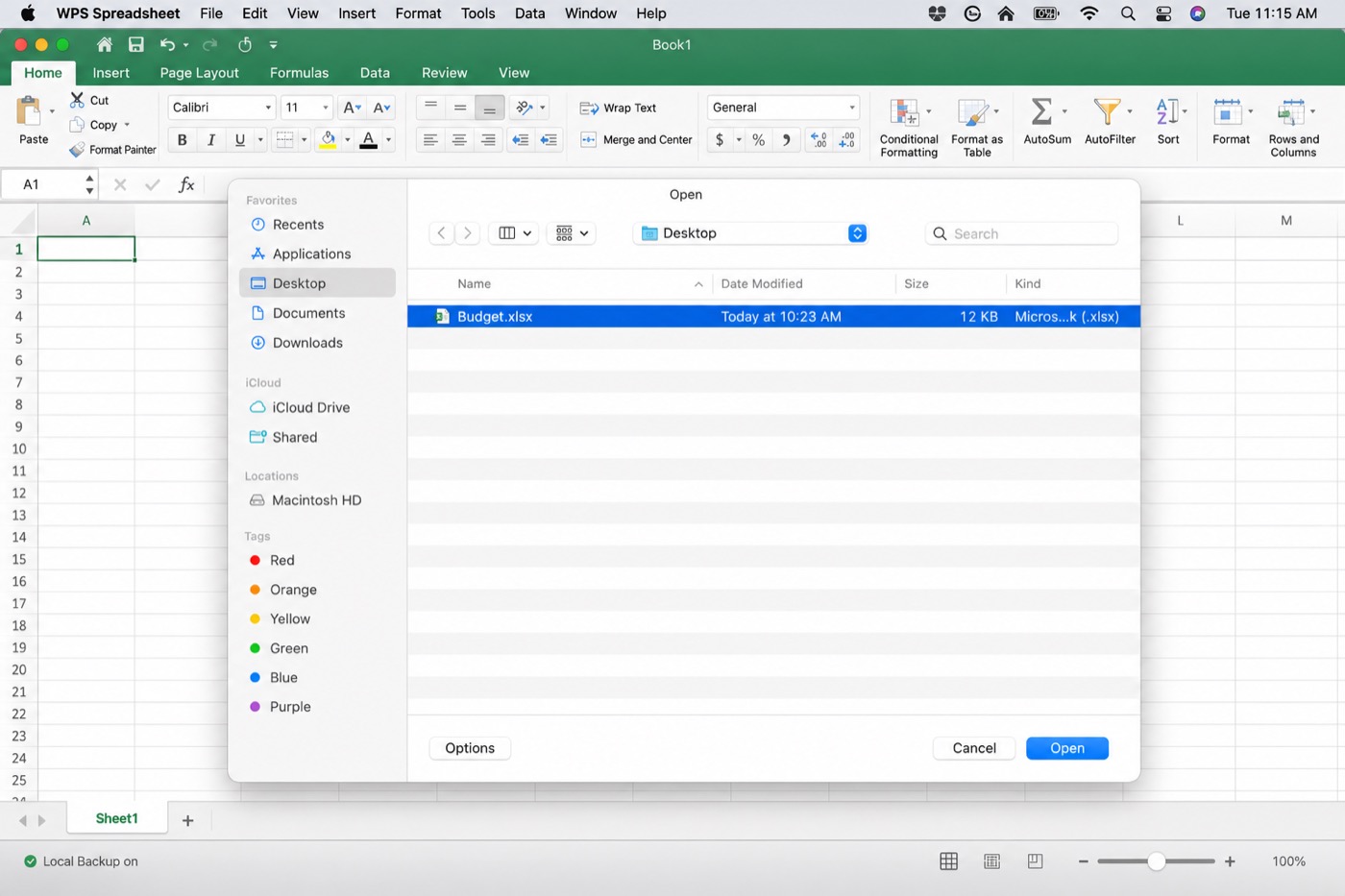
Best for: Mac users who want free offline Excel-compatible editing with a desktop interface similar to Office.
Method 3: How to Get Excel on Mac for Free Using Apple Numbers
About this method: Apple Numbers comes free with most Macs and can import Microsoft Excel files. It is polished, works well offline, and syncs through iCloud if you use other Apple devices. Numbers is not Excel—layouts and some advanced Excel features may change on import—but for personal budgets, simple tables, and Apple-first workflows, it is a zero-cost option already on your Mac.
When you need to send a file back to Windows users, export from Numbers to Excel format so recipients can open it in Microsoft Excel or WPS Spreadsheet.
Steps
Open Numbers from Applications or Launchpad (download it free from the Mac App Store if it is missing).
Choose File → Open, then select an Excel
.xlsxor.xlsfile. Numbers will import the workbook into its own format for editing.
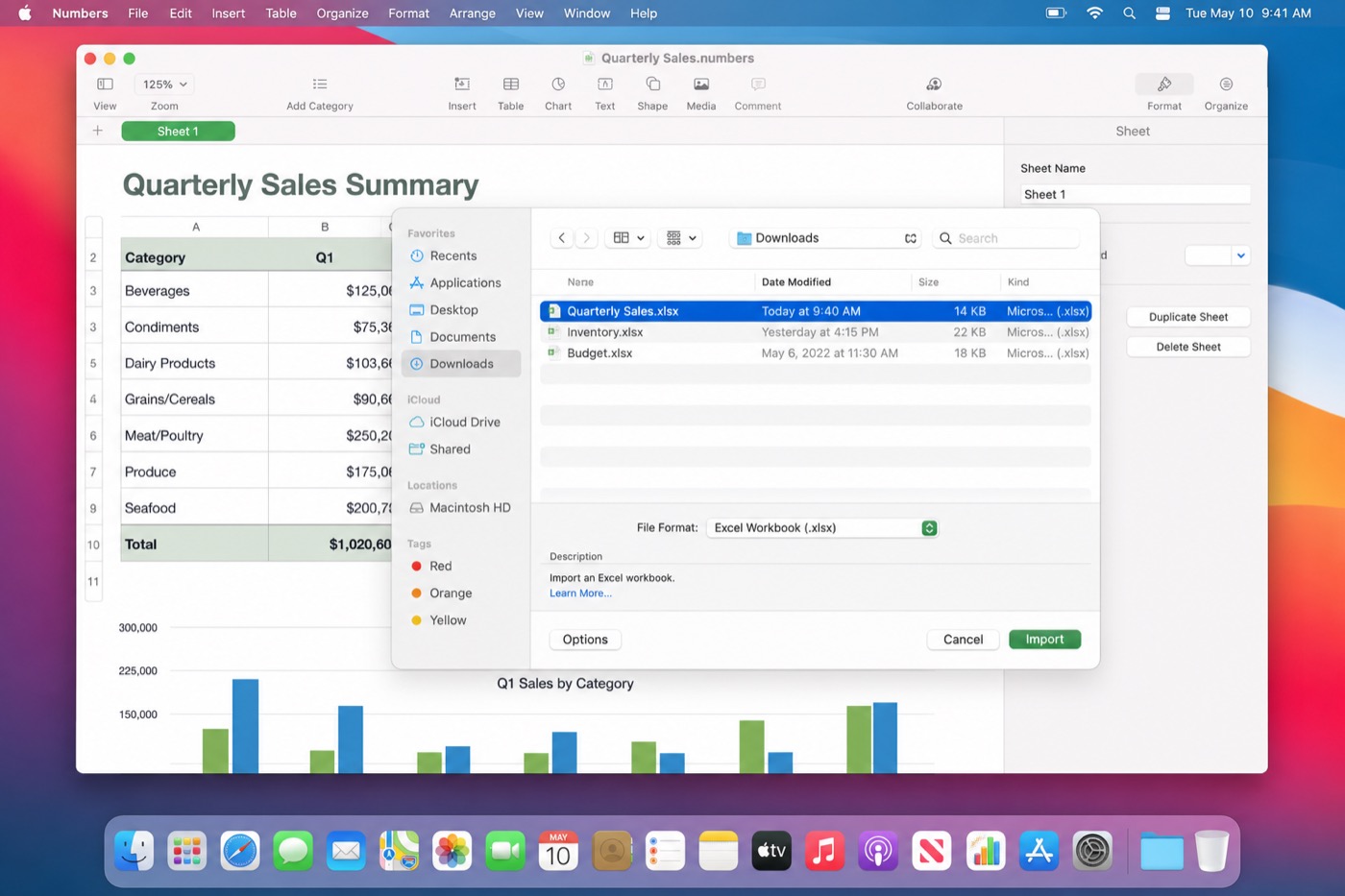
Edit tables, charts, and formulas inside Numbers using the familiar Mac toolbar.
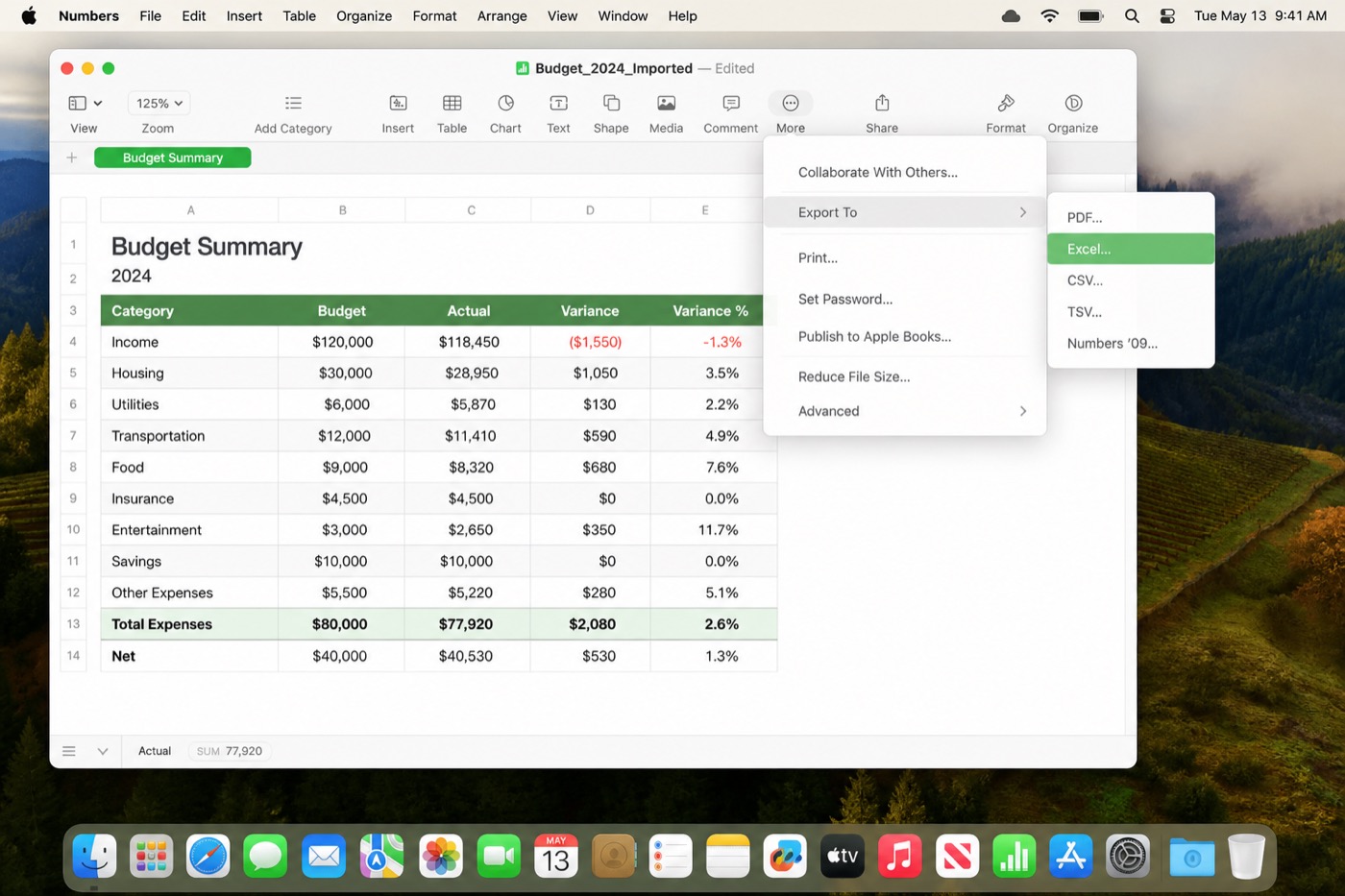
To share with Excel users, choose File → Export To → Excel…, pick your options, and save the
.xlsxfile.
Best for: Mac-only work, light spreadsheet tasks, and anyone who already prefers Apple's built-in apps.
Which Way to Get Excel on Mac for Free Fits You?
Use this quick comparison when you are still deciding how to get Excel on Mac for free for your day-to-day work:
| Method | Cost | Offline | Native Excel UI | Best when… |
|---|---|---|---|---|
| Excel for the web | Free with Microsoft account | No (needs internet) | Yes (browser Excel) | You want real Excel features online |
| WPS Spreadsheet | Free desktop suite | Yes | Excel-like ribbon | You need offline .xlsx editing |
| Apple Numbers | Free on Mac | Yes | Apple-style UI | You stay in the Apple ecosystem |
Avoid cracked installers and "free Office key" sites. They are not legitimate ways to get Excel and often carry malware or stolen licenses.
FAQ
Is Microsoft Excel completely free on Mac?
The full desktop Excel app is not free for most home users. Excel for the web is free with a Microsoft account. Free desktop alternatives like WPS Spreadsheet and Numbers can open Excel files without a Microsoft 365 subscription.
Can I download Excel from the Mac App Store for free?
You can download the Excel app, but activating the full desktop experience usually requires a Microsoft 365 plan or another qualifying license. Downloading alone does not unlock paid desktop Excel forever.
Does WPS Spreadsheet work with Excel files on Mac?
Yes. WPS Spreadsheet supports common Excel formats such as .xlsx, .xls, and .csv, so you can open, edit, and save workbooks for sharing with Excel users.
What if I need Excel offline without paying?
Use WPS Spreadsheet or Apple Numbers on your Mac. Excel for the web requires an internet connection and is not a full offline desktop substitute.


'%3e%3cpath%20d='M19.9911%204.11386V6.471H18.5894C18.0775%206.471%2017.7322%206.57814%2017.5536%206.79243C17.3751%207.00671%2017.2858%207.32814%2017.2858%207.75671V9.44421H19.9019L19.5536%2012.0871H17.2858V18.8639H14.5536V12.0871H12.2769V9.44421H14.5536V7.49779C14.5536%206.39064%2014.8632%205.53201%2015.4822%204.92189C16.1013%204.31177%2016.9257%204.00671%2017.9554%204.00671C18.8304%204.00671%2019.509%204.04243%2019.9911%204.11386Z'%20fill='%23333333'/%3e%3c/g%3e%3cdefs%3e%3cclipPath%20id='clip0_2938_8199'%3e%3crect%20width='16'%20height='16'%20fill='white'%20transform='translate(8%204.00671)'/%3e%3c/clipPath%3e%3c/defs%3e%3c/svg%3e)
'%3e%3cpath%20d='M17.5237%2010.7813L23.4811%204H22.0699L16.8949%209.88693L12.7648%204H8L14.2469%2012.9029L8%2020.0133H9.4112L14.8725%2013.7952L19.2352%2020.0133H24M9.92053%205.04213H12.0885L22.0688%2019.0224H19.9003'%20fill='%23333333'/%3e%3c/g%3e%3cdefs%3e%3cclipPath%20id='clip0_2938_8200'%3e%3crect%20width='16'%20height='16.0134'%20fill='white'%20transform='translate(8%204)'/%3e%3c/clipPath%3e%3c/defs%3e%3c/svg%3e)


