

'%3e%3cpath%20d='M8%200C12.4183%200%2016%203.58172%2016%208C16%2012.4183%2012.4183%2016%208%2016C3.58172%2016%200%2012.4183%200%208C0%203.58172%203.58172%200%208%200ZM11.6162%204.38379C11.2257%203.99337%2010.5927%203.99338%2010.2021%204.38379L8%206.58594L5.79785%204.38379C5.40732%203.99334%204.77429%203.99329%204.38379%204.38379C3.99331%204.77429%203.99335%205.40733%204.38379%205.79785L6.58594%208L4.38379%2010.2021C3.99348%2010.5927%203.99341%2011.2257%204.38379%2011.6162C4.77426%2012.0066%205.40734%2012.0065%205.79785%2011.6162L8%209.41406L10.2021%2011.6162C10.5927%2012.0066%2011.2257%2012.0067%2011.6162%2011.6162C12.0067%2011.2257%2012.0066%2010.5927%2011.6162%2010.2021L9.41406%208L11.6162%205.79785C12.0066%205.40735%2012.0066%204.77429%2011.6162%204.38379Z'%20fill='%23080E17'%20fill-opacity='0.46'/%3e%3c/g%3e%3cdefs%3e%3cclipPath%20id='clip0_3761_713'%3e%3crect%20width='16'%20height='16'%20fill='white'/%3e%3c/clipPath%3e%3c/defs%3e%3c/svg%3e)




'%3e%3cpath%20fill-rule='evenodd'%20clip-rule='evenodd'%20d='M21.4999%2010.9993C21.4999%205.20009%2016.7986%200.498901%2010.9993%200.498901C5.19994%200.498901%200.498657%205.20009%200.498657%2010.9993C0.498657%2016.2404%204.33858%2020.5844%209.35855%2021.3722V14.0346H6.69238V10.9993H9.35855V8.68594C9.35855%206.05427%2010.9262%204.60062%2013.3248%204.60062C14.4736%204.60062%2015.6753%204.80571%2015.6753%204.80571V7.38979H14.3512C13.0468%207.38979%2012.64%208.19921%2012.64%209.0296V10.9993H15.5523L15.0867%2014.0346H12.64V21.3722C17.66%2020.5844%2021.4999%2016.2404%2021.4999%2010.9993Z'%20fill='%231568EA'/%3e%3c/g%3e%3c/svg%3e)


'%3e%3cpath%20d='M2.42045%2022.1876H6.31818V12.7217L0.75%208.54553V20.5171C0.75%2021.4414%201.49892%2022.1876%202.42045%2022.1876Z'%20fill='%234285F4'/%3e%3cpath%20d='M19.682%2022.1876H23.5797C24.5041%2022.1876%2025.2502%2021.4387%2025.2502%2020.5171V8.54553L19.682%2012.7217'%20fill='%2334A853'/%3e%3cpath%20d='M19.682%205.48293V12.7216L25.2502%208.54543V6.31816C25.2502%204.25236%2022.8921%203.07469%2021.2411%204.31361'%20fill='%23FBBC04'/%3e%3cpath%20d='M6.31824%2012.7217V5.48303L13.0001%2010.4944L19.6819%205.48303V12.7217L13.0001%2017.733'%20fill='%23EA4335'/%3e%3cpath%20d='M0.75%206.31816V8.54543L6.31818%2012.7216V5.48293L4.75909%204.31361C3.10534%203.07469%200.75%204.25236%200.75%206.31816Z'%20fill='%23C5221F'/%3e%3c/g%3e%3cdefs%3e%3cclipPath%20id='clip0_2954_7305'%3e%3crect%20width='24.5'%20height='18.375'%20fill='white'%20transform='translate(0.75%203.8125)'/%3e%3c/clipPath%3e%3c/defs%3e%3c/svg%3e)


Uzbek is spoken by more than 30 million people, and whether you are reading a menu, a sign, a scanned form, or a screenshot, the fastest way to understand it is to translate the photo itself instead of retyping the text. In this guide, you will learn how to translate English to Uzbek photo files for free using Google Translate, WPS Office, and mobile apps, plus a few habits that make the results far more accurate.
How to Translate English to Uzbek Photo: Free Methods That Work
How to Translate English to Uzbek Photo with Google Translate
Google Translate is the quickest way to translate English to Uzbek photo files because it works in the browser, needs no account, and reads the text straight out of the image. It handles clean printed text best; handwriting and decorative fonts may come out rough.
Open Google Translate at translate.google.com on your desktop or in the mobile app.
Set the languages: choose English (or Detect language) on the left and Uzbek on the right.
Click the Images tab at the top of the text box, then drag your photo in or browse for it.
Review the result: the Uzbek translation appears over or beside the original text, and you can copy it or download the translated image.
If the first pass looks garbled, try a sharper version of the photo. Google's photo mode struggles with blur, glare, and tiny text, and no tool can fully recover characters it cannot see.
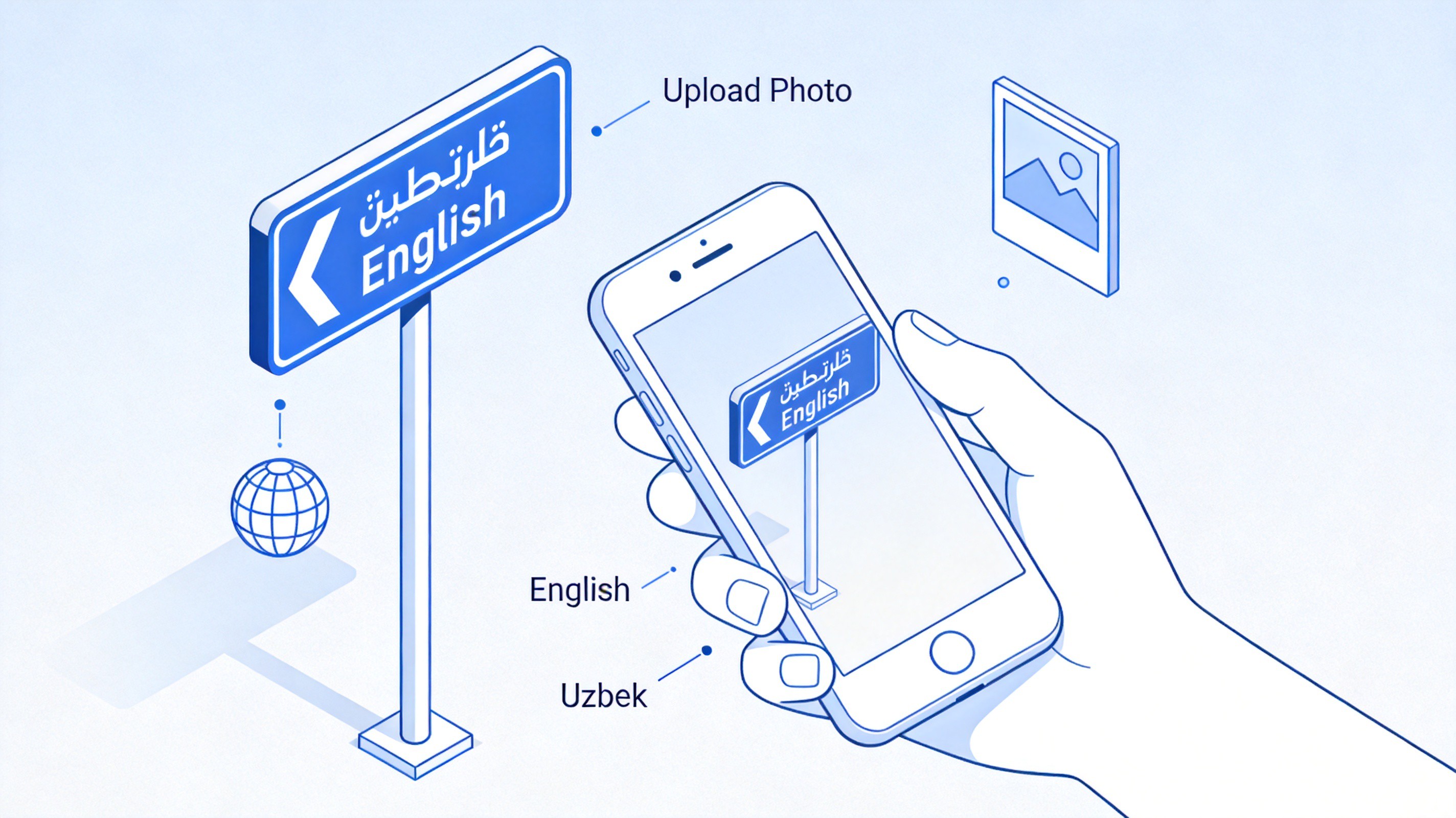
Translate English to Uzbek photo with Google Translate


Translate English to Uzbek Photo with WPS Office: Full Workflow
When the photo comes from a scanned document or you need an editable result, a quick on-screen translation is not enough. WPS Office gives you a full workflow: turn the image into a PDF, extract the text with OCR, translate it, and export a clean document you can keep editing.
Insert the photo into a document in WPS Writer, or open the original file it was scanned from, then export it as a PDF.
Open the PDF in WPS PDF and run the OCR feature so the machine reads the English text instead of treating it as a picture.
Copy the extracted text and translate it with WPS's built-in translation tool, or paste it into any translator and set English to Uzbek.
Paste the Uzbek text back into a new document, fix the layout, and save it as DOCX or export it to PDF.
This route takes one extra minute, but it keeps the text editable, which matters for forms, contracts, and anything you need to reuse. If you regularly work with translated documents, the same workflow applies to other language pairs as well, such as translating a PDF from English to Marathi.
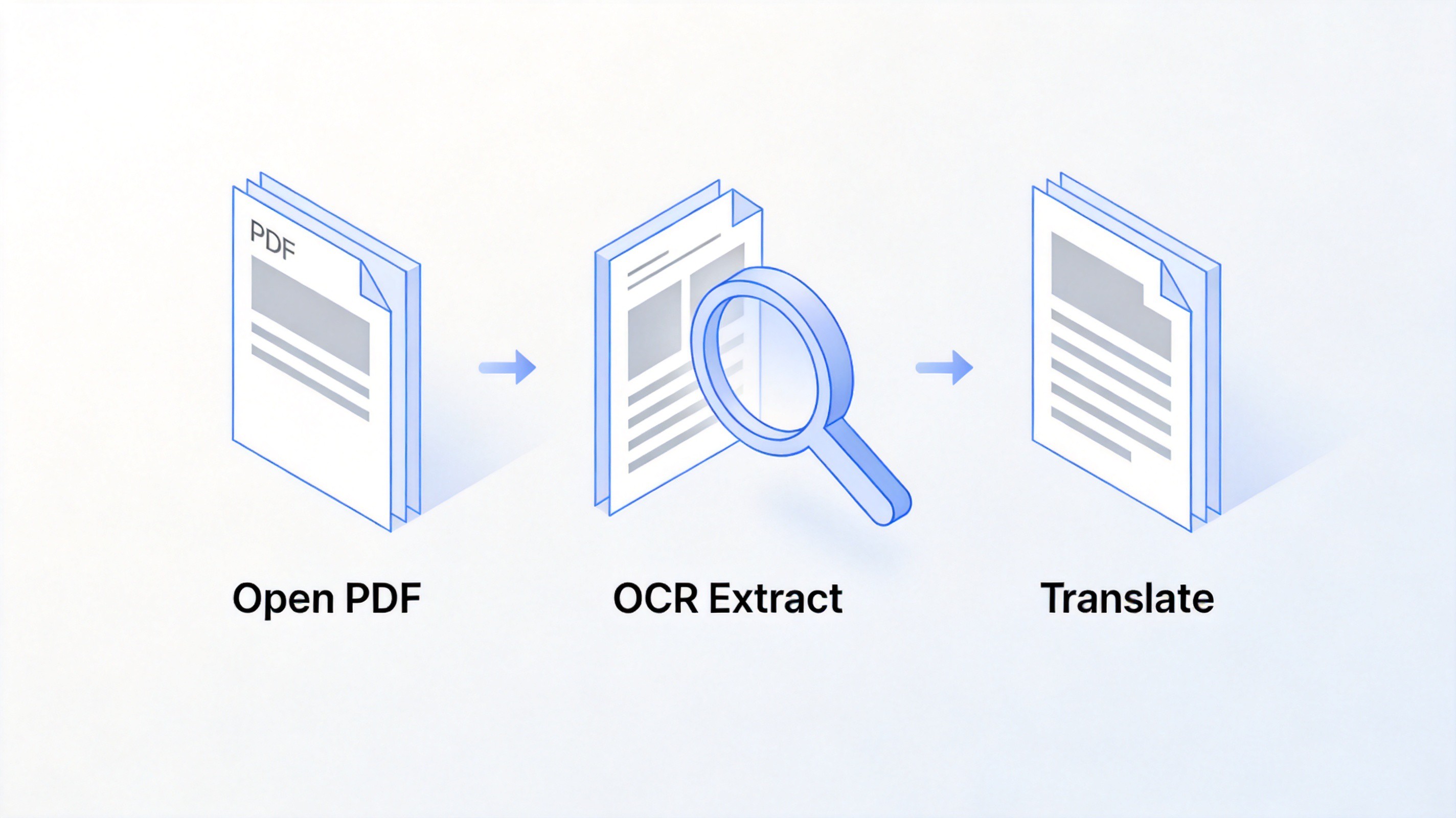
OCR and translate English photo in WPS Office
Best Mobile Apps to Translate English to Uzbek Photo
On the go, phone apps are the most convenient way to translate English to Uzbek photo captures like road signs, menus, and packaging. Three free options cover most situations:
Google Translate (iOS, Android): point the camera at live text for instant overlay translation, or import a photo from your gallery. Free and supports Uzbek.
Yandex Translate: free photo, text, and voice translation with a simple interface, and it handles Uzbek well, which makes it popular across Central Asia.
iTranslate / Lingvanex: both support camera translation with Uzbek as a target language and offer offline packs, useful when you have no data connection while traveling.
For a one-off photo, any of these will do. If you translate documents often, pair a mobile app for quick checks with the desktop workflow above for editable output.
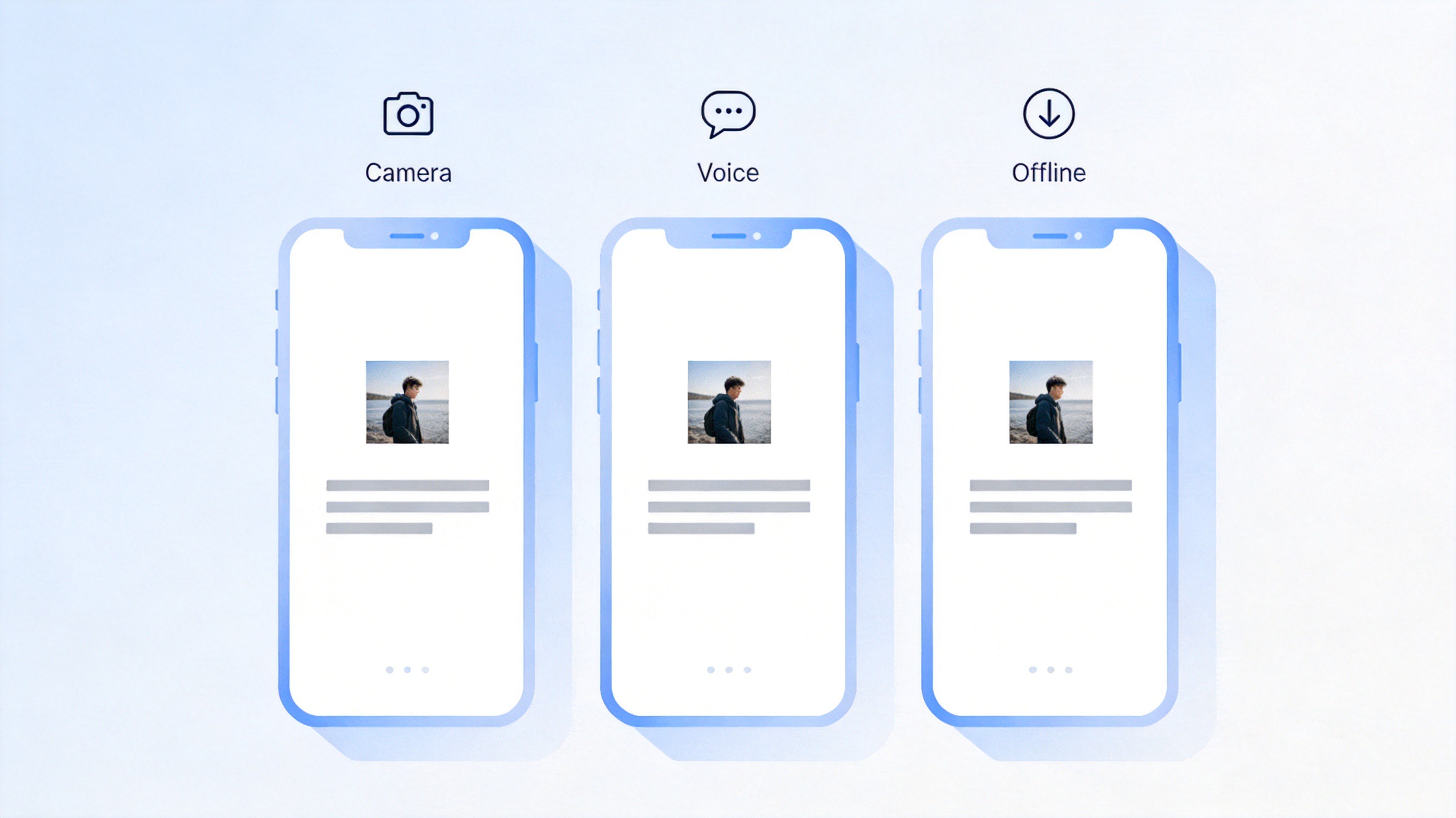
Mobile apps to translate English to Uzbek photo
Tips for Accurate English to Uzbek Photo Translation
Whatever tool you choose, the quality of your English to Uzbek photo translation depends as much on the photo as on the software. A few habits prevent most errors:
Shoot sharp and well lit: hold the camera steady, avoid glare, and fill the frame with the text you need.
Crop before translating: extra backgrounds and decorations confuse OCR and produce stray characters.
Proofread names and numbers: dates, prices, and proper nouns are where machine translation most often slips, so double-check them against the original.
Mind the script: Uzbek appears in both Latin and Cyrillic scripts, so confirm which one your recipient expects before you share the result.
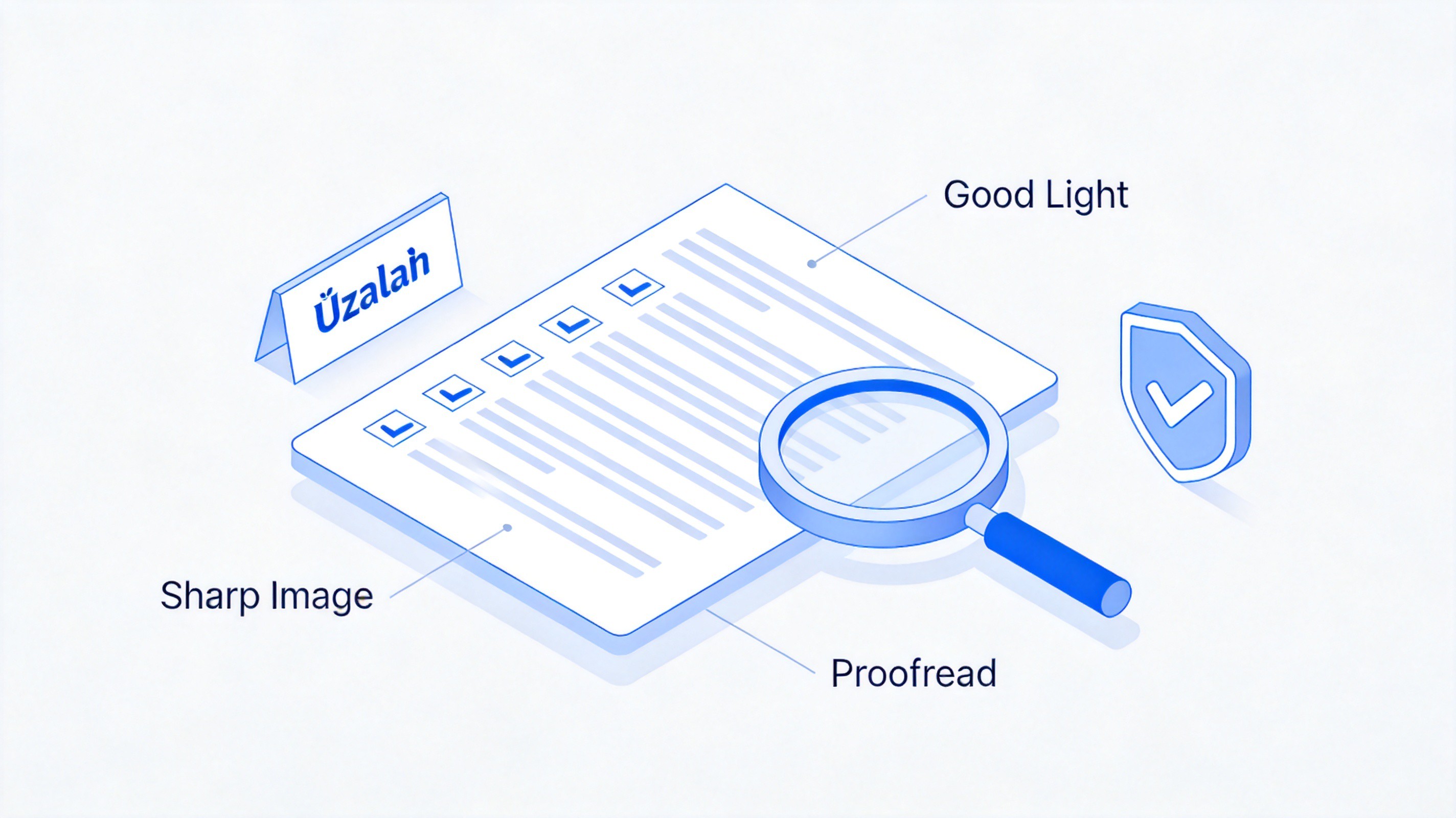
Tips for accurate English to Uzbek photo translation
The Best Free Alternative: WPS Office
Photo translators give you a snapshot, but WPS Office gives you a document. It is free, works on Windows, macOS, Linux, iOS, and Android, and combines Writer, Spreadsheet, Presentation, and a full PDF toolkit with OCR in one download. For English to Uzbek photo translation that ends in an editable file, it covers every step from image to finished document without a subscription.
WPS Office free alternative for photo translation
FAQs
1. Can Google Translate translate a photo from English to Uzbek?
Yes. Upload the image in the Images tab or point your camera at the text, and it overlays the Uzbek translation. Results are best with clear printed text.
2. Is there a free way to translate English to Uzbek photo files?
Yes. Google Translate and Yandex Translate are free for photo translation, and WPS Office is free for the OCR-and-edit workflow when you need the text as a document.
3. Why is my photo translation coming out garbled?
Blur, glare, low resolution, and decorative fonts break text recognition. Retake the photo in good light, crop to the text, and translate again.
4. Does WPS Office support the Uzbek language?
WPS Office's interface ships in many languages, and you can type, display, and edit Uzbek text in documents. For translation, extract the text with OCR and use WPS's translation tool or any translator that supports Uzbek.
5. Can I translate handwriting from English to Uzbek?
Only sometimes. Machine recognition of handwriting is far less reliable than printed text, so expect to correct the output, and verify important passages manually.


'%3e%3cpath%20d='M19.9911%204.11386V6.471H18.5894C18.0775%206.471%2017.7322%206.57814%2017.5536%206.79243C17.3751%207.00671%2017.2858%207.32814%2017.2858%207.75671V9.44421H19.9019L19.5536%2012.0871H17.2858V18.8639H14.5536V12.0871H12.2769V9.44421H14.5536V7.49779C14.5536%206.39064%2014.8632%205.53201%2015.4822%204.92189C16.1013%204.31177%2016.9257%204.00671%2017.9554%204.00671C18.8304%204.00671%2019.509%204.04243%2019.9911%204.11386Z'%20fill='%23333333'/%3e%3c/g%3e%3cdefs%3e%3cclipPath%20id='clip0_2938_8199'%3e%3crect%20width='16'%20height='16'%20fill='white'%20transform='translate(8%204.00671)'/%3e%3c/clipPath%3e%3c/defs%3e%3c/svg%3e)
'%3e%3cpath%20d='M17.5237%2010.7813L23.4811%204H22.0699L16.8949%209.88693L12.7648%204H8L14.2469%2012.9029L8%2020.0133H9.4112L14.8725%2013.7952L19.2352%2020.0133H24M9.92053%205.04213H12.0885L22.0688%2019.0224H19.9003'%20fill='%23333333'/%3e%3c/g%3e%3cdefs%3e%3cclipPath%20id='clip0_2938_8200'%3e%3crect%20width='16'%20height='16.0134'%20fill='white'%20transform='translate(8%204)'/%3e%3c/clipPath%3e%3c/defs%3e%3c/svg%3e)


