

'%3e%3cpath%20d='M8%200C12.4183%200%2016%203.58172%2016%208C16%2012.4183%2012.4183%2016%208%2016C3.58172%2016%200%2012.4183%200%208C0%203.58172%203.58172%200%208%200ZM11.6162%204.38379C11.2257%203.99337%2010.5927%203.99338%2010.2021%204.38379L8%206.58594L5.79785%204.38379C5.40732%203.99334%204.77429%203.99329%204.38379%204.38379C3.99331%204.77429%203.99335%205.40733%204.38379%205.79785L6.58594%208L4.38379%2010.2021C3.99348%2010.5927%203.99341%2011.2257%204.38379%2011.6162C4.77426%2012.0066%205.40734%2012.0065%205.79785%2011.6162L8%209.41406L10.2021%2011.6162C10.5927%2012.0066%2011.2257%2012.0067%2011.6162%2011.6162C12.0067%2011.2257%2012.0066%2010.5927%2011.6162%2010.2021L9.41406%208L11.6162%205.79785C12.0066%205.40735%2012.0066%204.77429%2011.6162%204.38379Z'%20fill='%23080E17'%20fill-opacity='0.46'/%3e%3c/g%3e%3cdefs%3e%3cclipPath%20id='clip0_3761_713'%3e%3crect%20width='16'%20height='16'%20fill='white'/%3e%3c/clipPath%3e%3c/defs%3e%3c/svg%3e)



'%3e%3cpath%20fill-rule='evenodd'%20clip-rule='evenodd'%20d='M21.4999%2010.9993C21.4999%205.20009%2016.7986%200.498901%2010.9993%200.498901C5.19994%200.498901%200.498657%205.20009%200.498657%2010.9993C0.498657%2016.2404%204.33858%2020.5844%209.35855%2021.3722V14.0346H6.69238V10.9993H9.35855V8.68594C9.35855%206.05427%2010.9262%204.60062%2013.3248%204.60062C14.4736%204.60062%2015.6753%204.80571%2015.6753%204.80571V7.38979H14.3512C13.0468%207.38979%2012.64%208.19921%2012.64%209.0296V10.9993H15.5523L15.0867%2014.0346H12.64V21.3722C17.66%2020.5844%2021.4999%2016.2404%2021.4999%2010.9993Z'%20fill='%231568EA'/%3e%3c/g%3e%3c/svg%3e)


'%3e%3cpath%20d='M2.42045%2022.1876H6.31818V12.7217L0.75%208.54553V20.5171C0.75%2021.4414%201.49892%2022.1876%202.42045%2022.1876Z'%20fill='%234285F4'/%3e%3cpath%20d='M19.682%2022.1876H23.5797C24.5041%2022.1876%2025.2502%2021.4387%2025.2502%2020.5171V8.54553L19.682%2012.7217'%20fill='%2334A853'/%3e%3cpath%20d='M19.682%205.48293V12.7216L25.2502%208.54543V6.31816C25.2502%204.25236%2022.8921%203.07469%2021.2411%204.31361'%20fill='%23FBBC04'/%3e%3cpath%20d='M6.31824%2012.7217V5.48303L13.0001%2010.4944L19.6819%205.48303V12.7217L13.0001%2017.733'%20fill='%23EA4335'/%3e%3cpath%20d='M0.75%206.31816V8.54543L6.31818%2012.7216V5.48293L4.75909%204.31361C3.10534%203.07469%200.75%204.25236%200.75%206.31816Z'%20fill='%23C5221F'/%3e%3c/g%3e%3cdefs%3e%3cclipPath%20id='clip0_2954_7305'%3e%3crect%20width='24.5'%20height='18.375'%20fill='white'%20transform='translate(0.75%203.8125)'/%3e%3c/clipPath%3e%3c/defs%3e%3c/svg%3e)


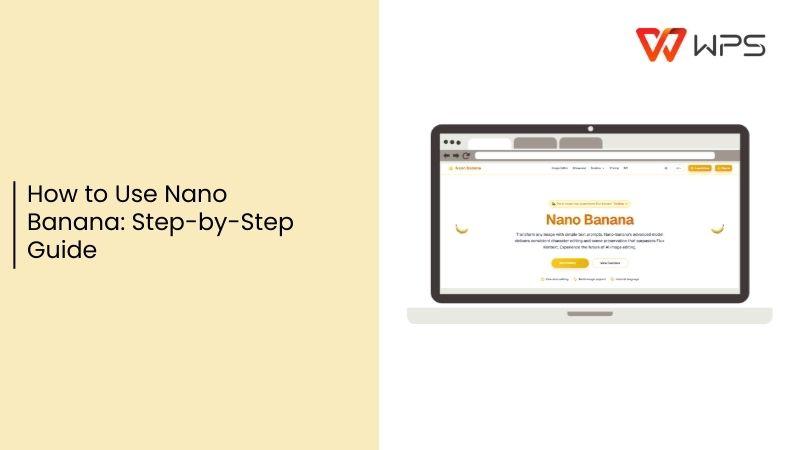
AI image generators have gone from experimental curiosities to everyday creative tools. Nano Banana, Google’s new AI-powered image creator, lets you generate unique visuals, replace objects, and keep edits consistent with just a few prompts. Still, getting started can be confusing since many new users aren’t sure how Nano Banana works. In this article, I’ll show you exactly how to use it, highlight its pros and cons, and introduce a companion tool, WPS Photos.


Overview of Nano Banana
I see Nano Banana as an integral part of Google Gemini, the tech giant’s AI platform that combines search, productivity, and creativity. To me, it feels like Google’s clear response to the growing demand for easy-to-use AI image tools such as DALL·E or MidJourney. Nano Banana’s biggest strength is its seamless connection to the Google ecosystem. From Chrome searches to Docs editing to Android apps, I find Nano Banana built right in wherever I work.
Features:
Pros:
Cons:
How to Use Nano Banana – A Step-by-Step Guide
It took me a bit of time to fully understand how to use Nano Banana because the main features aren’t front and center. Since it runs inside the Gemini app, there’s no extra installation, but you do need to know where the tool sits and how each setting works. The first few times felt a little trippy, especially when figuring out how edits and object replacements worked. After that learning curve, I was able to get images that matched what I wanted without much effort.
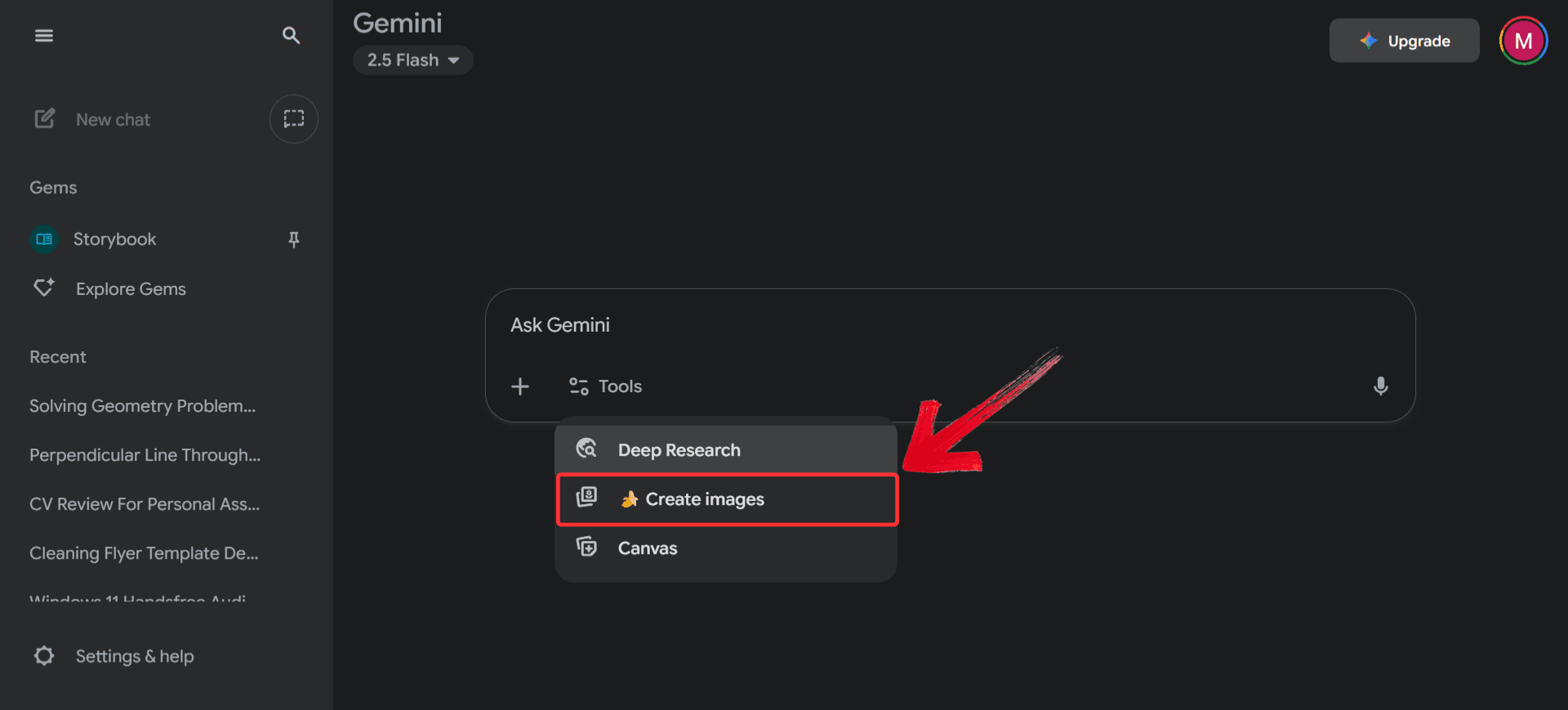
Step 1: Go to Gemini’s official website and click on the “Tools” option from the top menu.
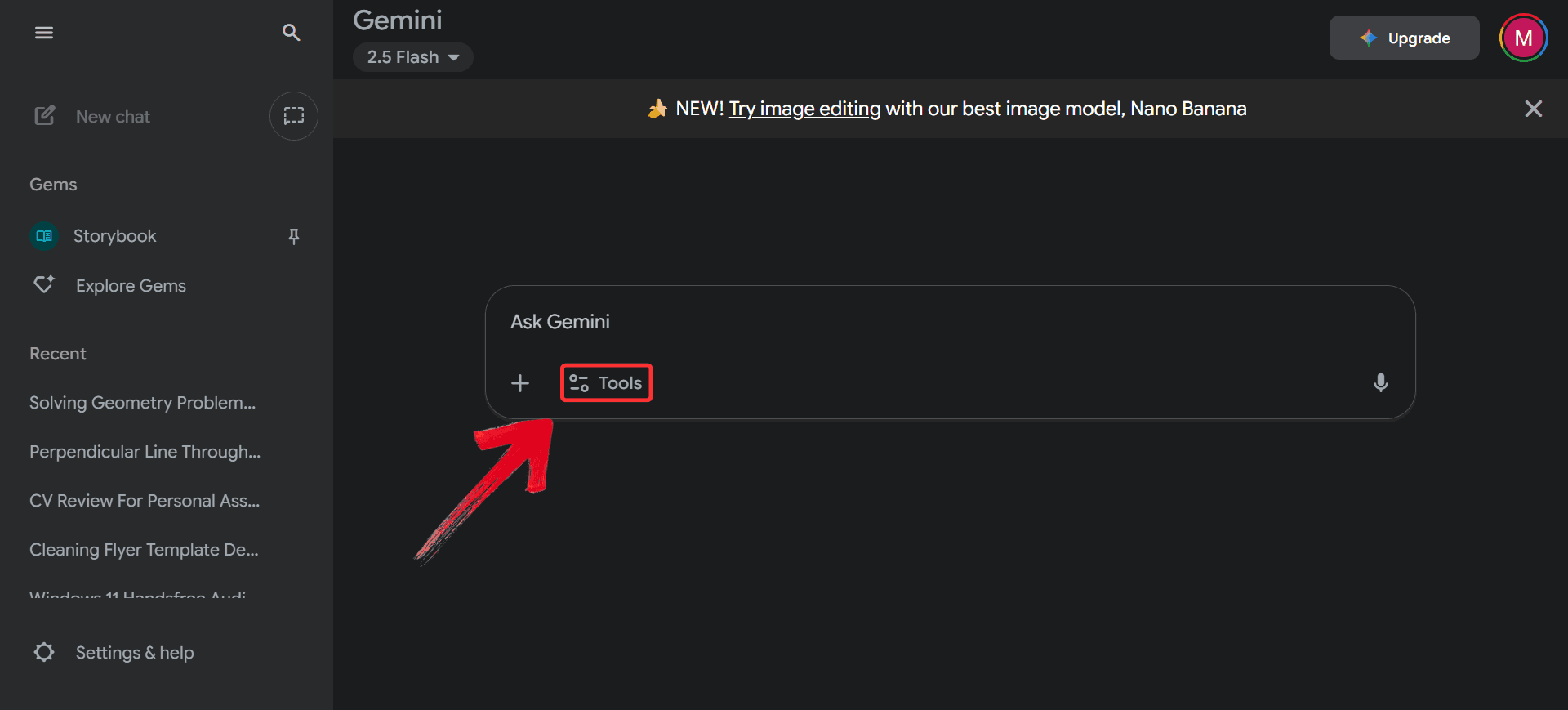
Step 2: From the dropdown, select “Create Images” to switch into Nano Banana.
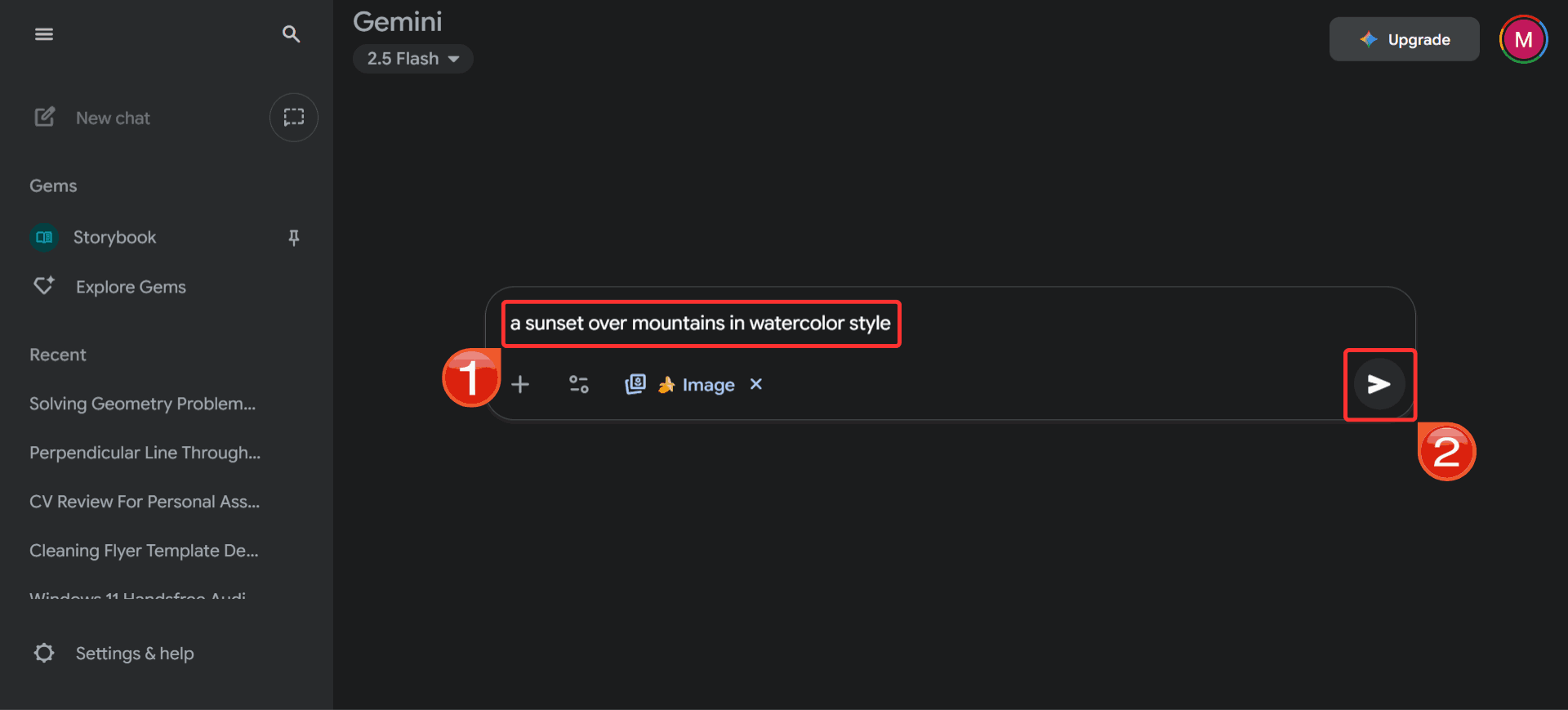
Step 3: In the text box, type the prompt for the image you want to generate and hit “Send”.
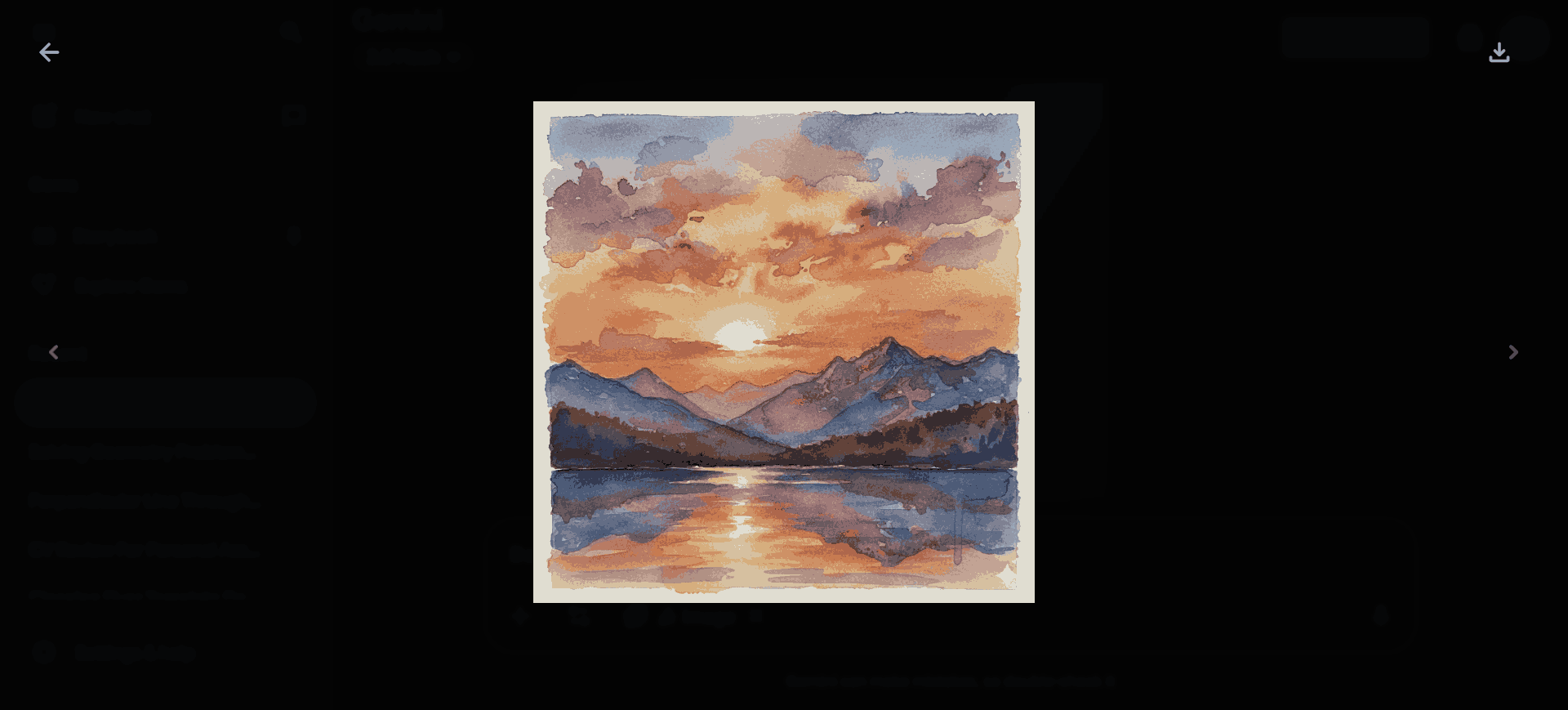
Step 4: Nano Banana will generate the photo based on your prompt; you can review it, make refinements, or start over with a new idea.
Enhance Your Existing Photos with WPS Photos
Now that I have experimented with Nano Banana long enough to be thoroughly impressed by it, especially by the quality of the pictures it generates. Sometimes, when an image appears unclear or is missing elements that need to be filled in, I turn to WPS Photos for its AI features, which are consistently reliable and effective. I’ve been using them to get exactly the results I want, for example, using the Expand tool to reveal the full image in detail or the Enhance tool to sharpen blurry visuals.
Nano Banana feels like the fresh image generator we’ve been waiting for, and when paired with WPS Photos, the results are genuinely impressive. It’s fair to say that I might eventually rely on Nano Banana for parts of my work (and ditch ChatGPT if it stops meeting my expectations) because it delivers uniquely natural illustrations, unlike ChatGPT’s, which are easy to recognize at a glance.
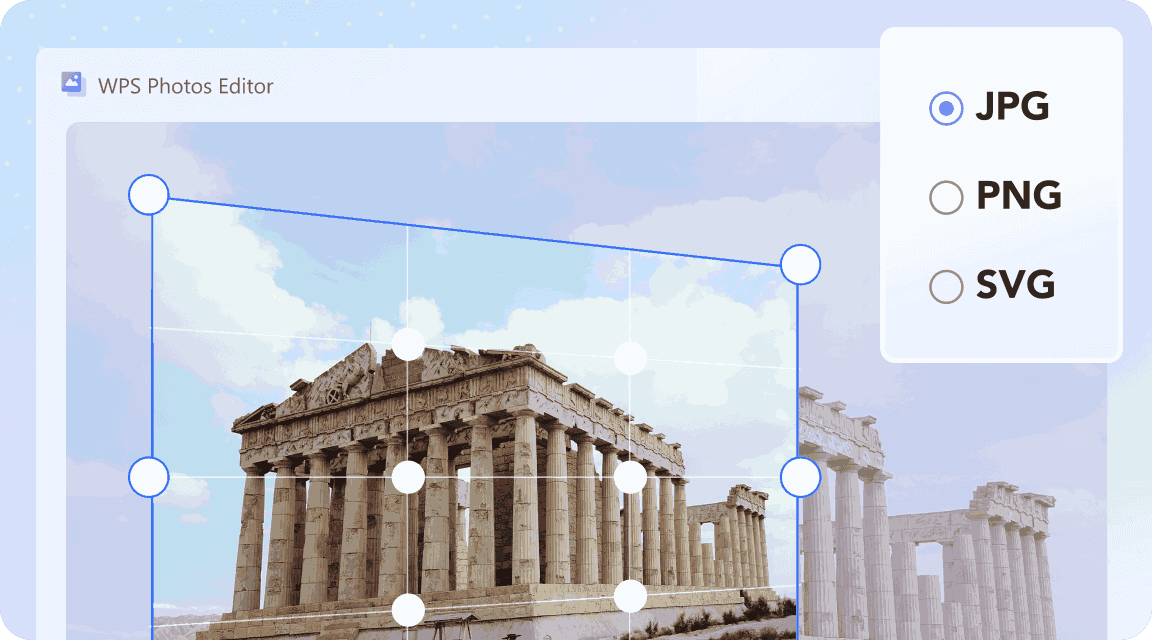
Features:
These features sound impressive, but they only become useful once you actually see how they work in practice. After learning how to access Nano Banana for generating new images, WPS Photos seems to be the perfect companion for refining the ones I already had. Here’s how I usually go about it.
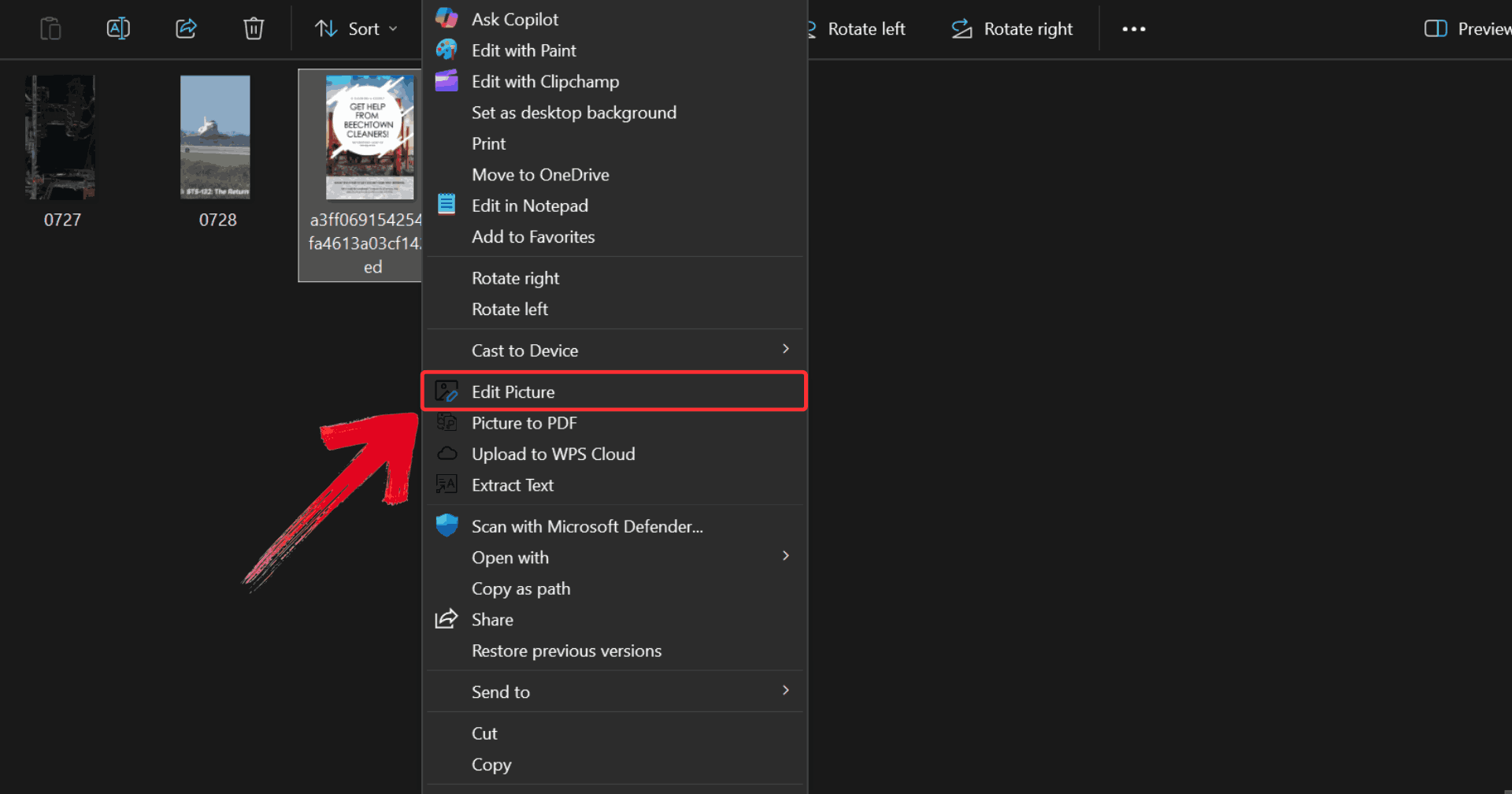
Step 1: Right-click on the photo you want to edit, then click on “Edit Photo” to open it in WPS Photo Editor.
Step 2: Make whatever changes you like to the photo, such as using the Image Enhancer and adjusting colors for a polished look.
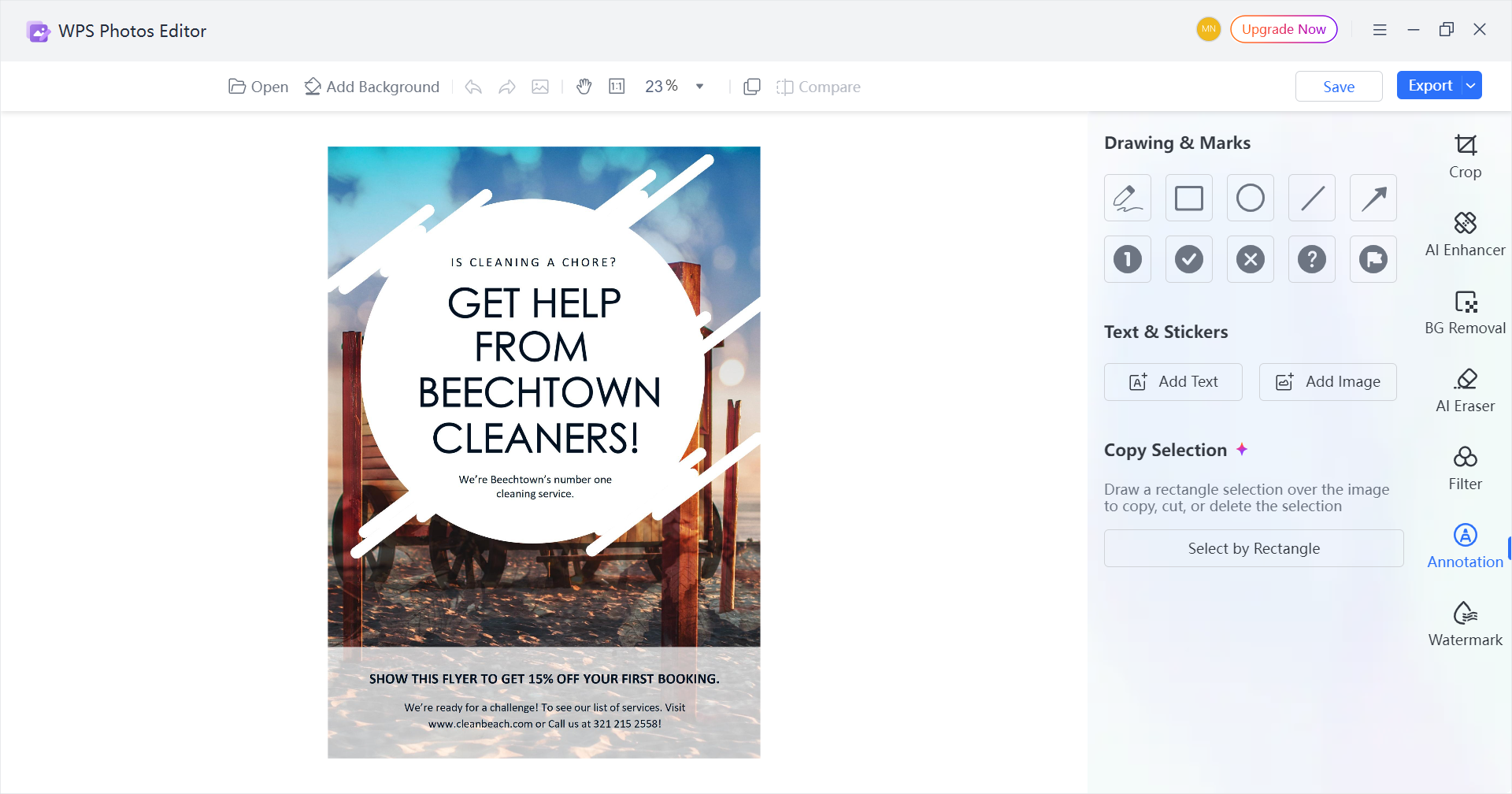
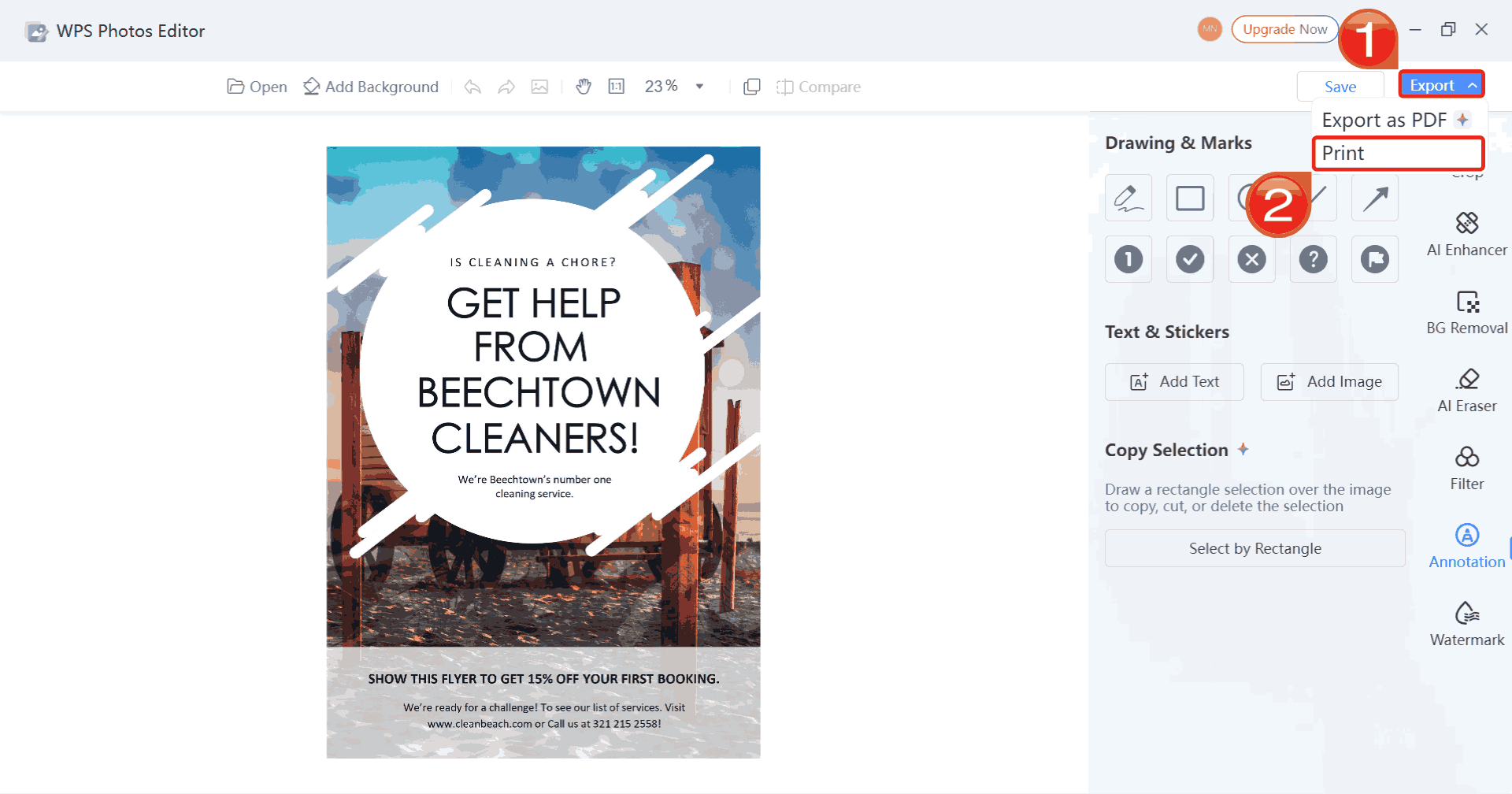
Step 3: Click on “Export”, then select “Print” to save your changes and print your edited photo.
FAQs
1. Do I need a subscription to use Nano Banana?
No, Nano Banana offers free image generation with daily limits. For heavy use or advanced features, you’ll need a Gemini subscription.
2. Can Nano Banana replace Photoshop?
Not entirely. While it’s excellent for AI-assisted creativity, it lacks the detailed manual tools that Photoshop provides.
3. How is WPS Photos different from Nano Banana?
Nano Banana is designed for generating new images and creative edits, while WPS Photos focuses on enhancing and retouching existing photos.

'%3e%3cpath%20d='M19.9911%204.11386V6.471H18.5894C18.0775%206.471%2017.7322%206.57814%2017.5536%206.79243C17.3751%207.00671%2017.2858%207.32814%2017.2858%207.75671V9.44421H19.9019L19.5536%2012.0871H17.2858V18.8639H14.5536V12.0871H12.2769V9.44421H14.5536V7.49779C14.5536%206.39064%2014.8632%205.53201%2015.4822%204.92189C16.1013%204.31177%2016.9257%204.00671%2017.9554%204.00671C18.8304%204.00671%2019.509%204.04243%2019.9911%204.11386Z'%20fill='%23333333'/%3e%3c/g%3e%3cdefs%3e%3cclipPath%20id='clip0_2938_8199'%3e%3crect%20width='16'%20height='16'%20fill='white'%20transform='translate(8%204.00671)'/%3e%3c/clipPath%3e%3c/defs%3e%3c/svg%3e)
'%3e%3cpath%20d='M17.5237%2010.7813L23.4811%204H22.0699L16.8949%209.88693L12.7648%204H8L14.2469%2012.9029L8%2020.0133H9.4112L14.8725%2013.7952L19.2352%2020.0133H24M9.92053%205.04213H12.0885L22.0688%2019.0224H19.9003'%20fill='%23333333'/%3e%3c/g%3e%3cdefs%3e%3cclipPath%20id='clip0_2938_8200'%3e%3crect%20width='16'%20height='16.0134'%20fill='white'%20transform='translate(8%204)'/%3e%3c/clipPath%3e%3c/defs%3e%3c/svg%3e)


