Spreadsheets remain essential for managing data, but working with complex formulas and large datasets can quickly become overwhelming. Many users spend hours trying to fix errors, build formulas, or analyze trends manually. At the
same time, AI tools like Claude promise to simplify these tasks, yet understanding how they fit into Excel is not
always straightforward. You might be wondering what is Claude in Excel, how to set it up, and whether it is worth the
effort. This guide walks you through everything, from features to setup and real-world use cases.
Claude in Excel
100% secure
What Claude in Excel Does
Before diving into setup or comparisons, it is important to understand what Claude actually brings to Excel. This
helps you decide whether it fits your workflow
and what kind of problems it can solve effectively.
Excel sheet with Claude AI Assistant opened
Overview
Claude
is an AI assistant developed by Anthropic that focuses on understanding natural language and helping users
perform complex tasks more easily. It is designed to process instructions conversationally, allowing you to describe
what you want instead of writing detailed commands. In the context of spreadsheets, this means you can ask for formulas
, data summaries, or explanations in plain English.
When integrated into Excel, Claude acts as a smart assistant within your spreadsheet environment. It can generate
formulas, analyze datasets, automate repetitive tasks, and explain complex calculations without requiring manual
effort. The integration usually happens through add-ins, Copilot
features, or API connections, depending on your setup. This combination of AI and Excel helps streamline
workflows, reduce errors, and make data handling more intuitive, especially when working with large or complex
datasets.
Key Capabilities
Understanding the Claude Excel AI assistant features helps clarify its practical value in everyday work.
● Formula Generation:
You can describe your requirement in plain English, and Claude converts it into an Excel formula. This is particularly
useful when dealing with nested or advanced functions.
● Data Analysis:
Claude can analyze datasets, summarize trends, and answer questions such as identifying top-performing categories or
spotting anomalies.
● Task Automation:
Repetitive tasks like formatting, cleaning data, or merging datasets can be handled more efficiently with AI
assistance.
● Natural Language Queries:
Instead of navigating menus, you can ask direct questions such as identifying top values or filtering data conditions.
● PivotTable Assistance:
Claude can guide you through creating or adjusting PivotTables
, which is helpful if you are not fully comfortable with Excel’s interface.
● Formula Explanations:
If you encounter a complex formula, Claude can break it down into simple terms, making it easier to understand and
modify.
Limitations to Be Aware Of
While the features are useful, there are certain constraints you should keep in mind.
●Accuracy may vary with complex or layered formula
●Requires a stable internet connection to= function
●Data privacy concerns since information is processed externally
●May not track collaborative changes in real time
Getting Started with Claude in Excel
Once you understand its capabilities, the next step is learning how to use Claude in Excel. The setup process involves
a few steps, especially since it is not built directly into Excel by default.
Prerequisites
Before starting, make sure you have the necessary tools in place.
●Through the Microsoft 365 Copilot Integration: If your organization has Copilot enabled, Claude may be
accessible as an AI assistant option.
●Via Third-Party Add-ins: Some Excel add-ins connect to the Anthropic API, bringing Claude's capabilities into
your spreadsheet.
●Through Claude.ai
with Export: Use Claude's web interface to generate formulas or analysis, then manually transfer them to Excel.
Step 1:
Launch Excel on your device. On the Excel spreadsheet, look at the top right tool bar and click on “ Add-ins”
(or the icon with four small boxes) Then click “More Add-ins”.
Excel blank spreadsheet with Add-ins options
Notes: If you can’t find the button
.
●Check the Insert
tab.
●Use the Search Bar
: Type "Add-ins" in the search box at the very top of Excel.
●Check File > Get Add-ins
: This is a direct way to open the store if it's missing from the toolbar.
Step 2:
In the search bar, type "Claude"
and click the search icon. From the results look for “Claude by Anthropic for Excel”
and click “Add”.
Claude search in Excel Add-ins options
Step 3:
A Claude window will appear on the right side of your Excel screen. Click Log in
to sign in with your account.
Claude login sidebar
Step 4:
Then, click Authorize
to let Claude connect to your spreadsheets.
Claude Authorisation in Excel
Important:
Claude requires a paid or upgraded account to function properly inside Excel.
Step 5:
Click the chat box and type your request in plain English, like "ANALYZE DATA."
(or, “Create a formula to calculate xyz”). Then, click the arrow
button.
Prompt typed in Claude AI Assistant
Step 6:
Carefully review Claude's suggested formula or analysis. Check that the logic and cell references are accurate. Once
satisfied, click Insert to apply the formula directly to your spreadsheet.
Result generated by Claude in Excel
Example Use Cases Where Claude in Excel Shines
Understanding features is useful, but real-world applications make the value clearer. These examples show how Claude
can improve efficiency in common spreadsheet scenarios.
Use Case 1: Financial Analysis
Scenario:
You have monthly sales data and want to calculate year-over-year growth.
Claude Prompt:
“Calculate the year-over-year percentage growth for each month in column B compared to the same month last year in
column C.”
Result:
Claude generates the appropriate formula and may also explain how the calculation works, helping you verify
accuracy.
Steps:
Step 1:
Open Microsoft Excel
and open a blank spreadsheet.
Excel Homepage
Step 2:
On the Excel interface, look for “Add-ins”
on the “Home”
page, next to it will be the installed add-ins. Look for Claude there, and click on it.
Excel Spreadsheet homepage
Note: Make sure Claude is installed by using the steps mentioned above.
Step 3:
Once the Claude sidebar
is open, click the plus (+)
icon next to the arrow in the prompt panel and upload
the file you want to analyze. Then type your request for financial analysis
in natural language, such as:
“Calculate the year-over-year percentage growth for each month in column B compared to the same month last year in
column C.”
Claude Prompt bar on Excel
Step 4:
Click the arrow button
to give the input, and Claude will itself make the existing data on the blank sheet and then provide calculated analysis
based on the spreadsheet you uploaded.
Result generated by Claude in Excel
Use Case 2: Data Cleaning
Scenario:
Your dataset contains inconsistent date formats and extra spaces in text fields.
Claude Prompt:“Clean the dates in column A to MM/DD/YYYY format and remove leading and trailing spaces from column B.”
Result:
Claude suggests functions such as TRIM() and DATEVALUE(), along with guidance on applying them correctly.
Steps:
Step 1:
Open Microsoft Excel
, and open the existing Spreadsheet which you want to organise.
Excel Homepage
Step 2:
On the Excel interface, look for “Add-ins”
on the “Home”
page, next to it will be the installed add-ins. Look for Claude there, and click on it.
Excel Spreadsheet homepage
Note: Make sure Claude is installed by using the steps mentioned above.
Step 3:
Once the Claude sidebar
is open, click the existing Claude suggested prompt “Transform messy data”,
or write your own. Next, click on the arrow highlighted in orange.
Claude’s suggested actions in Excel
Step 4:
Claude will automatically organise the spreadsheet.
Excel Spreadsheet organised by Claude
Use Case 3: Creating PivotTables
Scenario:
You need to summarize sales data by region and product category.
Claude Prompt:“Create a PivotTable that shows total sales by region and product category.”
Result:
Claude provides step-by-step instructions or suggests the correct PivotTable structure based on your dataset.
Use Case 4: Formula Explanations
Scenario:
You encounter a complex formula and want to understand it.
Claude Prompt:“Explain what this formula does: =INDEX(A1:A100, MATCH(D1, B1:B100, 0))”
Result:
Claude breaks down the formula into simple steps, explaining how INDEX and MATCH work together.
Use Case 5: Dashboard Creation
Scenario:
You want to build a dashboard with key business metrics.
Claude Prompt:“Create a dashboard with total revenue, average order value, and top 5 customers.”
Result:
Claude suggests formulas, layout ideas, and chart types to help you structure your dashboard efficiently
Use WPS Office AI Sheet to Make Your Work Easier
If the setup process for Claude feels complex, it is worth exploring alternatives that offer similar benefits with
fewer steps. This is where WPS Spreadsheet
becomes a practical option for many users.
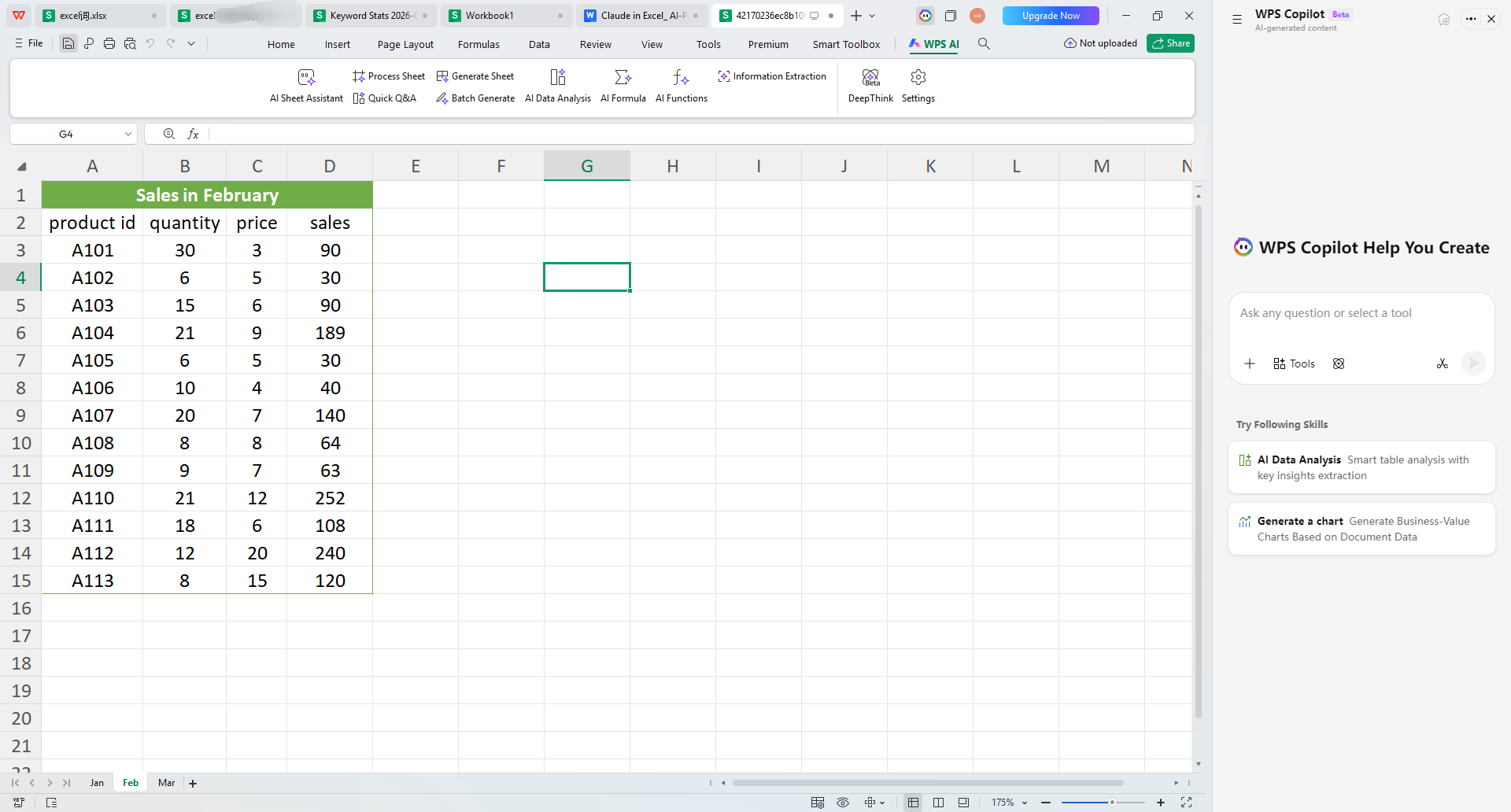
WPS AI Sheet
How WPS Spreadsheet Simplifies Your Work
WPS Spreadsheet focuses on accessibility and built-in functionality, making it easier to start using AI without
additional configuration.
● Built-in AI Assistance:
AI features are already integrated, allowing you to generate formulas and analyze data directly.
● Free Access:
The software is available without subscription fees, which reduces cost barriers.
● Full Excel Compatibility:
You can open and edit Excel files without formatting issues.
● All-in-One Suite:
WPS includes tools for documents and presentations, keeping everything in one place.
● Cloud Integration:
Files can be accessed across devices, making collaboration more flexible.
● Templates:
Pre-designed templates help you get started quickly with common tasks.
Use Word, Excel, and PPT for FREE
How to Get Started with WPS Spreadsheet
Step 1:
Open “ Google
” (or any other browser) and type “WPS Office”
. Click on the First link.
WPS Office Google search
Step 2:
Click on “Free Download”
, and follow the installation prompts to set up the complete office suite on your device.
WPS Office Website’s homepage
Step 3:
Launch the application and select Sheets
from the main menu, and click on open to use the existing spreadsheet (or make a new spreadsheet).
WPS Office homepage
Step 4:
Navigate to the WPS Toolbar
on the top, and select “WPS AI”
then click on “AI Formula”
(or use the other features depending on your need).
WPS AI Formula tool in the toolbar
Step 5: Describe
your calculation in simple words
.
Prompt:“sum sales for all orders in column ‘I’”
WPS AI Formula prompt panel
Step 5:Check
the formula the AI gives you and insert
it directly into the cell (or it will be automatically inserted in the selected cell).
WPS AI generated Formula
Tip:
You can copy the formula given by the AI Formula Tool
or fill it down across rows easily.
Using an all-in-one tool like this can make everyday spreadsheet work much easier, especially when you don’t want to
spend time setting up add-ins
or dealing with API keys.
I’ve noticed that when everything is already built into one place, tasks like creating formulas, cleaning data
, or organizing reports feel much faster and less stressful. Instead of switching between different tools, you can
focus directly on the work itself. That is where an AI-enabled office suite such as WPS Office becomes particularly
useful for improving spreadsheet productivity without adding extra complexity.
Claude in Excel vs. WPS Spreadsheet
When exploring AI tools, it is natural to compare options. Looking at Claude in Excel vs WPS Spreadsheet
helps you understand the differences in setup, cost, and usability.
Aspect
Claude in Excel
WPS Spreadsheet
Cost
Requires Microsoft 365 subscription + Claude API costs
Free with WPS Office (includes AI features)
Setup Complexity
High: Requires add-ins, API keys, and manual configuration
Low: Built-in features with minimal setup required
AI Capabilities
Natural language queries, deep data analysis, and explanations
AI writing, formula suggestions, and task automation
Integration
Operates as a third-party layer within Excel
Fully integrated into the native WPS Office suite
Best For
Power users already in the Microsoft 365 ecosystem
Users seeking a free, all-in-one AI office solution
File Compatibility
Native Excel formats (.xlsx)
Supports multiple formats including .xls and .xlsx
This comparison shows that while Claude provides advanced AI interaction, it may require more setup compared to
integrated solutions.
100% secure
FAQs
1. Is Claude in Excel free to use?
No, using Claude in Excel typically involves a Microsoft 365 subscription along with possible API or add-in costs,
depending on how you access it.
2. Do I need to be an AI expert to use Claude in Excel?
No, Claude is designed for natural language interaction. You simply describe your task, and it generates the required
output, though basic Excel knowledge is helpful.
3. Is my data safe when using Claude in Excel?
Your data is processed through external APIs, so sensitive information may be transmitted. It is important to review
privacy policies before using it with confidential data.
4. What can I do with WPS Spreadsheet that I cannot do with Claude in Excel?
WPS Spreadsheet offers built-in AI without requiring add-ins or API keys. It also provides an all-in-one office suite,
which simplifies workflow management.
5. Can WPS Spreadsheet replace Excel for my work?
For most personal, academic, and business tasks, it can serve as an alternative. It supports Excel file formats and
includes similar features along with AI tools.
A Practical Take on Claude in Excel and Its Alternatives
Claude in Excel introduces a new way of working with spreadsheets by turning complex tasks into simple conversations.
It can generate formulas, analyze data, and automate workflows, though it requires setup and careful verification. For
users who prefer a simpler, integrated approach, alternatives like WPS Spreadsheet
offer built-in AI without additional steps. Ultimately, the right choice depends on how you balance flexibility,
cost, and ease of use in your workflow.
15 years of office industry experience, tech lover and copywriter. Follow me for product reviews, comparisons, and recommendations for new apps and software.


'%3e%3cpath%20d='M8%200C12.4183%200%2016%203.58172%2016%208C16%2012.4183%2012.4183%2016%208%2016C3.58172%2016%200%2012.4183%200%208C0%203.58172%203.58172%200%208%200ZM11.6162%204.38379C11.2257%203.99337%2010.5927%203.99338%2010.2021%204.38379L8%206.58594L5.79785%204.38379C5.40732%203.99334%204.77429%203.99329%204.38379%204.38379C3.99331%204.77429%203.99335%205.40733%204.38379%205.79785L6.58594%208L4.38379%2010.2021C3.99348%2010.5927%203.99341%2011.2257%204.38379%2011.6162C4.77426%2012.0066%205.40734%2012.0065%205.79785%2011.6162L8%209.41406L10.2021%2011.6162C10.5927%2012.0066%2011.2257%2012.0067%2011.6162%2011.6162C12.0067%2011.2257%2012.0066%2010.5927%2011.6162%2010.2021L9.41406%208L11.6162%205.79785C12.0066%205.40735%2012.0066%204.77429%2011.6162%204.38379Z'%20fill='%23080E17'%20fill-opacity='0.46'/%3e%3c/g%3e%3cdefs%3e%3cclipPath%20id='clip0_3761_713'%3e%3crect%20width='16'%20height='16'%20fill='white'/%3e%3c/clipPath%3e%3c/defs%3e%3c/svg%3e)



'%3e%3cpath%20fill-rule='evenodd'%20clip-rule='evenodd'%20d='M21.4999%2010.9993C21.4999%205.20009%2016.7986%200.498901%2010.9993%200.498901C5.19994%200.498901%200.498657%205.20009%200.498657%2010.9993C0.498657%2016.2404%204.33858%2020.5844%209.35855%2021.3722V14.0346H6.69238V10.9993H9.35855V8.68594C9.35855%206.05427%2010.9262%204.60062%2013.3248%204.60062C14.4736%204.60062%2015.6753%204.80571%2015.6753%204.80571V7.38979H14.3512C13.0468%207.38979%2012.64%208.19921%2012.64%209.0296V10.9993H15.5523L15.0867%2014.0346H12.64V21.3722C17.66%2020.5844%2021.4999%2016.2404%2021.4999%2010.9993Z'%20fill='%231568EA'/%3e%3c/g%3e%3c/svg%3e)


'%3e%3cpath%20d='M2.42045%2022.1876H6.31818V12.7217L0.75%208.54553V20.5171C0.75%2021.4414%201.49892%2022.1876%202.42045%2022.1876Z'%20fill='%234285F4'/%3e%3cpath%20d='M19.682%2022.1876H23.5797C24.5041%2022.1876%2025.2502%2021.4387%2025.2502%2020.5171V8.54553L19.682%2012.7217'%20fill='%2334A853'/%3e%3cpath%20d='M19.682%205.48293V12.7216L25.2502%208.54543V6.31816C25.2502%204.25236%2022.8921%203.07469%2021.2411%204.31361'%20fill='%23FBBC04'/%3e%3cpath%20d='M6.31824%2012.7217V5.48303L13.0001%2010.4944L19.6819%205.48303V12.7217L13.0001%2017.733'%20fill='%23EA4335'/%3e%3cpath%20d='M0.75%206.31816V8.54543L6.31818%2012.7216V5.48293L4.75909%204.31361C3.10534%203.07469%200.75%204.25236%200.75%206.31816Z'%20fill='%23C5221F'/%3e%3c/g%3e%3cdefs%3e%3cclipPath%20id='clip0_2954_7305'%3e%3crect%20width='24.5'%20height='18.375'%20fill='white'%20transform='translate(0.75%203.8125)'/%3e%3c/clipPath%3e%3c/defs%3e%3c/svg%3e)





'%3e%3cpath%20d='M19.9911%204.11386V6.471H18.5894C18.0775%206.471%2017.7322%206.57814%2017.5536%206.79243C17.3751%207.00671%2017.2858%207.32814%2017.2858%207.75671V9.44421H19.9019L19.5536%2012.0871H17.2858V18.8639H14.5536V12.0871H12.2769V9.44421H14.5536V7.49779C14.5536%206.39064%2014.8632%205.53201%2015.4822%204.92189C16.1013%204.31177%2016.9257%204.00671%2017.9554%204.00671C18.8304%204.00671%2019.509%204.04243%2019.9911%204.11386Z'%20fill='%23333333'/%3e%3c/g%3e%3cdefs%3e%3cclipPath%20id='clip0_2938_8199'%3e%3crect%20width='16'%20height='16'%20fill='white'%20transform='translate(8%204.00671)'/%3e%3c/clipPath%3e%3c/defs%3e%3c/svg%3e)
'%3e%3cpath%20d='M17.5237%2010.7813L23.4811%204H22.0699L16.8949%209.88693L12.7648%204H8L14.2469%2012.9029L8%2020.0133H9.4112L14.8725%2013.7952L19.2352%2020.0133H24M9.92053%205.04213H12.0885L22.0688%2019.0224H19.9003'%20fill='%23333333'/%3e%3c/g%3e%3cdefs%3e%3cclipPath%20id='clip0_2938_8200'%3e%3crect%20width='16'%20height='16.0134'%20fill='white'%20transform='translate(8%204)'/%3e%3c/clipPath%3e%3c/defs%3e%3c/svg%3e)


