Creating presentations often feels like a race against deadlines,
especially when you’re starting from a blank slide. You might have heard
that AI can now handle much of this work, but figuring out where to
begin is another challenge entirely. Setting up AI tools like Copilot to
help out with PowerPoints can seem much more complicated than it
actually is. This guide on how to use Copilot in PowerPoint focuses on
the real questions professionals and students face every day. By the
end, you’ll know how to activate it, use it effectively, and decide
whether an alternative fits your workflow better.
How to Use Copilot in PowerPoint
Understanding PowerPoint
Copilot
Microsoft
Copilot is an AI
assistant built directly into PowerPoint, designed to help users
create and refine presentations using simple language prompts. Instead
of manually structuring every slide, users can describe what they need
and let AI handle the heavy lifting. For busy professionals, this means
spending less time formatting and more time refining ideas.
Core Capabilities
Generate entire presentations: You can create a
full slide deck from a simple prompt.
Suggest design layouts: It automatically aligns
images and text using the Designer pane.
Rewrite and improve content: It helps refine
your bullet points to be more concise.
Create speaker notes: It analyzes the slide
content to generate scripts for your speech.
Summarize lengthy presentations: It condenses
long decks into key takeaways.
Pros & Cons
Copilot for PowerPoint excels at speed and ecosystem integration,
allowing you to pull data seamlessly from Excel or Word. However, it
requires an expensive Microsoft 365 Copilot license on top of your
standard subscription, and it relies heavily on a stable internet
connection. Additionally, the creative output can sometimes feel generic
without heavy manual editing.
When compared informally to tools like Gamma AI, Copilot feels more
tightly integrated but also more restricted. Gamma AI offers faster
experimentation and flexibility, yet lacks the deep PowerPoint-native
workflow many enterprises rely on. Copilot’s strength is familiarity,
though this comes with trade-offs in cost and customization.
How to Use
Copilot in PowerPoint - Step by Step
Now that you understand the capabilities and limitations, it is time
to start using PowerPoint. Setting up this AI assistant is easier than
you might think. Whether you are drafting a pitch
deck from scratch or refining an existing file, the process
follows a logical flow. In this section, I will walk you through the
exact steps to enable the feature and use it to build a presentation
from the ground up, ensuring you don't get lost in the menus.
Enabling and Accessing
Copilot
Before you can start generating slides, you need to ensure your
environment is ready. Many users fail here because they don't realize
that a standard personal Microsoft 365 account isn't enough; you
typically need a specific enterprise or commercial license.
Prerequisites:
A valid Microsoft 365 Commercial subscription.
The standalone Microsoft Copilot for Microsoft 365
license.
The latest version of the PowerPoint application.
A stable internet connection.
Activation Steps:
Before anything else, you need the right setup. Many users get stuck
here, so it’s worth slowing down. Let’s see how to use Copilot in
PowerPoint in simple steps.
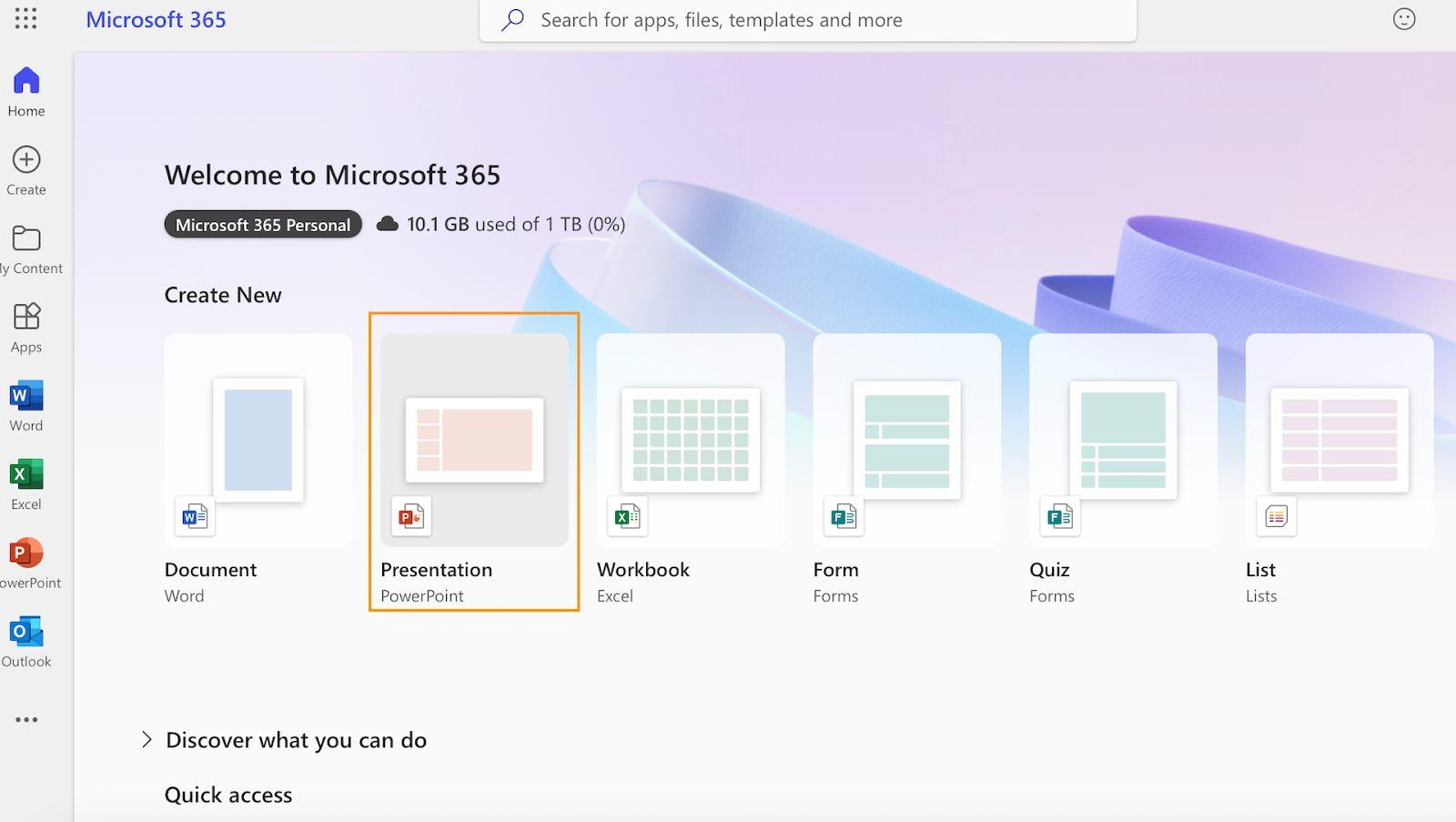
Step 1: Open your PowerPoint application or Open
PowerPoint through your Microsoft 365 app.
Microsoft PowerPoint
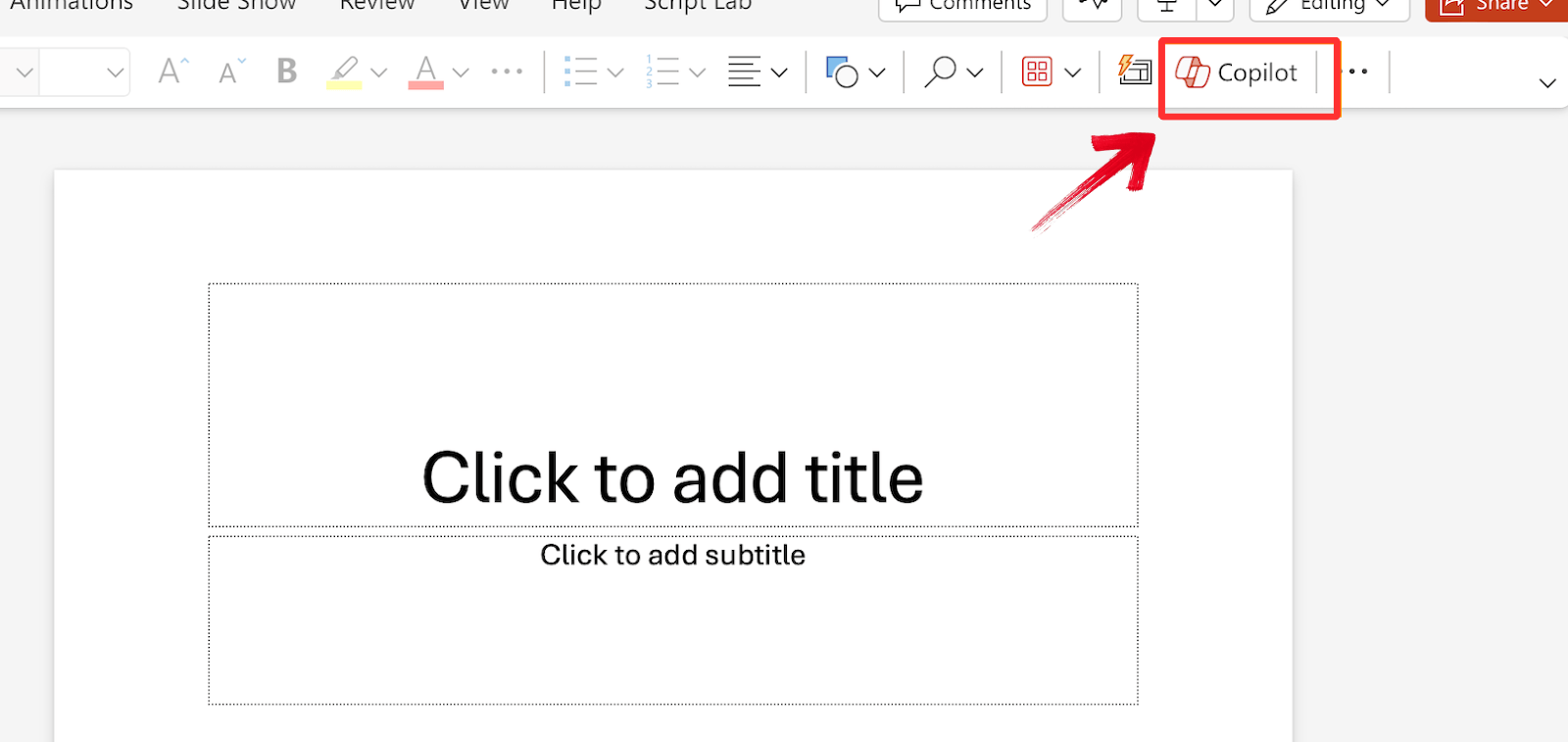
Step 2: Then look for the Copilot icon on the right
side of the "Home" tab.
Open Copilot
Step 3: If you don't see it, sign in with your work
or school Microsoft account associated with the license.
Troubleshooting Tips:
If the Copilot icon is missing or greyed out, it is usually due to a
licensing sync issue or an outdated application version. Here is how to
fix the most common problems:
Verify Subscription Status
Copilot requires a specific commercial add-on license, not just a
standard family plan.
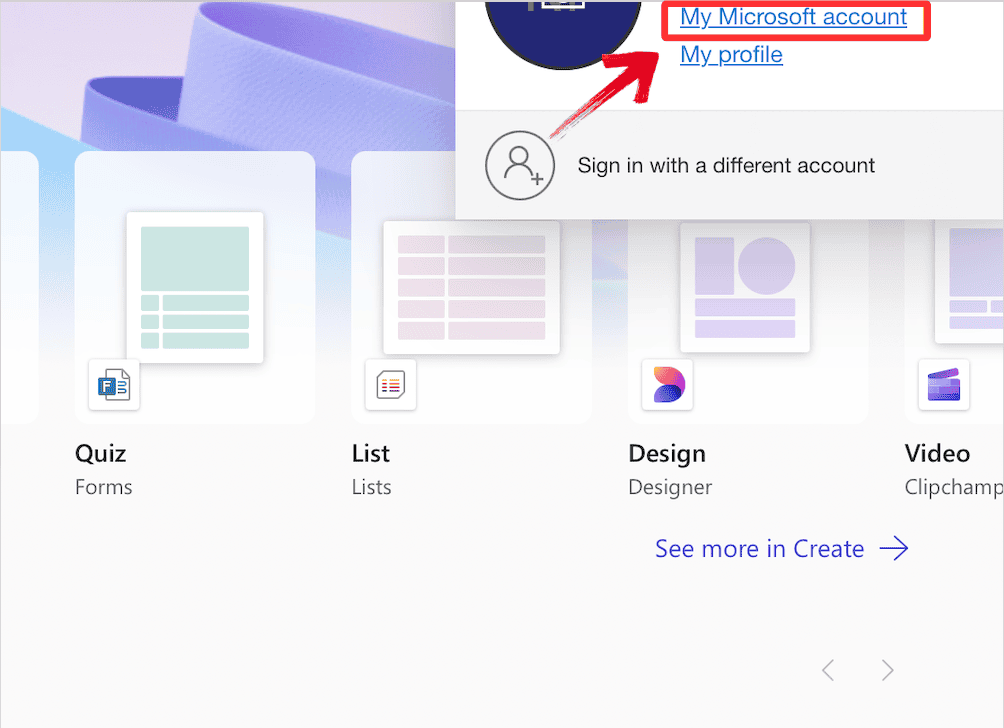
Step 1: Sign in to your Microsoft 365 account, and
click on the circle with your initials in the top right corner. In the
menu that opens, click on “My Microsoft account”.
Open your Microsoft account
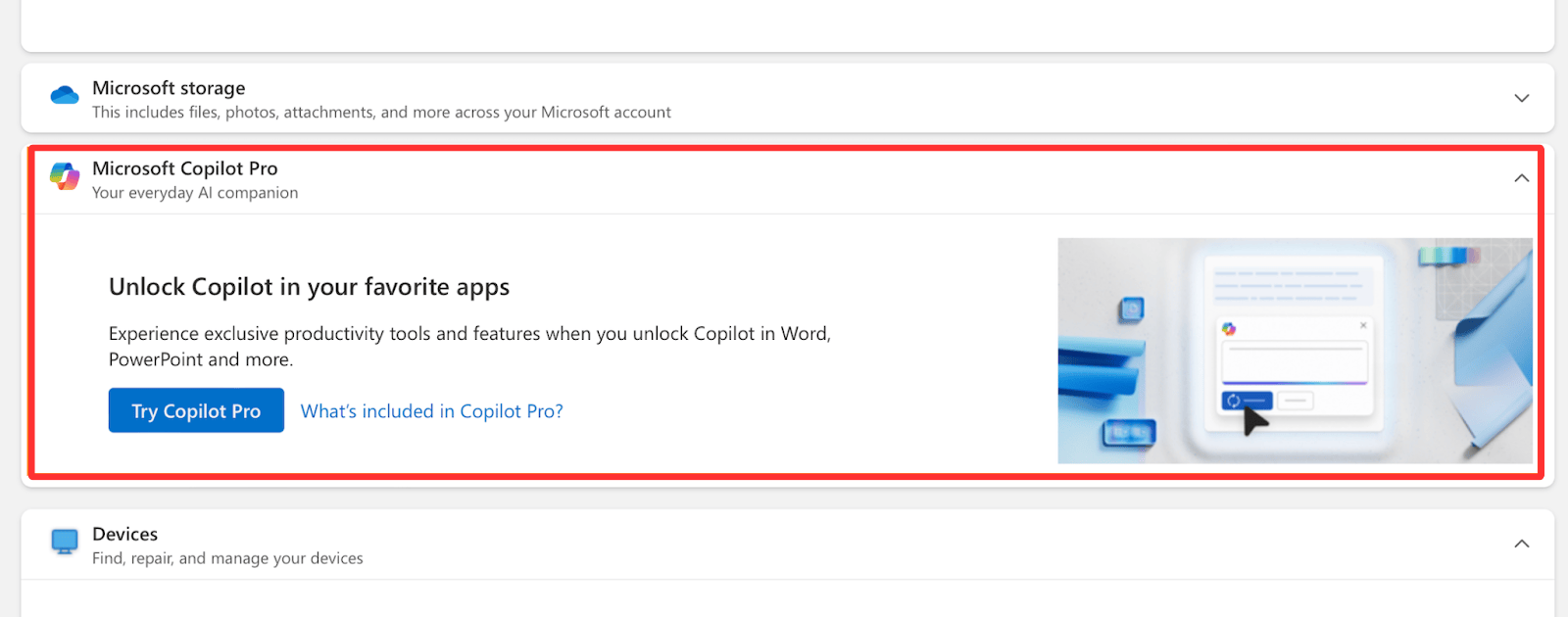
Step 2: Hopefully, you’ll see a large icon with a
button that says “Try Copilot Pro” or “Get
Copilot Pro.” If you do, click on it and subscribe to the
service.
Try Copilot Pro
Update Office Applications
AI features require the latest software build to function
correctly.
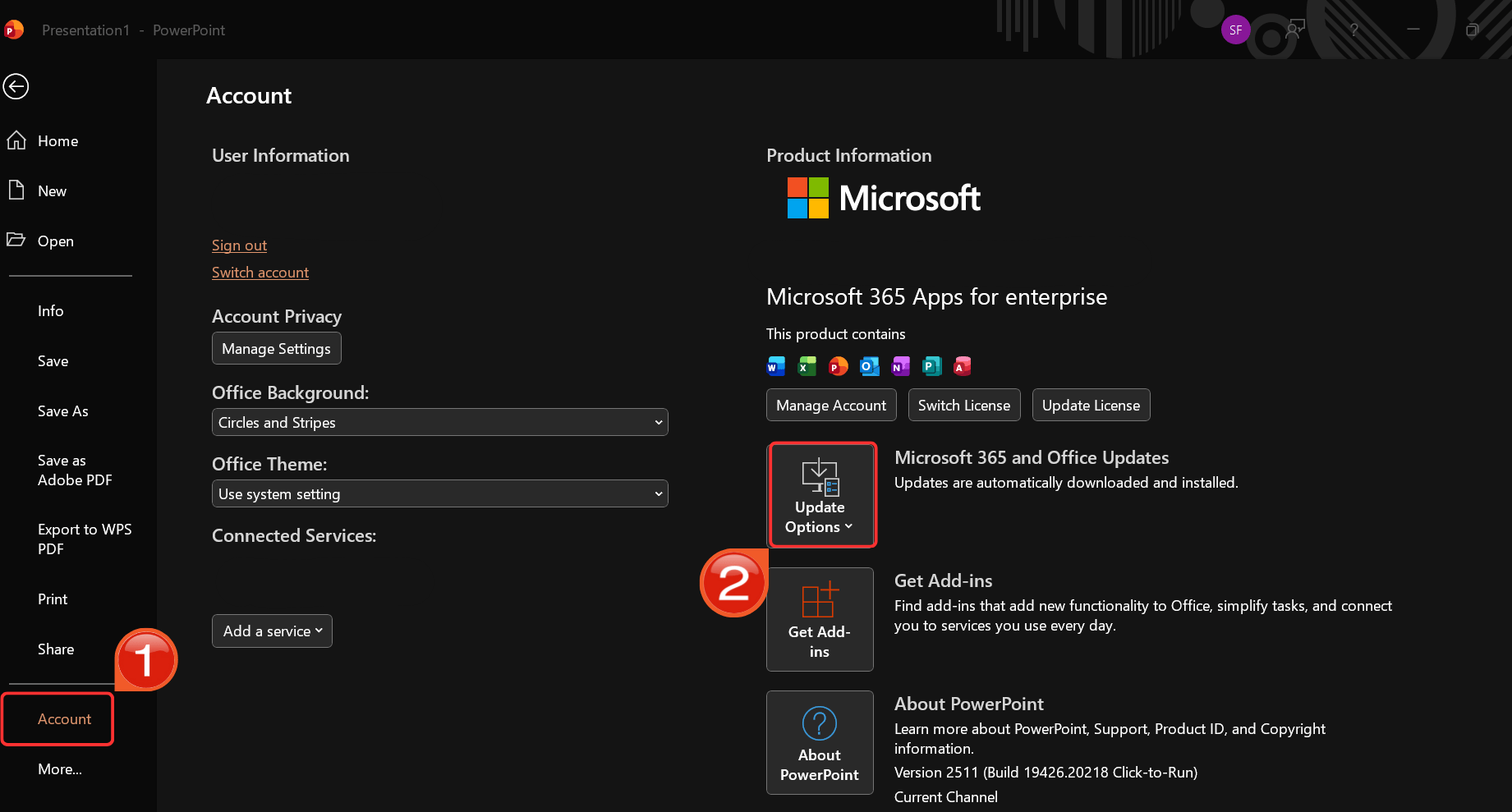
Step 1: Navigate to "File”, then in
the menu that opens, click “Account”, find“Update Options" on the right-hand side.
Click Update Options
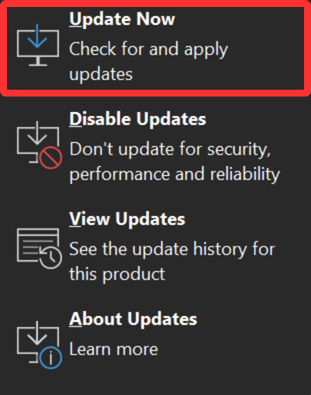
Step 2: Select "Update Now" to
ensure you are on the newest version of PowerPoint.
Update Microsoft 365
Check Internet Connectivity
Because Copilot processes your prompts in the cloud, it cannot
function offline. Ensure you have a stable internet connection; if you
drop offline, the Copilot button may become unresponsive or disappear
entirely.
Clear Cache and Restart
Sometimes your local app data gets out of sync with your new
license.
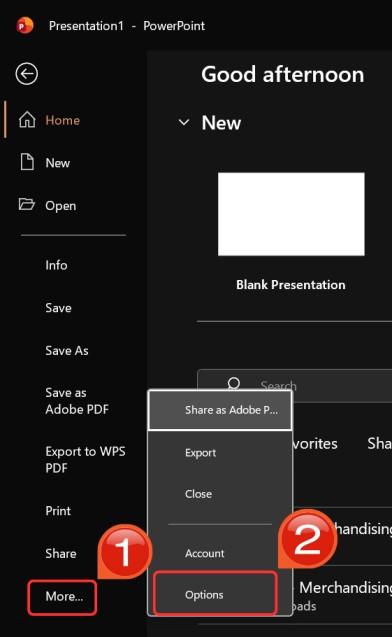
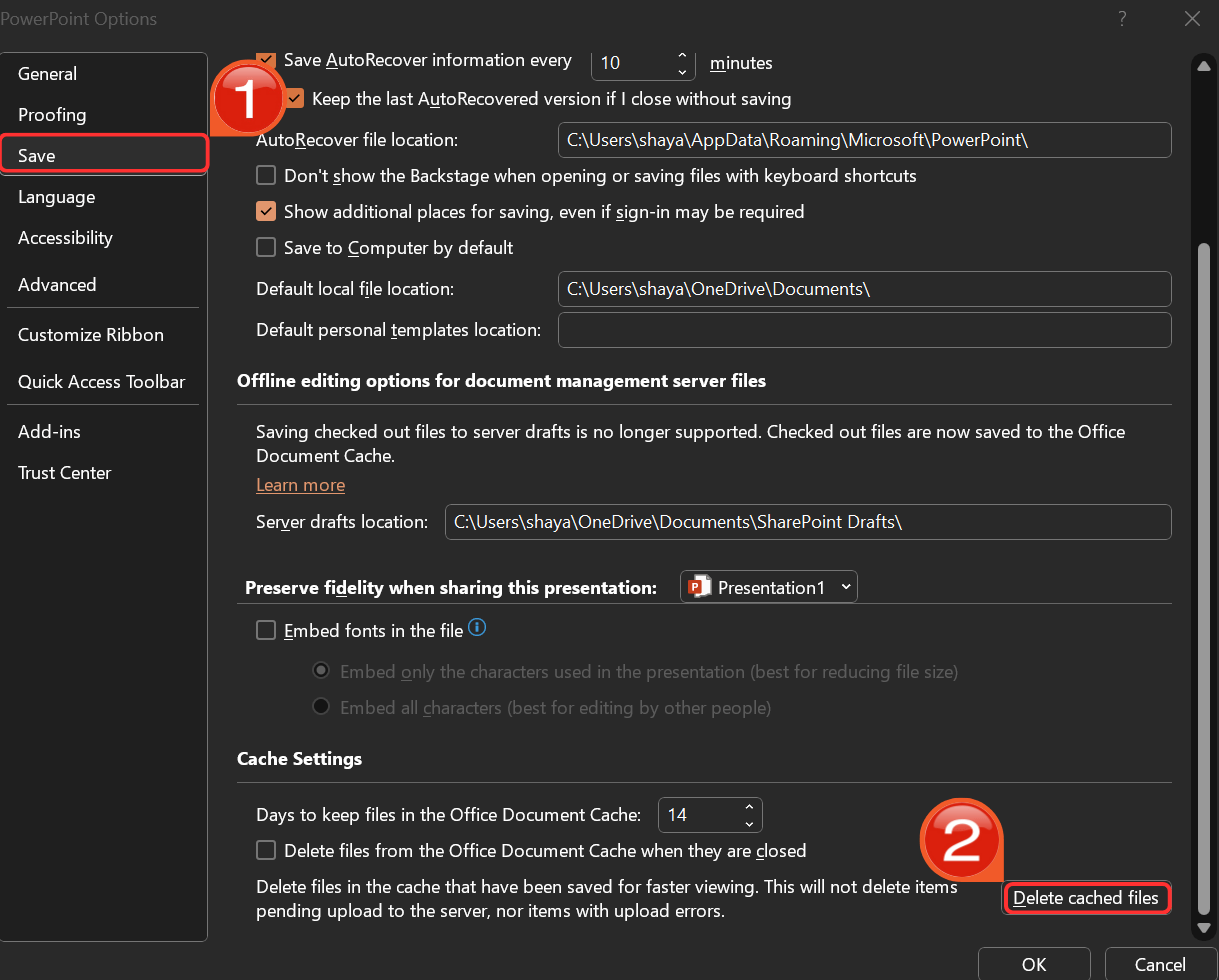
Step 1: Navigate to "File”, then in
the menu that opens, click “More”, find“Options" on the right-hand side.
Click Options
Step 2: In the pop-up window, click“Save” and select "Delete cached
files", then fully close and restart PowerPoint to force a
refresh.
Delete Cached files
Creating Presentations with
Copilot
Once you are set up, the actual creation process is quite intuitive.
Can Copilot create a PowerPoint presentation from scratch? Yes, and here
is how you do it.
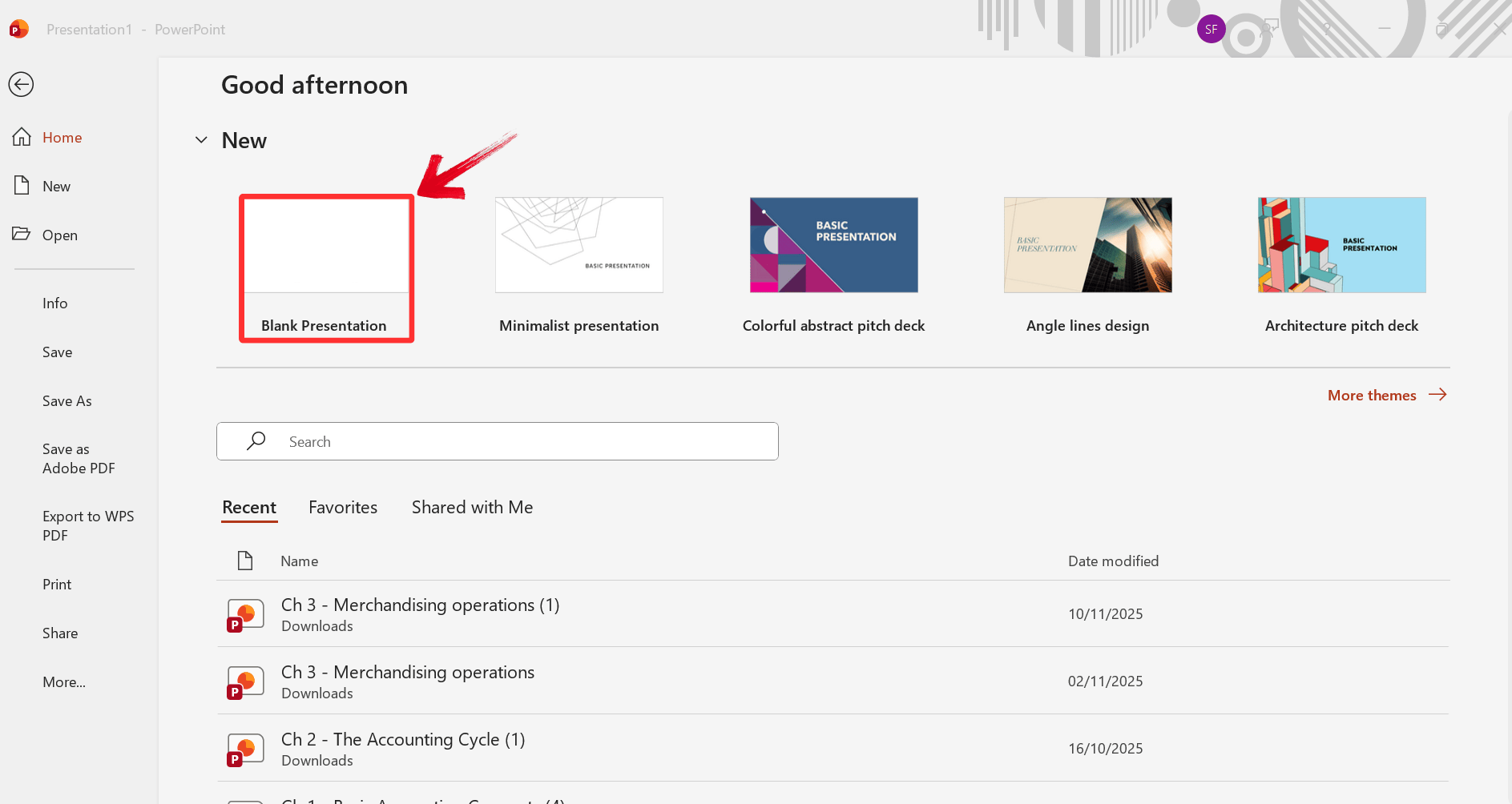
Step 1: In PowerPoint, start a "Blank
Presentation" to ensure no conflicting themes interfere with
the AI.
Open a blank presentation
Step 2: Click the "Copilot" button
in the Home ribbon to open the assistant.
Open Copilot
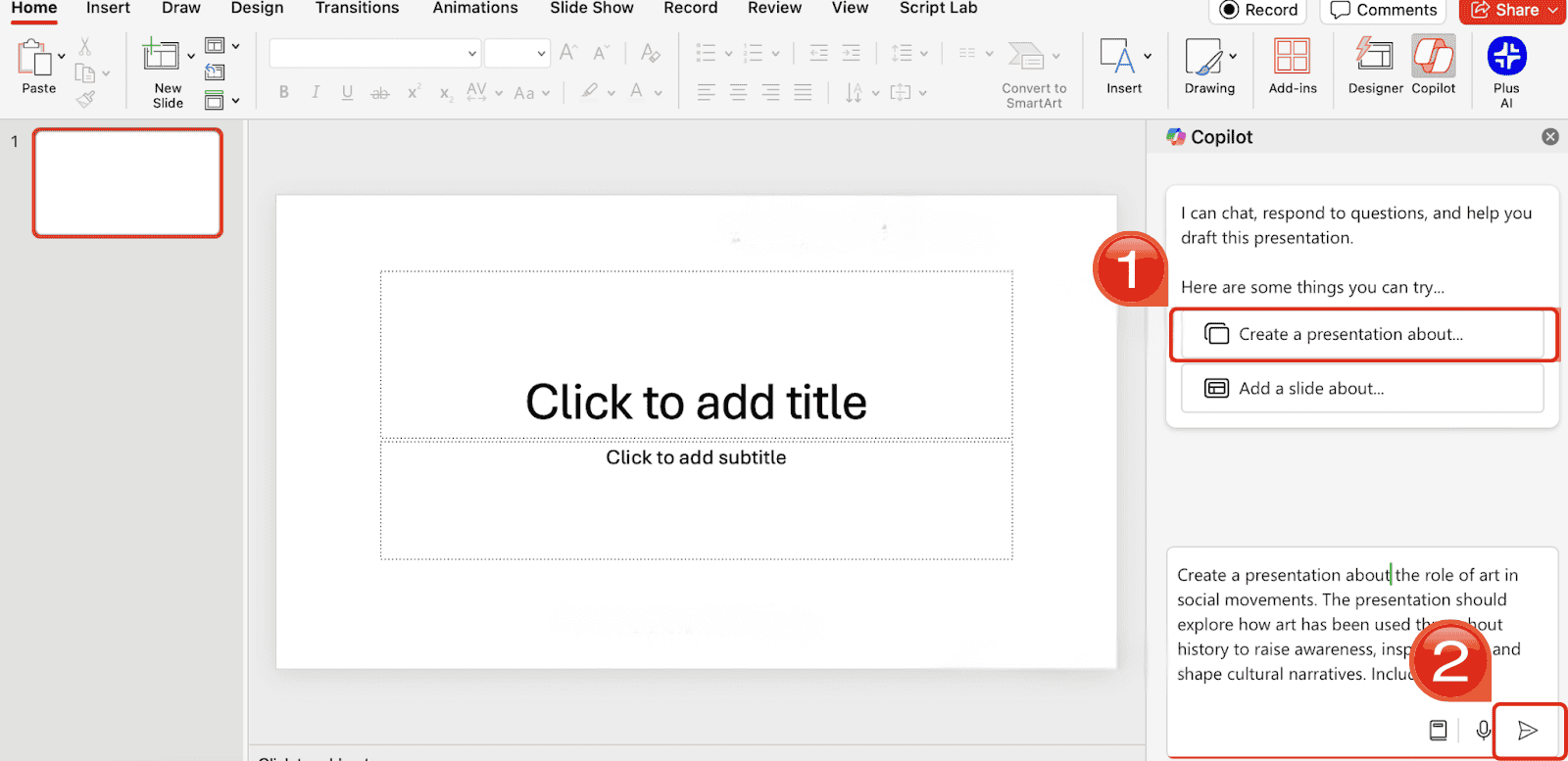
Step 3: Choose “Create a presentation
about” in the Copilot interface. Then, enter a prompt
describing the presentation in the Copilot chat window, and then click
the arrow to generate your Presentation.
Enter your desired prompt
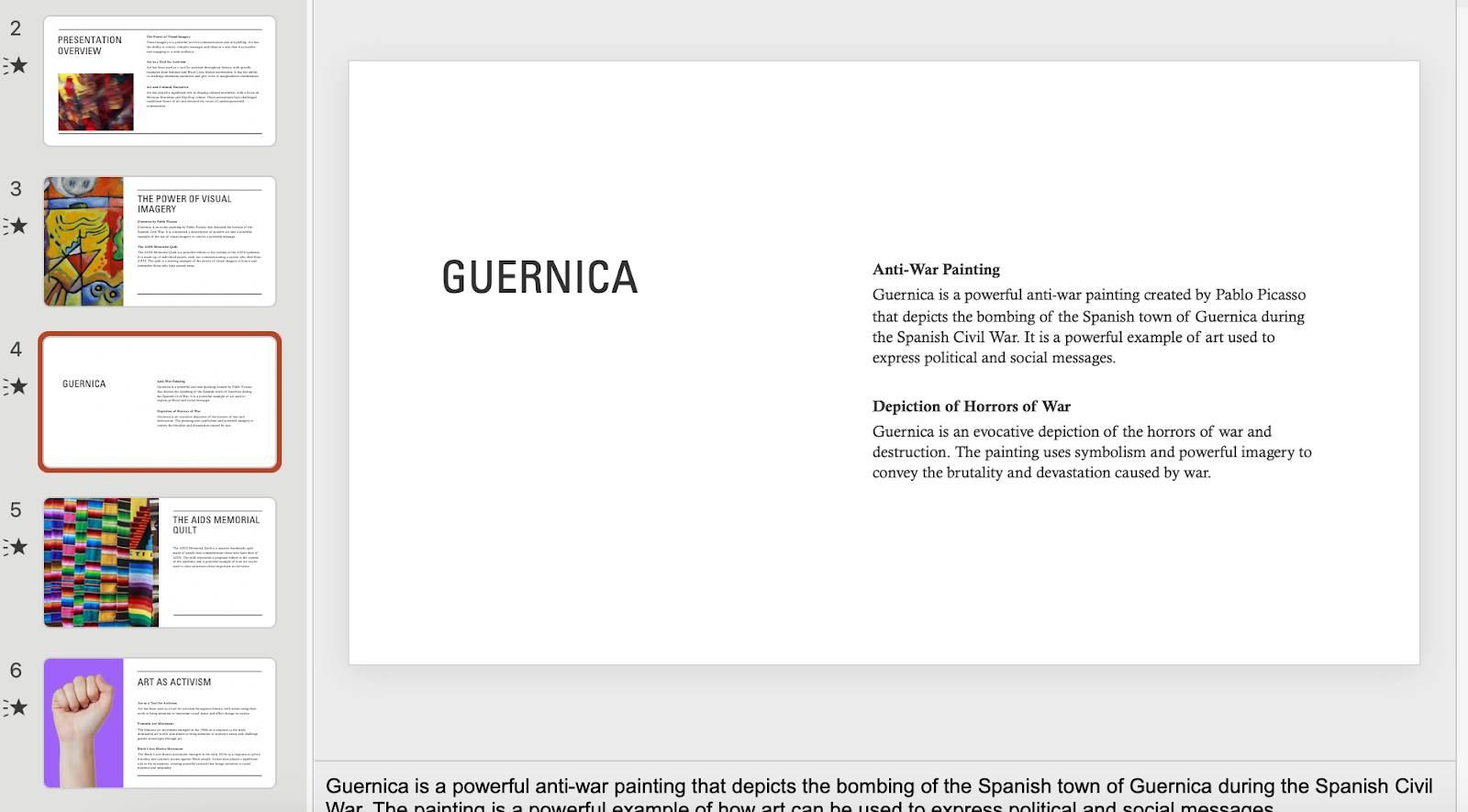
Step 4: Finally, review your slides and make any
changes you want to them.
Review AI presentation
Why WPS AI Slides Stands Out
If you’re a student or freelancer, then Microsoft's expensive license
costs and major restrictions can be a big issue. Experimenting becomes
almost impossible when your features are always restricted due to
subscriptions. This is where WPS AI
Slides shines as a more accessible and versatile
alternative.
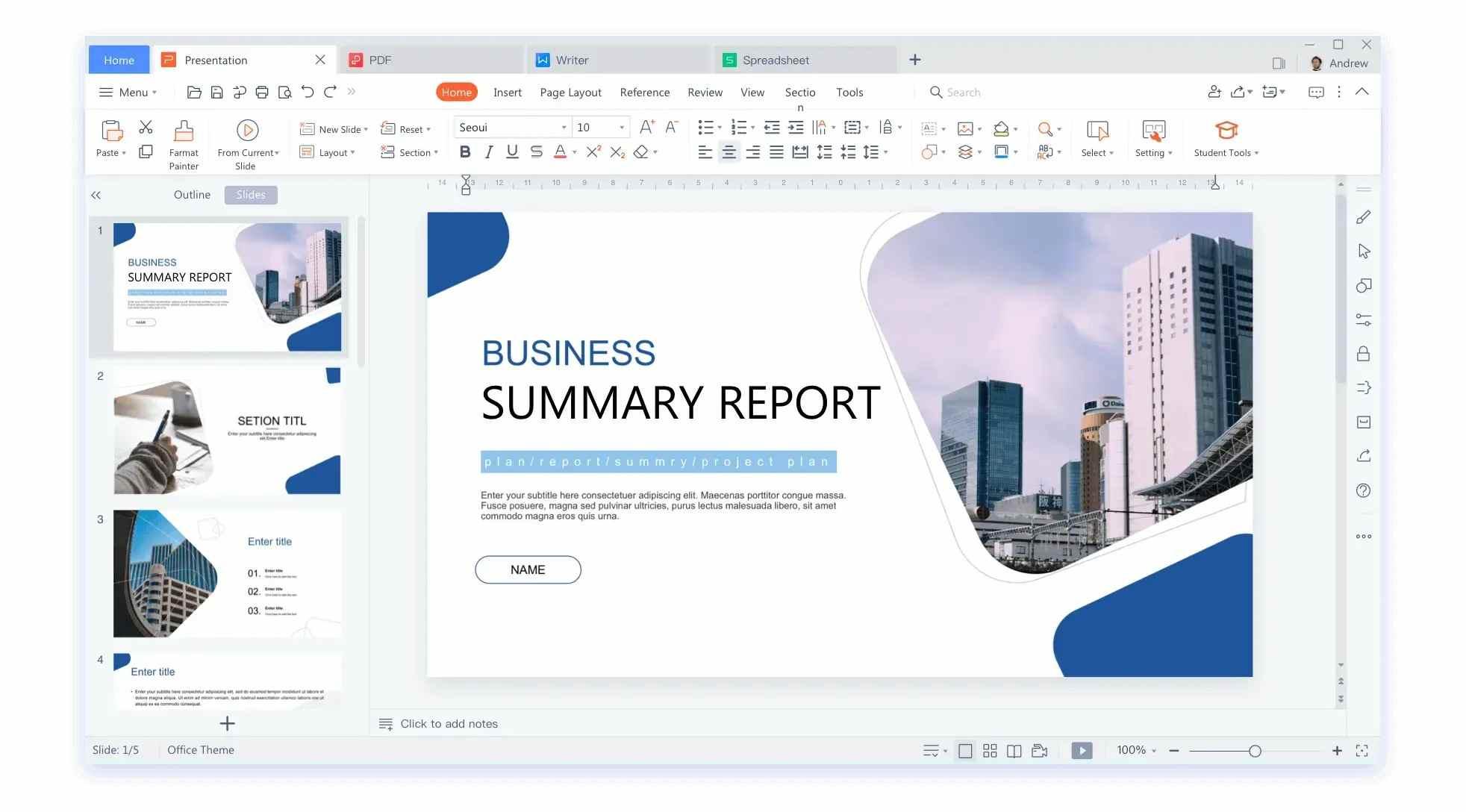
WPS Slides
WPS AI Slides offers similar generative capabilities but is often
more accessible to a broader range of users without requiring
enterprise-level subscriptions. It integrates robust AI tools directly
into the WPS Presentation software, allowing for quick generation,
rewriting, and layout design.
How to
Transition from Copilot to WPS AI Slides
If you are looking to switch to a more cost-effective solution, the
transition is seamless because WPS is highly compatible with PPTX
files.
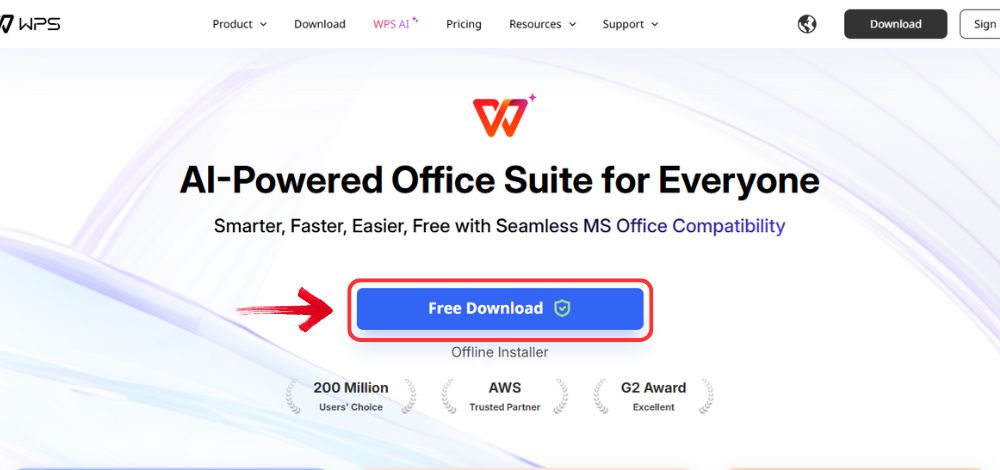
Step 1: Open your browser to visit WPS Office and click the"Free Download" button to start the download.
Download WPS Office
Step 2: The download will finish in a few seconds.
Once done, run the installation file like you would for any other app or
software.
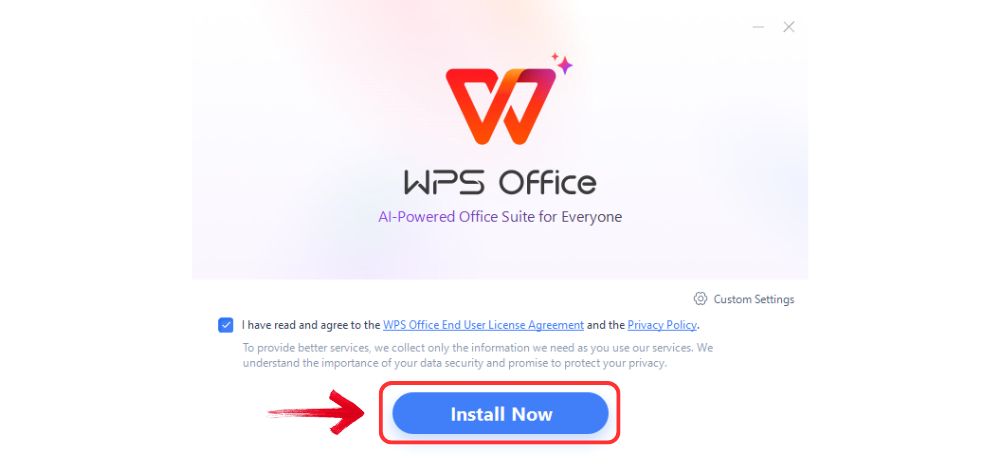
Step 3: WPS Office will show you a few simple terms
and conditions. Accept them, then click the "Install
Now" button to begin the installation.
Install WPS Office
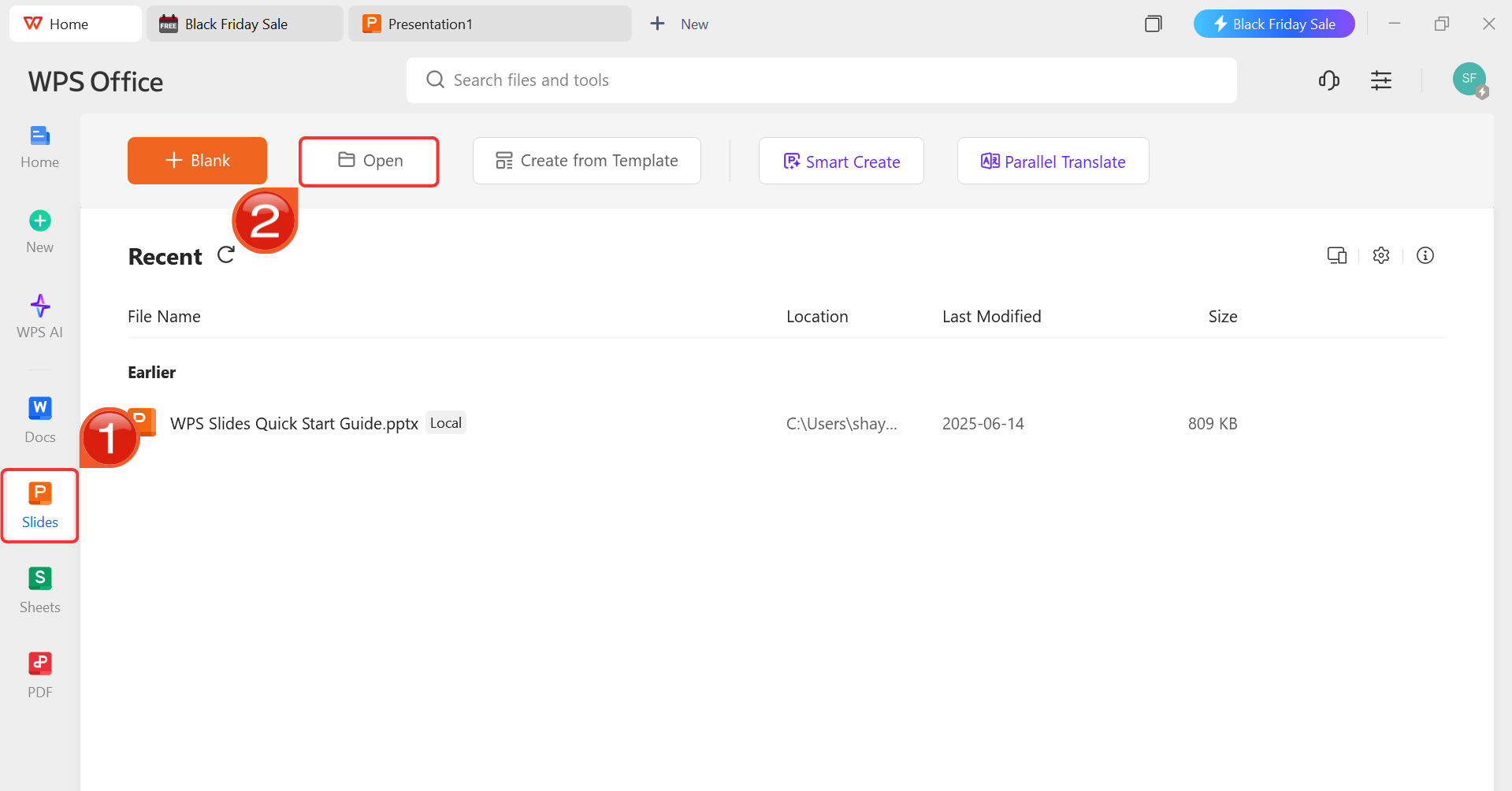
Step 4: After installation, in WPS Office, click“Slides” from the left sidebar and hit“Open” to open your presentation in WPS Office.
WPS Slides Dashboard
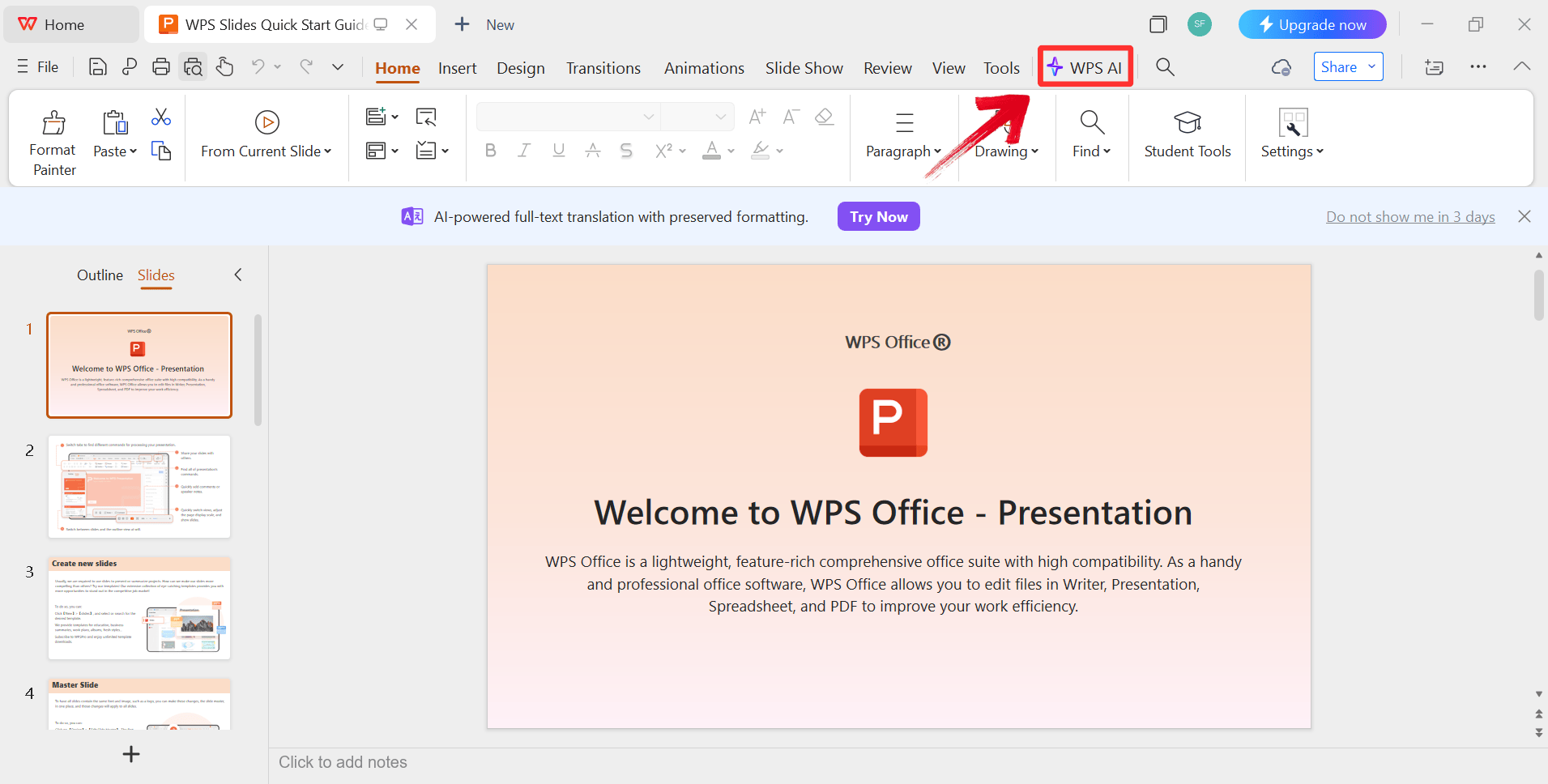
Step 5: Click on the "WPS AI" icon
in the ribbon to start enhancing your content.
Open WPS AI
Step 6: Use the AI to expand on bullet points or
generate new visual layouts.
Use AI Features
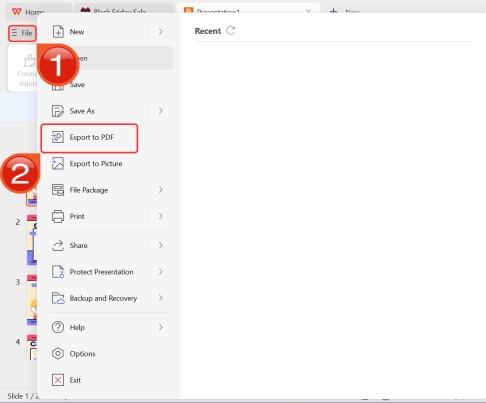
Step 7: After you’re done modifying the
Presentation, head to “File” and choose “Export
to PDF” to save the Slides in your desired format.
Export as PDF
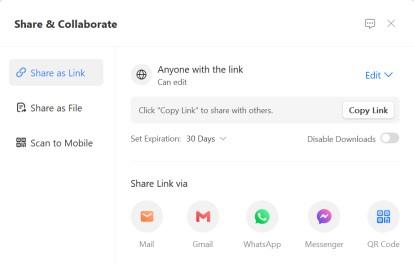
Step 8: You can also share the link to your document
with others to enable collaborative work in case they want to make their
own changes as well.
Share link
Benefits of Switching:
Reduced Subscription Costs: Unlike Copilot,
which demands an expensive commercial add-on on top of your base plan,
WPS AI offers a much more affordable model with a generous free tier,
making it ideal for budget-conscious users.
Enhanced Feature Set: Beyond just slides, you
get a comprehensive suite that includes AI-powered PDF tools and over
100,000 built-in templates,
giving you more creative assets right out of the box without needing
external downloads.
Better Compatibility: WPS Office is designed to
run smoothly on Windows, Mac, Linux, and mobile devices, ensuring your
formatting stays perfect regardless of the operating system your team
uses.
Improved User Experience: I find the
lightweight, tabbed interface (similar to a web browser) much faster for
multitasking than opening multiple heavy PowerPoint windows, allowing
you to switch between documents effortlessly.
Comparison: Copilot vs WPS
AI Slides
To help you make an informed decision, I have broken down the key
differences between these twopowerful tools. While both leverage AI to streamline presentation
creation, their accessibility and cost structures differ significantly.
Here is a side-by-side look at how they stack up in terms of value,
flexibility, and features.
Feature
PowerPoint Copilot
WPS AI Slides
Subscription Cost
Requires Microsoft 365 Commercial
Add-on
More affordable options & Free
tier
Accessibility
Locked to Microsoft ecosystem
Cross-platform (Windows, Mac,
Linux)
Template Variety
Limited to standard Microsoft
themes
Extensive built-in template library
Customization
Basic editing via Designer
Advanced customization tools
Offline Functionality
Limited (Heavy cloud reliance)
Better offline support for editing
Collaboration
Microsoft Teams integration
Multi-platform cloud collaboration
When comparing the two, I believe WPS AI Slides offers a
significantly higher value proposition for the average user. While
Copilot is excellent for corporate environments already deep in the
Microsoft stack, WPS provides superior customization and flexibility.
You are not forced into a strict subscription model just to access AI
features. Furthermore, the cross-platform compatibility of WPS means you
can work on your slides on a Linux machine or a Mac without worrying
about features.
FAQs
Q1:
Do I need a specific Microsoft 365 subscription for Copilot?
Yes, to use Copilot for PowerPoint, you generally
need a Microsoft 365 Commercial subscription plus a separate Copilot
license. In contrast, WPS AI Slides offers more flexible pricing,
including robust free options.
Q2:
Can I use Copilot features without an internet connection?
No, most Copilot AI features require an active internet connection to
process your prompts via the cloud. WPS AI Slides handles basic editing
offline, though its generative AI features also need internet
access.
Q3: What
are the main limitations of PowerPoint Copilot?
The key limitations include the steep cost, the requirement for
specific enterprise licenses, and a limited selection of creative
templates compared to the vast library available in WPS AI Slides.
Q4: Can
Copilot create a presentation from a PDF file?
Copilot works best with Word documents. While it can sometimes
reference other files, converting a PDF to a Word doc first is usually
required for the best results. WPS AI handles various file inputs more
flexibly.
Q5:
Is WPS AI Slides compatible with my existing PowerPoint files?
Absolutely. WPS Office is designed with high compatibility in mind.
You can open, edit, and save .pptx files seamlessly,
preserving your formatting while adding AI enhancements.
Summary
Mastering how to use Copilot in PowerPoint can
significantly speed up your workflow, provided you have the right
subscription and setup. It offers powerful automation for corporate
users. However, for those seeking a more flexible, cost-effective, and
creative solution, WPS AI
Slides stands out as a superior choice. It delivers the
same AI-driven efficiency without the restrictive licensing, making it
the smarter tool for modern presenters.
Khadija Khan is a tech writer who explores office suites and creates content to simplify everyday tools. She teaches and inspires through clear, engaging writing.


'%3e%3cpath%20d='M8%200C12.4183%200%2016%203.58172%2016%208C16%2012.4183%2012.4183%2016%208%2016C3.58172%2016%200%2012.4183%200%208C0%203.58172%203.58172%200%208%200ZM11.6162%204.38379C11.2257%203.99337%2010.5927%203.99338%2010.2021%204.38379L8%206.58594L5.79785%204.38379C5.40732%203.99334%204.77429%203.99329%204.38379%204.38379C3.99331%204.77429%203.99335%205.40733%204.38379%205.79785L6.58594%208L4.38379%2010.2021C3.99348%2010.5927%203.99341%2011.2257%204.38379%2011.6162C4.77426%2012.0066%205.40734%2012.0065%205.79785%2011.6162L8%209.41406L10.2021%2011.6162C10.5927%2012.0066%2011.2257%2012.0067%2011.6162%2011.6162C12.0067%2011.2257%2012.0066%2010.5927%2011.6162%2010.2021L9.41406%208L11.6162%205.79785C12.0066%205.40735%2012.0066%204.77429%2011.6162%204.38379Z'%20fill='%23080E17'%20fill-opacity='0.46'/%3e%3c/g%3e%3cdefs%3e%3cclipPath%20id='clip0_3761_713'%3e%3crect%20width='16'%20height='16'%20fill='white'/%3e%3c/clipPath%3e%3c/defs%3e%3c/svg%3e)




'%3e%3cpath%20fill-rule='evenodd'%20clip-rule='evenodd'%20d='M21.4999%2010.9993C21.4999%205.20009%2016.7986%200.498901%2010.9993%200.498901C5.19994%200.498901%200.498657%205.20009%200.498657%2010.9993C0.498657%2016.2404%204.33858%2020.5844%209.35855%2021.3722V14.0346H6.69238V10.9993H9.35855V8.68594C9.35855%206.05427%2010.9262%204.60062%2013.3248%204.60062C14.4736%204.60062%2015.6753%204.80571%2015.6753%204.80571V7.38979H14.3512C13.0468%207.38979%2012.64%208.19921%2012.64%209.0296V10.9993H15.5523L15.0867%2014.0346H12.64V21.3722C17.66%2020.5844%2021.4999%2016.2404%2021.4999%2010.9993Z'%20fill='%231568EA'/%3e%3c/g%3e%3c/svg%3e)


'%3e%3cpath%20d='M2.42045%2022.1876H6.31818V12.7217L0.75%208.54553V20.5171C0.75%2021.4414%201.49892%2022.1876%202.42045%2022.1876Z'%20fill='%234285F4'/%3e%3cpath%20d='M19.682%2022.1876H23.5797C24.5041%2022.1876%2025.2502%2021.4387%2025.2502%2020.5171V8.54553L19.682%2012.7217'%20fill='%2334A853'/%3e%3cpath%20d='M19.682%205.48293V12.7216L25.2502%208.54543V6.31816C25.2502%204.25236%2022.8921%203.07469%2021.2411%204.31361'%20fill='%23FBBC04'/%3e%3cpath%20d='M6.31824%2012.7217V5.48303L13.0001%2010.4944L19.6819%205.48303V12.7217L13.0001%2017.733'%20fill='%23EA4335'/%3e%3cpath%20d='M0.75%206.31816V8.54543L6.31818%2012.7216V5.48293L4.75909%204.31361C3.10534%203.07469%200.75%204.25236%200.75%206.31816Z'%20fill='%23C5221F'/%3e%3c/g%3e%3cdefs%3e%3cclipPath%20id='clip0_2954_7305'%3e%3crect%20width='24.5'%20height='18.375'%20fill='white'%20transform='translate(0.75%203.8125)'/%3e%3c/clipPath%3e%3c/defs%3e%3c/svg%3e)




'%3e%3cpath%20d='M19.9911%204.11386V6.471H18.5894C18.0775%206.471%2017.7322%206.57814%2017.5536%206.79243C17.3751%207.00671%2017.2858%207.32814%2017.2858%207.75671V9.44421H19.9019L19.5536%2012.0871H17.2858V18.8639H14.5536V12.0871H12.2769V9.44421H14.5536V7.49779C14.5536%206.39064%2014.8632%205.53201%2015.4822%204.92189C16.1013%204.31177%2016.9257%204.00671%2017.9554%204.00671C18.8304%204.00671%2019.509%204.04243%2019.9911%204.11386Z'%20fill='%23333333'/%3e%3c/g%3e%3cdefs%3e%3cclipPath%20id='clip0_2938_8199'%3e%3crect%20width='16'%20height='16'%20fill='white'%20transform='translate(8%204.00671)'/%3e%3c/clipPath%3e%3c/defs%3e%3c/svg%3e)
'%3e%3cpath%20d='M17.5237%2010.7813L23.4811%204H22.0699L16.8949%209.88693L12.7648%204H8L14.2469%2012.9029L8%2020.0133H9.4112L14.8725%2013.7952L19.2352%2020.0133H24M9.92053%205.04213H12.0885L22.0688%2019.0224H19.9003'%20fill='%23333333'/%3e%3c/g%3e%3cdefs%3e%3cclipPath%20id='clip0_2938_8200'%3e%3crect%20width='16'%20height='16.0134'%20fill='white'%20transform='translate(8%204)'/%3e%3c/clipPath%3e%3c/defs%3e%3c/svg%3e)


