

'%3e%3cpath%20d='M8%200C12.4183%200%2016%203.58172%2016%208C16%2012.4183%2012.4183%2016%208%2016C3.58172%2016%200%2012.4183%200%208C0%203.58172%203.58172%200%208%200ZM11.6162%204.38379C11.2257%203.99337%2010.5927%203.99338%2010.2021%204.38379L8%206.58594L5.79785%204.38379C5.40732%203.99334%204.77429%203.99329%204.38379%204.38379C3.99331%204.77429%203.99335%205.40733%204.38379%205.79785L6.58594%208L4.38379%2010.2021C3.99348%2010.5927%203.99341%2011.2257%204.38379%2011.6162C4.77426%2012.0066%205.40734%2012.0065%205.79785%2011.6162L8%209.41406L10.2021%2011.6162C10.5927%2012.0066%2011.2257%2012.0067%2011.6162%2011.6162C12.0067%2011.2257%2012.0066%2010.5927%2011.6162%2010.2021L9.41406%208L11.6162%205.79785C12.0066%205.40735%2012.0066%204.77429%2011.6162%204.38379Z'%20fill='%23080E17'%20fill-opacity='0.46'/%3e%3c/g%3e%3cdefs%3e%3cclipPath%20id='clip0_3761_713'%3e%3crect%20width='16'%20height='16'%20fill='white'/%3e%3c/clipPath%3e%3c/defs%3e%3c/svg%3e)




'%3e%3cpath%20fill-rule='evenodd'%20clip-rule='evenodd'%20d='M21.4999%2010.9993C21.4999%205.20009%2016.7986%200.498901%2010.9993%200.498901C5.19994%200.498901%200.498657%205.20009%200.498657%2010.9993C0.498657%2016.2404%204.33858%2020.5844%209.35855%2021.3722V14.0346H6.69238V10.9993H9.35855V8.68594C9.35855%206.05427%2010.9262%204.60062%2013.3248%204.60062C14.4736%204.60062%2015.6753%204.80571%2015.6753%204.80571V7.38979H14.3512C13.0468%207.38979%2012.64%208.19921%2012.64%209.0296V10.9993H15.5523L15.0867%2014.0346H12.64V21.3722C17.66%2020.5844%2021.4999%2016.2404%2021.4999%2010.9993Z'%20fill='%231568EA'/%3e%3c/g%3e%3c/svg%3e)


'%3e%3cpath%20d='M2.42045%2022.1876H6.31818V12.7217L0.75%208.54553V20.5171C0.75%2021.4414%201.49892%2022.1876%202.42045%2022.1876Z'%20fill='%234285F4'/%3e%3cpath%20d='M19.682%2022.1876H23.5797C24.5041%2022.1876%2025.2502%2021.4387%2025.2502%2020.5171V8.54553L19.682%2012.7217'%20fill='%2334A853'/%3e%3cpath%20d='M19.682%205.48293V12.7216L25.2502%208.54543V6.31816C25.2502%204.25236%2022.8921%203.07469%2021.2411%204.31361'%20fill='%23FBBC04'/%3e%3cpath%20d='M6.31824%2012.7217V5.48303L13.0001%2010.4944L19.6819%205.48303V12.7217L13.0001%2017.733'%20fill='%23EA4335'/%3e%3cpath%20d='M0.75%206.31816V8.54543L6.31818%2012.7216V5.48293L4.75909%204.31361C3.10534%203.07469%200.75%204.25236%200.75%206.31816Z'%20fill='%23C5221F'/%3e%3c/g%3e%3cdefs%3e%3cclipPath%20id='clip0_2954_7305'%3e%3crect%20width='24.5'%20height='18.375'%20fill='white'%20transform='translate(0.75%203.8125)'/%3e%3c/clipPath%3e%3c/defs%3e%3c/svg%3e)


Creating presentations shouldn't be complicated. The online presentation builder has changed everything by letting professionals and students build, edit, and share decks from any browser instantly. But simple tools often lack power while powerful ones feel overwhelming, leaving you stuck fighting design instead of focusing on your message. This guide shows you five proven free best online presentation builder options that actually work, helping you generate slide with online presentation builder quickly without design headaches or hidden costs.
Part 1: Top 5 Free Online Presentation Builders
1. WPS AI Slide
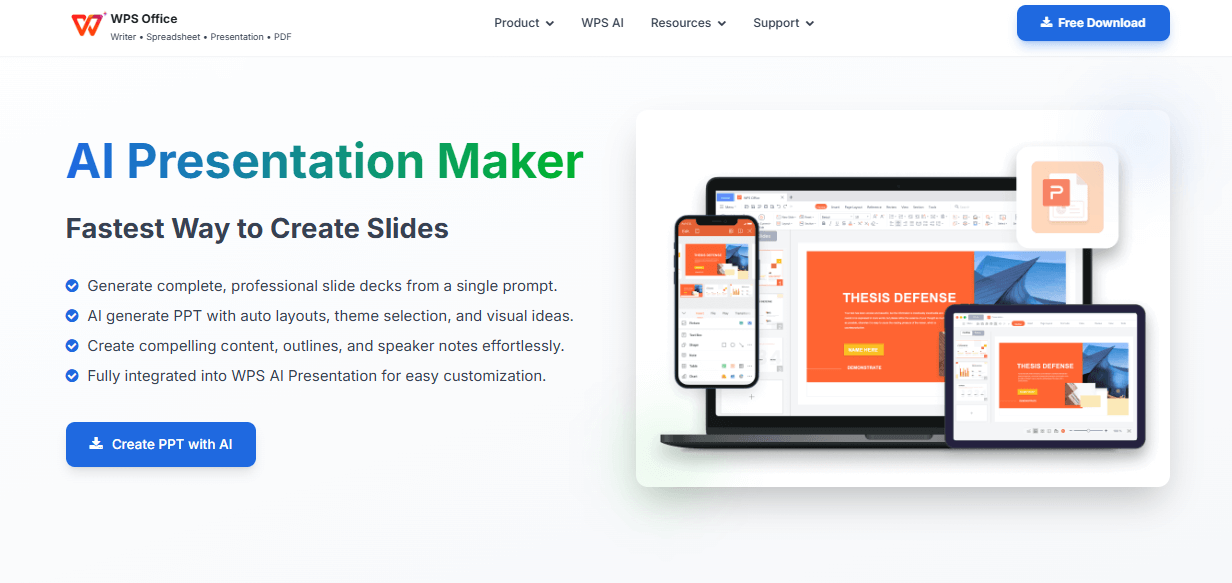
WPS AI Slide combines PowerPoint's familiar interface with AI that creates complete presentations in 60 seconds. You type your topic or paste content, and the AI generates a structured deck automatically. It's perfect for busy professionals who need slides fast without wrestling with design or formatting.
Features:
AI turns text prompts into complete slide decks
1GB free cloud storage
Perfect PowerPoint compatibility (no formatting disasters)
Real-time collaboration links
Works on phone, tablet, desktop
Pros:
Free AI features without trial traps or hidden paywalls
Makes full presentations in 60 seconds, fastest option available
Super lightweight at only 200MB
Exports perfectly to PowerPoint without formatting issues
Cons:
Advanced PDF editing requires premium tier
Can lag slightly with very large files
Fewer integrations than big names like Microsoft
How to Use:
Step 1: Grab WPS Office free from their site.
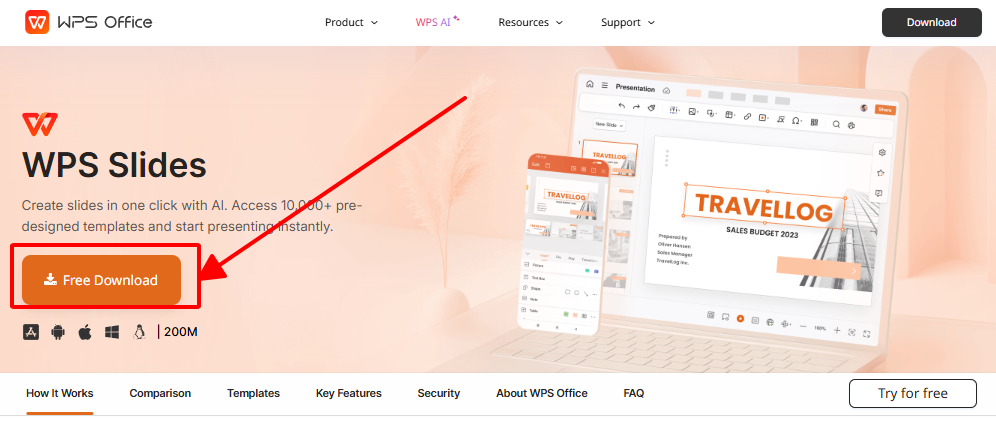
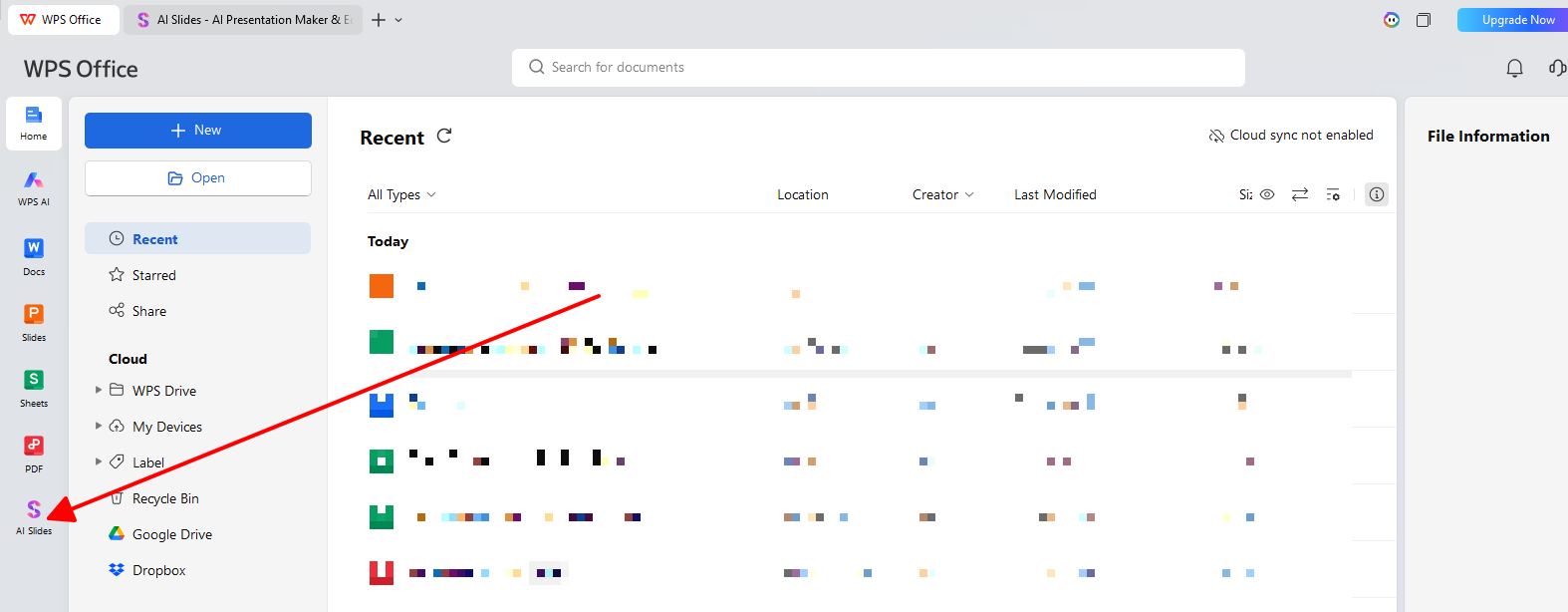
Step 2: Open Presentation, hit "AI Slide."
Step 3: Type something like "Q4 sales strategy" or paste report text.
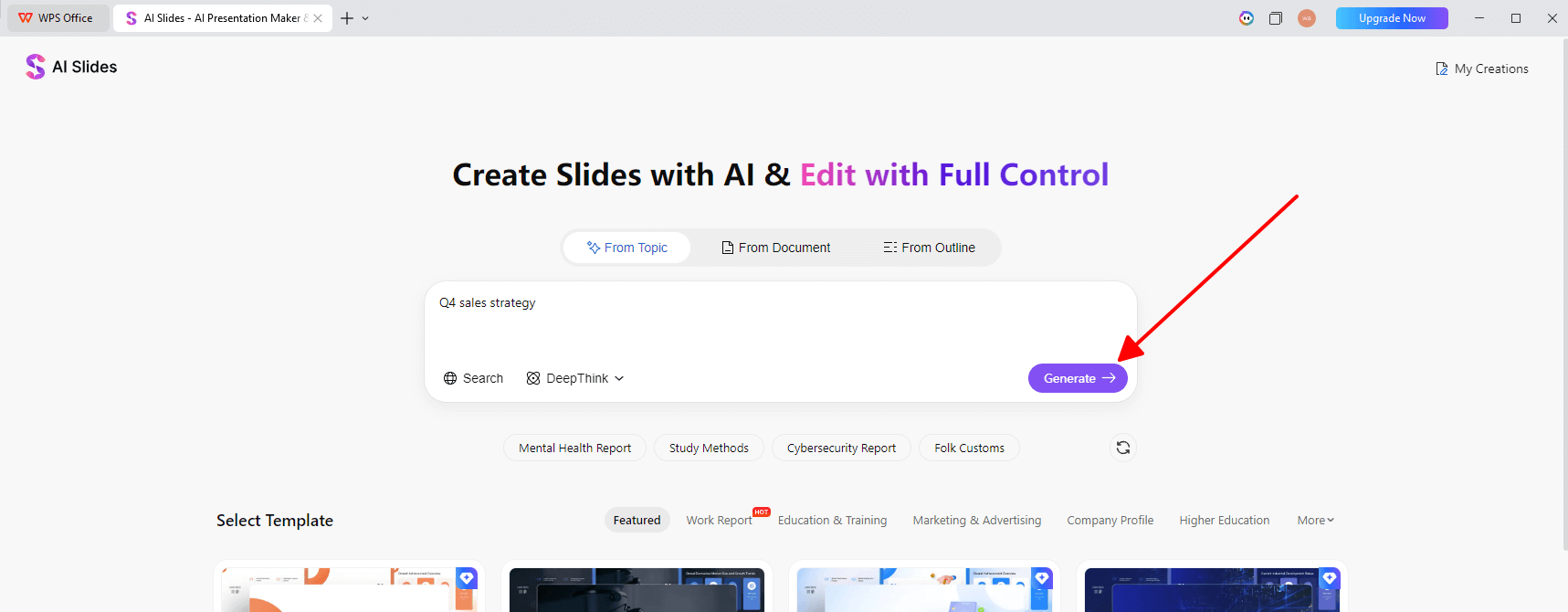
Step 4: AI spits out slide outline. Tweak if needed.
Step 5: Pick template, click generate.
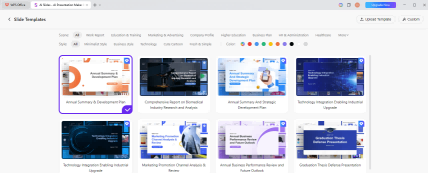
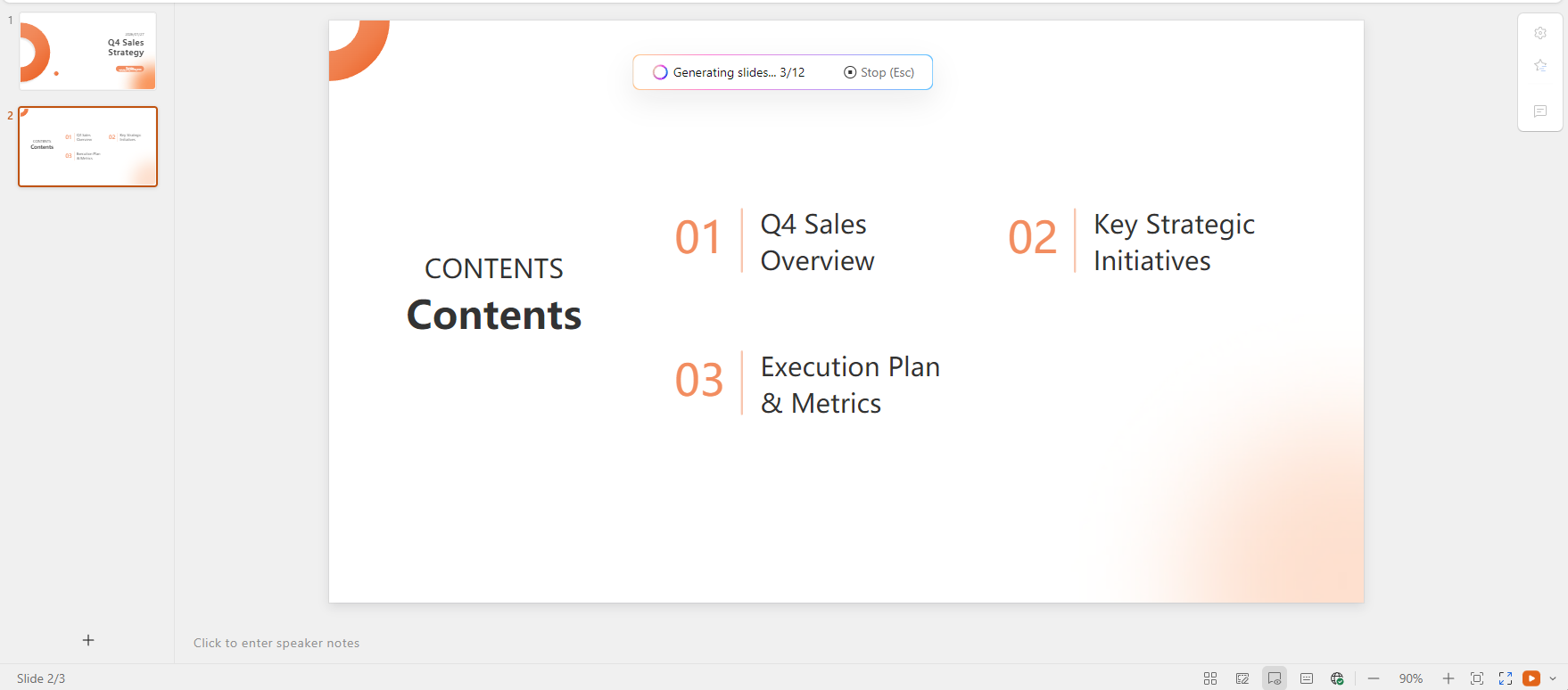
Step 6: Full deck ready in a minute.
Step 7: File > Share > Get link (view or edit).
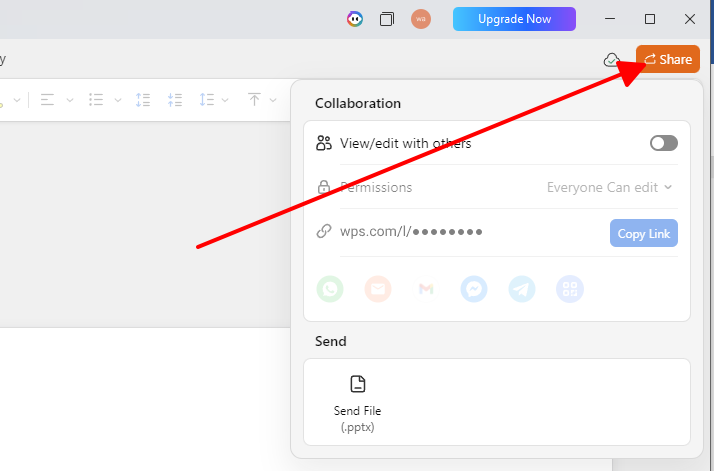
Step 8: Send link. Done.
WPS AI Slide generates professional decks in 60 seconds without design skills. No paywalls or trial traps slow you down. Perfect PowerPoint compatibility means stakeholders see exactly what you designed.
2. Canva
Canva makes design easy for everyone by offering 10,000+ gorgeous templates you can customize in minutes. Beginners create professional-looking decks without any design experience while experienced designers love the massive template library. You simply pick a template, add your content, and it looks polished immediately.
Features:
10,000+ gorgeous templates
Magic Design AI from text prompts
Magic Write generates slide copy
Massive free stock photo library
Brand kits for teams
Pros:
Dead simple to use with zero learning curve required
Templates actually look modern and update regularly
AI writing assistant produces decent copy automatically
Unlimited free exports without credit limits
Presenter notes built-in for live presentations
Cons:
Free tier AI features have limited credits with login resets
Exports get slightly compressed quality at free tier
Team collaboration features work best with paid plans
How to Use:
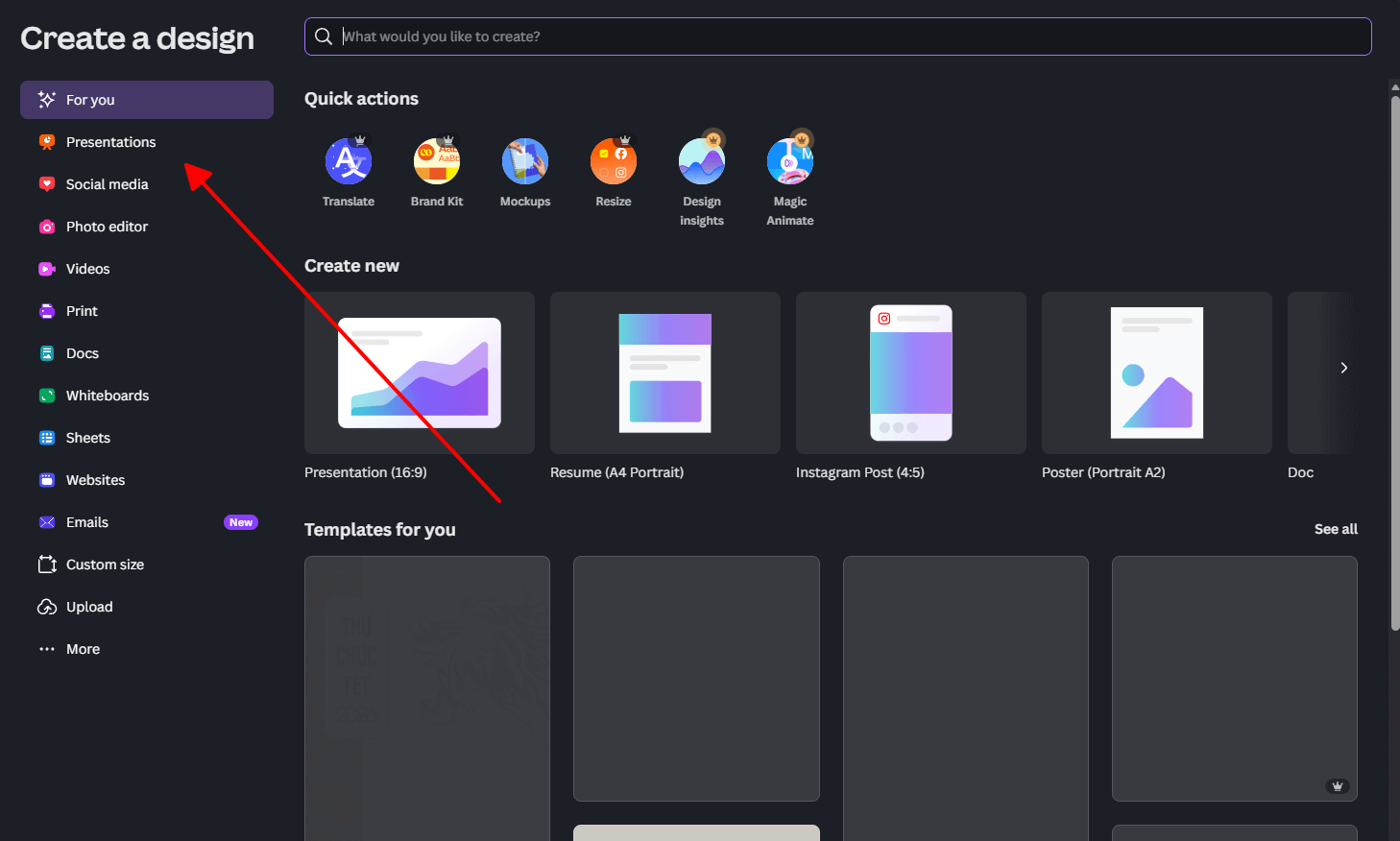
Step 1: canva.com, create free account.
Step 2: "Create a design" > Presentation.
Step 3: Search templates or use Magic Design prompt like "climate change deck."
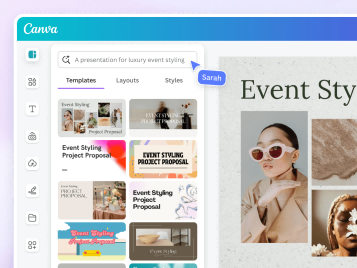
Step 4: AI builds layout plus copy instantly.
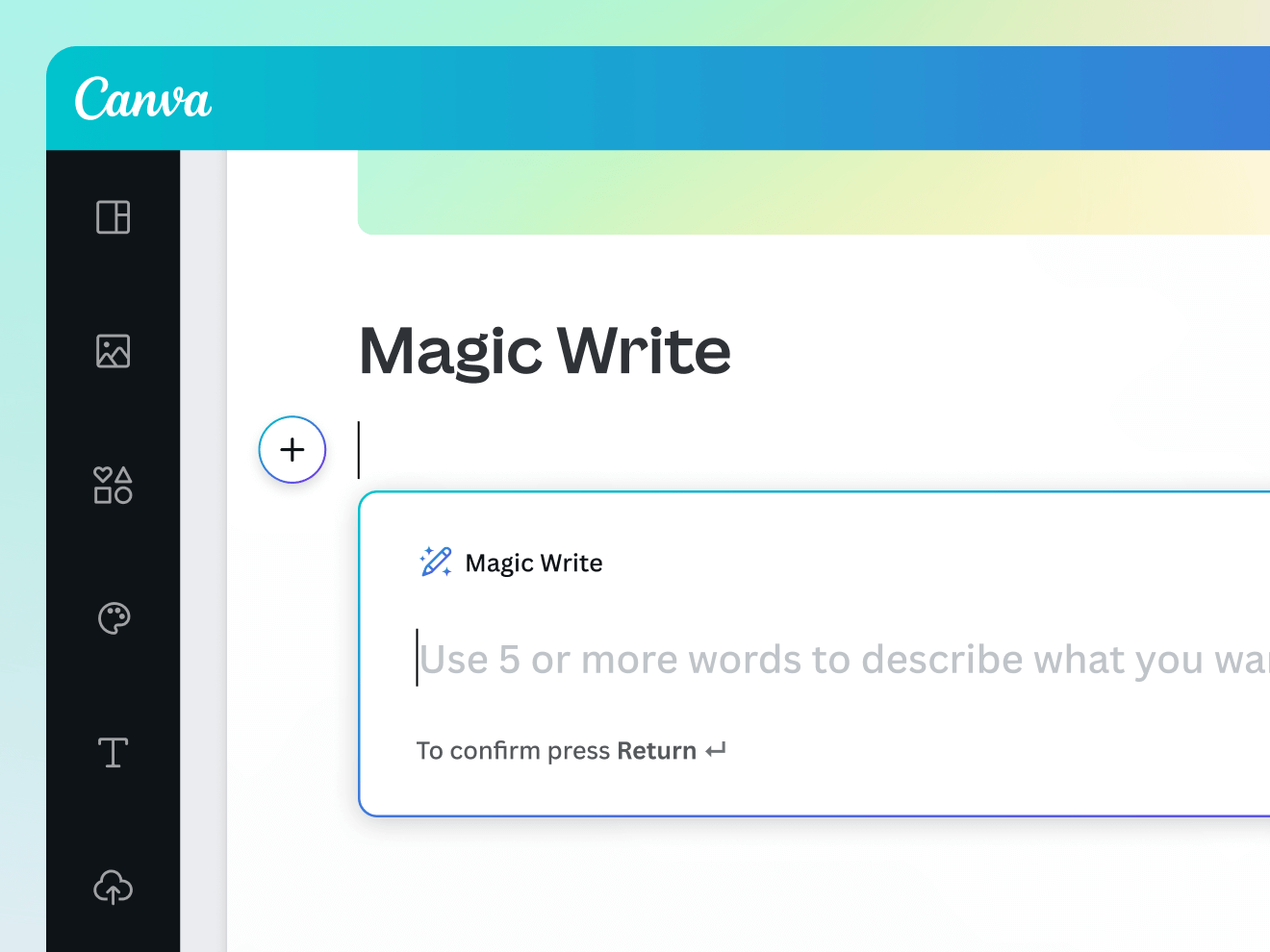
Step 5: Magic Write any text box for better wording.
Step 6: Drag-drop customize colors, fonts, images.
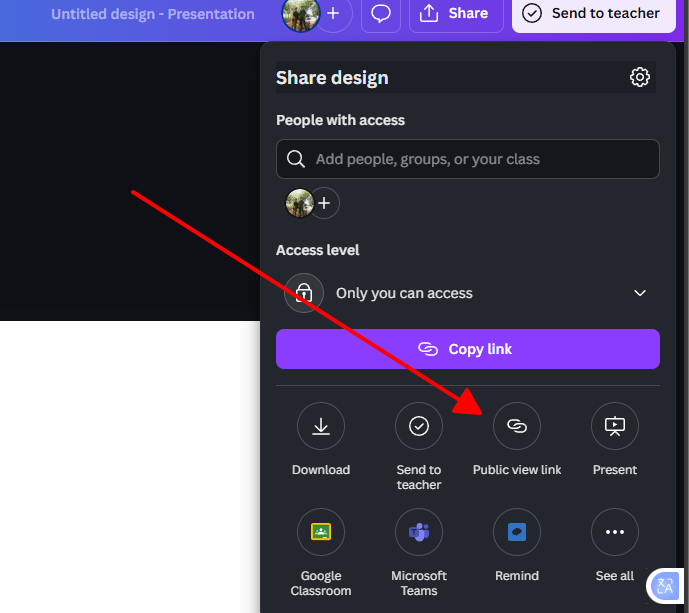
Step 7: Share > Get link > Set permissions.
Step 8: Export PDF/PPT/video format.
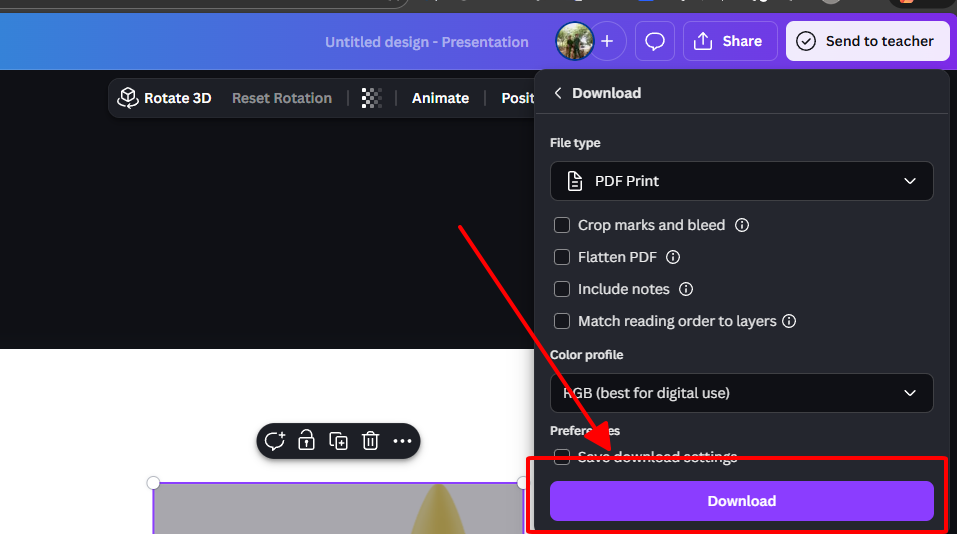
Templates look professional immediately without needing design skills. Anyone can create beautiful slides in minutes. Perfect for people who normally avoid presentations because design feels too complicated.
3. Adobe Express
Adobe Express gives you premium design features without the Creative Cloud complexity. It uses AI to generate custom images and backgrounds matching your brand instantly. This tool works great for professionals who need impressive visuals without learning expensive design software or hiring designers.
Features:
AI generates images and backgrounds from text
Adobe Stock library access
Quick text effects and animations
1000+ pro templates
One-click PowerPoint export
Pros:
AI image quality beats most free tools on the market
Templates feel expensive and professionally designed
Auto-save keeps work safe across all devices
Mobile editing works flawlessly for last-minute changes
Cons:
Free tier limits Firefly credits to 25 per month only
Interface feels slightly busy for beginners
Best quality images require premium credits
How to Use:
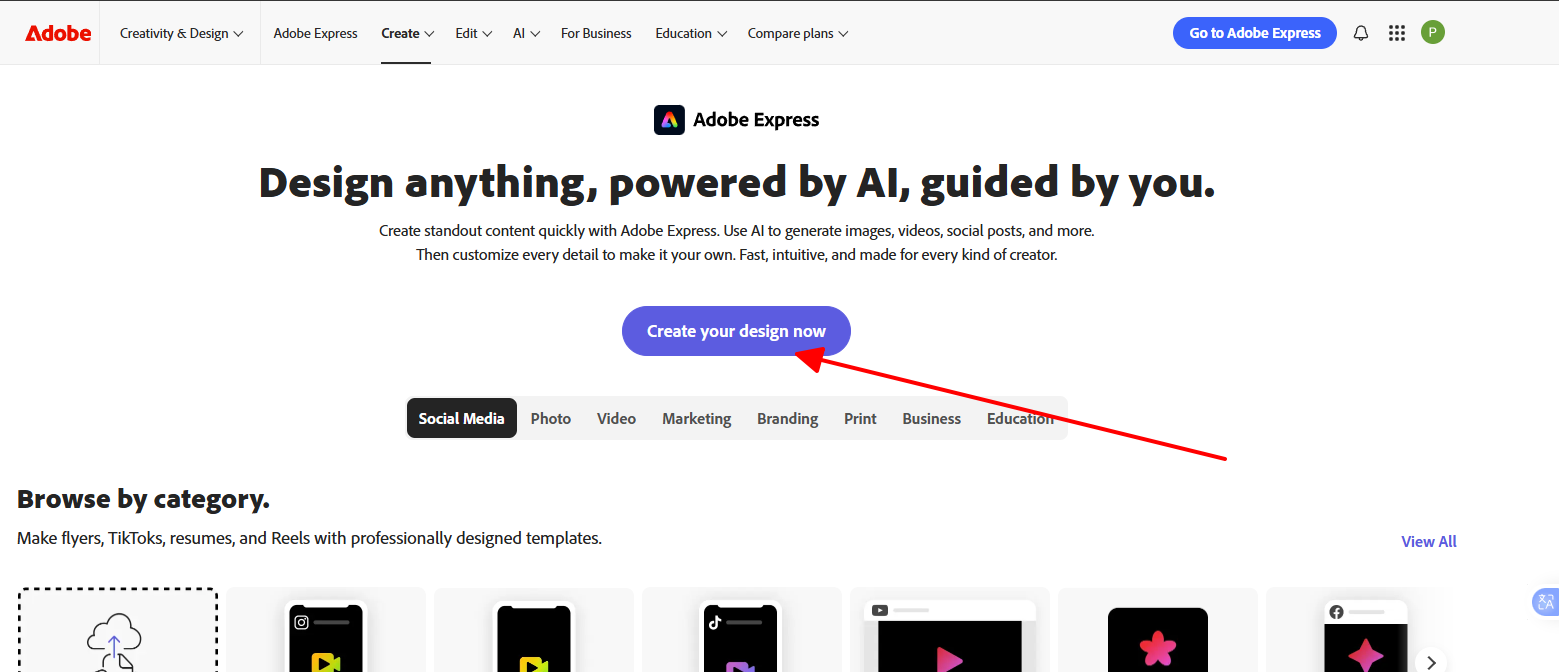
Step 1: adobe.com/express, sign in with free Adobe ID.
Step 2: Create presentation, pick template from gallery.
Step 3: Type "blue abstract background" in Generative Fill.
Step 4: AI creates custom image instantly matching description.
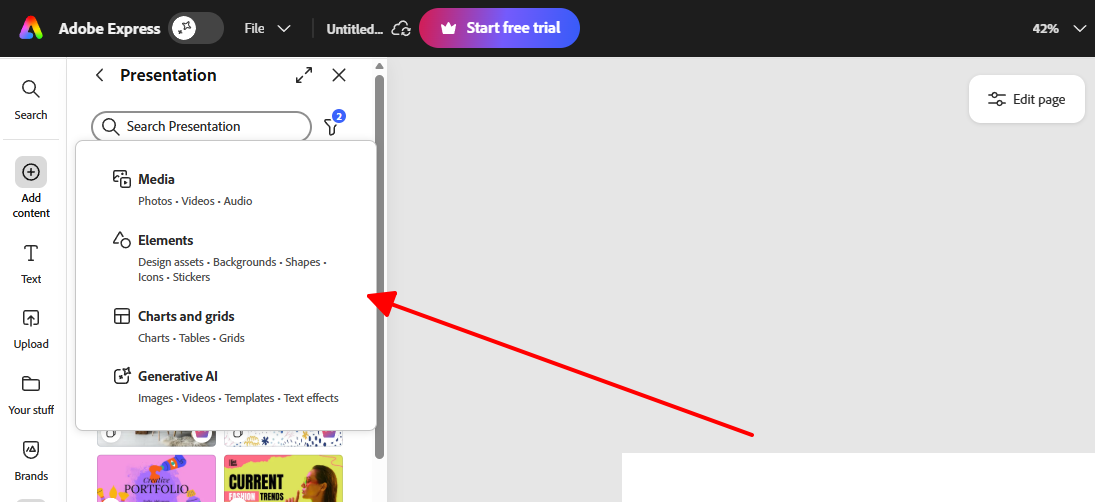
Step 5: Drag-drop text and graphics throughout slide.
Step 6: Adjust fonts, colors, positioning to match brand.
Step 7: Share > Download PPT or PDF.
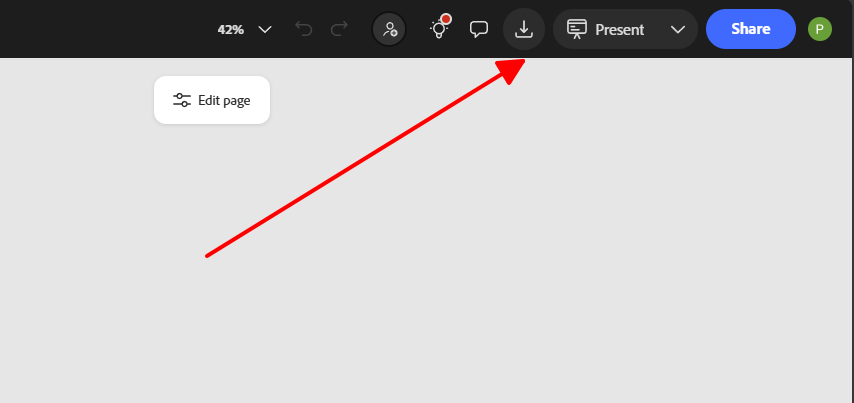
AI generates custom images matching your brand instead of generic stock photos. Your presentations stand out visually without hiring expensive designers. Great for pitches and client meetings where visuals matter.
4. Beautiful.AI

Beautiful.AI uses smart technology to automatically fix your slide design as you type. It adjusts spacing, fonts, and layouts professionally without you thinking about design at all. The tool makes your presentations look like a professional designer created them in minutes instead of hours.
Features:
Smart Slides automatically adjust layouts
AI content generation from text prompts
Native AI image generation integrated
Automatic brand theme application
Real-time team collaboration
Sales-specific integrations
Pros:
Smart Slides feel like having a professional designer watching
Professional output happens with minimal tweaking
14-day free trial includes all premium features without cards
Excellent for sales teams needing analytics
Cons:
Free trial limits only 14 days before requiring payment
Pricing jumps to $12-50 per month for individuals
Steeper learning curve compared to Canva
How to Use:
Step 1: beautiful.ai, start 14-day free trial without credit card.
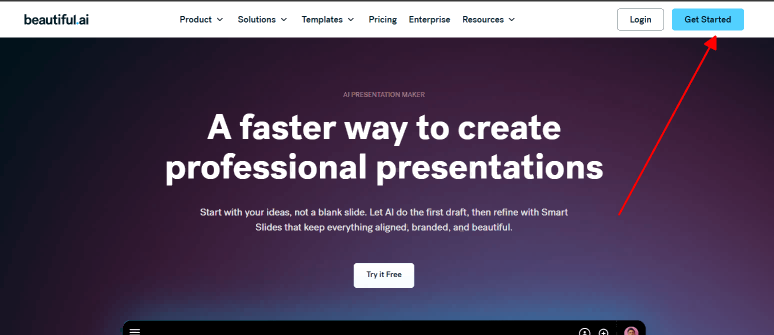
Step 2: New presentation, enter topic or pitch description.
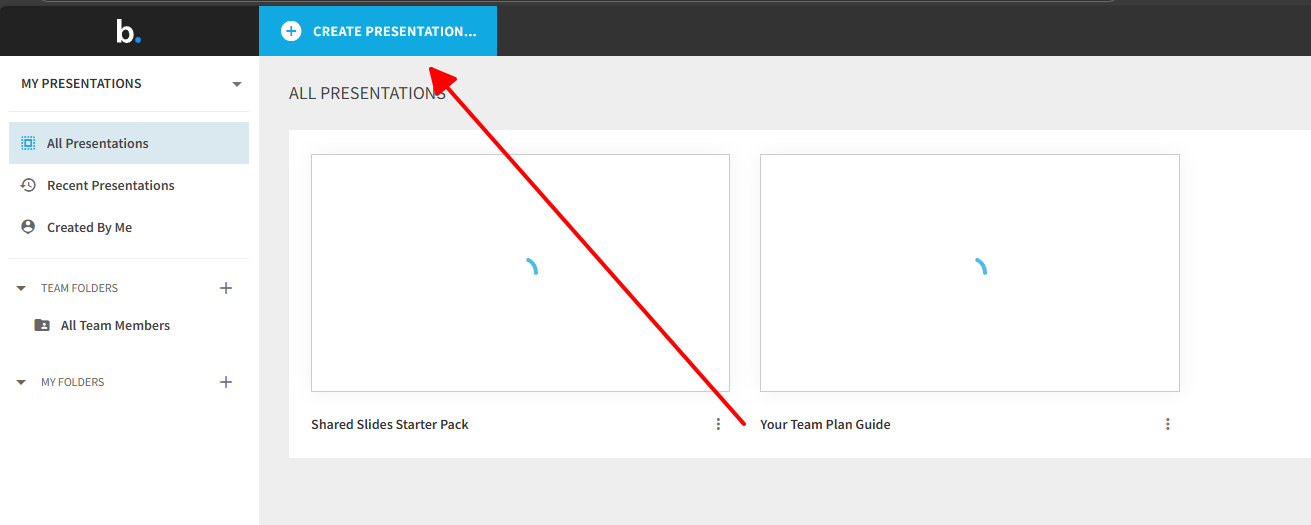
Step 3: AI builds first draft with smart layouts applied.
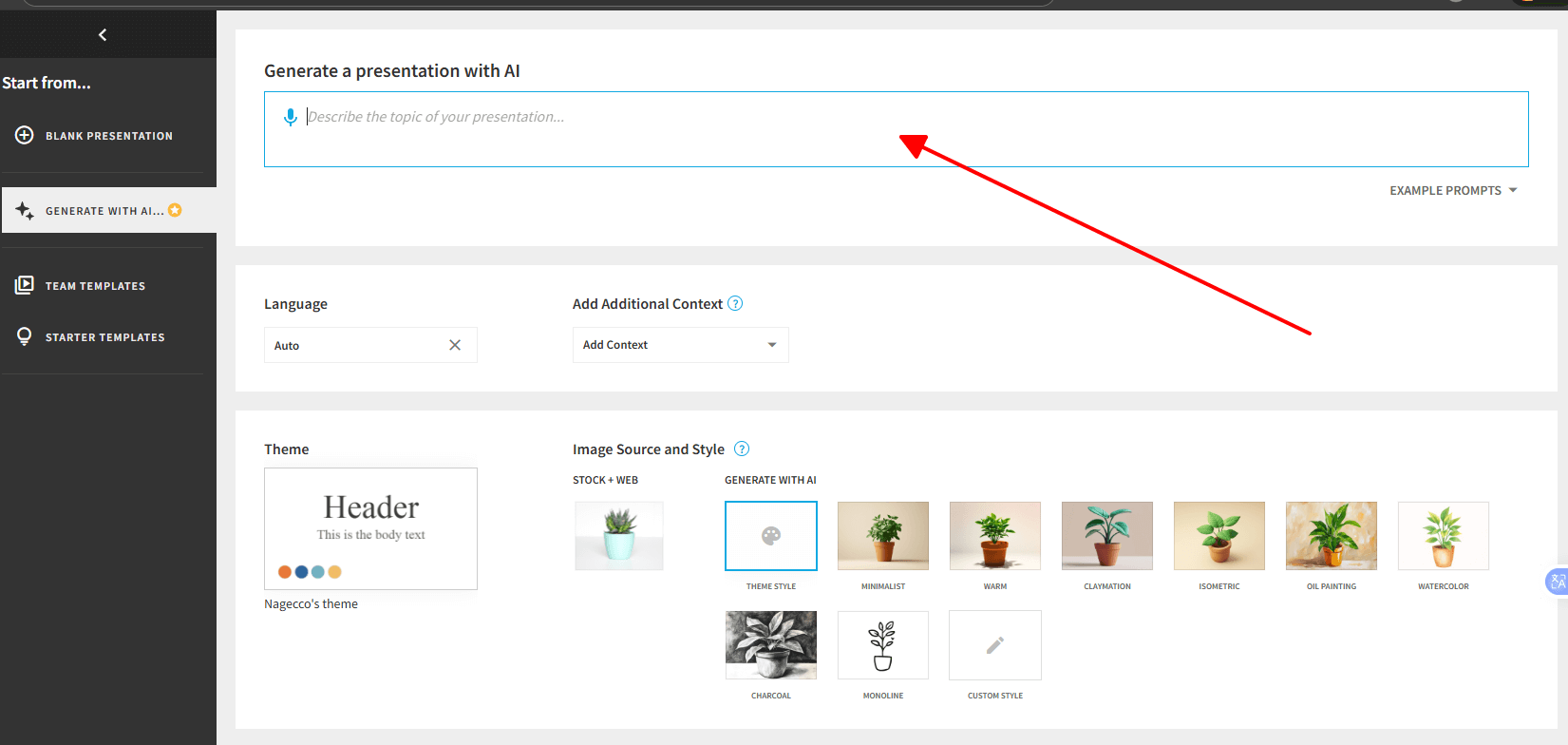
Step 4: Edit text or swap images; Smart Slides adjust automatically.
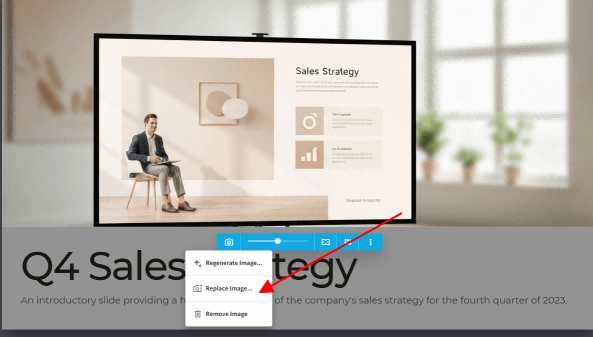
Step 5: Try different layout variations from Layouts panel.
Step 6: Apply brand theme via Styles panel instantly.
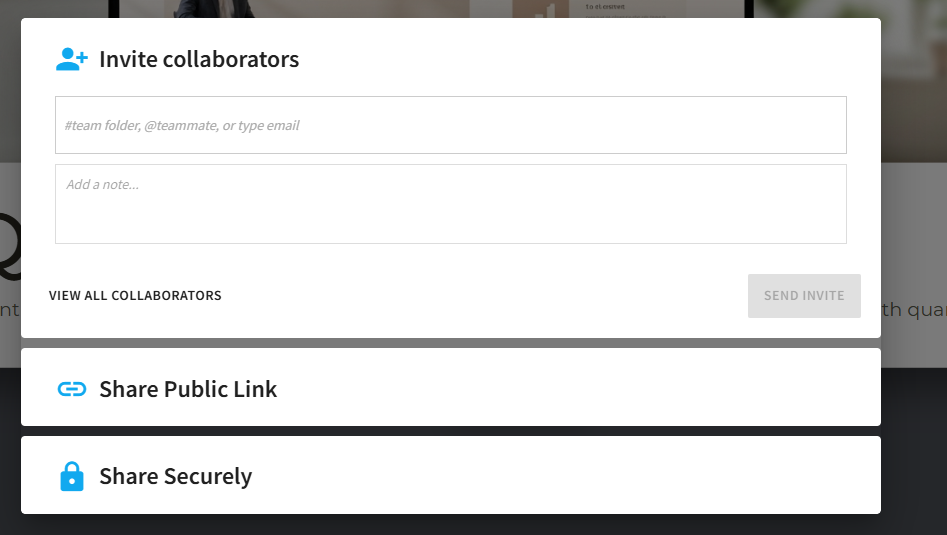
Step 7: Invite team members and collaborate in real-time.
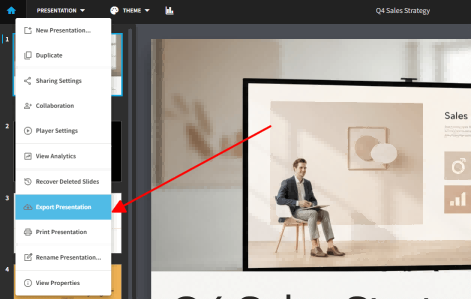
Step 8: Export PPT, PDF, or JPEG formats.
Design automatically fixes itself as you type, removing hours of manual formatting. Your slides look professionally designed instantly. Perfect for important client presentations and investor pitches.
5. Google Slides
Google Slides works entirely in your browser with no software installation needed. Multiple people can edit the same presentation at the same time, seeing changes instantly. It's the perfect tool for teams working together on presentations from different locations without version control headaches.
Features:
Live multi-person editing simultaneously
Color-coded cursors showing who edits where
Comments and suggestion modes
Google Meet integration for presenting
Import any PowerPoint presentation
Speaker notes and presenter view
Unlimited free presentations and storage
Pros:
Totally free and unlimited without feature gates
Collaboration actually works smoothly with live cursors
No software installation needed ever
Mobile app provides full functionality on phones and tablets
Cons:
Templates remain pretty basic compared to Canva
Animation and formatting options feel limited
No built-in AI without adding extensions
Design feels dated compared to modern builders
How to Use:
Step 1: Google Slides, completely free with any Google account.
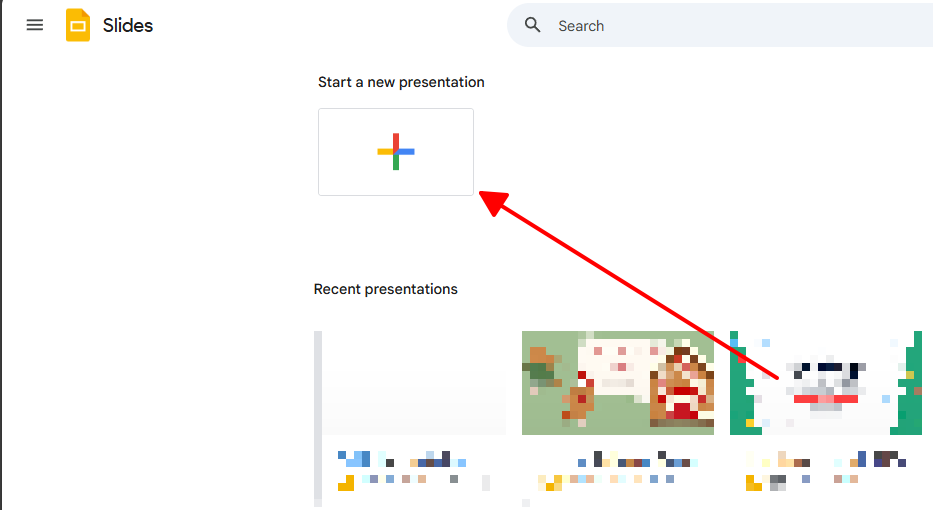
Step 2: Click Blank presentation or browse template gallery.
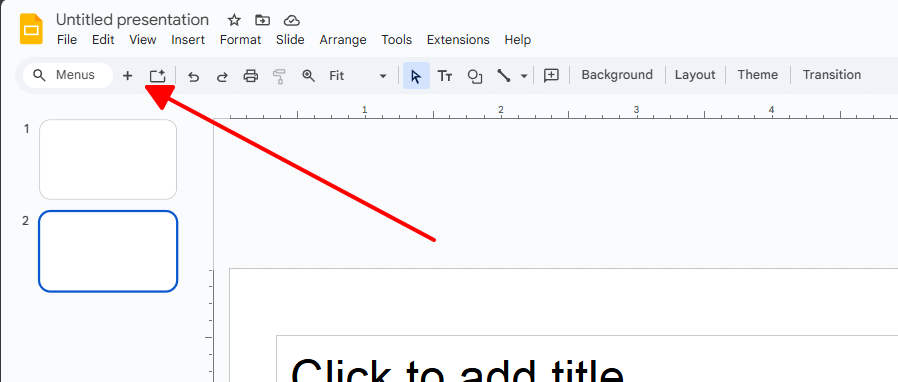
Step 3: Title presentation and begin adding content.
Step 4: Click plus button to add slides, customize layouts.
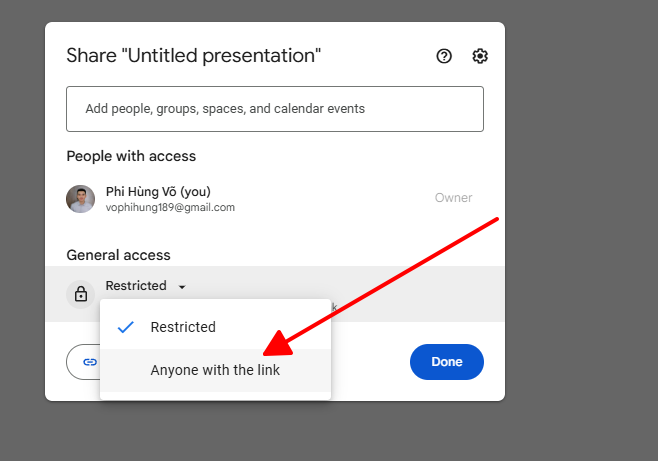
Step 5: Share button, enter team emails with Editor permission.
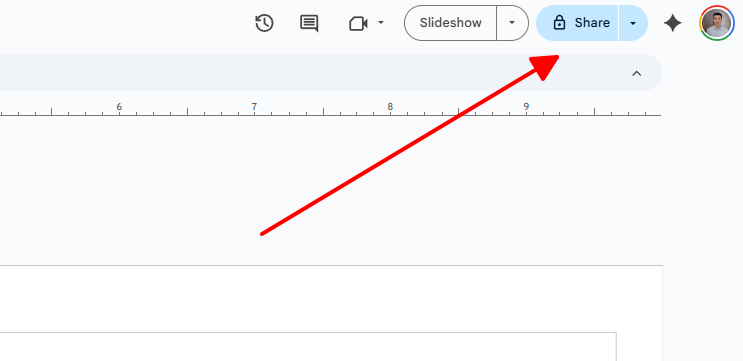
Step 6: Everyone edits simultaneously with color-coded cursors.
Step 7: Comments tab provides feedback organized by slide.
Step 8: Present button launches speaker view with notes.
Real-time collaboration means teams stop emailing files back and forth. Everyone sees changes instantly. Perfect for distributed teams and group projects without version confusion.
Part 2: Comparison Table of the Top 5 Online Presentation Builders
| Tool | AI Generation | Templates | Collaboration | Learning Curve | Free Tier | Best For |
|---|---|---|---|---|---|---|
| WPS AI Slide | Excellent | 500+ | Good | Easy | Full features | Speed + Office |
| Canva | Very Good | 10K+ | Limited free | Easiest | Unlimited | Beginners |
| Adobe Express | Excellent | 1K+ | Basic | Medium | 25 credits/mo | Visuals |
| Beautiful.AI | Excellent | 200+ | Trial only | Medium | 14 days | Polish |
| Google Slides | Limited | 100+ | Excellent | Easy | Unlimited | Teams |
WPS wins speed by generating full decks in 60 seconds. Canva wins ease with intuitive drag-and-drop simplicity. Beautiful.AI wins design polish automatically. Adobe wins visuals with custom AI image generation. Google wins team collaboration with flawless real-time editing. Pick your priority based on your specific needs and workflow.
Part 3: Best AI Helper to Generate Presentation: WPS AI Slide
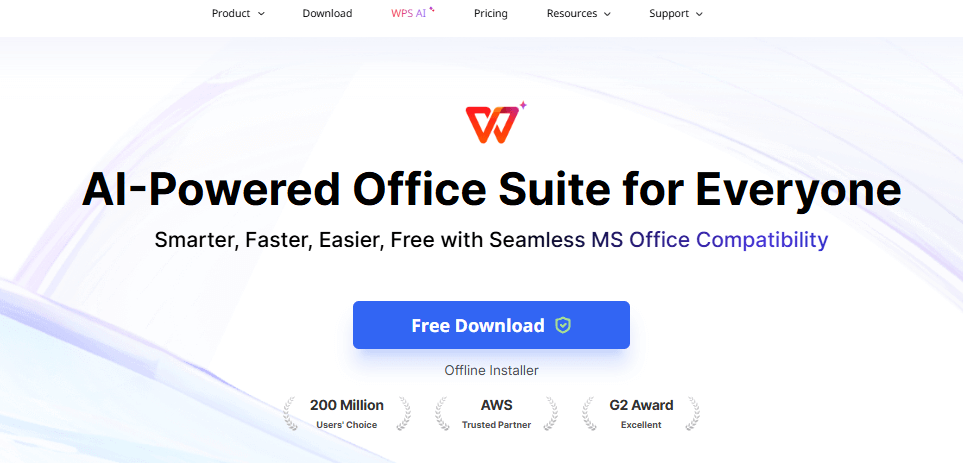
WPS AI Slide beats them all for what users actually need: fast, professional slides that work with PowerPoint. No trials. No credit limits. No gotchas. This tool solves the biggest pain point in presentations: the blank page problem that paralyzes even experienced professionals.
Why It's #1:
Lightning Fast: 60 seconds from idea to deck
Office Perfect: Zero formatting issues
Actually Free: No feature gates or paywalls
Smart AI: Understands context, not just keywords
Cloud Ready: Share instantly anywhere
Exact Steps to Generate Slides:
Step 1: Download WPS (3 minutes, 200MB installation).
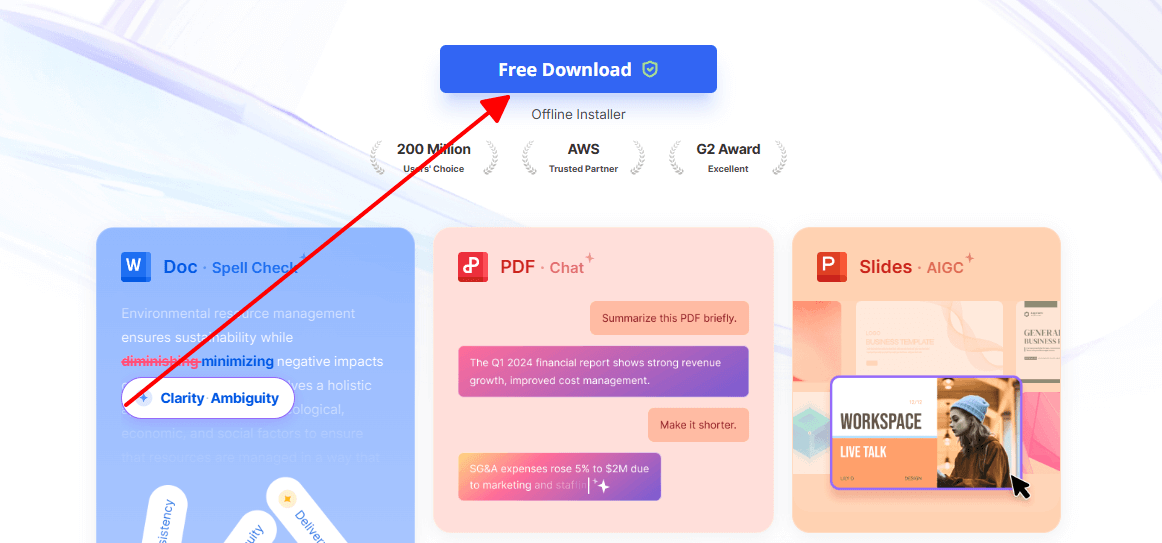
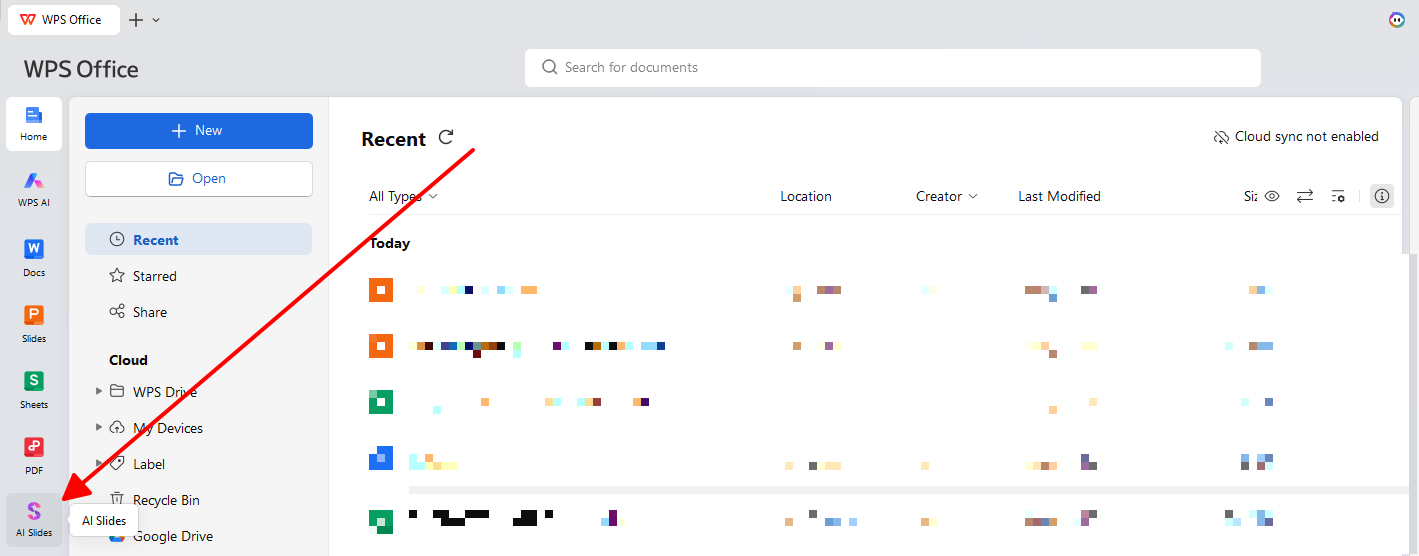
Step 2: Open Presentation module, click "AI Slide."
Step 3: Type "2026 marketing strategy" or paste report content.
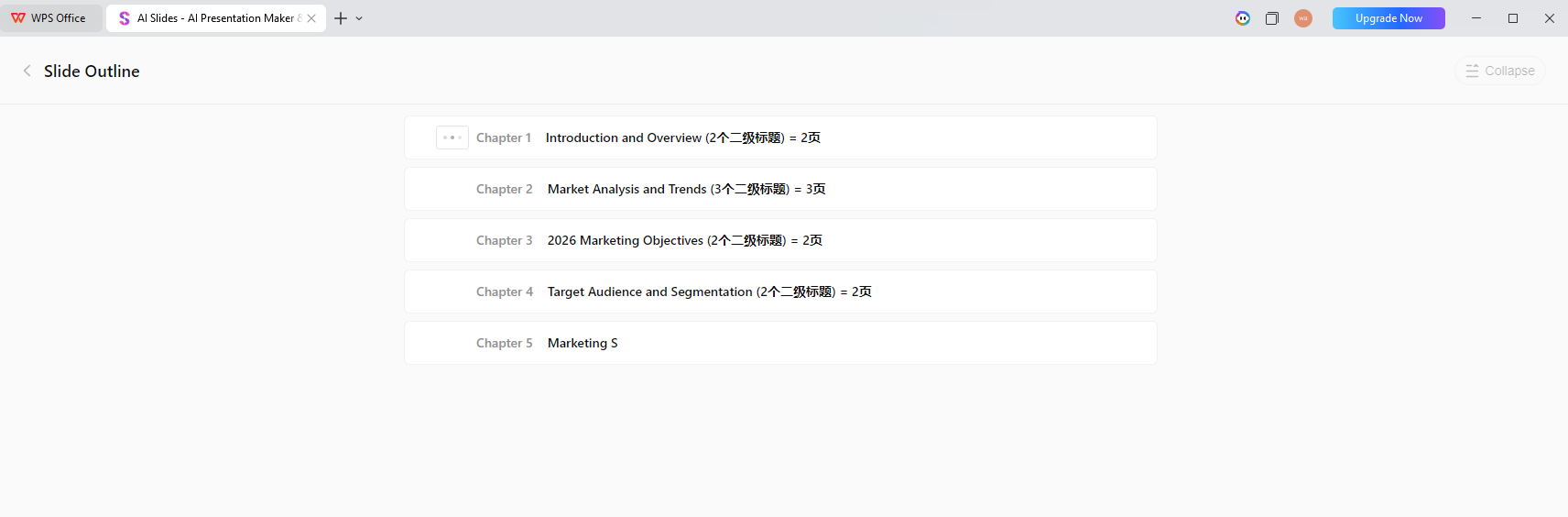
Step 4: AI builds smart outline with logical slide flow.
Step 5: Pick template style matching your industry or brand.
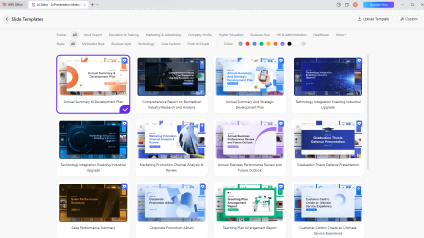
Step 6: Click Generate (takes 60 seconds or less).
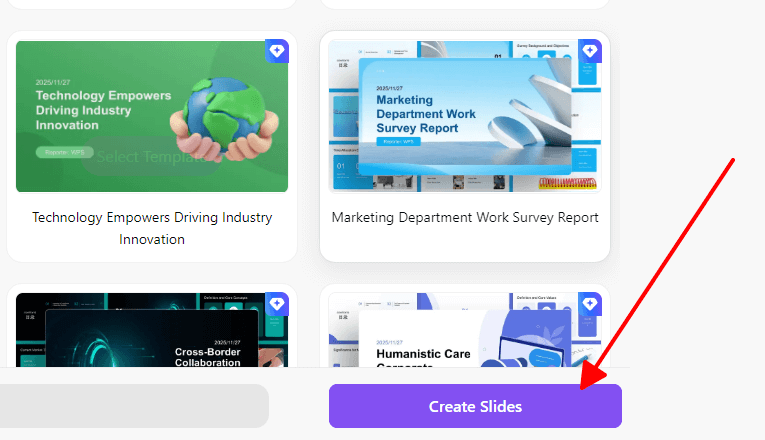
Step 7: Tweak text, add images, adjust colors as needed.
Step 8: Share via link or export PPTX for PowerPoint.
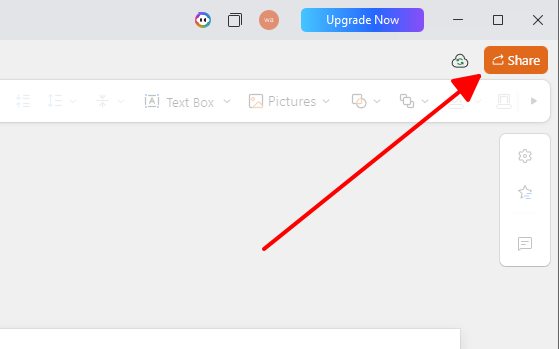
Turns blank page panic into professional decks instantly. Perfect when stakeholders expect PowerPoint but you have zero design time. The AI understands industry context and generates outlines that actually make sense instead of random slide topics. This approach works whether you're explaining quarterly results, pitching new products, or teaching educational content.
FAQs
1. Why online builders beat desktop software?
Online builders automatically save work to the cloud and work from any device with internet access. No more "where's the latest version?" confusion or endless email chains with file attachments. Share one live link and everyone always sees the current deck. Desktop software requires constant manual saves and creates version confusion when teams collaborate.
2. Real-time team editing possible?
Yes, Google Slides, WPS AI Slide, and Canva Teams all support live simultaneous editing with color-coded cursors. Team members see exactly what others change instantly, eliminating version conflicts completely. Built-in comments and chat keep discussions organized by slide without switching to email or messaging apps.
3. Need design skills?
No, modern online presentation builders use smart templates and AI that handle 90% of design decisions automatically. Just add your content while the tool manages spacing, colors, and layouts professionally. Even complete beginners produce impressive results that look intentionally designed.
4. Fastest slide generator?
WPS AI Slide creates complete presentations from text prompts in just 60 seconds, making it the fastest option available. Canva and Beautiful.AI take 90-120 seconds while others require fully manual creation. Speed matters when deadlines approach and you need professional results immediately.
Summary
This guide reviews five top free best online presentation builder tools for 2026: WPS AI ,Canva , Adobe Express, Beautiful.AI, and Google Slides .WPS AI Slide stands out as the best overall choice because it creates professional PowerPoint-compatible decks instantly without paywalls, trials, or design skills. The tool solves blank page panic, works perfectly with Office workflows, and delivers impressive results for executives, students, and teams needing quick, polished presentations that command attention in any meeting.

'%3e%3cpath%20d='M19.9911%204.11386V6.471H18.5894C18.0775%206.471%2017.7322%206.57814%2017.5536%206.79243C17.3751%207.00671%2017.2858%207.32814%2017.2858%207.75671V9.44421H19.9019L19.5536%2012.0871H17.2858V18.8639H14.5536V12.0871H12.2769V9.44421H14.5536V7.49779C14.5536%206.39064%2014.8632%205.53201%2015.4822%204.92189C16.1013%204.31177%2016.9257%204.00671%2017.9554%204.00671C18.8304%204.00671%2019.509%204.04243%2019.9911%204.11386Z'%20fill='%23333333'/%3e%3c/g%3e%3cdefs%3e%3cclipPath%20id='clip0_2938_8199'%3e%3crect%20width='16'%20height='16'%20fill='white'%20transform='translate(8%204.00671)'/%3e%3c/clipPath%3e%3c/defs%3e%3c/svg%3e)
'%3e%3cpath%20d='M17.5237%2010.7813L23.4811%204H22.0699L16.8949%209.88693L12.7648%204H8L14.2469%2012.9029L8%2020.0133H9.4112L14.8725%2013.7952L19.2352%2020.0133H24M9.92053%205.04213H12.0885L22.0688%2019.0224H19.9003'%20fill='%23333333'/%3e%3c/g%3e%3cdefs%3e%3cclipPath%20id='clip0_2938_8200'%3e%3crect%20width='16'%20height='16.0134'%20fill='white'%20transform='translate(8%204)'/%3e%3c/clipPath%3e%3c/defs%3e%3c/svg%3e)


