

'%3e%3cpath%20d='M8%200C12.4183%200%2016%203.58172%2016%208C16%2012.4183%2012.4183%2016%208%2016C3.58172%2016%200%2012.4183%200%208C0%203.58172%203.58172%200%208%200ZM11.6162%204.38379C11.2257%203.99337%2010.5927%203.99338%2010.2021%204.38379L8%206.58594L5.79785%204.38379C5.40732%203.99334%204.77429%203.99329%204.38379%204.38379C3.99331%204.77429%203.99335%205.40733%204.38379%205.79785L6.58594%208L4.38379%2010.2021C3.99348%2010.5927%203.99341%2011.2257%204.38379%2011.6162C4.77426%2012.0066%205.40734%2012.0065%205.79785%2011.6162L8%209.41406L10.2021%2011.6162C10.5927%2012.0066%2011.2257%2012.0067%2011.6162%2011.6162C12.0067%2011.2257%2012.0066%2010.5927%2011.6162%2010.2021L9.41406%208L11.6162%205.79785C12.0066%205.40735%2012.0066%204.77429%2011.6162%204.38379Z'%20fill='%23080E17'%20fill-opacity='0.46'/%3e%3c/g%3e%3cdefs%3e%3cclipPath%20id='clip0_3761_713'%3e%3crect%20width='16'%20height='16'%20fill='white'/%3e%3c/clipPath%3e%3c/defs%3e%3c/svg%3e)



'%3e%3cpath%20fill-rule='evenodd'%20clip-rule='evenodd'%20d='M21.4999%2010.9993C21.4999%205.20009%2016.7986%200.498901%2010.9993%200.498901C5.19994%200.498901%200.498657%205.20009%200.498657%2010.9993C0.498657%2016.2404%204.33858%2020.5844%209.35855%2021.3722V14.0346H6.69238V10.9993H9.35855V8.68594C9.35855%206.05427%2010.9262%204.60062%2013.3248%204.60062C14.4736%204.60062%2015.6753%204.80571%2015.6753%204.80571V7.38979H14.3512C13.0468%207.38979%2012.64%208.19921%2012.64%209.0296V10.9993H15.5523L15.0867%2014.0346H12.64V21.3722C17.66%2020.5844%2021.4999%2016.2404%2021.4999%2010.9993Z'%20fill='%231568EA'/%3e%3c/g%3e%3c/svg%3e)


'%3e%3cpath%20d='M2.42045%2022.1876H6.31818V12.7217L0.75%208.54553V20.5171C0.75%2021.4414%201.49892%2022.1876%202.42045%2022.1876Z'%20fill='%234285F4'/%3e%3cpath%20d='M19.682%2022.1876H23.5797C24.5041%2022.1876%2025.2502%2021.4387%2025.2502%2020.5171V8.54553L19.682%2012.7217'%20fill='%2334A853'/%3e%3cpath%20d='M19.682%205.48293V12.7216L25.2502%208.54543V6.31816C25.2502%204.25236%2022.8921%203.07469%2021.2411%204.31361'%20fill='%23FBBC04'/%3e%3cpath%20d='M6.31824%2012.7217V5.48303L13.0001%2010.4944L19.6819%205.48303V12.7217L13.0001%2017.733'%20fill='%23EA4335'/%3e%3cpath%20d='M0.75%206.31816V8.54543L6.31818%2012.7216V5.48293L4.75909%204.31361C3.10534%203.07469%200.75%204.25236%200.75%206.31816Z'%20fill='%23C5221F'/%3e%3c/g%3e%3cdefs%3e%3cclipPath%20id='clip0_2954_7305'%3e%3crect%20width='24.5'%20height='18.375'%20fill='white'%20transform='translate(0.75%203.8125)'/%3e%3c/clipPath%3e%3c/defs%3e%3c/svg%3e)


Google’s Gemini AI has completely revolutionized the way people work with documents and data in their workflow. However, many users remain confused about Google Slides Gemini integration. So, can you use Gemini AI for presentations within Google Slides? In this guide, I’ll clarify Gemini’s current role with Google Slides, providing practical usage methods and comparing it with specialized AI solutions like WPS AI Slides to help you choose the best option for yourself.
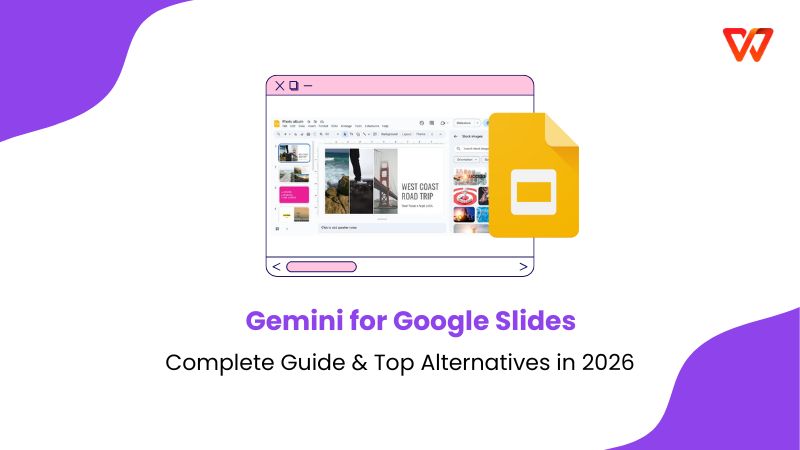
Understanding Gemini's Role with Google Slides
Gemini AI is not a native built-in feature within Google Slides, like a dedicated add-on. Instead, it functions as a separate AI assistant that can be used alongside the main Google Slides functionality through various integrationmethods within the Google Workspace ecosystem. I’ve found its smart assistance to be incredibly helpful whenever I’m designing my presentations, providing AI-powered suggestions and even beautifying my slides with a single prompt.
Connection Methods
Google Workspace Sidebar: Access Gemini via the"Help me write" or AI assistant panelin Google Docs, then transfer content to Slides.
Duet AI for Workspace: Enterprise users may have enhanced AI features labeled as "Duet AI" within Google's productivity suite.
External Use: Use Gemini separately to generate content, outlines, or ideas, then manually copy into Google Slides.
Key Limitations
Lacks direct AI generation
No template application within Google Slides
Limited layout optimization
Get Started with Gemini in Google Slides
If you want to use Gemini in Google Slides to enhance your presentation, the entire process is incredibly straightforward. I’ll highlight each step of the way down below to help simplify the process for you.
Step 1: Launch your presentation on Google Slides and press Ask Gemini to get started.
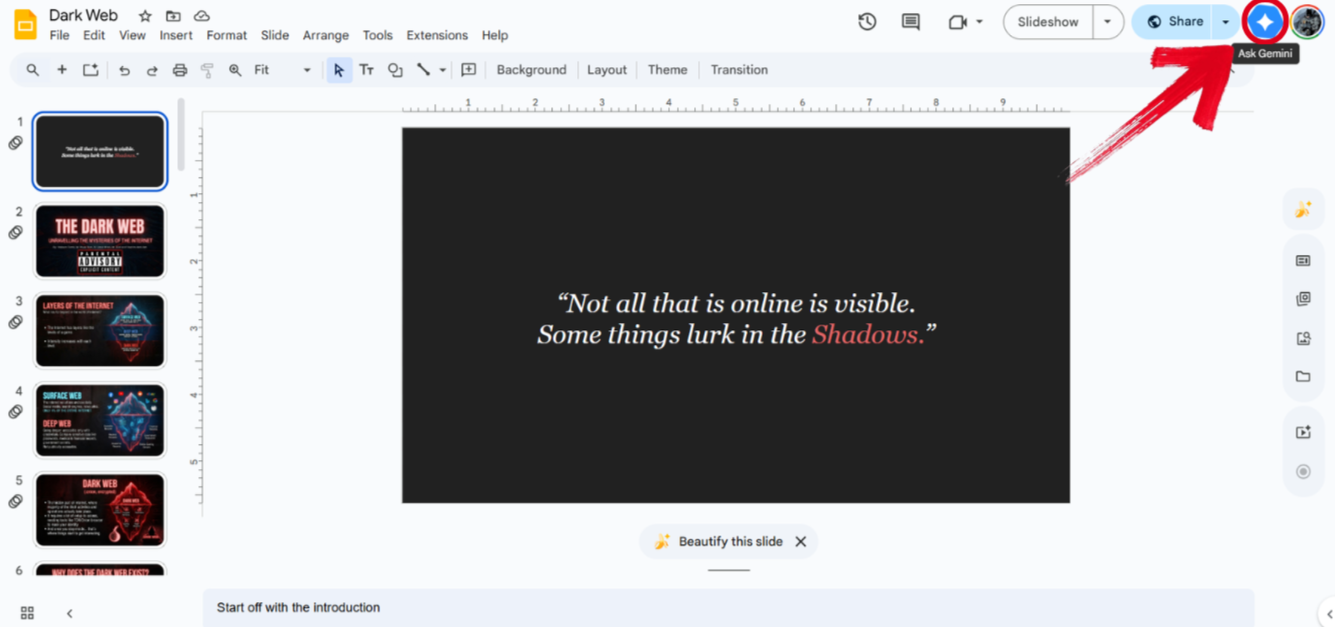
Step 2: The Gemini side panel will now pop up to your right. Select a suggested prompt or write your own prompt to generate your desired content.
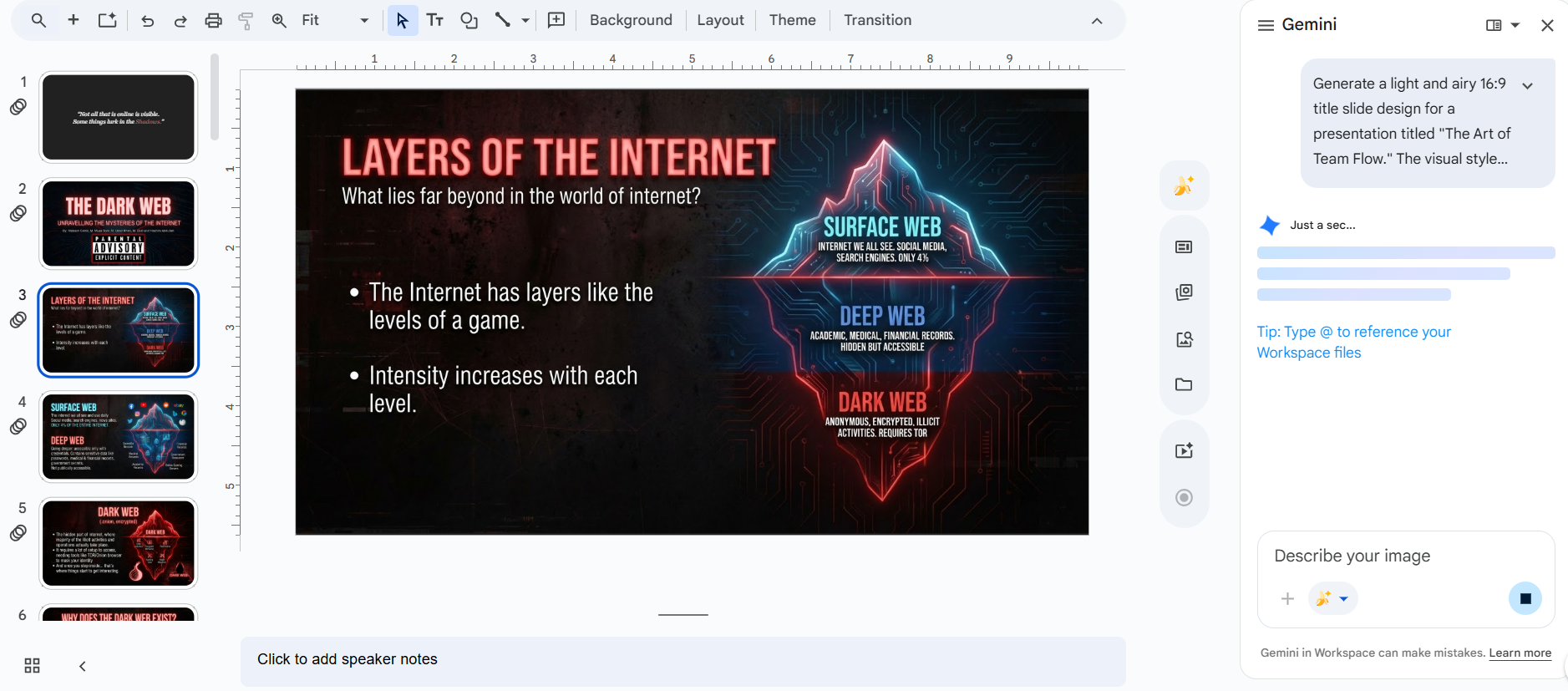
Step 3: Once your content has been generated, simply press the Insert button to add it to your slide.
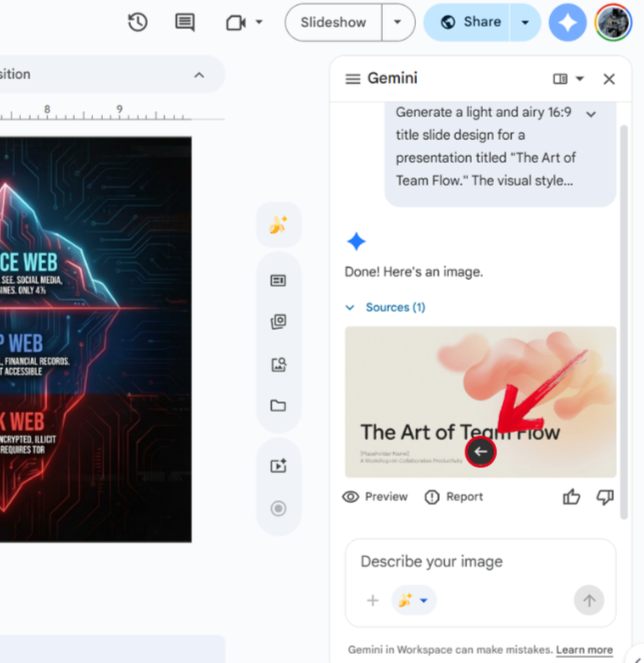
Practical Ways to Use Gemini with Google Slides
Gemini is built into Google Slides as a helpful tool for you to use and simplify your slide design, providing additional content to improve your presentation content. There are many ways you can enhance your presentations with Gemini, ranging from beautifying your slides to make them more appealing or generatingcustom images to add to your content. In this section, I’ll be covering some practical ways you can use Gemini with Google Slides.
Content Brainstorming & Outlining
You can use Gemini to generate presentation ideas, bullet points, and structure.
Prompt example: "Create an outline for a 10-minute sales pitch about sustainable packaging"
Copy the output and paste it into Google Slides' speaker notes or text boxes.
Writing & Refining Slide Content
Draft slide titles, body text, or speaker notes in Gemini.
Prompt Example: "Make this explanation more concise for a slide”
Manually transfer the polished text into your slides.
Image Idea Generation
Describe the visuals you need to generate for Gemini to design any image you want.
Prompt Example: "An icon representing data security”
Use its suggestions to find or create appropriate images elsewhere, then add to slides.
Top Alternative: WPS AI Slides – Native AI Within a Presentation Suite
While Gemini is a great helper when you need quick suggestions or image generation without going through much hassle, it lacks the advanced features that most professionals need. This is why I use WPS AI Slides for all my presentation needs. It’s completely free and integrates AI directly into its presentation editor, providing high-quality and professional results every single time. It’s an ideal option for anyone looking to elevate their presentations without any extra effort.
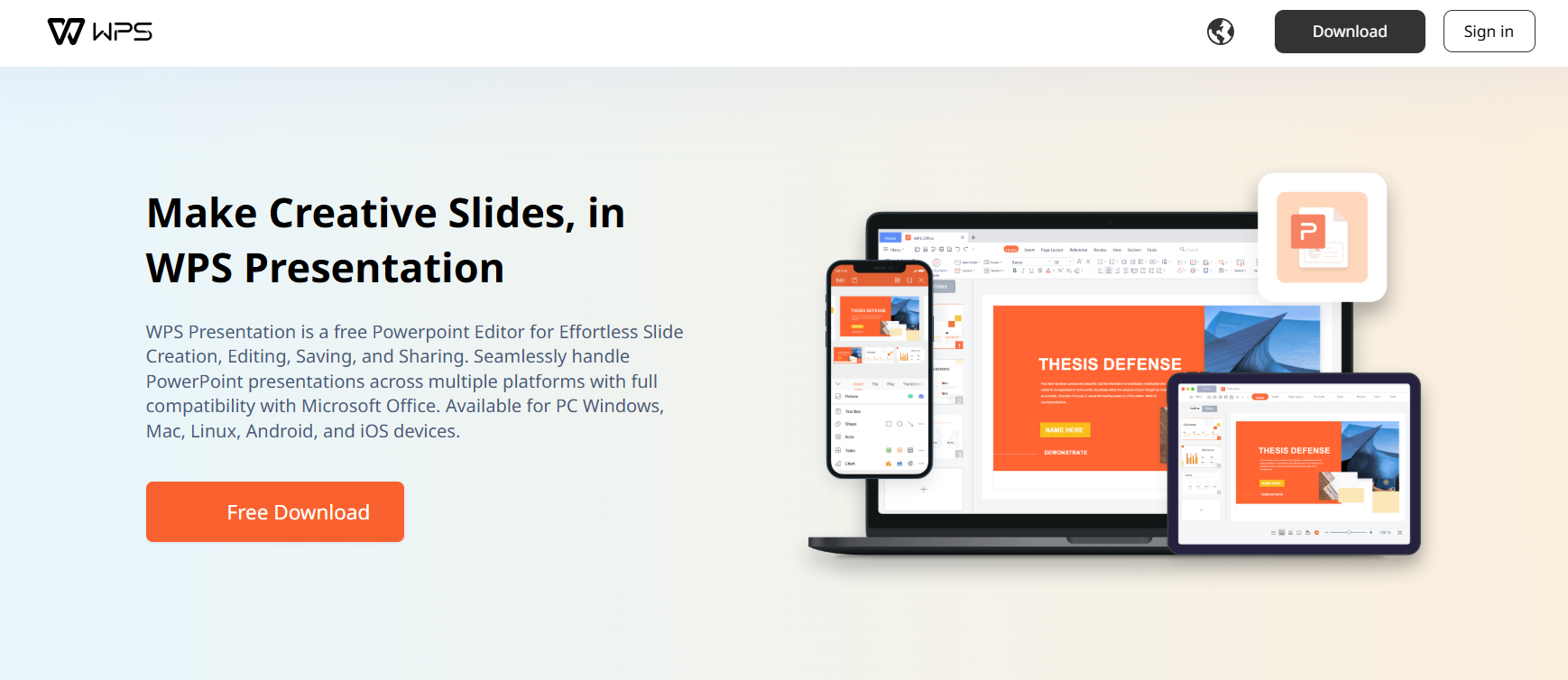
Key Features
In-Editor AI Content Creation: Generate and edit text directly on slides via an AI sidebar, no copying needed.
AI-Powered Design & Layouts: Receive smart template suggestions and one-click design optimization.
Direct Format Preservation: Export to Google Slides format (.pptx) with all AI-generated formatting intact.
Complete Creation Workflow: Make entire presentations with a single prompt.
Cost-Effective Suite: Offers word processing, spreadsheets, and presentations with AI.
How to Create a Presentation with WPS AI Slides (Step-by-Step)
If WPS AI Slides feels like the right choice for your creative workflow, using it is incredibly simple. I’ll be walking you through how to use WPS AI Slides to help you be more efficient with your slide design.
Step 1: Open WPS Presentation and select theSmart Create button to get started.
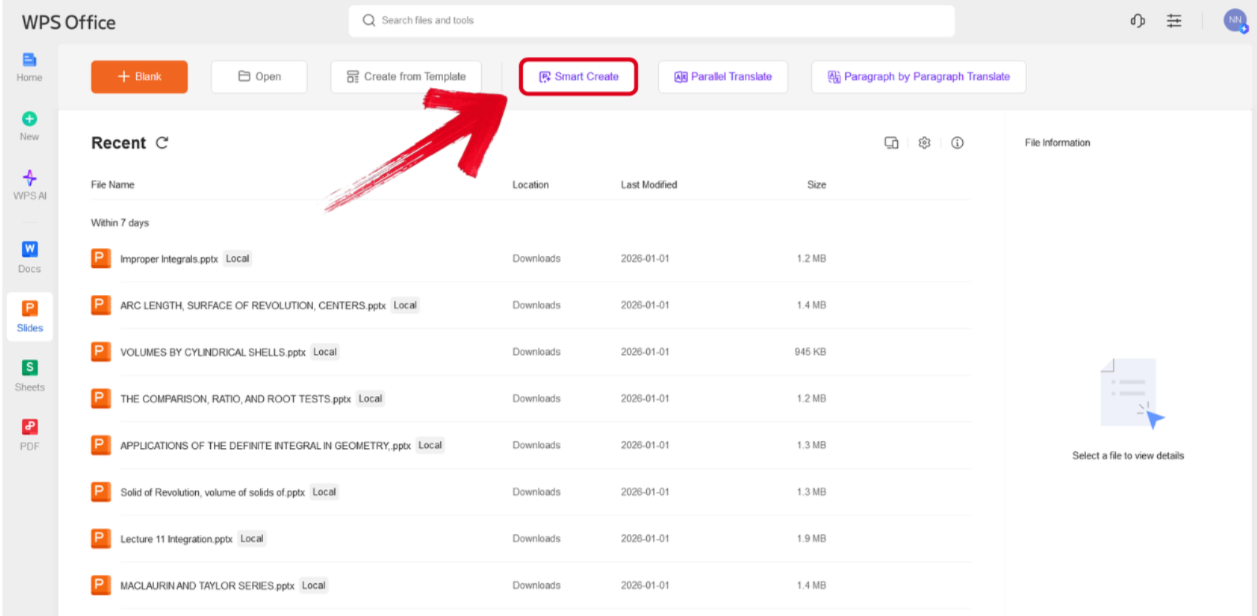
Step 2: Type out the prompt of the presentation you want to design and press Generate.
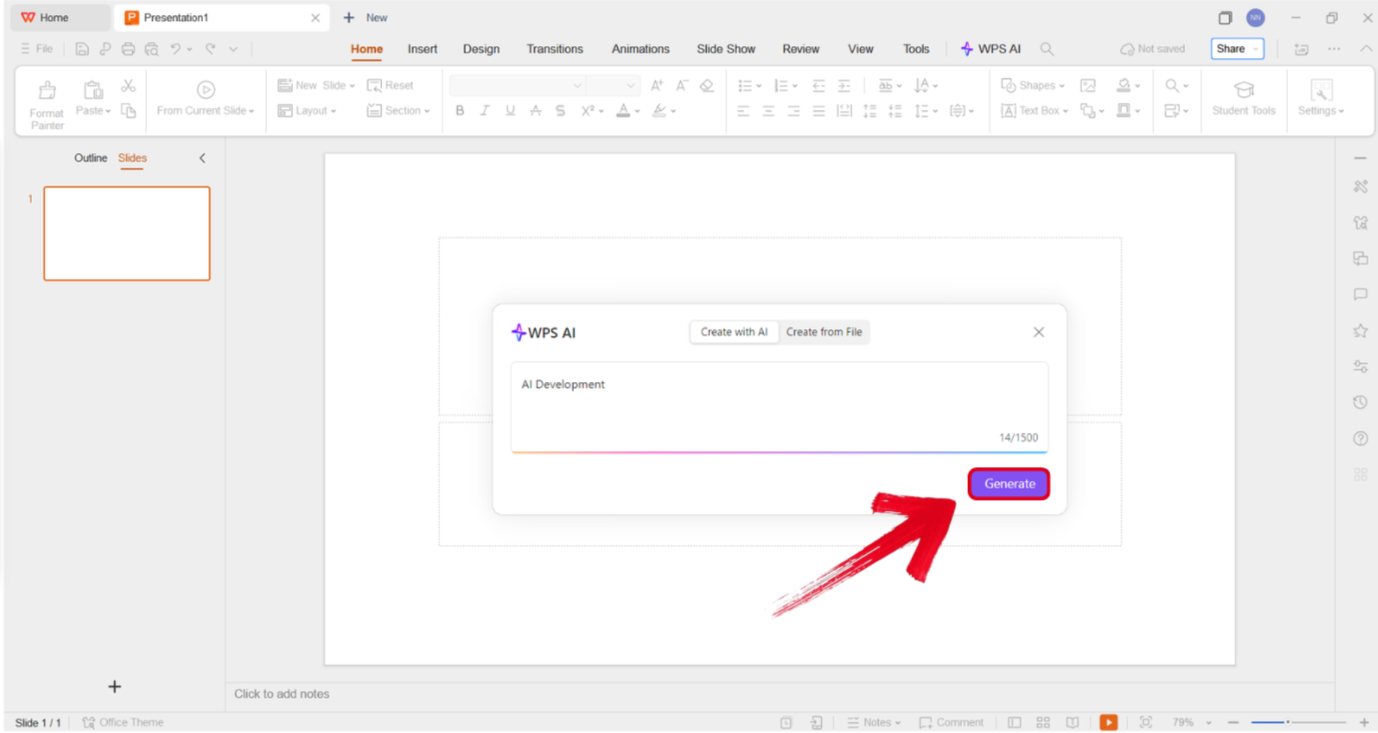
Tip: Make sure your presentation prompt is detailed, including the title, subtitles, and any other details you want to include.
Step 3: Select the template you want to use for your outline and press Create Slides.
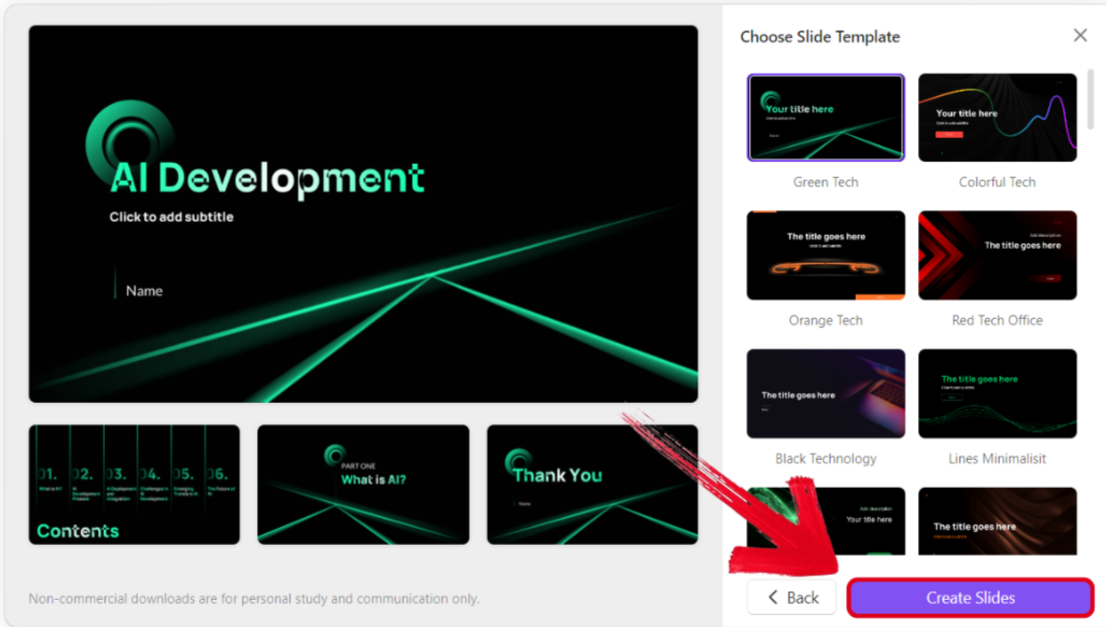
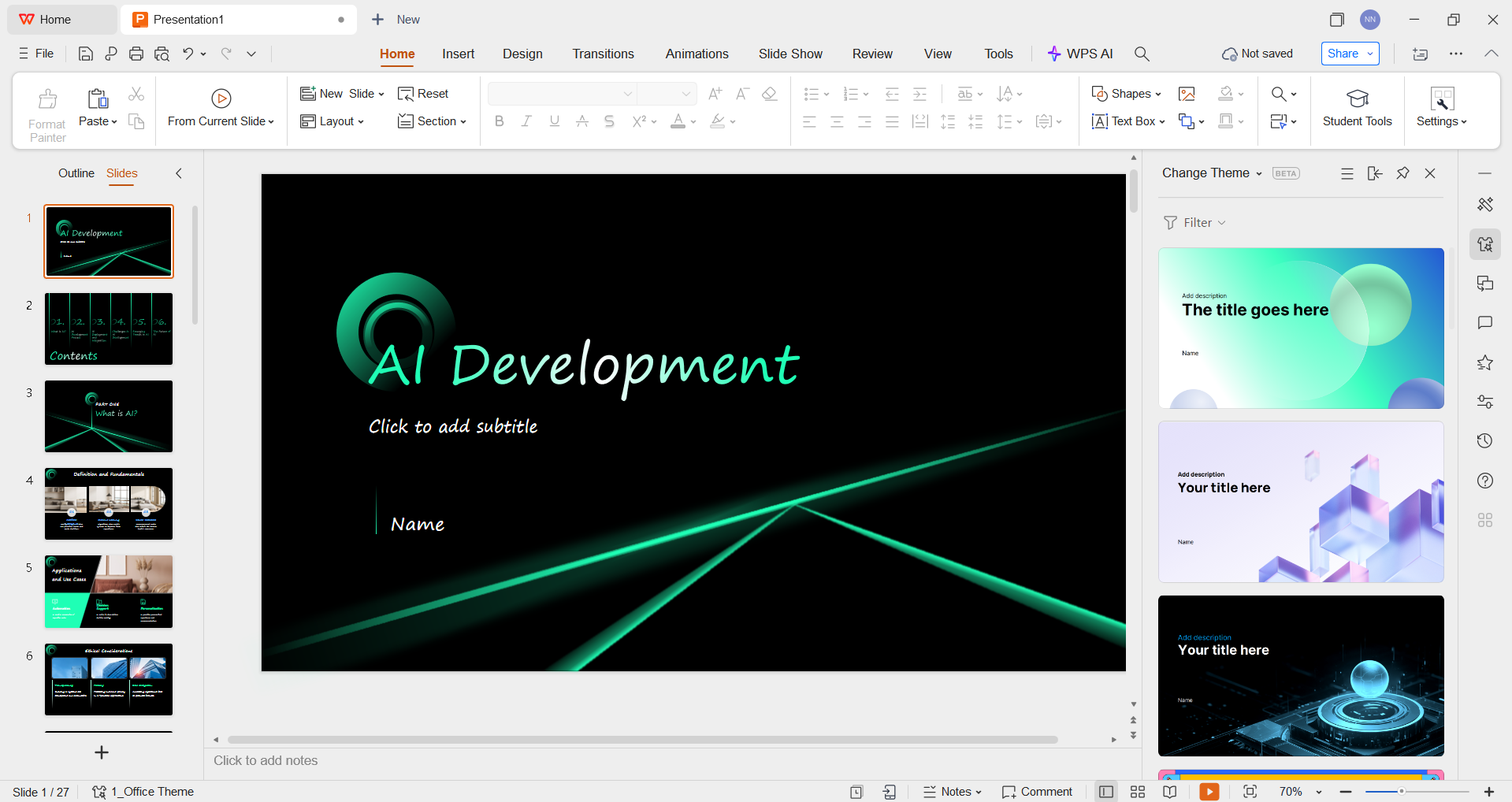
Step 4: Review the final structure of your presentation and change anything you want to, even the theme and visual elements.
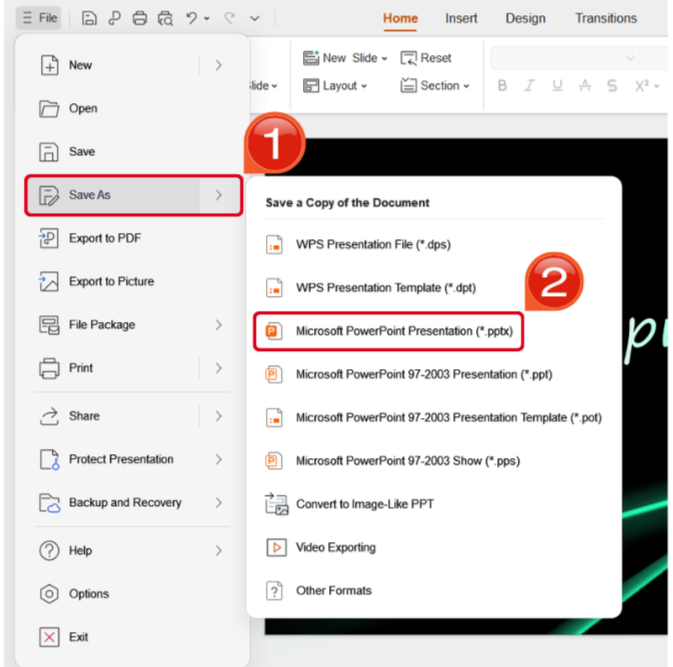
Step 5: Once you’ve finalized your design, navigate to the File Tab and locate the Save Asoptions. Select the format you want to save your presentation as.
Comparison & Why Choose WPS AI Slides
Gemini and WPS AI Slides are both really helpful for saving time and improving your presentations, but both of them offer different features that cater to different users. While Gemini acts as your assistant offers smart AI-powered suggestions to help you boost your presentations, WPS AI Slides provides complete content generation and structure for your entire presentation. In this section, I’ll be comparing both of these tools side by side to help you decide the best option for your own needs
| Aspect | Gemini with Google Slides | WPS AI Slides |
|---|---|---|
| Integration | Works as an external AI assistant with a copy-and-paste workflow | Native built-in AI features directly inside the presentation editor |
| Content Creation | Generates text in a separate chat interface | Creates and edits slide content directly within slides |
| Design Assistance | Minimal design support requiring manual formatting | AI-powered templates, layouts, and one-click beautify tools |
| Workflow Efficiency | Multi-app process with frequent context switching | Single app streamlined presentation creation |
| Output to Google Slides | Requires manual assembly in Google Slides | Direct export with formatting preserved |
| Best For | Users who need text ideas and do not mind manual slide building | Users who want a full end-to-end AI presentation creation |
Key Advantages of WPS AI Slides Over Indirect Gemini Use
Unified Creation Experience: Eliminates the friction of switching between Gemini and Google Slides as AI suggestions appear contextually as you build each slide.
Design Intelligence Gemini Lacks: While Gemini focuses on text, WPS AI Slides also automates visual design, maintaining professional aesthetics and brand consistency automatically.
Time Efficiency: Reduces the usual multi-step process of Gemini to a single, fluid workflow, cutting presentation creation time significantly.
Cost & Accessibility: Provides a comprehensive, affordable AI presentation solution compared to potentially fragmented or enterprise-only Google AI offerings.
FAQs
Q1. Is Gemini built into Google Slides?
No. Gemini works as a separate AI assistant. You must generate content in Gemini and manually add it to Google Slides.
Q2. How can Gemini help with Google Slides presentations?
Gemini can create outlines, slide text, and content ideas. You then copy the output into Google Slides and design slides manually.
Q3. What is the best AI tool that works directly with Google Slides?
SlidesAI is a native Google Slides add-on. For full AI content and design with Google Slides-compatible export, WPS AI Slides is a strong choice.
Q4. Does Gemini provide slide design or templates?
No. Gemini only generates text. All slide layouts and designs must be done manually in Google Slides.
Is Gemini For Google Slides Worth It?
Google offers its own AI assistant that offers additional assistance to users working on Google Slides, helping them save time and a lot of manual effort. While this may help simplify the process, it can be incredibly inconvenient for those working on presentations regularly. In this section, I’ve highlighted the uses of Gemini in Google Slides. If you’re looking for a complete AI tool to generate your presentations, WPS AI Slides is the best choice. It’s completely free and provides an all-in-one tool suite for all your productivity needs.

'%3e%3cpath%20d='M19.9911%204.11386V6.471H18.5894C18.0775%206.471%2017.7322%206.57814%2017.5536%206.79243C17.3751%207.00671%2017.2858%207.32814%2017.2858%207.75671V9.44421H19.9019L19.5536%2012.0871H17.2858V18.8639H14.5536V12.0871H12.2769V9.44421H14.5536V7.49779C14.5536%206.39064%2014.8632%205.53201%2015.4822%204.92189C16.1013%204.31177%2016.9257%204.00671%2017.9554%204.00671C18.8304%204.00671%2019.509%204.04243%2019.9911%204.11386Z'%20fill='%23333333'/%3e%3c/g%3e%3cdefs%3e%3cclipPath%20id='clip0_2938_8199'%3e%3crect%20width='16'%20height='16'%20fill='white'%20transform='translate(8%204.00671)'/%3e%3c/clipPath%3e%3c/defs%3e%3c/svg%3e)
'%3e%3cpath%20d='M17.5237%2010.7813L23.4811%204H22.0699L16.8949%209.88693L12.7648%204H8L14.2469%2012.9029L8%2020.0133H9.4112L14.8725%2013.7952L19.2352%2020.0133H24M9.92053%205.04213H12.0885L22.0688%2019.0224H19.9003'%20fill='%23333333'/%3e%3c/g%3e%3cdefs%3e%3cclipPath%20id='clip0_2938_8200'%3e%3crect%20width='16'%20height='16.0134'%20fill='white'%20transform='translate(8%204)'/%3e%3c/clipPath%3e%3c/defs%3e%3c/svg%3e)


