

'%3e%3cpath%20d='M8%200C12.4183%200%2016%203.58172%2016%208C16%2012.4183%2012.4183%2016%208%2016C3.58172%2016%200%2012.4183%200%208C0%203.58172%203.58172%200%208%200ZM11.6162%204.38379C11.2257%203.99337%2010.5927%203.99338%2010.2021%204.38379L8%206.58594L5.79785%204.38379C5.40732%203.99334%204.77429%203.99329%204.38379%204.38379C3.99331%204.77429%203.99335%205.40733%204.38379%205.79785L6.58594%208L4.38379%2010.2021C3.99348%2010.5927%203.99341%2011.2257%204.38379%2011.6162C4.77426%2012.0066%205.40734%2012.0065%205.79785%2011.6162L8%209.41406L10.2021%2011.6162C10.5927%2012.0066%2011.2257%2012.0067%2011.6162%2011.6162C12.0067%2011.2257%2012.0066%2010.5927%2011.6162%2010.2021L9.41406%208L11.6162%205.79785C12.0066%205.40735%2012.0066%204.77429%2011.6162%204.38379Z'%20fill='%23080E17'%20fill-opacity='0.46'/%3e%3c/g%3e%3cdefs%3e%3cclipPath%20id='clip0_3761_713'%3e%3crect%20width='16'%20height='16'%20fill='white'/%3e%3c/clipPath%3e%3c/defs%3e%3c/svg%3e)



'%3e%3cpath%20fill-rule='evenodd'%20clip-rule='evenodd'%20d='M21.4999%2010.9993C21.4999%205.20009%2016.7986%200.498901%2010.9993%200.498901C5.19994%200.498901%200.498657%205.20009%200.498657%2010.9993C0.498657%2016.2404%204.33858%2020.5844%209.35855%2021.3722V14.0346H6.69238V10.9993H9.35855V8.68594C9.35855%206.05427%2010.9262%204.60062%2013.3248%204.60062C14.4736%204.60062%2015.6753%204.80571%2015.6753%204.80571V7.38979H14.3512C13.0468%207.38979%2012.64%208.19921%2012.64%209.0296V10.9993H15.5523L15.0867%2014.0346H12.64V21.3722C17.66%2020.5844%2021.4999%2016.2404%2021.4999%2010.9993Z'%20fill='%231568EA'/%3e%3c/g%3e%3c/svg%3e)


'%3e%3cpath%20d='M2.42045%2022.1876H6.31818V12.7217L0.75%208.54553V20.5171C0.75%2021.4414%201.49892%2022.1876%202.42045%2022.1876Z'%20fill='%234285F4'/%3e%3cpath%20d='M19.682%2022.1876H23.5797C24.5041%2022.1876%2025.2502%2021.4387%2025.2502%2020.5171V8.54553L19.682%2012.7217'%20fill='%2334A853'/%3e%3cpath%20d='M19.682%205.48293V12.7216L25.2502%208.54543V6.31816C25.2502%204.25236%2022.8921%203.07469%2021.2411%204.31361'%20fill='%23FBBC04'/%3e%3cpath%20d='M6.31824%2012.7217V5.48303L13.0001%2010.4944L19.6819%205.48303V12.7217L13.0001%2017.733'%20fill='%23EA4335'/%3e%3cpath%20d='M0.75%206.31816V8.54543L6.31818%2012.7216V5.48293L4.75909%204.31361C3.10534%203.07469%200.75%204.25236%200.75%206.31816Z'%20fill='%23C5221F'/%3e%3c/g%3e%3cdefs%3e%3cclipPath%20id='clip0_2954_7305'%3e%3crect%20width='24.5'%20height='18.375'%20fill='white'%20transform='translate(0.75%203.8125)'/%3e%3c/clipPath%3e%3c/defs%3e%3c/svg%3e)


AI-powered presentation tools are changing how users design their presentations, enabling them to create detailed presentations from a single text prompt. While tools like Slider AI promise speed and automation, users often raise concerns over limited customization and file incompatibility issues. So, is Slider AI a presentation tool suitable for real-world needs? In this Slider AI review, I’ll be covering its core features, pros and cons, and comparing it with other AI presentation tools to help you decide.



Overview of Slider AI
Slider AI is a fully AI-powered presentation tool designed to simplify the process of slide creation by providing complete automation, allowing users to generate complete presentations from just a single text prompt. It completely eliminates the need to manually design and format my slides, simplifying the process and helping me save a ton of time and effort. Whether you’re a student or a professional, having a smart tool like Slider AI presentation tool is incredibly beneficial for streamlining your presentations.
Key Pros and Cons of Slider AI
Slider AI is one of many AI-based presentation design tools available out there, making it incredibly difficult to choose the right one for your own work needs. I’ve been there myself, and I know how frustrating it can be, especially if you don’t know what things you need to look out for. But once you compare the pros and cons of each one, you’ll realize the best option for your requirements. In this section, I’ll be breaking down the detailed Slider AI pros and cons to help you simplify the process.
Slider AI Alternatives Comparison Table
If you’re trying to see how Slider AI compares to its alternatives like Slider AI vs PowerPoint, don’t worry. I’ve extensively tried and tested some of the most popular options out there, and I know it can be frustrating to choose one option for yourself. In this section, I’ll be comparing all of the Slider AI alternatives side-by-side to help you evaluate the best option for your own presentation design needs.
| Feature | Slider AI | WPS AI Slides | SlidesAI | Plus AI |
|---|---|---|---|---|
| AI Slide Generation | Yes | Yes | Yes | Yes |
| Content Quality | Basic | Advanced | Moderate | Moderate |
| Design Customization | Limited | High | Limited | Moderate |
| PowerPoint Compatibility | Limited | Full (PPT/PPTX) | Partial | Partial |
| Offline Editing | No | Yes | No | No |
| Best Use Case | Quick drafts | Professional workflows | Simple slide creation | Team collaboration |
While all of these options seemed reliable to me and gave me polished presentations in just a few simple steps, I found WPS AI Slides to be the most balanced and practical option. It gave me all the features I needed without making me go through the hassle of registrations or payments.
Why WPS AI Slides Is a Smarter Alternative to Slider AI
While Slider AI is an exceptionally good option for quick AI-generated slides, it’s not the most practical option for professional users looking for more control and better content quality for presentations. This is why I rely on WPS AI Slides for designing all my presentations. It’s completely free and incredibly efficient, giving me all the tools I need for designing fast and high-quality presentations without facing any delays or hassle. It’s the perfect option for regular users looking to elevate their presentations with ease.

If WPS AI Slides feels like the right choice for designing your presentations, using it is incredibly simple. I’ll be walking you through how to use WPS AI Slides to help you be more efficient with your slide design.
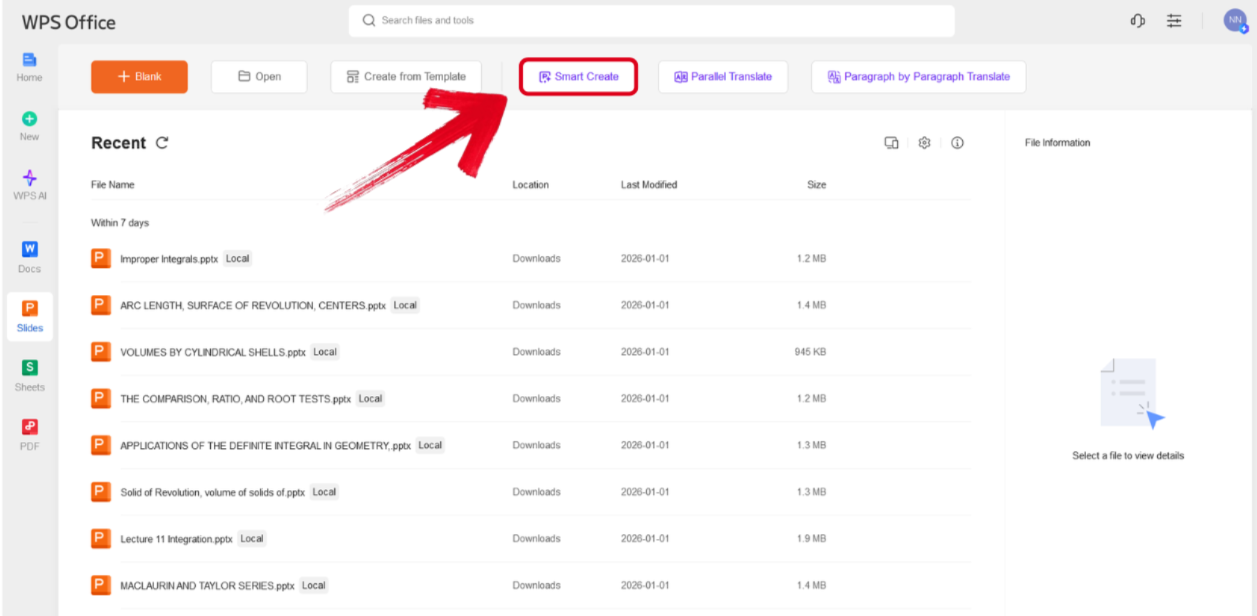
Step 1: Open WPS Presentation and select the Smart Create button to get started.
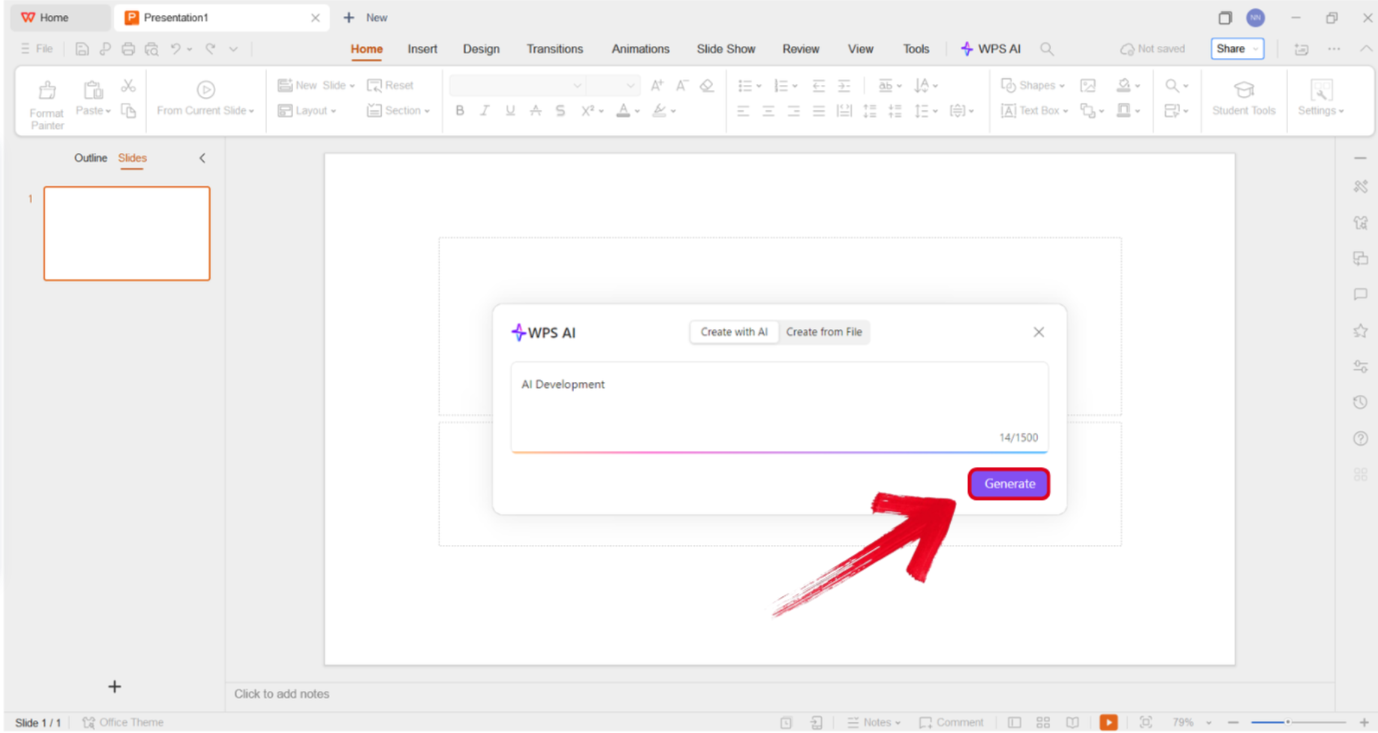
Step 2: Type out the prompt of the presentation you want to design and press Generate.
Step 3: Select the template you want to use for your outline and press Create Slides.
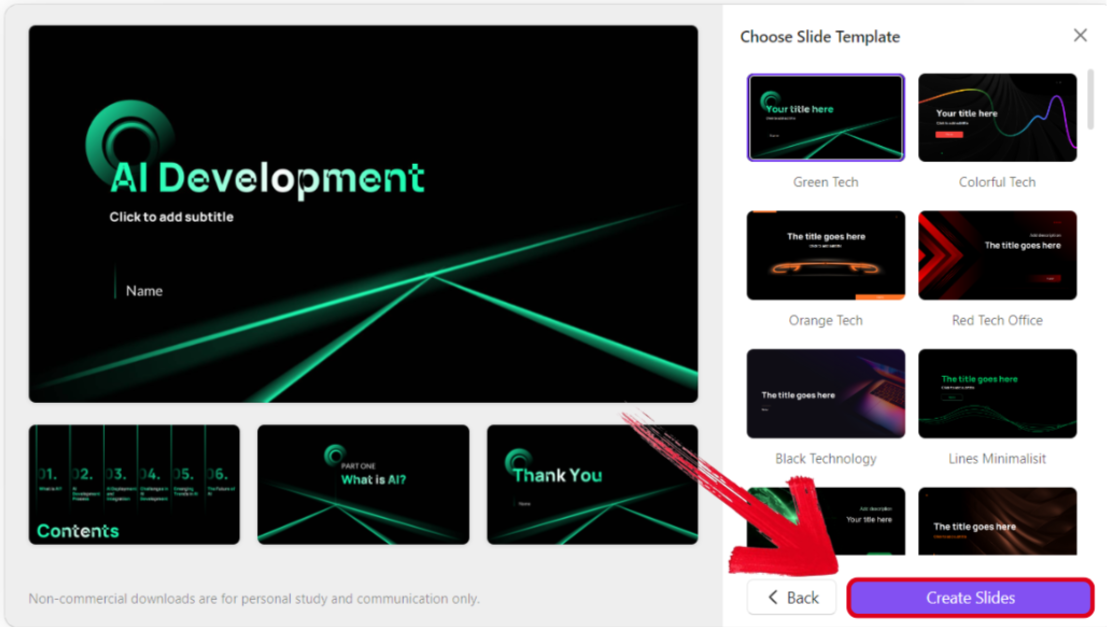
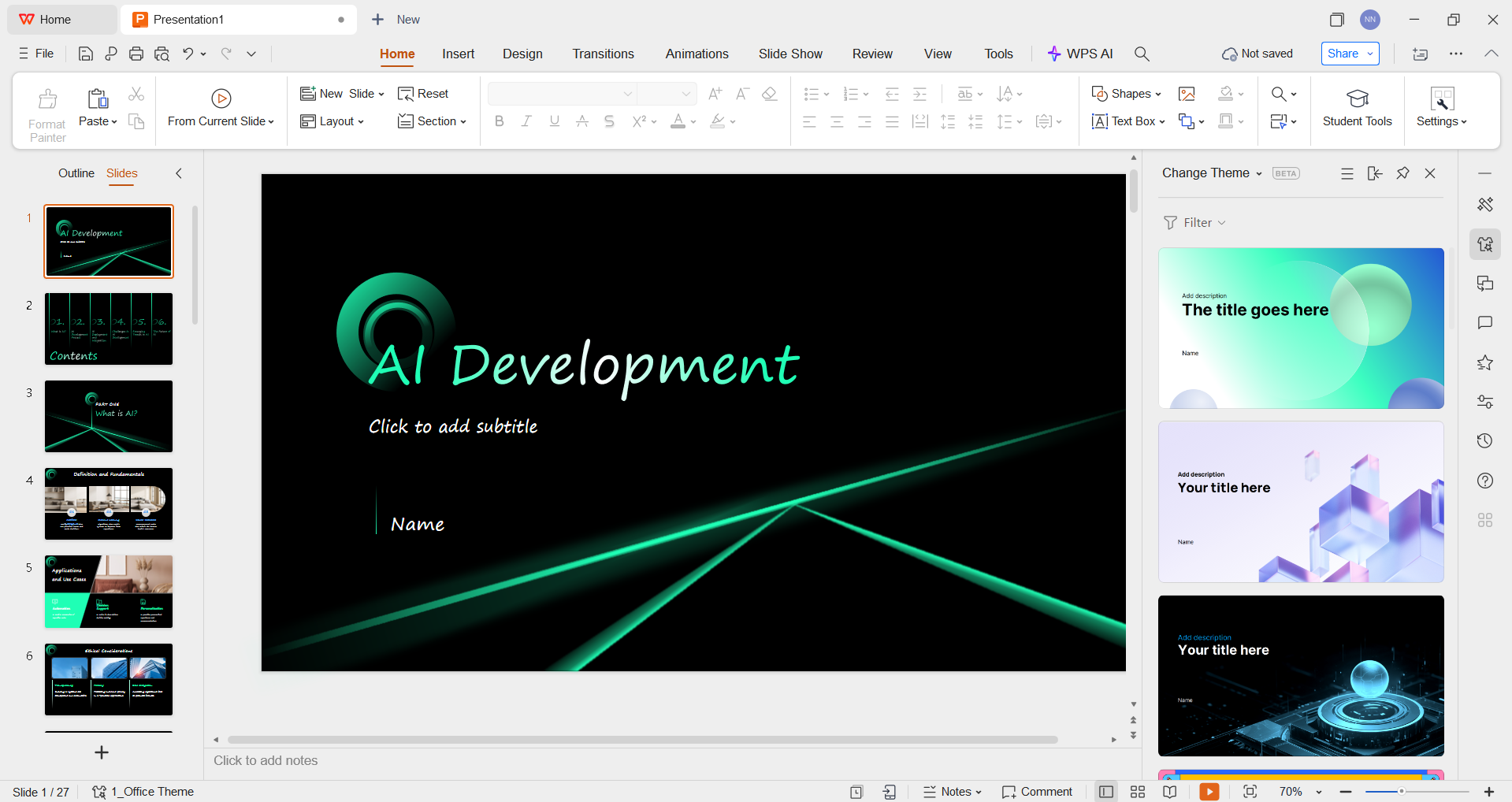
Step 4: Review the final structure of your presentation and change anything you want to, even the theme and visual elements.
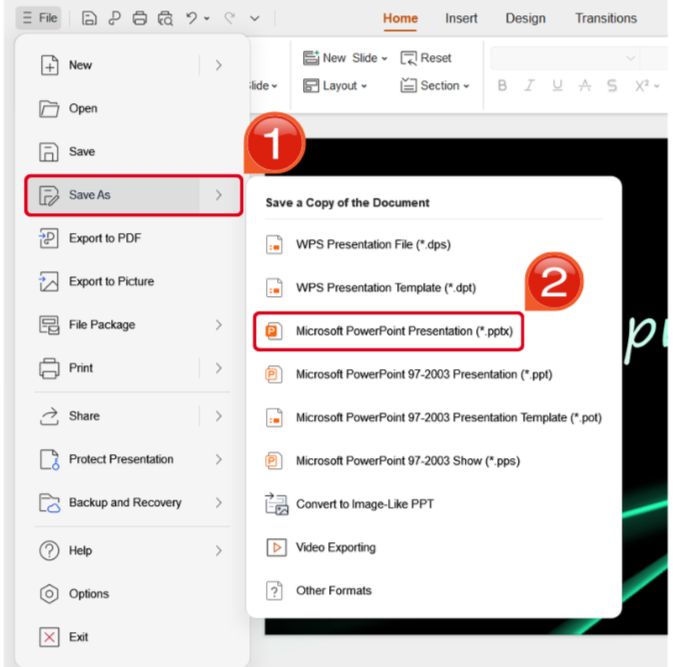
Step 5: Once you’ve finalized your design, navigate to the File Tab and locate the Save As options. Select the format you want to save your presentation as.
FAQs
Q1. Is Slider AI free to use?
Slider AI offers a limited free version, but advanced features, exports, and higher usage limits typically require a paid plan.
Q2. Is Slider AI suitable for professional presentations?
Slider AI can be useful for quickly generating basic presentation drafts, but its design flexibility and fine-grained customization may be limited for high-stakes or highly branded professional presentations.
Q3. How does Slider AI compare to WPS AI Slides?
Slider AI focuses on fast AI-generated slide content, while WPS AI Slides provides deeper editing control, broader template support, PPT and PPTX export options, and seamless integration with the WPS Office ecosystem, making it more suitable for professional and long-term use.
Q4. Does Slider AI allow editing after slide generation?
Yes. Slider AI allows users to edit generated slides, but editing tools are more limited compared to the full editing and design controls available in WPS AI Slides.

'%3e%3cpath%20d='M19.9911%204.11386V6.471H18.5894C18.0775%206.471%2017.7322%206.57814%2017.5536%206.79243C17.3751%207.00671%2017.2858%207.32814%2017.2858%207.75671V9.44421H19.9019L19.5536%2012.0871H17.2858V18.8639H14.5536V12.0871H12.2769V9.44421H14.5536V7.49779C14.5536%206.39064%2014.8632%205.53201%2015.4822%204.92189C16.1013%204.31177%2016.9257%204.00671%2017.9554%204.00671C18.8304%204.00671%2019.509%204.04243%2019.9911%204.11386Z'%20fill='%23333333'/%3e%3c/g%3e%3cdefs%3e%3cclipPath%20id='clip0_2938_8199'%3e%3crect%20width='16'%20height='16'%20fill='white'%20transform='translate(8%204.00671)'/%3e%3c/clipPath%3e%3c/defs%3e%3c/svg%3e)
'%3e%3cpath%20d='M17.5237%2010.7813L23.4811%204H22.0699L16.8949%209.88693L12.7648%204H8L14.2469%2012.9029L8%2020.0133H9.4112L14.8725%2013.7952L19.2352%2020.0133H24M9.92053%205.04213H12.0885L22.0688%2019.0224H19.9003'%20fill='%23333333'/%3e%3c/g%3e%3cdefs%3e%3cclipPath%20id='clip0_2938_8200'%3e%3crect%20width='16'%20height='16.0134'%20fill='white'%20transform='translate(8%204)'/%3e%3c/clipPath%3e%3c/defs%3e%3c/svg%3e)


