

'%3e%3cpath%20d='M8%200C12.4183%200%2016%203.58172%2016%208C16%2012.4183%2012.4183%2016%208%2016C3.58172%2016%200%2012.4183%200%208C0%203.58172%203.58172%200%208%200ZM11.6162%204.38379C11.2257%203.99337%2010.5927%203.99338%2010.2021%204.38379L8%206.58594L5.79785%204.38379C5.40732%203.99334%204.77429%203.99329%204.38379%204.38379C3.99331%204.77429%203.99335%205.40733%204.38379%205.79785L6.58594%208L4.38379%2010.2021C3.99348%2010.5927%203.99341%2011.2257%204.38379%2011.6162C4.77426%2012.0066%205.40734%2012.0065%205.79785%2011.6162L8%209.41406L10.2021%2011.6162C10.5927%2012.0066%2011.2257%2012.0067%2011.6162%2011.6162C12.0067%2011.2257%2012.0066%2010.5927%2011.6162%2010.2021L9.41406%208L11.6162%205.79785C12.0066%205.40735%2012.0066%204.77429%2011.6162%204.38379Z'%20fill='%23080E17'%20fill-opacity='0.46'/%3e%3c/g%3e%3cdefs%3e%3cclipPath%20id='clip0_3761_713'%3e%3crect%20width='16'%20height='16'%20fill='white'/%3e%3c/clipPath%3e%3c/defs%3e%3c/svg%3e)



'%3e%3cpath%20fill-rule='evenodd'%20clip-rule='evenodd'%20d='M21.4999%2010.9993C21.4999%205.20009%2016.7986%200.498901%2010.9993%200.498901C5.19994%200.498901%200.498657%205.20009%200.498657%2010.9993C0.498657%2016.2404%204.33858%2020.5844%209.35855%2021.3722V14.0346H6.69238V10.9993H9.35855V8.68594C9.35855%206.05427%2010.9262%204.60062%2013.3248%204.60062C14.4736%204.60062%2015.6753%204.80571%2015.6753%204.80571V7.38979H14.3512C13.0468%207.38979%2012.64%208.19921%2012.64%209.0296V10.9993H15.5523L15.0867%2014.0346H12.64V21.3722C17.66%2020.5844%2021.4999%2016.2404%2021.4999%2010.9993Z'%20fill='%231568EA'/%3e%3c/g%3e%3c/svg%3e)


'%3e%3cpath%20d='M2.42045%2022.1876H6.31818V12.7217L0.75%208.54553V20.5171C0.75%2021.4414%201.49892%2022.1876%202.42045%2022.1876Z'%20fill='%234285F4'/%3e%3cpath%20d='M19.682%2022.1876H23.5797C24.5041%2022.1876%2025.2502%2021.4387%2025.2502%2020.5171V8.54553L19.682%2012.7217'%20fill='%2334A853'/%3e%3cpath%20d='M19.682%205.48293V12.7216L25.2502%208.54543V6.31816C25.2502%204.25236%2022.8921%203.07469%2021.2411%204.31361'%20fill='%23FBBC04'/%3e%3cpath%20d='M6.31824%2012.7217V5.48303L13.0001%2010.4944L19.6819%205.48303V12.7217L13.0001%2017.733'%20fill='%23EA4335'/%3e%3cpath%20d='M0.75%206.31816V8.54543L6.31818%2012.7216V5.48293L4.75909%204.31361C3.10534%203.07469%200.75%204.25236%200.75%206.31816Z'%20fill='%23C5221F'/%3e%3c/g%3e%3cdefs%3e%3cclipPath%20id='clip0_2954_7305'%3e%3crect%20width='24.5'%20height='18.375'%20fill='white'%20transform='translate(0.75%203.8125)'/%3e%3c/clipPath%3e%3c/defs%3e%3c/svg%3e)


GIMP, also known as the GNU Image Manipulation Program, is one of the most popular free photo editors available, providing users with professional tools without any cost. However, beginners often find GIMP’s interface quite confusing, and many alternatives available fail to deliver reliable results. So, which free GIMP picture editing tools are worth using? In this guide, I’ll introduce you to five GIMP-based editors and show you how to enhance your images using WPS Photo AI.
What is a GIMP Picture?
GNU Image Manipulation Program is an open-source photo editing alternative to Adobe’s Photoshop. I’ve found it to be a very useful solution to all my photo editing needs when I can’t afford to buy an expensive subscription. It includes all the features I need to professionally edit all my images, like plug-ins, filters, text, selection, and even masking.
Features
Advanced Photo Editing: Advanced editing features like retouching, color correction, and even object removal.
Layer and Mask Support: Support for layer-based editing and masks so you can edit precisely and accurately.
Custom Brushes and Filters: Includes a wide range of artistic tools like a variety of brushes, effects, and plug-ins for creative editing.
Pros
Completely free to use
Lightweight and fast processing speeds
Works across all devices, including Windows, iOS, Android, and even macOS
Cons
Outdated interface
Limited advanced features
Not beginner-friendly; takes a lot of time to master
How to Edit a Picture in GIMP
If GIMP is not something that seems right for your photo editingneeds, there are many different alternatives you can try out. However, finding the right one for your editing can take a while and may get frustrating, as many of them tend to be unreliable. I’ve tried out a bunch of them myself and narrowed them down to five reliable free GIMPpictureeditors you can use to simplify your photo editing.
1. Evoto
Evoto AI is a free software platform alternative to GIMP, equipping me with all the features I need to polish all my pictures with ease. It’s the ideal solution for creatives such as photographers and videographers who need a free alternative to Photoshop that doesn’t lack anything. I found that it provided me with faster face detection than GIMP plugins, which is ideal for my portrait work.

Features
Skin Retouching
Background Removal
Portrait Enhancement
Pros
AI Precision
Fast Auto-Enhancement
Supports Batch Editing
Cons
Restricted Free Usage
Limited Creative Filters
2. FixThePhoto
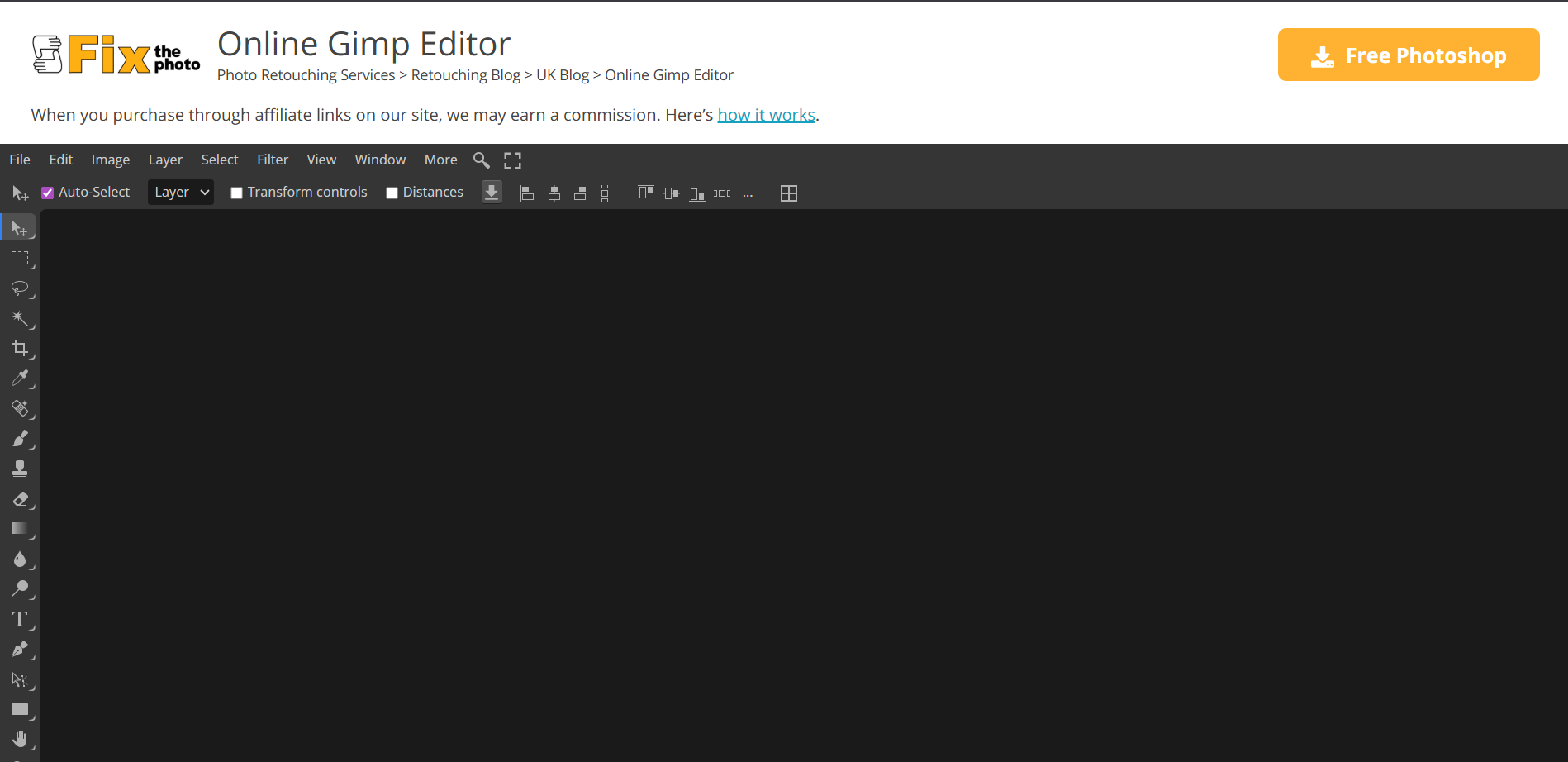
FixThePhotois one of the most reliable AI tools for GIMP enhancement for those learning how to use GIMP for beginners, featuring all the tools I need for my creative workflow, like skin retouching, color correction, and giving me full creative control over all my pictures. I’ve found it to be a suitable option for when you need polished results that go beyond the basic automatic filters provided by GIMP.
Features
Lighting Adjustment
Color Correction
AI Magic Eraser
Pros
Professional-Grade Quality
Adds a human touch to your photos
Supports GIMP (.xcf) files
Cons
Requires upload and waiting time
Not a direct editor
3. GIMP (Official Version)
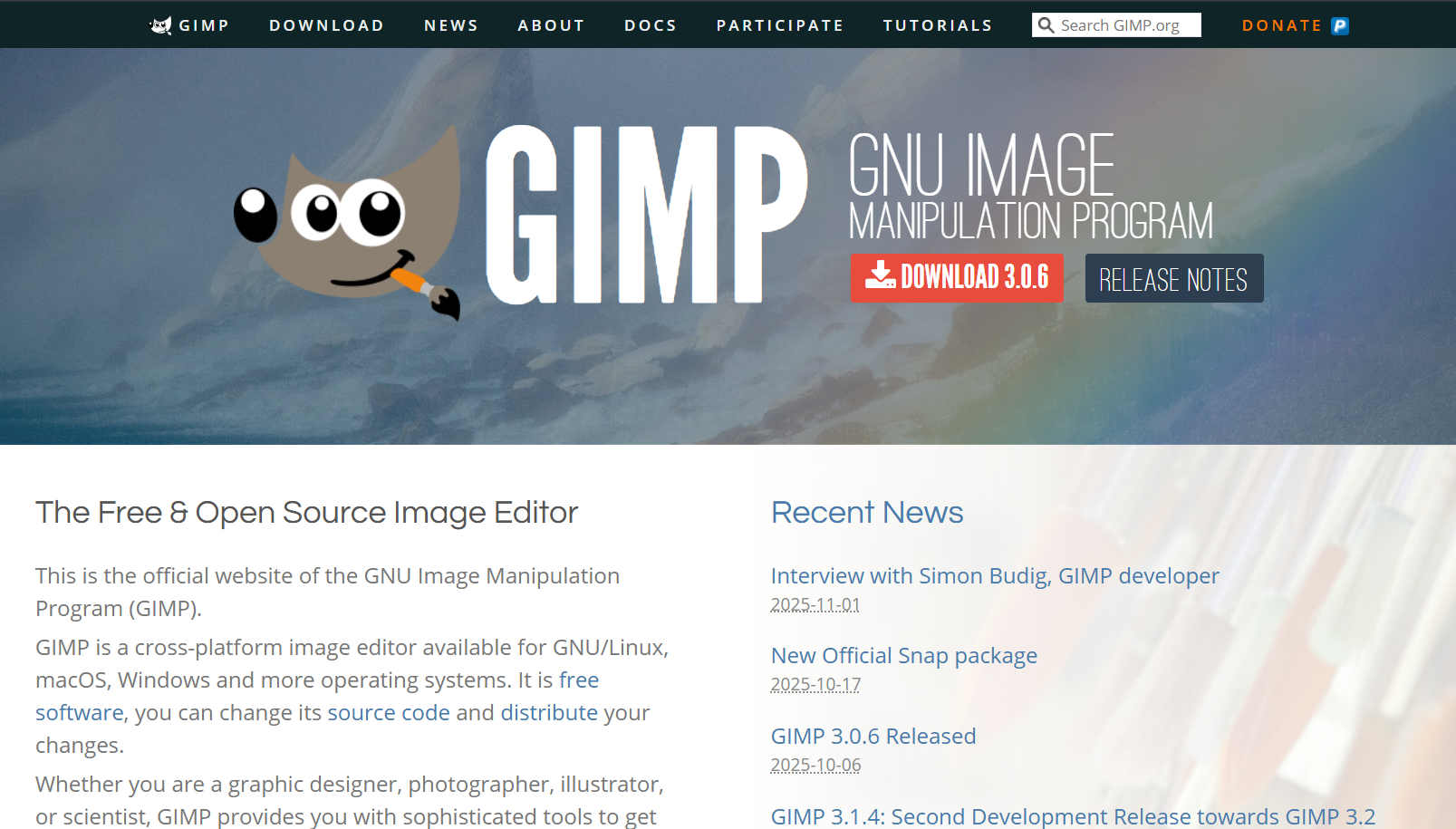
If none of the alternatives seem to be working for you, you can rely on the official GIMP tool to polish and format all your pictures effectively. It is a free, open-source editor that helps me simplify photo editing by providing me with all the features I need for polishing and enhancing all my images. It can be a bit difficult to master, but once you do, GIMP becomes a professional-level Photoshop alternative.
Features
Full Access to All Photoshop Tools
Pros
Open-Source
Fully Customizable
Supports GIMP (.xcf) files
Cons
Requires Manual Installation of Plugins
Interface Complexity
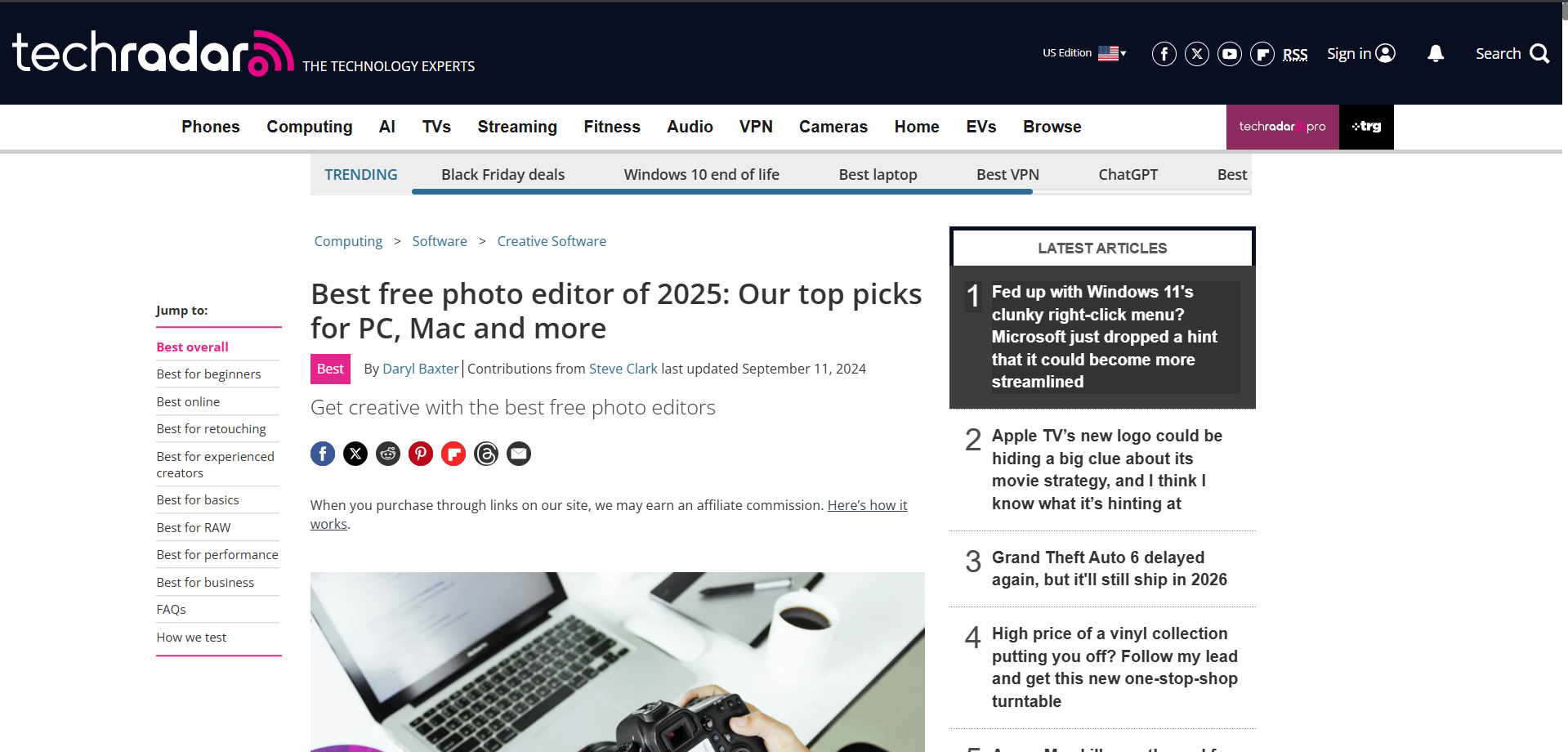
4. TechRadar Editor’s Picks
If you want to go for something that is specifically designed for your workflow, you can try out TechRadar Editor’s Picks and choose the tool that works best for you. All of them have been personally tried and tested by trained professionals, ensuring that I have the best possible tool for your photo editing needs.
Features
Community Plug-ins
Third-Party Extensions
Pros
Regular Updates
Reliable Testing by Professionals
Cons
Recommendations may vary
Some plugins may be unstable
5. PhotoPad
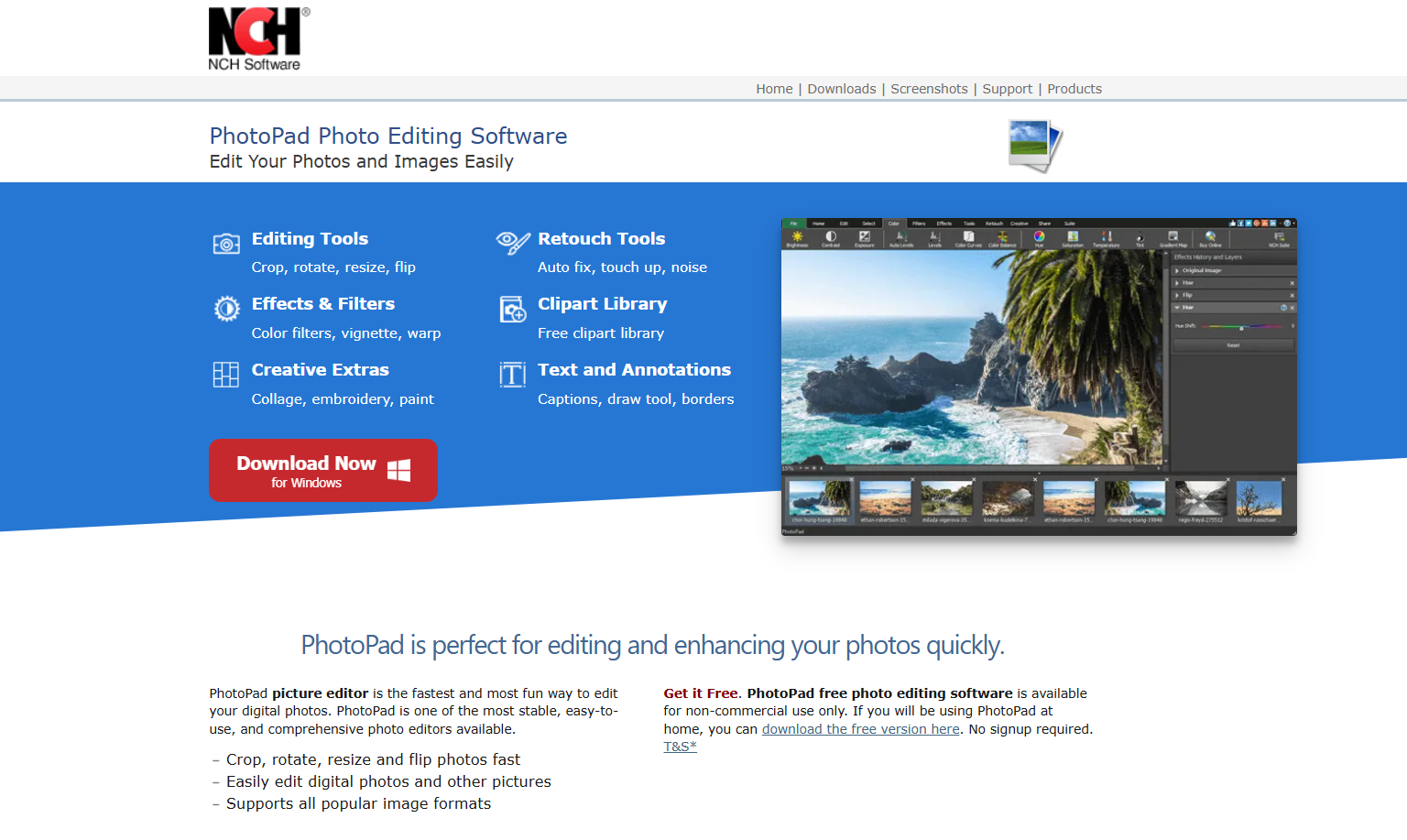
PhotoPad is a free GIMP-based alternative to professional photo editing tools, which you can use to polish and enhance all your images with the advanced features provided. I found it to be the perfect option for professionals like me who want GIMP-like functions without the deep customization features.
Features
Layered Editing Features
Smart Filters
Color Correction
Batch Processing
Pros
User-Friendly and Intuitive Interface
Quick Exporting Speeds
Suitable for Casual Use
Cons
Limited Advanced Tools
Watermarks in the Free Version
Enhance with Better Alternative — WPS Photo
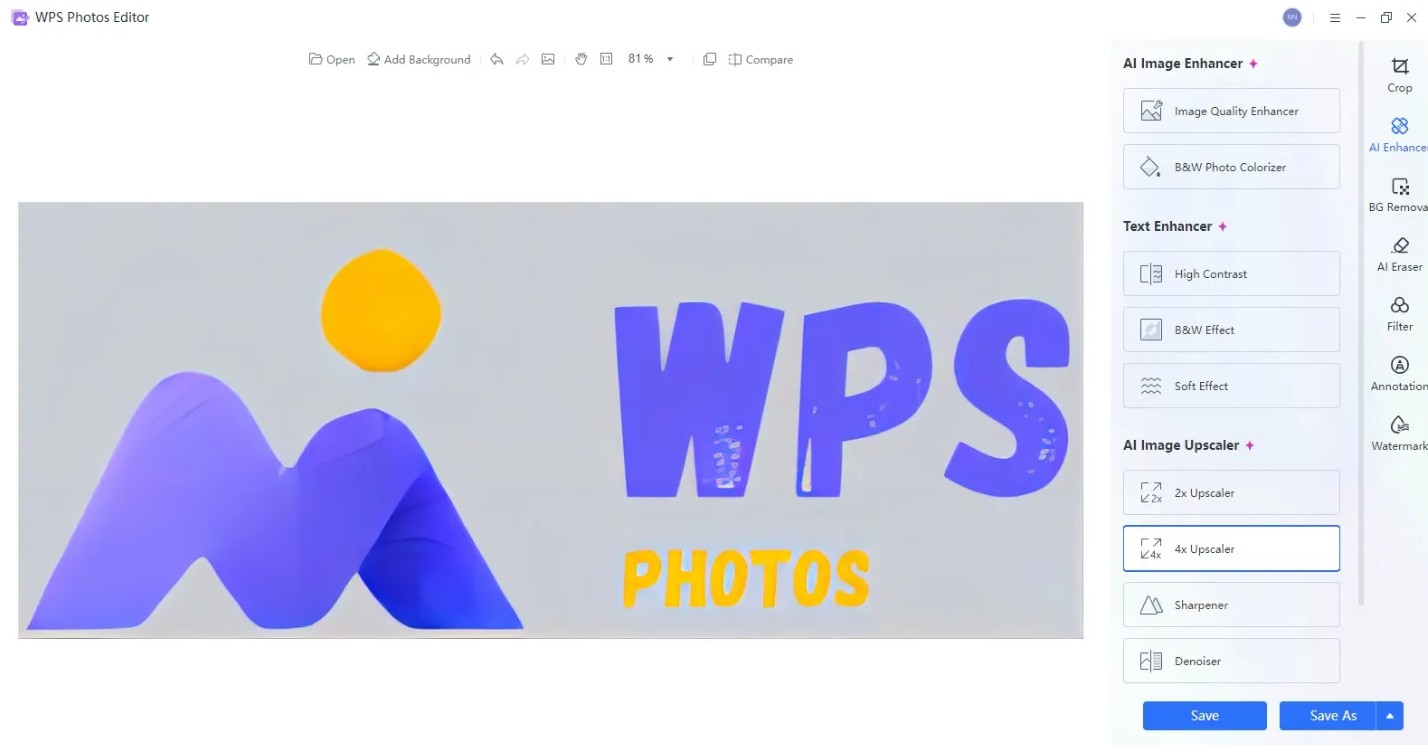
Once I’m done editing my images using some of the best GIMP plugins for photo editing, the next thing I do is further enhance my pictures using smart tools. Most online tools are either extremely unreliable or locked behind a paywall, making them extremely inconvenient. This is why I rely on WPS Photo for all my image enhancement needs. It’s free, efficient, and provides me with smart AI tools to help me enhance and restore my images reliably.
Features
AI Photo Enhancer: Enhance your image clarity and resolution easily with the AI-powered enhancer.
AI Background Remover: Automatically removes photo backgrounds without any cutoffs or lost details.
Basic Edit Tools: Crop, rotate, adjust colors, add filters, annotations, and watermarks.
Full Privacy & Local Processing: All edits happen directly on your device, keeping your images safe and secure.
If you feel like WPS Photos is the right tool for your image needs, then getting started is incredibly simple. I’ll walk you through each step in detail myself to clear out any confusion you might have.
Step 1: Open the image you want to edit through WPS Photos to get started.
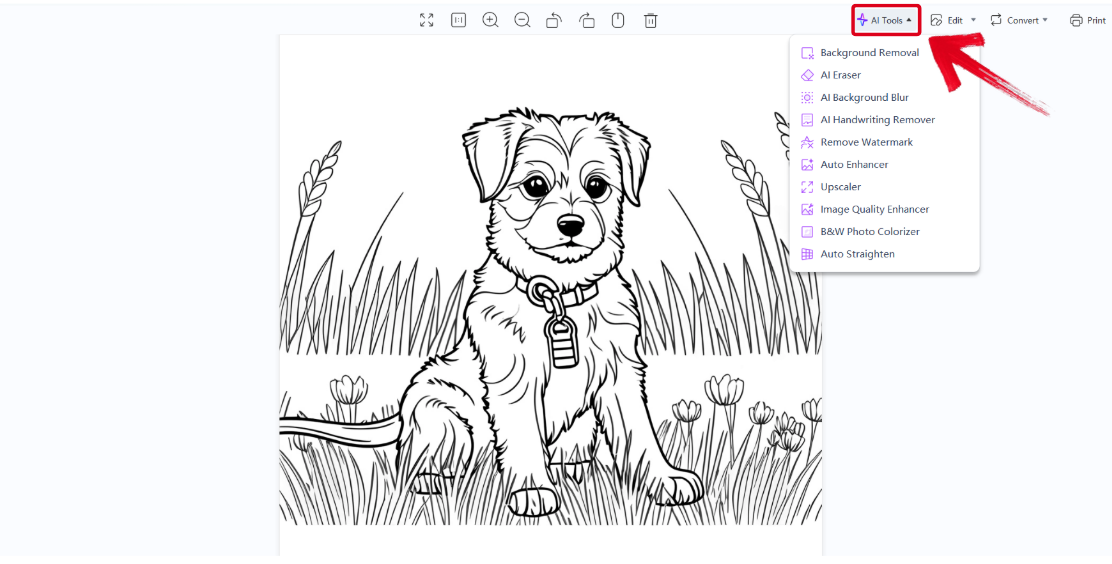
Step 2: In the WPS Photos window, you’ll see a bunch of editing tools given to you, including smart AI Toolsto help you enhance your photos.
AI Image Enhancer: Improve the quality of your image using AI enhancement.
AI Upscaler: Bring life back into old photos by restoring them through the AI upscaler.
AI Watermark Removal: If there are any watermarks on your template, you can elevate the visual appeal with thewatermarkremoval tool.
AI Background Blur: Bring focus to the main objects of your photo by blurring the background.
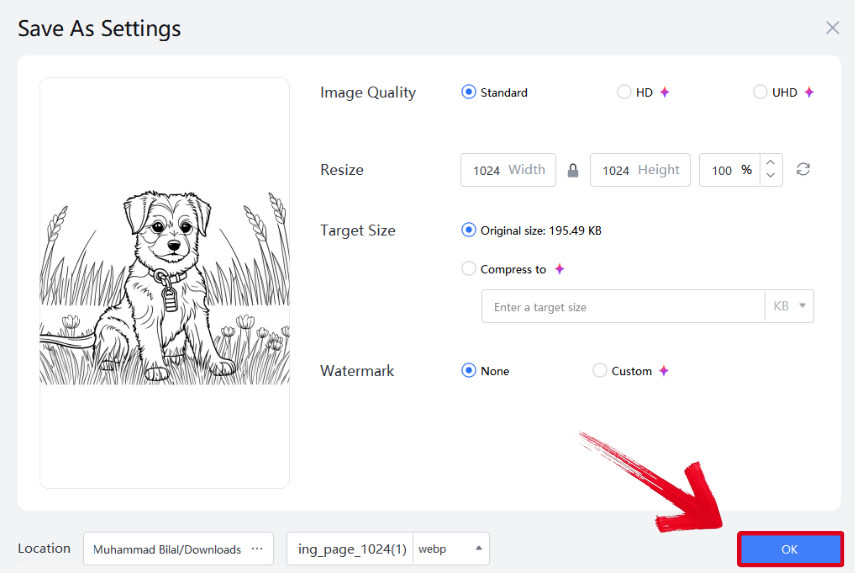
Step 3: Press Ctrl + S to open theSave As window. Adjust the image quality, size, and format, and then press OK to finish.
FAQs
Q1. What is GIMP picture editing used for?
GIMP picture editing is used for photo retouching, color correction, layer editing, and creative design. It allows users to perform professional-level edits, such as removing blemishes, adjusting exposure, or adding artistic filters, completely for free.
Q2. Which file format is best for saving edited images?
PNG is recommended to preserve transparency and resolution.
Q3. Can GIMP work with AI tools?
Yes, through plugins like GIMP-ML or external AI enhancers such as WPS Photo.
Q4. Is GIMP suitable for professionals?
Absolutely. Many photographers and illustrators use GIMP for professional retouching due to its open-source flexibility.
Q5. How do I make GIMP easier to use as a beginner?
Try simplified interfaces like PhotoPad or install the “GIMP for Beginners” plugin pack.
Streamlining Photo Editing
GIMP is a great solution for those who want to maximize their photo editing efficiency without going through much hassle. However, finding GIMP-based editing tools can be overwhelming. I’ve covered 5 GIMP picture editing tools in this guide and broken them down by their strengths and weaknesses, helping you choose the right one for yourself. You can upscale your images even more using WPS Photoonce you’re done editing. It’s free, efficient, and offers all the features you’ll need for all your editing needs.

'%3e%3cpath%20d='M19.9911%204.11386V6.471H18.5894C18.0775%206.471%2017.7322%206.57814%2017.5536%206.79243C17.3751%207.00671%2017.2858%207.32814%2017.2858%207.75671V9.44421H19.9019L19.5536%2012.0871H17.2858V18.8639H14.5536V12.0871H12.2769V9.44421H14.5536V7.49779C14.5536%206.39064%2014.8632%205.53201%2015.4822%204.92189C16.1013%204.31177%2016.9257%204.00671%2017.9554%204.00671C18.8304%204.00671%2019.509%204.04243%2019.9911%204.11386Z'%20fill='%23333333'/%3e%3c/g%3e%3cdefs%3e%3cclipPath%20id='clip0_2938_8199'%3e%3crect%20width='16'%20height='16'%20fill='white'%20transform='translate(8%204.00671)'/%3e%3c/clipPath%3e%3c/defs%3e%3c/svg%3e)
'%3e%3cpath%20d='M17.5237%2010.7813L23.4811%204H22.0699L16.8949%209.88693L12.7648%204H8L14.2469%2012.9029L8%2020.0133H9.4112L14.8725%2013.7952L19.2352%2020.0133H24M9.92053%205.04213H12.0885L22.0688%2019.0224H19.9003'%20fill='%23333333'/%3e%3c/g%3e%3cdefs%3e%3cclipPath%20id='clip0_2938_8200'%3e%3crect%20width='16'%20height='16.0134'%20fill='white'%20transform='translate(8%204)'/%3e%3c/clipPath%3e%3c/defs%3e%3c/svg%3e)


