
Text Is Locked Inside Images
Pain
You cannot select, search, or rewrite clauses because the scan is pixels—not real characters.
WPS Solution
OCR first — recognize the page, then convert scanned PDF to Word as editable paragraphs.
Scanned PDF · OCR → Word
Turn image-based PDFs into editable .docx with built-in OCR
Windows · macOS · Linux · iOS · Android
0 monthly active users
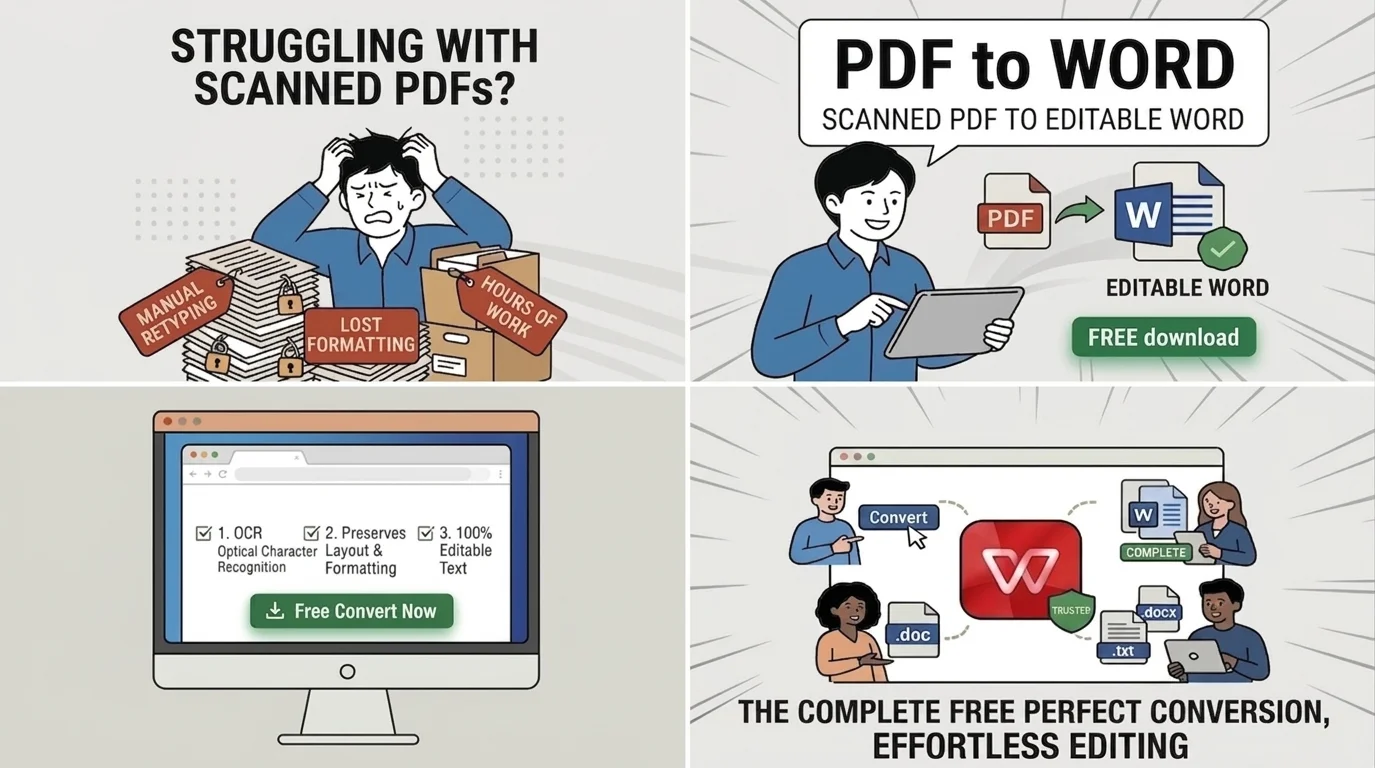
A scanned PDF looks finished on screen but is usually just a picture of text. WPS runs OCR, then exports .docx locally—so you can edit, search, and reuse the content without risky uploads.
Pain
You cannot select, search, or rewrite clauses because the scan is pixels—not real characters.
WPS Solution
OCR first — recognize the page, then convert scanned PDF to Word as editable paragraphs.
Pain
Teams retype invoices, contracts, and notes by hand—slow and full of typos.
WPS Solution
One-pass export — convert scanned PDF to Word, then proofread only the tough lines.
Pain
Web converters dump text as a single column and break tables you still need in Word.
WPS Solution
Layout-aware OCR — keep columns and tables closer to the original when you convert scanned PDF to Word.
Pain
Browser OCR sites ask you to upload contracts, IDs, and HR packs to unknown servers.
WPS Solution
Local convert — convert scanned PDF to Word on your PC or Mac. No website upload.
Built Into WPS PDF
Stop juggling a separate OCR site and a Word license. Open the scan in WPS PDF, run OCR, export .docx, and keep editing in Writer—on your device.
One installer · Writer + Spreadsheet + Presentation + PDF
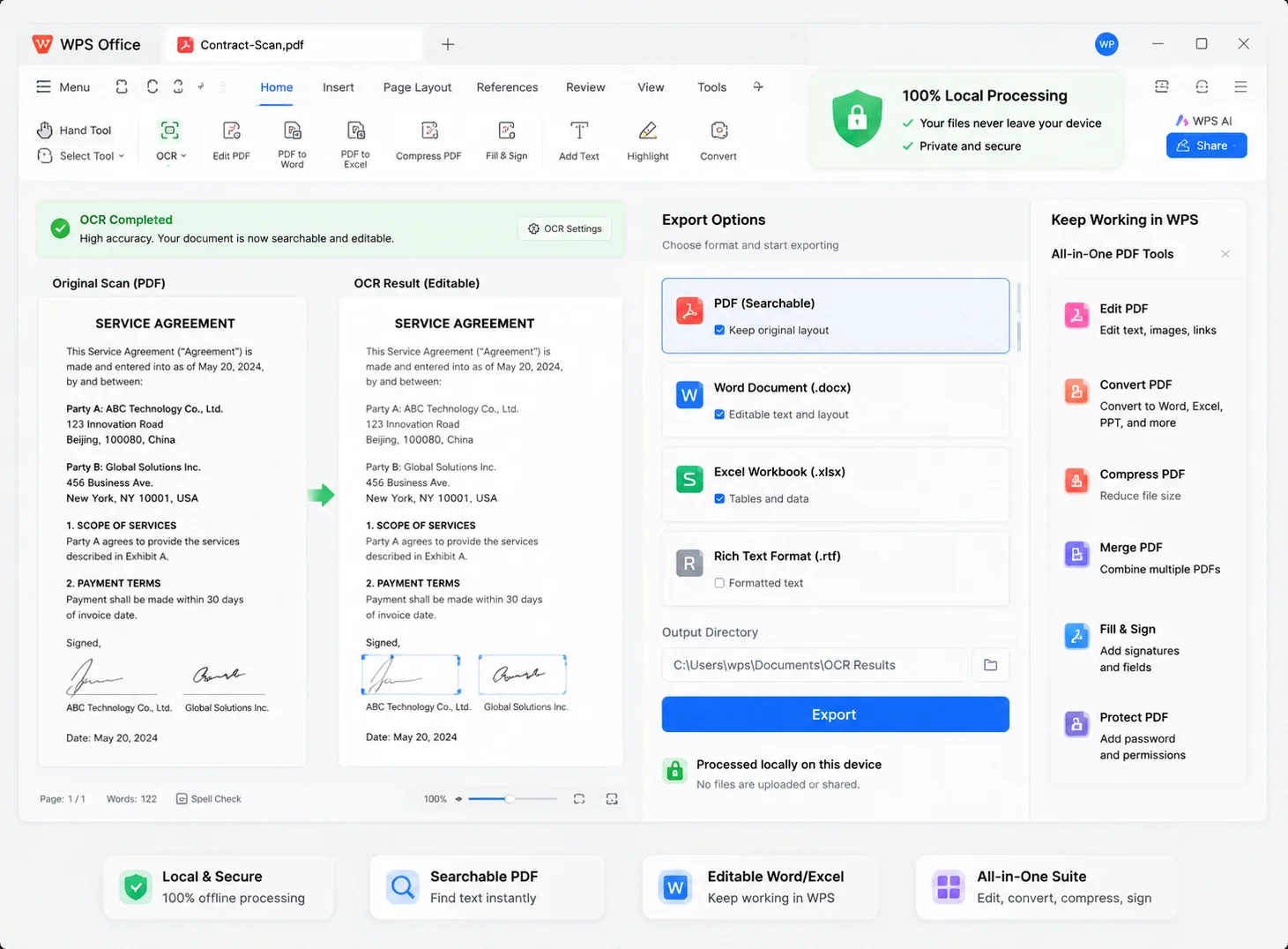
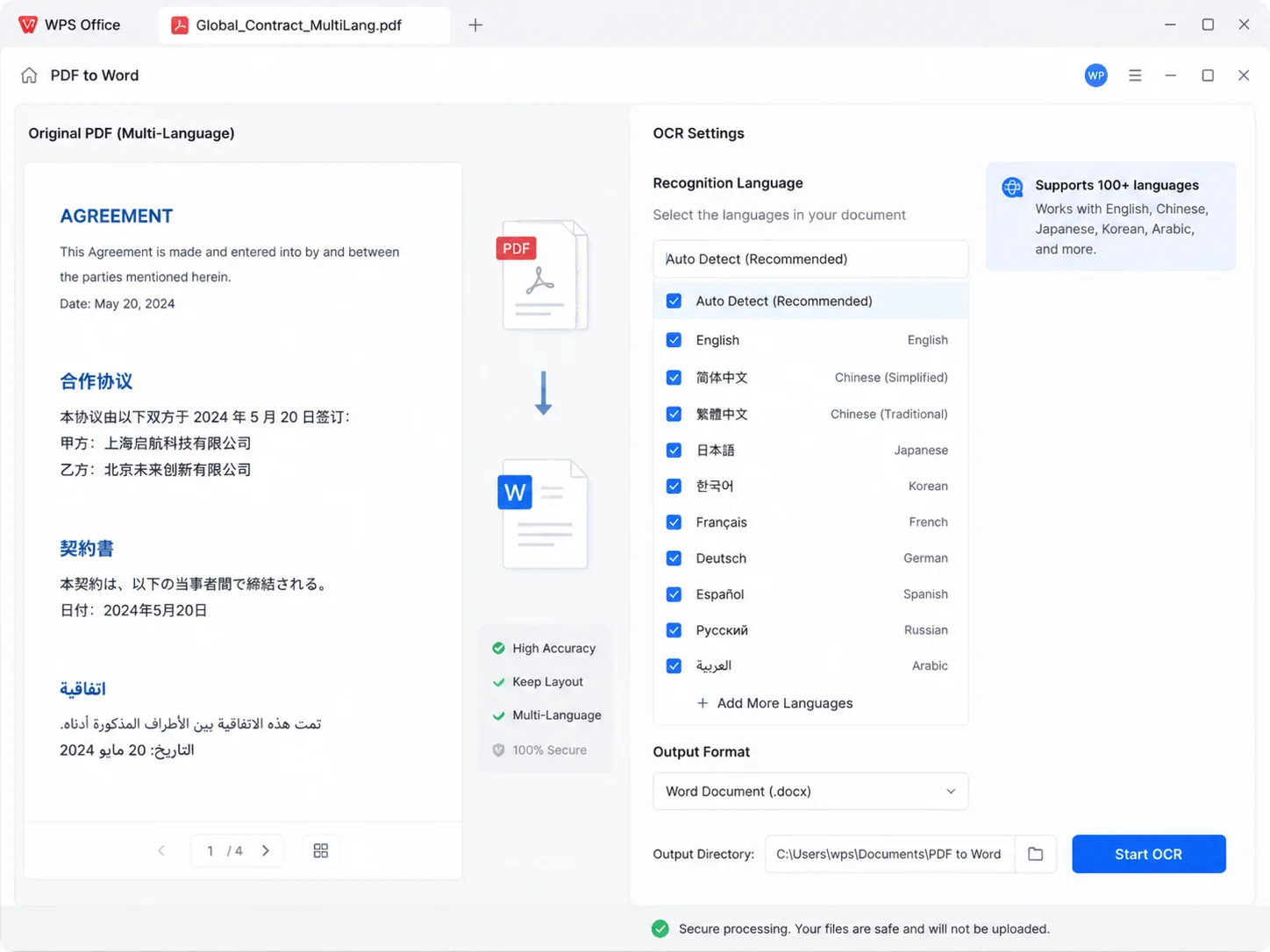
Everything you need to convert scanned PDF to Word inside WPS Office—OCR, layout retention, multi-language recognition, and private local export.
Detect scanned pages, recognize characters, then unlock text you can select, search, and convert to Word.
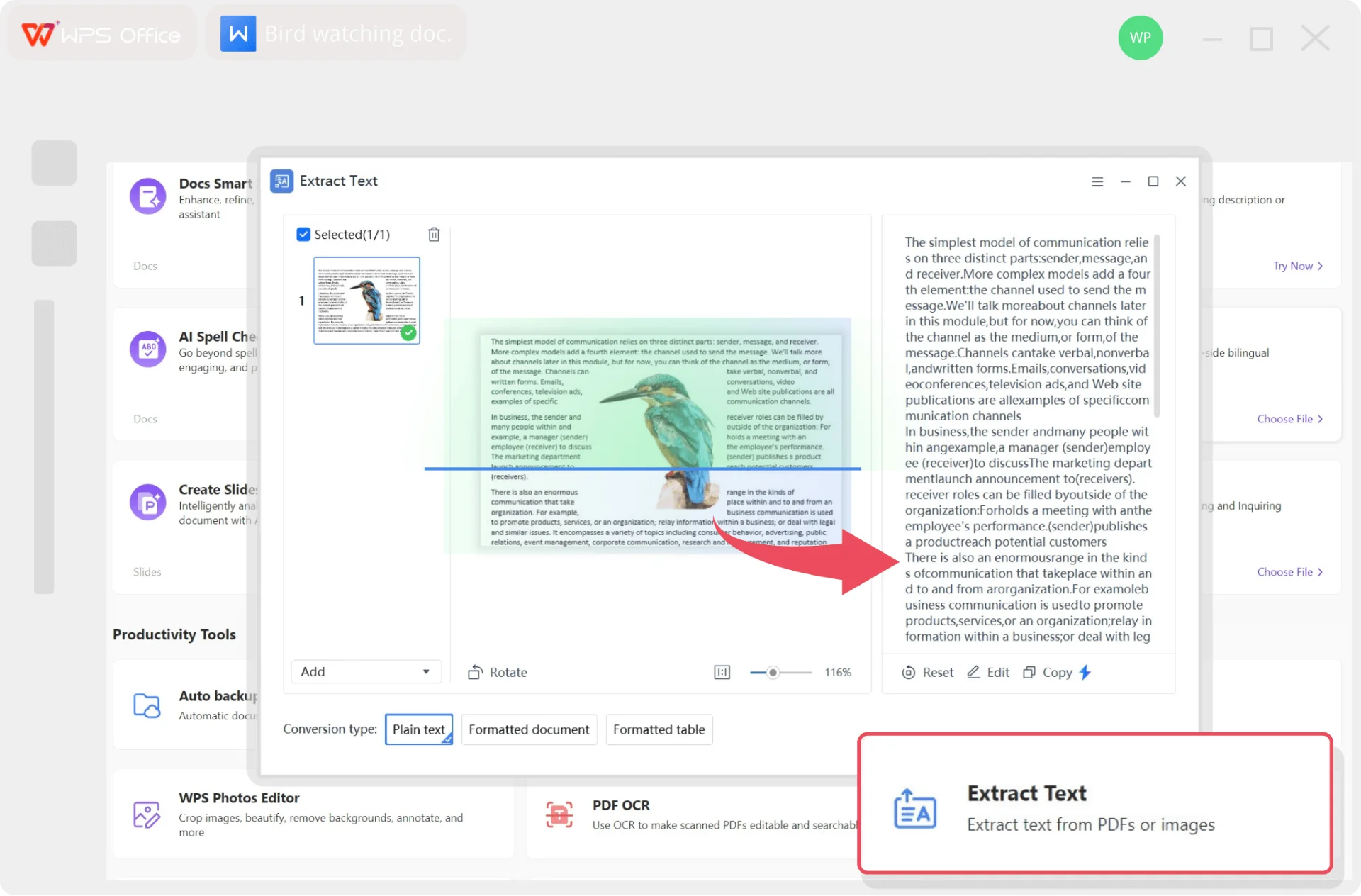
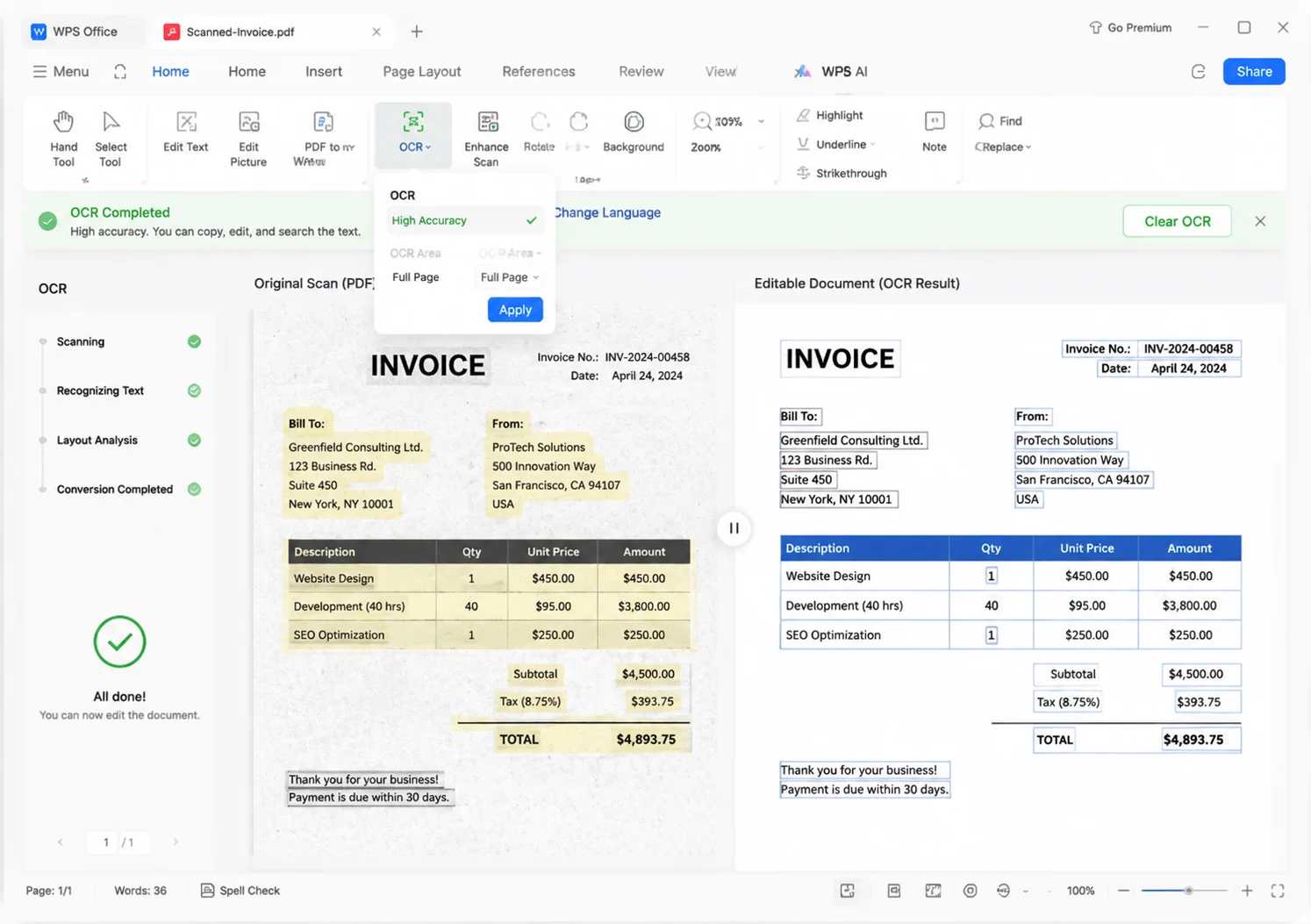
When you convert scanned PDF to Word, WPS aims to preserve structure so you spend less time reformatting.
Match OCR language to the document before you convert scanned PDF to Word—especially on bilingual pages.
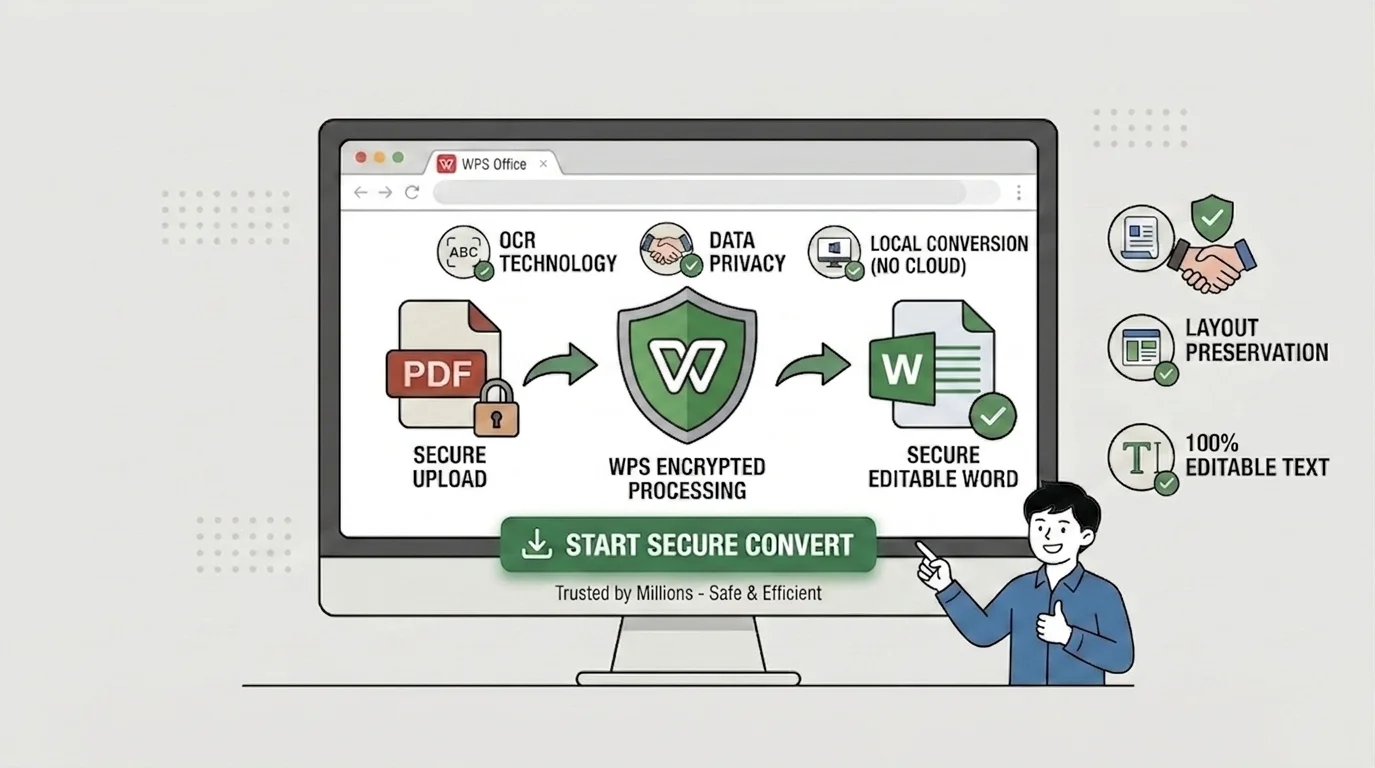
Online converters upload your scan. WPS lets you convert scanned PDF to Word locally so confidential pages never leave this computer.
REAL USERS · WPS OFFICE
Legal, finance, and ops turn image PDFs into editable Word docs in WPS—OCR locally, then finish edits in Writer.
0
Users
5
Platforms
OCR→DOCX
Local
Windows · Mac · Linux · Android · iOS
"Our contracts arrive as scanned PDFs. WPS OCR plus PDF to Word finally lets us convert scanned PDF to Word without uploading files to a random website."
Alicia L.
Paralegal
Install the free suite on Windows, Mac, Linux, iOS, or Android. Convert scanned PDF to Word lives in WPS PDF—OCR and export in one place.
Open the image-based PDF. Click Perform OCR when prompted, or go to Convert → OCR PDF. Pick language and page range, then apply.
Use Convert → PDF to Word to export an editable .docx. Open it in WPS Writer, fix any OCR mistakes, then save or share.
Download WPS Office free and convert scanned PDF to Word locally—OCR plus PDF to Word without uploading confidential scans.
One installer · Writer + Spreadsheet + Presentation + PDF