

'%3e%3cpath%20d='M8%200C12.4183%200%2016%203.58172%2016%208C16%2012.4183%2012.4183%2016%208%2016C3.58172%2016%200%2012.4183%200%208C0%203.58172%203.58172%200%208%200ZM11.6162%204.38379C11.2257%203.99337%2010.5927%203.99338%2010.2021%204.38379L8%206.58594L5.79785%204.38379C5.40732%203.99334%204.77429%203.99329%204.38379%204.38379C3.99331%204.77429%203.99335%205.40733%204.38379%205.79785L6.58594%208L4.38379%2010.2021C3.99348%2010.5927%203.99341%2011.2257%204.38379%2011.6162C4.77426%2012.0066%205.40734%2012.0065%205.79785%2011.6162L8%209.41406L10.2021%2011.6162C10.5927%2012.0066%2011.2257%2012.0067%2011.6162%2011.6162C12.0067%2011.2257%2012.0066%2010.5927%2011.6162%2010.2021L9.41406%208L11.6162%205.79785C12.0066%205.40735%2012.0066%204.77429%2011.6162%204.38379Z'%20fill='%23080E17'%20fill-opacity='0.46'/%3e%3c/g%3e%3cdefs%3e%3cclipPath%20id='clip0_3761_713'%3e%3crect%20width='16'%20height='16'%20fill='white'/%3e%3c/clipPath%3e%3c/defs%3e%3c/svg%3e)




'%3e%3cpath%20fill-rule='evenodd'%20clip-rule='evenodd'%20d='M21.4999%2010.9993C21.4999%205.20009%2016.7986%200.498901%2010.9993%200.498901C5.19994%200.498901%200.498657%205.20009%200.498657%2010.9993C0.498657%2016.2404%204.33858%2020.5844%209.35855%2021.3722V14.0346H6.69238V10.9993H9.35855V8.68594C9.35855%206.05427%2010.9262%204.60062%2013.3248%204.60062C14.4736%204.60062%2015.6753%204.80571%2015.6753%204.80571V7.38979H14.3512C13.0468%207.38979%2012.64%208.19921%2012.64%209.0296V10.9993H15.5523L15.0867%2014.0346H12.64V21.3722C17.66%2020.5844%2021.4999%2016.2404%2021.4999%2010.9993Z'%20fill='%231568EA'/%3e%3c/g%3e%3c/svg%3e)


'%3e%3cpath%20d='M2.42045%2022.1876H6.31818V12.7217L0.75%208.54553V20.5171C0.75%2021.4414%201.49892%2022.1876%202.42045%2022.1876Z'%20fill='%234285F4'/%3e%3cpath%20d='M19.682%2022.1876H23.5797C24.5041%2022.1876%2025.2502%2021.4387%2025.2502%2020.5171V8.54553L19.682%2012.7217'%20fill='%2334A853'/%3e%3cpath%20d='M19.682%205.48293V12.7216L25.2502%208.54543V6.31816C25.2502%204.25236%2022.8921%203.07469%2021.2411%204.31361'%20fill='%23FBBC04'/%3e%3cpath%20d='M6.31824%2012.7217V5.48303L13.0001%2010.4944L19.6819%205.48303V12.7217L13.0001%2017.733'%20fill='%23EA4335'/%3e%3cpath%20d='M0.75%206.31816V8.54543L6.31818%2012.7216V5.48293L4.75909%204.31361C3.10534%203.07469%200.75%204.25236%200.75%206.31816Z'%20fill='%23C5221F'/%3e%3c/g%3e%3cdefs%3e%3cclipPath%20id='clip0_2954_7305'%3e%3crect%20width='24.5'%20height='18.375'%20fill='white'%20transform='translate(0.75%203.8125)'/%3e%3c/clipPath%3e%3c/defs%3e%3c/svg%3e)


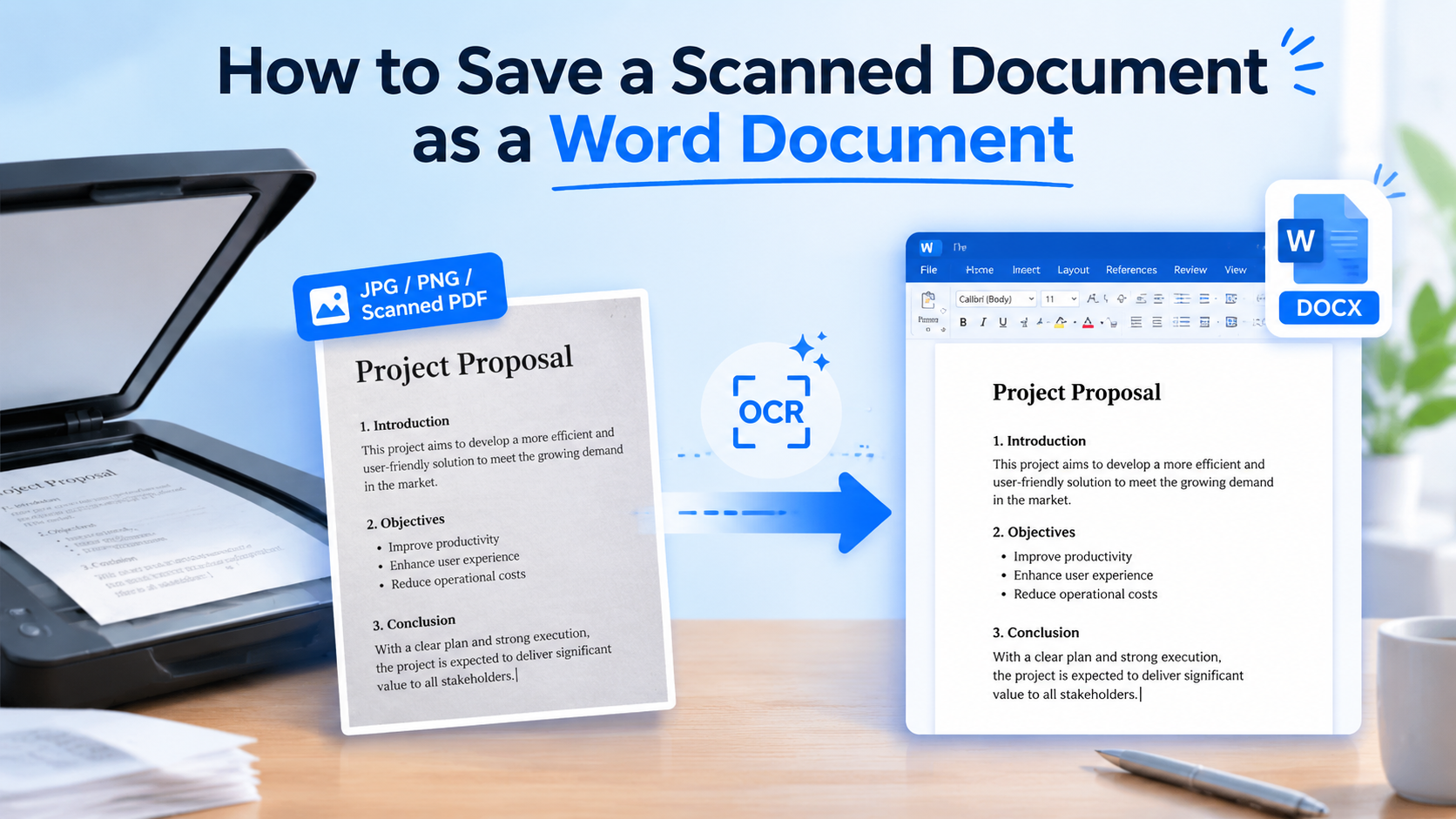
A scanned file looks finished on screen, but it is usually just a picture of text. That is why the search for how to save a scanned document as a Word document almost always leads to OCR first, then an export to DOCX. Below is a practical path for JPG/PNG scans and scanned PDFs, with Microsoft Word as a quick option and WPS Office as the more reliable OCR-to-Word workflow.
Why you cannot simply save a scanned document as a Word document
Scanners and phone cameras capture pixels. A Word file needs characters you can select, search, and rewrite. Without OCR (optical character recognition), “Save As Word” only wraps the image in a document—or fails outright. Knowing this gap is the real starting point for how to save a scanned document as a Word document without wasting time on the wrong clicks.
JPG / PNG scans: pure images; you must extract text before you get an editable DOCX.
Scanned PDFs: pages are image layers; Word or a PDF suite may convert them, but accuracy depends on scan quality.
Born-digital PDFs: already contain text—those can convert to Word without OCR.
Prep tips before you save a scanned document as a Word document
A few minutes of prep improves every method that teaches you how to save a scanned document as a Word document:
Scan at 300 DPI or higher when you can; keep pages flat and well lit.
Prefer a multi-page PDF over a pile of phone photos.
Crop margins and straighten skewed pages before OCR.
Note the document language—OCR engines need the right language pack.
Expect to proofread names, numbers, and tables after conversion.


Using Microsoft Word when you save a scanned document as a Word document
If your scan is already a PDF, Microsoft Word can open it and attempt a conversion. This is a fast way to save a scanned document as a Word document for simple, text-heavy pages.
In Word, go to File > Open and select the scanned PDF.
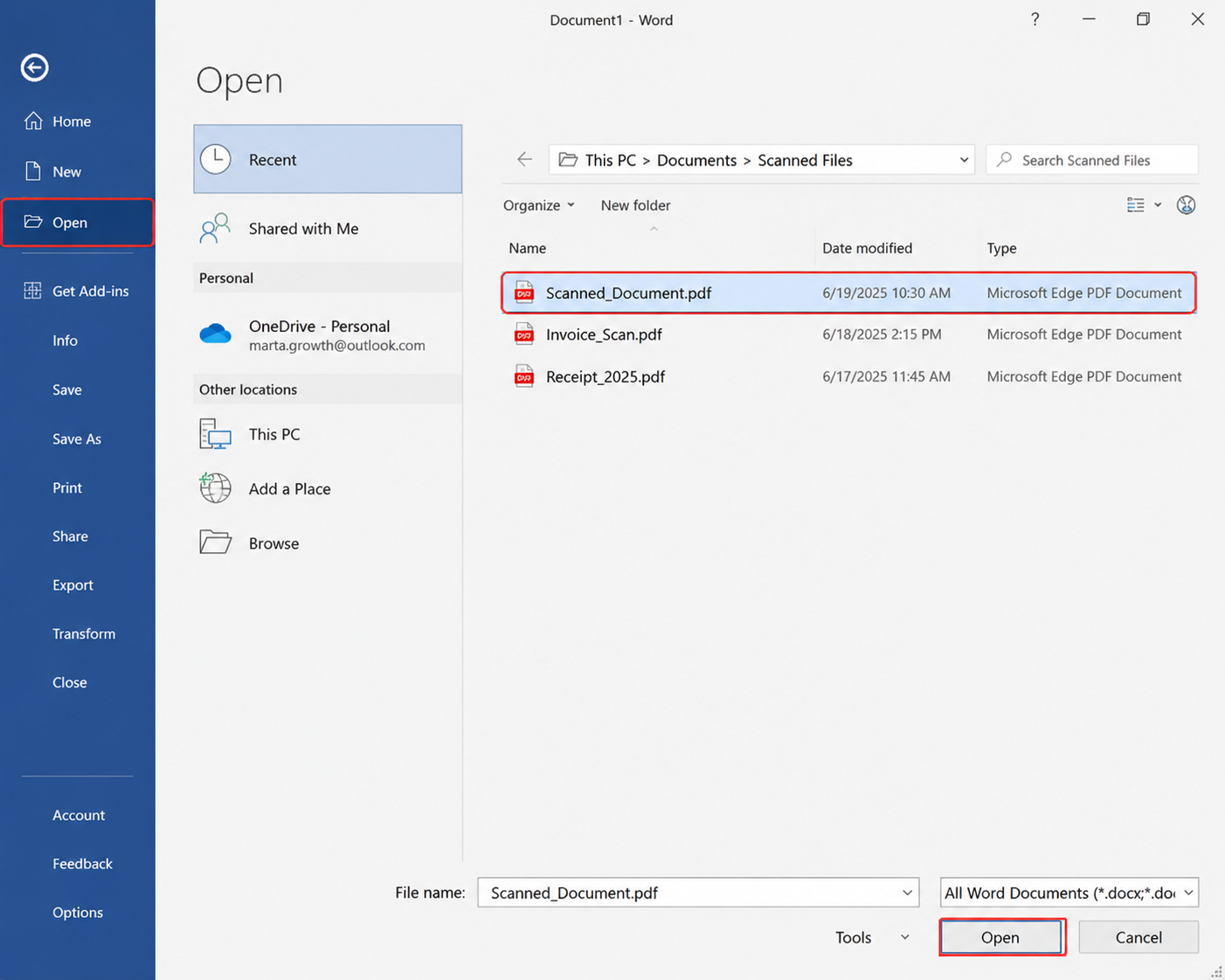
Open and select the scanned PDF Confirm the prompt that Word will convert the PDF into an editable document.
Review line breaks, columns, and tables—Word may reflow the layout.
Choose File > Save As and pick Word Document (.docx).
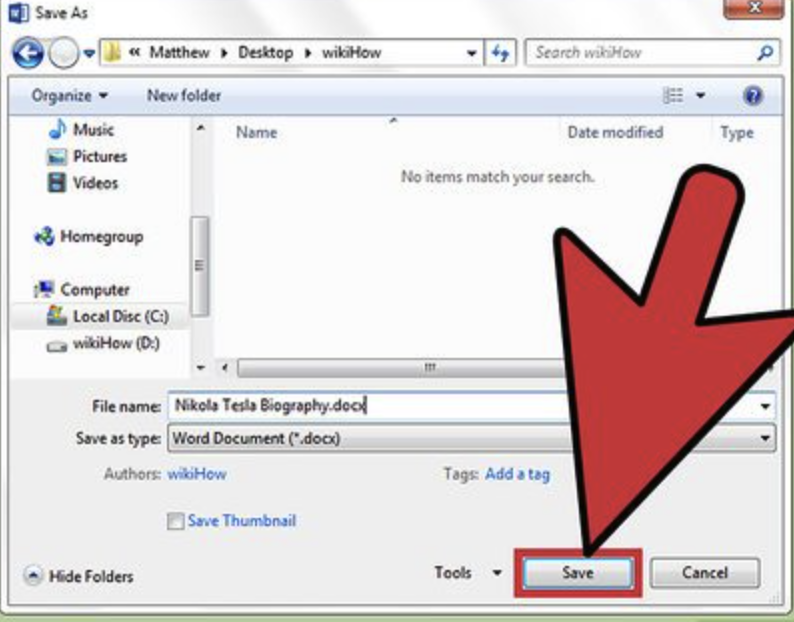
Limits: image-only scans with noise, stamps, or complex tables often convert poorly. For those files, run OCR in a PDF tool first, then export to Word.
How WPS Office helps you save a scanned document as a Word document
WPS Office combines Writer, PDF tools, and OCR, so you can recognize a scan and export DOCX in one suite. Here are two practical routes when you need to save a scanned document as a Word document.
Method A: WPS OCR toolbox (images or photo scans)
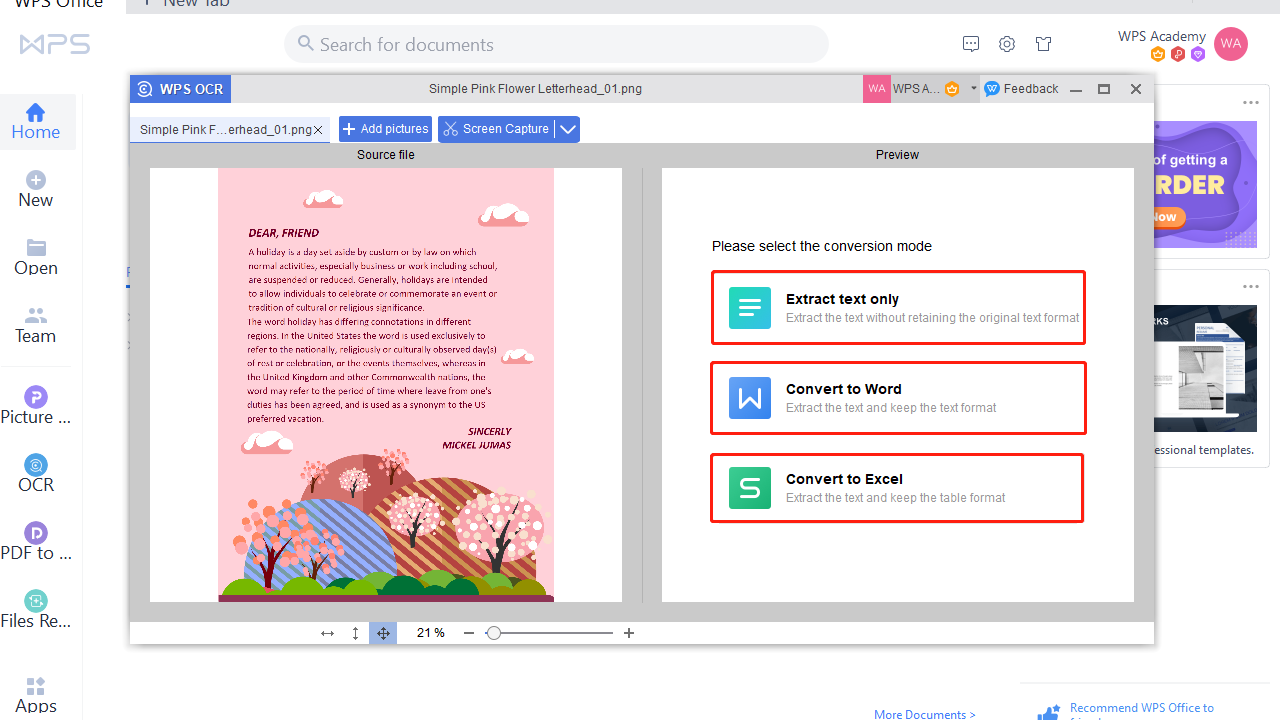
Step 1: Open WPS Office and launch OCR from the left sidebar. Add pictures or use screen capture to bring in your scan.

Step 2: After recognition starts, choose Convert to Word so WPS extracts text and keeps formatting as closely as possible. Then open the DOCX and proofread.
Method B: Scanned PDF → OCR PDF → PDF to Word
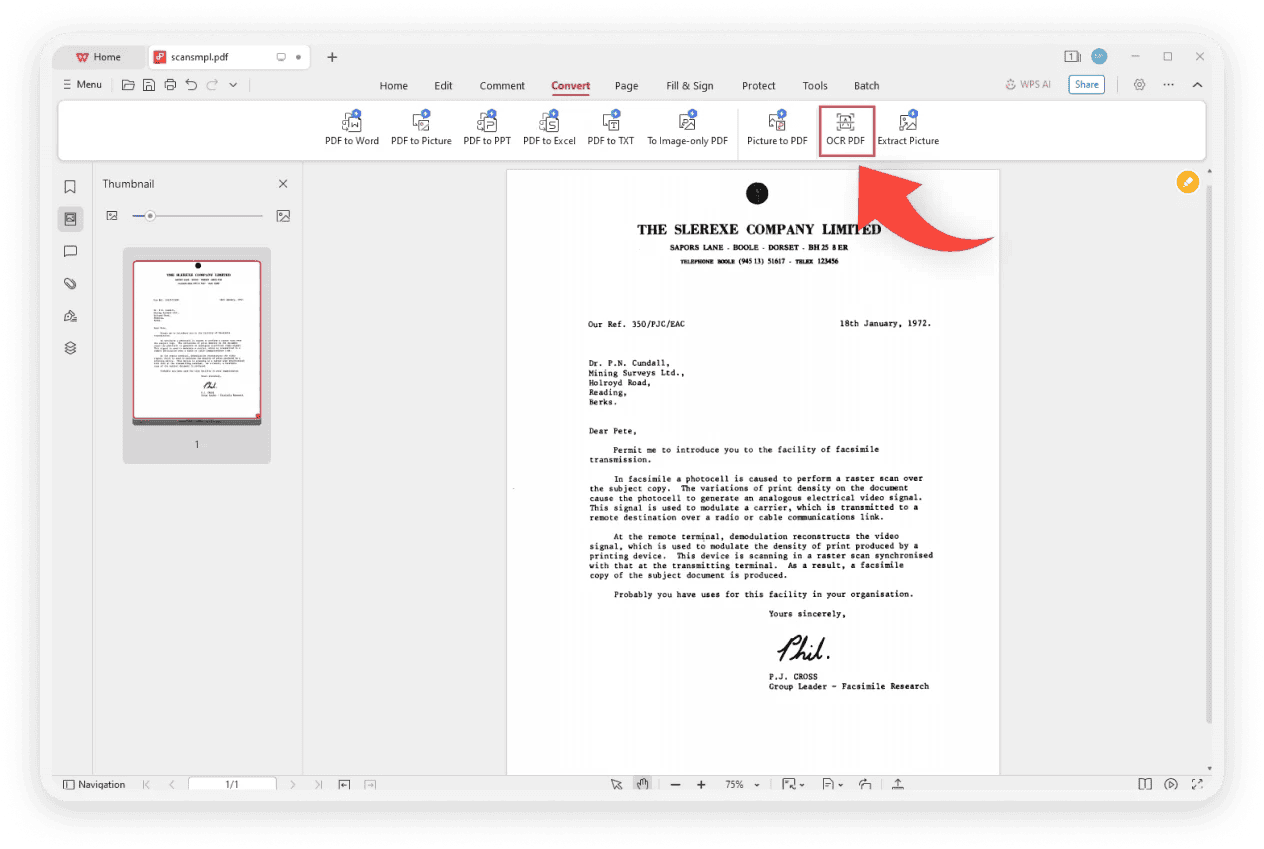
Step 1: Open the scanned PDF in WPS. On the Convert tab, click OCR PDF when the file is image-based.
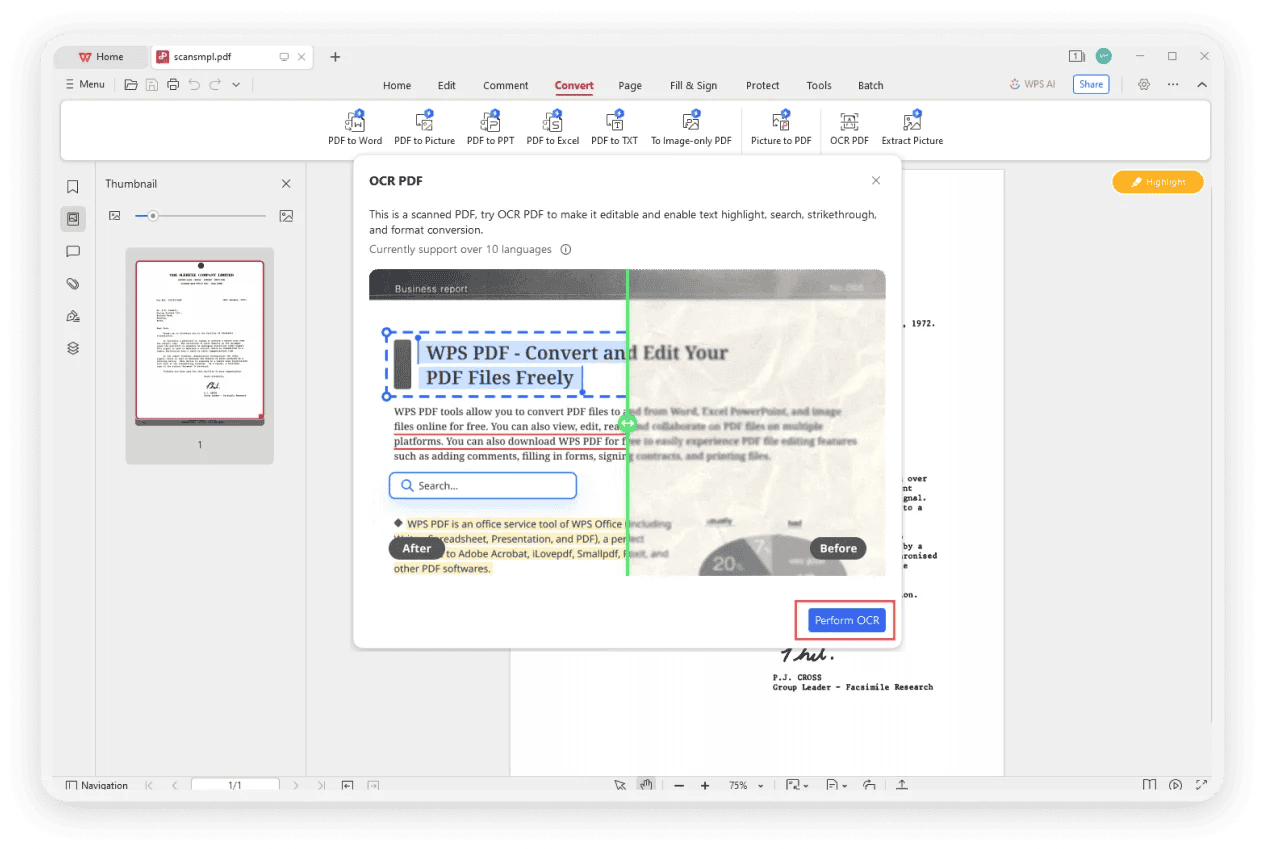
Step 2: In the OCR dialog, pick the document language if prompted, then click Perform OCR so the scan becomes searchable and editable.
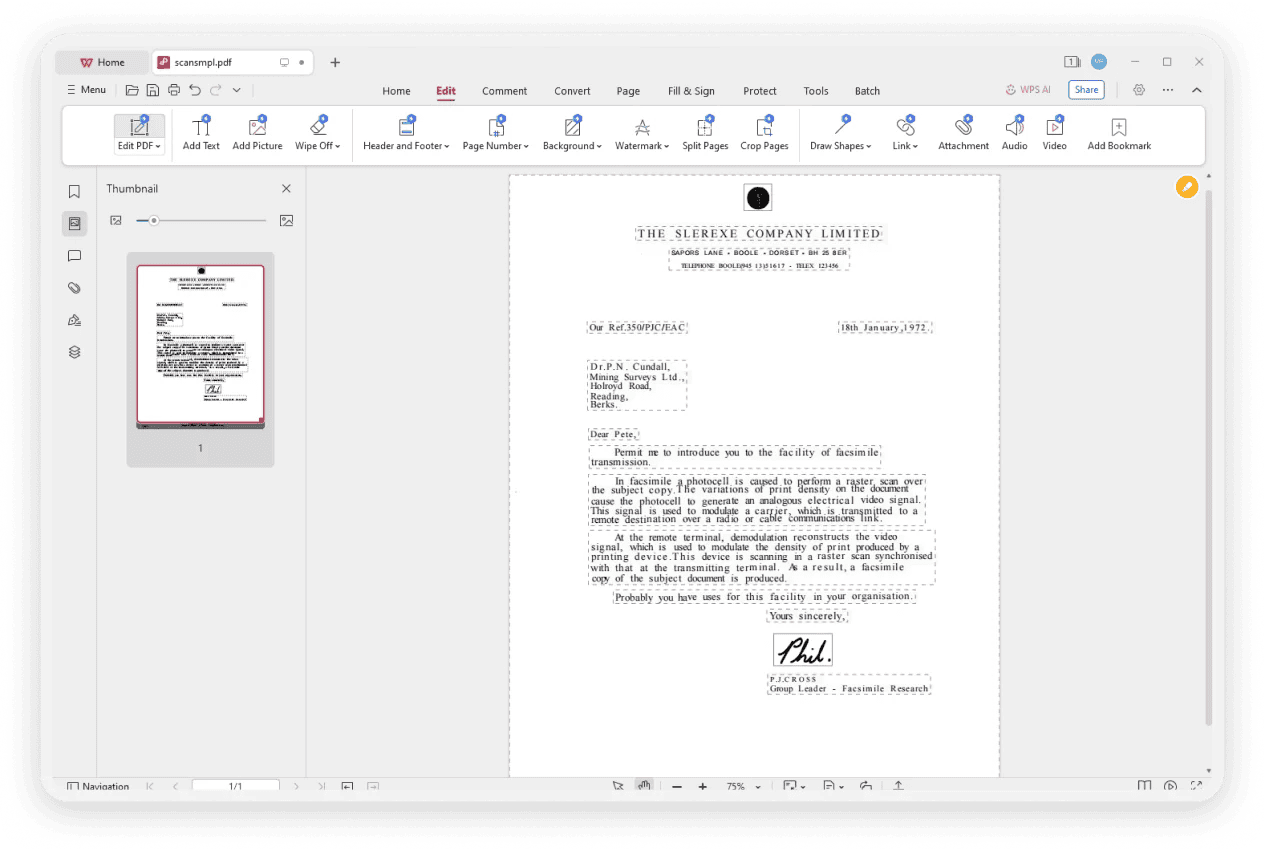
Step 3: After OCR finishes, text blocks become selectable. You can edit in place or move to export.
Step 4: Use PDF to Word (Convert or Tools tab) to export a DOCX. Open the file in WPS Writer or Microsoft Word and fix any OCR mistakes.

Fixes when you cannot save a scanned document as a Word document cleanly
If results still look wrong after you follow how to save a scanned document as a Word document guides, try these fixes:
Garbled letters: rescan sharper, increase contrast, and set the correct OCR language.
Broken tables: OCR the PDF first, then convert; or convert table areas separately.
Handwriting: printed text OCRs far better; expect heavy manual cleanup for notes.
Word opens PDF as images only: run OCR in WPS, then export to Word again.
Mixed languages: process pages by language when possible.
FAQ about how to save a scanned document as a Word document
Can I turn a phone photo into a Word file?
Yes. Import the photo into an OCR tool (such as WPS OCR), choose Convert to Word, then proofread the DOCX.
Does opening a scanned PDF in Word always work?
Not always. Word works best on clean, text-heavy scans. Complex or noisy scans need dedicated OCR first.
Should I save as DOC or DOCX?
Prefer DOCX for modern Word and WPS Writer compatibility unless a system still requires legacy DOC.
Is OCR free in WPS Office?
WPS Office includes OCR and PDF conversion tools in the suite. Feature availability can vary by platform and license—check the in-app prompt if a plugin download is required.


'%3e%3cpath%20d='M19.9911%204.11386V6.471H18.5894C18.0775%206.471%2017.7322%206.57814%2017.5536%206.79243C17.3751%207.00671%2017.2858%207.32814%2017.2858%207.75671V9.44421H19.9019L19.5536%2012.0871H17.2858V18.8639H14.5536V12.0871H12.2769V9.44421H14.5536V7.49779C14.5536%206.39064%2014.8632%205.53201%2015.4822%204.92189C16.1013%204.31177%2016.9257%204.00671%2017.9554%204.00671C18.8304%204.00671%2019.509%204.04243%2019.9911%204.11386Z'%20fill='%23333333'/%3e%3c/g%3e%3cdefs%3e%3cclipPath%20id='clip0_2938_8199'%3e%3crect%20width='16'%20height='16'%20fill='white'%20transform='translate(8%204.00671)'/%3e%3c/clipPath%3e%3c/defs%3e%3c/svg%3e)
'%3e%3cpath%20d='M17.5237%2010.7813L23.4811%204H22.0699L16.8949%209.88693L12.7648%204H8L14.2469%2012.9029L8%2020.0133H9.4112L14.8725%2013.7952L19.2352%2020.0133H24M9.92053%205.04213H12.0885L22.0688%2019.0224H19.9003'%20fill='%23333333'/%3e%3c/g%3e%3cdefs%3e%3cclipPath%20id='clip0_2938_8200'%3e%3crect%20width='16'%20height='16.0134'%20fill='white'%20transform='translate(8%204)'/%3e%3c/clipPath%3e%3c/defs%3e%3c/svg%3e)


