CSV to PDF Converter

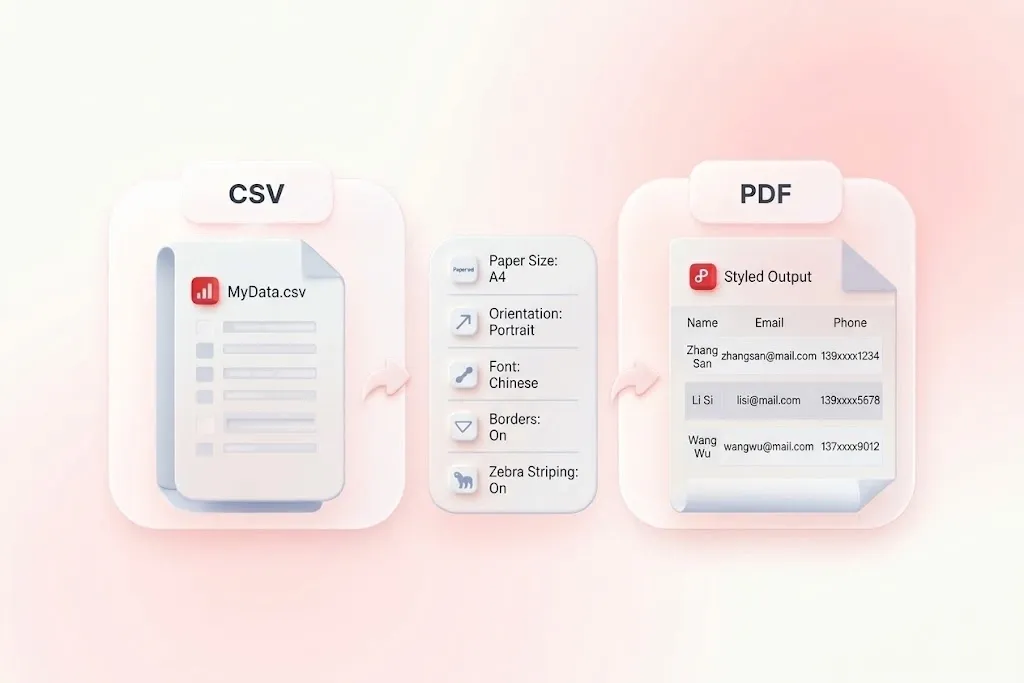
Turn a CSV export into a paginated table for reading, printing, or sharing. WPS’s online CSV to PDF converter lets you review the parsed data and adjust page and table settings before creating the document.

or drag and drop files here

CSV, up to 5 MB

0%

Processing...

PDF

Free to Use
No Sign-Up
No Ads
Any Browser
Free to Use
No Sign-Up
No Ads
Any Browser

How to Convert CSV to PDF in 3 Steps

  1. Step 1: Upload a CSV file

    Select your .csv file and review the detected rows and columns. Check the header row, separators, and any non-English characters.

  2. Step 2: Set up the table layout

    Choose the available page and table styles. Review orientation, font size, borders, and long-cell handling so the content fits the intended pages.

  3. Step 3: Create and inspect the PDF

    Convert CSV to PDF, then check headers and page breaks in the preview. Download the report after verifying important values and text.

Convert CSV to PDF with Room for Wide Tables

Convert CSV to PDF with Room for Wide Tables

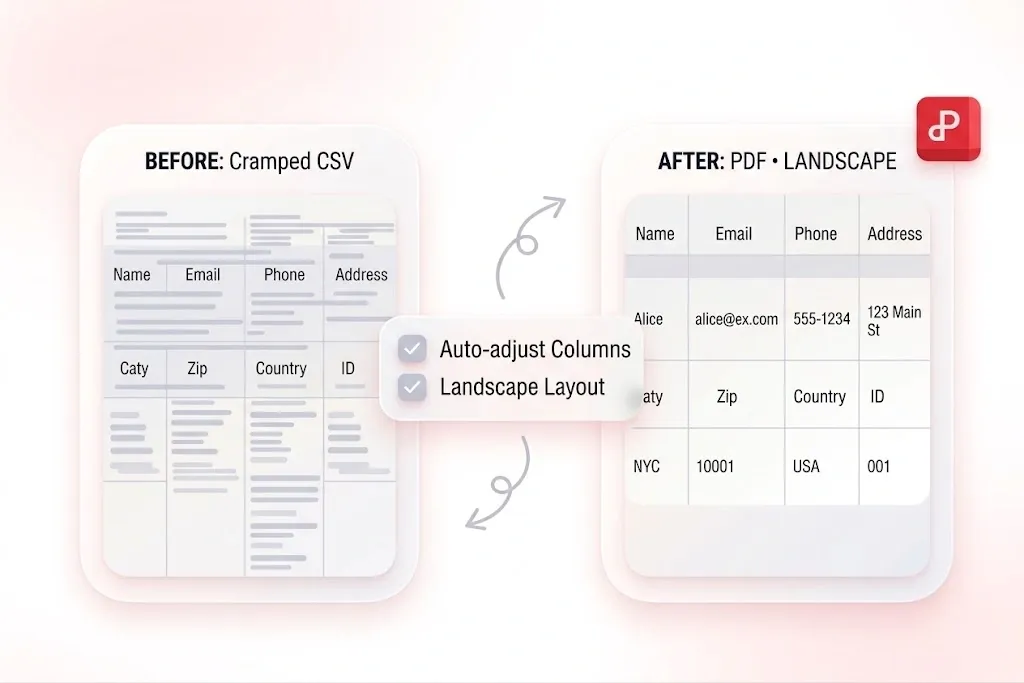
A table with many columns can become cramped on paper. WPS’s CSV to PDF converter adjusts column widths and offers page-layout settings, so you can review a more suitable arrangement. Compare portrait and landscape layouts instead of shrinking every label beyond readability.

Try It Now
Wrap Long CSV Cells or Truncate Their Text

Wrap Long CSV Cells or Truncate Their Text

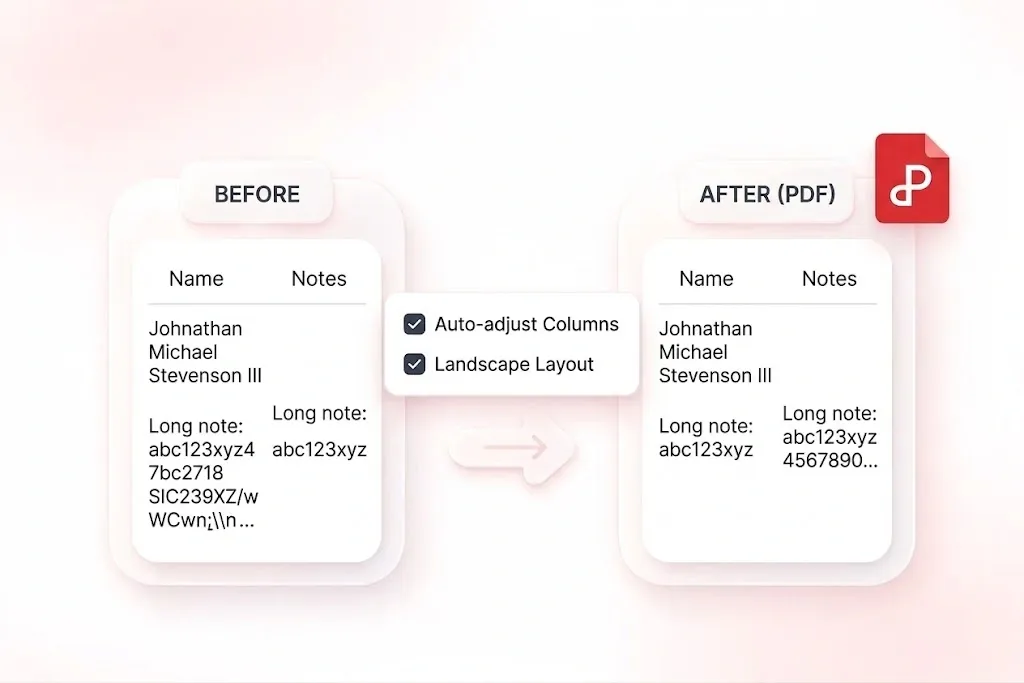
Long notes and descriptions can dominate an otherwise compact table. Cell wrapping or truncation options let you choose how that text is displayed, so the report has a deliberate reading layout. Choose wrapping when the complete cell text must remain visible.

Try It Now
Repeat CSV Table Headers Across PDF Pages

Repeat CSV Table Headers Across PDF Pages

A reader should not need to return to page one to identify a column. Repeated table headers keep the column labels with later pages, so a longer CSV report remains easier to follow. Check that the original header row contains useful names.

Try It Now
Style PDF Tables with Borders and Row Shading

Style PDF Tables with Borders and Row Shading

A raw export is not always a suitable handout. Font, border, and row-striping settings let you organize the table visually, so readers can follow rows and distinguish fields. Preview a representative page before saving the full report.

Try It Now

Inventory review

Create a CSV to PDF table for a stock review meeting. Check item codes and quantities, and retain the CSV for later updates.

Inventory review

Operations teams

Wide report handout

Use the CSV to PDF landscape setting for a wide status report. Verify that all columns and long notes remain visible in the chosen layout.

Wide report handout

Project coordination

Attendance list

Convert CSV file to PDF for a paginated attendance list. Check the spelling of names and share the document only with the intended recipients.

Attendance list

Class and event planning

CSV to PDF FAQ

01

How do I convert CSV to PDF?

Upload the CSV, check the parsed table, and adjust page and table settings. Convert it, review the preview, and download the PDF.

02

Does a PDF retain spreadsheet formulas and filters?

No. CSV contains plain tabular values, and the PDF is a document view of those values. It is not a replacement for an editable spreadsheet or a data-analysis file.

03

What should I do if columns are split incorrectly?

Check the source delimiter and whether cells containing separators are quoted consistently. Review the parsed preview before exporting; malformed CSV may need correction in the source.

04

Can I keep headers visible on later pages?

Yes. The tool repeats table headers across pages. Confirm that the detected header row contains the labels you want to use.

05

What happens to long text in a cell?

The tool supports wrapping or truncation for long cells. Wrapping is preferable when the full text must be included; truncation can hide information, so review that choice carefully.

06

Why should I keep the original CSV?

The PDF is useful for reading or printing, while the CSV remains the source for updates, sorting, and analysis. Keeping both makes future revisions easier to manage.