TXT to PDF Converter

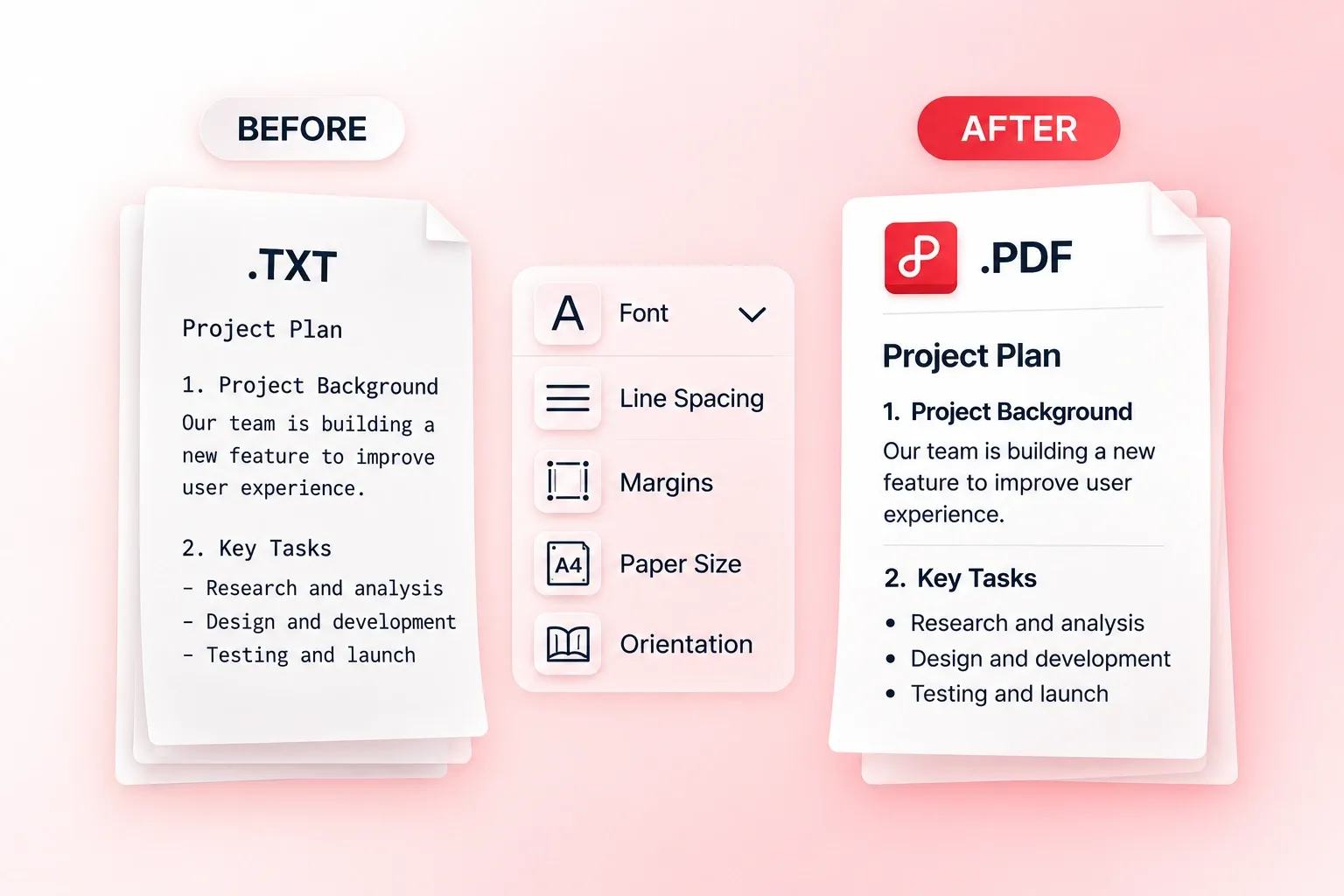
Turn plain text notes or code listings into a paginated document. WPS’s online TXT to PDF converter lets you review the text, choose fonts and spacing, and check the document preview before download.

or drag and drop files here

TXT, up to 1 MB

Encoding: Lines: 0
PDF settings
Used as the PDF document title.
Formatting options
Pagination options
Long lines detected
A line up to 0 characters was detected. Long lines may be force-wrapped for better pagination.
Encoding is detected automatically. Control characters are cleaned before conversion.
PDF preview
Preview the generated document before downloading. Page numbers are enabled.
Page 1 of 0
Encoding:
Pages
0
Output file
Typography
sans-serif · 14px
Layout
Margin 24px · Line height 1.6
Free to Use
No Sign-Up
No Ads
Any Browser
Free to Use
No Sign-Up
No Ads
Any Browser

How to Convert TXT to PDF in 3 Steps

  1. Step 1: Upload your text file

    Select a .txt file and review the detected text. Check accented or non-English characters before moving on to layout.

  2. Step 2: Choose a reading layout

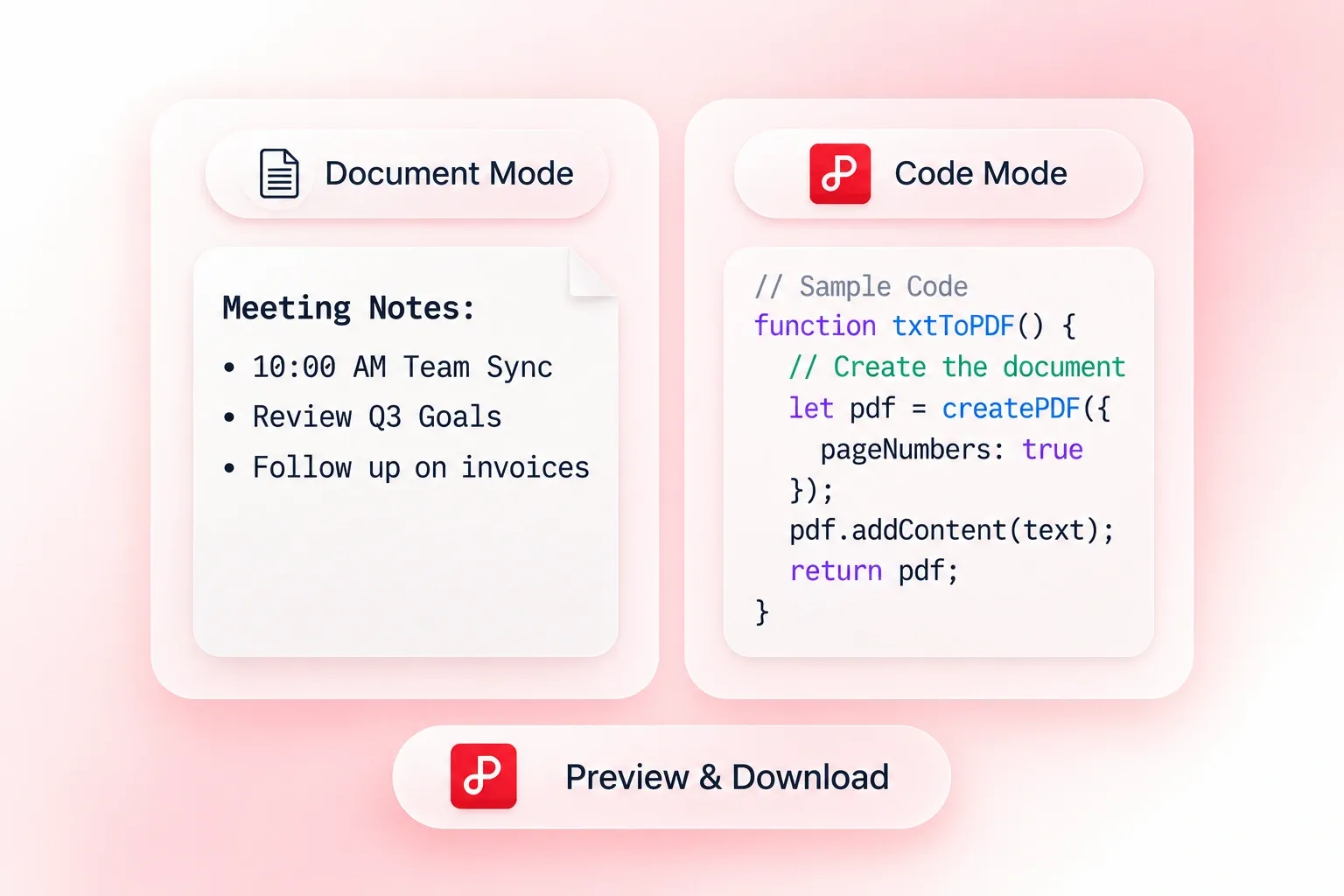
    Set the title, font, size, line spacing, and margins. Enable monospaced code mode or page numbers when they suit the content.

  3. Step 3: Convert and inspect the pages

    Convert TXT to PDF, then check line wrapping and page breaks in the preview. Download the file once the text is readable.

Check Text Encoding Before TXT to PDF Export

Check Text Encoding Before TXT to PDF Export

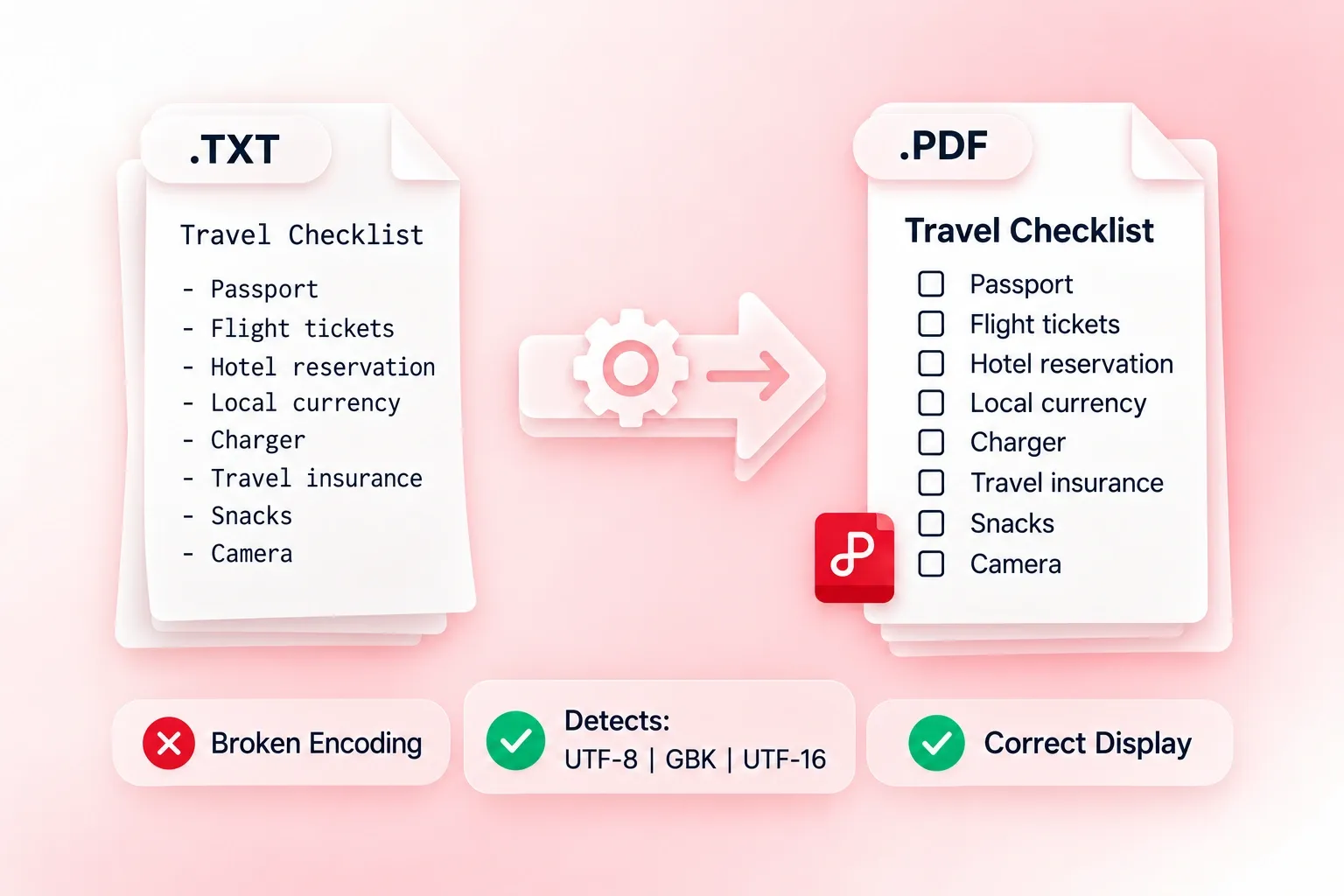
A text file opened with the wrong encoding can show garbled characters. WPS’s TXT to PDF converter detects common encodings, so you can review the interpreted text before export. Check names and special characters; detection cannot restore characters already lost in the source.
Try It Now
Wrap Plain Text into PDF Pages

Wrap Plain Text into PDF Pages

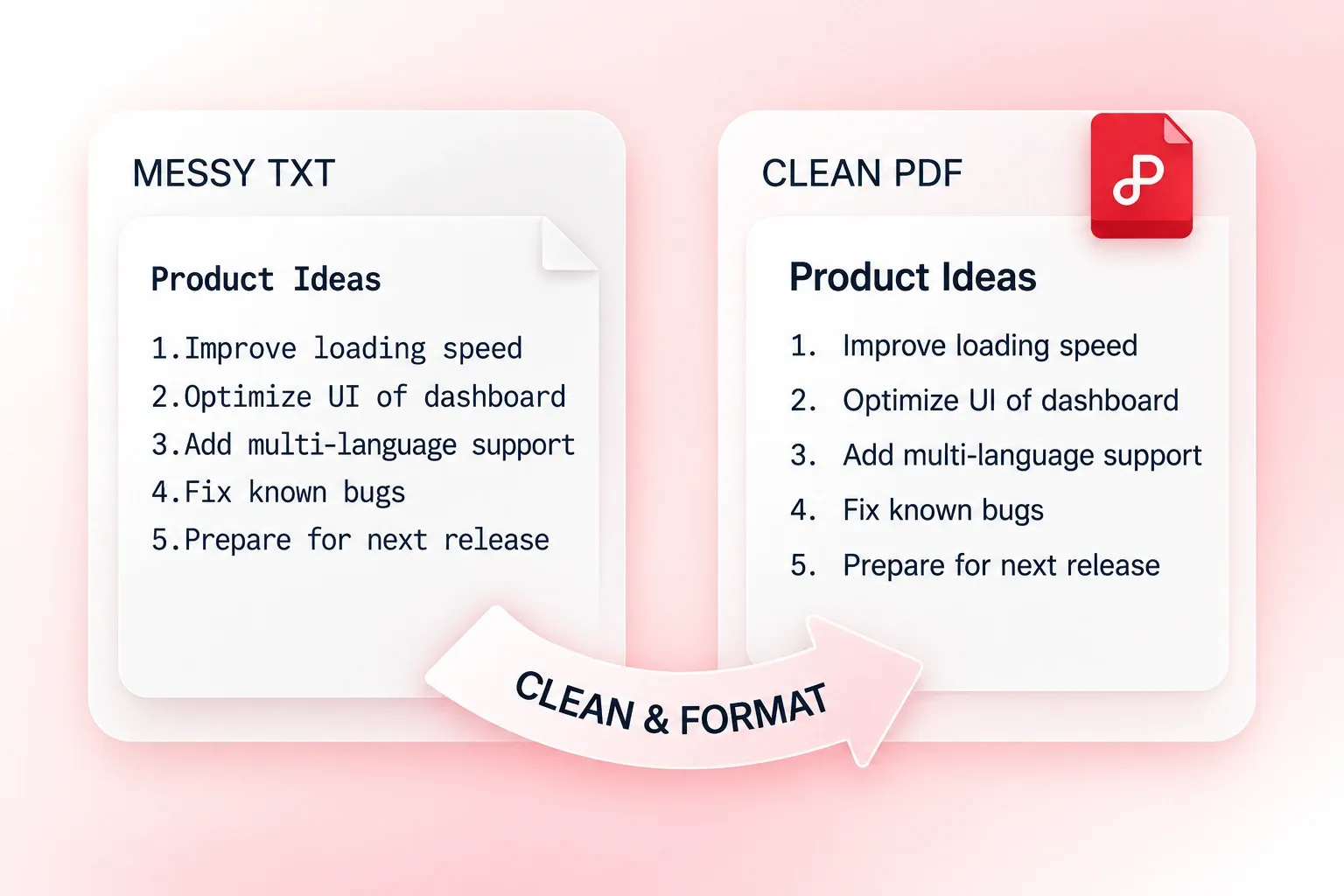
Raw notes and exported text can contain lines that run far beyond a page width. Text cleanup and wrapping organize the content into a paginated layout, so the PDF is easier to read as a document. Review deliberate indentation and spacing after conversion.

Try It Now
Set Fonts and Margins for Text to PDF

Set Fonts and Margins for Text to PDF

Dense text is harder to review when type and spacing do not fit the task. Font, line-spacing, and margin settings let you format the page, so your text to PDF output has a deliberate reading rhythm. Preview a full page before choosing the final settings.

Try It Now
Format Code Listings with a Monospaced Font

Format Code Listings with a Monospaced Font

Proportional fonts can make plain-text code harder to scan. Monospaced code mode provides equal-width characters, so indentation and columns are easier to inspect. Review wrapped lines before treating the PDF as a reference copy of the source.

Try It Now

Why Users Choose Our TXT to PDF Converter

Encoding checks, flexible text wrapping, and font and margin controls for readable documents.

Meeting notes

Convert a text file to PDF for a readable meeting-note handoff. Check the title, line spacing, and where sections break across pages.

Meeting notes

Team reference

Code reference

Use monospaced mode for a code listing saved as TXT. Keep the source file: the PDF is for reading, not executing or maintaining the code.

Code reference

Technical review

Plain-text reading copy

Convert plain text to PDF for a paginated reading copy. Review special characters and long lines before printing or sharing.

Plain-text reading copy

Study and personal projects

TXT to PDF FAQ

01

How do I convert TXT to PDF?

Upload a .txt file, review the text, and set the typography and spacing. Convert it, check the page preview, and download the PDF.

02

Can I paste text directly into this tool?

The provided workflow starts with a .txt file. Save your text as TXT and upload it; this page does not promise a separate paste-to-PDF input.

03

Which encodings can the tool detect?

The existing workflow includes common encodings such as UTF-8, GBK, and UTF-16. Check the displayed text before export, especially for multilingual content or older files.

04

Can I use a monospaced font for code?

Yes. Enable code mode or choose the monospaced font option. Check indentation and long-line wrapping in the resulting PDF.

05

Does conversion restore formatting missing from a TXT file?

No. Plain text does not store rich document styles, embedded images, or complex page layout. You can choose the available typography settings, but missing source formatting cannot be recovered from TXT alone.

06

Can I add page numbers?

Yes. Enable page numbers in the tool and review their placement in the PDF preview. Check that they do not interfere with the content.