JFIF to PDF Converter

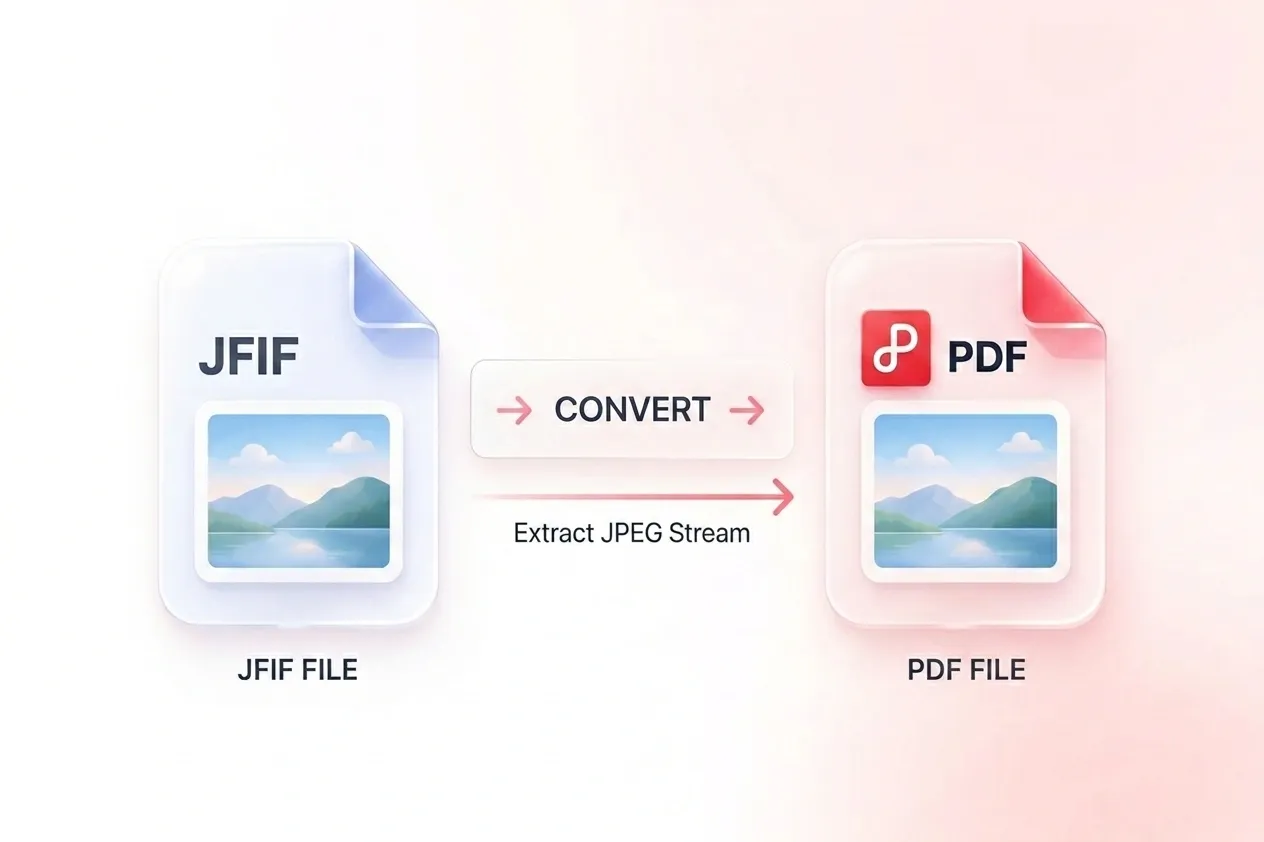
Turn downloaded JFIF images into a document you can review or submit. WPS’s online JFIF to PDF converter lets you arrange the image order, set the page layout, and choose combined or separate PDF output.

or drag and drop files here

.jfif only • up to 20 images • max 100 MB each

Page order

Drag to reorder pages before generating the PDF.

Settings

Choose page layout for the merged PDF.

Conversion options
Fit keeps each page matched to the image dimensions.
Applied to fixed page sizes and page layout generation.
px
Set page margin around each embedded image.
Images0
Estimated pages0
0%
Preparing…
Preparing conversion…
Your page order and settings are locked during conversion.

Your PDF is ready

The merged PDF has been generated successfully.

Total pages:0File size:0 B
Free to Use
No Sign-Up
No Ads
Any Browser
Free to Use
No Sign-Up
No Ads
Any Browser

How to Convert JFIF to PDF in 3 Steps

  1. Step 1: Select your JFIF images

    Upload the .jfif files you want to convert. Check the thumbnails and remove any duplicate or unrelated image.

  2. Step 2: Arrange the pages

    Drag images into order and choose page size, orientation, and margins. Review the layout for both portrait and landscape images.

  3. Step 3: Create and save the PDF

    Convert JFIF to PDF, inspect the result, and download one merged document or separate PDFs according to your handoff.

Combine Multiple JFIF Images into One PDF

Combine Multiple JFIF Images into One PDF

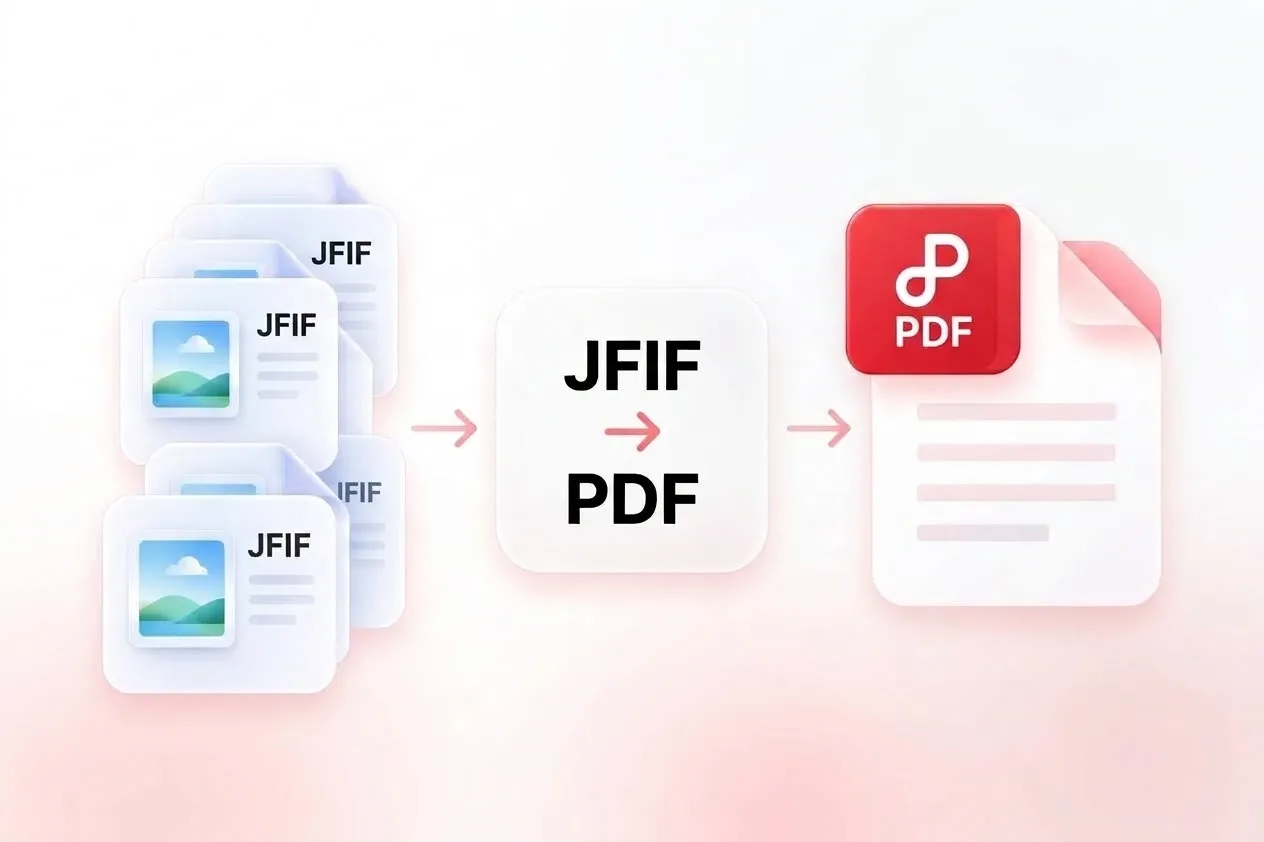
A collection of downloaded images can be awkward to submit as separate files. WPS’s JFIF to PDF converter brings them into one document, so the material arrives together. Use separate output when each image needs an individual PDF.
Try It Now
Arrange JFIF Images in Reading Order

Arrange JFIF Images in Reading Order

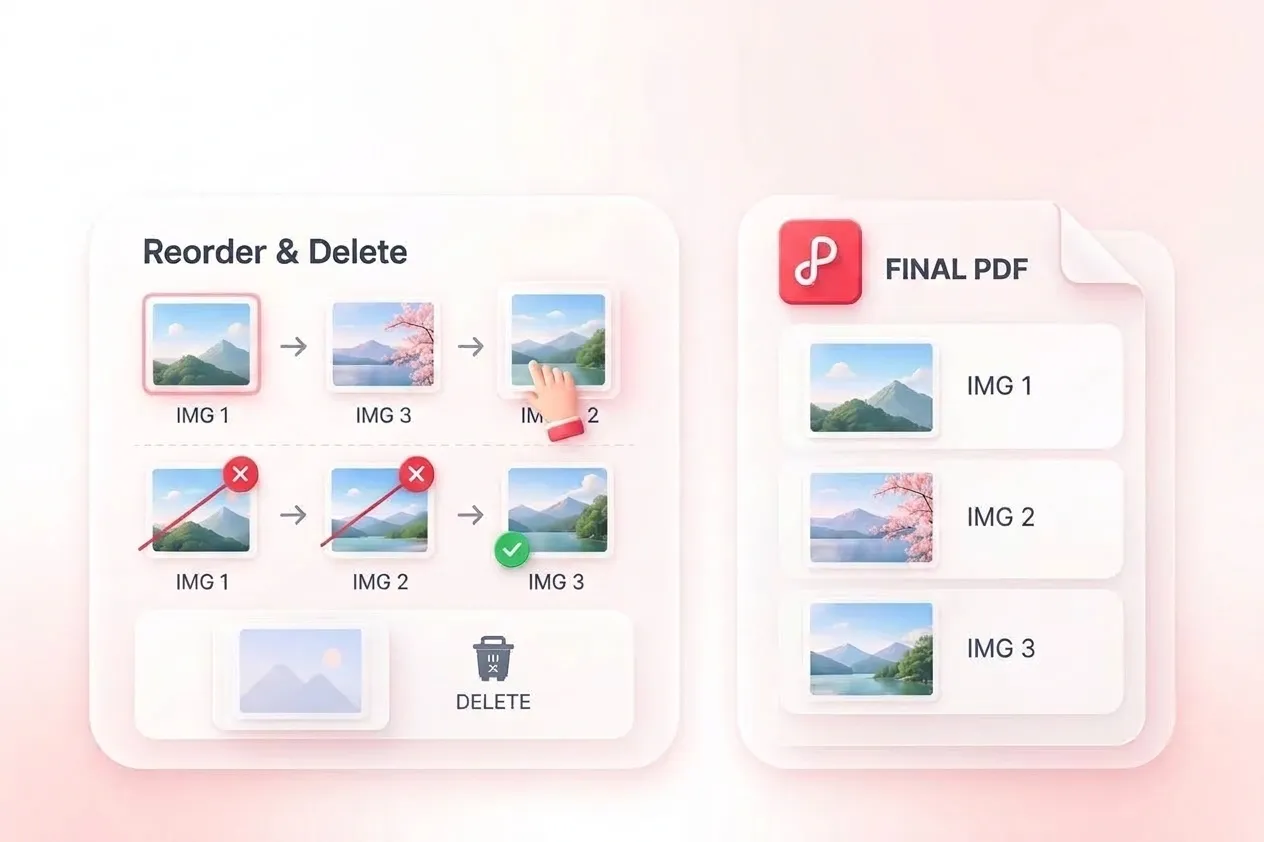
File names and upload order do not always match the intended story. Drag sorting lets you merge JFIF to PDF in the right sequence, so instructions and examples appear where readers expect them. Delete extra images before export.

Try It Now
Set Page Layout for JFIF to PDF Conversion

Set Page Layout for JFIF to PDF Conversion

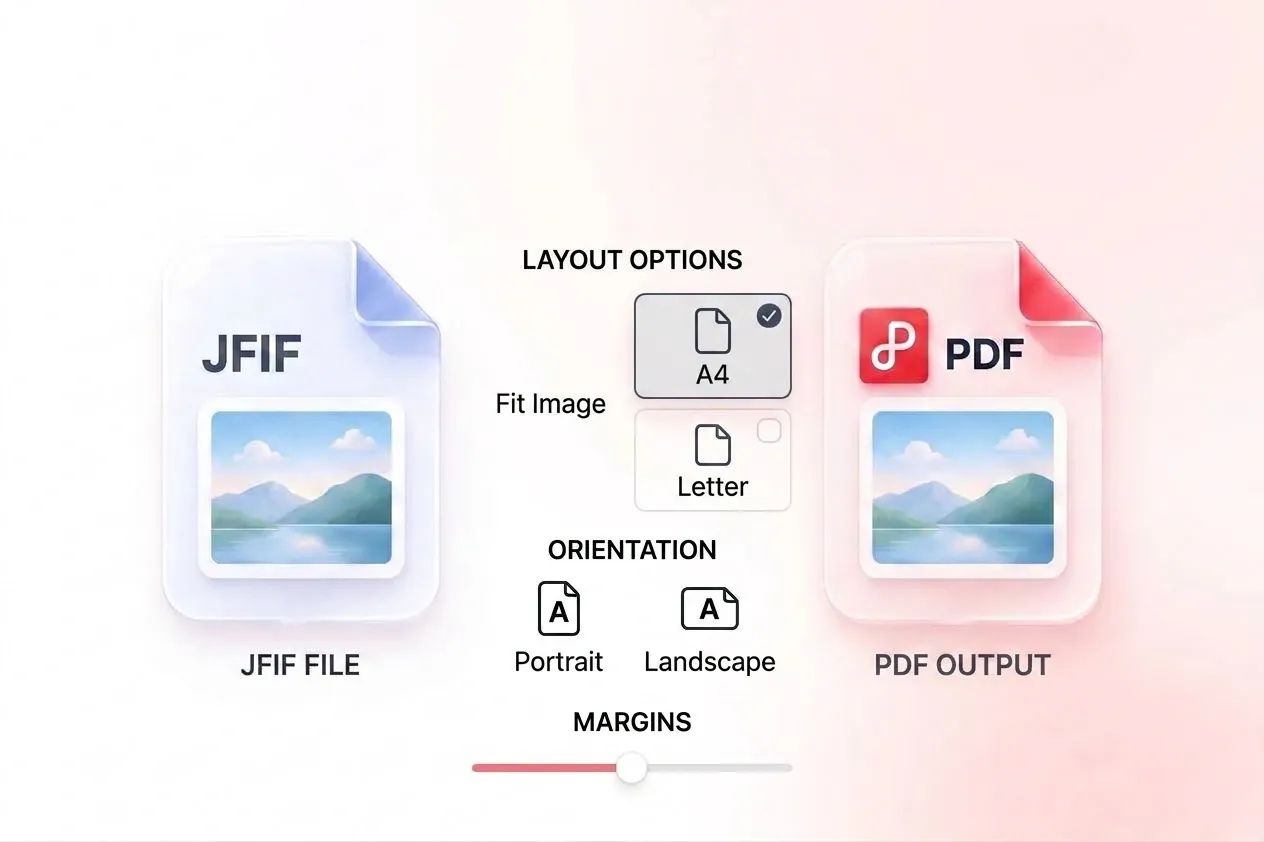
Downloaded images often have different proportions. Page-size, orientation, and margin choices let you decide how they sit in the document, so you can prepare standard-paper pages or image-sized output. Review small details after scaling.

Try It Now
Use JFIF Files without Renaming Them

Use JFIF Files without Renaming Them

An unfamiliar extension can make a simple image handoff feel complicated. The tool accepts .jfif input and reads its JPEG image data, so you can prepare the PDF without first renaming the file. This does not change the amount of detail in the source image.

Try It Now

Why Users Choose Our JFIF to PDF Converter

Simple image merging, flexible page order, and practical layout controls for document handoffs.

Submission packet

Convert multiple JFIF to PDF for a submission that needs one document. Confirm the page order and check all text in the images.

Submission packet

Study workflows

Reference image

Convert a JFIF file to PDF for a document-based handoff. Choose the page layout that makes the image easiest to review.

Reference image

Office coordination

Ordered visual collection

Arrange downloaded JFIF images into a reference document. Keep source information separately when attribution or later reuse matters.

Ordered visual collection

Personal projects

JFIF to PDF FAQ

01

How do I convert JFIF to PDF?

Upload your JFIF images, arrange their order, and choose the page settings. Convert them, review the result, and download the PDF output.

02

What is a JFIF image?

JFIF is a file format for exchanging JPEG-compressed images. A .jfif file can contain ordinary JPEG image data even though its extension is less familiar than .jpg.

03

Do I need to rename JFIF files to JPG first?

No. This tool accepts .jfif input directly. Renaming an extension alone is not a conversion and does not repair an invalid image file.

04

Can I merge several images into one document?

Yes. Add the images together, put them in reading order, and choose merged PDF output. Remove any image you do not need before exporting.

05

Can I download separate PDF files?

Yes. Separate output is available when you want one PDF for each image instead of a single combined document.

06

Will the PDF improve the original image quality?

No. Creating a PDF does not recover detail already missing from the image. Start with a clear source and check the final reading size.