PDF to CSV Converter

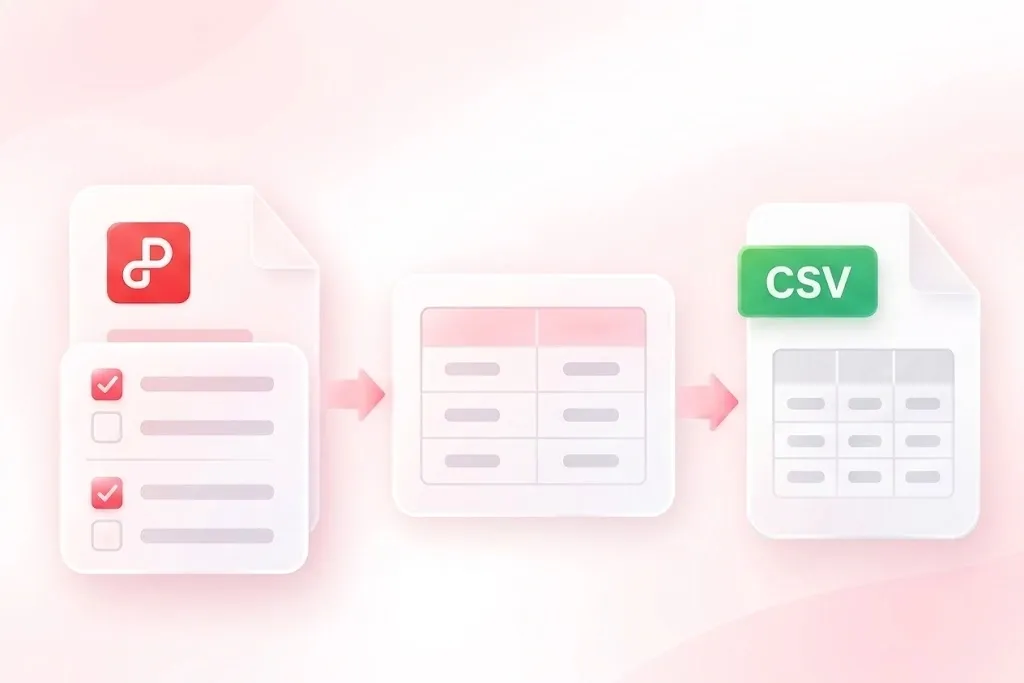
Bring table data from a PDF into a CSV workflow for review and reuse. WPS’s online PDF to CSV converter lets you inspect recognized tables, choose the ones you need, and export a combined file or separate CSVs.

or drag and drop files here

PDF, up to 100 MB

Pages UnknownUnknownOCR accuracy unknown

Extraction settings

Configure recognition, page range, and export behavior before converting your PDF to CSV.

Required only for protected PDFs.
Page range
Output encoding
Choose the encoding used for exported CSV files.
The tool will detect bordered tables, borderless tables, continued tables, and OCR-only pages automatically.
Processing conversion…

Recognized tables

Review detected tables, page numbers, and previews. Select the tables you want to export.

Detected tables0
Selected for export0
No table preview is available yet.

Export

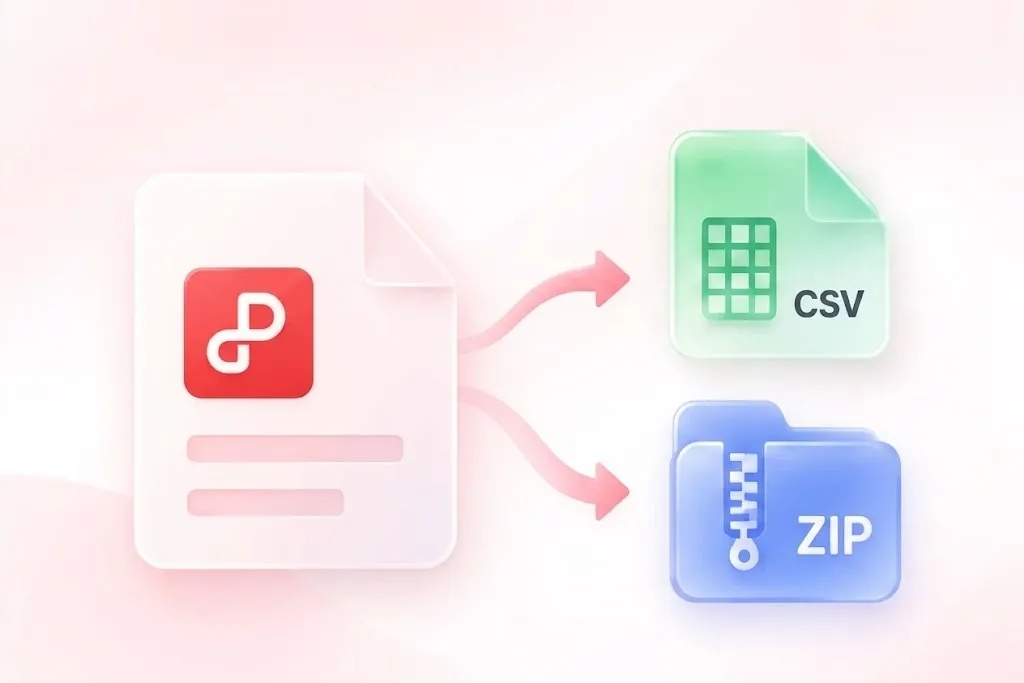
Merge selected tables into one CSV file or download separate files as a ZIP package.

Export mode
Free to Use
No Sign-Up
No Ads
Any Browser
Free to Use
No Sign-Up
No Ads
Any Browser

How to Convert PDF to CSV in 3 Steps

  1. Step 1: Upload the PDF

    Select your PDF and enter an authorized password if requested. Review the recognition and page settings for the document.

  2. Step 2: Inspect and select tables

    Run extraction, then compare the recognized tables with the PDF. Check headers, row boundaries, dates, and numbers before selecting the output.

  3. Step 3: Export the selected data

    Convert PDF to CSV with merged or separate output and the appropriate encoding. Download the files, then verify the imported values in your next application.

Recognize Scanned PDF Tables with OCR

Recognize Scanned PDF Tables with OCR

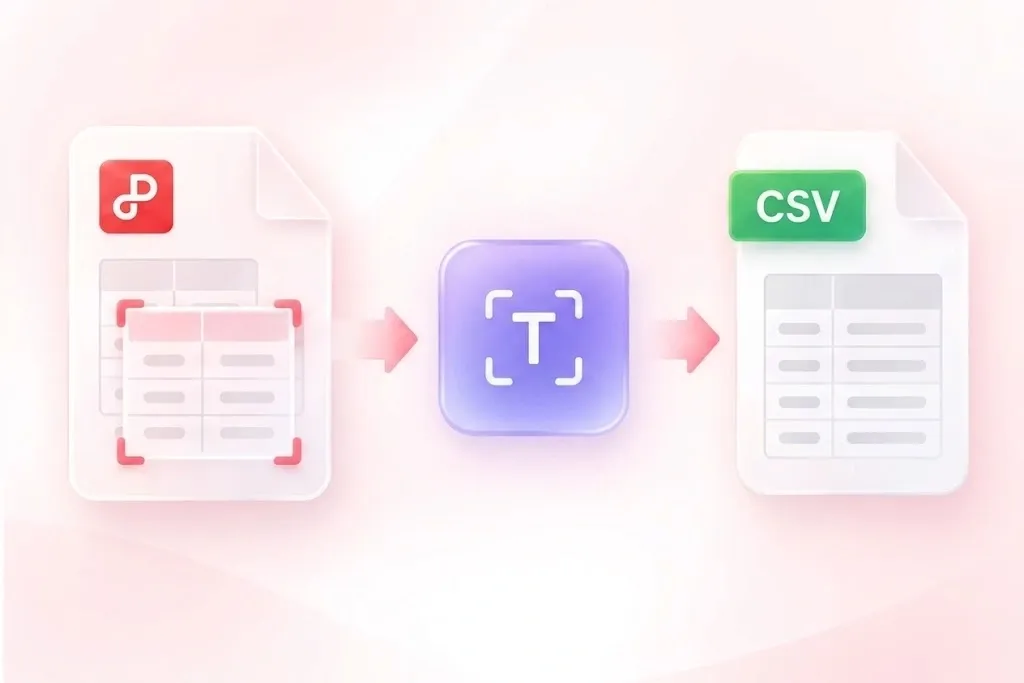
A scanned table has no selectable text to copy. The existing recognition workflow uses OCR when a text layer is absent, so scanned data can enter the table-review process. Check every important value against the PDF; recognition is not a guarantee of correctness.
Try It Now
Convert PDF Table Data to CSV Rows

Convert PDF Table Data to CSV Rows

Some PDF tables have borders while others rely on spacing. WPS’s PDF to CSV converter uses table-recognition methods for those layouts, so you can inspect structured rows instead of manually retyping every cell. Complex headers and merged cells still require close review.

Try It Now
Select PDF Tables Before CSV Export

Select PDF Tables Before CSV Export

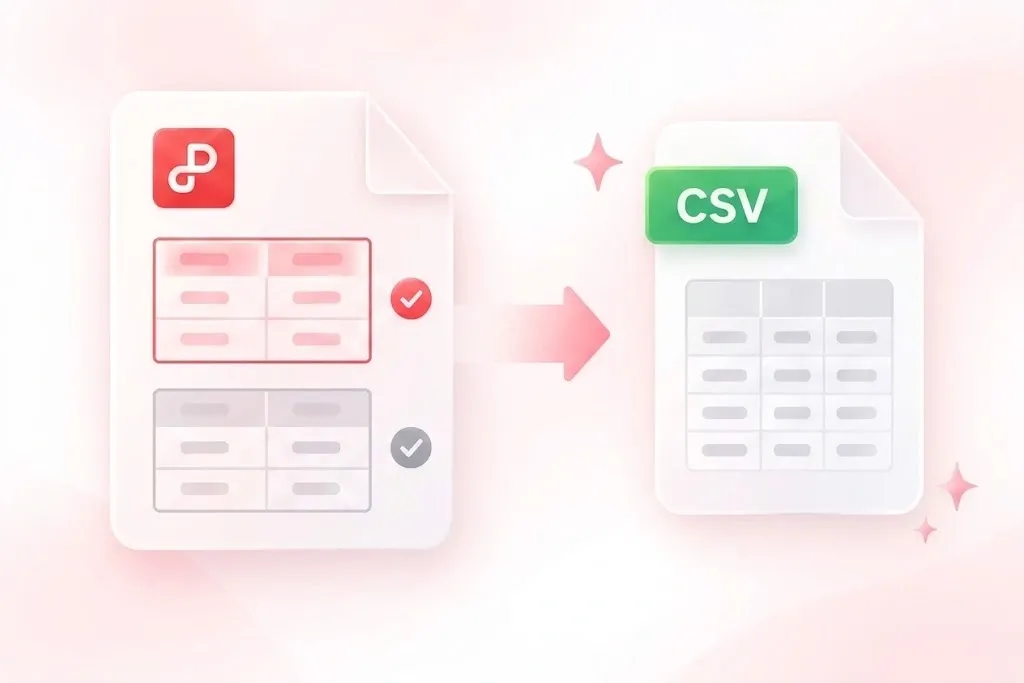
A report can contain many tables unrelated to your task. Page references and table previews let you choose relevant results, so the exported file stays focused on the data you want to reuse. Confirm the selected table against its source page.

Try It Now
Download Combined or Separate CSV Files

Download Combined or Separate CSV Files

A single combined file does not suit every import workflow. Merged CSV output, separate files in a ZIP, and encoding choices let you prepare a suitable handoff, so you can keep tables separate or collect compatible results. Check column alignment before combining tables.

Try It Now

Why Users Choose Our PDF to CSV Converter

Table recognition, selective export, and flexible CSV downloads for data-reuse workflows.

Report table extraction

Convert a PDF table to CSV to review rows in a spreadsheet. Compare headings and totals with the original before using the data.

Report table extraction

Research workflows

Catalog data handoff

Extract a selected product table for a data handoff. Check item codes, leading zeros, and whether wrapped descriptions stayed in the correct rows.

Catalog data handoff

Operations coordination

Several tables, separate files

Use PDF to CSV file exports to keep unrelated tables separate. Review each schema before importing or joining them in another application.

Several tables, separate files

Data preparation

PDF to CSV FAQ

01

How do I convert PDF to CSV?

Upload the PDF, run table recognition, and review the detected tables. Select the required results, choose output settings, and download the CSV files.

02

Can scanned PDFs be processed?

The existing workflow includes OCR when a text layer is unavailable. Recognition depends on the source; compare the extracted text, row structure, and important values with the scan before use.

03

Can I choose specific tables?

Yes. Review the recognized tables and their page references, then select the ones you need. This keeps unrelated tables out of the export.

04

Should I merge every table into one CSV?

Only combine tables when their columns and meaning align. Keep unrelated structures in separate CSV files and inspect repeated headers or extra rows before importing.

05

Will dates and identifiers stay unchanged in a spreadsheet?

CSV stores text values without spreadsheet cell-format rules. An importing application can reinterpret dates, long numbers, or leading zeros. Choose suitable import column types and verify the result.

06

Does CSV preserve the PDF layout or formulas?

No. CSV represents rows and fields, not page design or a spreadsheet calculation model. Verify extracted values separately; conversion does not prove their accuracy.