PDF to HTML Converter

Prepare PDF content for an HTML editing or publishing workflow. WPS’s online PDF to HTML converter offers layout and reflow modes, with a rendered preview and source code to inspect before export.

or drag and drop files here

PDF, up to 100 MB

PDF · 0 ·
No text layer detectedOCR not requiredEngine: Auto
Conversion outputLayout mode preserves original positioning. Reflow mode rebuilds semantic paragraphs, headings, lists, images, SVG graphics, and web-friendly fonts.
HTML output mode
Required only for encrypted files.
Used when the source PDF has editing restrictions.
Leave blank to convert the full document.
Ready to convert.
Conversion in progressWe are extracting text and coordinates, rebuilding HTML structure, exporting images and SVG graphics, and preparing downloadable output.
Conversion result
Your converted HTML is ready to download.
Pages
0
Text layer
Not detected
OCR accuracy
—
Package
HTML
Free to Use
No Sign-Up
No Ads
Any Browser
Free to Use
No Sign-Up
No Ads
Any Browser

How to Convert PDF to HTML in 3 Steps

  1. Step 1: Add your PDF

    Upload a PDF you are authorized to process. Enter any required password and select the pages you want to convert.

  2. Step 2: Choose the output approach

    Select layout preservation or reflow according to your task. Run conversion, then compare the rendered result with the original pages.

  3. Step 3: Inspect and export the HTML

    Review the HTML source, text order, and resources. Copy the code or download the available HTML or ZIP output for further editing.

Review PDF to HTML Layout Reconstruction

Review PDF to HTML Layout Reconstruction

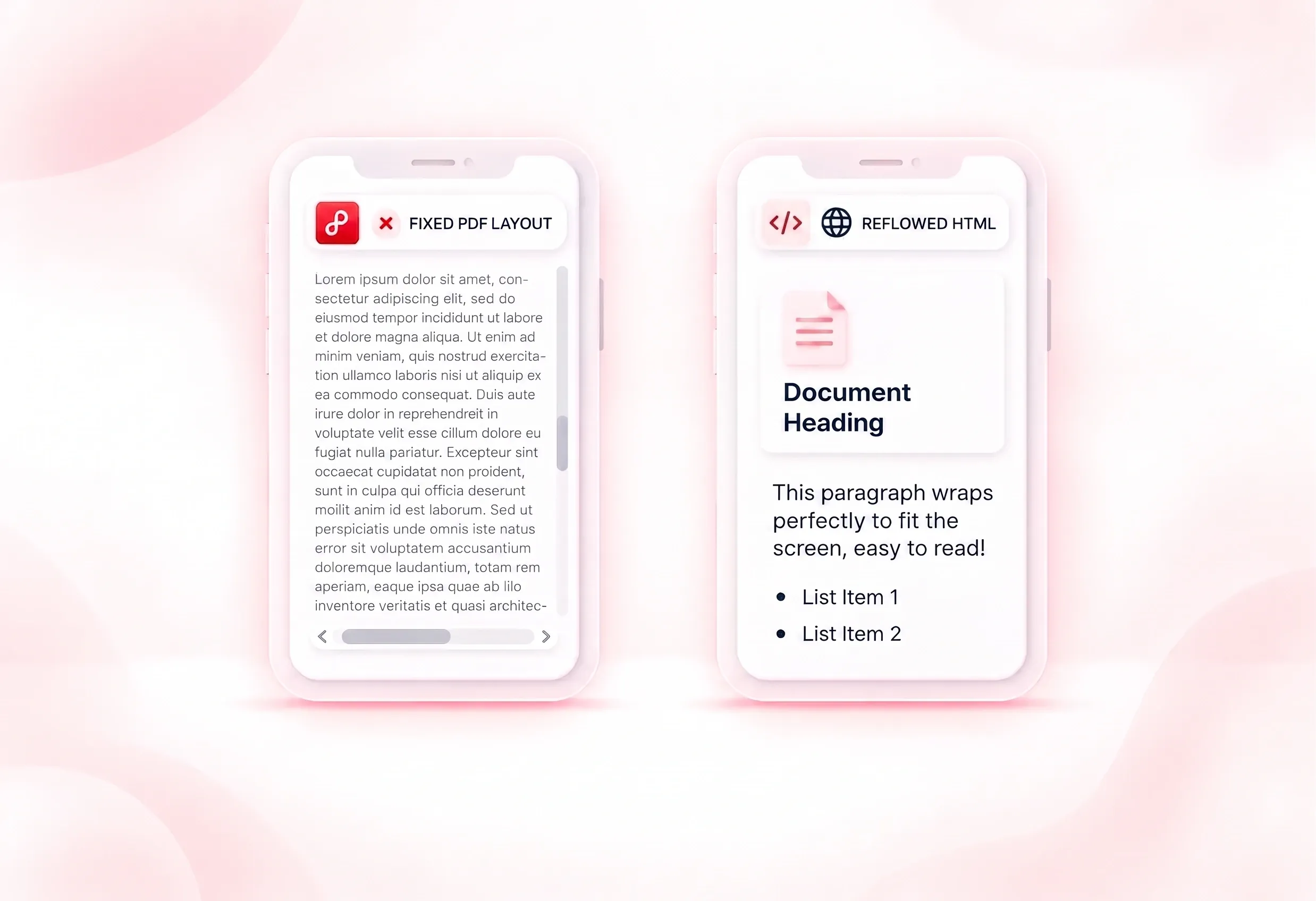
Columns and positioned graphics matter when a PDF needs a visual reference copy. WPS’s PDF to HTML converter reconstructs page elements in layout mode, so you can review the composition in HTML. Compare the result rather than assuming a pixel-identical replica.
Try It Now
Reflow PDF Text into HTML Headings and Lists

Reflow PDF Text into HTML Headings and Lists

Fixed page positions are inconvenient when the next task is editing text for the web. Reflow mode rebuilds content as headings, paragraphs, and lists, so you have a structure to review and refine. Check reading order and complex tables before publishing.

Try It Now
Inspect PDF to HTML Code Beside the Preview

Inspect PDF to HTML Code Beside the Preview

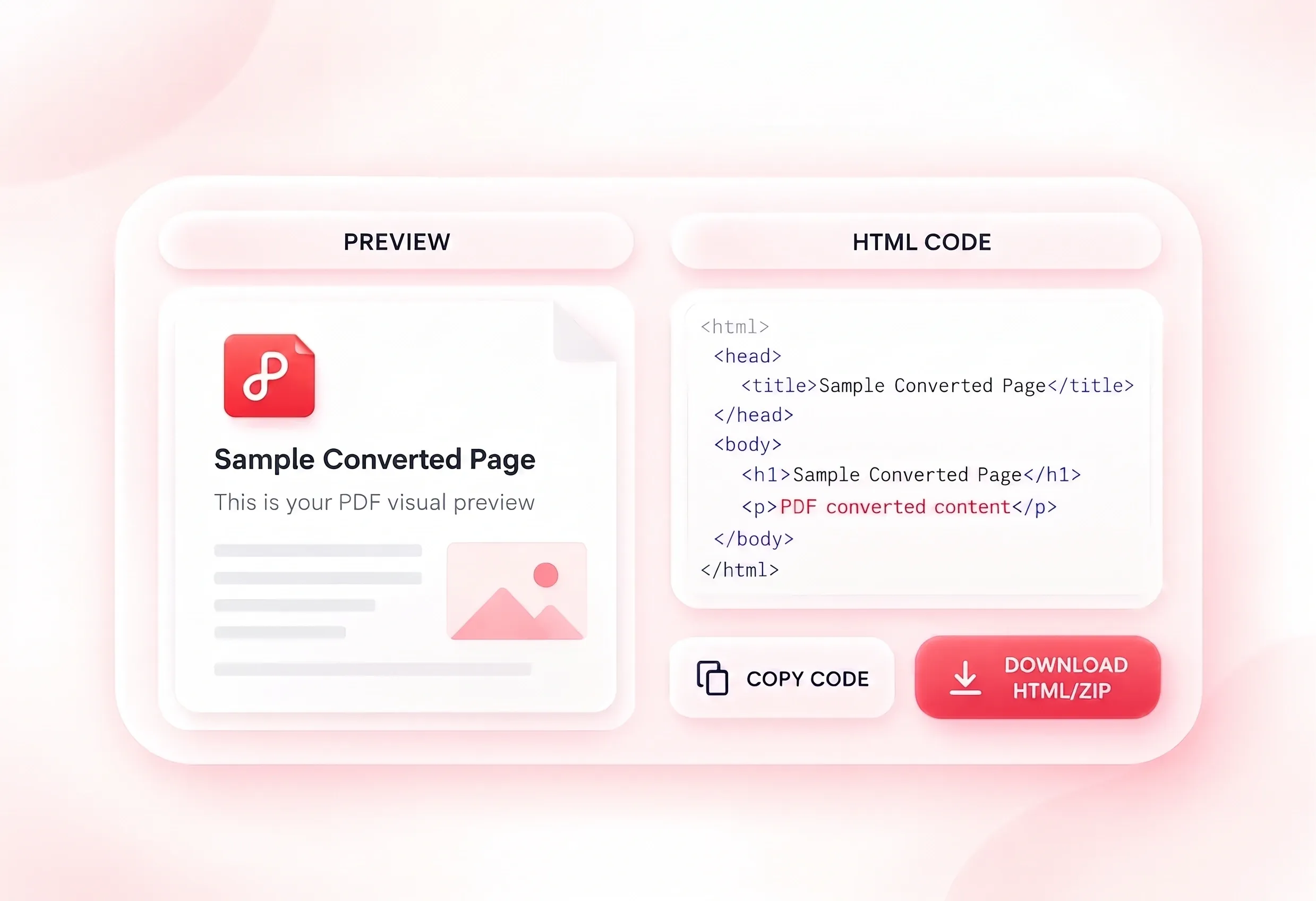
A page can look plausible while its source still needs work. Side-by-side rendered output and highlighted HTML code let you inspect both views, so visual review and code cleanup can happen in the same workflow. Test the exported result in its intended destination.

Try It Now
Download HTML with Its Image Resources

Download HTML with Its Image Resources

An HTML page can lose images when its supporting files are separated. HTML or ZIP output lets you take the page and required resources into the next workflow, so you can preserve the exported folder relationships. Check links and asset paths after moving the files.

Try It Now

Why Users Choose Our PDF to HTML Converter

Layout reconstruction, readable HTML structure, and code previews for content workflows.

Article migration

Convert PDF to HTML code for an editorial starting point. Check heading levels, reading order, links, and image descriptions before publishing.

Article migration

Web editing

Illustrated reference

When converting PDF to HTML with images, keep exported resources with the page. Test their paths in the destination folder or site.

Illustrated reference

Documentation teams

Document layout comparison

Compare layout and reflow output for a document. Choose according to the reading task, then test the result at the intended screen sizes.

Document layout comparison

Content review

PDF to HTML FAQ

01

How do I convert PDF to HTML?

Upload the PDF, choose a layout or reflow mode, and start conversion. Review the rendered page and code, then download the available output.

02

Which mode should I choose?

Layout mode is for reviewing page composition. Reflow mode reorganizes content into web-oriented text structures. Compare both when complex columns or tables are important.

03

Can the tool process a scanned PDF?

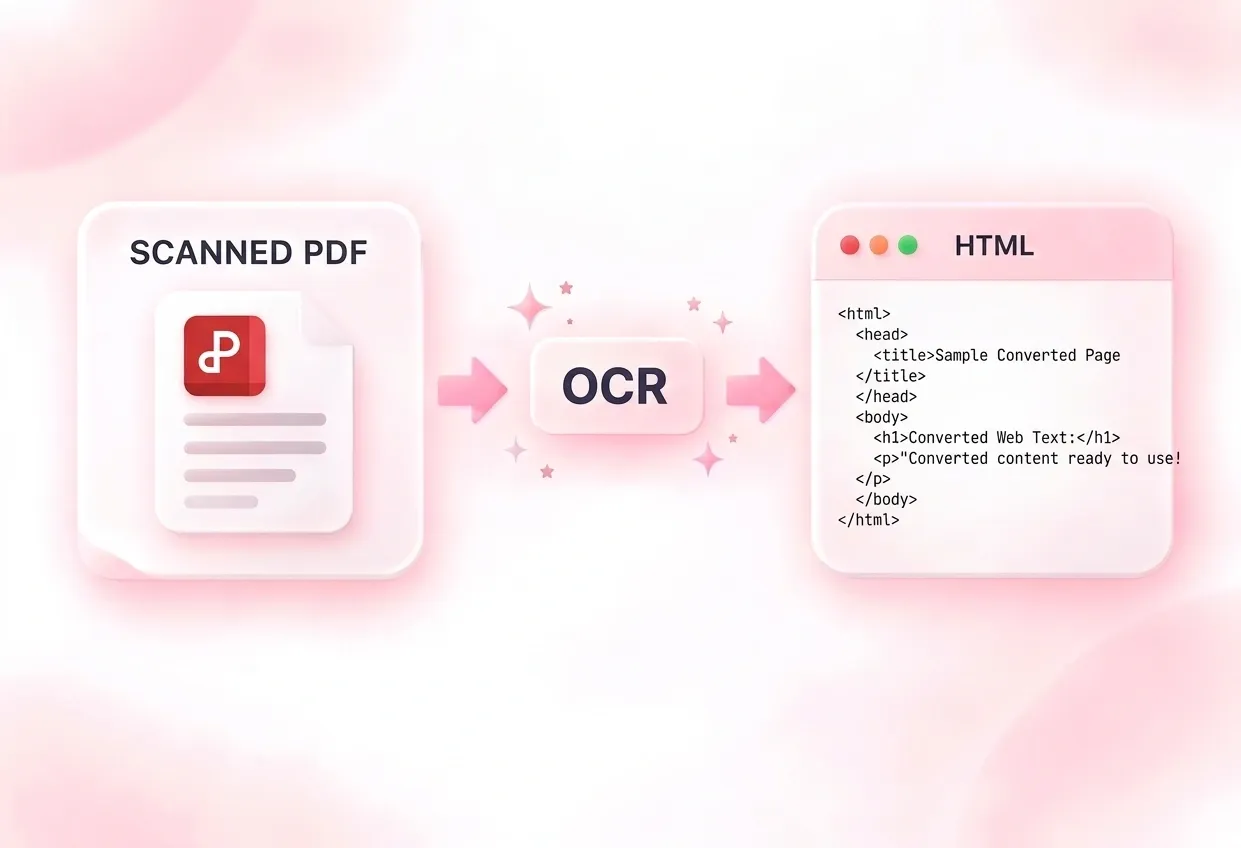
The existing workflow includes OCR for documents without a usable text layer. Review recognized characters and reading order carefully; this is not a guarantee of accurate transcription.

04

Can I view and copy the HTML source?

Yes. The tool displays the rendered result and highlighted source code. Review the code before copying it into another project.

05

Why might I receive a ZIP instead of one HTML file?

Some output needs separate images, fonts, or other resources. A ZIP keeps those files together. Preserve the folder relationships and test asset paths after extraction.

06

Is the result automatically responsive and accessible?

No. Reflow mode provides a structure to work from, but you still need to review semantics, image descriptions, keyboard behavior, and layout in the intended site. Conversion does not complete those checks.