SVG to PDF Converter

Prepare SVG artwork as a PDF for review, document handoffs, or printing. Use WPS’s online SVG to PDF converter to check file notices, set the page size and margins, and inspect the exported graphic.

or drag and drop files here

SVG, up to 5 MB

Conversion settings
Margin in points. Use 0 for edge-to-edge export.
Choose whether the PDF page follows the SVG viewBox or uses A4.
Ready to convert.
PDF preview
Page size: Unknown
100%
Free to Use
No Sign-Up
No Ads
Any Browser
Free to Use
No Sign-Up
No Ads
Any Browser

How to Convert SVG to PDF in 3 Steps

  1. Step 1: Upload an SVG file

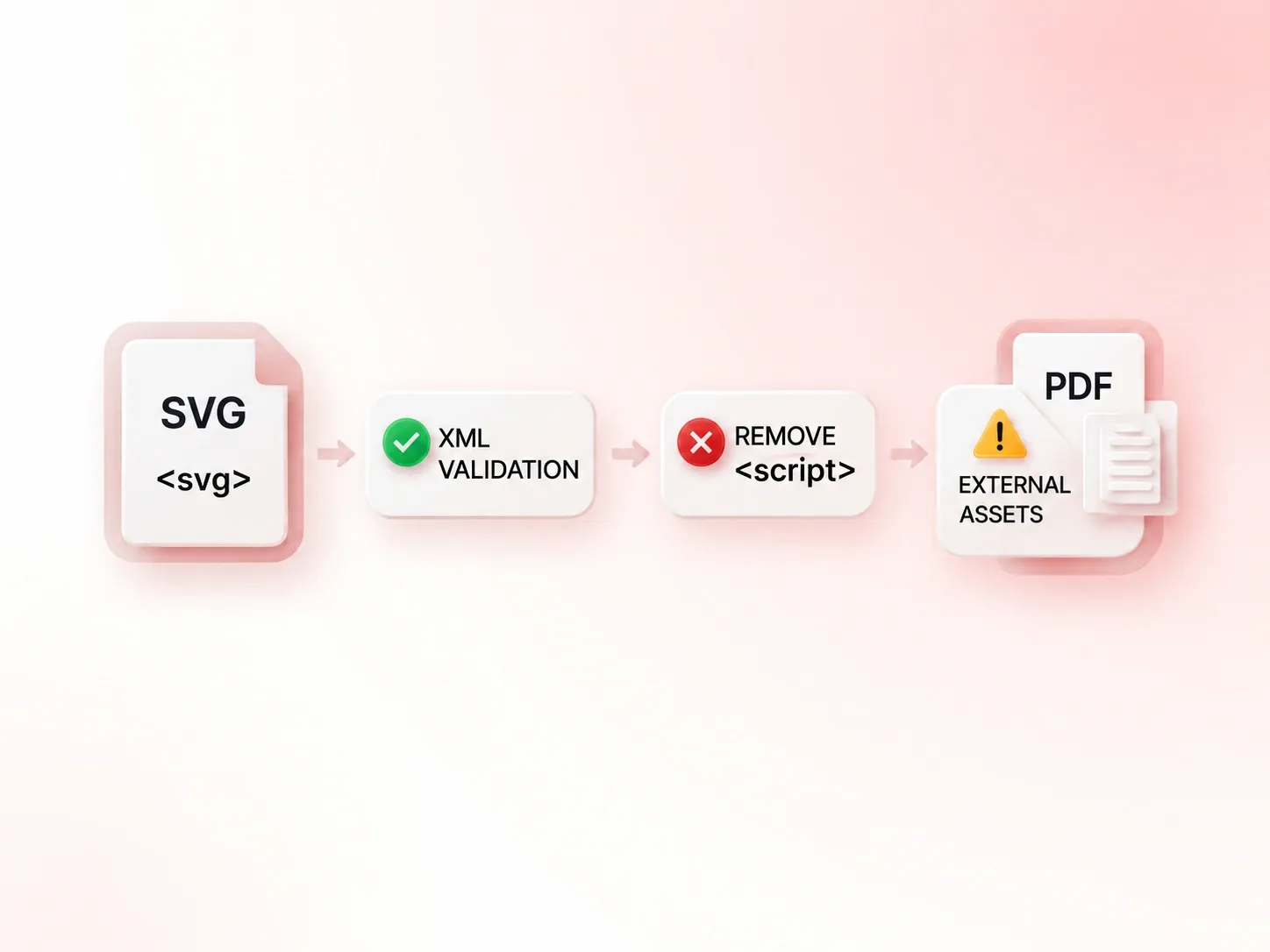
    Select your .svg file. Review structure warnings and notices about external images or fonts before continuing.

  2. Step 2: Choose the page settings

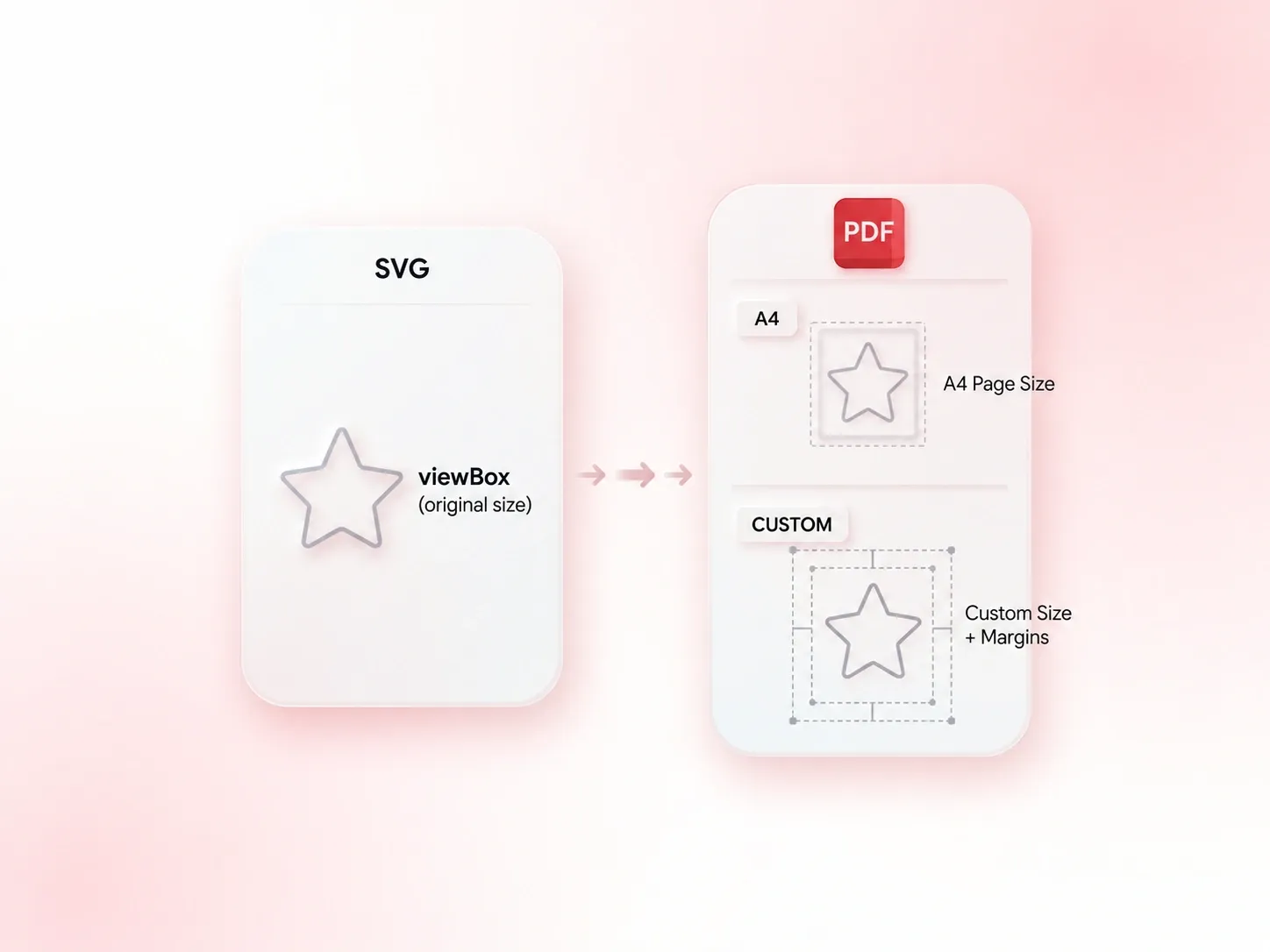
    Keep the SVG viewBox-based size or select A4. Set margins and check how the artwork fits within the chosen page.

  3. Step 3: Convert and review the artwork

    Convert SVG to PDF, then inspect text, paths, and embedded images. Download the document after checking it against the source artwork.

Convert SVG to PDF with Supported Vector Paths

Convert SVG to PDF with Supported Vector Paths

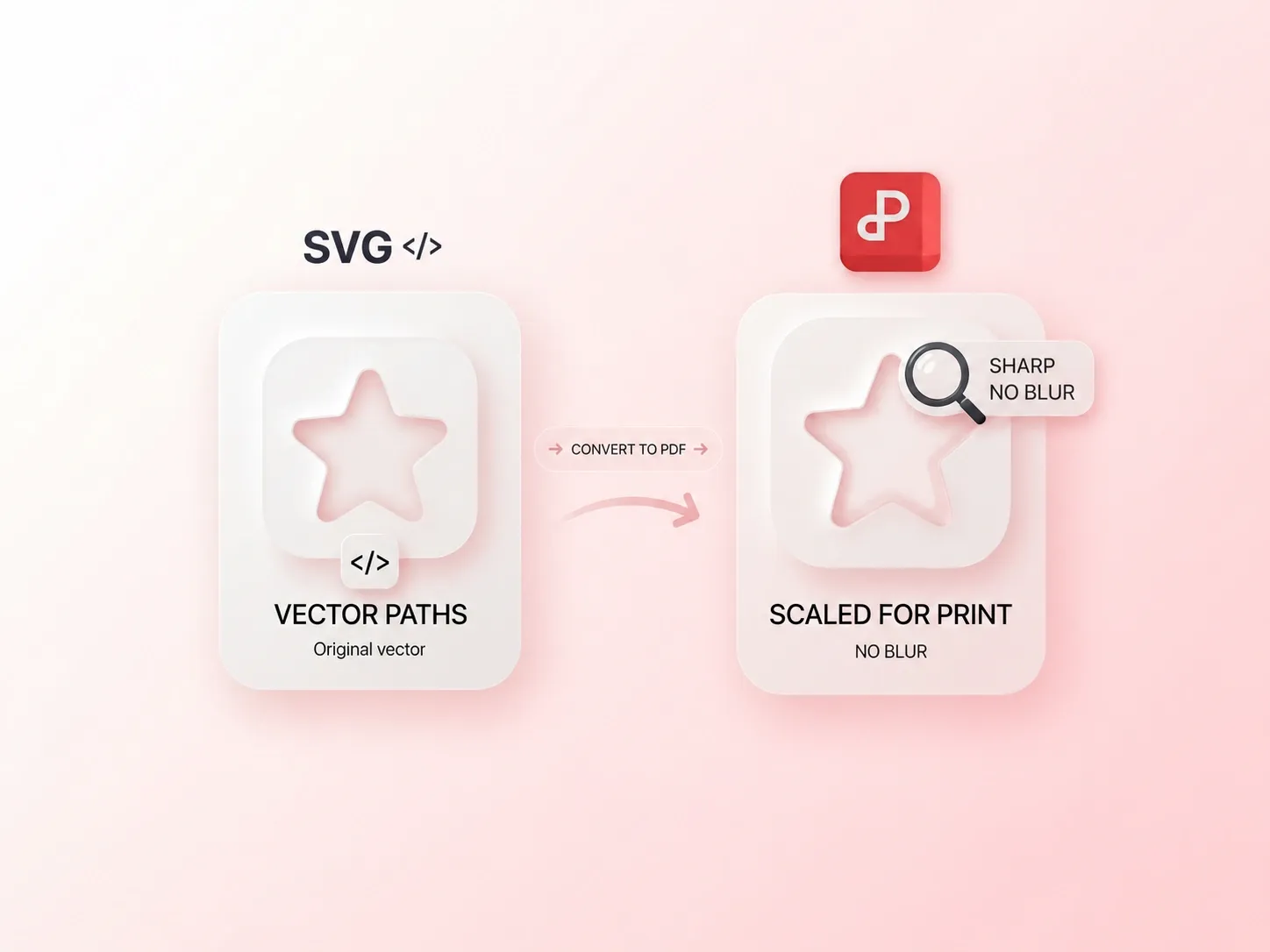
Rasterizing a vector diagram can make future enlargement less useful. WPS’s SVG to PDF converter converts supported vector paths into PDF paths, so those shapes retain their scalable structure. Embedded bitmap images remain bitmap content and still depend on their original resolution.
Try It Now
Check SVG Images and Font Dependencies

Check SVG Images and Font Dependencies

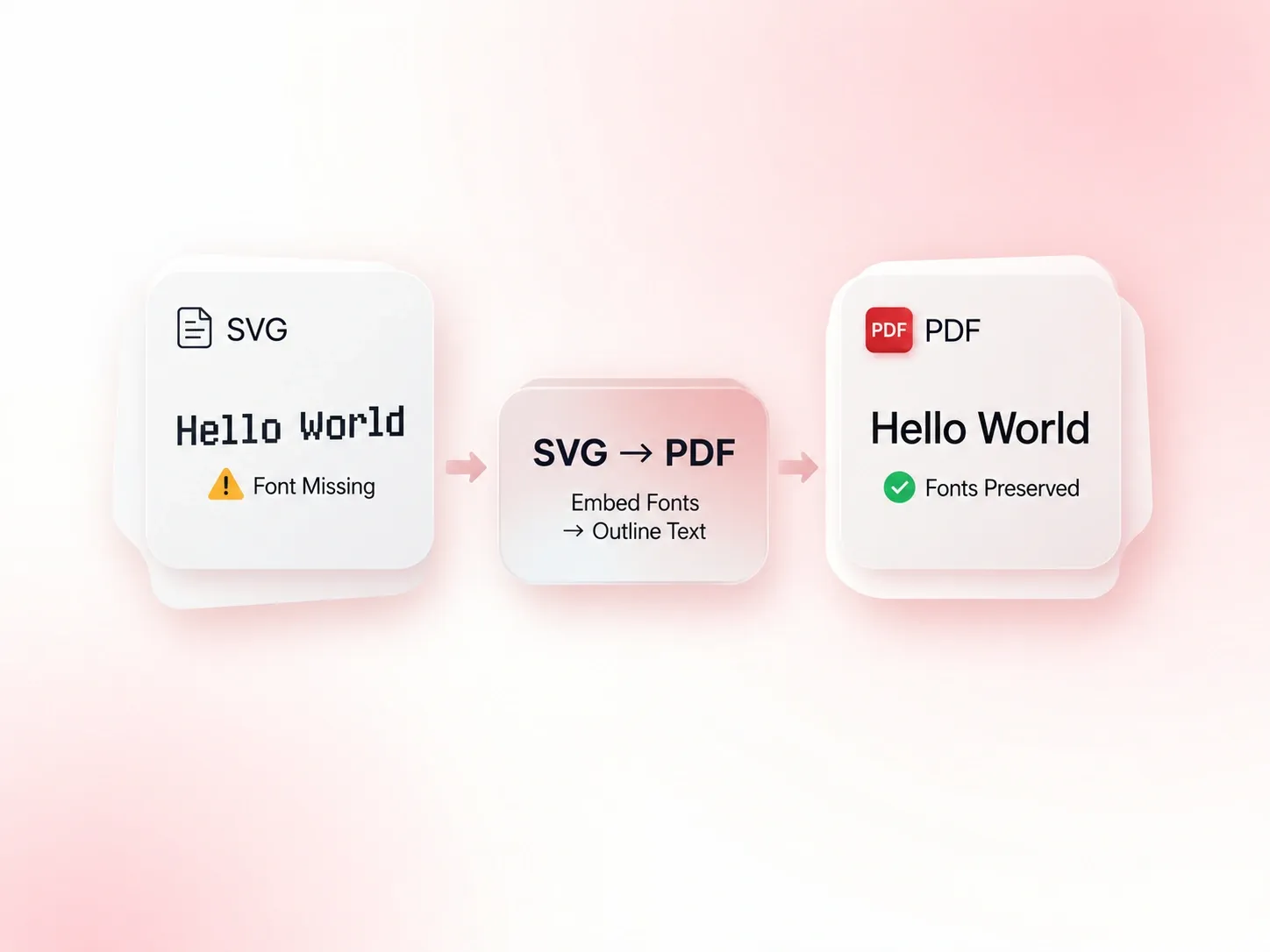
An SVG can depend on images or fonts outside the file. External-asset notices identify those dependencies before export, so you know which parts need attention. Resolve missing assets and review the result instead of assuming the file is self-contained.

Try It Now
Fit SVG Artwork to Your PDF Page

Fit SVG Artwork to Your PDF Page

Artwork dimensions do not always match a document page. ViewBox-based sizing, A4, and margin settings let you choose how the graphic sits on the page, so the handoff has an intentional layout. Check labels close to the edges.

Try It Now
Validate SVG File Structure Before Export

Validate SVG File Structure Before Export

Malformed SVG markup can prevent a graphic from being read. File-structure validation flags input problems before export, so you can correct the source and try again. A passed structure check is not proof that every font, filter, or external resource will render identically.

Try It Now

Diagram handout

Convert an SVG file to PDF for a diagram handout. Check thin lines, arrowheads, labels, and page margins before distributing it.

Diagram handout

Technical communication

Scalable shape review

Review SVG to PDF vector output by zooming into path-based artwork. Check bitmap elements separately because they do not become vector shapes.

Scalable shape review

Design coordination

Logo document copy

Prepare a PDF copy of an SVG logo for review. Keep the SVG source and verify fonts and colors before a production handoff.

Logo document copy

Brand asset handoff

SVG to PDF FAQ

01

How do I convert SVG to PDF?

Upload the SVG, review file notices, and choose the page size and margins. Convert it, inspect the PDF, and download the result.

02

Will every element in the PDF be vector content?

Not necessarily. Supported SVG paths are converted to PDF paths, but embedded bitmap images remain raster images. Effects, fonts, and other resources require output review.

03

What happens when an SVG references external assets?

The tool flags external images and fonts. Check that those resources are available and appropriate to include, then compare the exported graphic with the source.

04

Can I choose the paper size?

Yes. Use the SVG viewBox-based size or select A4, then set margins. Review the graphic placement before downloading.

05

Does conversion guarantee identical fonts and effects?

No blanket guarantee is appropriate. Font availability and SVG features can affect the result. Check lettering, clipping, filters, and small details in the PDF.

06

Is the result automatically a certified print-ready file?

No. Format conversion alone does not establish a printer-specific production standard. Confirm the required page size, fonts, color settings, and other specifications with the intended recipient.