WebP to PDF Converter

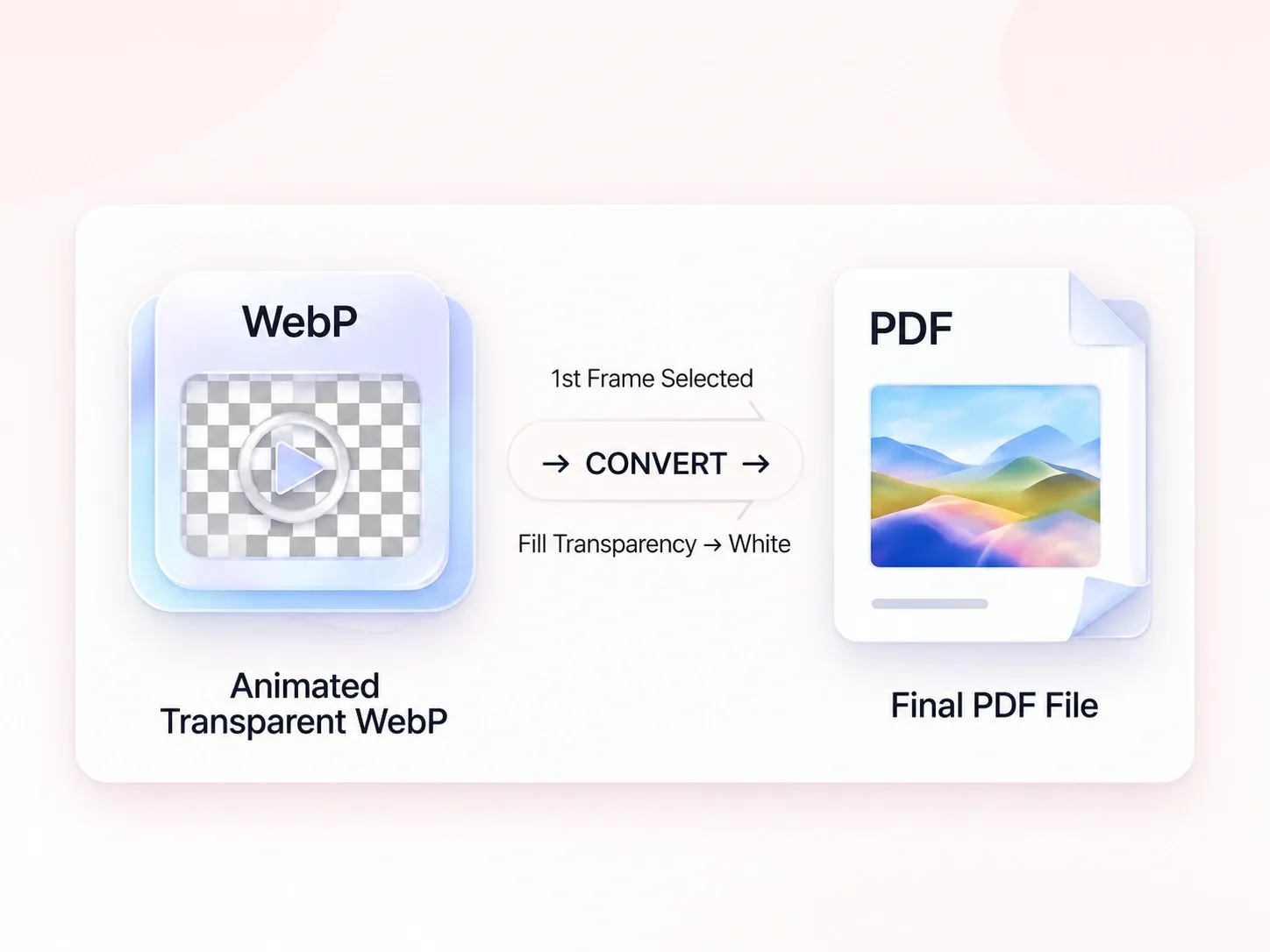
Turn WebP images into a document for review, printing, or submission. WPS’s online WebP to PDF converter lets you arrange image pages, set the layout, and choose a background for transparent areas. Animated files use the first frame.

or drag and drop files here

WEBP, up to 100 MB

0filesPage order follows the list below.
Animated WebP uses only the first frame.

PDF settings

PDF export settings
Choose how each WebP page fits in the PDF.
Applied to fixed page sizes like A4 and Letter.
Transparent areas are filled with this color.
px
Add page padding around each image.
Ready to convert. 0%

PDF ready

output.pdf
Your WebP images have been merged into a PDF in the selected order.
0pages0 B

Page thumbnails

More export options

If available, you can also download each image as a separate PDF package.

Free to Use
No Sign-Up
No Ads
Any Browser
Free to Use
No Sign-Up
No Ads
Any Browser

How to Convert WebP to PDF in 3 Steps

  1. Step 1: Add your WebP images

    Upload .webp files and check the image list. Review any animation notice: only the first frame is used in the PDF.

  2. Step 2: Arrange pages and backgrounds

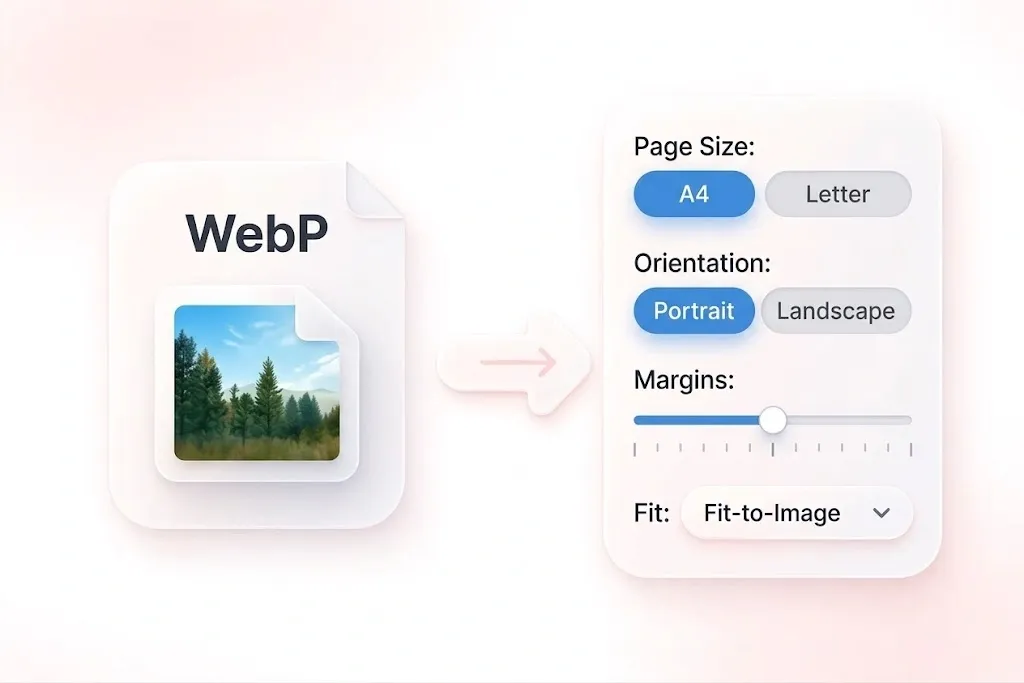
    Reorder or remove images, then set paper size, orientation, and margins. Choose a background color for transparent areas.

  3. Step 3: Create and check the document

    Convert WebP to PDF and inspect the thumbnails and page count. Download the merged document or separate PDFs as required.

Combine Multiple WebP Images into One PDF

Combine Multiple WebP Images into One PDF

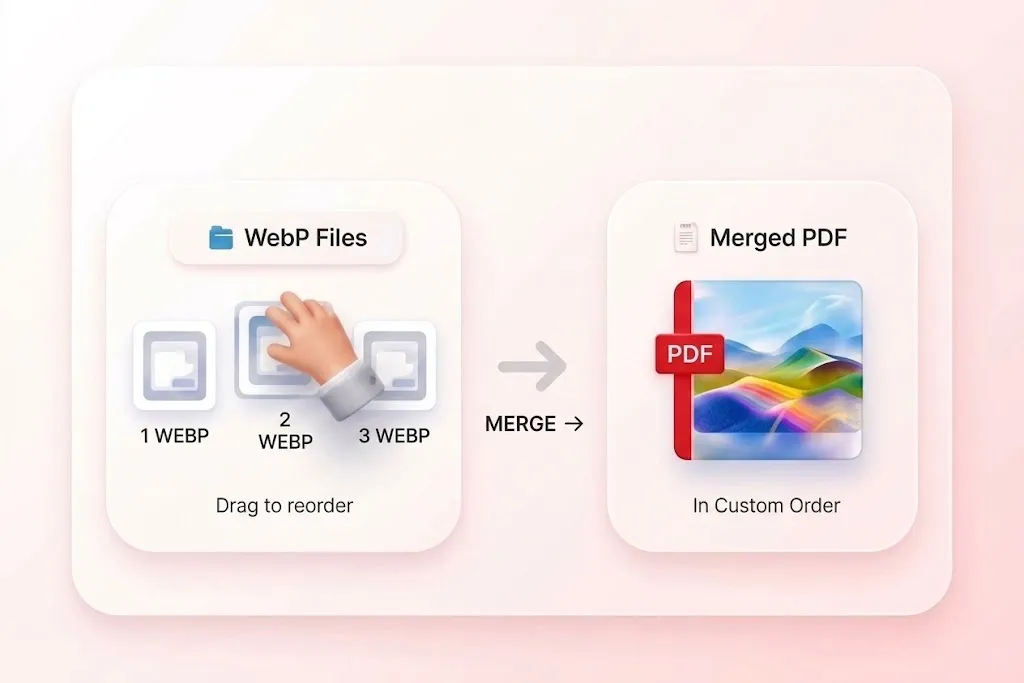
Related WebP assets are harder to review when they arrive separately. WPS’s WebP to PDF converter combines images into a document, so the set has one place in a handoff. Arrange the images in sequence before exporting.
Try It Now
Choose a Background for Transparent WebP

Choose a Background for Transparent WebP

A transparent image can look different on different backgrounds. White or custom background fill gives transparent areas a defined appearance, so reviewers see the artwork on the backdrop you chose. Check light logos and fine edges in the preview.

Try It Now
Set Page Layout for WebP to PDF Conversion

Set Page Layout for WebP to PDF Conversion

Web graphics can have very different proportions. Page size, orientation, and margin choices let you fit them to the intended document format, so you can prepare a paper handout or image-shaped pages. Inspect small labels after scaling.

Try It Now
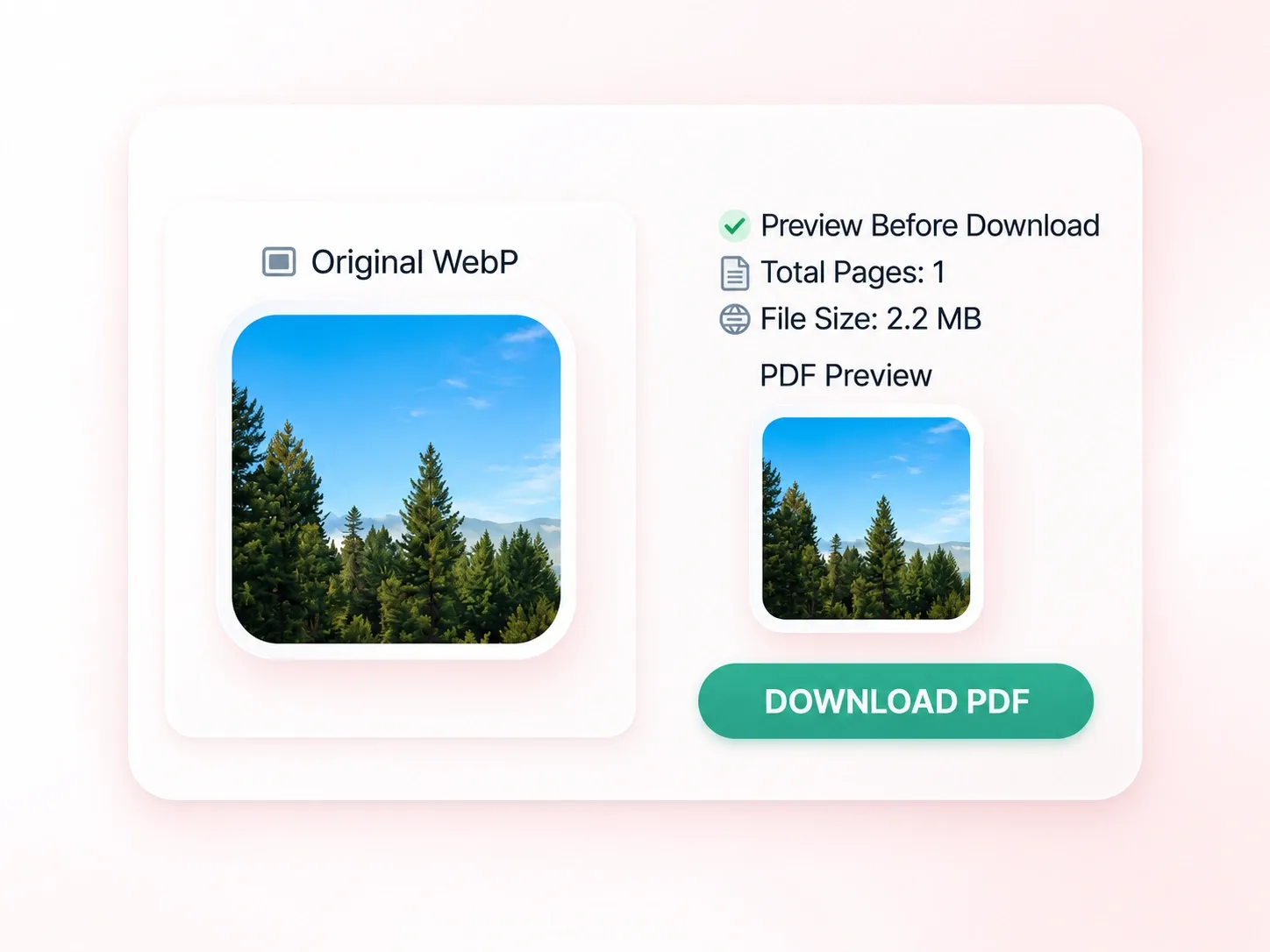
Review WebP Page Thumbnails Before Download

Review WebP Page Thumbnails Before Download

A missing or repeated image can interrupt a visual sequence. Thumbnails and a total page count let you review the exported set, so you can catch omissions before sharing. Animated WebP contributes a first-frame still, not a moving PDF page.

Try It Now

Asset review document

Merge WebP to PDF for an ordered review of exported assets. Check backgrounds and image order before sending the document.

Asset review document

Design and content teams

Visual assignment

Convert multiple WebP to PDF for a submission that requires one document. Review the page count and readability of each image.

Visual assignment

Study workflows

Reference collection

Combine WebP to PDF to collect related visual references. Keep source links separately and confirm that you have permission to reuse the images.

Reference collection

Project research

WebP to PDF FAQ

01

How do I convert WebP to PDF?

Upload your WebP images, arrange them, and choose layout and background settings. Convert them and review the PDF before downloading.

02

Can I combine several WebP files into one PDF?

Yes. Add the images together and use merged output. You can change their order and remove files before generating the document.

03

Will an animated WebP remain animated?

No. The tool uses the first frame of an animated WebP as a still image in the PDF. Keep the original file when the animation itself is needed.

04

What happens to transparent image areas?

They are filled with white or the custom background color you choose. Review the contrast of light artwork against that background.

05

Can I create separate PDF files instead?

Yes. The existing output workflow offers separate PDFs as well as a single merged document. Choose the option that fits the handoff.

06

Does a PDF make the WebP image editable?

No. Putting the image on a PDF page does not separate its text, shapes, or layers into editable source elements. Retain the original artwork for editing.