
10 Best Free Office Software for Windows (2026)
An independent, hands-on ranking of 10 free office suites for Windows and PC, scored on compatibility, features, and real-world usability.
Selection Criteria
How We Selected These Office Suites
To make our recommendations as practical as possible, we evaluated each office suite using the features that matter most to Windows users:
- Microsoft Office file compatibility
- Document, spreadsheet, presentation, and PDF capabilities
- Ease of use
- Windows 11 and Windows 10 support
- Collaboration features
- Overall value in the free version
Our goal is to recommend office software that delivers the best balance of compatibility, functionality, and everyday productivity rather than simply listing the most popular products.
Jump to the right office suite faster
These 10 tools are ranked from the most complete free suite to more specialized collaboration-first options.
Top 10 picks for Windows
Use this board to jump straight to each ranked tool. WPS Office leads for the broadest free feature set, while the rest serve different collaboration, plugin, or lightweight needs.
Best overall fit
WPS Office stands out for Microsoft Office compatibility, PDF tools, and a familiar interface.
Best for teamwork
Google Docs and Zoho Workplace are strongest when live collaboration matters most.
Best for add-ons
ONLYOFFICE stands out for self-hosted collaboration and Microsoft Office-style workflows.
Best lightweight option
SSuite Office keeps memory use low for older PCs, though compatibility and modern features are limited.
WPS Office: Fullest Functionalities
WPS Office is one of the strongest free office suites for Windows if you want familiar tools, broad file support, and extra PDF capability in one package.
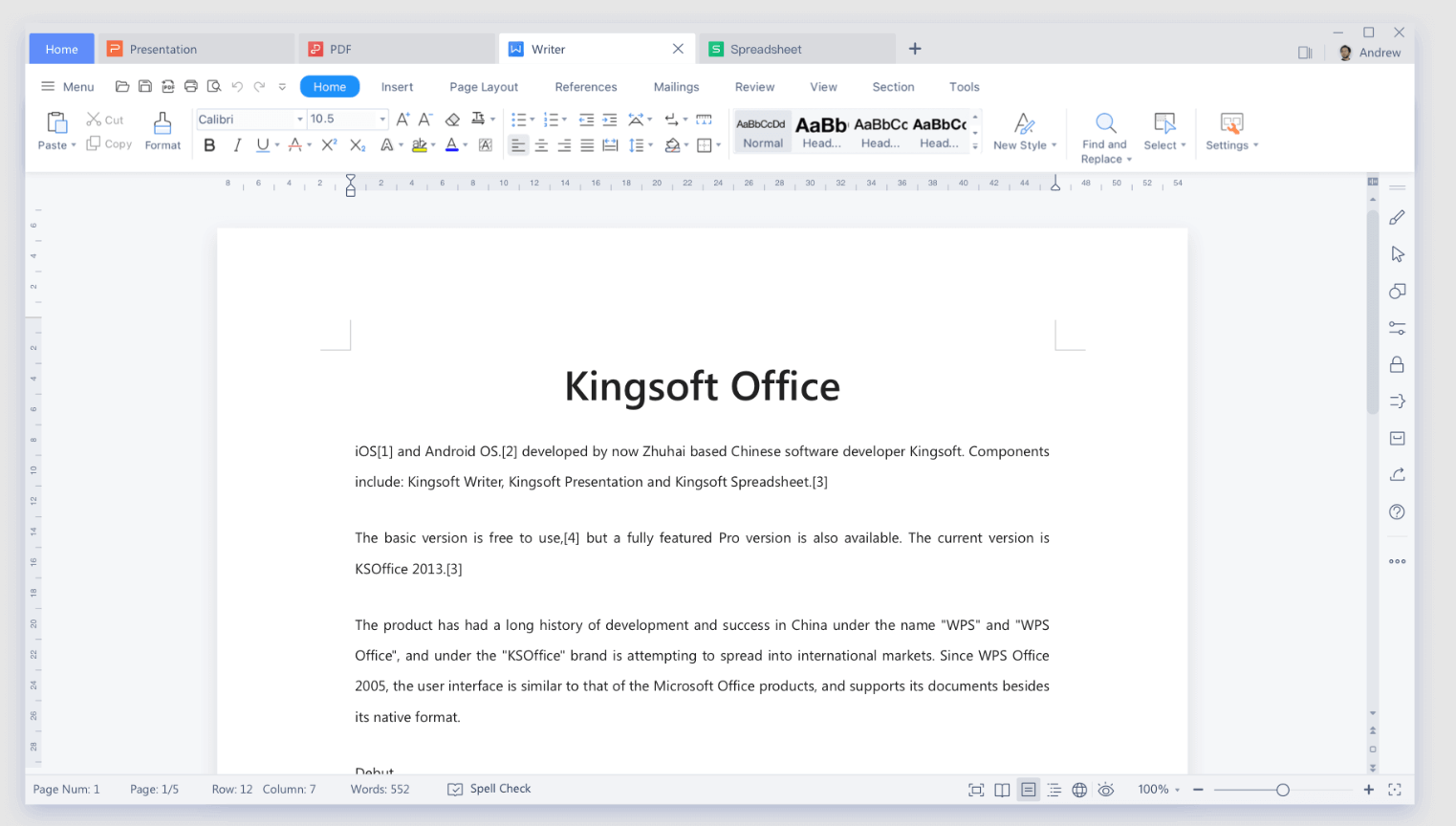
WPS Office combines Writer, Spreadsheet, Presentation, and PDF tools into one lightweight productivity suite, making it one of the closest free alternatives to Microsoft Office. It offers excellent compatibility with Word, Excel, and PowerPoint file formats while providing a familiar ribbon-style interface that helps users transition with minimal learning curve.
Beyond core office applications, WPS Office enhances everyday productivity with built-in AI tools including AI Writer that help users write, summarize, translate, analyze, and generate content directly within their documents. It also supports collaborative workspaces through AirPage, AirSheet, and AirSlides, allowing teams to edit files together and see live changes without switching to separate collaboration platforms. Combined with integrated PDF editing tools and cross-platform support, WPS Office delivers one of the most complete productivity experiences available for Windows users.
Microsoft Office + PDF coverage
It handles Word, Excel, and PowerPoint-style work while also adding WPS PDF for document management.
Powerful PDF toolkit
- Convert between PDF and other formats.
- Compress PDF online for easier sharing.
- Merge and split PDF online to organize pages.
Modern and convenient
Its clean interface feels familiar, and multiple document tabs can coexist in one window for smoother multitasking.
Best For
Users who need a complete office suite for creating documents, spreadsheets, presentations, and PDFs, with AI-powered productivity and seamless collaboration across devices.
Pros
- Excellent compatibility with Microsoft Word, Excel, and PowerPoint file formats
- Complete office suite including Writer, Spreadsheet, Presentation, and integrated PDF Tools
- PDF Editor tools allow users to view, edit, convert, merge, split, compress, and annotate PDF files without installing separate software.
- Thousands of professionally designed Office templates for resumes, business reports, presentations, invoices, calendars, and educational documents.
- AI assistant to write, summarize, translate, analyze, and generate content faster
- AirPage, AirSheet, and AirSlides enable real-time collaboration and live editing
- Available on Windows, macOS, Linux, Android, iOS, and the web
Cons
- Some advanced AI capabilities and PDF features require a Premium subscription
- Team collaboration features deliver the best experience when collaborators also use the WPS ecosystem
Our Verdict
WPS Office delivers the best balance of Microsoft Office compatibility, productivity features, AI capabilities, PDF editing, and collaboration among the free office suites in this comparison. While alternatives like LibreOffice or Google Docs perform well in specific scenarios, WPS Office provides the most complete solution for users who want a single application for both personal and professional work.
Google Docs: Cloud Collaboration
Google Docs is an excellent choice for users who prioritize team collaboration over desktop productivity.

As part of Google Workspace, it allows multiple people to edit documents simultaneously, leave comments, track changes, and automatically save files to Google Drive. It works seamlessly across browsers and devices, making it ideal for remote teams and shared projects.
While Google Docs excels at online collaboration, it is less suitable for users who frequently work with complex Microsoft Word, Excel, or PowerPoint files. Advanced formatting, large spreadsheets, and offline editing remain areas where desktop office suites offer a better experience.
Best For
Teams, educators, students, and remote workers who need real-time collaboration and cloud-based document editing.
Pros
- Industry-leading real-time collaboration
- Automatic cloud saving with Google Drive
- Easy file sharing and permission controls
- Works across Windows, macOS, ChromeOS, Android, and iOS
Cons
- Limited offline functionality compared to desktop office suites
- Complex Microsoft Office formatting may not always be preserved
- Advanced spreadsheet and presentation features are less comprehensive
Our Verdict
Google Docs remains one of the best free collaboration tools available. If your work revolves around shared documents and cloud workflows, it's an outstanding choice. However, if you need full Microsoft Office compatibility or advanced offline editing, you will benefit from a dedicated office suite such as WPS Office.
Microsoft Office Online: Native Compatibility
Microsoft Office Online provides free browser-based versions of Word, Excel, and PowerPoint, making it a convenient option for users who occasionally need Microsoft's official applications without subscribing to Microsoft 365.

Because it's developed by Microsoft, document compatibility is excellent. However, many advanced desktop features including sophisticated formatting, automation, and offline editing, remain exclusive to the paid desktop version.
Best For
Users who occasionally use/edit Microsoft Office documents and prefer using Microsoft's official online applications.
Pros
- Native support for Microsoft Office file formats
- Familiar interface with minimal learning curve
- Accessible from any modern web browser
- Automatic OneDrive integration
Cons
- Internet connection required for most tasks
- Limited features compared to Microsoft 365 desktop apps
- Fewer PDF and productivity tools than dedicated office suites
Our Verdict
Microsoft Office Online is an excellent lightweight solution for occasional editing. Users looking for a Word alternative with offline editing and additional productivity features may prefer WPS Office.
LibreOffice: Open-Source Suite
LibreOffice is a completely free open-source office suite, offering a comprehensive set of applications for documents, spreadsheets, presentations, databases, and more.

LibreOffice is actively maintained by its community, and works entirely offline, making it a strong choice for users who value transparency and independence from commercial software.
Although LibreOffice offers impressive functionality, its interface feels more traditional than modern office suites, and Microsoft Office compatibility can occasionally require manual formatting adjustments when working with complex documents.
Best For
Developers, privacy-conscious users, educators, and anyone looking for a powerful open-source office suite.
Pros
- Completely free and open source
- No advertisements or subscription requirements
- Strong offline productivity tools
- Available on Windows, macOS, and Linux
Cons
- User interface feels less modern
- Complex Microsoft Office files may require formatting adjustments
- Lacks integrated AI and modern collaboration features
Our Verdict
LibreOffice remains one of the strongest open-source alternatives to Microsoft Office. It excels for users who prioritize offline productivity and software freedom. LibreOffice Calc is a capable spreadsheet application, although users looking for a modern Excel alternative with better compatibility and AI-powered assistance may prefer WPS Spreadsheet.
Apache OpenOffice: Basic Offline Editing
Apache OpenOffice is a completely free and open source office suite that provides essential office applications for users with straightforward productivity needs. It includes tools for word processing, spreadsheets, presentations, graphics, and databases.

However, compared with modern office suites, its development has progressed much slower, resulting in an older interface. It has fewer modern productivity features, and reduced compatibility with the latest Microsoft Office file formats.
Best For
Users who only need basic offline document editing and prefer a lightweight open-source solution.
Pros
- Completely free and open source
- Simple interface with essential productivity tools
- Works without an internet connection
- Low hardware requirements
Cons
- Slower development compared to competitors
- Outdated user interface
- Limited support for modern collaboration and AI features
Our Verdict
Apache OpenOffice still handles everyday document editing reliably, but most Windows users will benefit from newer office suites that offer better compatibility, more active development, and modern productivity features.
ONLYOFFICE: Self-Hosted Collaboration
ONLYOFFICE combines a familiar Microsoft Office-style interface with strong collaboration features, making it a popular choice for businesses, educational institutions, and organizations that need greater control over their documents.

Unlike many cloud-first office suites, ONLYOFFICE also supports self-hosting, allowing teams to manage files on their own servers for improved privacy and compliance.
Its document compatibility is excellent, particularly for Microsoft Office formats. However, individual users may find its collaboration-focused ecosystem more powerful than necessary for everyday personal tasks.
Best For
Businesses, IT teams, educational institutions, and organizations looking for secure document collaboration with self-hosting options.
Pros
- Excellent compatibility with Microsoft Office documents
- Real-time collaborative editing
- Supports cloud deployment and self-hosting
- Familiar interface for Microsoft Office users
- Suitable for enterprise and education environments
Cons
- Collaboration features require additional server or cloud setup for maximum benefit
- Smaller extension ecosystem than Microsoft 365 or Google Workspace
- May be more complex than necessary for casual users
Our Verdict
ONLYOFFICE is one of the strongest choices for organizations that prioritize document collaboration, privacy, and deployment flexibility. Individual users looking for an all-in-one productivity suite with AI tools and integrated PDF editing may find WPS Office a more practical everyday solution.
Zoho Workplace: Small Business Platform
Zoho Workplace combines office applications with email, cloud storage, communication, and team collaboration, making it a complete productivity platform for growing businesses. Instead of focusing only on document editing, it helps teams manage their daily work from a single cloud-based ecosystem.

While Zoho Workplace offers strong collaboration features, users transitioning from Microsoft Office may notice a different interface and occasional formatting differences when working with complex Office documents.
Best For
Small businesses, startups, and remote teams looking for an affordable cloud productivity platform.
Pros
- Integrated email, office apps, cloud storage, and collaboration tools
- Real-time document sharing and teamwork
- Competitive pricing for business users
- Works across web browsers and mobile devices
Cons
- Best experience requires internet connectivity
- Interface differs from traditional Microsoft Office applications
- Advanced Office document formatting may occasionally require adjustments
Our Verdict
Zoho Workplace is an excellent business productivity platform for teams already working in the cloud. Users focused on desktop productivity, PDF workflows, or Microsoft Office compatibility may benefit more from a desktop office suite such as WPS Office.
SoftMaker FreeOffice: Microsoft Office-Like
SoftMaker FreeOffice offers one of the most familiar desktop experiences for users switching from Microsoft Office. Its interface closely resembles traditional Office applications, helping new users become productive without a steep learning curve.

The software delivers solid compatibility with Microsoft Office formats and performs well for everyday document editing. However, its free version includes fewer advanced productivity features than some competitors.
Best For
Users who want a familiar Microsoft Office experience without paying for a subscription.
Pros
- Familiar ribbon-style interface
- Good compatibility with Microsoft Office documents
- Lightweight and responsive performance
- Available for Windows, macOS, and Linux
Cons
- Some premium features require upgrading
- Limited built-in PDF functionality
- No integrated AI productivity tools
Our Verdict
SoftMaker FreeOffice is one of the easiest office suites for Microsoft Office users to transition to. While it delivers a polished desktop experience, users seeking AI assistance, integrated PDF tools, and broader productivity capabilities will find WPS Office more comprehensive.
Polaris Office: Cross-Device Productivity
For users who regularly work across Windows PCs, mobile devices, and cloud storage services, Polaris Office can be a good choice.

It offers document editing, PDF support, and synchronization across multiple platforms, making it convenient for users who switch between devices throughout the day.
Although Polaris Office includes a wide range of features, its free version contains advertisements and feature limitations that may affect the overall user experience.
Best For
Professionals and mobile users who frequently work across multiple devices.
Pros
- Available across Windows, Android, iOS, and the web
- Cloud synchronization between devices
- Supports Microsoft Office file formats
- Includes basic PDF functionality
Cons
- Advertisements in the free version
- Some advanced features require a subscription
- Collaboration tools are less comprehensive than dedicated cloud platforms
Our Verdict
Polaris Office is a solid option for users who value cross-device accessibility. However, if your priorities include advanced AI tools, integrated PDF workflows, and stronger overall value in the free version, WPS Office remains the more complete choice.
SSuite Office: Lightweight for Older PCs
SSuite Office focuses on speed and simplicity, making it a practical choice for older Windows computers or users with minimal productivity requirements.

Its lightweight installation and low system requirements allow it to run smoothly on hardware that may struggle with larger office suites.
While it covers essential document editing tasks, SSuite Office lacks many of the modern collaboration, cloud, AI, and compatibility features available in more actively developed office suites.
Best For
Users with older PCs or those who need a lightweight offline office suite for basic tasks.
Pros
- Very lightweight installation
- Low system requirements
- Works completely offline
- Free to use
Cons
- Limited Microsoft Office compatibility
- Outdated interface
- No cloud collaboration or AI features
- Smaller feature set than modern office suites
Our Verdict
SSuite Office is suitable for basic productivity on older hardware, but most Windows users will benefit from newer office suites that provide better compatibility, collaboration, and long-term feature support.
Best Free Office Software for Windows at a Glance
Compare Microsoft Office compatibility, PDF tools, AI features, real-time collaboration, and platform support across all 10 suites.
| Office Suite | Best For | Microsoft Office Compatibility | PDF Tools | AI Features | Real-Time Collaboration | Platforms |
|---|---|---|---|---|---|---|
| WPS Office | Overall productivity | Built-in | WPS AI | AirPage, AirSheet, AirSlides | Windows, macOS, Linux, Android, iOS, Web | |
| Google Docs | Team collaboration | Limited | Google Workspace AI | Web, Android, iOS | ||
| Microsoft Office Online | Official Microsoft apps | Limited | Microsoft Copilot (subscription) | Web | ||
| LibreOffice | Open-source users | Basic | Windows, macOS, Linux | |||
| ONLYOFFICE | Business collaboration | Basic | Limited | Windows, macOS, Linux, Web | ||
| Zoho Workplace | Small businesses | Basic | Zia AI | Web, Android, iOS | ||
| SoftMaker FreeOffice | Familiar desktop experience | Basic | Windows, macOS, Linux | |||
| Polaris Office | Multi-device users | Limited | Basic | Windows, Android, iOS | ||
| Apache OpenOffice | Basic offline editing | Basic | Windows, macOS, Linux | |||
| SSuite Office | Older PCs | Limited | Windows |
Frequently Asked Questions
Quick answers on compatibility, PDF editing, offline use, AI features, and the best free office suites for Windows.
Why WPS Office remains the strongest free Windows pick
Many free office suites cover the basics, but WPS Office stands out when compatibility matters most. Its familiar layout, Microsoft Office-style workflow, PDF support, and smooth handling of Word, PowerPoint, and Excel alternatives make it the most complete free choice in this ranking.
Start with the most complete free office suite
If you want the closest free alternative to Microsoft Word, PowerPoint, and Excel on Windows, WPS Office gives you the broadest feature set in this list, plus strong format compatibility and helpful PDF tools.
