

'%3e%3cpath%20d='M8%200C12.4183%200%2016%203.58172%2016%208C16%2012.4183%2012.4183%2016%208%2016C3.58172%2016%200%2012.4183%200%208C0%203.58172%203.58172%200%208%200ZM11.6162%204.38379C11.2257%203.99337%2010.5927%203.99338%2010.2021%204.38379L8%206.58594L5.79785%204.38379C5.40732%203.99334%204.77429%203.99329%204.38379%204.38379C3.99331%204.77429%203.99335%205.40733%204.38379%205.79785L6.58594%208L4.38379%2010.2021C3.99348%2010.5927%203.99341%2011.2257%204.38379%2011.6162C4.77426%2012.0066%205.40734%2012.0065%205.79785%2011.6162L8%209.41406L10.2021%2011.6162C10.5927%2012.0066%2011.2257%2012.0067%2011.6162%2011.6162C12.0067%2011.2257%2012.0066%2010.5927%2011.6162%2010.2021L9.41406%208L11.6162%205.79785C12.0066%205.40735%2012.0066%204.77429%2011.6162%204.38379Z'%20fill='%23080E17'%20fill-opacity='0.46'/%3e%3c/g%3e%3cdefs%3e%3cclipPath%20id='clip0_3761_713'%3e%3crect%20width='16'%20height='16'%20fill='white'/%3e%3c/clipPath%3e%3c/defs%3e%3c/svg%3e)




'%3e%3cpath%20fill-rule='evenodd'%20clip-rule='evenodd'%20d='M21.4999%2010.9993C21.4999%205.20009%2016.7986%200.498901%2010.9993%200.498901C5.19994%200.498901%200.498657%205.20009%200.498657%2010.9993C0.498657%2016.2404%204.33858%2020.5844%209.35855%2021.3722V14.0346H6.69238V10.9993H9.35855V8.68594C9.35855%206.05427%2010.9262%204.60062%2013.3248%204.60062C14.4736%204.60062%2015.6753%204.80571%2015.6753%204.80571V7.38979H14.3512C13.0468%207.38979%2012.64%208.19921%2012.64%209.0296V10.9993H15.5523L15.0867%2014.0346H12.64V21.3722C17.66%2020.5844%2021.4999%2016.2404%2021.4999%2010.9993Z'%20fill='%231568EA'/%3e%3c/g%3e%3c/svg%3e)


'%3e%3cpath%20d='M2.42045%2022.1876H6.31818V12.7217L0.75%208.54553V20.5171C0.75%2021.4414%201.49892%2022.1876%202.42045%2022.1876Z'%20fill='%234285F4'/%3e%3cpath%20d='M19.682%2022.1876H23.5797C24.5041%2022.1876%2025.2502%2021.4387%2025.2502%2020.5171V8.54553L19.682%2012.7217'%20fill='%2334A853'/%3e%3cpath%20d='M19.682%205.48293V12.7216L25.2502%208.54543V6.31816C25.2502%204.25236%2022.8921%203.07469%2021.2411%204.31361'%20fill='%23FBBC04'/%3e%3cpath%20d='M6.31824%2012.7217V5.48303L13.0001%2010.4944L19.6819%205.48303V12.7217L13.0001%2017.733'%20fill='%23EA4335'/%3e%3cpath%20d='M0.75%206.31816V8.54543L6.31818%2012.7216V5.48293L4.75909%204.31361C3.10534%203.07469%200.75%204.25236%200.75%206.31816Z'%20fill='%23C5221F'/%3e%3c/g%3e%3cdefs%3e%3cclipPath%20id='clip0_2954_7305'%3e%3crect%20width='24.5'%20height='18.375'%20fill='white'%20transform='translate(0.75%203.8125)'/%3e%3c/clipPath%3e%3c/defs%3e%3c/svg%3e)


People who search sejda watermark usually want one of two things: to stamp a PDF with text or a logo, or to confirm that their PDF tool will not force a promotional watermark onto exports. Both needs show up clearly in top Google results around Sejda’s watermark feature and “Sejda alternative” pages.
This guide explains how sejda watermark works online, walks through text and image watermark steps from Sejda’s official Watermark PDF tool, then compares Sejda with WPS Office when you need offline branding, batch stamping, or tighter privacy.
1. What Is Sejda Watermark?
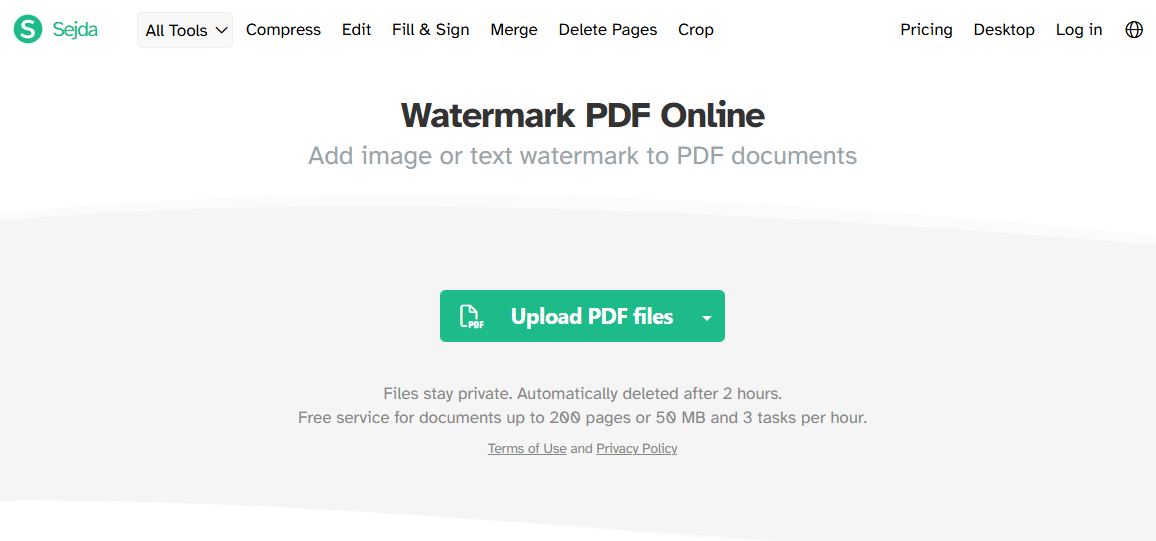
Sejda Watermark PDF Online
Sejda watermark refers to Sejda’s online Watermark PDF feature for adding image or text watermarks to PDF documents. You can place labels such as “Draft,” “Confidential,” or “Sample,” add a company logo or copyright notice, then control opacity, rotation, font, and position before downloading the stamped file.
According to Sejda’s Watermark PDF page, free online use typically covers documents up to about 200 pages or 50 MB with up to 3 tasks per hour. Files stay private and are automatically deleted after 2 hours. If you need a broader overview of the product suite first, see our guide to the sejda pdf editor.
Note: some users confuse “add a watermark” with “download a PDF with no Sejda branding.” Sejda’s editor and Fill & Sign pages emphasize free use without registration watermarks on many tasks — that is a separate intent from branding your own files.


2. How to Add a Text Watermark with Sejda Online
Follow this practical sejda watermark flow based on Sejda’s Watermark PDF Online guide:
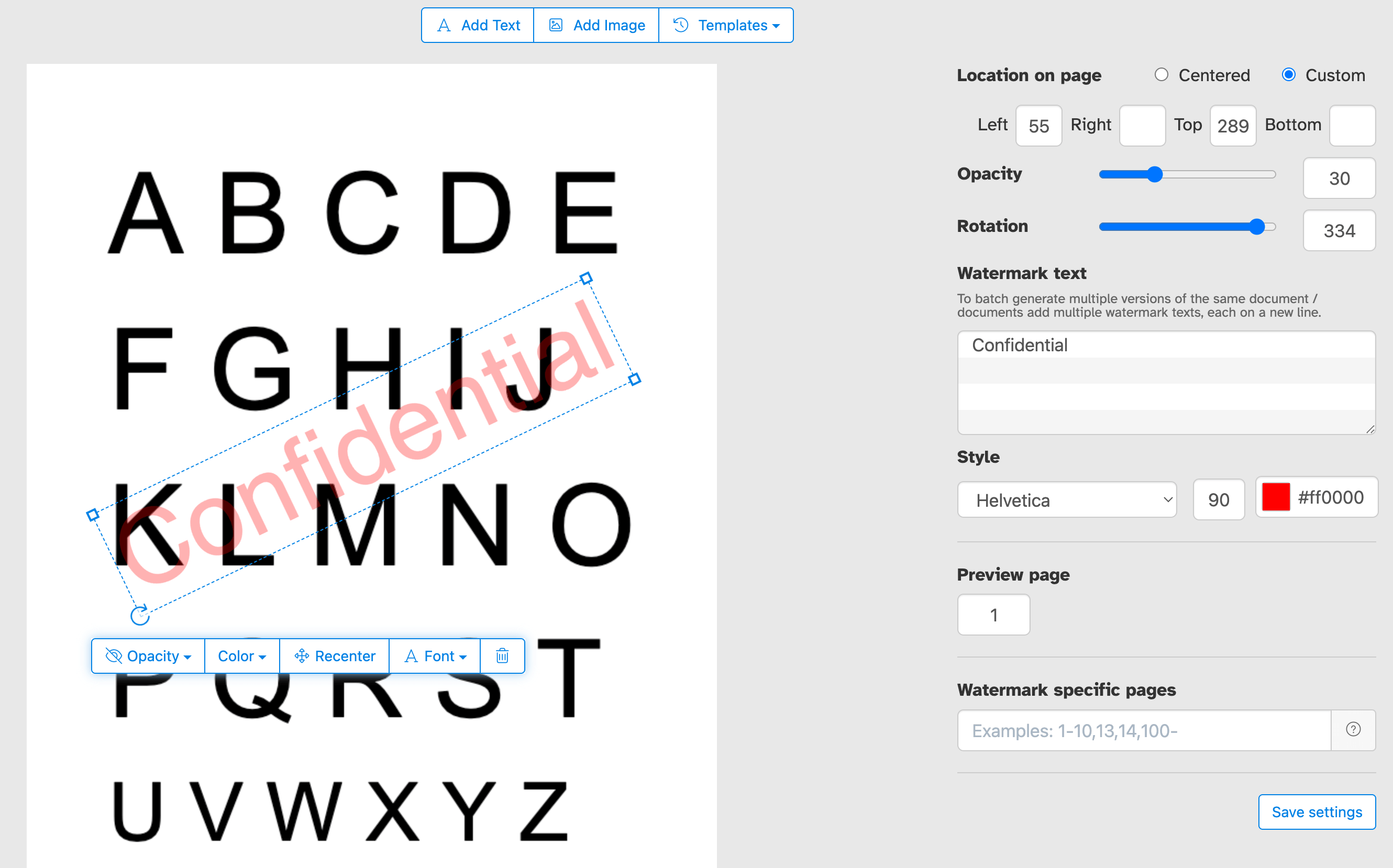
Sejda text watermark
Step 1: Upload your PDF
Open Sejda’s Watermark PDF page and click Upload PDF files (or drag and drop). You can also import from Google Drive, Dropbox, or OneDrive. Prefer offline processing? Sejda Desktop keeps files on your computer.
Step 2: Add Text
Click Add Text above the page preview. A text watermark appears on the PDF. Click it and type a label such as “Draft,” “Confidential,” or your company name.
Step 3: Move, rotate, and resize
Drag the watermark to reposition it, use the rotation handle for diagonal stamps, and drag side handles to change size. You can also choose centered placement or custom X/Y positioning for precise layout.
Step 4: Adjust color, opacity, and font
Select the watermark to open its menu. Change transparency, text color, and font family (for example Helvetica, Courier, or Times New Roman). Lower opacity keeps body text readable while still marking ownership.
Step 5: Apply to selected pages and download
Watermark every page, or limit the mark to a custom page range (first page only, last page, or a specific set). When ready, run Watermark PDF and download the result. Keep free-plan limits in mind.
Extra options worth knowing: Sejda also supports watermark templates you can reuse, batch watermarking across multiple PDFs, and multiple watermark text lines for different versions of the same document.
3. How to Add an Image Watermark (Logo) in Sejda
If your sejda watermark goal is branding rather than a text stamp, use an image watermark:
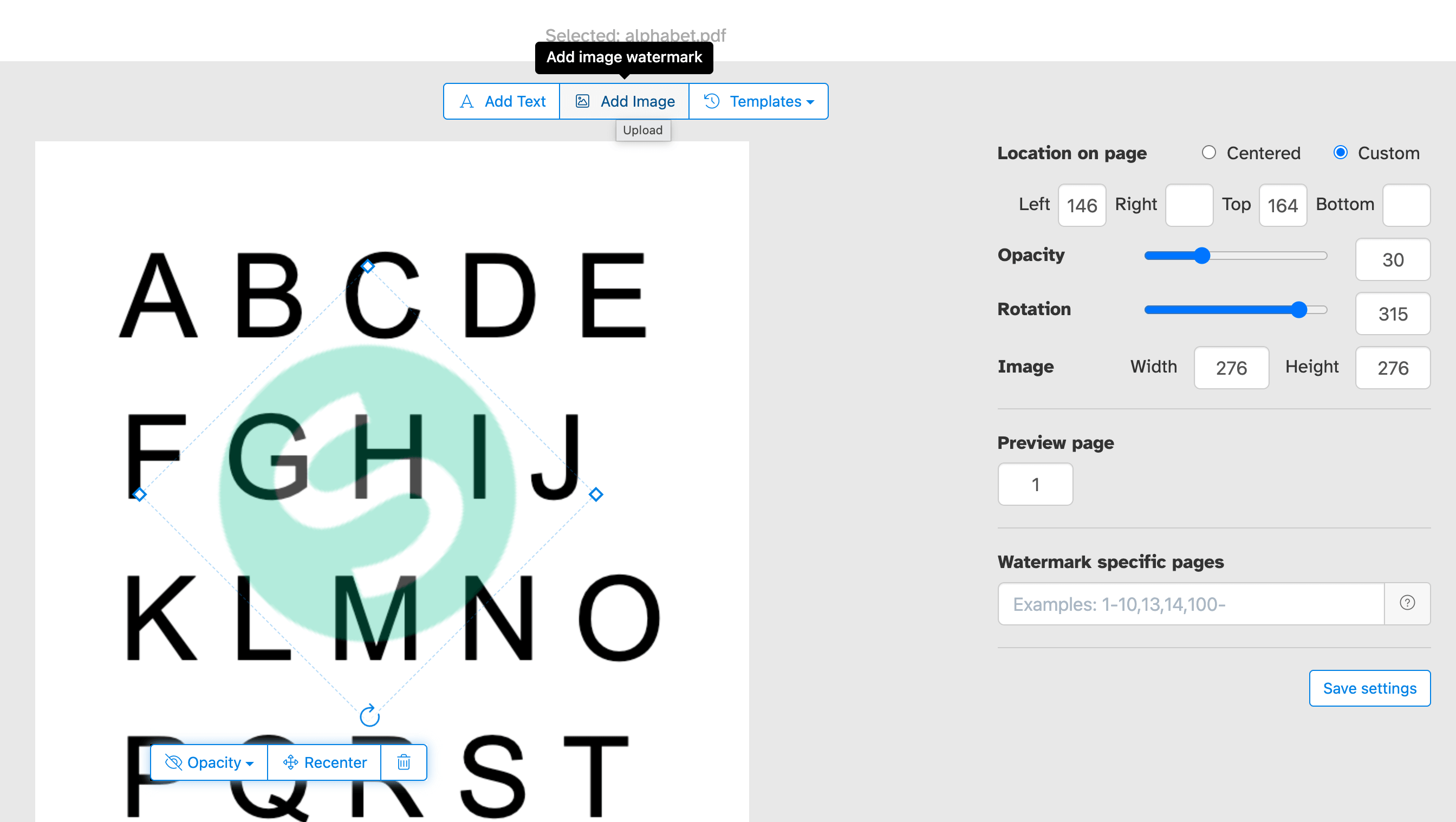
Sejda image watermark
Step 1: Upload the PDF as above.
Step 2: Click Add Image and choose a logo or graphic. JPG, JPEG, GIF, PNG, and SVG are supported. PNG files with transparent backgrounds usually blend more cleanly.
Step 3: Drag to reposition, rotate with the handle, and resize with side handles.
Step 4: Open the image menu and lower opacity if the logo covers important content.
Then stamp the selected pages and download. This is useful for proposals, client deliverables, and portfolio PDFs where a consistent logo matters more than a “Draft” label.
4. How to Remove a Watermark in Sejda
Many people who search sejda watermark also need the reverse task: clearing a stamp they no longer want. Sejda’s Watermark PDF tool is built mainly for adding marks, but you can still clean up watermarks in a few practical ways depending on how the mark was created.
Option A: Remove a watermark you just added (before finalizing)
If the text or logo stamp is still selected in Sejda’s preview, click the watermark object and delete it, or clear the stamp from the watermark menu, then re-check the page preview. Finish only when the preview looks clean, then process and download.
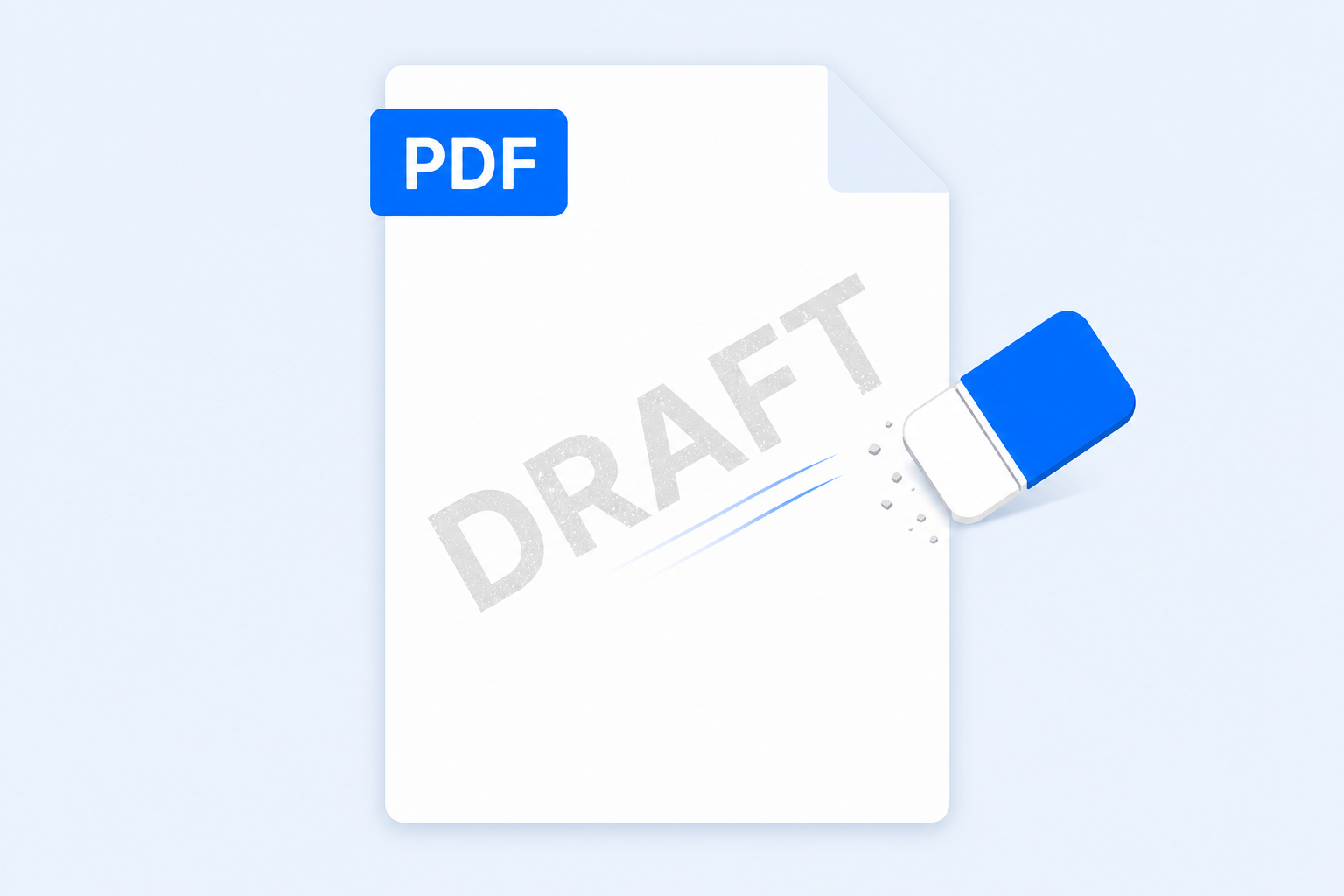
Option B: Cover or hide an existing watermark
When a PDF already contains a baked-in mark, open the file in Sejda and use editing or cover tools available in your Sejda plan (for example placing a matching background shape over the stamp, or redacting the watermark area when content removal is required). Always preview every page before download so important text is not covered by mistake.
Option C: Prefer local removal for sensitive files
If the watermark sits on confidential pages, or free online limits interrupt repeated clean-up jobs, switch to a desktop PDF editor. WPS Office can open the PDF locally, delete or cover unwanted marks, and save without uploading the file to a browser tool.
Tip: True permanent removal is harder when a watermark was flattened into page content. In that case, covering the area carefully or recreating the clean pages in an editor usually works better than looking for a one-click “unglue” button.
5. Sejda Watermark Limits and When Users Look for Alternatives
Sejda is convenient in a browser, but top-ranking alternative pages appear because many people hit free ceilings or prefer local processing. Typical friction points include:
Hourly / size limits: About 3 tasks per hour and up to roughly 200 pages or 50 MB on free online use.
Upload privacy: Online watermarking requires sending the file to Sejda’s servers (then auto-deletion). Teams handling contracts or HR files often want offline tools instead.
Batch and reuse needs: Sejda offers batch and templates, yet businesses that already live in an office suite may prefer watermarking inside the same app used for editing, converting, and signing.
If privacy is your concern before you stamp anything online, it also helps to review whether is sejda safe for your document type — especially before uploading confidential PDFs.
6. Best Alternative to Sejda Watermark: WPS Office
When free-task limits, upload privacy, or tighter branding control become blockers, WPS Office is a strong alternative for PDF watermarking.
Based on WPS’s Watermark PDF feature set, WPS stands out for:
Text or logo watermarks: Add “Confidential,” “Draft,” copyright notices, or upload a company logo/image.
Full appearance control: Adjust font, size, color, opacity, rotation (including diagonal stamps), and place marks in the center, corners, or custom positions — including foreground/background options.
Batch & tile options: Apply one watermark to multiple PDFs, stamp all pages in one click, or tile across a page for stronger protection.
Local processing: Files can stay on your device, which is safer for sensitive work than browser upload workflows.
Page-range targeting: Choose all pages, odd/even pages, or a custom range such as pages 1–5.
After watermarking, you can continue in the same suite — edit text, convert formats, compress, or sign — without hopping between single-purpose websites. If you later need to lock annotations before sharing, you can also learn workflows around WPS Update Watermarksejda pdf flatten concepts and complete that step with WPS PDF tools when needed.
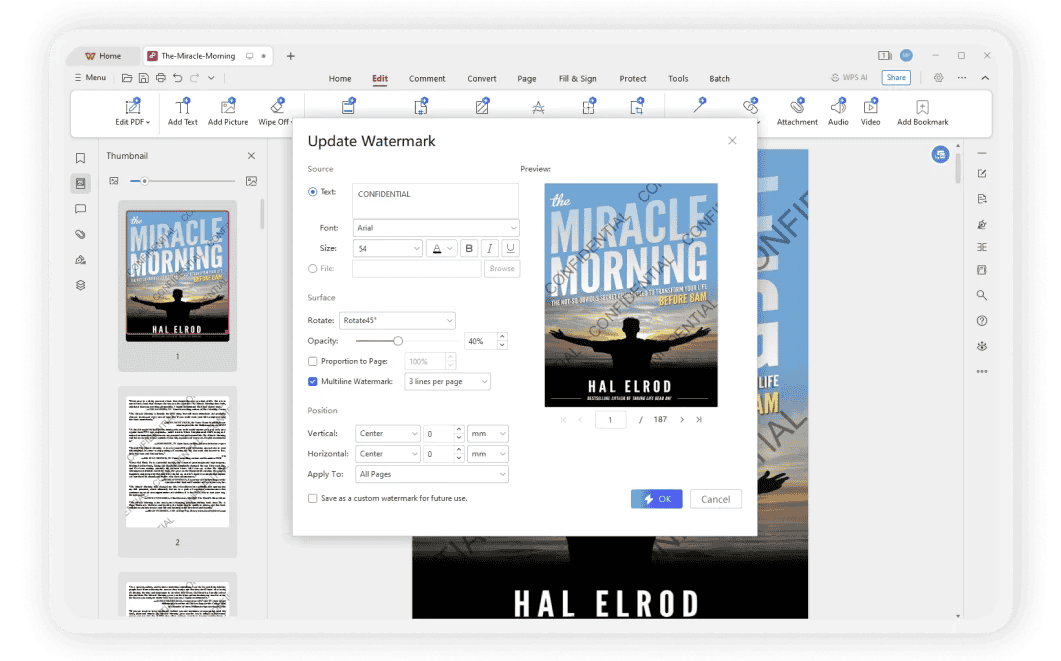
WPS Update Watermark
How to Insert a Watermark in PDF with WPS Office
Step 1: Download and open WPS Office, then open the PDF you want to brand or protect.
Step 2: On the Home/Edit area, open Watermark to launch the PDF watermark creator.
Step 3: Choose text or image, customize opacity/rotation/position (and page range if needed), then save your watermarked PDF.
This local path is especially useful for freelancers branding proposals, legal teams marking confidential packs, and educators protecting course PDFs.

Frequently Asked Questions (FAQs)
Q: Is sejda watermark free?
A: Yes, with free-plan limits. Sejda’s Watermark PDF tool typically allows free processing for documents up to about 200 pages or 50 MB and up to 3 tasks per hour.
Q: Can I add a logo as a Sejda watermark?
A: Yes. Use Add Image, upload PNG/JPG/GIF/SVG, then resize, rotate, and set opacity. WPS Office also supports logo watermarks with similar controls.
Q: Does Sejda let me watermark only some pages?
A: Yes. You can apply the watermark to every page or to a custom page range without splitting and reassembling the PDF.
Q: When should I switch from Sejda watermark to WPS?
A: Switch when you need offline privacy, frequent batch branding, tile/cover-style protection, or an all-in-one suite that also edits, converts, and signs PDFs.
'%3e%3cpath%20d='M19.9911%204.11386V6.471H18.5894C18.0775%206.471%2017.7322%206.57814%2017.5536%206.79243C17.3751%207.00671%2017.2858%207.32814%2017.2858%207.75671V9.44421H19.9019L19.5536%2012.0871H17.2858V18.8639H14.5536V12.0871H12.2769V9.44421H14.5536V7.49779C14.5536%206.39064%2014.8632%205.53201%2015.4822%204.92189C16.1013%204.31177%2016.9257%204.00671%2017.9554%204.00671C18.8304%204.00671%2019.509%204.04243%2019.9911%204.11386Z'%20fill='%23333333'/%3e%3c/g%3e%3cdefs%3e%3cclipPath%20id='clip0_2938_8199'%3e%3crect%20width='16'%20height='16'%20fill='white'%20transform='translate(8%204.00671)'/%3e%3c/clipPath%3e%3c/defs%3e%3c/svg%3e)
'%3e%3cpath%20d='M17.5237%2010.7813L23.4811%204H22.0699L16.8949%209.88693L12.7648%204H8L14.2469%2012.9029L8%2020.0133H9.4112L14.8725%2013.7952L19.2352%2020.0133H24M9.92053%205.04213H12.0885L22.0688%2019.0224H19.9003'%20fill='%23333333'/%3e%3c/g%3e%3cdefs%3e%3cclipPath%20id='clip0_2938_8200'%3e%3crect%20width='16'%20height='16.0134'%20fill='white'%20transform='translate(8%204)'/%3e%3c/clipPath%3e%3c/defs%3e%3c/svg%3e)


