

'%3e%3cpath%20d='M8%200C12.4183%200%2016%203.58172%2016%208C16%2012.4183%2012.4183%2016%208%2016C3.58172%2016%200%2012.4183%200%208C0%203.58172%203.58172%200%208%200ZM11.6162%204.38379C11.2257%203.99337%2010.5927%203.99338%2010.2021%204.38379L8%206.58594L5.79785%204.38379C5.40732%203.99334%204.77429%203.99329%204.38379%204.38379C3.99331%204.77429%203.99335%205.40733%204.38379%205.79785L6.58594%208L4.38379%2010.2021C3.99348%2010.5927%203.99341%2011.2257%204.38379%2011.6162C4.77426%2012.0066%205.40734%2012.0065%205.79785%2011.6162L8%209.41406L10.2021%2011.6162C10.5927%2012.0066%2011.2257%2012.0067%2011.6162%2011.6162C12.0067%2011.2257%2012.0066%2010.5927%2011.6162%2010.2021L9.41406%208L11.6162%205.79785C12.0066%205.40735%2012.0066%204.77429%2011.6162%204.38379Z'%20fill='%23080E17'%20fill-opacity='0.46'/%3e%3c/g%3e%3cdefs%3e%3cclipPath%20id='clip0_3761_713'%3e%3crect%20width='16'%20height='16'%20fill='white'/%3e%3c/clipPath%3e%3c/defs%3e%3c/svg%3e)




'%3e%3cpath%20fill-rule='evenodd'%20clip-rule='evenodd'%20d='M21.4999%2010.9993C21.4999%205.20009%2016.7986%200.498901%2010.9993%200.498901C5.19994%200.498901%200.498657%205.20009%200.498657%2010.9993C0.498657%2016.2404%204.33858%2020.5844%209.35855%2021.3722V14.0346H6.69238V10.9993H9.35855V8.68594C9.35855%206.05427%2010.9262%204.60062%2013.3248%204.60062C14.4736%204.60062%2015.6753%204.80571%2015.6753%204.80571V7.38979H14.3512C13.0468%207.38979%2012.64%208.19921%2012.64%209.0296V10.9993H15.5523L15.0867%2014.0346H12.64V21.3722C17.66%2020.5844%2021.4999%2016.2404%2021.4999%2010.9993Z'%20fill='%231568EA'/%3e%3c/g%3e%3c/svg%3e)


'%3e%3cpath%20d='M2.42045%2022.1876H6.31818V12.7217L0.75%208.54553V20.5171C0.75%2021.4414%201.49892%2022.1876%202.42045%2022.1876Z'%20fill='%234285F4'/%3e%3cpath%20d='M19.682%2022.1876H23.5797C24.5041%2022.1876%2025.2502%2021.4387%2025.2502%2020.5171V8.54553L19.682%2012.7217'%20fill='%2334A853'/%3e%3cpath%20d='M19.682%205.48293V12.7216L25.2502%208.54543V6.31816C25.2502%204.25236%2022.8921%203.07469%2021.2411%204.31361'%20fill='%23FBBC04'/%3e%3cpath%20d='M6.31824%2012.7217V5.48303L13.0001%2010.4944L19.6819%205.48303V12.7217L13.0001%2017.733'%20fill='%23EA4335'/%3e%3cpath%20d='M0.75%206.31816V8.54543L6.31818%2012.7216V5.48293L4.75909%204.31361C3.10534%203.07469%200.75%204.25236%200.75%206.31816Z'%20fill='%23C5221F'/%3e%3c/g%3e%3cdefs%3e%3cclipPath%20id='clip0_2954_7305'%3e%3crect%20width='24.5'%20height='18.375'%20fill='white'%20transform='translate(0.75%203.8125)'/%3e%3c/clipPath%3e%3c/defs%3e%3c/svg%3e)


Large PDF attachments can fail email limits, slow down uploads, or make sharing painful. A quick sejda compress pdf workflow shrinks file size by optimizing images and cleaning unused resources — so you keep the document usable while cutting megabytes.
Sejda’s online Compress PDF tool is free for light use, runs in the browser with no install, and also offers Desktop offline processing. Below you’ll learn how to compress a PDF with Sejda step by step, which quality/PPI settings to pick, what free limits matter, and why WPS Office is a strong free alternative when Sejda’s caps get in the way.
100% secure
1. Compress PDF With Sejda
sejda compress pdf is one of Sejda’s focused PDF tools. You upload one or more PDFs, adjust image quality and resolution if needed, then download a smaller file. If you also need broader editing later, Sejda’s suite includes the sejda pdf editor, merge, split, convert, and more.
Sejda offers two product versions for the same goal:
Sejda Web (online): Works in Chrome, Edge, Firefox, Safari — on Windows, Mac, Linux, and mobile browsers. No app install required.
Sejda Desktop (offline): Installed app for local processing when you prefer not to upload files (Windows, Mac, and Linux).
For most searches around sejda compress pdf, the online compressor is the starting point: upload → compress (or open More options) → download.


2. How to Compress a PDF Online With Sejda?
For most users, Sejda Web is the primary sejda compress pdf path. No Desktop install is required.
Which versions/devices support Sejda online?
Windows / Mac / Linux PC: any modern browser
iPhone / Android: Safari or Chrome → Sejda Compress PDF page
There is no separate full native mobile app required for basic online compression — mobile users use the same Sejda Web tool in the browser.
Steps: Compress PDF online
Step 1: Upload your PDF. Open Sejda’s Compress PDF tool. Click Upload PDF file (or drag and drop). You can also pull files from Google Drive, Dropbox, OneDrive, or a web URL via the upload menu. Multiple files are supported when you need to shrink more than one PDF.
Files are uploaded over an encrypted connection and are automatically deleted after about 2 hours. If you still wonder is sejda safe for cloud compression, that auto-delete policy is a key reason people use Sejda Web for non-sensitive documents.
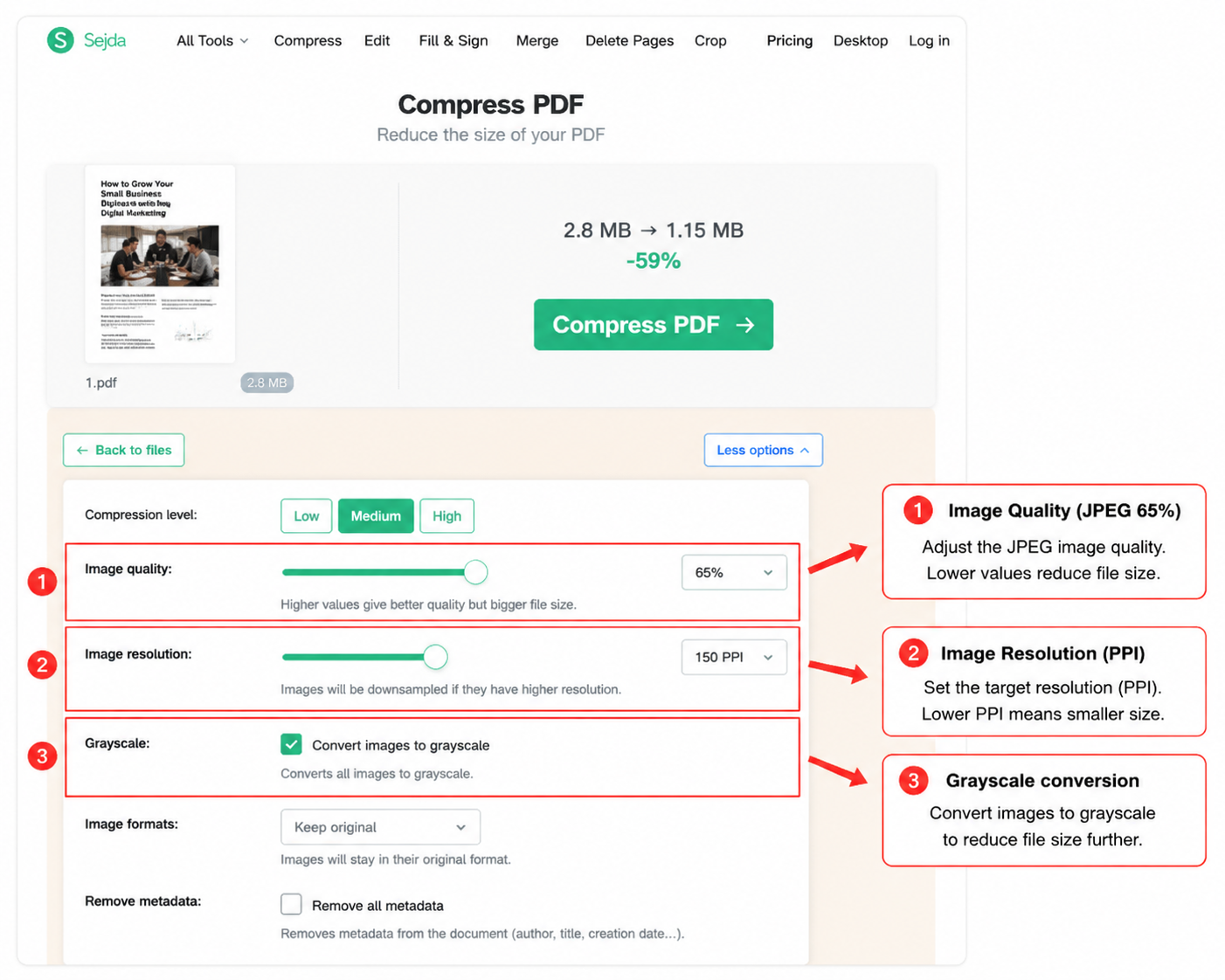
Step 2: Compress (or open More options). Click Compress for the default optimized result, then Download the smaller PDF. For finer control, open More options and adjust:
Image quality: Medium (common default, around JPEG quality ~65%), Good, or Best — higher quality means a larger file.
Image resolution (PPI): Standard optimization often targets about 72 PPI; raise to 144 / 288 / 720 (or similar available values) when print clarity matters more than size.
Image conversion: choose Grayscale when color isn’t required and you want a smaller output.
Multimedia / fonts: discard or keep multimedia; optionally optimize fonts when offered.
Faster compression: skip tiny images and focus on larger ones to finish sooner on image-heavy files.
Step 3: Download and check. Open the compressed PDF and confirm text stays sharp enough for your use case (email, web share, or light print).
3. How to Compress a PDF Offline With Sejda?
Prefer not to upload documents? Use Sejda Desktop for offline sejda compress pdf compression. Files stay on your computer — useful for confidential reports or repeated local jobs.
Step 1: Download Sejda Desktop from the Sejda website and install it (Windows, Mac, or Linux as supported).
Step 2: Open Sejda Desktop and choose the Compress PDF tool.
Step 3: Add your PDF(s), set image quality / PPI / grayscale if needed, then compress.
Step 4: Save the smaller file and compare size versus the original.
4. Sejda Web vs Sejda Desktop
You can use either Sejda Web or Sejda Desktop for sejda compress pdf. Desktop is better when privacy or recurring local jobs matter more.
| Feature | Sejda Web (Online) | Sejda Desktop (Offline) |
|---|---|---|
| Installation | No install required | Requires download & install |
| File security | Processed on Sejda servers; auto-deleted after ~2 hours | Files stay on your device |
| Best for | Quick one-off size reduction | Sensitive files & recurring work |
| Free limits | Task/page/size caps apply | Depends on Desktop license plan |
Quick tip: Use Sejda Web for fast online jobs within free limits. Switch to Sejda Desktop when privacy or offline access matters more.
5. Best Alternative to sejda compress pdf: WPS Office
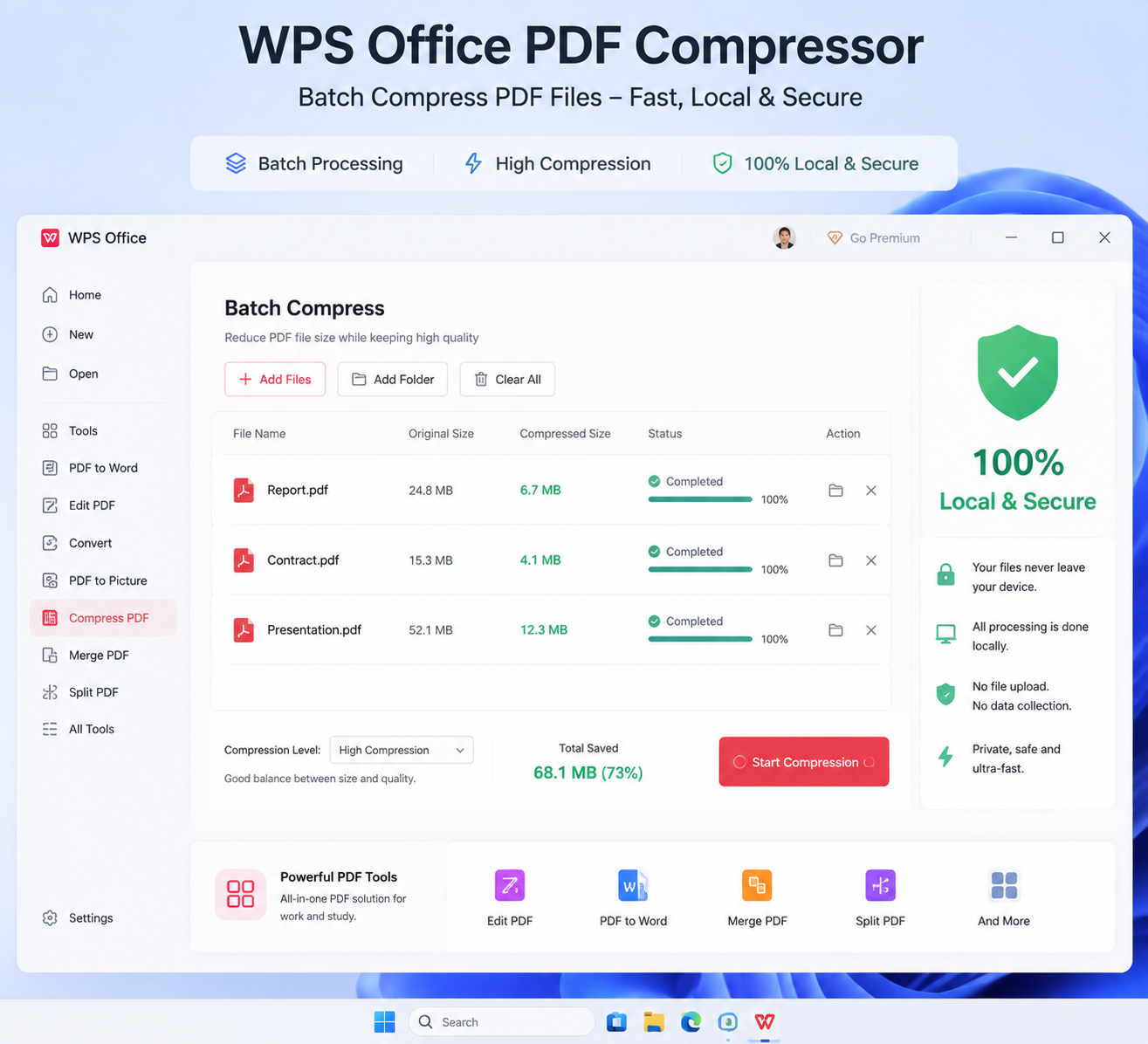
If Sejda’s free limits interrupt your work — or you want batch compression and local processing without uploading — WPS Office is a strong alternative. You can compress PDFs, then keep editing, converting, and sharing inside the same free office suite.
100% secure
Here’s how WPS free advantages map against Sejda’s limitations for PDF compression:
Quality vs size control: Pick compression levels (e.g. high / standard / regular or similar presets) to balance clarity and file size — useful when you need to shrink PDFs without destroying charts or photos.
Batch compression: Compress multiple PDFs in one go and download individually or as a ZIP, which speeds up everyday workflows.
Local & private options: Desktop compression can stay on your device — no cloud upload required for confidential files.
Strong size reduction: WPS marketing for Compress PDF highlights aggressive size savings (up to about 90% in suitable cases) while aiming to keep visual quality usable.
All-in-one follow-up: After compressing, stay in WPS to edit PDF, convert, OCR, or continue in Writer / Spreadsheets / Presentation.
How to Compress a PDF With WPS (3 steps)
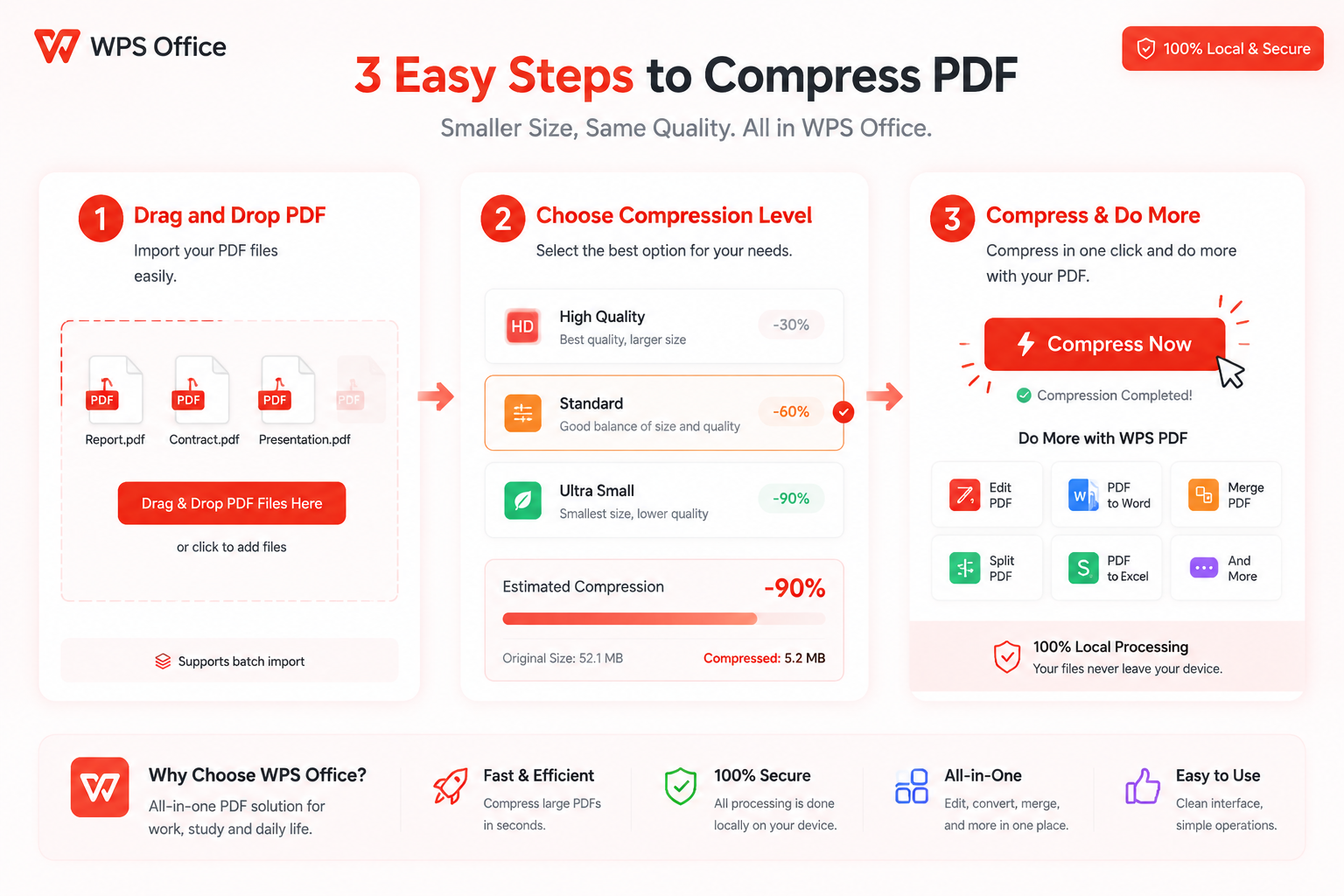
Step 1: Download WPS Office, open the PDF tools, then launch Compress (often under the PDF tab).
Step 2: Add one PDF or select multiple files for batch compression.
Step 3: Choose your compression level / quality, click Compress, then save the optimized file(s).
100% secure
Frequently Asked Questions (FAQs)
Q: Will sejda compress pdf reduce image quality?
A: Compression usually optimizes images. Defaults work for most email/share cases. If pages look soft, raise image quality (Good/Best) or PPI in More options — expect a larger file.
Q: How do I get a smaller PDF with Sejda?
A: Use Medium quality, lower PPI (around 72 for screen share), and consider Grayscale when color isn’t needed. Avoid Best quality + high PPI unless you must print.
Q: Is Sejda free for sejda compress pdf?
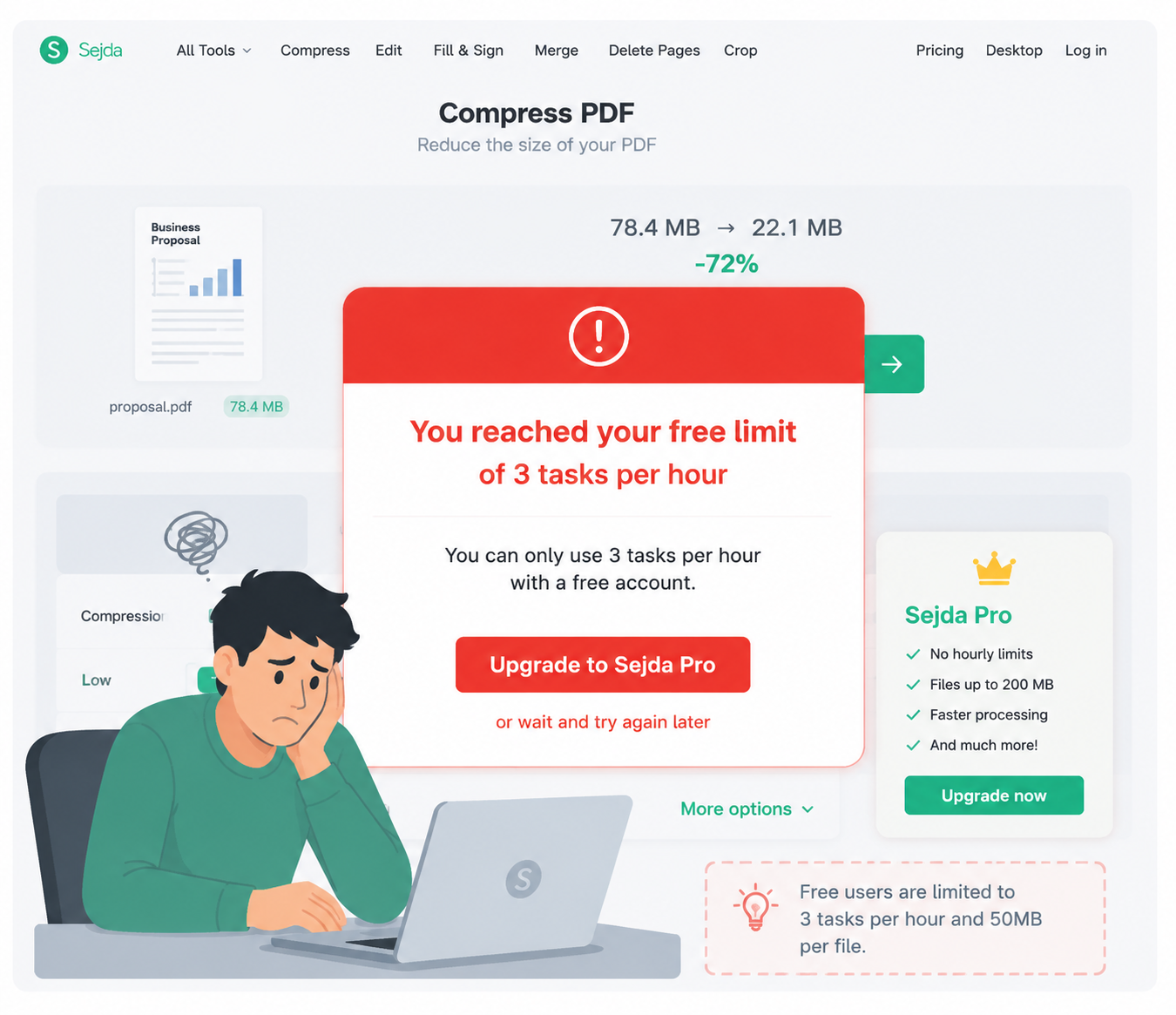
A: Yes, with free-plan limits (commonly about 3 tasks/hour and roughly 200 pages / 100 MB on this tool). If those limits block you, WPS Office free Compress PDF is usually the more complete everyday workflow.
Q: Can I compress multiple PDFs at once?
A: Sejda Web supports uploading multiple files in supported flows. For frequent batch work, WPS batch compression is often faster end-to-end.
Q: When should I use Sejda Desktop instead of Sejda Web?
A: Use Desktop for sensitive files, offline work, or repeated local compression. Use Web for quick one-off shrinks in the browser.

Summary
Sejda compress pdf online is the most common starting path — upload, compress (or tune quality/PPI/grayscale), then download — while Sejda Desktop covers offline needs.
When free-plan limits, batch needs, or privacy concerns become the problem, switch to WPS Office: compress locally or in a fuller desktop workflow, then keep editing in the same suite.
Try WPS Compress PDF when you need a freer, more flexible alternative to Sejda’s free-plan bottlenecks.
'%3e%3cpath%20d='M19.9911%204.11386V6.471H18.5894C18.0775%206.471%2017.7322%206.57814%2017.5536%206.79243C17.3751%207.00671%2017.2858%207.32814%2017.2858%207.75671V9.44421H19.9019L19.5536%2012.0871H17.2858V18.8639H14.5536V12.0871H12.2769V9.44421H14.5536V7.49779C14.5536%206.39064%2014.8632%205.53201%2015.4822%204.92189C16.1013%204.31177%2016.9257%204.00671%2017.9554%204.00671C18.8304%204.00671%2019.509%204.04243%2019.9911%204.11386Z'%20fill='%23333333'/%3e%3c/g%3e%3cdefs%3e%3cclipPath%20id='clip0_2938_8199'%3e%3crect%20width='16'%20height='16'%20fill='white'%20transform='translate(8%204.00671)'/%3e%3c/clipPath%3e%3c/defs%3e%3c/svg%3e)
'%3e%3cpath%20d='M17.5237%2010.7813L23.4811%204H22.0699L16.8949%209.88693L12.7648%204H8L14.2469%2012.9029L8%2020.0133H9.4112L14.8725%2013.7952L19.2352%2020.0133H24M9.92053%205.04213H12.0885L22.0688%2019.0224H19.9003'%20fill='%23333333'/%3e%3c/g%3e%3cdefs%3e%3cclipPath%20id='clip0_2938_8200'%3e%3crect%20width='16'%20height='16.0134'%20fill='white'%20transform='translate(8%204)'/%3e%3c/clipPath%3e%3c/defs%3e%3c/svg%3e)


