

'%3e%3cpath%20d='M8%200C12.4183%200%2016%203.58172%2016%208C16%2012.4183%2012.4183%2016%208%2016C3.58172%2016%200%2012.4183%200%208C0%203.58172%203.58172%200%208%200ZM11.6162%204.38379C11.2257%203.99337%2010.5927%203.99338%2010.2021%204.38379L8%206.58594L5.79785%204.38379C5.40732%203.99334%204.77429%203.99329%204.38379%204.38379C3.99331%204.77429%203.99335%205.40733%204.38379%205.79785L6.58594%208L4.38379%2010.2021C3.99348%2010.5927%203.99341%2011.2257%204.38379%2011.6162C4.77426%2012.0066%205.40734%2012.0065%205.79785%2011.6162L8%209.41406L10.2021%2011.6162C10.5927%2012.0066%2011.2257%2012.0067%2011.6162%2011.6162C12.0067%2011.2257%2012.0066%2010.5927%2011.6162%2010.2021L9.41406%208L11.6162%205.79785C12.0066%205.40735%2012.0066%204.77429%2011.6162%204.38379Z'%20fill='%23080E17'%20fill-opacity='0.46'/%3e%3c/g%3e%3cdefs%3e%3cclipPath%20id='clip0_3761_713'%3e%3crect%20width='16'%20height='16'%20fill='white'/%3e%3c/clipPath%3e%3c/defs%3e%3c/svg%3e)




'%3e%3cpath%20fill-rule='evenodd'%20clip-rule='evenodd'%20d='M21.4999%2010.9993C21.4999%205.20009%2016.7986%200.498901%2010.9993%200.498901C5.19994%200.498901%200.498657%205.20009%200.498657%2010.9993C0.498657%2016.2404%204.33858%2020.5844%209.35855%2021.3722V14.0346H6.69238V10.9993H9.35855V8.68594C9.35855%206.05427%2010.9262%204.60062%2013.3248%204.60062C14.4736%204.60062%2015.6753%204.80571%2015.6753%204.80571V7.38979H14.3512C13.0468%207.38979%2012.64%208.19921%2012.64%209.0296V10.9993H15.5523L15.0867%2014.0346H12.64V21.3722C17.66%2020.5844%2021.4999%2016.2404%2021.4999%2010.9993Z'%20fill='%231568EA'/%3e%3c/g%3e%3c/svg%3e)


'%3e%3cpath%20d='M2.42045%2022.1876H6.31818V12.7217L0.75%208.54553V20.5171C0.75%2021.4414%201.49892%2022.1876%202.42045%2022.1876Z'%20fill='%234285F4'/%3e%3cpath%20d='M19.682%2022.1876H23.5797C24.5041%2022.1876%2025.2502%2021.4387%2025.2502%2020.5171V8.54553L19.682%2012.7217'%20fill='%2334A853'/%3e%3cpath%20d='M19.682%205.48293V12.7216L25.2502%208.54543V6.31816C25.2502%204.25236%2022.8921%203.07469%2021.2411%204.31361'%20fill='%23FBBC04'/%3e%3cpath%20d='M6.31824%2012.7217V5.48303L13.0001%2010.4944L19.6819%205.48303V12.7217L13.0001%2017.733'%20fill='%23EA4335'/%3e%3cpath%20d='M0.75%206.31816V8.54543L6.31818%2012.7216V5.48293L4.75909%204.31361C3.10534%203.07469%200.75%204.25236%200.75%206.31816Z'%20fill='%23C5221F'/%3e%3c/g%3e%3cdefs%3e%3cclipPath%20id='clip0_2954_7305'%3e%3crect%20width='24.5'%20height='18.375'%20fill='white'%20transform='translate(0.75%203.8125)'/%3e%3c/clipPath%3e%3c/defs%3e%3c/svg%3e)


Need a web page, a receipt, or an open PDF saved as a PDF file right now? Press Ctrl+P (Cmd+P on Mac) in Microsoft Edge, choose Save as PDF as the destination, and click Save. Below are the exact clicks, the fixes for messy prints, and what to use when you need to edit the result afterwards.
How to Convert a Web Page to PDF in Microsoft Edge
Save Any Web Page as a PDF in Edge (the 3-Step Built-in Way)
Edge is built on Chromium, so its PDF export works the same way as Chrome's, with no extension or third-party tool required.
Open the page you want to keep, and let it finish loading completely.
Press Ctrl+P on Windows, or Cmd+P on Mac. You can also click the three-dot menu in the top-right corner and choose Print.
Set the destination to "Save as PDF" in the Printer drop-down, then click Save, pick a folder, and name the file.
The whole page is exported as a PDF and split into pages exactly as it would print. The URL, date and page numbers appear in the header and footer by default, so untick Headers and footers under More settings when you want a clean copy.
Microsoft Edge PDF viewer toolbar with print
Save Only Part of a Page, or a Cleaner Reading View
A full-page print often drags in sidebars, ads and broken layouts. Two built-in tricks produce a much cleaner PDF:
Print a selection. Highlight the text or section you want, press Ctrl+P, and under Pages choose Selection. Only the highlighted content lands in the PDF.
Use Immersive Reader first. Press F9 to switch the page into reading view, which strips menus and sidebars, then press Ctrl+P from there. The saved PDF keeps just the article text and images.
For a specific page range, choose Custom under Pages and enter the numbers, such as 2-4 for a three-page extract.
Turn a PDF Open in Edge into a Clean PDF Copy
Edge doubles as a full PDF viewer, and the same print trick works on PDFs too, which covers the "Microsoft Edge PDF to PDF" job without any converter.
Open the PDF in Edge by double-clicking the file or dragging it into the window.
Press Ctrl+P. The dialog shows the PDF page by page.
Choose "Save as PDF" as the destination and save. Edge writes a fresh, clean copy, which is handy for flattening forms or removing fill data you typed in the viewer.
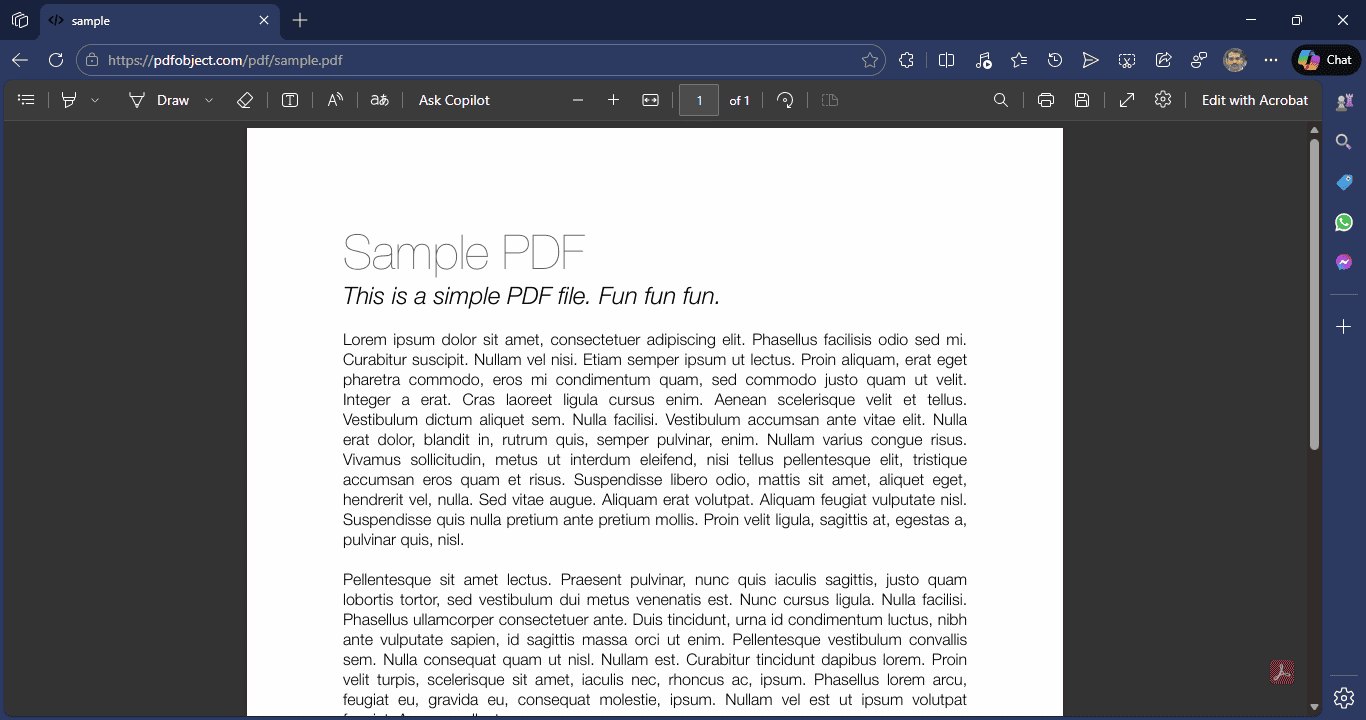
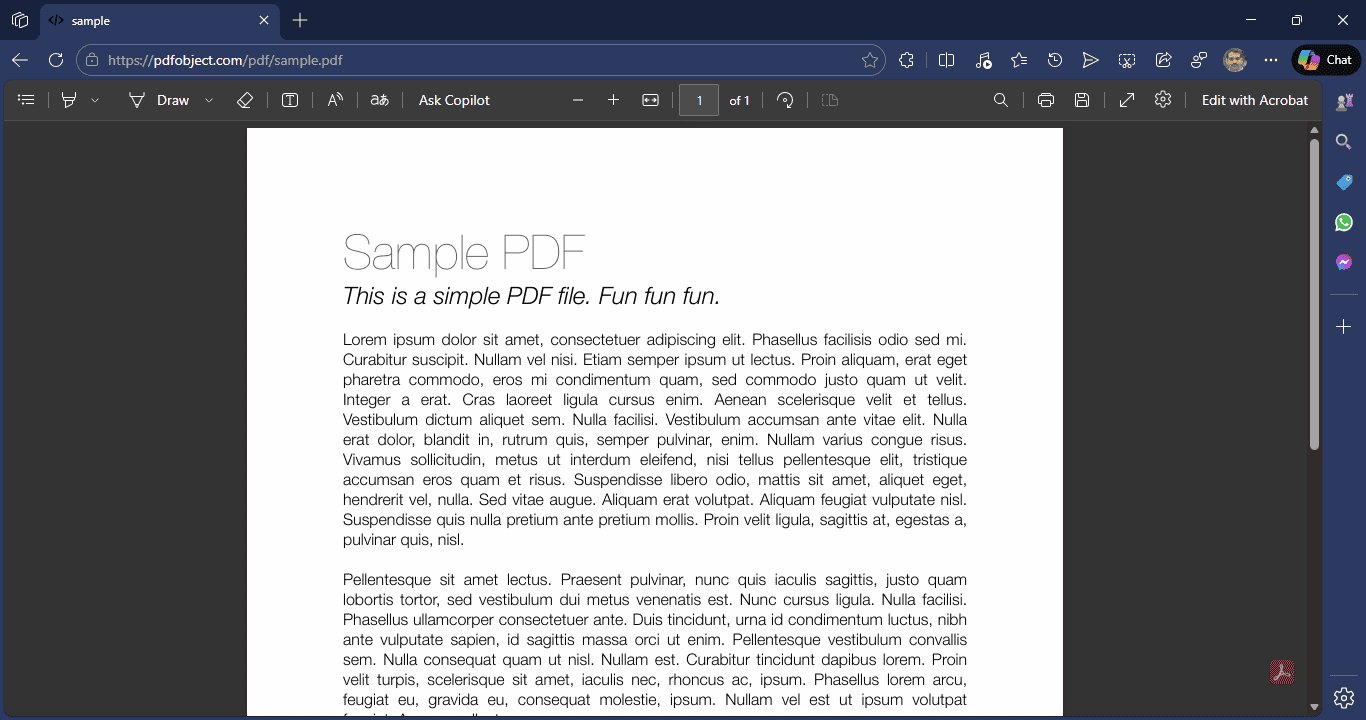
Use the toolbar above the document for the small jobs first: the highlighter and the Draw tools mark up a page, and the Save button on the toolbar writes the annotated version back to disk.
Fix the Usual Print-to-PDF Problems
When the PDF comes out wrong, the cause is almost always one of these four:
"Save as PDF" is missing. Open the Printer drop-down and look for Microsoft Print to PDF instead. If neither appears, update Edge from Settings > About Microsoft Edge and try again.
Images are blank or missing. The page was still loading, or the images load lazily on scroll. Refresh, scroll through the whole page once, then press Ctrl+P again.
"Printing failed" appears. Restart Edge, or print with the built-in viewer closed. Printing fails most often when a site's scripts conflict with the print preview.
The layout is broken. Switch between Portrait and Landscape, and enable Background graphics in More settings to keep colors and table shading.
Edit, Merge, or Compress the Result in WPS Office
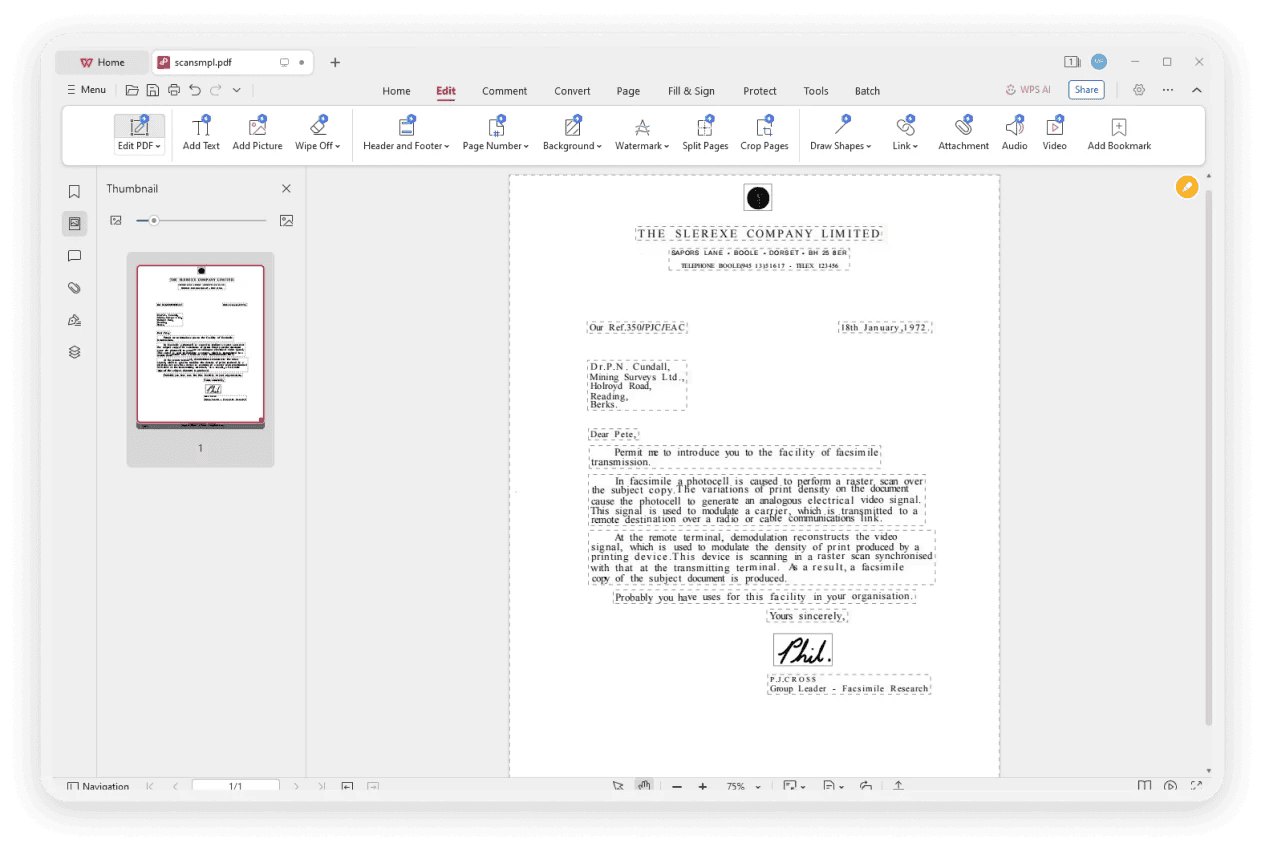
Edge saves the PDF for you, but it does not edit it. When the saved file needs a text fix, a signature, or a smaller file size, open it in WPS Office, which reads the PDF directly.
Open the saved PDF in WPS Office to edit text, add notes, or sign the file without converting formats.
Merge several saved pages into one document, or split a long web export into single pages.
Compress the PDF when a web page saved at full quality weighs several megabytes and you need to attach it to an email.
PDF opened in WPS Office for editing
If the saved layout prints at the wrong paper size, see how to convert a PDF to A4 size, and for vector exports, how to convert a PDF to SVG.
Why WPS Office Works Well Alongside Edge
Edge handles the capture, and WPS Office handles everything that comes after: editing, converting, compressing, and signing.
WPS PDF export menu
Free on every platform: Windows, Mac, Linux and mobile, so a PDF saved in Edge on a laptop opens on a phone in seconds.
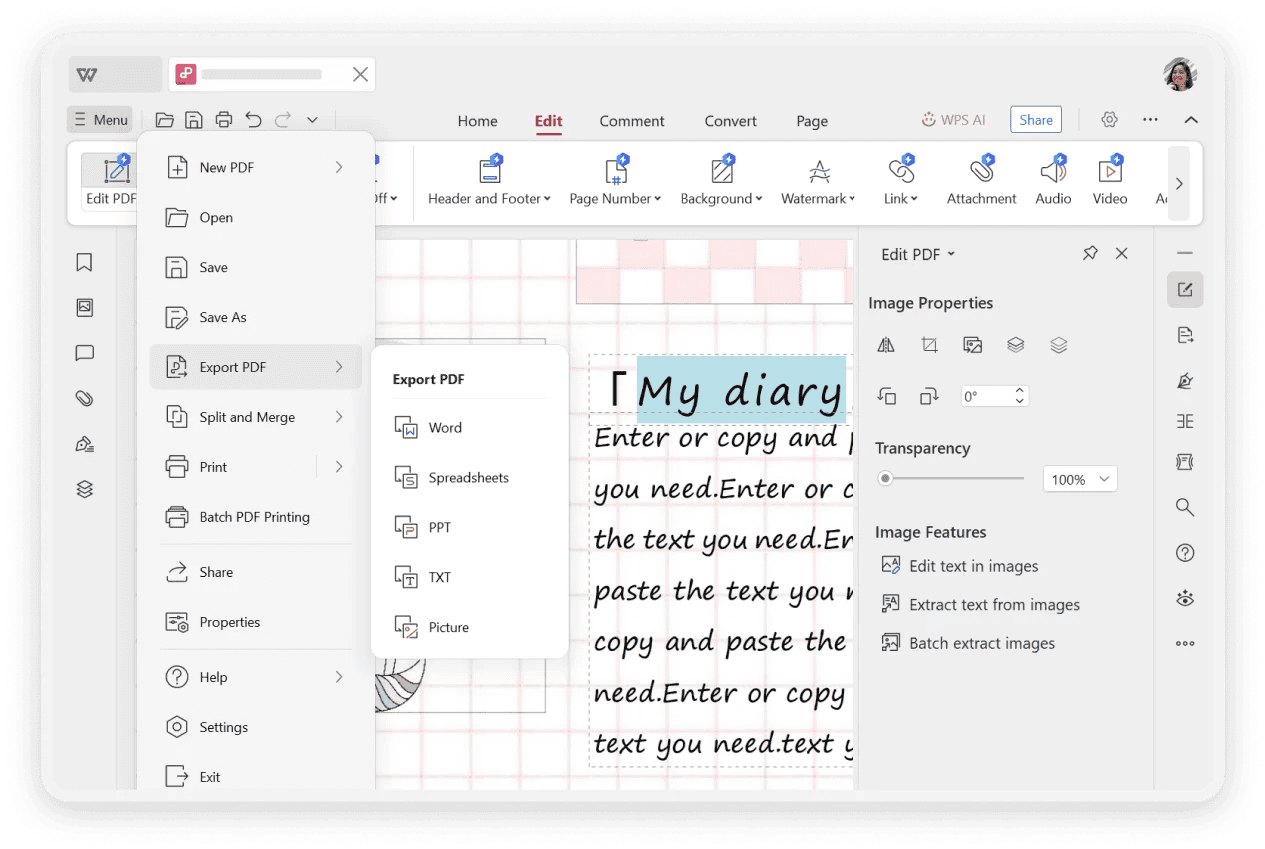
Built-in PDF toolset: edit text and images, merge and split, convert to Word or image, OCR scanned pages, and sign, without installing separate apps.
No ads in your documents: the workspace stays clean while you work through a stack of saved pages.
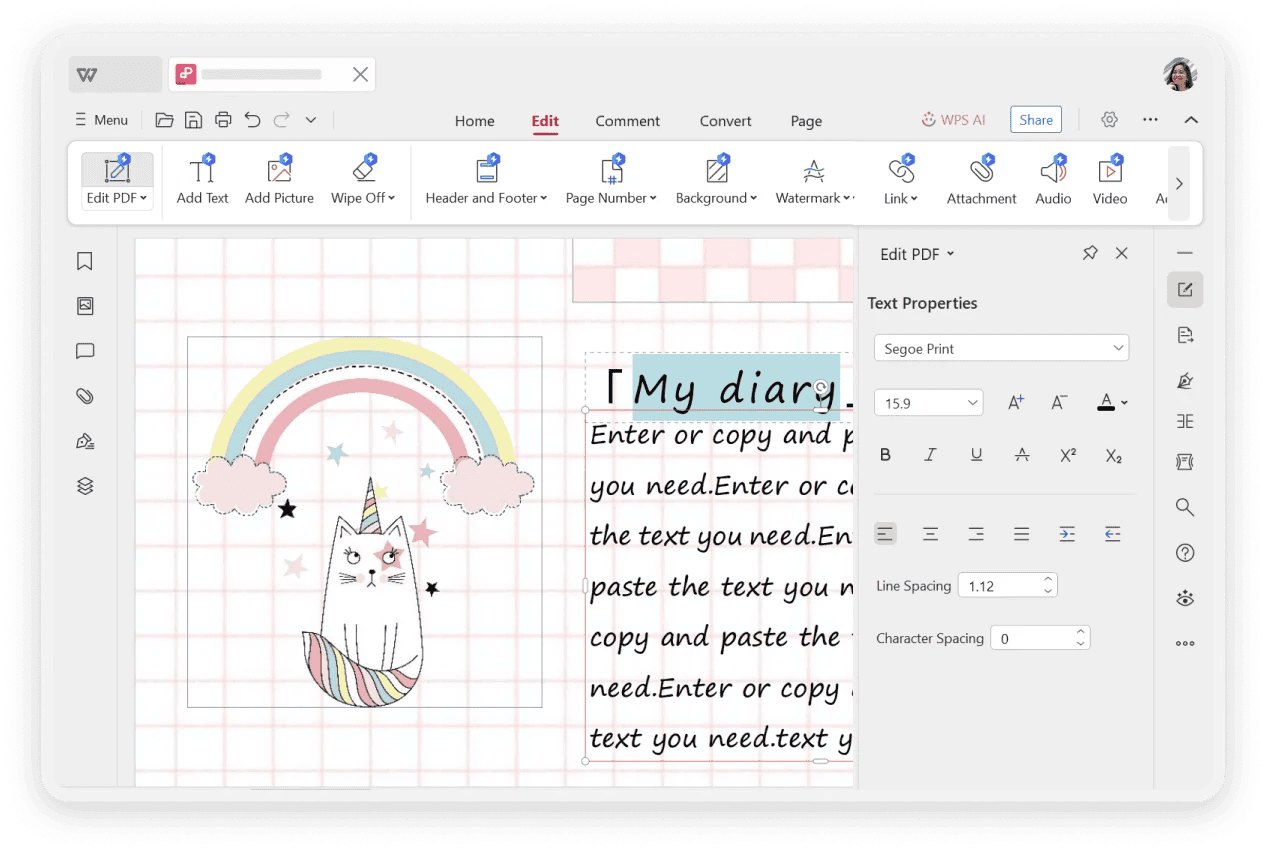
WPS PDF text editing panel
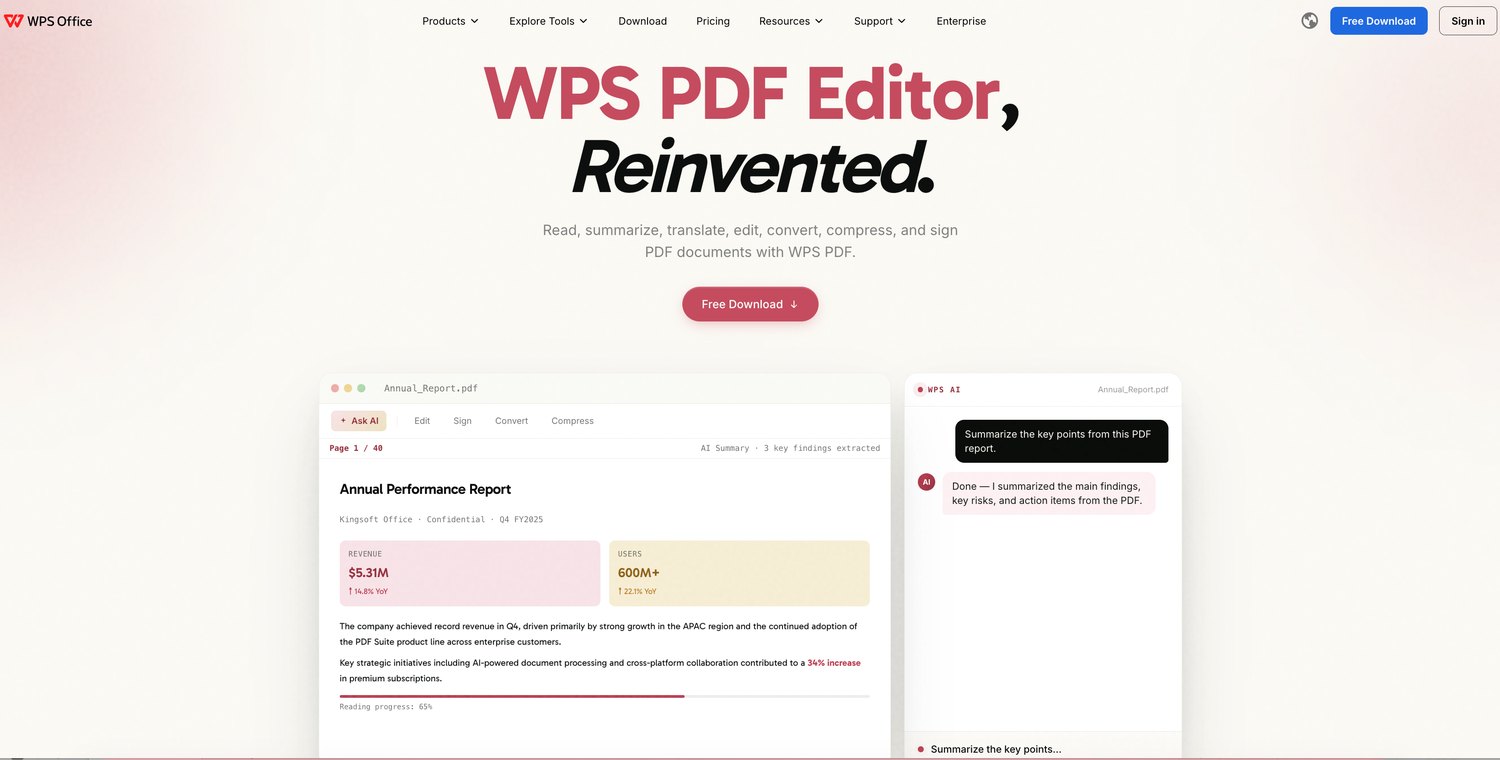
WPS PDF tools website
FAQs
1. How do I save a web page as a PDF in Microsoft Edge?
Open the page, press Ctrl+P (Cmd+P on Mac), choose "Save as PDF" in the Printer drop-down, and click Save. Pick a folder and name the file, and the page is exported as a PDF.
2. Does Edge convert a PDF into a different PDF?
Yes, in the sense of writing a clean copy: open the PDF in Edge, press Ctrl+P, set the destination to "Save as PDF", and save. For real edits, text changes, merging or compression, open the copy in WPS Office.
3. Why can't I see "Save as PDF" in Edge's print dialog?
Look for "Microsoft Print to PDF" in the same Printer drop-down; it does the same job. If neither option appears, update Edge via Settings > About Microsoft Edge and restart the browser.
4. Why are images missing or blank in my saved PDF?
The page was still loading or images load lazily while you scroll. Refresh the page, scroll through it once so every image loads, then press Ctrl+P again. Turn on "Background graphics" in More settings too.
5. Can I save only part of a web page as a PDF in Edge?
Yes. Highlight the text you want, press Ctrl+P, and choose "Selection" under Pages. To keep an article without menus and sidebars, press F9 for Immersive Reader first and print from there.

'%3e%3cpath%20d='M19.9911%204.11386V6.471H18.5894C18.0775%206.471%2017.7322%206.57814%2017.5536%206.79243C17.3751%207.00671%2017.2858%207.32814%2017.2858%207.75671V9.44421H19.9019L19.5536%2012.0871H17.2858V18.8639H14.5536V12.0871H12.2769V9.44421H14.5536V7.49779C14.5536%206.39064%2014.8632%205.53201%2015.4822%204.92189C16.1013%204.31177%2016.9257%204.00671%2017.9554%204.00671C18.8304%204.00671%2019.509%204.04243%2019.9911%204.11386Z'%20fill='%23333333'/%3e%3c/g%3e%3cdefs%3e%3cclipPath%20id='clip0_2938_8199'%3e%3crect%20width='16'%20height='16'%20fill='white'%20transform='translate(8%204.00671)'/%3e%3c/clipPath%3e%3c/defs%3e%3c/svg%3e)
'%3e%3cpath%20d='M17.5237%2010.7813L23.4811%204H22.0699L16.8949%209.88693L12.7648%204H8L14.2469%2012.9029L8%2020.0133H9.4112L14.8725%2013.7952L19.2352%2020.0133H24M9.92053%205.04213H12.0885L22.0688%2019.0224H19.9003'%20fill='%23333333'/%3e%3c/g%3e%3cdefs%3e%3cclipPath%20id='clip0_2938_8200'%3e%3crect%20width='16'%20height='16.0134'%20fill='white'%20transform='translate(8%204)'/%3e%3c/clipPath%3e%3c/defs%3e%3c/svg%3e)


