

'%3e%3cpath%20d='M8%200C12.4183%200%2016%203.58172%2016%208C16%2012.4183%2012.4183%2016%208%2016C3.58172%2016%200%2012.4183%200%208C0%203.58172%203.58172%200%208%200ZM11.6162%204.38379C11.2257%203.99337%2010.5927%203.99338%2010.2021%204.38379L8%206.58594L5.79785%204.38379C5.40732%203.99334%204.77429%203.99329%204.38379%204.38379C3.99331%204.77429%203.99335%205.40733%204.38379%205.79785L6.58594%208L4.38379%2010.2021C3.99348%2010.5927%203.99341%2011.2257%204.38379%2011.6162C4.77426%2012.0066%205.40734%2012.0065%205.79785%2011.6162L8%209.41406L10.2021%2011.6162C10.5927%2012.0066%2011.2257%2012.0067%2011.6162%2011.6162C12.0067%2011.2257%2012.0066%2010.5927%2011.6162%2010.2021L9.41406%208L11.6162%205.79785C12.0066%205.40735%2012.0066%204.77429%2011.6162%204.38379Z'%20fill='%23080E17'%20fill-opacity='0.46'/%3e%3c/g%3e%3cdefs%3e%3cclipPath%20id='clip0_3761_713'%3e%3crect%20width='16'%20height='16'%20fill='white'/%3e%3c/clipPath%3e%3c/defs%3e%3c/svg%3e)




'%3e%3cpath%20fill-rule='evenodd'%20clip-rule='evenodd'%20d='M21.4999%2010.9993C21.4999%205.20009%2016.7986%200.498901%2010.9993%200.498901C5.19994%200.498901%200.498657%205.20009%200.498657%2010.9993C0.498657%2016.2404%204.33858%2020.5844%209.35855%2021.3722V14.0346H6.69238V10.9993H9.35855V8.68594C9.35855%206.05427%2010.9262%204.60062%2013.3248%204.60062C14.4736%204.60062%2015.6753%204.80571%2015.6753%204.80571V7.38979H14.3512C13.0468%207.38979%2012.64%208.19921%2012.64%209.0296V10.9993H15.5523L15.0867%2014.0346H12.64V21.3722C17.66%2020.5844%2021.4999%2016.2404%2021.4999%2010.9993Z'%20fill='%231568EA'/%3e%3c/g%3e%3c/svg%3e)


'%3e%3cpath%20d='M2.42045%2022.1876H6.31818V12.7217L0.75%208.54553V20.5171C0.75%2021.4414%201.49892%2022.1876%202.42045%2022.1876Z'%20fill='%234285F4'/%3e%3cpath%20d='M19.682%2022.1876H23.5797C24.5041%2022.1876%2025.2502%2021.4387%2025.2502%2020.5171V8.54553L19.682%2012.7217'%20fill='%2334A853'/%3e%3cpath%20d='M19.682%205.48293V12.7216L25.2502%208.54543V6.31816C25.2502%204.25236%2022.8921%203.07469%2021.2411%204.31361'%20fill='%23FBBC04'/%3e%3cpath%20d='M6.31824%2012.7217V5.48303L13.0001%2010.4944L19.6819%205.48303V12.7217L13.0001%2017.733'%20fill='%23EA4335'/%3e%3cpath%20d='M0.75%206.31816V8.54543L6.31818%2012.7216V5.48293L4.75909%204.31361C3.10534%203.07469%200.75%204.25236%200.75%206.31816Z'%20fill='%23C5221F'/%3e%3c/g%3e%3cdefs%3e%3cclipPath%20id='clip0_2954_7305'%3e%3crect%20width='24.5'%20height='18.375'%20fill='white'%20transform='translate(0.75%203.8125)'/%3e%3c/clipPath%3e%3c/defs%3e%3c/svg%3e)


Sharing a live spreadsheet is not always practical. The recipient may not have Excel installed, the layout can break in email or chat, and you may not want anyone editing your formulas. Converting Excel to image solves all three problems: the picture keeps your formatting exactly as designed and looks the same everywhere.
This guide walks through the fastest ways to turn a worksheet, a selected range, or a chart into a PNG or JPG image, using WPS Spreadsheet and Microsoft Excel.
How to Convert Excel to Image: Save a Spreadsheet as PNG or JPG
Why Turn an Excel Sheet into an Image?
Excel to image conversion is useful whenever you need a fixed, non-editable snapshot of your data. Common situations include pasting a table into a report or slide deck, sending a monthly summary in an email or group chat, and publishing a table on a website or in documentation.
An image cannot be accidentally changed by the recipient, and it preserves column widths, fonts, colors, and borders exactly as you formatted them. If you plan to send a whole workbook instead, converting Excel to PDF keeps the file searchable, while an image works better for quick viewing and sharing.
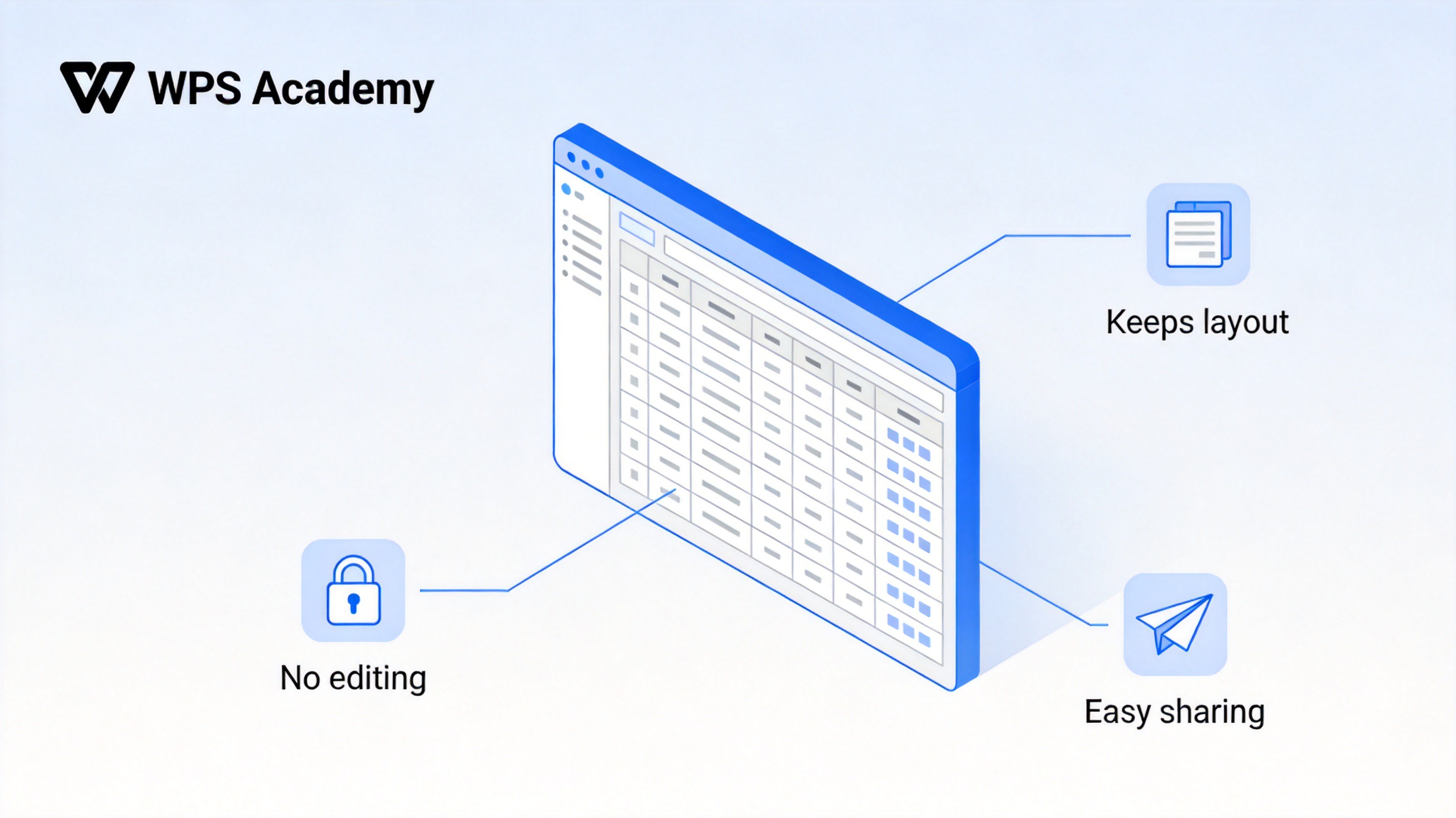
Excel to image benefits overview


How to Convert Excel to Image in WPS Spreadsheet
WPS Spreadsheet offers a quick paste-as-picture workflow. You copy the range, paste it back as an image, then save that image as a file:
Select the range you want to convert, including headers and totals.
Copy it with Ctrl + C (or Cmd + C on Mac).
Click the Paste dropdown on the Home tab.
Choose Paste as Picture. The range reappears in the sheet as a static image.
Right-click the picture and use the save or extract option to export it as a PNG or JPG file.
When you only need part of a large sheet, select just that block first; the picture contains only the selected cells. This screenshot shows the Paste as Picture option in the Home tab menu (illustrative mockup):
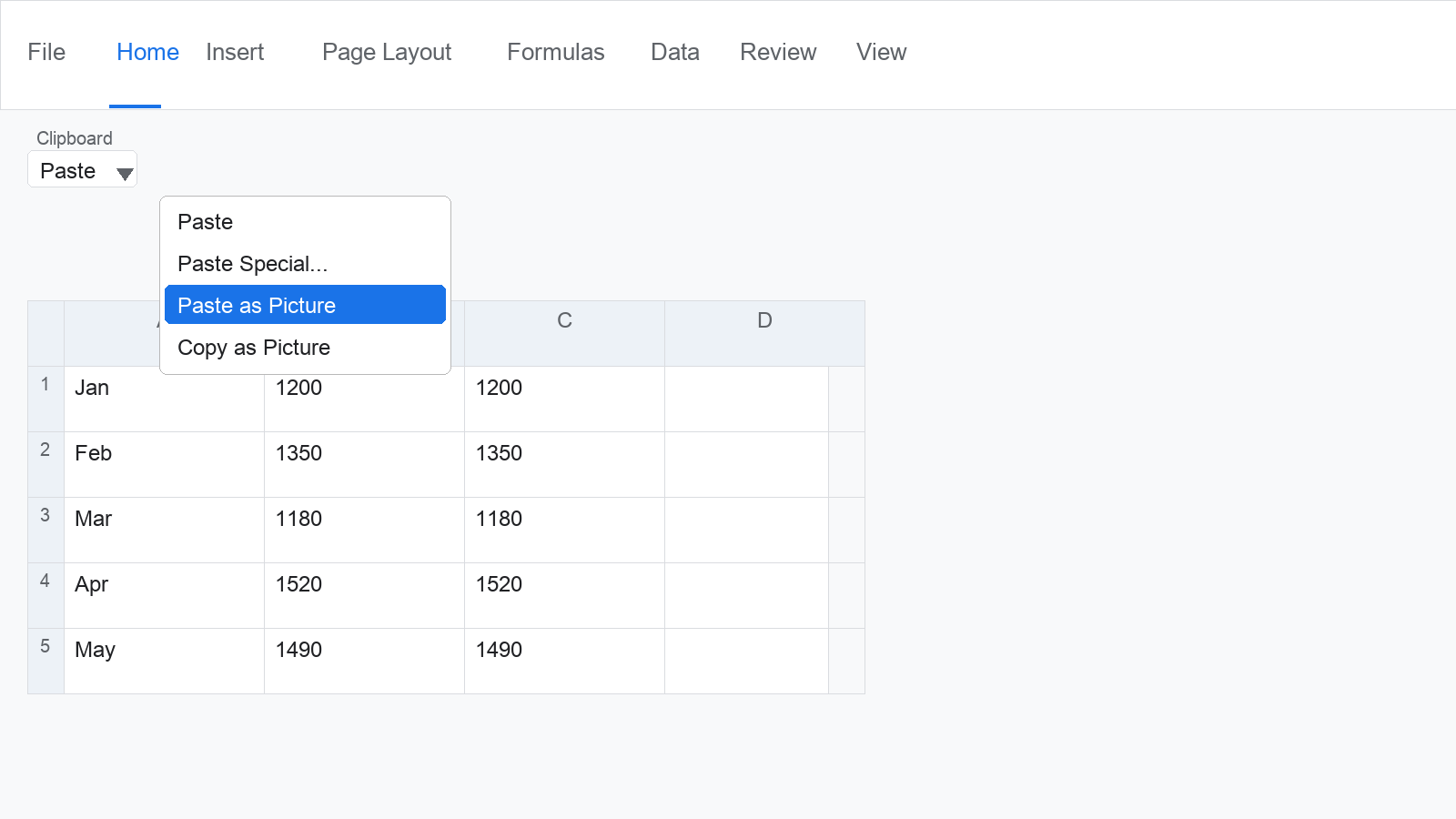
WPS paste as picture menu
How to Convert Excel to Image in Microsoft Excel
Microsoft Excel has a built-in Copy as Picture feature that captures your selection at full quality:
Select the cell range you want to export.
On the Home tab, click the small arrow under the Copy button.
Choose Copy as Picture...
In the dialog, pick As shown on screen and Picture for the sharpest vector-style result, then click OK.
Paste (Ctrl + V) into Paint, Preview, Word, PowerPoint, or an email.
In the image editor, save the file as PNG or JPG.
Two tips improve the result: turn off gridlines first via View > Show > Gridlines for a cleaner picture, and note that As shown when printed uses print formatting instead of the on-screen look. The menu location is shown below (illustrative mockup):
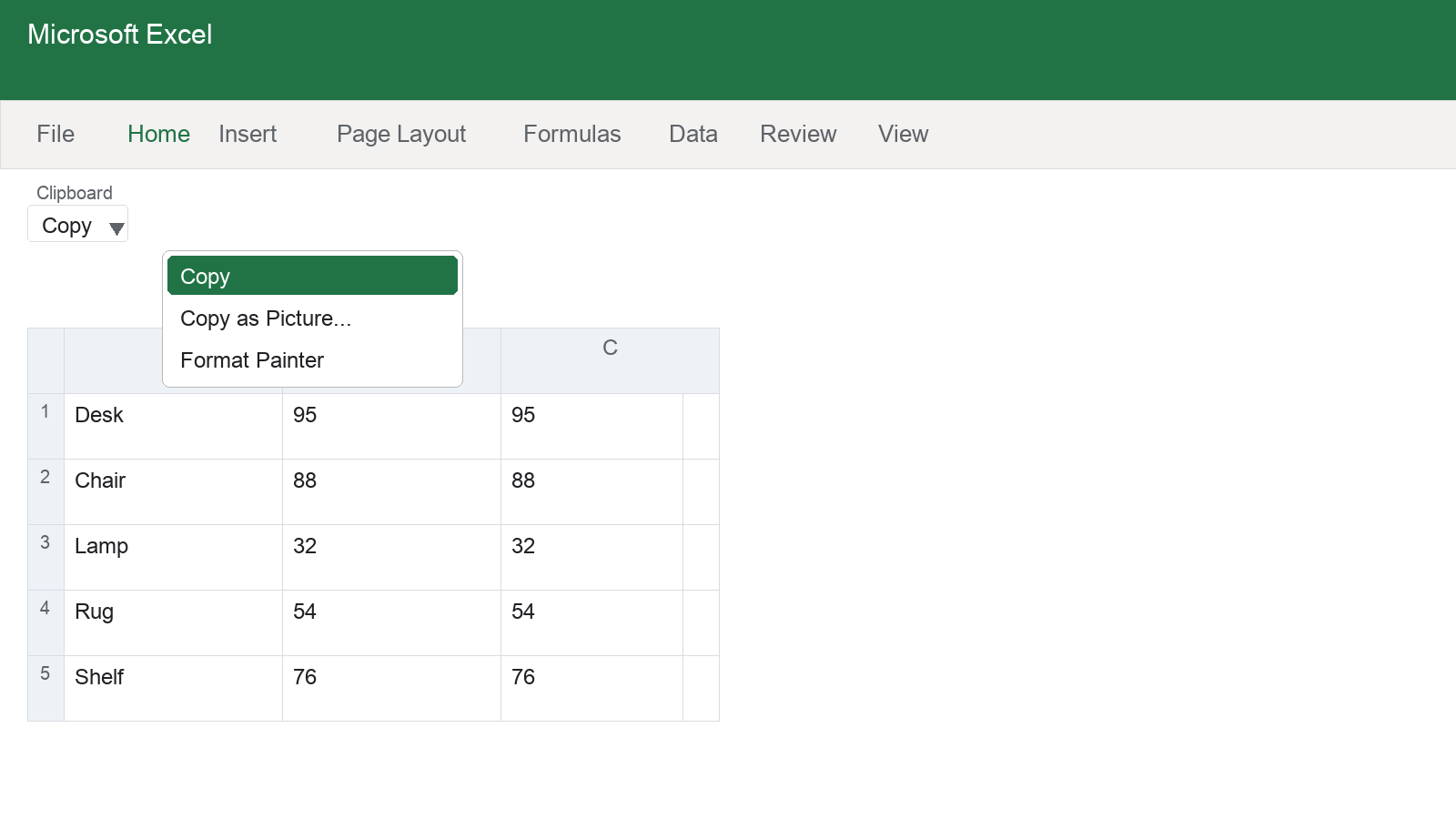
Excel copy as picture dropdown
How to Save an Excel Chart as an Image
Charts are even easier because Excel and WPS Spreadsheet let you export a chart directly as an image file:
Right-click the chart you want to export.
Choose Save as Picture... from the context menu.
Pick a format (PNG is the sharpest choice), set the file name and location, and click Save.
PNG keeps lines and text crisp at any size, which makes it the best option for reports and slides. JPG files are smaller and fine for chat sharing. The context menu is shown here (illustrative mockup):
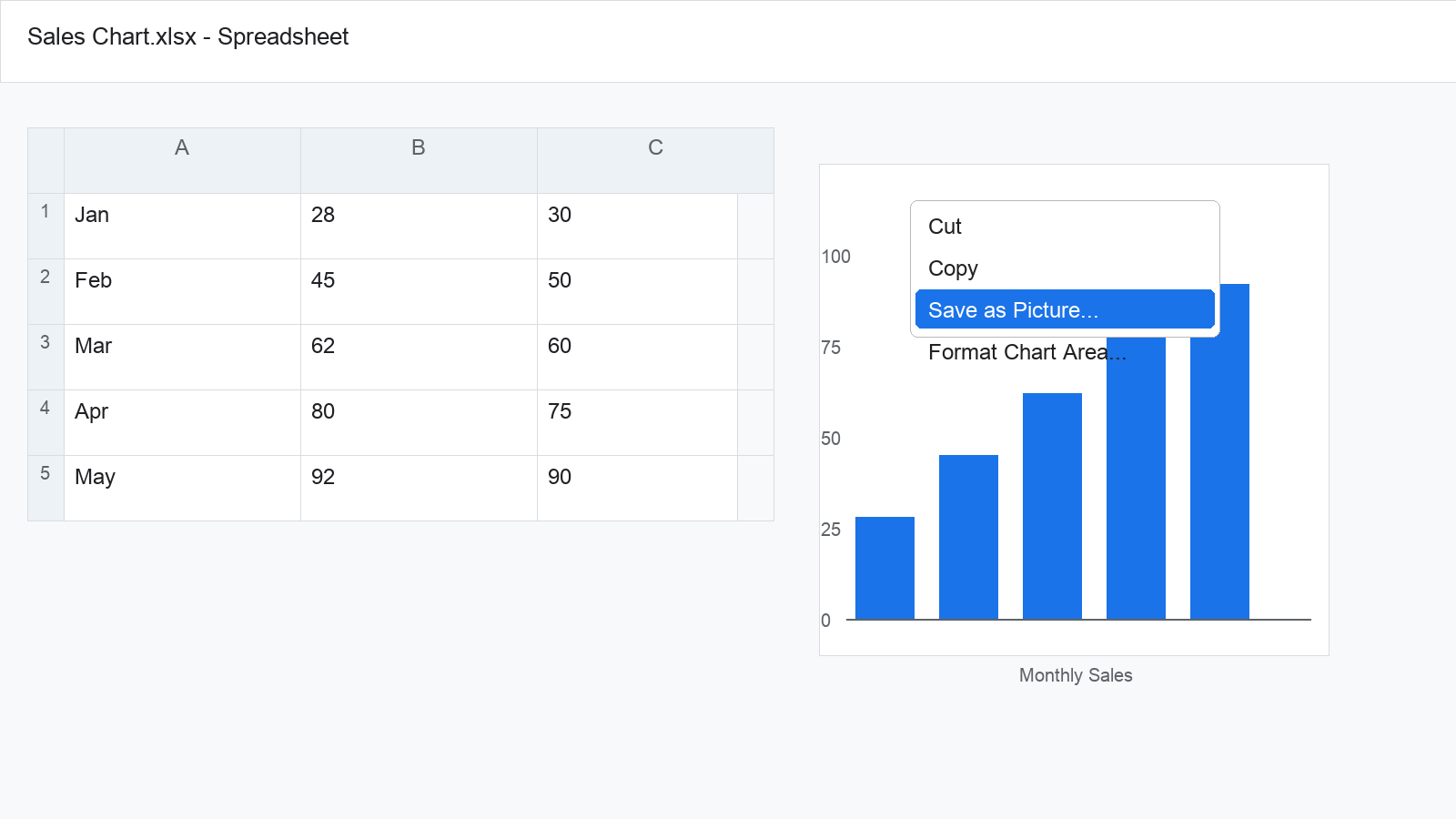
Excel chart save as picture
The Best Free Alternative: WPS Office
If you do not have a Microsoft 365 subscription, WPS Office is a free spreadsheet editor that handles the same Excel to image workflow, including Paste as Picture and chart export. It opens .xlsx and .xls files with high compatibility and includes more than 100 built-in formulas and PivotTables.
You can also paste an Excel range into a WPS Writer document with Paste Special > Picture, or paste a spreadsheet snapshot into a slide deck in one step. For a related task, see how to convert PDF pages to PNG images when your source material arrives as a PDF.
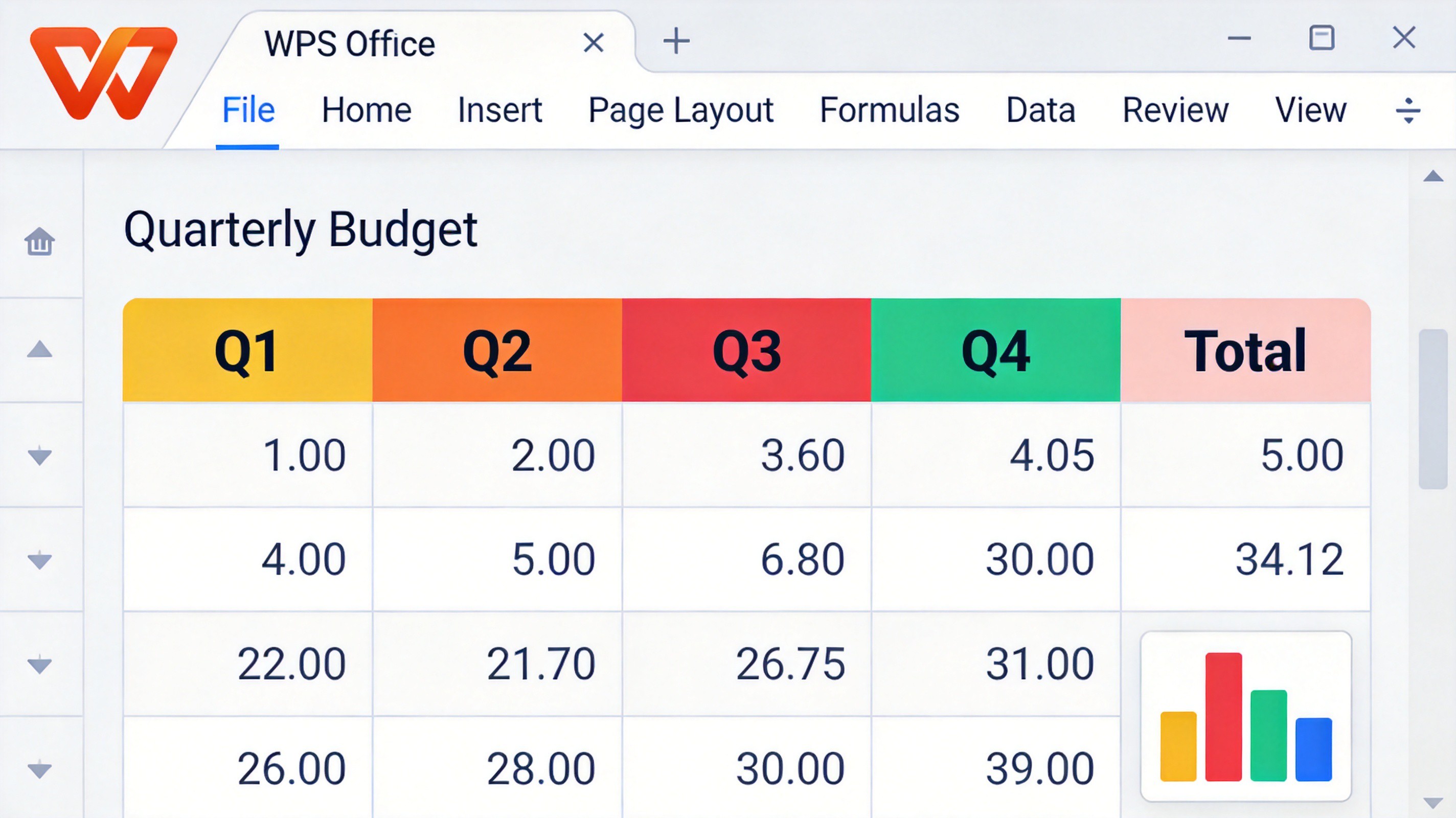
WPS Office spreadsheet interface example
FAQs
How do I convert Excel to image without a screenshot tool?
Use the built-in features instead of a snipping tool. In WPS Spreadsheet, copy the range and choose Paste as Picture, then save the pasted image. In Microsoft Excel, use Home > Copy > Copy as Picture, paste into an image editor, and save as PNG or JPG.
What is the best image format for a spreadsheet picture?
PNG is usually the best choice. It keeps text and table borders sharp and supports transparent backgrounds. JPG compresses more aggressively and can blur thin lines, but it produces smaller files for chat and email.
Why is my pasted Excel picture blurry?
The picture is captured at screen resolution. Increase the zoom level to 150% or 200% before using Copy as Picture, or paste into PowerPoint and save from there, to get a higher-resolution result.
Can I convert an entire multi-page worksheet to images?
Yes. WPS Spreadsheet's Export to Picture feature supports page-by-page output and a merged long image, which suits multi-page reports. In Microsoft Excel, convert the sheet to PDF first, then export the PDF pages as images.
Does converting Excel to image remove my formulas?
The image itself contains only pixels, so formulas are not visible or editable in it. Your original workbook keeps all formulas intact, which is why you should always keep the source file for future updates.


'%3e%3cpath%20d='M19.9911%204.11386V6.471H18.5894C18.0775%206.471%2017.7322%206.57814%2017.5536%206.79243C17.3751%207.00671%2017.2858%207.32814%2017.2858%207.75671V9.44421H19.9019L19.5536%2012.0871H17.2858V18.8639H14.5536V12.0871H12.2769V9.44421H14.5536V7.49779C14.5536%206.39064%2014.8632%205.53201%2015.4822%204.92189C16.1013%204.31177%2016.9257%204.00671%2017.9554%204.00671C18.8304%204.00671%2019.509%204.04243%2019.9911%204.11386Z'%20fill='%23333333'/%3e%3c/g%3e%3cdefs%3e%3cclipPath%20id='clip0_2938_8199'%3e%3crect%20width='16'%20height='16'%20fill='white'%20transform='translate(8%204.00671)'/%3e%3c/clipPath%3e%3c/defs%3e%3c/svg%3e)
'%3e%3cpath%20d='M17.5237%2010.7813L23.4811%204H22.0699L16.8949%209.88693L12.7648%204H8L14.2469%2012.9029L8%2020.0133H9.4112L14.8725%2013.7952L19.2352%2020.0133H24M9.92053%205.04213H12.0885L22.0688%2019.0224H19.9003'%20fill='%23333333'/%3e%3c/g%3e%3cdefs%3e%3cclipPath%20id='clip0_2938_8200'%3e%3crect%20width='16'%20height='16.0134'%20fill='white'%20transform='translate(8%204)'/%3e%3c/clipPath%3e%3c/defs%3e%3c/svg%3e)


