

'%3e%3cpath%20d='M8%200C12.4183%200%2016%203.58172%2016%208C16%2012.4183%2012.4183%2016%208%2016C3.58172%2016%200%2012.4183%200%208C0%203.58172%203.58172%200%208%200ZM11.6162%204.38379C11.2257%203.99337%2010.5927%203.99338%2010.2021%204.38379L8%206.58594L5.79785%204.38379C5.40732%203.99334%204.77429%203.99329%204.38379%204.38379C3.99331%204.77429%203.99335%205.40733%204.38379%205.79785L6.58594%208L4.38379%2010.2021C3.99348%2010.5927%203.99341%2011.2257%204.38379%2011.6162C4.77426%2012.0066%205.40734%2012.0065%205.79785%2011.6162L8%209.41406L10.2021%2011.6162C10.5927%2012.0066%2011.2257%2012.0067%2011.6162%2011.6162C12.0067%2011.2257%2012.0066%2010.5927%2011.6162%2010.2021L9.41406%208L11.6162%205.79785C12.0066%205.40735%2012.0066%204.77429%2011.6162%204.38379Z'%20fill='%23080E17'%20fill-opacity='0.46'/%3e%3c/g%3e%3cdefs%3e%3cclipPath%20id='clip0_3761_713'%3e%3crect%20width='16'%20height='16'%20fill='white'/%3e%3c/clipPath%3e%3c/defs%3e%3c/svg%3e)




'%3e%3cpath%20fill-rule='evenodd'%20clip-rule='evenodd'%20d='M21.4999%2010.9993C21.4999%205.20009%2016.7986%200.498901%2010.9993%200.498901C5.19994%200.498901%200.498657%205.20009%200.498657%2010.9993C0.498657%2016.2404%204.33858%2020.5844%209.35855%2021.3722V14.0346H6.69238V10.9993H9.35855V8.68594C9.35855%206.05427%2010.9262%204.60062%2013.3248%204.60062C14.4736%204.60062%2015.6753%204.80571%2015.6753%204.80571V7.38979H14.3512C13.0468%207.38979%2012.64%208.19921%2012.64%209.0296V10.9993H15.5523L15.0867%2014.0346H12.64V21.3722C17.66%2020.5844%2021.4999%2016.2404%2021.4999%2010.9993Z'%20fill='%231568EA'/%3e%3c/g%3e%3c/svg%3e)


'%3e%3cpath%20d='M2.42045%2022.1876H6.31818V12.7217L0.75%208.54553V20.5171C0.75%2021.4414%201.49892%2022.1876%202.42045%2022.1876Z'%20fill='%234285F4'/%3e%3cpath%20d='M19.682%2022.1876H23.5797C24.5041%2022.1876%2025.2502%2021.4387%2025.2502%2020.5171V8.54553L19.682%2012.7217'%20fill='%2334A853'/%3e%3cpath%20d='M19.682%205.48293V12.7216L25.2502%208.54543V6.31816C25.2502%204.25236%2022.8921%203.07469%2021.2411%204.31361'%20fill='%23FBBC04'/%3e%3cpath%20d='M6.31824%2012.7217V5.48303L13.0001%2010.4944L19.6819%205.48303V12.7217L13.0001%2017.733'%20fill='%23EA4335'/%3e%3cpath%20d='M0.75%206.31816V8.54543L6.31818%2012.7216V5.48293L4.75909%204.31361C3.10534%203.07469%200.75%204.25236%200.75%206.31816Z'%20fill='%23C5221F'/%3e%3c/g%3e%3cdefs%3e%3cclipPath%20id='clip0_2954_7305'%3e%3crect%20width='24.5'%20height='18.375'%20fill='white'%20transform='translate(0.75%203.8125)'/%3e%3c/clipPath%3e%3c/defs%3e%3c/svg%3e)


Mac users often need to compile their JPG images into easily shareable PDF formats for professional documents and academic submissions. However, many users find themselves confused by the Mac’s built-in tools and don’t know how to deal with bulk images. So, what’s the most reliable way to compile images without any hassle? In this guide, I’ll be walking you through how to convert JPG to PDF on Mac preview through a bunch of effective methods to help you simplify the process.


How to Convert JPG to PDF Using Built-in Mac Tools
The first thing I do when I need to convert my JPG to PDFdocument is resort to the built-in tools provided by my MacOS. This is the official and the most reliable way you can use to deal with your files, making sure you don’t have to deal with the trouble of any external software installations. In this section, I’ll be walking you through the entire step-by-step process to make sure you don’t feel lost along the way.
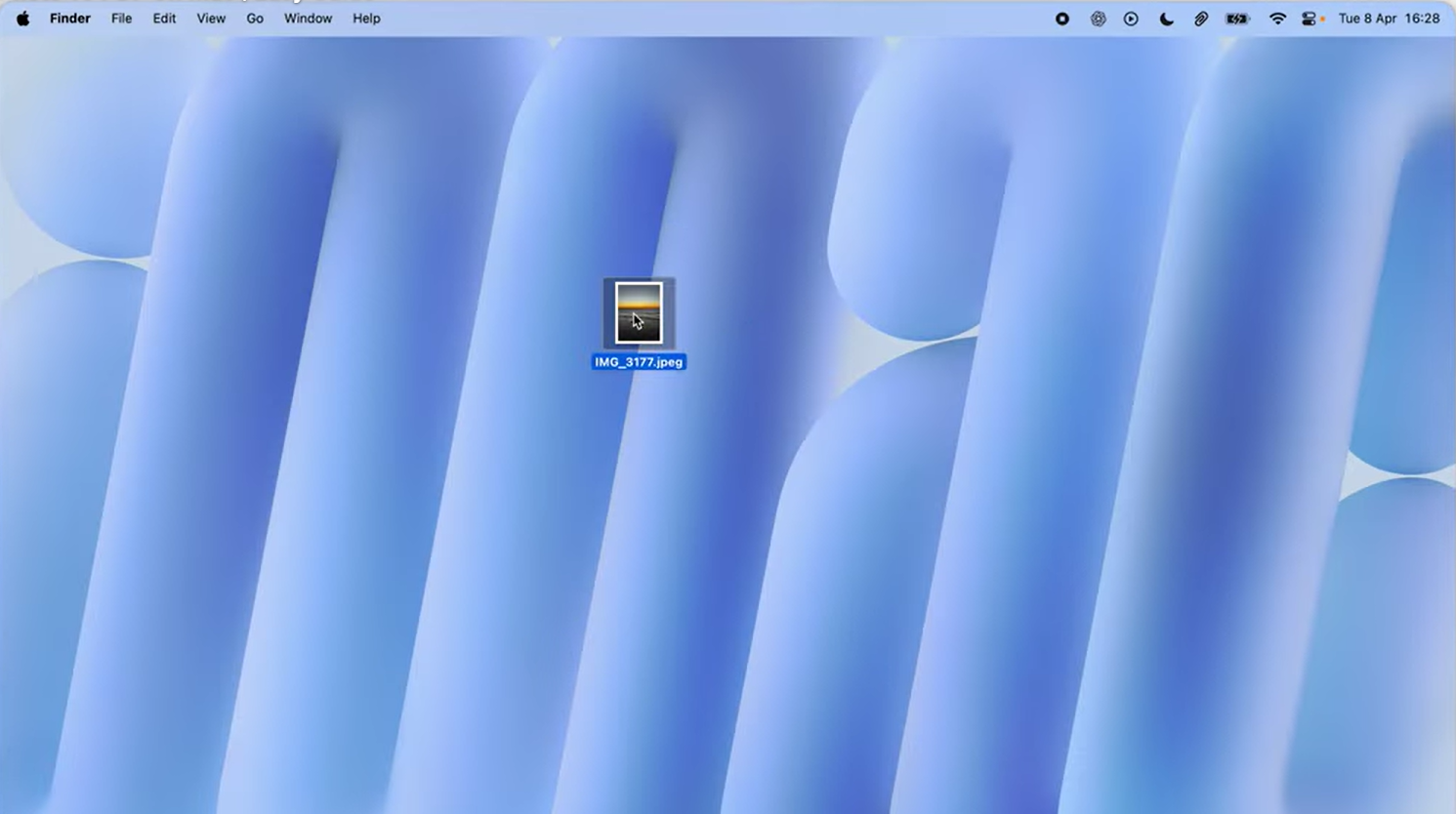
Step 1: Double-click the photo you want to convert to a PDF to open it using Preview.
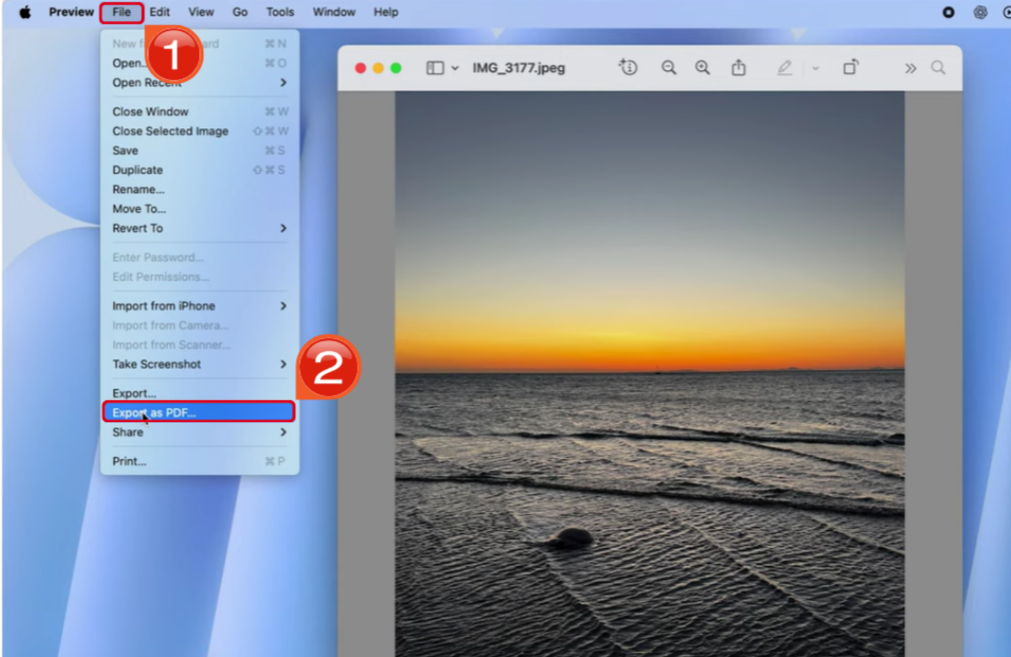
Step 2: Go into the File menu and press Export as PDF to start the conversion process.
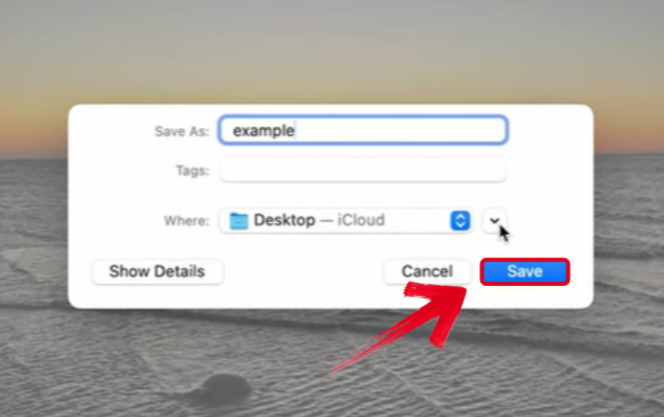
Step 3: Set the name for the PDF, adjust the location if needed, and then press Save to export it.
How to Convert JPG to PDF Using WPS Office on Mac
If you’re looking for an all-in-one tool that will help you with your file conversions, along with providing a comprehensive solution to all your productivity needs, then WPS Office would be a great asset to your workflow. With its native M1/M2 chip support, macOS interface compatibility, iCloud integration, it is the perfect addition to any Mac device for improving your efficiency. In this section, I’ll be walking you through the steps you need to follow to convert JPG to PDF using WPS Office on your Mac.
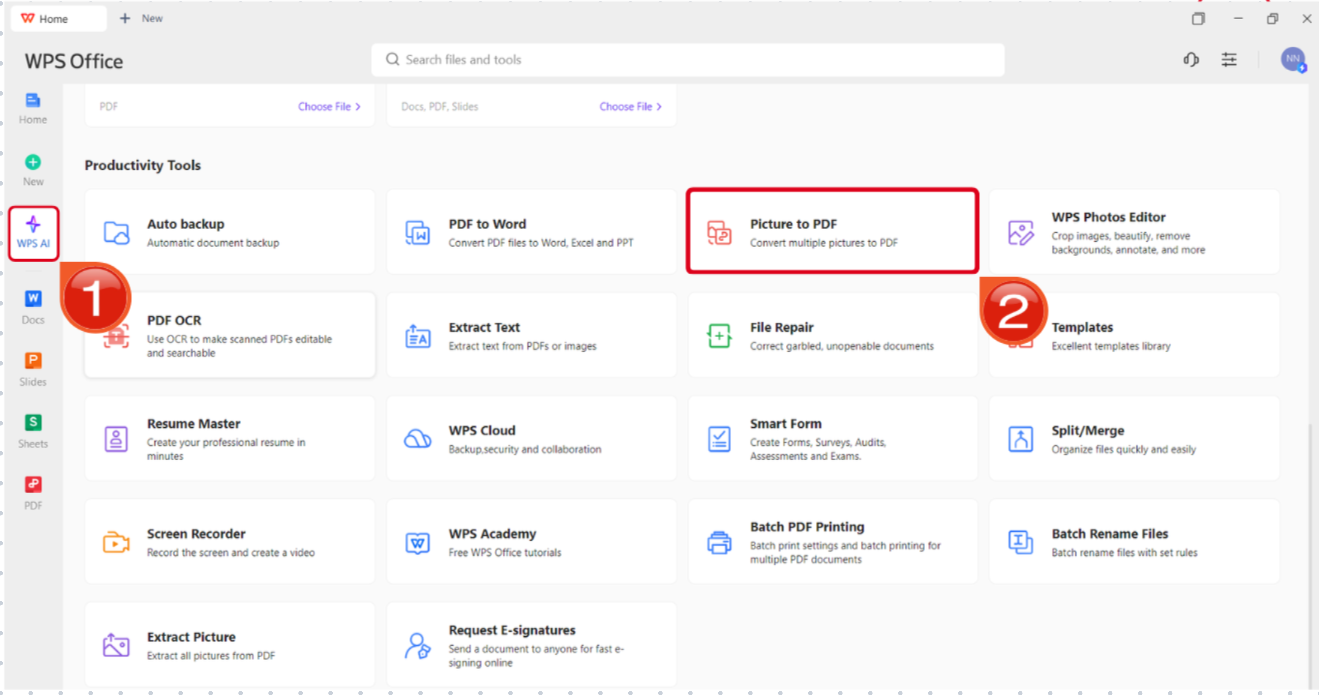
Step 1: Open WPS Office on your Mac and navigate to the WPS AI Window, then select Picture to PDF.
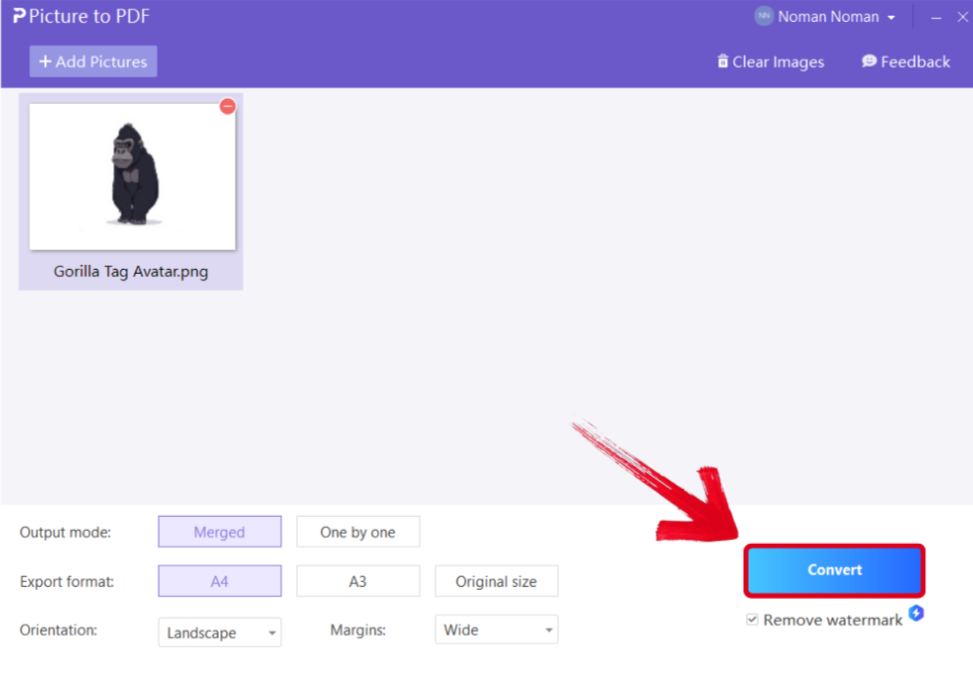
Step 2: Select the pictures you want to convert, then select Convert to start the process.
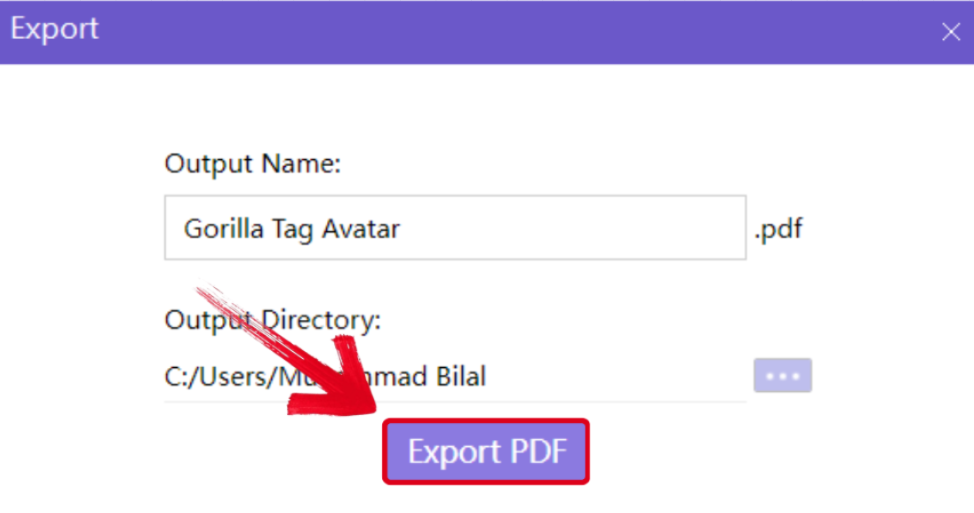
Step 3: Once the process has been completed, simply name your PDF file and press ExportPDF to save it to your device.
How to Convert JPG to PDF Using Online Tools
Dealing with lengthy installations and setup procedures can be difficult, especially if you’re dealing with slow internet connections. You can simplify the process by using online web-based tools to free convert JPG to PDF on Mac devices. They’re incredibly reliable and provide cross-platform availability, ensuring you can do all your work from any device as long as you have a web browser. There are many tools to choose from, and I’ve narrowed them down to 3 of the most reliable options in the comparison table below to help you choose the right one for yourself.
| Feature | WPS PDF | SmallPDF | ILovePDF |
|---|---|---|---|
| Free Usage | Unlimited | Limited | Limited |
| Batch Conversion | Supported | Supported | Supported |
| File Size Limit | 50 MB | 50 MB | 50 MB |
| Mac Compatibility | Excellent | Good | Good |
| Additional Editing | Extensive | Basic | Basic |
WPS PDF proved to be the most reliable option for me, providing me complete control over my files and useful tools to help simplify the process. I’ll be covering the step-by-step guide to converting your JPG files to PDF down below to help you get rid of any confusion in the process.
Step 1: Launch WPS Online Tool on your web browser and upload the pictures you want to use.
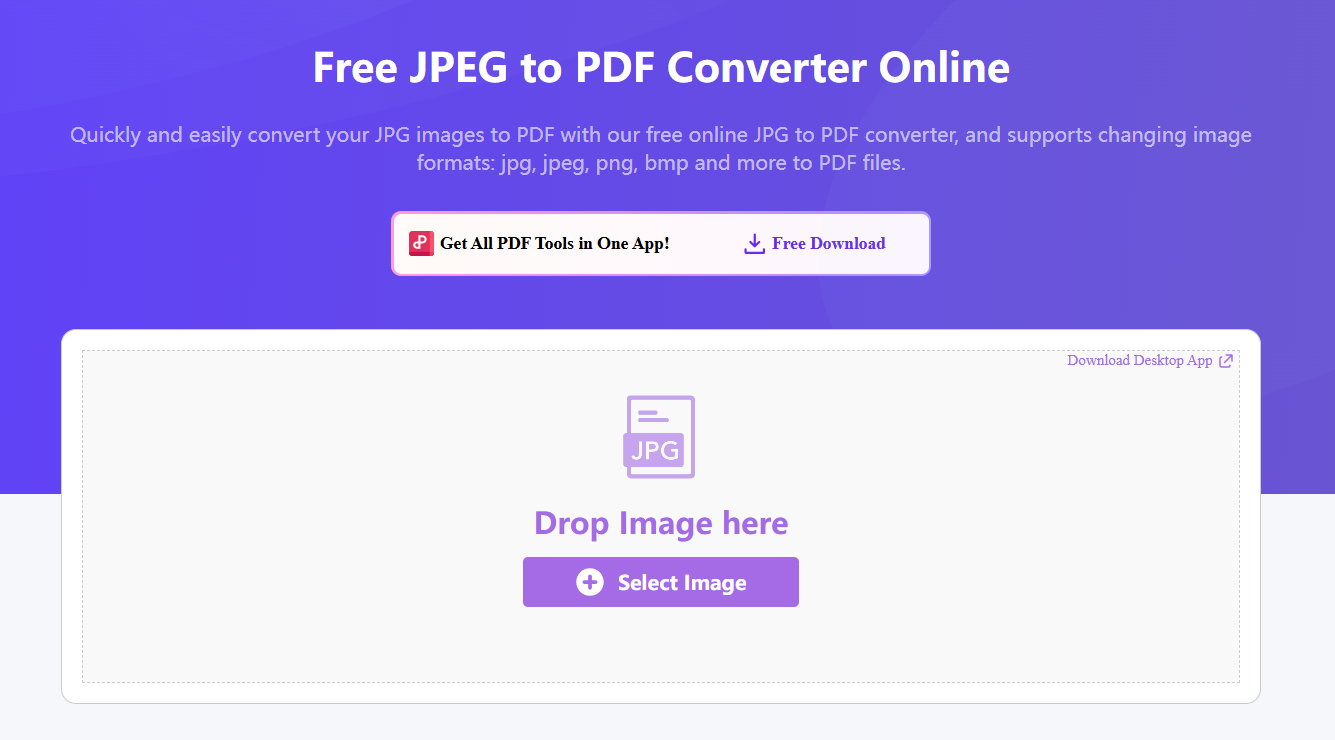
Step 2: Once your images have been uploaded, press Convert to start the process.
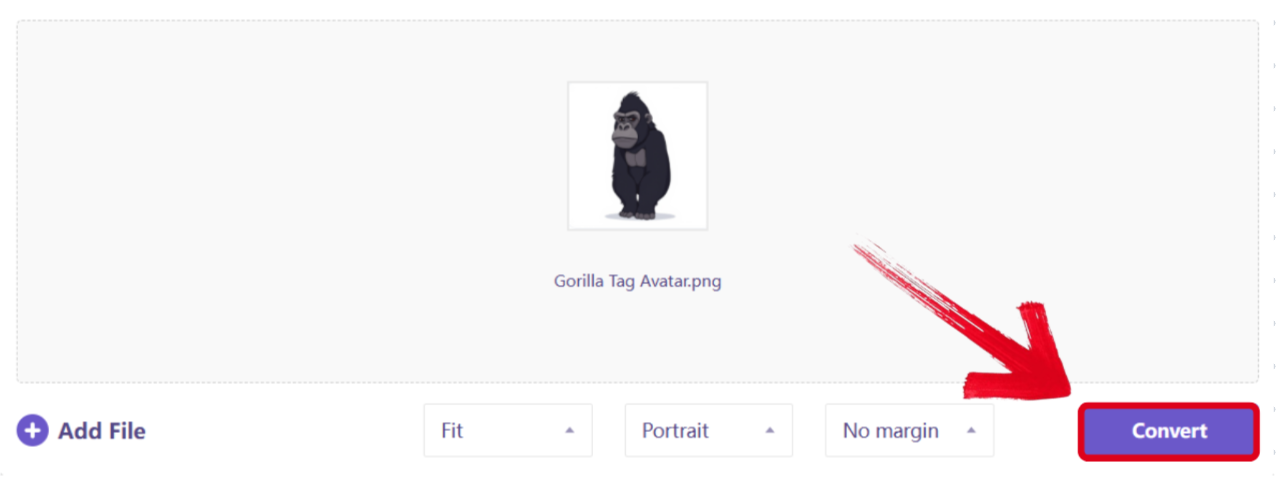
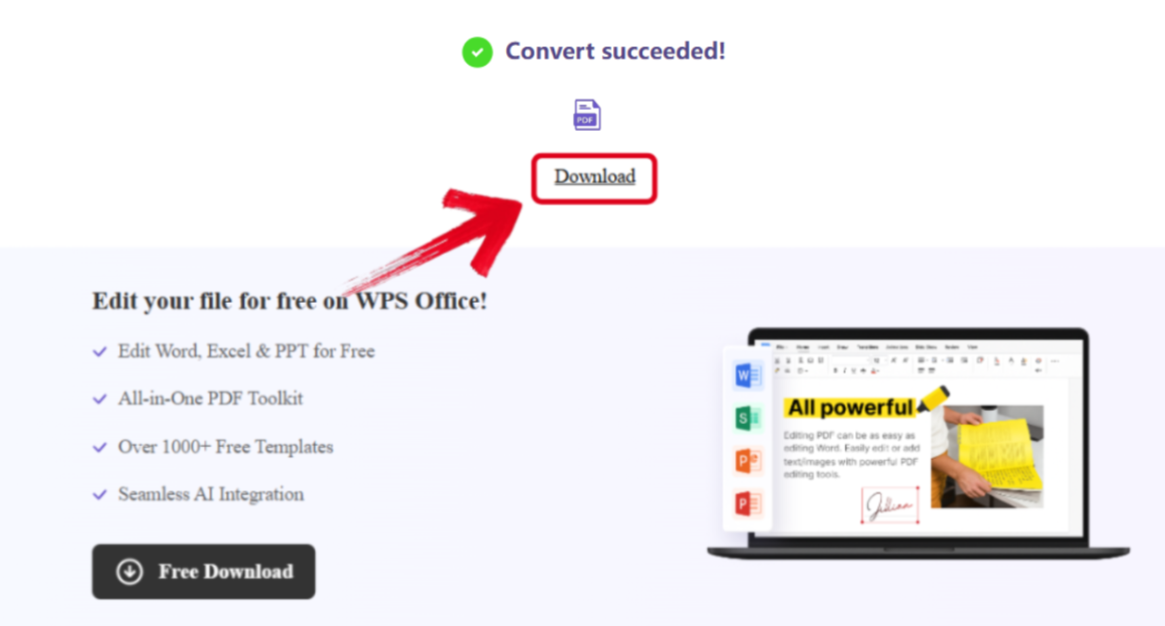
Step 3: After your images are done converting to a PDF, simply press Download to save it to your device.
Why Choose WPS Office for JPG to PDF Conversion on Mac
Dealing with different file formats can feel unnecessarily stressful, especially when every small task seems to require a separate tool. Even something simple like trying to convert jpg to pdf mac preview often sends people searching for workarounds. A more practical approach is to use an all-in-one workspace like WPS Office. It brings several conversion and editing tools together in one place, making routine tasks easier and more consistent. It’s free to use and handles common file conversions quickly without complicating your workflow.
FAQs
Q1. What is the fastest way to convert a single JPG to PDF on Mac?
The quickest method is using Quick Look with the Print option. Select the JPG, press Spacebar to open Quick Look, choose Print, then select Save as PDF. It only takes a few seconds.
Q2. Can I convert multiple JPG files into one PDF document on Mac?
Yes. Preview allows you to drag all JPGs into the sidebar and export them as a single PDF. WPS Office also supports multi image PDF creation and provides more control over image order and output quality.
Q3. Will converting JPG to PDF reduce the image quality?
A proper conversion maintains the original quality. Both Preview and WPS Office offer quality controls. Choose the highest available quality and avoid unnecessary compression for the best results.
Q4. Can I rearrange images before exporting to PDF?
Yes. In Preview, simply drag images up or down in the sidebar. WPS Office also lets you reorder files with more precision before exporting.
Q5. Is there a way to compress the final PDF without losing visible quality?
Yes. Preview can export with a reduced file size, and WPS Office offers more controlled compression. Use moderate compression to keep the file small while maintaining clear image quality.

'%3e%3cpath%20d='M19.9911%204.11386V6.471H18.5894C18.0775%206.471%2017.7322%206.57814%2017.5536%206.79243C17.3751%207.00671%2017.2858%207.32814%2017.2858%207.75671V9.44421H19.9019L19.5536%2012.0871H17.2858V18.8639H14.5536V12.0871H12.2769V9.44421H14.5536V7.49779C14.5536%206.39064%2014.8632%205.53201%2015.4822%204.92189C16.1013%204.31177%2016.9257%204.00671%2017.9554%204.00671C18.8304%204.00671%2019.509%204.04243%2019.9911%204.11386Z'%20fill='%23333333'/%3e%3c/g%3e%3cdefs%3e%3cclipPath%20id='clip0_2938_8199'%3e%3crect%20width='16'%20height='16'%20fill='white'%20transform='translate(8%204.00671)'/%3e%3c/clipPath%3e%3c/defs%3e%3c/svg%3e)
'%3e%3cpath%20d='M17.5237%2010.7813L23.4811%204H22.0699L16.8949%209.88693L12.7648%204H8L14.2469%2012.9029L8%2020.0133H9.4112L14.8725%2013.7952L19.2352%2020.0133H24M9.92053%205.04213H12.0885L22.0688%2019.0224H19.9003'%20fill='%23333333'/%3e%3c/g%3e%3cdefs%3e%3cclipPath%20id='clip0_2938_8200'%3e%3crect%20width='16'%20height='16.0134'%20fill='white'%20transform='translate(8%204)'/%3e%3c/clipPath%3e%3c/defs%3e%3c/svg%3e)


