

'%3e%3cpath%20d='M8%200C12.4183%200%2016%203.58172%2016%208C16%2012.4183%2012.4183%2016%208%2016C3.58172%2016%200%2012.4183%200%208C0%203.58172%203.58172%200%208%200ZM11.6162%204.38379C11.2257%203.99337%2010.5927%203.99338%2010.2021%204.38379L8%206.58594L5.79785%204.38379C5.40732%203.99334%204.77429%203.99329%204.38379%204.38379C3.99331%204.77429%203.99335%205.40733%204.38379%205.79785L6.58594%208L4.38379%2010.2021C3.99348%2010.5927%203.99341%2011.2257%204.38379%2011.6162C4.77426%2012.0066%205.40734%2012.0065%205.79785%2011.6162L8%209.41406L10.2021%2011.6162C10.5927%2012.0066%2011.2257%2012.0067%2011.6162%2011.6162C12.0067%2011.2257%2012.0066%2010.5927%2011.6162%2010.2021L9.41406%208L11.6162%205.79785C12.0066%205.40735%2012.0066%204.77429%2011.6162%204.38379Z'%20fill='%23080E17'%20fill-opacity='0.46'/%3e%3c/g%3e%3cdefs%3e%3cclipPath%20id='clip0_3761_713'%3e%3crect%20width='16'%20height='16'%20fill='white'/%3e%3c/clipPath%3e%3c/defs%3e%3c/svg%3e)




'%3e%3cpath%20fill-rule='evenodd'%20clip-rule='evenodd'%20d='M21.4999%2010.9993C21.4999%205.20009%2016.7986%200.498901%2010.9993%200.498901C5.19994%200.498901%200.498657%205.20009%200.498657%2010.9993C0.498657%2016.2404%204.33858%2020.5844%209.35855%2021.3722V14.0346H6.69238V10.9993H9.35855V8.68594C9.35855%206.05427%2010.9262%204.60062%2013.3248%204.60062C14.4736%204.60062%2015.6753%204.80571%2015.6753%204.80571V7.38979H14.3512C13.0468%207.38979%2012.64%208.19921%2012.64%209.0296V10.9993H15.5523L15.0867%2014.0346H12.64V21.3722C17.66%2020.5844%2021.4999%2016.2404%2021.4999%2010.9993Z'%20fill='%231568EA'/%3e%3c/g%3e%3c/svg%3e)


'%3e%3cpath%20d='M2.42045%2022.1876H6.31818V12.7217L0.75%208.54553V20.5171C0.75%2021.4414%201.49892%2022.1876%202.42045%2022.1876Z'%20fill='%234285F4'/%3e%3cpath%20d='M19.682%2022.1876H23.5797C24.5041%2022.1876%2025.2502%2021.4387%2025.2502%2020.5171V8.54553L19.682%2012.7217'%20fill='%2334A853'/%3e%3cpath%20d='M19.682%205.48293V12.7216L25.2502%208.54543V6.31816C25.2502%204.25236%2022.8921%203.07469%2021.2411%204.31361'%20fill='%23FBBC04'/%3e%3cpath%20d='M6.31824%2012.7217V5.48303L13.0001%2010.4944L19.6819%205.48303V12.7217L13.0001%2017.733'%20fill='%23EA4335'/%3e%3cpath%20d='M0.75%206.31816V8.54543L6.31818%2012.7216V5.48293L4.75909%204.31361C3.10534%203.07469%200.75%204.25236%200.75%206.31816Z'%20fill='%23C5221F'/%3e%3c/g%3e%3cdefs%3e%3cclipPath%20id='clip0_2954_7305'%3e%3crect%20width='24.5'%20height='18.375'%20fill='white'%20transform='translate(0.75%203.8125)'/%3e%3c/clipPath%3e%3c/defs%3e%3c/svg%3e)


Searching sejda word to pdf usually means you need a fast browser converter that turns a .docx file into a shareable PDF while keeping fonts, layout, and images intact. Top Google results for this keyword typically combine a short Sejda how-to, troubleshooting tips (when conversion fails), and a stronger alternative for people who hit free limits or prefer offline tools.
This guide shows how to use Sejda’s Word to PDF converter step by step, explains common failure fixes, then recommends WPS Office when you need formatting-safe export, bookmarks, batch conversion, or local privacy.
1. What Is Sejda Word to PDF?
Sejda word to pdf is Sejda’s online tool that creates a PDF document from a Microsoft Word .docx file. You upload the Word document in your browser, convert it, and download the PDF — no desktop install required for the web version.
According to Sejda’s Word to PDF page, free online use typically covers documents up to about 200 pages or 50 MB with up to 3 tasks per hour. Files stay private and are deleted after 2 hours. For a broader look at Sejda’s full toolkit, read our overview of the sejda pdf editor.
2. How to Convert Word to PDF with Sejda Free Online
Here is a practical sejda word to pdf walkthrough based on Sejda’s official converter and common how-to pages ranking for this keyword:
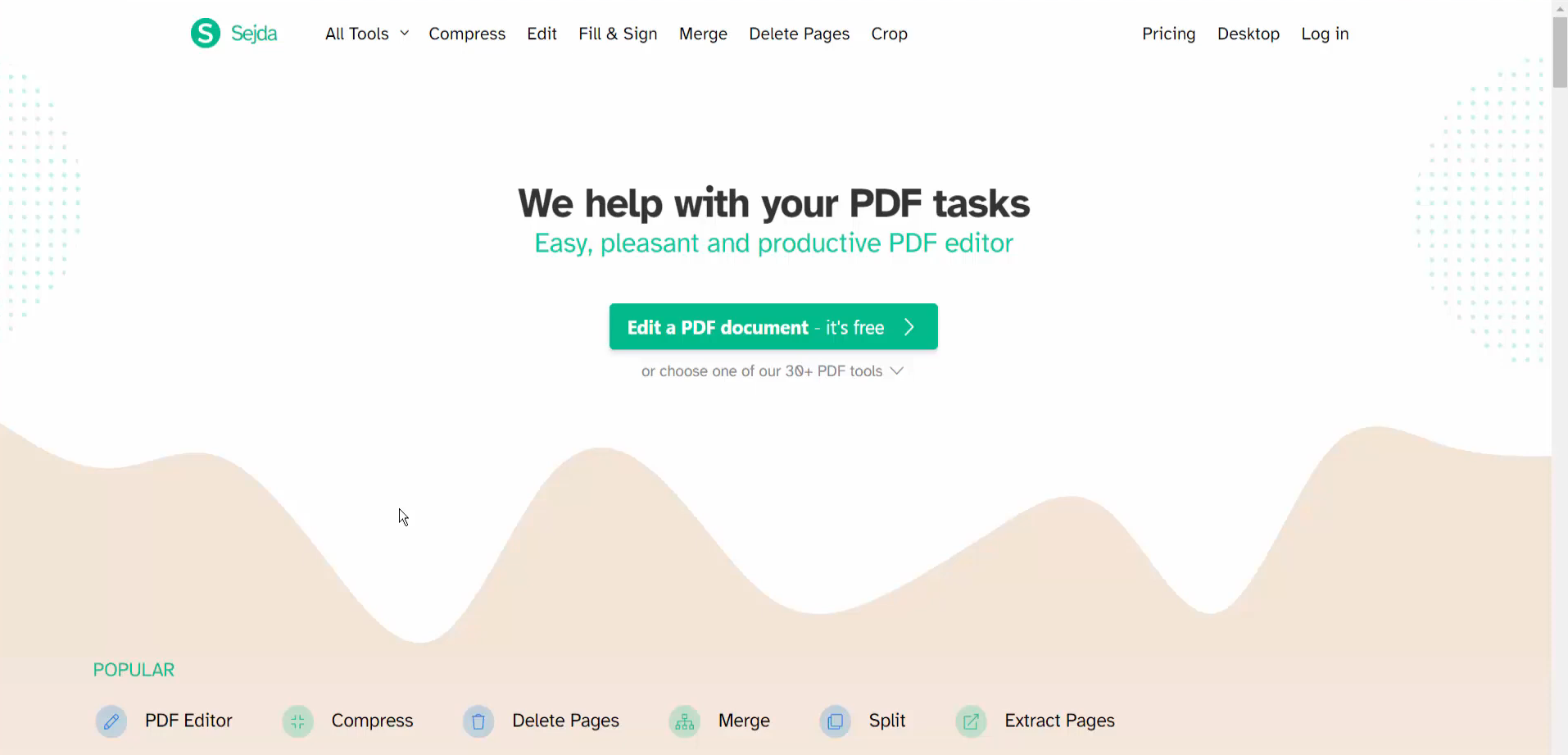
Step 1: Open the Word to PDF tool
Go to Sejda’s website, open All Tools, and select Word to PDF (or open the Word to PDF page directly).
Step 2: Upload your Word file
Click Upload (or drag and drop) and choose a .docx file. You can also import from Google Drive, Dropbox, or OneDrive. Prefer offline conversion? Sejda Desktop keeps processing on your computer.
Step 3: Convert and download
Start the conversion, wait for processing to finish, then download your new PDF. Keep free-plan limits in mind if you convert multiple files in one hour.
Tip: For best results, upload .docx rather than older .doc formats. Large image-heavy files may convert more reliably if you compress images first or split long documents.
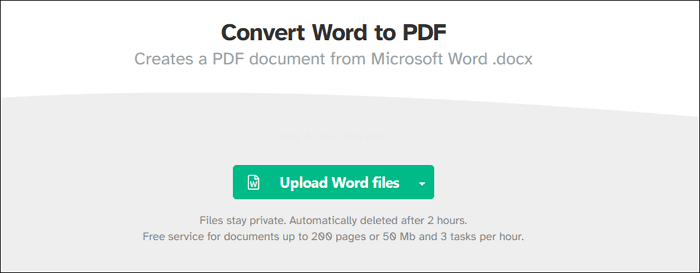
Sejda Convert Word to PDF page with Upload Word files button and free service limits
3. Why Sejda Word to PDF May Not Work (Quick Fixes)
Ranking guides for sejda word to pdf almost always include a troubleshooting section. Use these fixes when upload or conversion stalls:
File format: Convert older .doc files to .docx before upload.
File too large: Reduce images, split pages, or stay within free size limits (about 50 MB / 200 pages).
Unstable internet: Switch to a stronger connection and re-upload.
Browser issues: Clear cache, disable blocking extensions, or try another browser.
Corrupt Word file: Open the document, re-save as a new .docx, then retry.
Temporary upload/server errors: Wait a few minutes and convert again — free hourly limits or traffic can also cause failures.
If you are worried about uploading sensitive essays, contracts, or resumes to a cloud converter, it is worth checking whether is sejda safe for your use case — or switching to an offline office suite.
Frequent converters may also care about plan limits. If free-task caps block batch jobs, review options around a sejda license key / Premium access, or move to a free desktop workflow with WPS.


4. Best Alternative to Sejda Word to PDF: WPS Office
When online limits, formatting drift, or privacy become problems, WPS Office is a strong alternative for Word → PDF conversion — especially for students, teachers, and recurring document work.
Based on WPS Writer / PDF workflows commonly recommended for academic and teaching documents, WPS stands out because you can:
Convert offline with Save As PDF or Export to PDF — no forced hourly web-task ceiling for everyday desktop use.
Preserve structure using Export to PDF advanced settings (including bookmarks), which helps long essays, theses, and handouts stay navigable.
Keep formatting stable for resumes, lesson plans, and submissions that must look the same on every device.
Stay in one suite after conversion — edit the PDF, compress, sign, or continue writing in Writer without hopping between single-purpose sites.
Use batch export (premium) when you need to convert multiple Word files at once.
How to Convert Word to PDF with WPS Writer (Desktop)
Method A — Save As PDF (fastest for everyday files)
Step 1: Open your Word document in WPS Writer.
Step 2: Open the Menu and choose Save as → Other Formats.
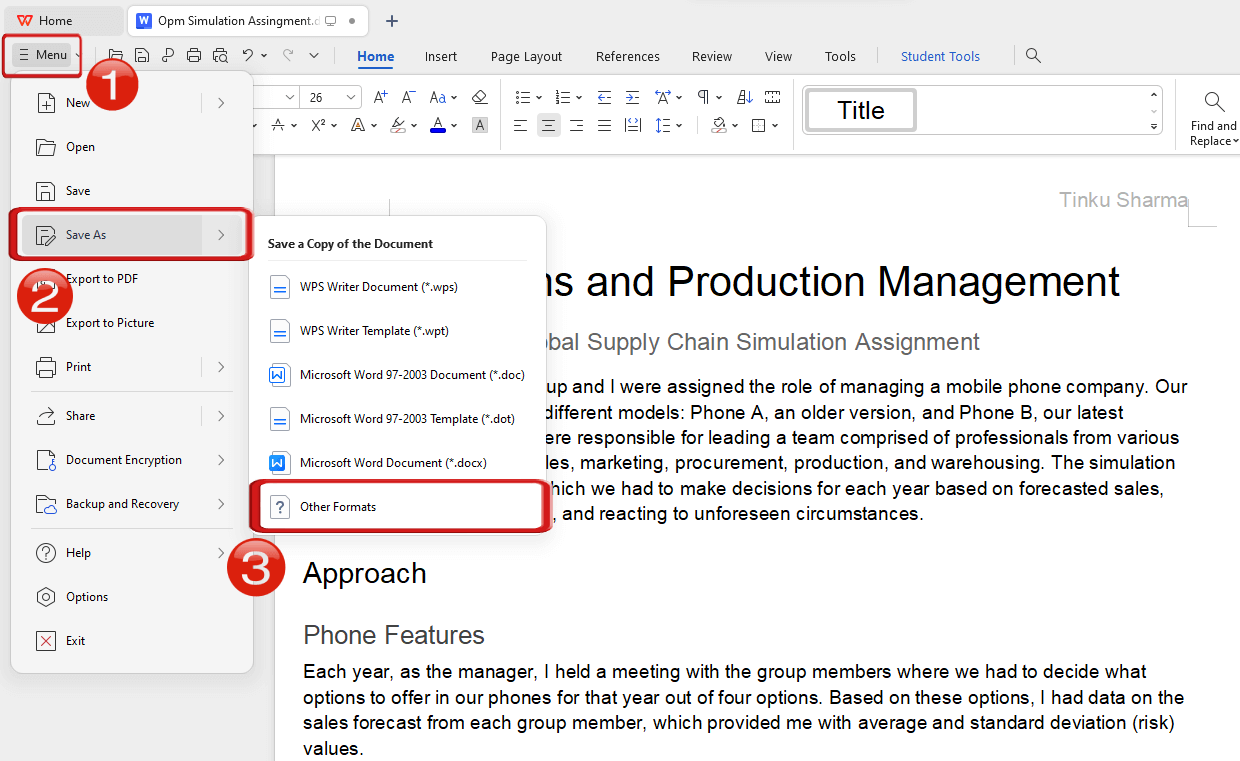
WPS Writer Menu navigation: choose Save As and Other Formats to start Word to PDF conversion
Step 3: Set File Type to PDF Format (*.pdf), choose a name/location, then click Save.
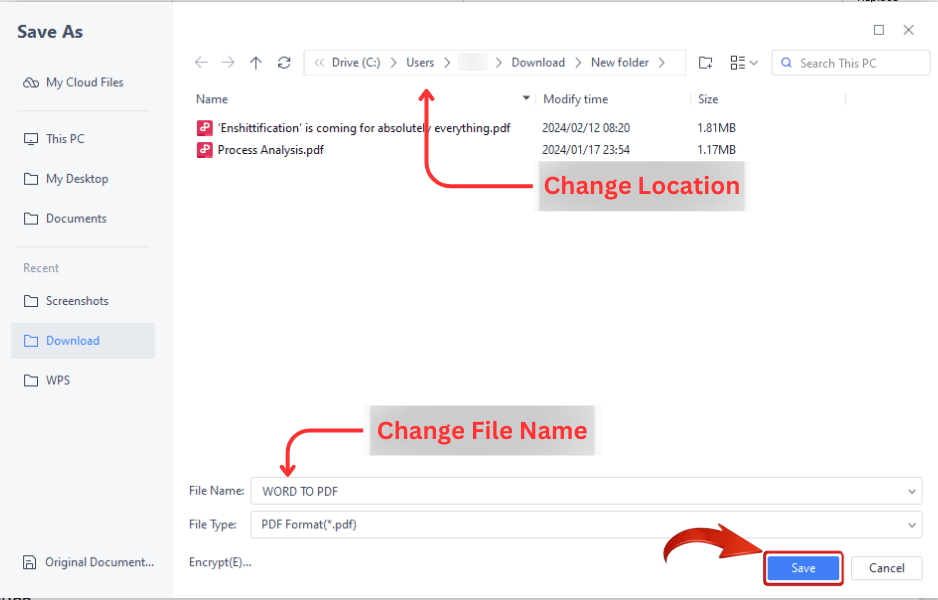
WPS Save As dialog set to PDF Format with file name and Save button highlighted
Method B — Export to PDF (better for long documents with structure)
Step 1: Open the document in WPS Writer.
Step 2: Choose Export to PDF.
Step 3: Open Advanced Settings and enable Bookmark if you want section navigation in the PDF.
Step 4: Confirm and export. The PDF can open directly in WPS PDF for review or further edits.
You can also create PDFs via WPS PDF “From File,” or use mobile Output as PDF when converting on the go. For online-only needs, WPS also offers a Word → PDF converter in the browser; use desktop conversion when document privacy matters more.

Frequently Asked Questions (FAQs)
Q: Is sejda word to pdf free?
A: Yes, with free-plan limits. Sejda’s converter typically allows free use for documents up to about 200 pages or 50 MB and up to 3 tasks per hour.
Q: Does Sejda Word to PDF support .doc files?
A: Best practice is to upload .docx. If conversion fails on older .doc files, re-save as .docx and try again.
Q: Will my formatting stay intact?
A: Sejda aims to preserve fonts, layout, and images for typical Word files. For complex academic documents that need bookmarks and stricter layout control, WPS Export to PDF is often more reliable.
Q: When should I switch from Sejda to WPS for Word to PDF?
A: Switch when you convert often, need offline privacy, want bookmark-preserving exports, batch conversion, or an all-in-one suite that also edits PDFs after conversion.
'%3e%3cpath%20d='M19.9911%204.11386V6.471H18.5894C18.0775%206.471%2017.7322%206.57814%2017.5536%206.79243C17.3751%207.00671%2017.2858%207.32814%2017.2858%207.75671V9.44421H19.9019L19.5536%2012.0871H17.2858V18.8639H14.5536V12.0871H12.2769V9.44421H14.5536V7.49779C14.5536%206.39064%2014.8632%205.53201%2015.4822%204.92189C16.1013%204.31177%2016.9257%204.00671%2017.9554%204.00671C18.8304%204.00671%2019.509%204.04243%2019.9911%204.11386Z'%20fill='%23333333'/%3e%3c/g%3e%3cdefs%3e%3cclipPath%20id='clip0_2938_8199'%3e%3crect%20width='16'%20height='16'%20fill='white'%20transform='translate(8%204.00671)'/%3e%3c/clipPath%3e%3c/defs%3e%3c/svg%3e)
'%3e%3cpath%20d='M17.5237%2010.7813L23.4811%204H22.0699L16.8949%209.88693L12.7648%204H8L14.2469%2012.9029L8%2020.0133H9.4112L14.8725%2013.7952L19.2352%2020.0133H24M9.92053%205.04213H12.0885L22.0688%2019.0224H19.9003'%20fill='%23333333'/%3e%3c/g%3e%3cdefs%3e%3cclipPath%20id='clip0_2938_8200'%3e%3crect%20width='16'%20height='16.0134'%20fill='white'%20transform='translate(8%204)'/%3e%3c/clipPath%3e%3c/defs%3e%3c/svg%3e)


