

'%3e%3cpath%20d='M8%200C12.4183%200%2016%203.58172%2016%208C16%2012.4183%2012.4183%2016%208%2016C3.58172%2016%200%2012.4183%200%208C0%203.58172%203.58172%200%208%200ZM11.6162%204.38379C11.2257%203.99337%2010.5927%203.99338%2010.2021%204.38379L8%206.58594L5.79785%204.38379C5.40732%203.99334%204.77429%203.99329%204.38379%204.38379C3.99331%204.77429%203.99335%205.40733%204.38379%205.79785L6.58594%208L4.38379%2010.2021C3.99348%2010.5927%203.99341%2011.2257%204.38379%2011.6162C4.77426%2012.0066%205.40734%2012.0065%205.79785%2011.6162L8%209.41406L10.2021%2011.6162C10.5927%2012.0066%2011.2257%2012.0067%2011.6162%2011.6162C12.0067%2011.2257%2012.0066%2010.5927%2011.6162%2010.2021L9.41406%208L11.6162%205.79785C12.0066%205.40735%2012.0066%204.77429%2011.6162%204.38379Z'%20fill='%23080E17'%20fill-opacity='0.46'/%3e%3c/g%3e%3cdefs%3e%3cclipPath%20id='clip0_3761_713'%3e%3crect%20width='16'%20height='16'%20fill='white'/%3e%3c/clipPath%3e%3c/defs%3e%3c/svg%3e)




'%3e%3cpath%20fill-rule='evenodd'%20clip-rule='evenodd'%20d='M21.4999%2010.9993C21.4999%205.20009%2016.7986%200.498901%2010.9993%200.498901C5.19994%200.498901%200.498657%205.20009%200.498657%2010.9993C0.498657%2016.2404%204.33858%2020.5844%209.35855%2021.3722V14.0346H6.69238V10.9993H9.35855V8.68594C9.35855%206.05427%2010.9262%204.60062%2013.3248%204.60062C14.4736%204.60062%2015.6753%204.80571%2015.6753%204.80571V7.38979H14.3512C13.0468%207.38979%2012.64%208.19921%2012.64%209.0296V10.9993H15.5523L15.0867%2014.0346H12.64V21.3722C17.66%2020.5844%2021.4999%2016.2404%2021.4999%2010.9993Z'%20fill='%231568EA'/%3e%3c/g%3e%3c/svg%3e)


'%3e%3cpath%20d='M2.42045%2022.1876H6.31818V12.7217L0.75%208.54553V20.5171C0.75%2021.4414%201.49892%2022.1876%202.42045%2022.1876Z'%20fill='%234285F4'/%3e%3cpath%20d='M19.682%2022.1876H23.5797C24.5041%2022.1876%2025.2502%2021.4387%2025.2502%2020.5171V8.54553L19.682%2012.7217'%20fill='%2334A853'/%3e%3cpath%20d='M19.682%205.48293V12.7216L25.2502%208.54543V6.31816C25.2502%204.25236%2022.8921%203.07469%2021.2411%204.31361'%20fill='%23FBBC04'/%3e%3cpath%20d='M6.31824%2012.7217V5.48303L13.0001%2010.4944L19.6819%205.48303V12.7217L13.0001%2017.733'%20fill='%23EA4335'/%3e%3cpath%20d='M0.75%206.31816V8.54543L6.31818%2012.7216V5.48293L4.75909%204.31361C3.10534%203.07469%200.75%204.25236%200.75%206.31816Z'%20fill='%23C5221F'/%3e%3c/g%3e%3cdefs%3e%3cclipPath%20id='clip0_2954_7305'%3e%3crect%20width='24.5'%20height='18.375'%20fill='white'%20transform='translate(0.75%203.8125)'/%3e%3c/clipPath%3e%3c/defs%3e%3c/svg%3e)


Need to fix a typo, update a date, or rearrange pages in a PDF on Windows 10? Whether you need how to edit pdf file in laptop or on a desktop PC, you can edit a PDF in Windows 10 with a desktop PDF editor, Microsoft Word, or a browser-based tool. The steps below focus on Windows 10 and also work on most Windows 11 PCs.
Before you start, note the file type: a text-based PDF is usually easy to edit in place. A scanned PDF is an image of a page, so you may need OCR (optical character recognition) before you can change the text.
How to Edit a PDF in Windows with an Online PDF Editor
If you do not want to install software, you can edit a PDF on your Windows PC in a browser with an online PDF editor. These tools are useful for quick text fixes, adding images, or small layout tweaks when the file is not highly sensitive.
Here is a real example using iLovePDF—a popular free online PDF editor—on a Windows computer:
Open the Edit PDF tool. Launch Chrome, Edge, or another browser on your Windows PC, then go to the iLovePDF Edit PDF page.
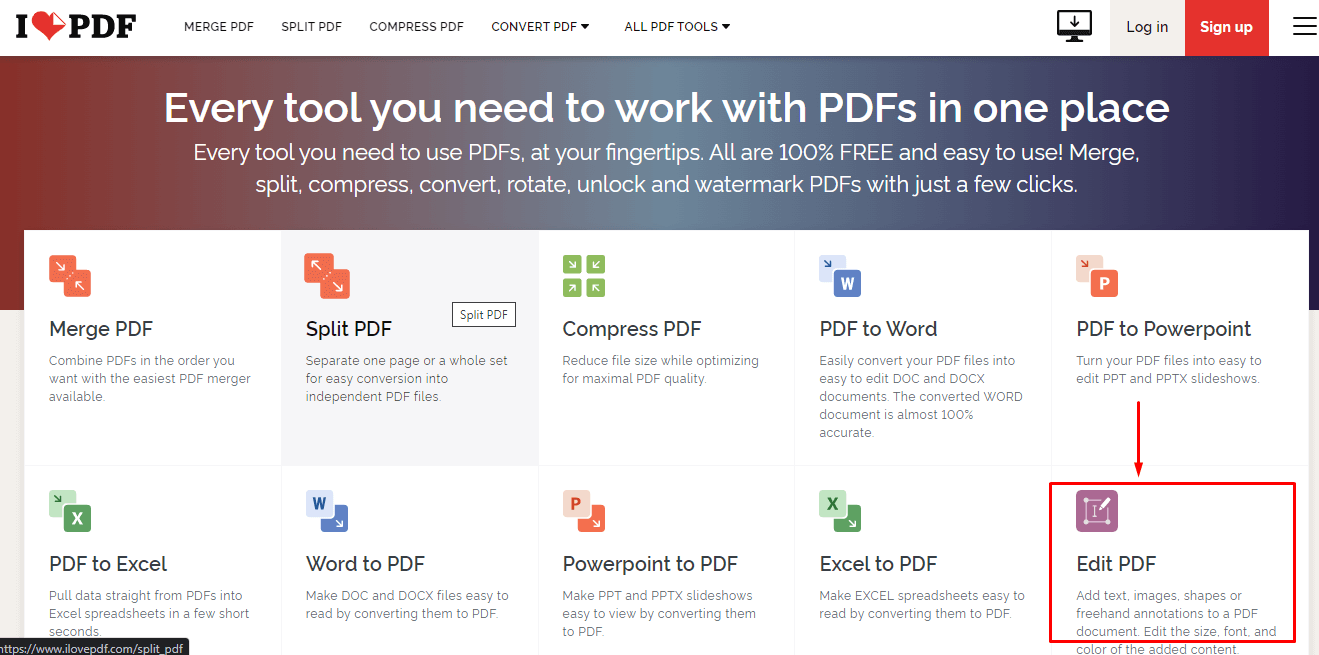
Open the iLovePDF PDF Editor Upload your file. Click Select PDF file (or drag and drop) and choose the PDF you want to change—for example, a one-page flyer that needs a new date or phone number.
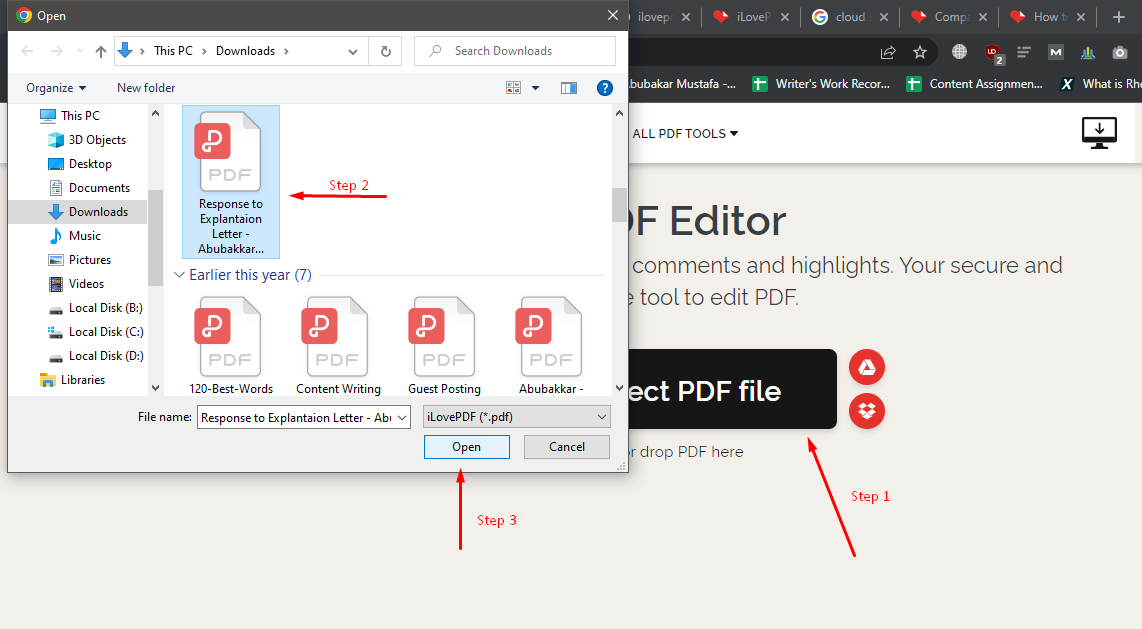
iLovePDF file open Edit the content. After the file loads, click the text you want to fix, type the new wording, and adjust font size or color if needed. You can also add a text box, insert an image, or draw a simple shape.
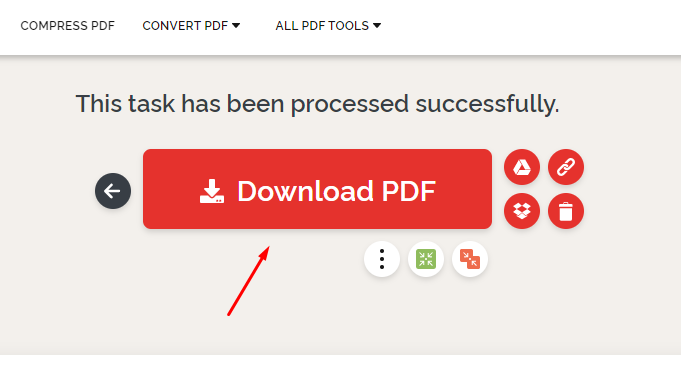
Download the result. When you finish, click Download to save the edited PDF to your Windows Downloads folder. Open the file locally to confirm the changes look right before you share it.
Online editors work best for light edits. Avoid uploading contracts, ID scans, or other private documents to a third-party site. For offline editing and stronger layout control on Windows, use a desktop tool such as WPS PDF instead.
How to Edit a PDF in Windows 10 with WPS Office
WPS Office includes a built-in WPS PDF Editor. You can open PDFs offline, edit text and images, manage pages, convert formats, and save your changes without uploading the file to a third-party site.
Here is how to edit pdf in wps office for free on Windows 10 using WPS Office:
Install and open WPS Office. Download WPS Office on your Windows 10 PC, launch the app, then click Open and select the PDF you want to edit.
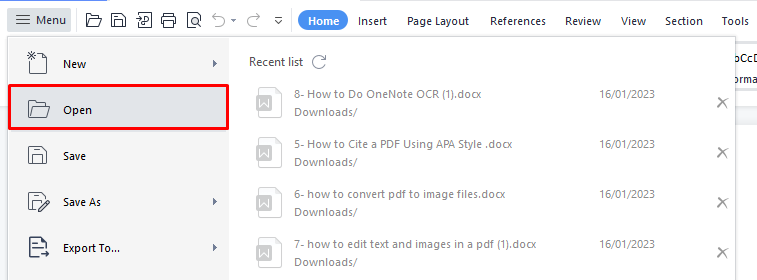
Edit the content. Use the tools in the PDF Editor to add, delete, or change text and images. You can also insert pages, reorder pages, or delete pages you no longer need.
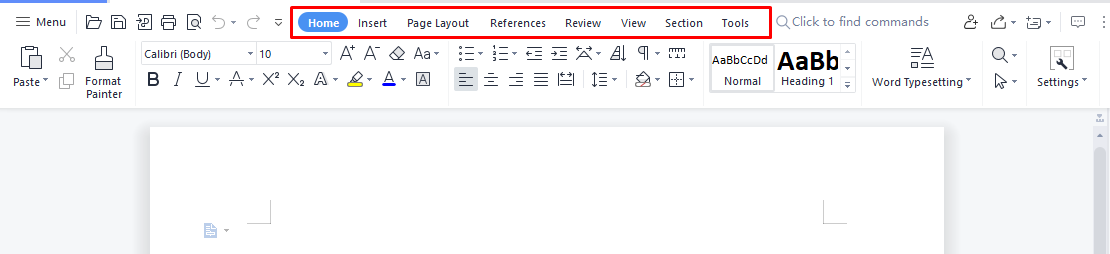
Save your file. When you finish, click Save (or Save As if you want a new copy) so the original stays available if you need it later.
WPS is the best option when you want offline editing, more PDF tools in one place, and fewer layout surprises than converting the file to another format.


How to Edit a PDF in Windows 10 with Microsoft Word
Microsoft Word (2013 or later) can open many PDFs by converting them into editable Word documents. This is a simple way to edit pdf in word for quick text changes, but complex layouts, columns, and graphics may shift during conversion.
Open Word on your Windows 10 computer.
Go to File > Open and choose the PDF you want to edit.
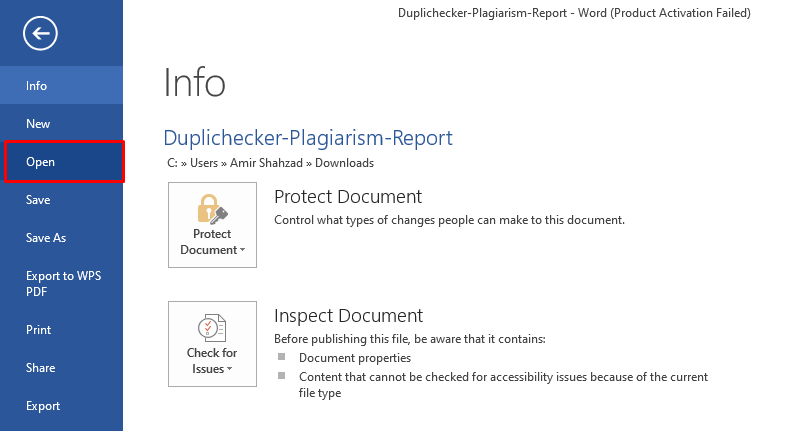
Edit in Word. After Word converts the PDF, change text, formatting, or images with the usual Word tools.

Export the result. Go to File > Save As and save as PDF (or keep a .docx copy for later edits). Review the pages before you share the file.
Tips for Editing PDFs on Windows 10
Keep a copy of the original PDF before you edit, especially for contracts, forms, or signed files.
Use a dedicated PDF editor (such as WPS PDF) when you need to preserve layout. Use Word mainly for simple text updates.
For scanned PDFs, run OCR first so the text becomes selectable and editable.
After editing, save the file and add a password if the document should stay private.
These methods also cover most Windows 11 setups if you still search for Windows 10 steps.
The Best All-in-One PDF Editor for Windows:WPS Office
If you want one tool that covers everyday PDF work on Windows—not just a quick one-off edit—WPS Office is a strong all-in-one choice. It pairs a full PDF editor with Writer, Spreadsheets, and Presentation, so you can handle PDFs and everyday office files in the same suite.
WPS focuses on the PDF pain points people hit most often on Windows:
Edit text and images in place while keeping the original layout as stable as possible.
Convert PDF to Word, Excel, or images (and back) when you need a different format for deeper edits or sharing.
OCR for scanned PDFs so image-based pages become selectable, searchable, and editable text.
Page tools—merge, split, reorder, rotate, or delete pages without jumping between apps.
Annotate and fill forms with highlights, comments, stamps, and form fields for reviews and paperwork.
Value for money is a major reason to choose WPS. Many core features—including opening, viewing, and basic editing—are available for free. When you need advanced PDF tools, Premium is typically about $5.83 per month, which is usually far more affordable than buying a standalone PDF suite plus a separate office license. With one subscription you also unlock Word-, Excel-, and PowerPoint-compatible apps—so you do not have to pay again for each product.
For Windows users who edit PDFs often and also work in Word or Excel, WPS is a practical all-in-one option: strong free basics, an affordable Premium upgrade when you need more, and one license that covers PDF plus everyday office work.
FAQs
Can I edit a scanned PDF with WPS Office?
Yes. Open the scanned PDF in WPS Office, run OCR if the text is not selectable, then edit the recognized text or add new text boxes and images. Save a new copy so you can compare it with the scan.
How do I edit a password-protected PDF in Windows 10?
You need the file password first. Enter it when the editor prompts you to unlock the PDF, make your changes, then save. If you no longer need protection, remove or update the password only when you are allowed to do so.
Is Microsoft Word good for editing PDFs on Windows 10?
Word is fine for light text edits on simple PDFs. For forms, multi-column layouts, or page-level changes, a PDF editor such as WPS PDF usually keeps the design closer to the original.
What is the easiest free way to edit a PDF in Windows 10?
For most people, installing WPS Office and editing offline is the simplest path. If you only need a one-off change and the file is not sensitive, WPS PDF Online is a fast browser alternative.

'%3e%3cpath%20d='M19.9911%204.11386V6.471H18.5894C18.0775%206.471%2017.7322%206.57814%2017.5536%206.79243C17.3751%207.00671%2017.2858%207.32814%2017.2858%207.75671V9.44421H19.9019L19.5536%2012.0871H17.2858V18.8639H14.5536V12.0871H12.2769V9.44421H14.5536V7.49779C14.5536%206.39064%2014.8632%205.53201%2015.4822%204.92189C16.1013%204.31177%2016.9257%204.00671%2017.9554%204.00671C18.8304%204.00671%2019.509%204.04243%2019.9911%204.11386Z'%20fill='%23333333'/%3e%3c/g%3e%3cdefs%3e%3cclipPath%20id='clip0_2938_8199'%3e%3crect%20width='16'%20height='16'%20fill='white'%20transform='translate(8%204.00671)'/%3e%3c/clipPath%3e%3c/defs%3e%3c/svg%3e)
'%3e%3cpath%20d='M17.5237%2010.7813L23.4811%204H22.0699L16.8949%209.88693L12.7648%204H8L14.2469%2012.9029L8%2020.0133H9.4112L14.8725%2013.7952L19.2352%2020.0133H24M9.92053%205.04213H12.0885L22.0688%2019.0224H19.9003'%20fill='%23333333'/%3e%3c/g%3e%3cdefs%3e%3cclipPath%20id='clip0_2938_8200'%3e%3crect%20width='16'%20height='16.0134'%20fill='white'%20transform='translate(8%204)'/%3e%3c/clipPath%3e%3c/defs%3e%3c/svg%3e)


