



'%3e%3cpath%20fill-rule='evenodd'%20clip-rule='evenodd'%20d='M21.4999%2010.9993C21.4999%205.20009%2016.7986%200.498901%2010.9993%200.498901C5.19994%200.498901%200.498657%205.20009%200.498657%2010.9993C0.498657%2016.2404%204.33858%2020.5844%209.35855%2021.3722V14.0346H6.69238V10.9993H9.35855V8.68594C9.35855%206.05427%2010.9262%204.60062%2013.3248%204.60062C14.4736%204.60062%2015.6753%204.80571%2015.6753%204.80571V7.38979H14.3512C13.0468%207.38979%2012.64%208.19921%2012.64%209.0296V10.9993H15.5523L15.0867%2014.0346H12.64V21.3722C17.66%2020.5844%2021.4999%2016.2404%2021.4999%2010.9993Z'%20fill='%231568EA'/%3e%3c/g%3e%3c/svg%3e)


'%3e%3cpath%20d='M2.42045%2022.1876H6.31818V12.7217L0.75%208.54553V20.5171C0.75%2021.4414%201.49892%2022.1876%202.42045%2022.1876Z'%20fill='%234285F4'/%3e%3cpath%20d='M19.682%2022.1876H23.5797C24.5041%2022.1876%2025.2502%2021.4387%2025.2502%2020.5171V8.54553L19.682%2012.7217'%20fill='%2334A853'/%3e%3cpath%20d='M19.682%205.48293V12.7216L25.2502%208.54543V6.31816C25.2502%204.25236%2022.8921%203.07469%2021.2411%204.31361'%20fill='%23FBBC04'/%3e%3cpath%20d='M6.31824%2012.7217V5.48303L13.0001%2010.4944L19.6819%205.48303V12.7217L13.0001%2017.733'%20fill='%23EA4335'/%3e%3cpath%20d='M0.75%206.31816V8.54543L6.31818%2012.7216V5.48293L4.75909%204.31361C3.10534%203.07469%200.75%204.25236%200.75%206.31816Z'%20fill='%23C5221F'/%3e%3c/g%3e%3cdefs%3e%3cclipPath%20id='clip0_2954_7305'%3e%3crect%20width='24.5'%20height='18.375'%20fill='white'%20transform='translate(0.75%203.8125)'/%3e%3c/clipPath%3e%3c/defs%3e%3c/svg%3e)


Quick answer: Microsoft Office 365 desktop apps (now usually branded Microsoft 365 Apps) are the full Word, Excel, PowerPoint, Outlook, and related programs you install on a PC or Mac—not the browser versions at Office.com. Use the web apps for light edits and real-time collaboration; install the desktop apps when you need offline work, VBA/macros, Power Query–level Excel, or full layout and review tools. To install: sign in at m365.cloud.microsoft/apps (or your Microsoft account Services page) → Install apps → Microsoft 365 apps. One qualifying subscription commonly covers up to five PCs or Macs (plus tablets/phones). If Office 2016/2019 is already installed, plan an uninstall or side-by-side check before you upgrade so Click-to-Run doesn’t fight the old MSI build.
US searchers for this keyword usually want four things: why desktop still matters vs the cloud web apps, where to download and activate, what happens with older Office installs, and whether offline edits sync safely. Below maps those intents to practical steps—using current Microsoft 365 naming while keeping the familiar “Office 365 desktop apps” phrase people still type.
What’s the difference between Microsoft 365 desktop apps and web apps?
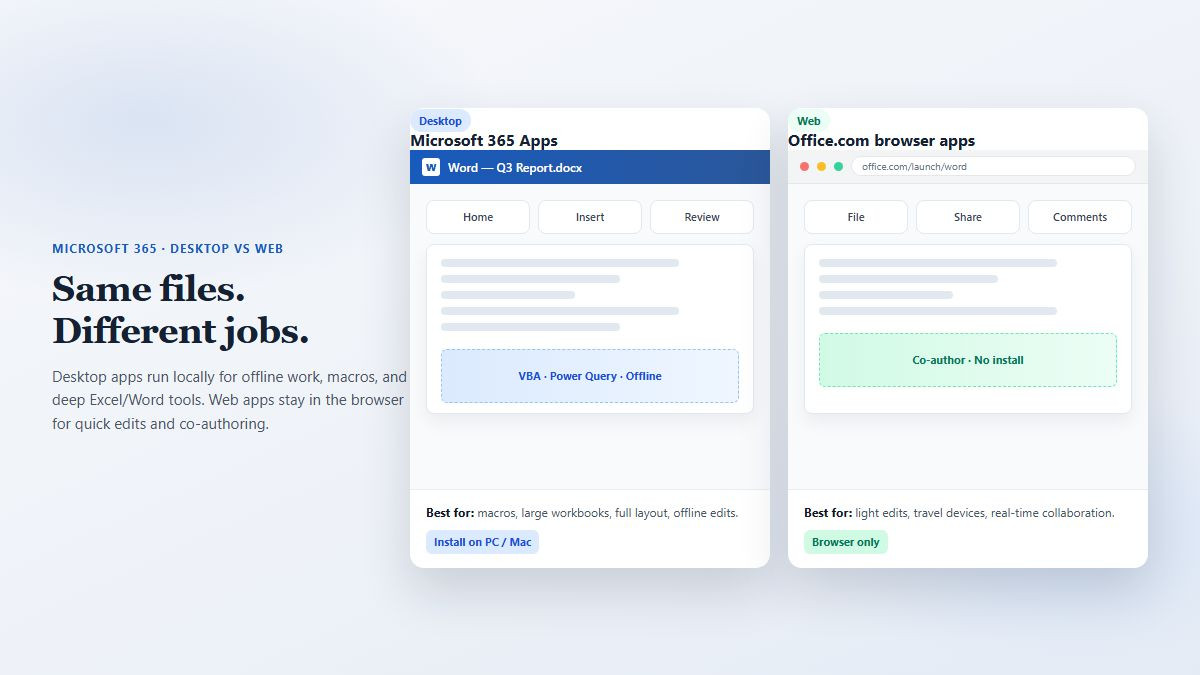
Microsoft 365 is cloud-connected, but the desktop apps run locally after you download them. The web apps (Word/Excel/PowerPoint for the web) run in the browser with nothing to install. You do not need a multi‑gigabyte install for every task—but web apps are not a full feature twin of desktop Office.
Desktop apps shine when you need: VBA macros and advanced automation; Excel Power Query / complex models and large workbooks; full Word layout, styles, mail merge, and deep review tools; Outlook rules and desktop mail workflows; add-ins that only ship for Windows/Mac clients; reliable offline editing.
Web apps are enough when you need: quick edits, co-authoring in the browser, opening a file from any device, or traveling light without installing software. Feature gaps show up on advanced formatting, some charts/pivots, macros, and heavy offline use.
Practical rule: collaborate and draft in the browser when convenience wins; switch to desktop for “final production” work (finance models, long contracts, macro-enabled files). Opening the same OneDrive/SharePoint file in either surface is normal—pick the app that matches the job.
How do I download, install, and activate Microsoft 365 desktop apps?
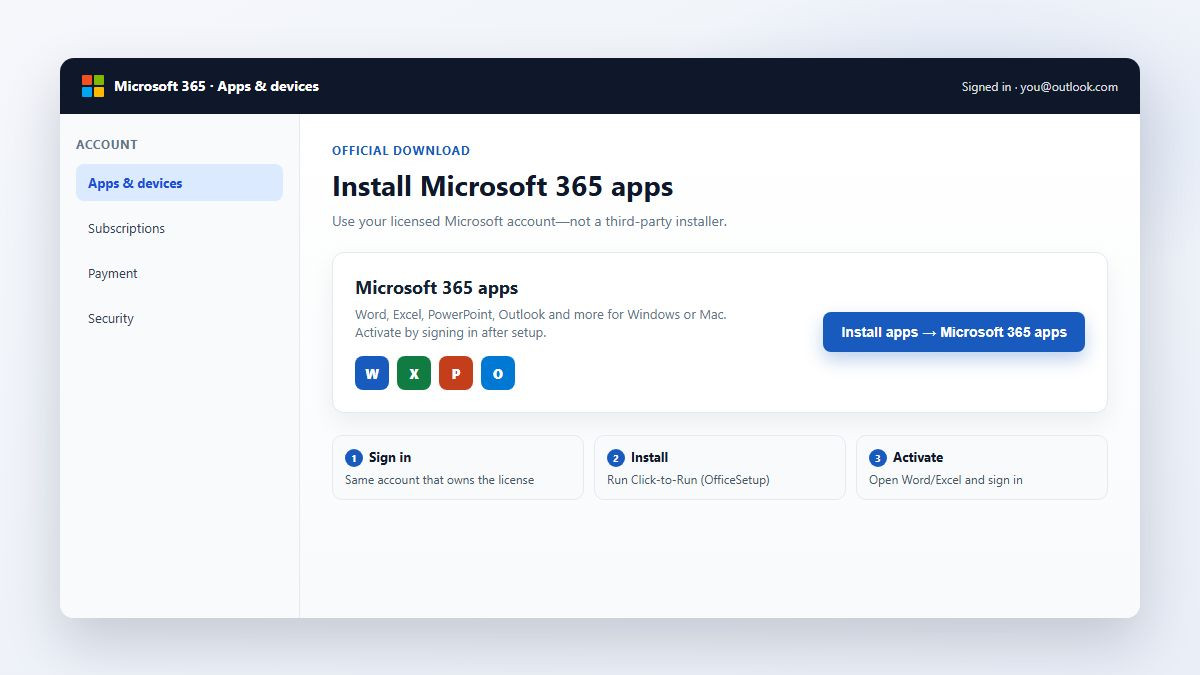
After you buy (or get) a qualifying Microsoft 365 / Office 365 subscription, the desktop suite is usually installed from your account—not from a random third-party download site.
Sign in with the same Microsoft account (personal) or work/school account that owns the license.
Go to https://m365.cloud.microsoft/apps (Microsoft’s current apps page) or open account.microsoft.com/services / Office.com → account → apps & devices, depending on your portal.
Select Install apps → Microsoft 365 apps (wording can vary slightly: Install Office / Install apps).
Run the Click-to-Run installer (OfficeSetup). Allow admin permission if Windows asks.
When you see “You’re all set,” open Word or Excel and sign in to activate. Activation is usually just signing in with the licensed account—no long product-key dance for subscription installs.
How many devices? For typical consumer and many business plans that include desktop apps, Microsoft documents installation on up to five PCs or Macs per user license, plus mobile installs (commonly described as up to five tablets and five phones). Exact entitlements still depend on your plan—check Subscriptions on your account if Install is missing.
If there’s no Install button: your plan may be web-only (common with some education A1-style licenses). Confirm the account shows something like “the latest desktop version of Office,” or ask IT. Signing into the wrong personal vs work account is another frequent miss.
Will Microsoft 365 desktop apps conflict with Office 2016 or 2019?
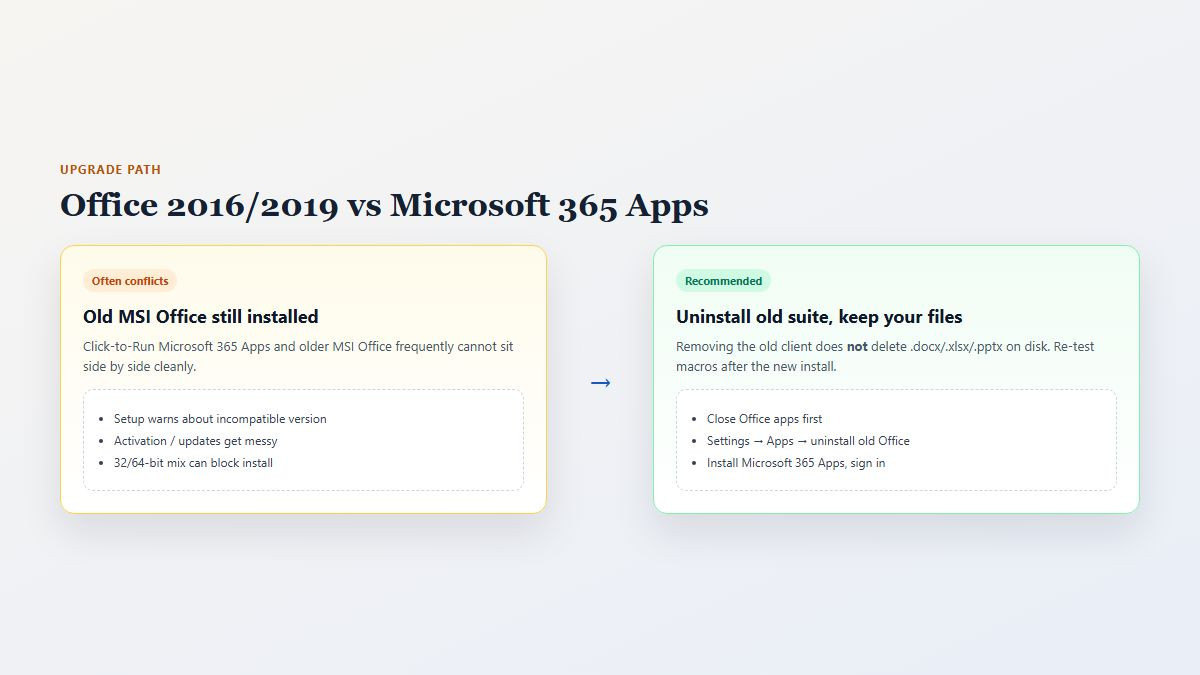
Yes—version mixing is a classic upgrade pain. Click-to-Run Microsoft 365 Apps and older MSI-based Office (2016/2019 volume or retail) often cannot sit side by side cleanly. Microsoft’s install guidance generally expects you to remove conflicting older builds (including related stand-alone apps in some 32/64-bit switch cases) before installing Microsoft 365 Apps.
Before you uninstall: close Office apps; note which account/license you use; back up custom templates, AutoCorrect, and important workbooks. Your
.docx/.xlsx/.pptxfiles themselves are not “inside” the old program—they stay on disk.Macros, templates, and data: document files and most VBA projects travel with the files. After Microsoft 365 Apps installs, reopen those files and re-enable macros if Trust Center prompts. Rebuild or re-point rare COM add-ins if a vendor only supported the old build.
Do you must uninstall? If Setup warns about an incompatible version, follow Microsoft’s uninstall path (Settings → Apps, or the official Microsoft 365 uninstall support tool when cleanup fails). Don’t ignore half-installed duplicates—activation and updates get messy.
How well do Microsoft 365 desktop apps work offline?
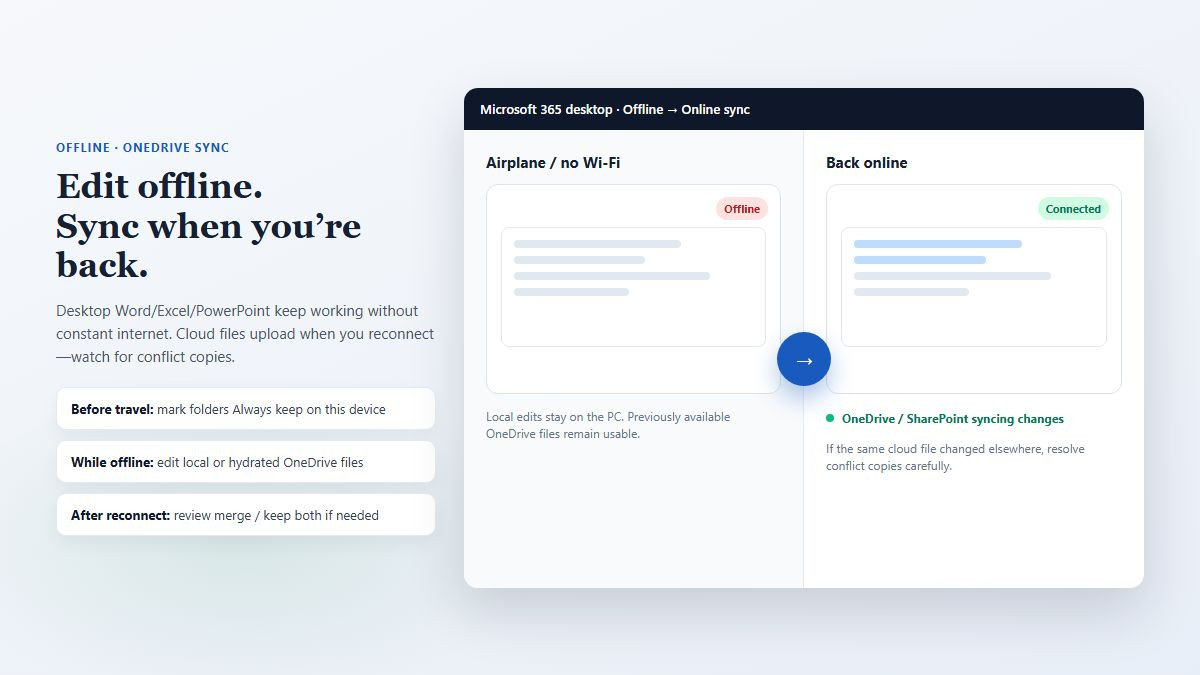
Desktop Word, Excel, and PowerPoint are designed for local use without constant internet. You need connectivity to install/activate and for some cloud-only features, but day-to-day editing of local or synced files works offline—one of the main reasons people still install the multi‑gigabyte suite.
While offline: edit files stored on your PC or already available via OneDrive Files On-Demand (if previously hydrated/available offline).
When you reconnect: OneDrive/SharePoint sync uploads changes. If someone else edited the same cloud file, Office/OneDrive may prompt to merge, keep both copies, or resolve a sync conflict—so you usually don’t “silently lose” work, but you should review conflict copies when they appear.
Tip: for travel (plane/train), mark critical folders Always keep on this device in OneDrive before you disconnect, and save local copies of must-have files if the trip is long.
Another option: a lighter desktop suite with WPS Office
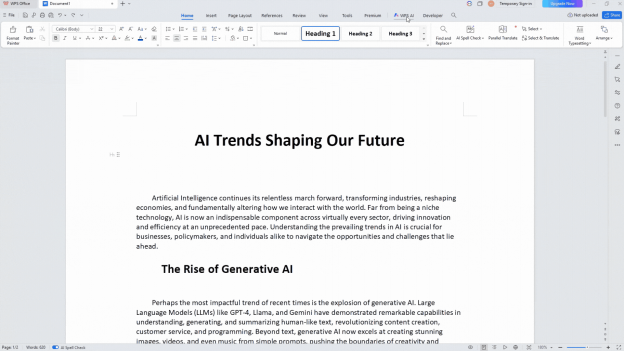
If your Microsoft plan is web-only, you’re waiting on IT for desktop installs, or you want familiar Word/Excel/PowerPoint-style editing without wrestling Click-to-Run upgrades, WPS Office gives you desktop Writer, Spreadsheets, and Presentation apps that open common .docx/.xlsx/.pptx files for everyday work.
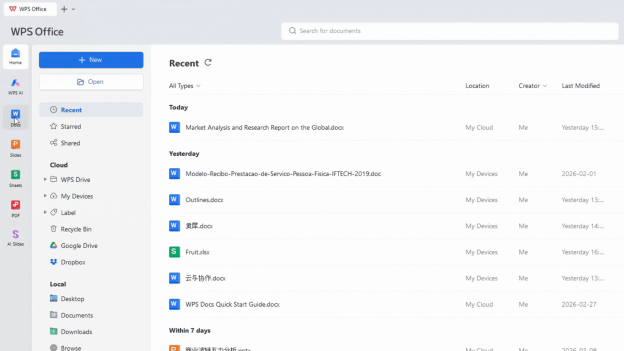
That doesn’t replace Microsoft 365 when your workplace standardizes on Outlook + SharePoint + enterprise compliance—but it’s a practical desktop path for students, mixed-device households, and teams that mainly need local editing and cross-platform continuity, with a free tier to start.
FAQ
What are Microsoft Office 365 desktop apps?
They’re the installed Microsoft 365 (Office) programs—Word, Excel, PowerPoint, Outlook, and related apps—that run on your PC or Mac. Microsoft now often calls the suite Microsoft 365 Apps; people still search “Office 365 desktop apps.”
Are Microsoft 365 web apps enough, or do I need desktop?
Web apps cover light editing and collaboration. Choose desktop for offline work, macros/VBA, advanced Excel (including Power Query–style work), full Word layout/review, and many add-ins.
Where do I download official Word, Excel, and Outlook desktop clients?
Sign in to m365.cloud.microsoft/apps or your Microsoft account Services / Apps & devices page, then use Install apps → Microsoft 365 apps. Avoid unofficial installers.
How many computers can I install Microsoft 365 desktop apps on?
Many plans that include desktop apps allow up to five PCs or Macs per user (plus mobile devices). Confirm on your Subscriptions page—education and some business SKUs differ.
Do I have to uninstall Office 2016 or 2019 before installing Microsoft 365?
Often yes when Setup reports a conflict. Uninstalling the old client doesn’t delete your document files; re-test macros and templates after the new install.
Can I use Microsoft 365 desktop apps offline, and will changes sync later?
Yes for core editing. Changes sync when you reconnect via OneDrive/SharePoint; watch for conflict copies if the same cloud file was edited elsewhere while you were offline.
Summary
Microsoft Office 365 desktop apps are the full local Word/Excel/PowerPoint/Outlook clients inside a Microsoft 365 subscription. Use web apps for light cloud work; install desktop when you need offline access, macros, advanced Excel, or complete layout tools. Download from your signed-in Microsoft apps portal, activate by signing in, and clear conflicting Office 2016/2019 installs when Setup requires it—your documents stay on disk. Offline edits sync when you’re back online; resolve any conflict copies carefully. If desktop Microsoft 365 isn’t available on your plan, WPS Office is a practical alternative for everyday local file work.



'%3e%3cpath%20d='M19.9911%204.11386V6.471H18.5894C18.0775%206.471%2017.7322%206.57814%2017.5536%206.79243C17.3751%207.00671%2017.2858%207.32814%2017.2858%207.75671V9.44421H19.9019L19.5536%2012.0871H17.2858V18.8639H14.5536V12.0871H12.2769V9.44421H14.5536V7.49779C14.5536%206.39064%2014.8632%205.53201%2015.4822%204.92189C16.1013%204.31177%2016.9257%204.00671%2017.9554%204.00671C18.8304%204.00671%2019.509%204.04243%2019.9911%204.11386Z'%20fill='%23333333'/%3e%3c/g%3e%3cdefs%3e%3cclipPath%20id='clip0_2938_8199'%3e%3crect%20width='16'%20height='16'%20fill='white'%20transform='translate(8%204.00671)'/%3e%3c/clipPath%3e%3c/defs%3e%3c/svg%3e)
'%3e%3cpath%20d='M17.5237%2010.7813L23.4811%204H22.0699L16.8949%209.88693L12.7648%204H8L14.2469%2012.9029L8%2020.0133H9.4112L14.8725%2013.7952L19.2352%2020.0133H24M9.92053%205.04213H12.0885L22.0688%2019.0224H19.9003'%20fill='%23333333'/%3e%3c/g%3e%3cdefs%3e%3cclipPath%20id='clip0_2938_8200'%3e%3crect%20width='16'%20height='16.0134'%20fill='white'%20transform='translate(8%204)'/%3e%3c/clipPath%3e%3c/defs%3e%3c/svg%3e)


