



'%3e%3cpath%20fill-rule='evenodd'%20clip-rule='evenodd'%20d='M21.4999%2010.9993C21.4999%205.20009%2016.7986%200.498901%2010.9993%200.498901C5.19994%200.498901%200.498657%205.20009%200.498657%2010.9993C0.498657%2016.2404%204.33858%2020.5844%209.35855%2021.3722V14.0346H6.69238V10.9993H9.35855V8.68594C9.35855%206.05427%2010.9262%204.60062%2013.3248%204.60062C14.4736%204.60062%2015.6753%204.80571%2015.6753%204.80571V7.38979H14.3512C13.0468%207.38979%2012.64%208.19921%2012.64%209.0296V10.9993H15.5523L15.0867%2014.0346H12.64V21.3722C17.66%2020.5844%2021.4999%2016.2404%2021.4999%2010.9993Z'%20fill='%231568EA'/%3e%3c/g%3e%3c/svg%3e)


'%3e%3cpath%20d='M2.42045%2022.1876H6.31818V12.7217L0.75%208.54553V20.5171C0.75%2021.4414%201.49892%2022.1876%202.42045%2022.1876Z'%20fill='%234285F4'/%3e%3cpath%20d='M19.682%2022.1876H23.5797C24.5041%2022.1876%2025.2502%2021.4387%2025.2502%2020.5171V8.54553L19.682%2012.7217'%20fill='%2334A853'/%3e%3cpath%20d='M19.682%205.48293V12.7216L25.2502%208.54543V6.31816C25.2502%204.25236%2022.8921%203.07469%2021.2411%204.31361'%20fill='%23FBBC04'/%3e%3cpath%20d='M6.31824%2012.7217V5.48303L13.0001%2010.4944L19.6819%205.48303V12.7217L13.0001%2017.733'%20fill='%23EA4335'/%3e%3cpath%20d='M0.75%206.31816V8.54543L6.31818%2012.7216V5.48293L4.75909%204.31361C3.10534%203.07469%200.75%204.25236%200.75%206.31816Z'%20fill='%23C5221F'/%3e%3c/g%3e%3cdefs%3e%3cclipPath%20id='clip0_2954_7305'%3e%3crect%20width='24.5'%20height='18.375'%20fill='white'%20transform='translate(0.75%203.8125)'/%3e%3c/clipPath%3e%3c/defs%3e%3c/svg%3e)


Have you ever received a PDF document that needed urgent updates, but you didn't have a dedicated PDF editor? You aren't alone. PDFs are fantastic for preserving document layout across different devices, but when it comes to modifying text or updating tables, they can be incredibly stubborn.
Naturally, many users wonder: is it possible to edit pdf in word?
The short answer is yes. In this complete guide, we will show you how to edit pdf file in word using three straightforward methods. Whether you need a quick online conversion, Microsoft Word's built-in opener, or an all-in-one suite like WPS Office, you can pick the path that matches your final output—Word or PDF.

Method 1: Edit PDF in Word Using a Free PDF to Word Converter
If you want to fully edit a PDF document while keeping the original layout design intact, the most effective approach is to convert the PDF into an editable Word document (.docx).
A trusted online or desktop PDF to Word converter can turn text, tables, images, and other elements into a format that Word can handle natively. For scanned files or image-heavy PDFs, strongly prefer a converter with OCR (Optical Character Recognition). OCR scans static text images and turns them into searchable, selectable, and editable words—so you can truly edit pdf in word instead of retyping everything.
Below is a simple walkthrough using a popular free online tool—iLovePDF—as an example of how to edit pdf file in word through conversion. Prefer editing inside the PDF instead? See How to Edit PDF Easily in iLovePDF.
Step-by-Step Guide with iLovePDF:
Visit a reliable online PDF to Word converter, such as iLovePDF.
Click Select PDF file and upload the document you want to modify.

Click Select PDF in iLOVE PDF Choose your conversion settings. If the text is inside a scanned image or photo, enable the OCR option.
Click Convert to Word and wait a few seconds for processing to finish.
Download the generated Word file, open it in your word processor, and start editing right away.

Download the generated Word
This method is ideal when you need a quick, free way to edit pdf in word and your main goal is a flexible .docx file. For a deeper walkthrough of conversion quality, see our guide on how to convert a PDF to Word. Just remember that uploading sensitive documents to any online converter carries privacy risk—for confidential files, a local desktop tool is safer.
Method 2: Edit PDF in Word by Opening It Directly in Microsoft Word
If you prefer not to use a separate converter first, Microsoft Word has a built-in feature that lets you open and modify certain PDF files. This is another common answer to how to edit pdf file in word for simple documents.
When you use this method, Microsoft Word acts as a converter itself, attempting to transform the PDF structure into a standard Word document format so you can edit pdf in word inside the same app.
Step-by-Step Guide:
Open Microsoft Word on your desktop.
Go to the top menu and select File > Open.
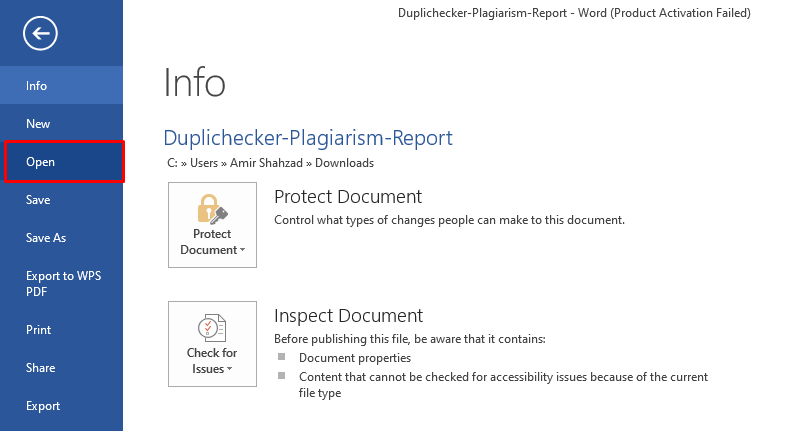
Browse your computer, locate the PDF file you want to edit, and click Open.
A warning message will pop up stating: "Word will now convert your PDF to an editable Word document. This may take a while..." Click OK.
Word will open the text. You can now type, delete, and format the text as needed to edit pdf in word for basic changes.

Method 3: Edit PDF with WPS Office (Two Practical Paths)
Methods 1 and 2 both help you edit pdf in word, but they still leave you switching between tools or dealing with formatting trade-offs. If you want one workspace for PDF and Word tasks, WPS Office is a practical all-in-one choice.
WPS Office is a lightweight suite that combines Writer (Word), Spreadsheet (Excel), Presentation (PPT), and a robust PDF toolkit. Depending on your final deliverable, you can either edit the PDF directly or convert it to Word—without juggling a browser, a converter site, and a separate word processor.
Pricing tip: Basic PDF editing in WPS is free, which covers everyday text and layout changes for many users. More advanced PDF features may require a paid plan, but the overall value is typically strong compared with buying a standalone premium PDF editor.
Option A: Edit the PDF directly in WPS (best when you need PDF output)
Choose this path if your final file should remain a PDF—contracts, forms, reports, or any document you plan to share back as PDF. Native PDF editing avoids unnecessary round-trips between formats.
Open WPS Office, click Menu > Open, and open your PDF file directly inside the application.
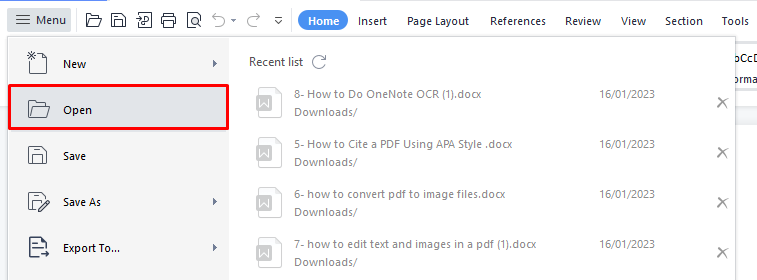
Go to the PDF tab and choose Edit Content (or the equivalent edit tools in the PDF ribbon).
Update text, fonts, images, and paragraphs directly in the PDF—similar to editing a Word document—then save your file as PDF.
This is the smoothest option when PDF is your end format and you only need practical edits rather than a full Word rewrite.
Option B: Convert PDF to Word in WPS, then edit (best when you need Word output)
Choose this path if your final deliverable is a Word document—for deeper rewriting, collaboration, or long-form edits. WPS includes a free built-in PDF to Word converter that keeps files local and produces high-fidelity results, so you can edit pdf in word without uploading to a third-party site.
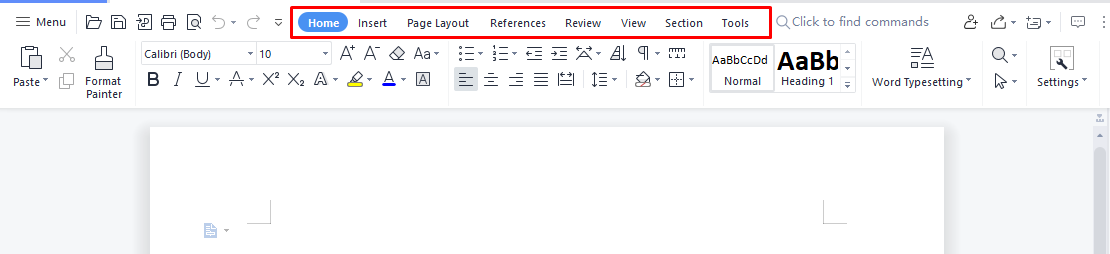
Open WPS Office on your computer, then go to the Tools tab in the left sidebar.

Click PDF to Word to start the free built-in conversion.

In the converter window, click to add your PDF file (or drag and drop it into the upload area).

Choose your conversion settings (enable OCR if the text is inside a scanned image or photo), then click Convert.

WPS generates an editable Word document. From there, you can edit pdf in word instantly—update text, fix tables, and adjust formatting with ease—then save as
.docx(or convert back to PDF later if needed).
Best Free Alternative: WPS Office
While learning how to edit pdf file in word is a useful skill, constantly converting formats back and forth can add friction. Every unnecessary trip from PDF to Word and back to PDF increases the chance of layout shifts or extra cleanup.
That is why Method 3 matters: with WPS, you can choose the right path for the job—edit PDF directly when you need PDF output, or convert to Word when you need a flexible .docx file—then finish everything in one workspace.


The Pain Points of Traditional PDF Editing
Most professionals face a frustrating dilemma when dealing with PDFs—especially when the goal is to edit pdf in word quickly and safely:
The Cost Barrier: Premium PDF editors like Adobe Acrobat are notoriously expensive, making them inaccessible for students, freelancers, and small businesses.
The Formatting Nightmare: As mentioned with Method 2, standard word processors distort complex layouts when trying to parse PDF structures.
Security & Privacy Risks: Uploading confidential business contracts, financial statements, or personal IDs to random online "free PDF converters" exposes sensitive data to potential leaks.
The WPS Advantage: Why Choose WPS When You Edit PDF in Word
WPS Office reduces these pain points by combining everyday PDF tools with a familiar office suite. You can learn how to edit pdf file in word without giving up privacy—or paying enterprise prices for basic edits.
Native, Word-Like Direct PDF Editing: You don't always need to convert your PDF to a Word file. With WPS PDF, you can click Edit Content and modify text, change fonts, crop images, and adjust paragraphs directly within the PDF file itself. Basic editing features are free; advanced capabilities are available on paid plans with strong overall value.
Unrivaled Layout Preservation: The WPS conversion engine is finely tuned to respect advanced layouts. When you do choose to convert PDF to Word, your margins, tables, headers, and footers remain precisely where they belong.
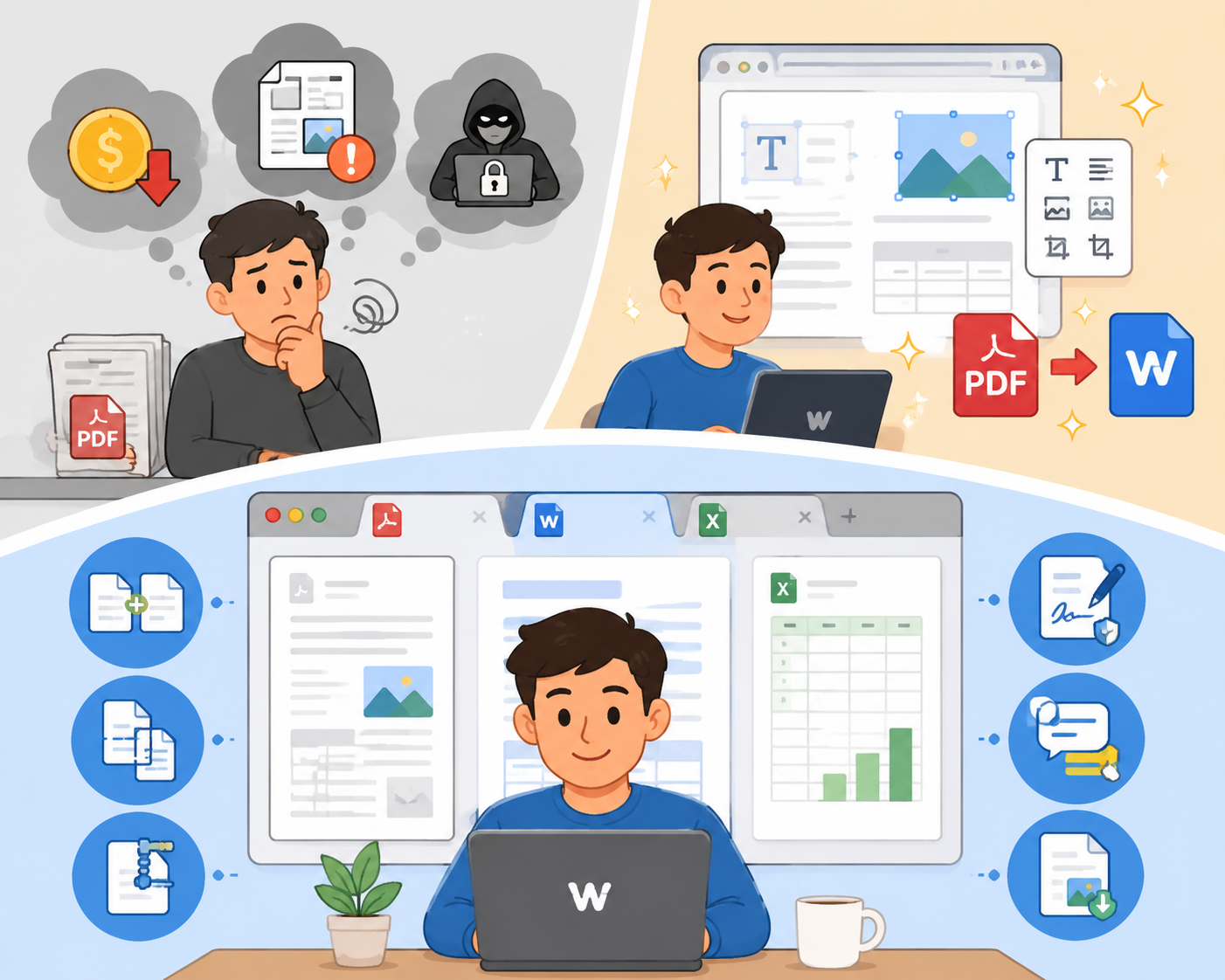
All-in-One Tabbed Efficiency: Stop opening five different windows for your workflow. WPS allows you to open a PDF, a Word document, and an Excel spreadsheet in a single window using a clean, browser-like tabbed interface—perfect when you edit pdf in word alongside other files.
Comprehensive PDF Toolset: Beyond simple editing, WPS provides advanced features at a fraction of many competitors' costs, including:
Frequently Asked Questions (FAQ)
Q1: Is it possible to edit PDF in Word without losing the original formatting?
Directly opening a PDF in Microsoft Word often alters or breaks complex layouts, especially if the document contains tables, multi-column designs, or specific fonts. To edit PDF in Word while keeping the original layout intact, use a dedicated conversion engine—either a reliable online converter for quick jobs, or WPS Office for higher-fidelity local conversion. For layout-focused steps, read How to Convert PDF File to Word without Losing Formatting. WPS is especially helpful when you want accurate margins and structure from PDF to editable text.
Q2: How to edit a PDF file in Word for free if it is a scanned document?
If your PDF consists of scanned pages or images of text, standard word processors cannot read it directly. Use a tool with OCR (Optical Character Recognition): upload the file to a reliable online PDF-to-Word converter (and enable OCR), or convert locally with WPS Office, then open the editable Word file. If you prefer a browser-first path, see How to Edit PDF Online Free Without Login.
Q3: Why does Microsoft Word change the layout when I try to open a PDF?
When you try to figure out how to edit a PDF file in Word by opening it directly, Word attempts to convert the PDF's native coding into a Word-compatible layout. Because PDF is a fixed-layout format and Word is a reflowable text format, complex elements like tables, embedded graphics, and custom spacings often shift out of place during this native conversion.

'%3e%3cpath%20d='M19.9911%204.11386V6.471H18.5894C18.0775%206.471%2017.7322%206.57814%2017.5536%206.79243C17.3751%207.00671%2017.2858%207.32814%2017.2858%207.75671V9.44421H19.9019L19.5536%2012.0871H17.2858V18.8639H14.5536V12.0871H12.2769V9.44421H14.5536V7.49779C14.5536%206.39064%2014.8632%205.53201%2015.4822%204.92189C16.1013%204.31177%2016.9257%204.00671%2017.9554%204.00671C18.8304%204.00671%2019.509%204.04243%2019.9911%204.11386Z'%20fill='%23333333'/%3e%3c/g%3e%3cdefs%3e%3cclipPath%20id='clip0_2938_8199'%3e%3crect%20width='16'%20height='16'%20fill='white'%20transform='translate(8%204.00671)'/%3e%3c/clipPath%3e%3c/defs%3e%3c/svg%3e)
'%3e%3cpath%20d='M17.5237%2010.7813L23.4811%204H22.0699L16.8949%209.88693L12.7648%204H8L14.2469%2012.9029L8%2020.0133H9.4112L14.8725%2013.7952L19.2352%2020.0133H24M9.92053%205.04213H12.0885L22.0688%2019.0224H19.9003'%20fill='%23333333'/%3e%3c/g%3e%3cdefs%3e%3cclipPath%20id='clip0_2938_8200'%3e%3crect%20width='16'%20height='16.0134'%20fill='white'%20transform='translate(8%204)'/%3e%3c/clipPath%3e%3c/defs%3e%3c/svg%3e)


