

'%3e%3cpath%20d='M8%200C12.4183%200%2016%203.58172%2016%208C16%2012.4183%2012.4183%2016%208%2016C3.58172%2016%200%2012.4183%200%208C0%203.58172%203.58172%200%208%200ZM11.6162%204.38379C11.2257%203.99337%2010.5927%203.99338%2010.2021%204.38379L8%206.58594L5.79785%204.38379C5.40732%203.99334%204.77429%203.99329%204.38379%204.38379C3.99331%204.77429%203.99335%205.40733%204.38379%205.79785L6.58594%208L4.38379%2010.2021C3.99348%2010.5927%203.99341%2011.2257%204.38379%2011.6162C4.77426%2012.0066%205.40734%2012.0065%205.79785%2011.6162L8%209.41406L10.2021%2011.6162C10.5927%2012.0066%2011.2257%2012.0067%2011.6162%2011.6162C12.0067%2011.2257%2012.0066%2010.5927%2011.6162%2010.2021L9.41406%208L11.6162%205.79785C12.0066%205.40735%2012.0066%204.77429%2011.6162%204.38379Z'%20fill='%23080E17'%20fill-opacity='0.46'/%3e%3c/g%3e%3cdefs%3e%3cclipPath%20id='clip0_3761_713'%3e%3crect%20width='16'%20height='16'%20fill='white'/%3e%3c/clipPath%3e%3c/defs%3e%3c/svg%3e)




'%3e%3cpath%20fill-rule='evenodd'%20clip-rule='evenodd'%20d='M21.4999%2010.9993C21.4999%205.20009%2016.7986%200.498901%2010.9993%200.498901C5.19994%200.498901%200.498657%205.20009%200.498657%2010.9993C0.498657%2016.2404%204.33858%2020.5844%209.35855%2021.3722V14.0346H6.69238V10.9993H9.35855V8.68594C9.35855%206.05427%2010.9262%204.60062%2013.3248%204.60062C14.4736%204.60062%2015.6753%204.80571%2015.6753%204.80571V7.38979H14.3512C13.0468%207.38979%2012.64%208.19921%2012.64%209.0296V10.9993H15.5523L15.0867%2014.0346H12.64V21.3722C17.66%2020.5844%2021.4999%2016.2404%2021.4999%2010.9993Z'%20fill='%231568EA'/%3e%3c/g%3e%3c/svg%3e)


'%3e%3cpath%20d='M2.42045%2022.1876H6.31818V12.7217L0.75%208.54553V20.5171C0.75%2021.4414%201.49892%2022.1876%202.42045%2022.1876Z'%20fill='%234285F4'/%3e%3cpath%20d='M19.682%2022.1876H23.5797C24.5041%2022.1876%2025.2502%2021.4387%2025.2502%2020.5171V8.54553L19.682%2012.7217'%20fill='%2334A853'/%3e%3cpath%20d='M19.682%205.48293V12.7216L25.2502%208.54543V6.31816C25.2502%204.25236%2022.8921%203.07469%2021.2411%204.31361'%20fill='%23FBBC04'/%3e%3cpath%20d='M6.31824%2012.7217V5.48303L13.0001%2010.4944L19.6819%205.48303V12.7217L13.0001%2017.733'%20fill='%23EA4335'/%3e%3cpath%20d='M0.75%206.31816V8.54543L6.31818%2012.7216V5.48293L4.75909%204.31361C3.10534%203.07469%200.75%204.25236%200.75%206.31816Z'%20fill='%23C5221F'/%3e%3c/g%3e%3cdefs%3e%3cclipPath%20id='clip0_2954_7305'%3e%3crect%20width='24.5'%20height='18.375'%20fill='white'%20transform='translate(0.75%203.8125)'/%3e%3c/clipPath%3e%3c/defs%3e%3c/svg%3e)


Quick answer: To insert a document in Word without Ctrl+A freezes on long files, place the cursor where the content should appear, then go to Insert → Object (dropdown) → Text from File, pick the other .docx, and click Insert. That path (Microsoft’s official “insert a document”) pulls the file in as editable body text. If formats explode afterward, use a section break when you need independent headers, or reapply host styles when you want everything to match. Prefer an attachment-style icon? Use Insert → Object → Object… → Create from File (optional Display as icon / Link to file) instead of Text from File.
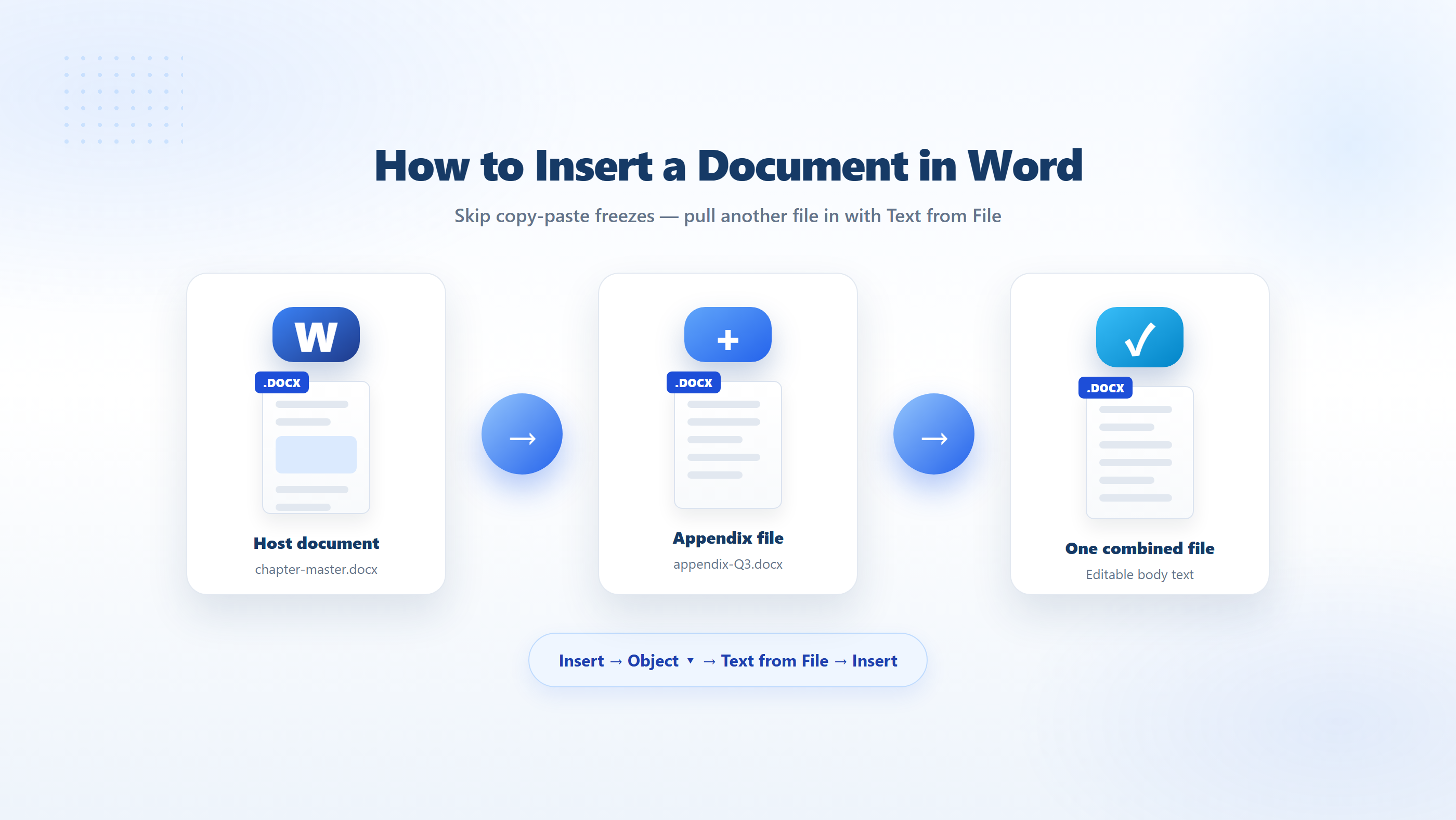
US searchers for this keyword usually want four things: a safer import than copy-paste, control over styles and headers after the merge, clarity on embed vs link icons, and whether PDF/Excel work the same way. Below maps those intents to the real Word commands—plus when a second writer app helps finish the master file.
How do I insert a Word document into another without copy-paste?
Copy-paste works for a page or two. On hundreds of pages it often freezes Word, drops images, or scrambles fields. Word already has an import command:
Open the host document (the one that will hold everything).
Click where the other file’s content should start.
Go to the Insert tab → find the Text group → click the arrow next to Object.
Choose Text from File.
Select the Word document → Insert. Repeat for additional chapters in order.

Tip: on a condensed ribbon, expand the Text group or search “Text from File” in Tell Me / Search. Clicking the Object button itself (not the dropdown) opens a different dialog—use the arrow for Text from File.
Why did formatting change after I inserted the document—and how do I control it?
Text from File dumps body content into the current story. Style names like Normal and Heading 1 often collide, so the host template “wins.” Headers and footers are section properties, so they may vanish or all look like Chapter 1 unless you plan sections first.
Make inserted content match the master: insert, then restyle with the host’s Heading/Normal styles, or insert into a document already based on the final template. Clear direct formatting where needed.
Keep the inserted file’s look as an appendix: before inserting, place the cursor and insert a Layout → Breaks → Next Page (or Continuous) section break. Insert Text from File into the new section. Unlink the header/footer from the previous section if the appendix needs its own title/page numbers. Microsoft explicitly recommends a new section when you want the source headers/footers applied only to those pages.
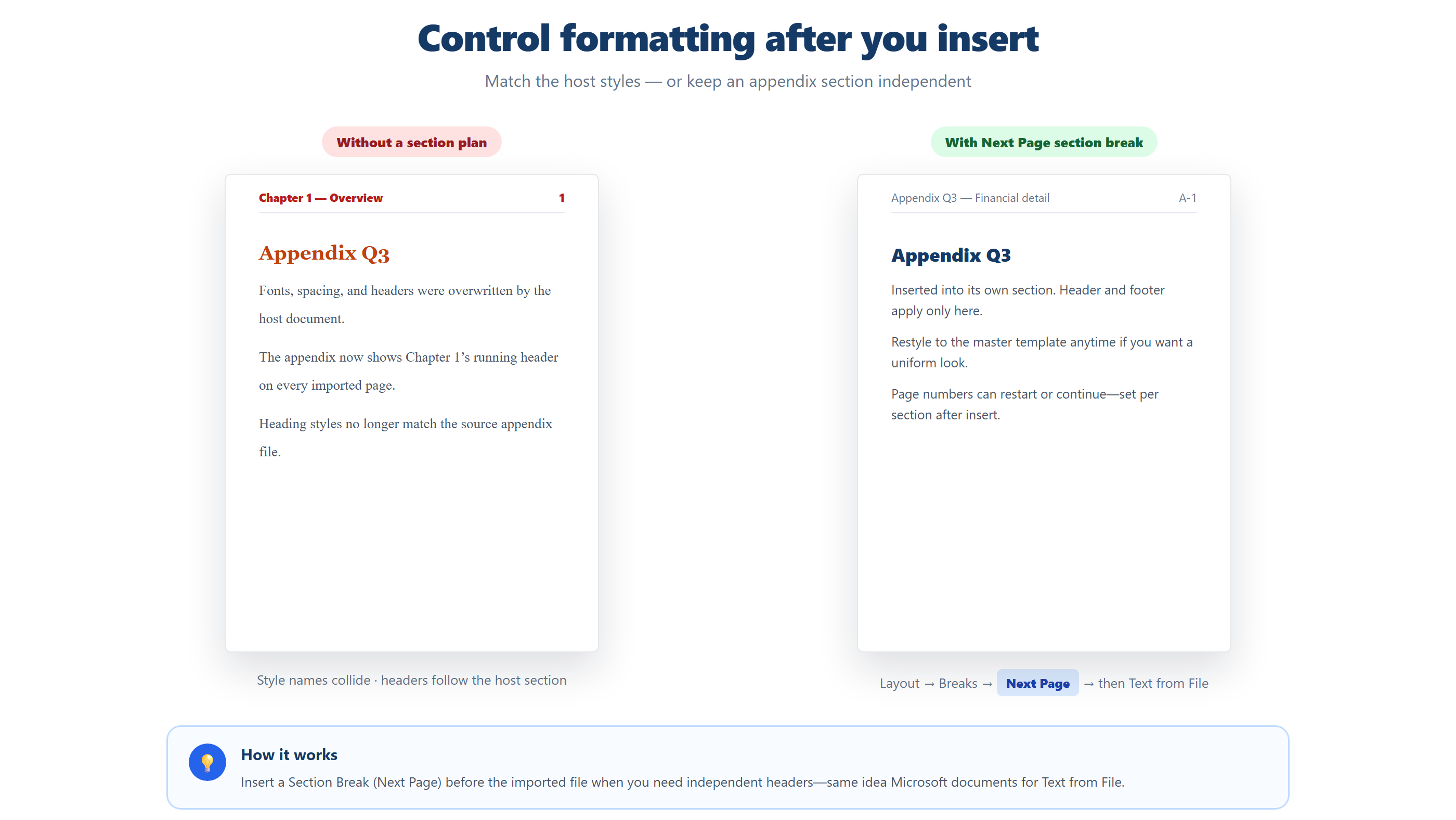
Page numbering after multi-file inserts often needs a pass: set “Start at” per section or use “Continue from previous” intentionally—don’t assume fields survive untouched.
Embed the body, or show a clickable icon / link?
These are different jobs with similar menus:
Text from File — expands the other document as editable text on the page (combine chapters).
Object → Create from File (Embed) — stores a copy inside the host. Check Display as icon for an email-style icon readers double-click to open. Source edits do not auto-update the embedded copy.
Link to file — same Create from File tab, check Link to file. The host stores a path; you can refresh when the source changes. Moves/renames break the link, and recipients need access to the original file.

Rule of thumb: words on the page → Text from File. Attachment behavior → embed + Display as icon. Living spreadsheet/chart → Link to file (and keep the source shared).
Can I insert a PDF or Excel file into Word the same way?
Yes—the Object path is cross-format; the result depends on type:
PDF: Insert → Object → Object… → Create from File → Browse. Display as icon for a reliable attachment; unchecked often shows a first-page preview (multi-page PDFs usually don’t expand every page inline). For editable text, open the PDF in Word to convert, then copy what you need—or convert first, then use Text from File on the resulting .docx.
Excel: Create from File ��� embed for a static copy, or check Link to file so tables/charts can update with the workbook. Paste Special / linked Excel objects are alternatives when you only need a range.

Another option: finish the master file in WPS Writer
When Microsoft Word keeps choking on mega paste jobs—or teammates use different Office builds—assemble the same .docx workflow in WPS Office Writer. Use Insert → Object (or File Object) to embed another Word file as an icon, or Text from File when you want the body text expanded on the page.
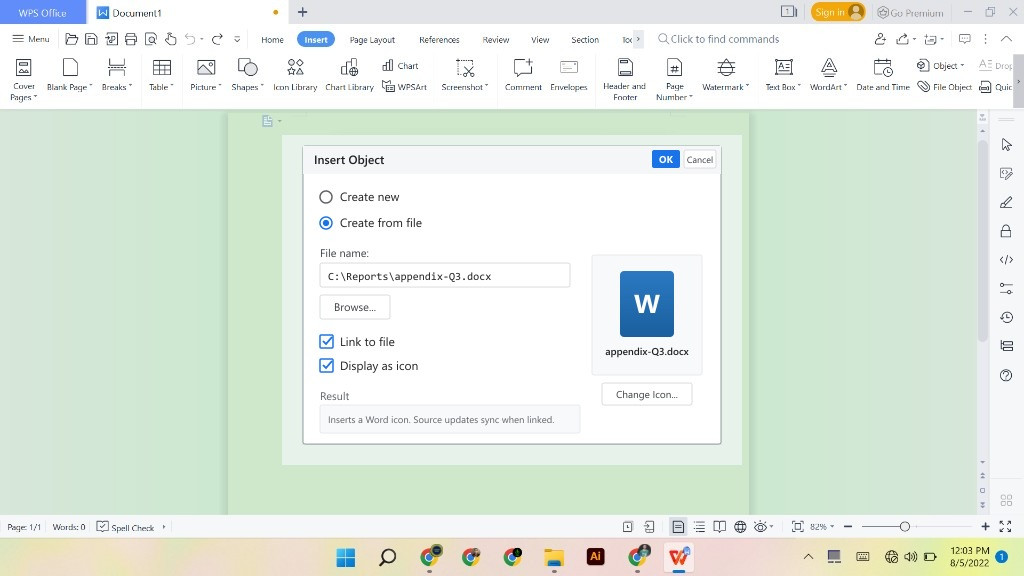
.docx → check Display as icon (and Link to file if you want updates).Check Display as icon so reviewers double-click the appendix instead of scrolling pasted pages. Check Link to file only when the source .docx stays on a shared path and should update later.
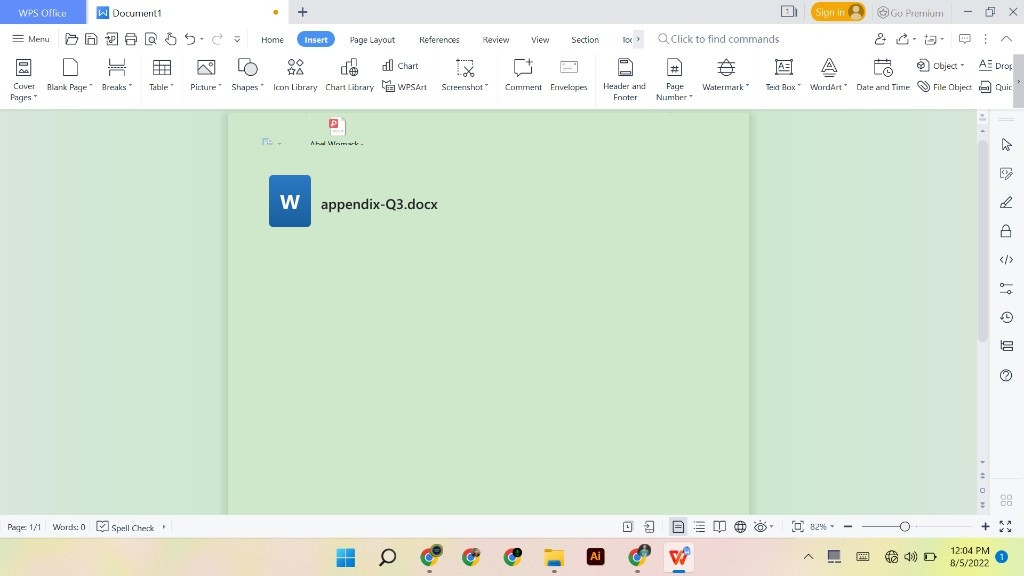
That doesn’t replace learning Text from File and section breaks in Microsoft Word, but it helps mixed Windows/Mac teams keep moving without waiting on one Microsoft 365 build, and the free tier covers everyday report assembly.
FAQ
How do I insert a Word document into another Word document?
Place the cursor, then Insert → Object dropdown → Text from File → select the .docx → Insert. That imports the file as editable body text.
Where is Text from File in Word?
Insert tab → Text group → arrow next to Object → Text from File. Don’t confuse it with clicking Object alone, which opens Create New / Create from File.
How do I keep headers and footers when inserting a document?
Insert a section break first, then use Text from File in the new section. Unlink headers from the previous section if the appendix needs its own header.
What’s the difference between embed and Link to file?
Embed stores a copy inside the Word file (no auto-sync). Link to file points at the source so updates can refresh—but the path must stay valid for collaborators.
Can I insert a PDF into Word as an icon?
Yes. Insert → Object → Create from File → choose the PDF → check Display as icon → OK. Double-click opens it in your PDF reader.
Can linked Excel data update inside Word?
Yes when you insert with Link to file (or a linked Paste Special). Keep the workbook on a shared path; use embed if you must email one self-contained document.
Summary
To insert a document in Word, prefer Insert → Object → Text from File over Ctrl+A paste on long files. Control layout with host styles or a section break when headers must stay appendix-specific. Choose Text from File for on-page text, embed + icon for attachments, and Link to file when PDF/Excel sources must stay live. If Word still struggles assembling the master, tidy and Save As in WPS Writer for the team.



'%3e%3cpath%20d='M19.9911%204.11386V6.471H18.5894C18.0775%206.471%2017.7322%206.57814%2017.5536%206.79243C17.3751%207.00671%2017.2858%207.32814%2017.2858%207.75671V9.44421H19.9019L19.5536%2012.0871H17.2858V18.8639H14.5536V12.0871H12.2769V9.44421H14.5536V7.49779C14.5536%206.39064%2014.8632%205.53201%2015.4822%204.92189C16.1013%204.31177%2016.9257%204.00671%2017.9554%204.00671C18.8304%204.00671%2019.509%204.04243%2019.9911%204.11386Z'%20fill='%23333333'/%3e%3c/g%3e%3cdefs%3e%3cclipPath%20id='clip0_2938_8199'%3e%3crect%20width='16'%20height='16'%20fill='white'%20transform='translate(8%204.00671)'/%3e%3c/clipPath%3e%3c/defs%3e%3c/svg%3e)
'%3e%3cpath%20d='M17.5237%2010.7813L23.4811%204H22.0699L16.8949%209.88693L12.7648%204H8L14.2469%2012.9029L8%2020.0133H9.4112L14.8725%2013.7952L19.2352%2020.0133H24M9.92053%205.04213H12.0885L22.0688%2019.0224H19.9003'%20fill='%23333333'/%3e%3c/g%3e%3cdefs%3e%3cclipPath%20id='clip0_2938_8200'%3e%3crect%20width='16'%20height='16.0134'%20fill='white'%20transform='translate(8%204)'/%3e%3c/clipPath%3e%3c/defs%3e%3c/svg%3e)


