



'%3e%3cpath%20fill-rule='evenodd'%20clip-rule='evenodd'%20d='M21.4999%2010.9993C21.4999%205.20009%2016.7986%200.498901%2010.9993%200.498901C5.19994%200.498901%200.498657%205.20009%200.498657%2010.9993C0.498657%2016.2404%204.33858%2020.5844%209.35855%2021.3722V14.0346H6.69238V10.9993H9.35855V8.68594C9.35855%206.05427%2010.9262%204.60062%2013.3248%204.60062C14.4736%204.60062%2015.6753%204.80571%2015.6753%204.80571V7.38979H14.3512C13.0468%207.38979%2012.64%208.19921%2012.64%209.0296V10.9993H15.5523L15.0867%2014.0346H12.64V21.3722C17.66%2020.5844%2021.4999%2016.2404%2021.4999%2010.9993Z'%20fill='%231568EA'/%3e%3c/g%3e%3c/svg%3e)


'%3e%3cpath%20d='M2.42045%2022.1876H6.31818V12.7217L0.75%208.54553V20.5171C0.75%2021.4414%201.49892%2022.1876%202.42045%2022.1876Z'%20fill='%234285F4'/%3e%3cpath%20d='M19.682%2022.1876H23.5797C24.5041%2022.1876%2025.2502%2021.4387%2025.2502%2020.5171V8.54553L19.682%2012.7217'%20fill='%2334A853'/%3e%3cpath%20d='M19.682%205.48293V12.7216L25.2502%208.54543V6.31816C25.2502%204.25236%2022.8921%203.07469%2021.2411%204.31361'%20fill='%23FBBC04'/%3e%3cpath%20d='M6.31824%2012.7217V5.48303L13.0001%2010.4944L19.6819%205.48303V12.7217L13.0001%2017.733'%20fill='%23EA4335'/%3e%3cpath%20d='M0.75%206.31816V8.54543L6.31818%2012.7216V5.48293L4.75909%204.31361C3.10534%203.07469%200.75%204.25236%200.75%206.31816Z'%20fill='%23C5221F'/%3e%3c/g%3e%3cdefs%3e%3cclipPath%20id='clip0_2954_7305'%3e%3crect%20width='24.5'%20height='18.375'%20fill='white'%20transform='translate(0.75%203.8125)'/%3e%3c/clipPath%3e%3c/defs%3e%3c/svg%3e)


Quick answer: To translate English to Spanish in Word, open your .docx, go to Review → Translate → Translate Document, set From: English and To: Spanish, then click Translate. Word creates a new Spanish document in a separate window—your English file is not overwritten. For a single paragraph, use Translate Selection and click Insert. You need a supported Word build (Microsoft 365 or Office 2021), an internet connection, and connected experiences enabled.
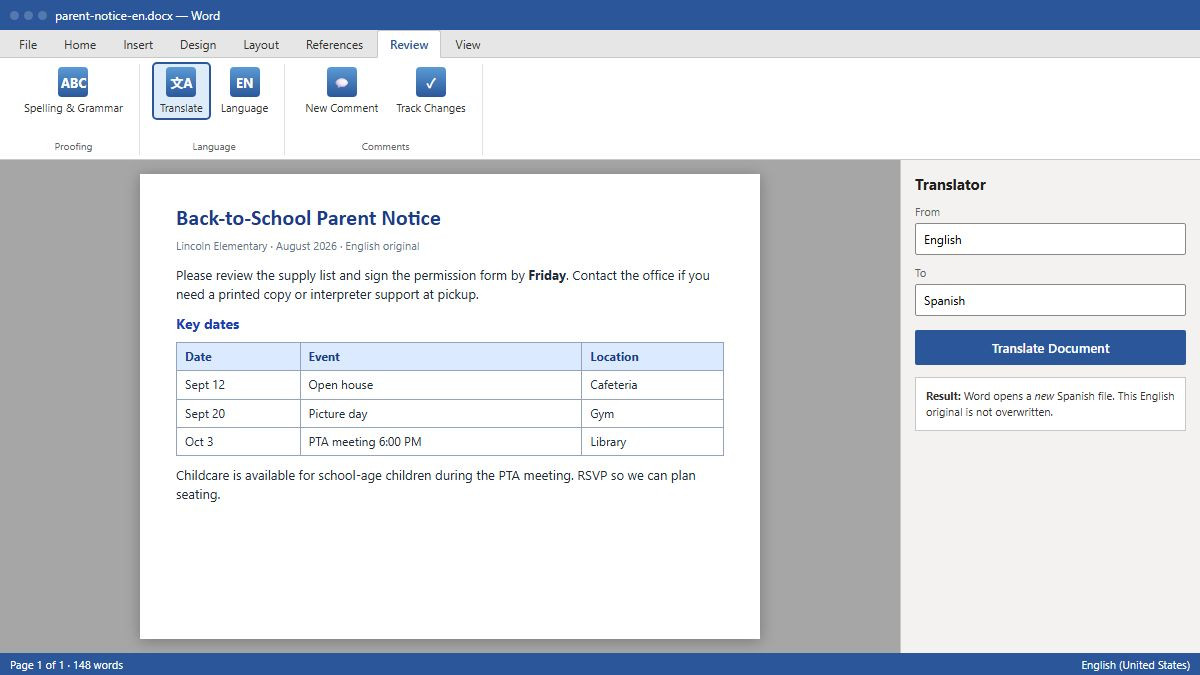
US searches for this phrase usually mean a school handout, parent letter, or internal doc—not learning Spanish grammar. People want the Review-tab path, whether the whole file or just a selection translates, if tables survive, why Translate is missing, and whether machine output is good enough to send. Below matches those intents to the real Word commands.
How do I translate an entire Word document from English to Spanish?
Use Translate Document when every page should become Spanish—typical for 4-page handouts, newsletters, or policy summaries.
Open the English .docx in Word (desktop or Word for the web).
Select the Review tab on the ribbon.
Click Translate, then choose Translate Document.
In the Translator pane, set From to English (or leave Auto-detect) and To to Spanish.
Click Translate. Accept the prompt that text will be sent online for translation.
Word opens a new window with the Spanish copy. Save it with a clear name (for example, parent-notice-es.docx).
Close the Translator pane in the original file and click OK if prompted—the English source stays as-is.
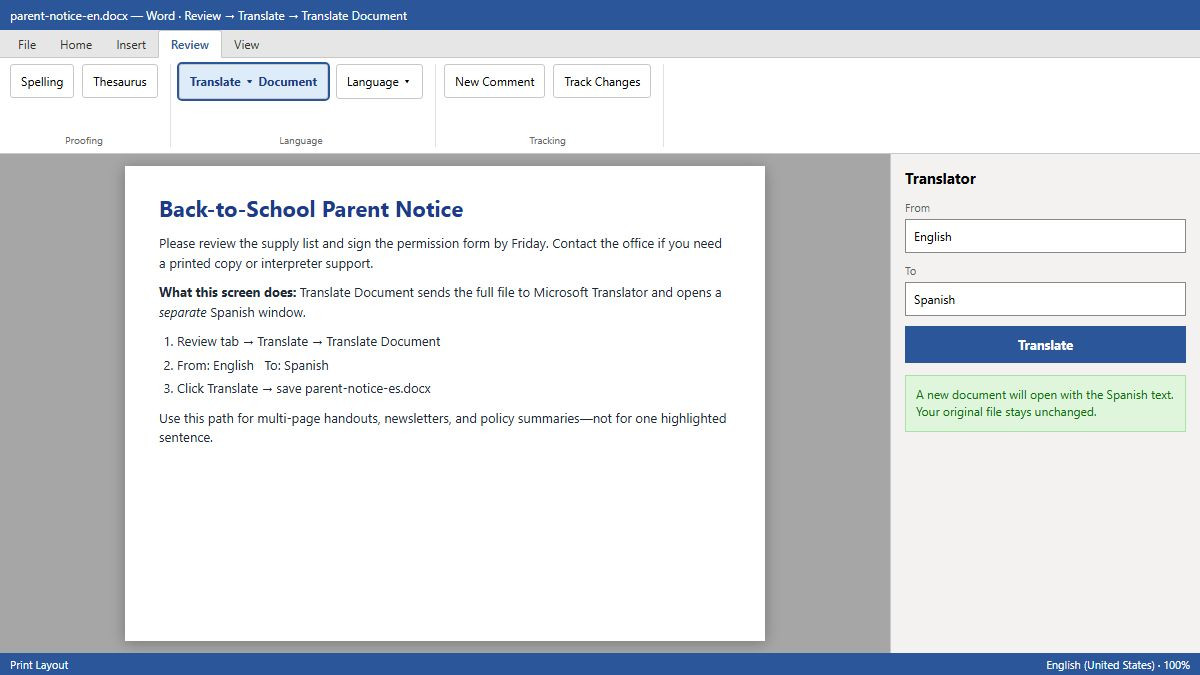
Tip: if you always translate to Spanish, check Always translate to this language in the pane so you skip re-selecting Spanish next time.
How do I translate only selected text in Word?
When one sentence or paragraph needs Spanish while the rest stays English, highlight first—do not use Translate Document.
Select the English words you want converted.
Go to Review → Translate → Translate Selection.
Confirm English → Spanish in the Translator pane.
Read the Spanish preview. If multiple meanings appear, expand entries and pick the best fit.
Click Insert to replace the highlighted text with Spanish.
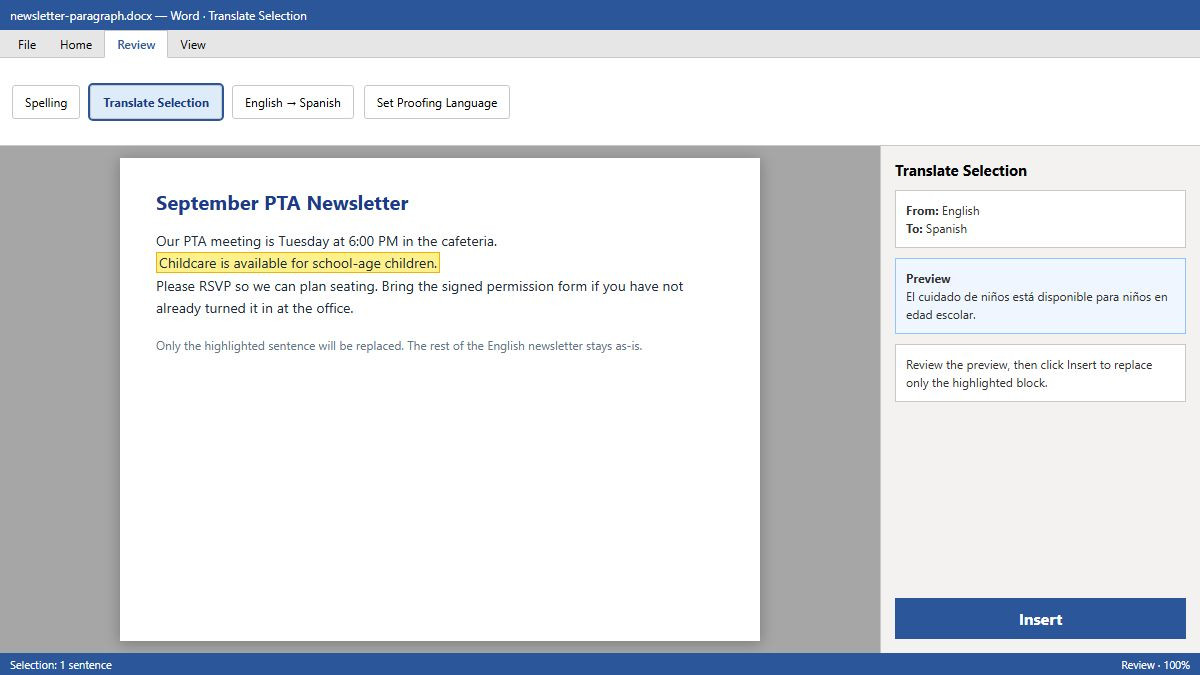
Translate Selection is ideal for bilingual forms (English label + Spanish instructions) or fixing one paragraph after a full-document translate.
Does Word keep formatting, tables, and headers when translating to Spanish?
For most everyday .docx files, Translate Document preserves headings, tables, lists, and images better than copy-paste into Google Translate. Word builds a parallel file instead of dumping plain text.
Tables: cell structure usually survives, but Spanish is often 15–30% longer than English. Fixed row heights can clip text—release height limits or widen columns after translate.
Headers and footers: translated text should appear, yet longer strings may wrap awkwardly in right-aligned headers. Scroll every section in Print Layout.
Text in images: Word does not translate pixels inside screenshots. Retype overlay text or replace the image manually.
Complex layouts: floating text boxes and anchored shapes may shift when page count changes. Plan a quick layout pass before printing or exporting PDF.
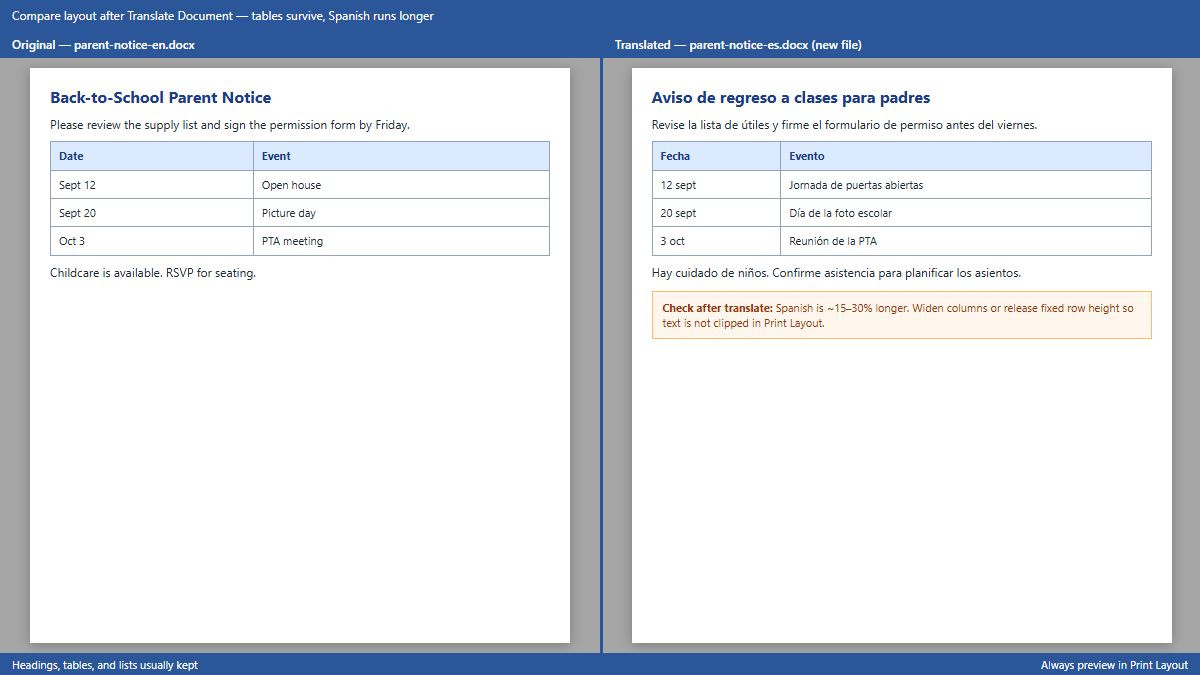
Before sharing with parents, print preview or export PDF—overflow hides in Normal view more often than in Print Layout.
Why don't I see Translate on the Review tab?
If Translate is missing, grayed out, or fails immediately, check these blockers in order:
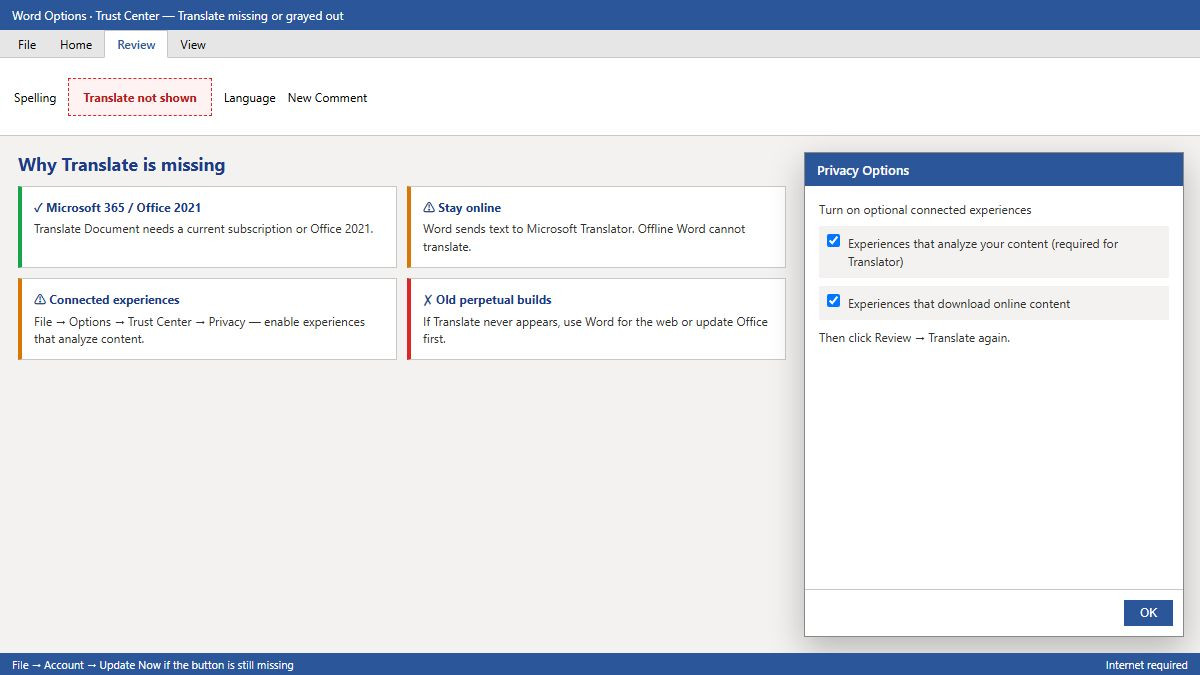
Supported Word build: whole-document translation requires Microsoft 365 or Office 2021 (per Microsoft Support). Very old perpetual installs may lack the modern Translator pane.
Internet: Word sends content to Microsoft Translator online. Offline mode will not translate.
Connected experiences: File → Options → Trust Center → Trust Center Settings → Privacy Options → enable connected experiences that analyze content. Work/school tenants may disable this—try Word for the web signed into the same account.
Updates: File → Account → Update Options → Update Now, then restart Word.
First-run prompt: the first time you translate, Word may ask to turn on Translation Services—click Turn on.
Fallback when desktop Translate never appears: open the same file in Word for the web (Review → Translate works the same) or upload the .docx to Google Translate for a rough draft—then paste into a copy and fix formatting manually.
How do I fix red spelling lines after translating to Spanish?
After translation, red squiggles often mean Word is still proofing in English, not that the Spanish is wrong.
In the new Spanish document, press Ctrl+A to select all translated text (or select the affected paragraphs).
Go to Review → Language → Set Proofing Language (on Mac: Review → Language → Language…).
Choose Spanish (Mexico, Spain, or your locale), or select Do not check spelling or grammar for a quick draft handout.
Click OK. Red underlines should clear.
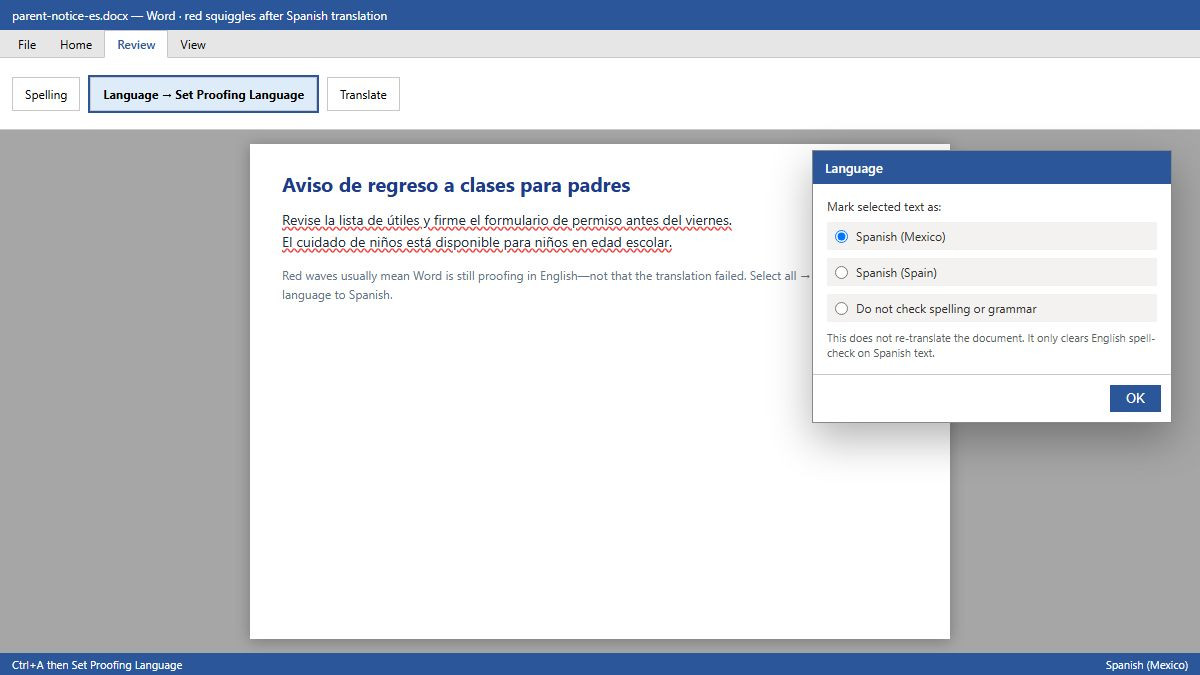
Proofing language controls spell-check rules—it does not re-translate text. Set Spanish proofing so parents see clean copy, then have a fluent reader spot-check tone for your community (Mexico vs Spain vocabulary differs).
Is Word translation accurate enough for school or work documents?
Word’s built-in translator (Microsoft Translator) is fine for internal drafts, classroom handouts, and “good enough” parent notices when a human reviewer can skim the output. It is not certified for immigration filings, court submissions, contracts, or medical/legal instructions.
School handouts: translate the full doc, then ask a bilingual staff member or parent liaison to verify names, dates, and tone.
Official records: use a certified human translator with a signed statement—USCIS and many courts reject machine translation alone.
Idioms and brand terms: machine output may literalize slogans. Fix product names and acronyms manually after Insert.
Think of Word translate as a fast first pass that saves retyping—not a replacement for professional translation when stakes are high.
Word vs Google Translate for a DOCX file
Both are machine translation; the trade-off is workflow vs formatting:
Word Translate Document: stays inside Word, keeps most .docx structure, best when you already have Microsoft 365 and want an editable Spanish .docx.
Google Translate (Documents tab): free in the browser, handles many formats, but complex tables and styles often flatten or break; output may need heavy cleanup in Word afterward.
DeepL / AI upload tools: strong fluency for prose; check privacy policies before uploading HR or student records.
For a 4-page parent handout already in Word, Review → Translate Document is usually the shortest path. Use browser upload tools when Word Translate is unavailable or layout is simple.
Another option: polish or translate in WPS Writer with WPS AI Translate
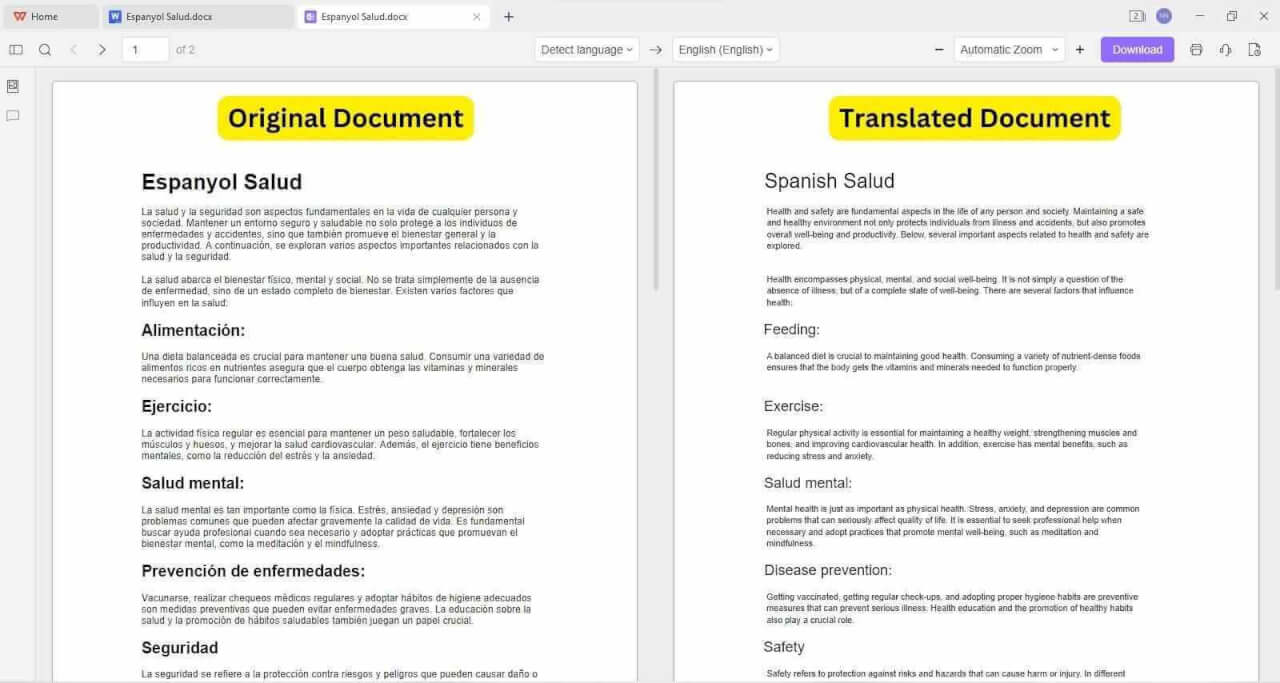
After Word creates the Spanish .docx, teammates without Microsoft 365 on every laptop can open the same file in WPS Office Writer. Use WPS AI Translate / Parallel Translate to compare original and Spanish side by side, then tweak wording, widen table rows, and export PDF.
WPS does not replace learning Word’s Review → Translate steps, but it helps mixed Windows/Mac teams finish parent-facing documents when Office installs differ across devices.
FAQ
How do I translate English to Spanish in Microsoft Word?
Open the document → Review → Translate → Translate Document → set English to Spanish → Translate. Word opens a new Spanish file; the English original is unchanged.
Where is the Translate button in Word?
On the Review tab, in the Language group: click Translate, then Translate Document or Translate Selection.
Can Word translate an entire document to Spanish at once?
Yes. Translate Document converts the full file into a separate Spanish document in one pass (supported on Microsoft 365 and Office 2021 with internet).
Does Word replace my original document when translating?
No for Translate Document—it creates a new window/file. Translate Selection replaces only the text you highlighted.
Is Word translation free? Do I need Microsoft 365?
Translate is included with Microsoft 365 and Office 2021; there is no per-word fee, but you need a valid subscription or license and an internet connection.
Can I use Word translation for immigration or legal documents?
No for official submission. Machine translation—including Word—is not accepted where certified human translation is required. Use Word only as a draft.
How do I fix red lines under Spanish text after translating?
Select the translated text → Review → Language → Set Proofing Language → choose Spanish or turn off spelling check for drafts.
Does Word translate tables, headers, and footers?
Usually yes for body tables and header/footer text, but longer Spanish strings can break tight layouts—always review in Print Layout or PDF preview.
Summary
To translate English to Spanish in Word, use Review → Translate → Translate Document for full handouts (new Spanish file, original safe) or Translate Selection → Insert for single paragraphs. Expect decent format retention but check tables and headers because Spanish runs longer. If Translate is missing, verify Microsoft 365/Office 2021, internet, and connected experiences; clear red squiggles with Spanish proofing language. Machine output works for drafts and parent notices—not for certified legal use. Optionally polish the saved .docx in WPS Writer before you print or email PDFs.



'%3e%3cpath%20d='M19.9911%204.11386V6.471H18.5894C18.0775%206.471%2017.7322%206.57814%2017.5536%206.79243C17.3751%207.00671%2017.2858%207.32814%2017.2858%207.75671V9.44421H19.9019L19.5536%2012.0871H17.2858V18.8639H14.5536V12.0871H12.2769V9.44421H14.5536V7.49779C14.5536%206.39064%2014.8632%205.53201%2015.4822%204.92189C16.1013%204.31177%2016.9257%204.00671%2017.9554%204.00671C18.8304%204.00671%2019.509%204.04243%2019.9911%204.11386Z'%20fill='%23333333'/%3e%3c/g%3e%3cdefs%3e%3cclipPath%20id='clip0_2938_8199'%3e%3crect%20width='16'%20height='16'%20fill='white'%20transform='translate(8%204.00671)'/%3e%3c/clipPath%3e%3c/defs%3e%3c/svg%3e)
'%3e%3cpath%20d='M17.5237%2010.7813L23.4811%204H22.0699L16.8949%209.88693L12.7648%204H8L14.2469%2012.9029L8%2020.0133H9.4112L14.8725%2013.7952L19.2352%2020.0133H24M9.92053%205.04213H12.0885L22.0688%2019.0224H19.9003'%20fill='%23333333'/%3e%3c/g%3e%3cdefs%3e%3cclipPath%20id='clip0_2938_8200'%3e%3crect%20width='16'%20height='16.0134'%20fill='white'%20transform='translate(8%204)'/%3e%3c/clipPath%3e%3c/defs%3e%3c/svg%3e)


