



'%3e%3cpath%20fill-rule='evenodd'%20clip-rule='evenodd'%20d='M21.4999%2010.9993C21.4999%205.20009%2016.7986%200.498901%2010.9993%200.498901C5.19994%200.498901%200.498657%205.20009%200.498657%2010.9993C0.498657%2016.2404%204.33858%2020.5844%209.35855%2021.3722V14.0346H6.69238V10.9993H9.35855V8.68594C9.35855%206.05427%2010.9262%204.60062%2013.3248%204.60062C14.4736%204.60062%2015.6753%204.80571%2015.6753%204.80571V7.38979H14.3512C13.0468%207.38979%2012.64%208.19921%2012.64%209.0296V10.9993H15.5523L15.0867%2014.0346H12.64V21.3722C17.66%2020.5844%2021.4999%2016.2404%2021.4999%2010.9993Z'%20fill='%231568EA'/%3e%3c/g%3e%3c/svg%3e)


'%3e%3cpath%20d='M2.42045%2022.1876H6.31818V12.7217L0.75%208.54553V20.5171C0.75%2021.4414%201.49892%2022.1876%202.42045%2022.1876Z'%20fill='%234285F4'/%3e%3cpath%20d='M19.682%2022.1876H23.5797C24.5041%2022.1876%2025.2502%2021.4387%2025.2502%2020.5171V8.54553L19.682%2012.7217'%20fill='%2334A853'/%3e%3cpath%20d='M19.682%205.48293V12.7216L25.2502%208.54543V6.31816C25.2502%204.25236%2022.8921%203.07469%2021.2411%204.31361'%20fill='%23FBBC04'/%3e%3cpath%20d='M6.31824%2012.7217V5.48303L13.0001%2010.4944L19.6819%205.48303V12.7217L13.0001%2017.733'%20fill='%23EA4335'/%3e%3cpath%20d='M0.75%206.31816V8.54543L6.31818%2012.7216V5.48293L4.75909%204.31361C3.10534%203.07469%200.75%204.25236%200.75%206.31816Z'%20fill='%23C5221F'/%3e%3c/g%3e%3cdefs%3e%3cclipPath%20id='clip0_2954_7305'%3e%3crect%20width='24.5'%20height='18.375'%20fill='white'%20transform='translate(0.75%203.8125)'/%3e%3c/clipPath%3e%3c/defs%3e%3c/svg%3e)


LibreOffice does not ship a module labeled “PDF Editor.” People still search for a LibreOffice PDF editor because Draw can open many PDFs, treat pages as objects, and export the result again. That workflow is free, offline, and good enough for small fixes.
This guide shows the LibreOffice Draw edit PDF free workflow on Windows, macOS, or Linux: open the file in Draw, edit text or images, then use File > Export As > Export as PDF. It also covers where Draw starts to break layouts, and when WPS PDF is the cleaner everyday path.
LibreOffice PDF editor in Draw
What a LibreOffice PDF editor can actually change
Draw is a vector-graphics app. When it opens a PDF, it reconstructs the page as text boxes, images, lines, and shapes. You then move or rewrite those objects. A LibreOffice PDF editor of this kind is useful when you need a one-line correction, a replaced logo, or a deleted stamp—without paying for Acrobat.
It is a poor match when the PDF is a scanned image, a dense contract, or a form with live fields. Draw has no dedicated PDF mode, no built-in OCR, and weak handling of interactive forms. For those files, treating Draw as a LibreOffice PDF editor usually means extra cleanup after export.
Typical jobs a LibreOffice PDF editor handles well:
Fix a date, name, or amount on a simple one-page PDF
Move or replace a logo, signature image, or screenshot
Delete a stray object, then export a new PDF copy
Keep the original file. Draw does not “save over” a PDF in place; a normal Save stores an .odg drawing. The shareable PDF comes from export.
How to use LibreOffice Draw to edit PDF free
Install LibreOffice from the official site if you do not have it. You do not need an account. Then use Draw—not Writer—so the PDF opens as objects instead of a locked preview. In practice, LibreOffice Draw edit PDF free means those three moves: open in Draw, change objects, then export.
Step 1: Open the PDF in Draw
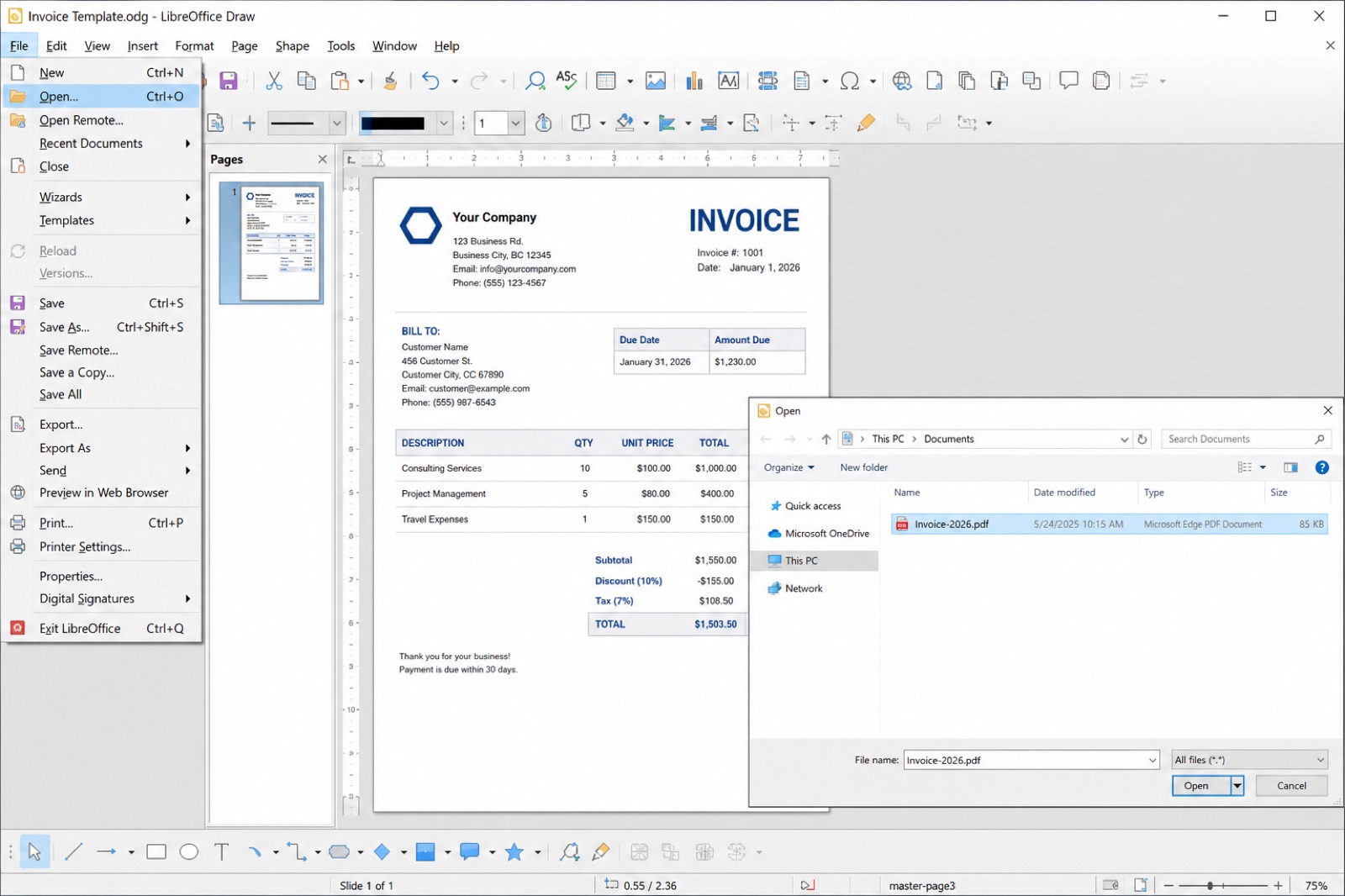
Launch LibreOffice Draw. Go to File > Open and choose the PDF. You can also open the file from the LibreOffice Start Center; the suite usually routes PDFs into Draw automatically.
Wait until every page thumbnail appears in the left pane. If a page looks like a flat picture with no selectable text, you are looking at a scan. Draw cannot type into pixels. A LibreOffice PDF editor cannot fix a scan by typing over the picture, so use OCR first, or switch to a PDF editor that can recognize scanned pages.
Step 2: Edit text, images, and layout
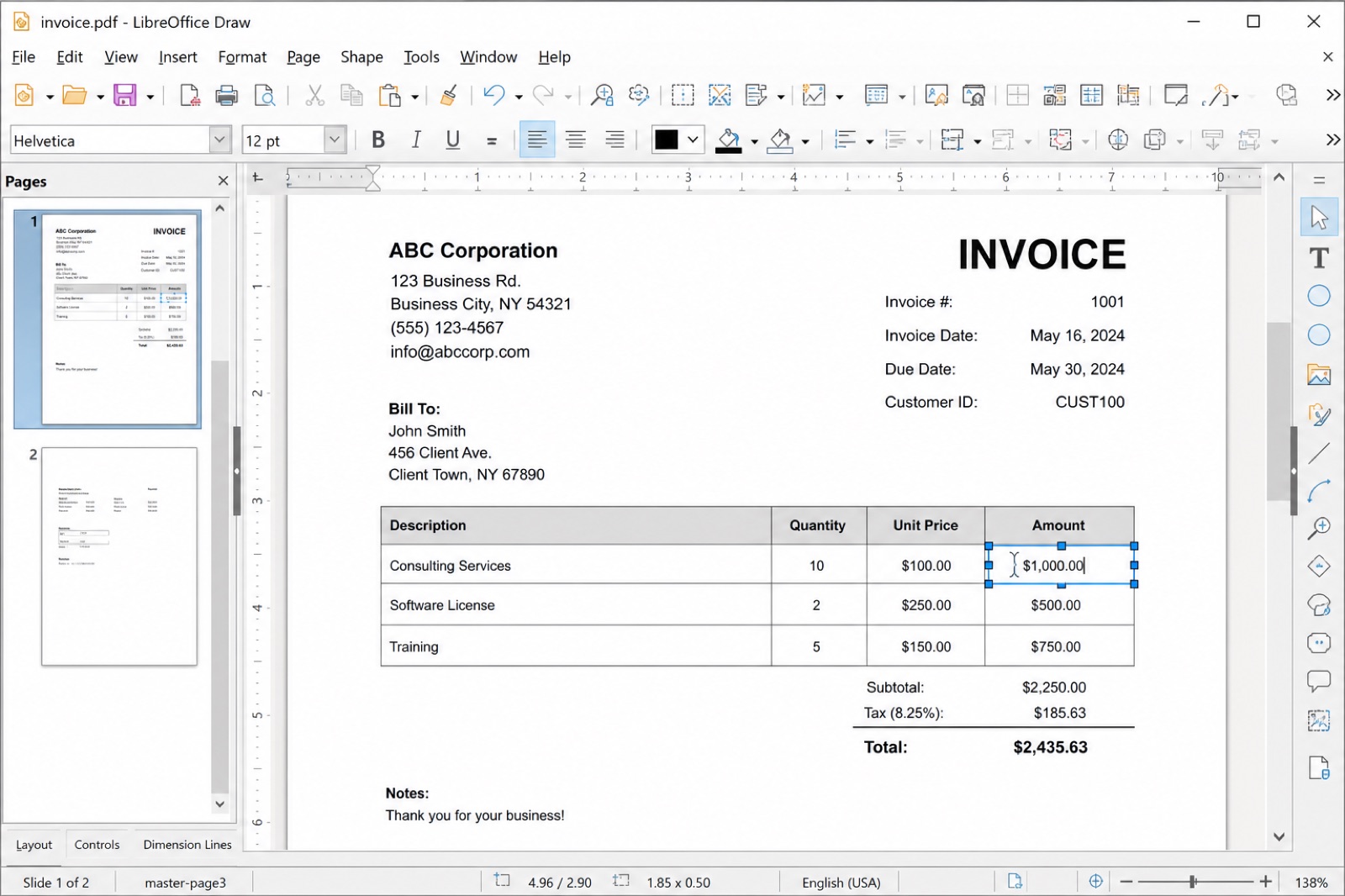
Click a line of text. If Draw reconstructed it as a text object, a blue frame appears and you can type. Use the formatting toolbar for font, size, and color. Keep replacements close to the original length so neighboring boxes do not overlap.
For images, click the picture and resize from a corner handle. Insert a new image with Insert > Image. Delete an object by selecting it and pressing Delete. Switch pages from the thumbnail pane on the left. People looking for LibreOffice Draw edit PDF free on a flyer or one-page notice usually spend this step changing a line of text or swapping a logo.
If one paragraph splits into many tiny boxes, do not force a rewrite across all of them. That is the usual sign that this PDF is too complex for a free Draw pass.
Step 3: Check every edited page
Zoom to 100% and scan for overlapping text, missing fonts, and shifted images. Draw often reflows a line when the new wording is shorter or longer than the original. Fix those boxes before you export, or the PDF will look unfinished in a viewer. That check is how you keep a LibreOffice PDF editor export from looking messy in a viewer.
Step 4: Export as PDF, not Save
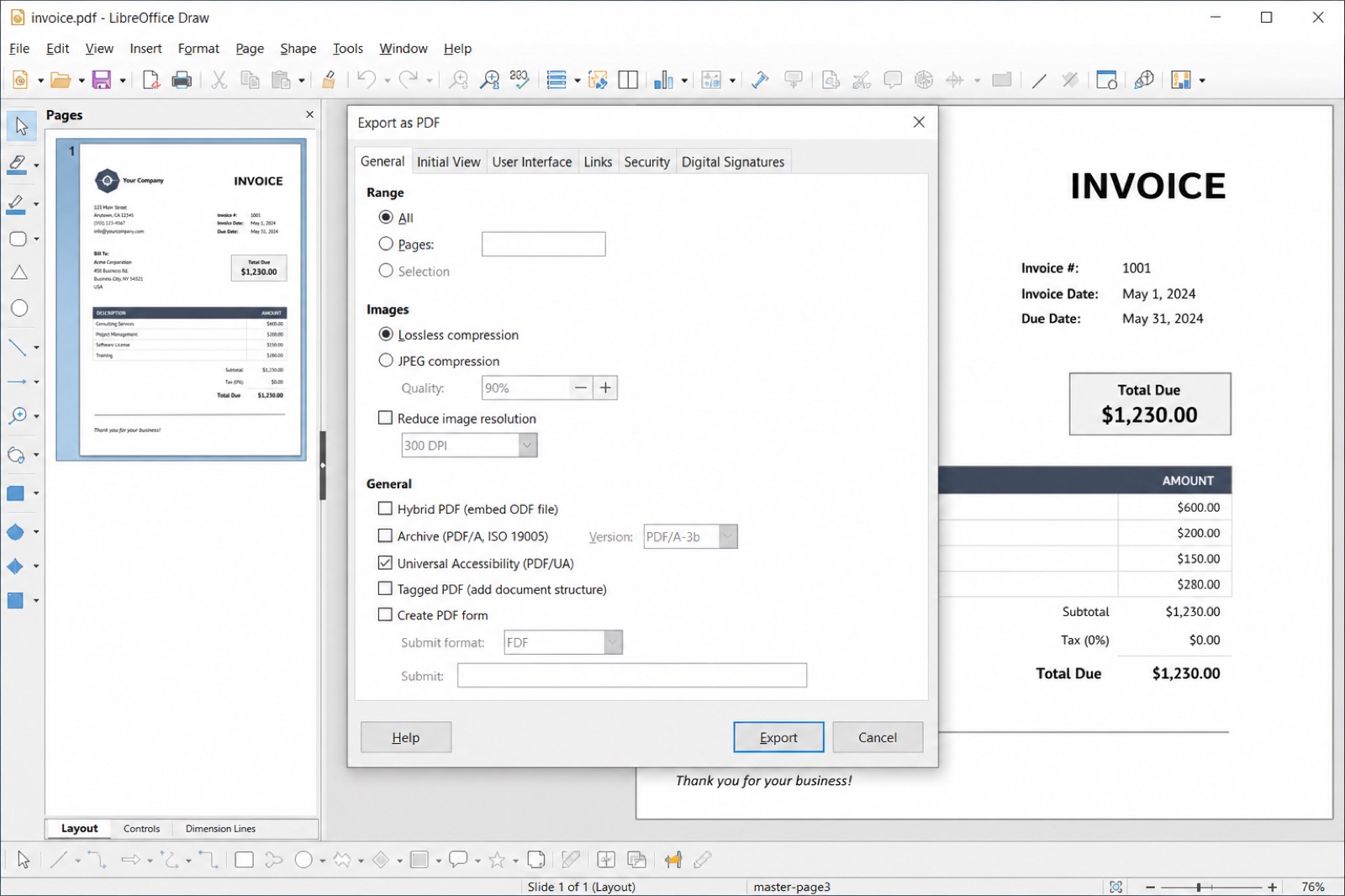
Go to File > Export As > Export as PDF. Review the PDF Options dialog if you need a page range or image quality, then export to a new filename. A faster path is File > Export As > Export Directly as PDF, which skips extra options.
Do not rely on File > Save for sharing. Save keeps an editable Draw file. Export is how you finish LibreOffice Draw edit PDF free work: it creates the PDF other people can open.


Why a LibreOffice PDF editor struggles with complex files
The same object model that makes Draw flexible also creates the cleanup work. A PDF is built for viewing. Draw has to guess how to rebuild it. On a simple flyer that guess is close. On a multi-column report it often is not. Anyone using a LibreOffice PDF editor on a long report should expect extra cleanup.
Common limits of the LibreOffice Draw edit PDF free workflow:
Text can split into many boxes, so rewriting a paragraph is slow
Fonts may substitute, which changes spacing after export
Hyperlinks and form fields often do not survive as interactive elements
Scanned pages stay as images unless you run OCR in another tool
There is no official LibreOffice mobile app for this workflow
Those limits do not make Draw a bad tool. They mark the boundary: use it for small, local, free edits. If you need merge, split, compress, convert to Word, or OCR, a dedicated PDF workspace is faster than forcing a LibreOffice PDF editor to behave like Acrobat. For a longer Draw-only walkthrough, see how to use LibreOffice Draw to edit PDF documents.
Best alternative to LibreOffice PDF editor:WPS Office
WPS Office includes a PDF editor in the same suite as Writer, Spreadsheet, and Presentation. You open the PDF, turn on content editing, change text or images, and save locally. You can also convert the file to Word when you need a deeper rewrite, then export back to PDF.
That matters when Draw’s object boxes fight you. WPS PDF is built around PDF tasks—edit, convert, compress, merge, split, and sign—rather than reconstructing a drawing. Desktop editing stays on your PC; you do not have to upload a contract to finish a typo. Some advanced tools may sit behind a paid plan, but everyday open-edit-save work is available in the free suite.
Choose WPS when LibreOffice Draw edit PDF free still leaves overlapping boxes, missing fonts, or a scan you cannot type into. A LibreOffice PDF editor is still the right first try for a two-minute fix; WPS is the better everyday option.
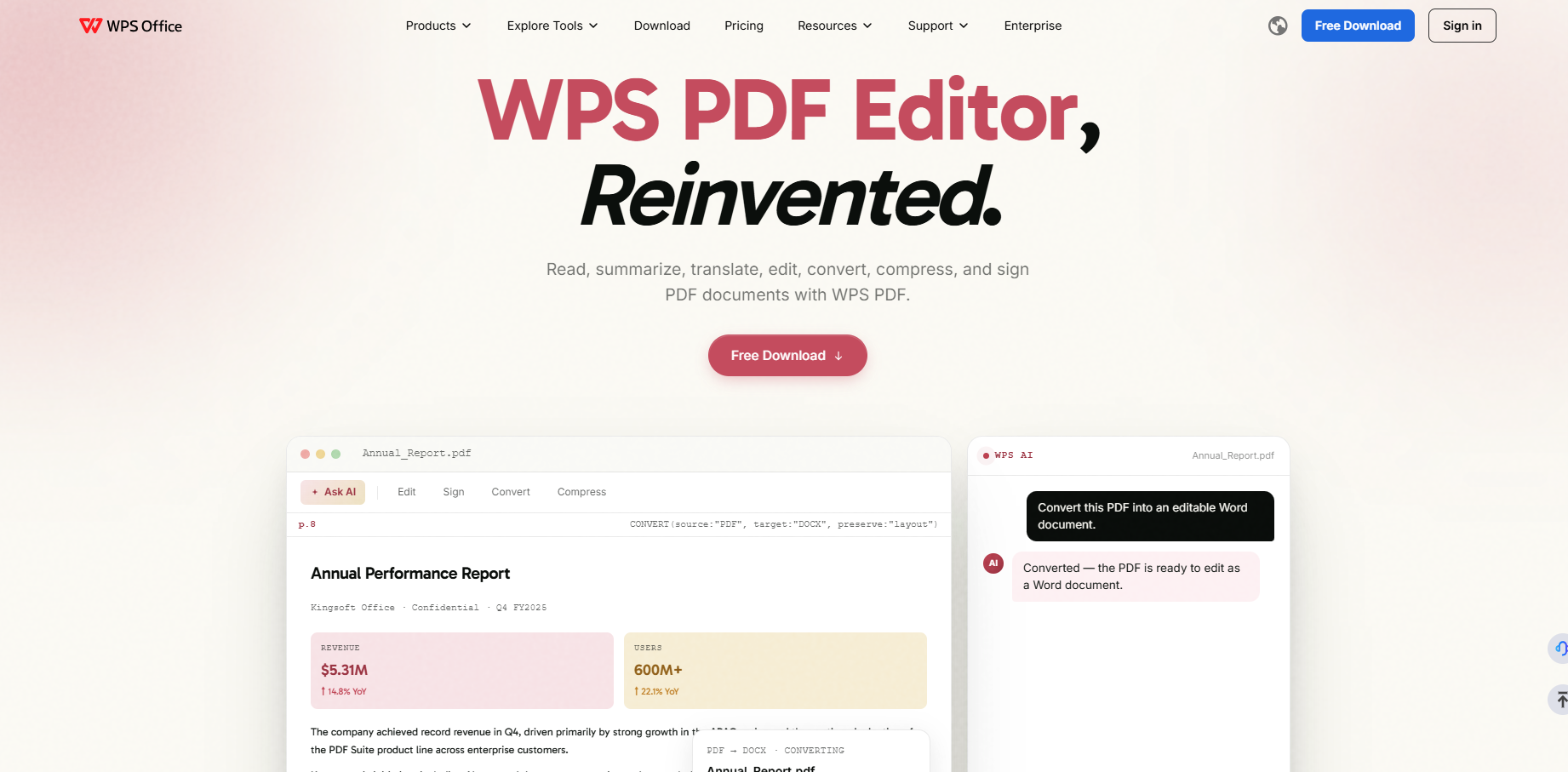
How to Edit PDF in WPS Office
Step 1: Download and open WPS Office. Use File > Open or drag the PDF into the window.
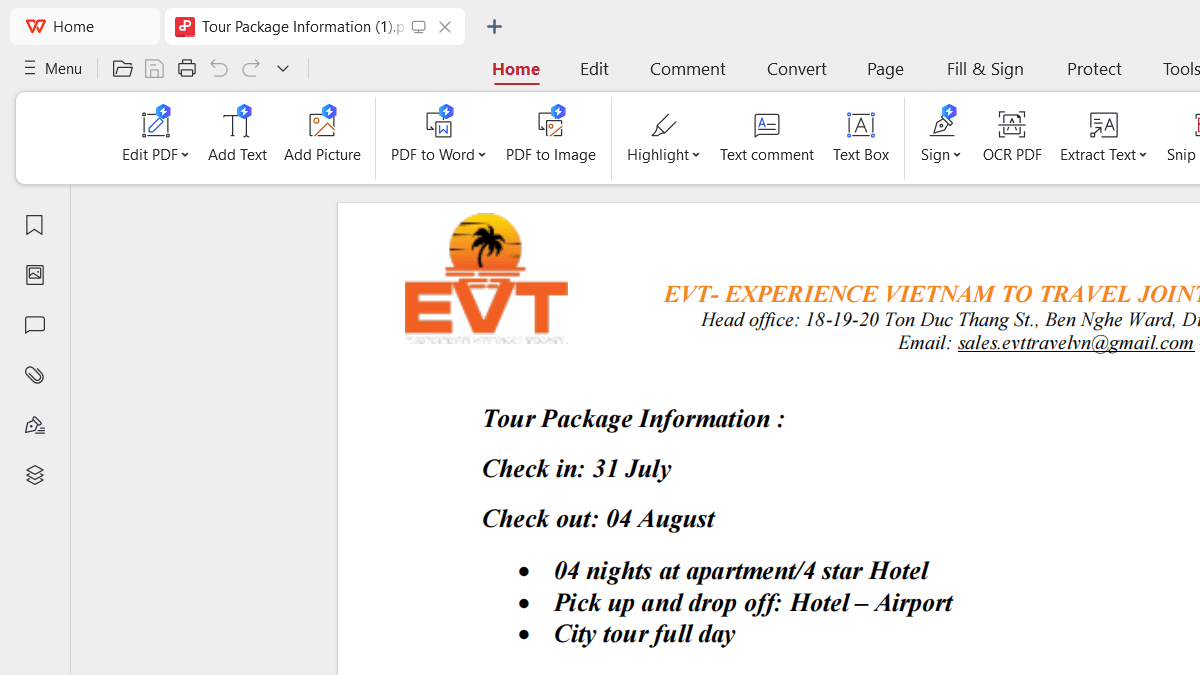
Step 2: Open the Edit tab and choose Edit Content so text and images become selectable.
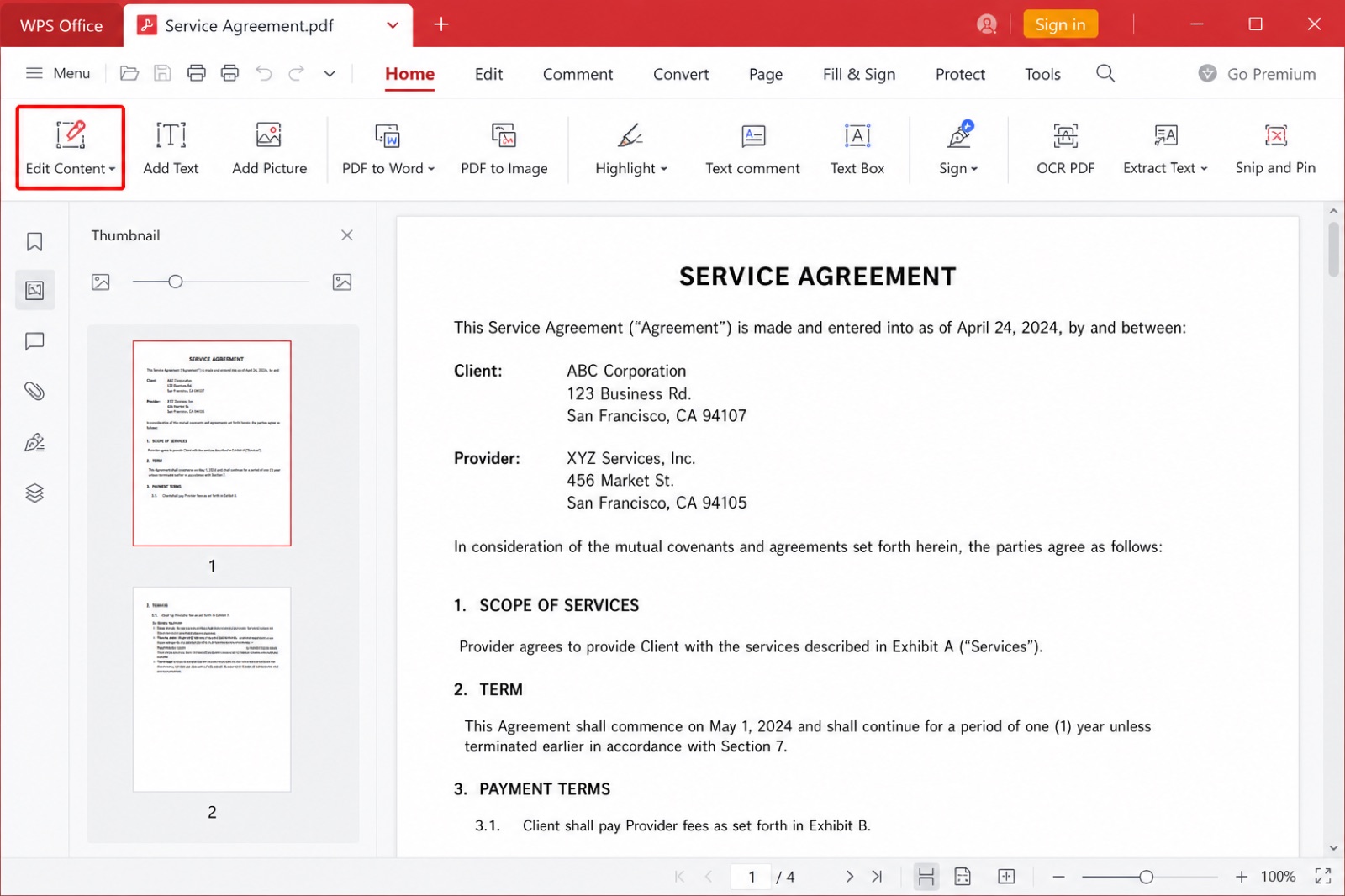
Step 3: Click the text or picture you want to change. Type the new wording, resize images, or delete objects. Keep font size consistent with nearby lines.
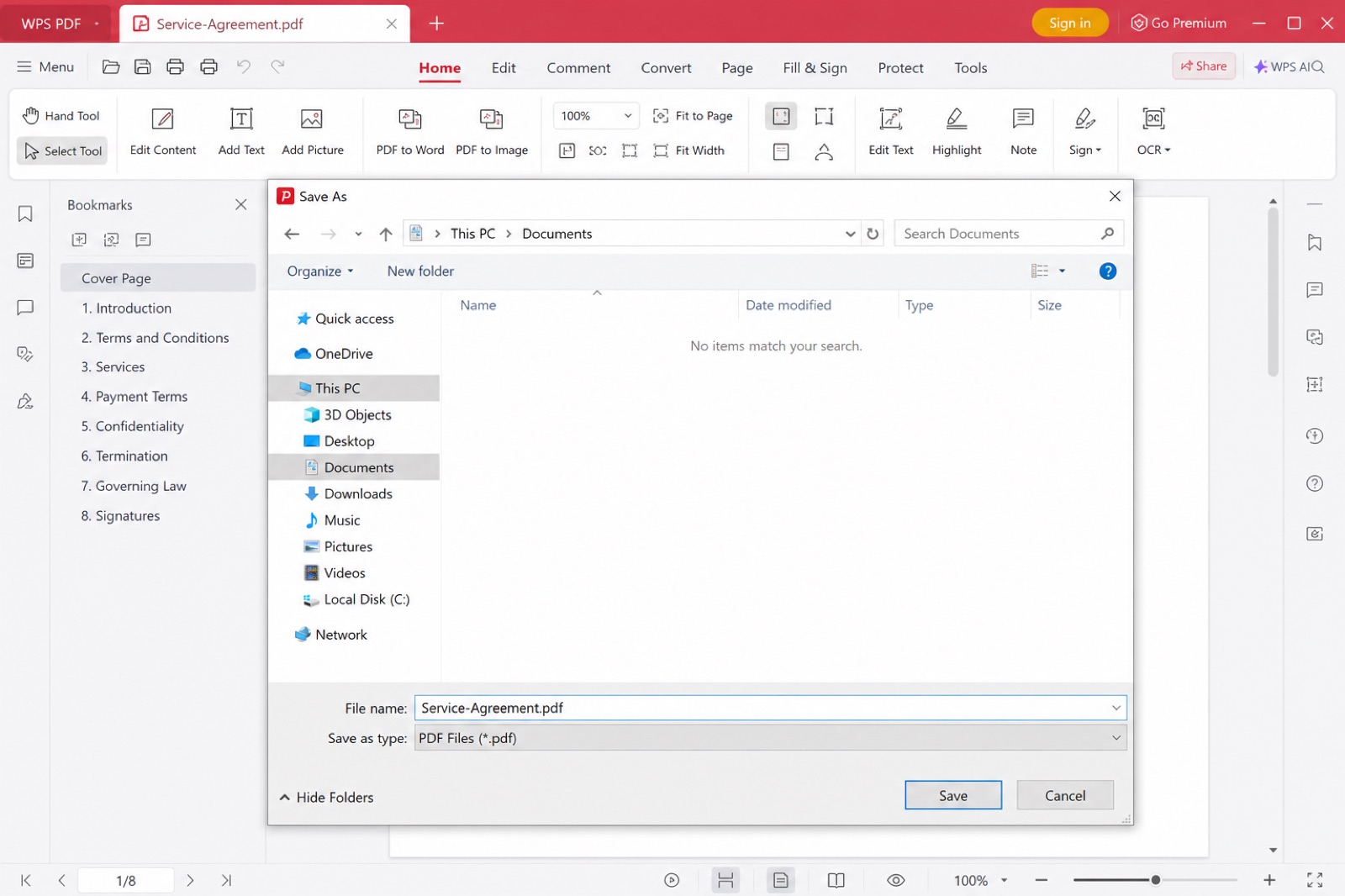
Step 4: Click Save or Save As so the edited PDF stays on your computer. For a scanned file that will not let you type, use OCR or convert to Word first—see how to edit a scanned PDF.
If you prefer a browser, pdf.wps.com covers quick convert and edit jobs. For a Windows-only walkthrough, use how to edit PDF in WPS Office for free.
| Need | LibreOffice Draw | WPS PDF |
|---|---|---|
| Price for basic edits | Free, open source, no account | Free suite with PDF tools; some advanced features may be paid |
| How editing works | PDF pages become drawing objects in a LibreOffice PDF editor workflow | Dedicated PDF edit, convert, and organize tools |
| Best for | Small text or image fixes; LibreOffice Draw edit PDF free on simple files | Everyday PDFs, conversions, and office follow-up in Word |
| Scanned PDFs | Needs a separate OCR step | OCR and convert-to-Word paths in the same product family |
| Devices | Windows, macOS, Linux desktop | Windows, Mac, Linux, mobile, and online tools |
FAQs
Can LibreOffice edit a PDF?
Yes. The built-in LibreOffice PDF editor path is Draw. Open the PDF in LibreOffice Draw, edit the objects, then export a new PDF. Writer is the wrong module for this job.
Is LibreOffice Draw edit PDF free for commercial use?
Yes. LibreOffice Draw edit PDF free use is allowed for commercial work because LibreOffice is free and open-source software. You can use Draw to edit and export PDFs without a subscription. Check the Mozilla Public License and your organization’s policy if you redistribute the suite itself.
Why does my text jump after I edit it in Draw?
Draw rebuilds PDF text as separate boxes. A longer or shorter replacement can overlap the next object. Edit one box at a time and review at 100% zoom before export. This is the most common LibreOffice PDF editor surprise on dense pages.
Can I edit a scanned PDF in LibreOffice?
Not directly. A scan is an image. A LibreOffice PDF editor cannot OCR a scan by itself. Run OCR in another tool, or open the file in WPS PDF and use OCR or convert-to-Word, then export back to PDF.
When should I switch from Draw to WPS PDF?
Switch when LibreOffice Draw edit PDF free editing becomes too slow for paragraph rewrites, conversion to Word/Excel/PPT, merge or split, compression, or mobile access. Keep Draw when a LibreOffice PDF editor only needs a small, offline, object-level fix.



'%3e%3cpath%20d='M19.9911%204.11386V6.471H18.5894C18.0775%206.471%2017.7322%206.57814%2017.5536%206.79243C17.3751%207.00671%2017.2858%207.32814%2017.2858%207.75671V9.44421H19.9019L19.5536%2012.0871H17.2858V18.8639H14.5536V12.0871H12.2769V9.44421H14.5536V7.49779C14.5536%206.39064%2014.8632%205.53201%2015.4822%204.92189C16.1013%204.31177%2016.9257%204.00671%2017.9554%204.00671C18.8304%204.00671%2019.509%204.04243%2019.9911%204.11386Z'%20fill='%23333333'/%3e%3c/g%3e%3cdefs%3e%3cclipPath%20id='clip0_2938_8199'%3e%3crect%20width='16'%20height='16'%20fill='white'%20transform='translate(8%204.00671)'/%3e%3c/clipPath%3e%3c/defs%3e%3c/svg%3e)
'%3e%3cpath%20d='M17.5237%2010.7813L23.4811%204H22.0699L16.8949%209.88693L12.7648%204H8L14.2469%2012.9029L8%2020.0133H9.4112L14.8725%2013.7952L19.2352%2020.0133H24M9.92053%205.04213H12.0885L22.0688%2019.0224H19.9003'%20fill='%23333333'/%3e%3c/g%3e%3cdefs%3e%3cclipPath%20id='clip0_2938_8200'%3e%3crect%20width='16'%20height='16.0134'%20fill='white'%20transform='translate(8%204)'/%3e%3c/clipPath%3e%3c/defs%3e%3c/svg%3e)


